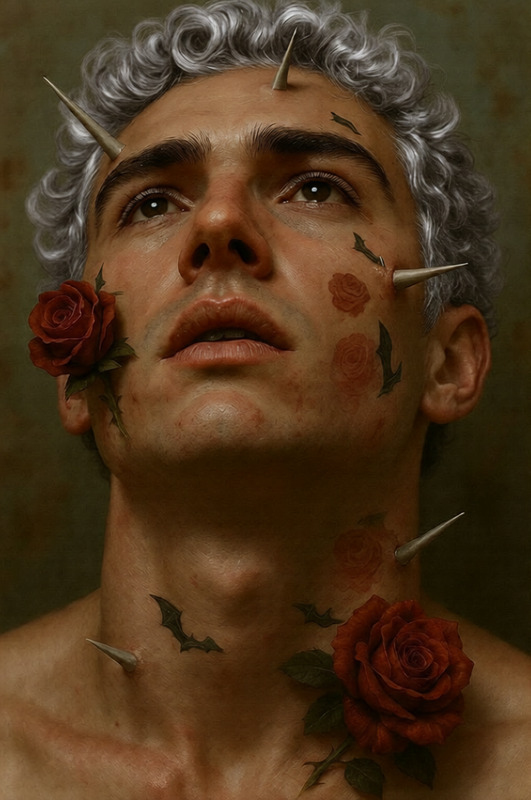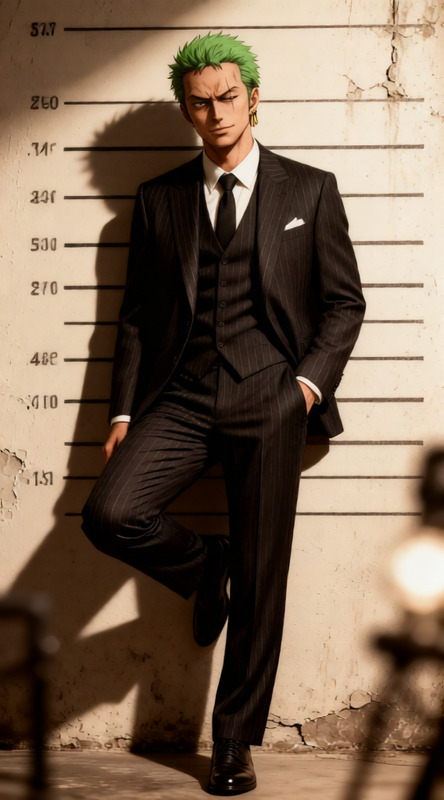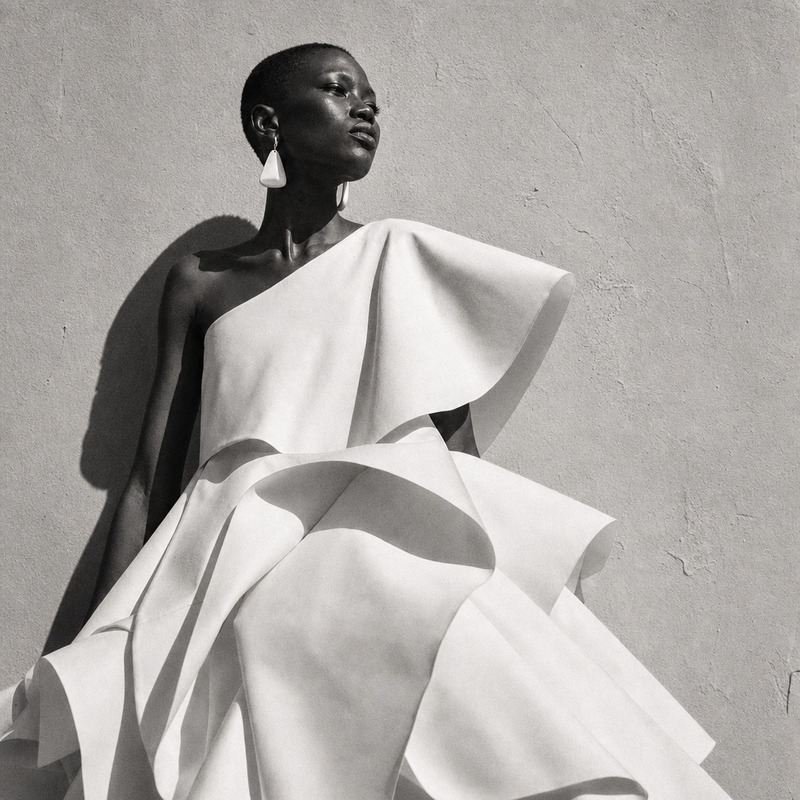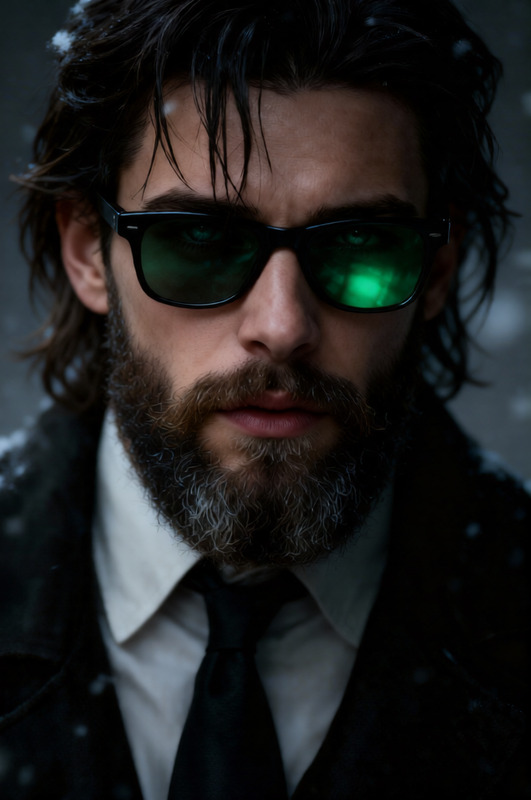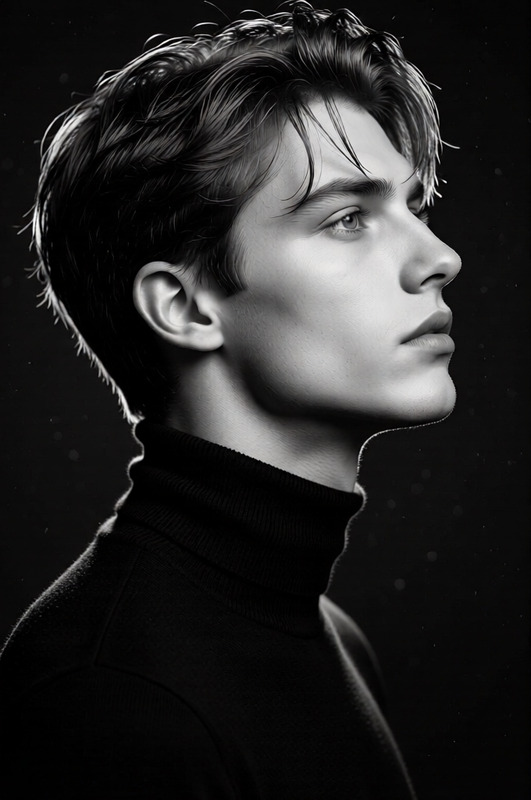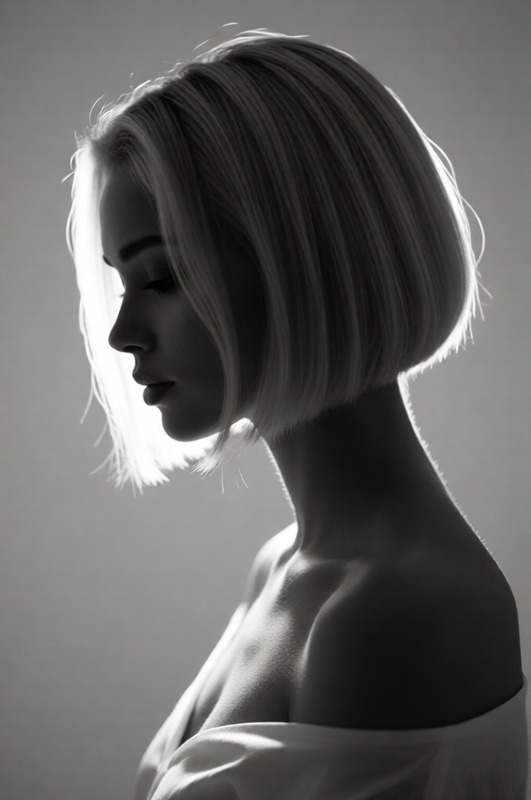
Light gray background
- Model
- Qwen Edit
- Image
- 576 × 1024 px
Prompt
Replace the headshot background with a smooth gradient transitioning from light gray to mid-gray. Maintain consistent edge lighting, shadows, and natural light falloff to match a professional ID photo style. Keep the subject’s facial features, colors, and details unchanged. Clean, minimal, and studio-quality finish.
Any aspect ratio
Overview
The Light Gray Background template is a specialized tool in our AI Image Editor suite, designed for enhancing headshots with a seamless background transition. Using the qwen-edit model, it replaces the existing background with a smooth gradient, elevating your images to meet professional standards.
What It Does
This template focuses on creating a clean and minimalistic background for headshots. It transitions from light gray to mid-gray, ensuring the gradient looks natural and well-integrated. The edge lighting and shadows are carefully maintained to simulate a professional studio finish, all while preserving the subject’s facial features and colors.
Who It's For
Ideal for photographers, content creators, and professionals looking to enhance ID photos or profile pictures without intricate photo editing skills. Also suitable for teams who require a standardized image quality for corporate and customer-facing content, this template simplifies achieving studio-quality backdrops. For broader applications, explore our AI Profile Picture Generator and AI Product Photography tools.
Summary
The Light Gray Background template is your go-to tool for giving headshots a polished and professional appearance. By leveraging the qwen-edit model, it ensures a consistent and refined output, enhancing images without compromising their natural look. It's perfect for those seeking a studio-quality finish with minimal effort.
How to Use
Choose

Customize

Generate

Use Cases
Professional Headshots
- Uniform background
- Consistent lighting
- Studio-quality finish
ID Photos
- Subtle gradient
- Natural appearance
- Professional edge
Model and Talent Portfolios
- Minimalistic design
- Enhanced presentation
- Consistent quality
Best Practices
Choose the Right Subject
Ensure the image is well-lit and the subject is clearly visible to maintain detail during background editing.Review Lighting Conditions
Consistency in edge lighting and shadows is key for a natural look. Verify that these elements align with the original image's lighting.Aim for Consistency
When processing multiple images, use the same template settings to ensure a uniform look across all photos.