Free Image to Video AI Generator
Turn a photo into video with image to video AI—free, no sign up, no editing required.
dragon
galaxy sky
girl
halo
pool
space jump
spaceship
steampunk scene
anime warrior
petal storm
sunny meadow
Trusted by teams at
Turn a Picture into an AI Video Online
Upload a JPG, PNG, WEBP, or HEIC image, describe the motion or camera movement you want, and Magic Hour converts the picture into a downloadable MP4 video.
- 1

Upload an Image
Upload the photo or artwork you want to animate with image to video AI. - 2

Describe the Motion (Optional)
Add subject movement, camera motion, or style details. Leave the prompt blank to let the AI decide. - 3
Generate and Download
Click "Generate video" to create your video, then preview and download the MP4.


Image to Video Tutorial
Generate Videos with Top AI Models
Use frontier models for text-to-video, image-to-video, and video-to-video — all in one place.

Kling 4.0
Create cinematic clips with image and video references, up to 30 seconds.

Seedance 2.0 Fast
Make fast, reference-led clips with consistent motion and audio.

Kling 3.0
High-quality video generation with improved motion, cinematic fidelity, and strong prompt control.
Seedance 2.5
Best for premium realism, detail, and natural motion. Reference-to-video included.

Veo 3.1
Google's frontier model. Great for realism, polish, dialogue, and prompt adherence.

LTX 2.5
Lightricks' fastest model. Synced audio, long clips, and rapid iteration.

MiniMax H3
Reference-driven video with native audio and longer durations.
Seedance 2.0
High-quality text-to-video and image-to-video. Strong coherence and style control.

Kling 3.0 Omni
Dialogue-friendly video with native audio and reference-to-video.

Wan 2.2
Animate a starting image using a motion prompt.

Google Omni
Edit videos with natural language prompts. Precise first/last frames and high-resolution output.
Wan 3.0
High-quality video with native audio, long clips, and end-frame control.

Kling 2.6
Best for action, motion blur, and controlled camera moves.
Veo 3.1 Lite
Balanced realism and audio at a lower cost than Veo 3.1.

Seedance 2.0 Mini
Faster, lower-cost Seedance 2 with reference-to-video.
Seedance 1.5
Best for smooth, consistent motion with an end frame.
Image to Video AI Use Cases
Use our image to video AI to turn a portrait, product photo, or scene into a short animated clip. To change a face in the generated video, use our video face swap tool after creating the clip. Preview each result before publishing.
Use our photo to video AI generator to create quick product shots for ads and listings. Enhance source images with our AI image upscaler before converting. Turn a still product image into a scroll-stopping video.
Use our AI image to video generator to create b-roll clips that match your story. Start with a custom scene from our AI image generator, then add motion without filming or stock footage.
Use our image to video converter to create looping visuals for TikTok, Reels, and stories. To generate sound effects and music that follow the finished clip, use our AI Video to Audio tool.
Use our image to video AI generator to create background visuals for music releases and lyric clips. Add synced vocals with our AI lip sync tool. Keep a consistent vibe across posts.
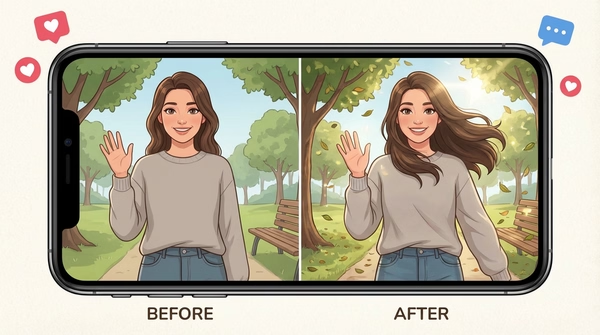
Use our AI photo to video tool to animate before/after transformations in a clean reveal. Great for edits, restoration, and makeover content. Turn images into engaging videos.
Use our image to video AI to preview a scene concept from a still. Or start from text with our text to video generator. Communicate mood and motion before a full shoot. Convert storyboard images into video previews instantly.
Why Creators Love Image to Video AI
Use the image-to-video AI generator to turn a photo into video without keyframes or timeline editing. Available models and their aspect ratios, duration, resolution, and audio support vary.
Make photos feel alive
Use one photo as the starting frame for generated motion.
No video editing needed
Create dynamic clips without timelines, keyframes, or complex tools—just upload and generate.
Choose a supported aspect ratio
Select an available portrait, square, or landscape format when the chosen model supports it.
Review the generated motion
Check motion, subject consistency, faces, text, and fine details before publishing the clip.
Iterate from the same source
Adjust the motion prompt and generate another version when you want a different direction.
What Image-to-Video Creators Say
"I've been using their Image-to-Video tools for 8 months now, and they keep upgrading, so the website looks more modern and eye-catching with each update, creates videos faster, and is way more accurate than before. Any issues I've had while using it were responded to quickly when I reached out, and the service has always been friendly."

Tu Linh Nguyen Quach
Content Creator
"I've tried probably a dozen AI video tools at this point. Keep coming back to this one because it just works - any file size, any format, no converting nonsense. Saves me at least an hour a week of annoying technical stuff."

Katerina Ha
Artist
"I'm terrible at video editing but this makes me look like I know what I'm doing. Always has the newest models, exports in HD, and the start/end frame control is clutch for getting it exactly right."

Gabriella Xue
Marketer
"Some days I'm just blank on content ideas. I'll grab old photos from shoots and run them through this to see what happens. Honestly helps me think more creatively while also just pumping out more posts for social."

Reva Sascha
Creator
Image to Video AI Features
Turn any photo into video with AI motion and prompt control

Bring Treasured Photos to Life
Turn a photo into a short AI-generated video with an optional motion prompt. Review each result and iterate when needed.

Formats for Popular Platforms
Choose an available portrait, square, or landscape format for platforms such as TikTok, Instagram, and YouTube.

Create Clips for Social, Ads, or Review
Generate, preview, and download a video for social, ads, or client review. Edit or regenerate when the result needs refinement.

Animate a Photo Without a Timeline
Upload an image, add an optional motion prompt, then generate and preview the result.

Start From a Ready-Made Template
Apply a ready-made motion concept to your own photo, then preview and adjust the result.
Explore TemplatesFor Developers
Image to Video API
Turn any still image into a dynamic, animated video.
From $0.023 / sec
50M+ API calls99.9% uptimeFirst API call in ~5 min
from magic_hour import Client
from os import getenv

client = Client(token=getenv("MAGIC_HOUR_API_KEY"))
res = client.v1.image_to_video.generate(
    assets={"image_file_path": "/path/to/1234.png"},
    end_seconds=5.0,
    name="Image To Video video",
    resolution="720p",
    wait_for_completion=True,
    download_outputs=True,
    download_directory="."
)200 OKExample responseFrom 24 credits / sec
Image to Video AI FAQ
Yes, image to video AI is free with no sign up required. Image-to-Video, Text-to-Video, AI Video Editor, and other video and audio tools share 3 free generation requests per day. Users on the same network share this allowance. Free clips are 3 seconds each, with audio. Free video exports are 480p and include a watermark. Sign up for free to unlock account-specific credits and rewards, saved projects, and access to more tools. Upgrade for longer videos, higher resolution, and paid premium models (Kling, Veo).
No. Image to video AI works in your browser with no account, no sign up, and nothing to install. Sign up for free to unlock account-specific credits, rewards, and saved projects.
Image to video AI is technology that converts a static image into a short video clip. You upload a photo, the AI analyzes the scene — identifying objects, depth, and spatial relationships — then generates realistic frame-by-frame motion. Modern models understand physics, lighting, and natural movement, producing results that can look close to filmed footage. It works with portraits, product photos, landscapes, illustrations, and AI-generated images.
The best choice depends on output quality, control, and model access. For a free browser option, Magic Hour lets you upload a photo, describe the motion, and create 3-second videos with audio at 480p — no sign up required. Image-to-Video, Text-to-Video, AI Video Editor, and other video and audio tools share 3 free generation requests per day. Users on the same network share this allowance. Paid plans add longer clips, higher resolution, and models including Kling, Veo, and Seedance.
Magic Hour makes it simple in three steps — no video editing skills or software downloads required. Everything runs in your browser:
- Upload your image — any photo, picture, or AI-generated image (PNG, JPG, WEBP, HEIC, and more).
- Add a motion prompt (optional) — describe the motion or style you want, like "camera slowly pans right" or "hair blowing in the wind."
- Generate and download — click Generate Video, then download your MP4 when it's ready.
Want a different face in your clip? Swap it with our face swap video tool.
Free: 3-second clips, no sign up. Image-to-Video, Text-to-Video, AI Video Editor, and other video and audio tools share 3 free generation requests per day. Users on the same network share this allowance. Free accounts can unlock account-specific credits and rewards. Beyond that, each frame costs 1 credit at the base rate. Higher-resolution and premium models cost more (e.g. paid 1080p or Veo 3.1 vs free 480p on LTX-2.5). A typical 5-second, 720p video with Kling 2.6 uses 180 credits on paid plans. Check Pricing for full details.
Free users have access to LTX-2.5 (fast iteration with built-in audio, lip-sync, and expressive faces). Advanced models — Seedance, Kling, Veo — require a paid plan. Full lineup:
- LTX-2.5 — free tier; fast iteration with built-in audio, lip-sync, and expressive faces.
- Seedance — fast iteration with start/end frame control (paid).
- Kling 2.6 — strong motion, action, and camera control (paid).
- Kling 3.0 — cinematic, multi-scene storytelling with audio and end frame (paid).
- MiniMax H3 — reference control and native audio in one pass, up to 30s (720p and 1080p paid).
- Veo 3.1 — Google's frontier model for realism, polish, and prompt adherence (paid).
Upload an image, choose a model, and add an optional prompt describing the motion, subject behavior, or camera movement you want. The selected model generates new frames from that input. Results vary by model and source image, so compare models when identity, motion, or prompt adherence matters.
Magic Hour supports PNG, JPG, JPEG, HEIC, WebP, AVIF, JP2, TIFF, and BMP. TIFF and JP2 depend on browser support; if they do not open, convert them to PNG or JPG. For best results, use a high-resolution image with good lighting and a clearly visible subject. Avoid heavily compressed images — the AI can amplify compression artifacts.
You can generate videos in 9:16 (TikTok, Reels), 16:9 (YouTube, landscape), or 1:1 (square) depending on the model. Resolution options include 480p, 720p, and 1080p, plus 4K on supported paid models. Not every model supports every combination — for example, Veo 3.1 supports 9:16 and 16:9 only, while Kling 2.6 supports all three aspect ratios at 720p and 1080p.
The free tool creates 3-second clips. Longer durations depend on your model, resolution, and plan. LTX-2.5 supports up to 60 seconds with an eligible plan; check the duration selector before generating. For longer content, join multiple clips in a video editor or use our AI Video Extender to generate a continuation of an existing clip. Preview the result to check continuity.
You can create animated portraits, product showcase clips, cinematic b-roll, social media loops for TikTok and Reels, music and lyric visuals, before/after reveals, fantasy or sci-fi scenes, and storyboard or pitch previews. It works for creators, marketers, artists, and storytellers — anyone who wants to turn still images into scroll-stopping video content without filming or complex editing.
Yes. Several models — including LTX-2.5 on the free tier and models like Kling 3.0, MiniMax H3, and Veo 3.1 — support native audio generation, producing synced sound alongside the video. For videos generated without audio, you can download the MP4 and add music, voiceover, or sound effects using any video editing tool. You can also use Magic Hour's Lip Sync tool to sync speech to a character in your video.
Customers with a paid subscription, a credit-pack purchase, or a separately agreed paid usage-based billing arrangement may use generated videos commercially, subject to our Terms and applicable content rights. This includes ads, social media, client work, and product listings. Users without one of these paid arrangements are limited to personal, non-commercial use. Make sure you have the rights to any input images you upload.
Yes. Use the Image-to-Video API to integrate generation into your app or workflow. Check the endpoint reference for supported model IDs, resolutions, aspect ratios, and plan requirements before choosing settings for your integration.
We Value Your Privacy & Data Security, Always
Commercial use, no AI training, deletion controls, and feature-specific retention. Trust & privacy
Commercial use
Subscriptions and credit packs permit commercial use of outputs. Users without either purchase are limited to personal, non-commercial use.
No training
We do not use customer prompts, uploads, or outputs to train AI models. This covers free, paid, and API use.
Delete anytime
Delete saved projects or request account deletion. Retention varies by feature; account deletion has a separate 14-day restoration period.
Security
Encrypted in transit and at rest. Access is restricted for operations and support.
More Free AI Tools
These tools are part of Magic Hour's AI video generator hub—an overview of all our AI video tools, including text-to-video, face swap, lip sync, and more.