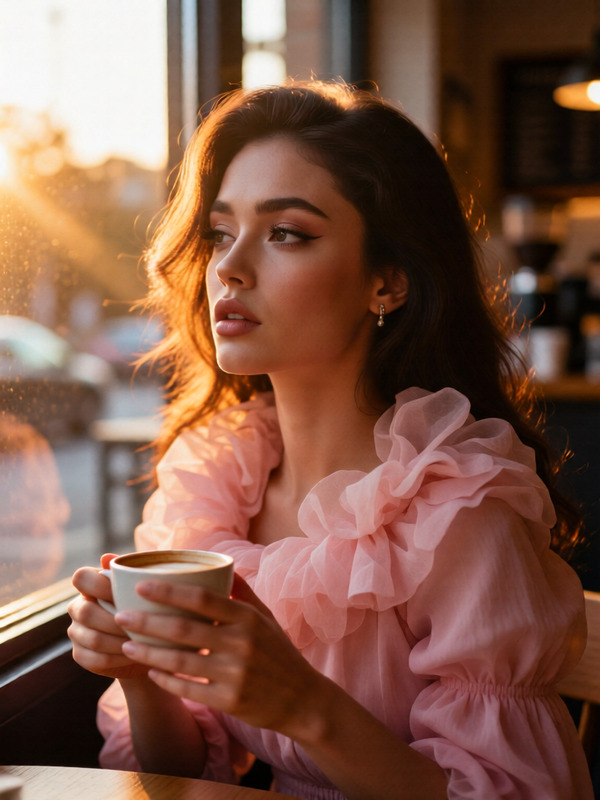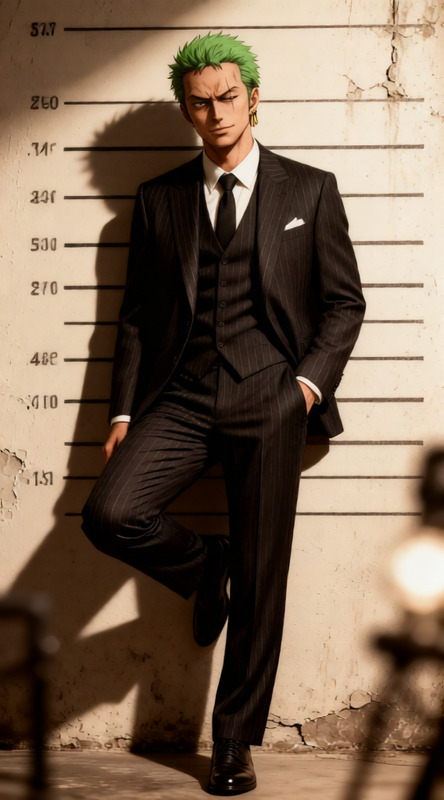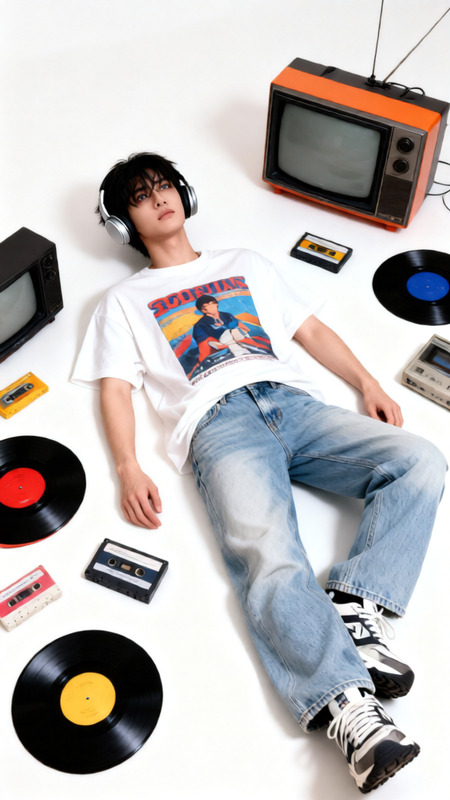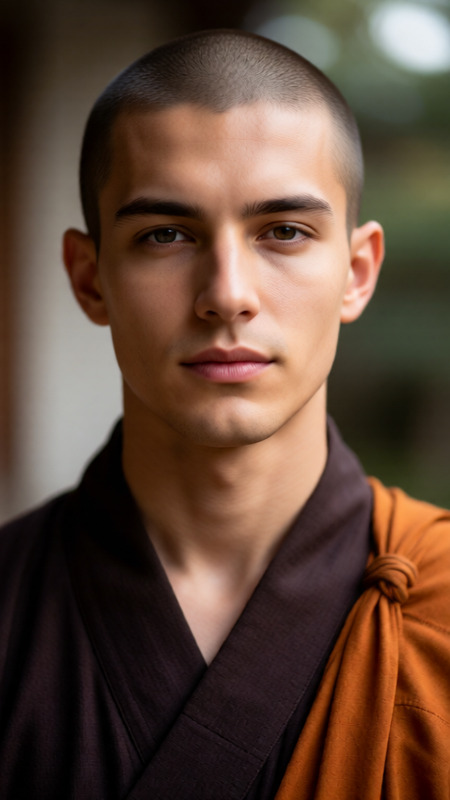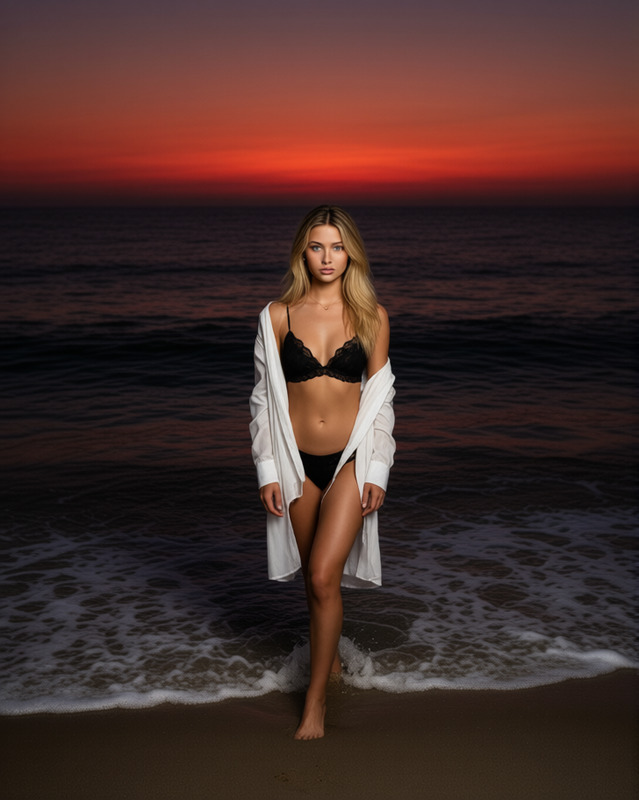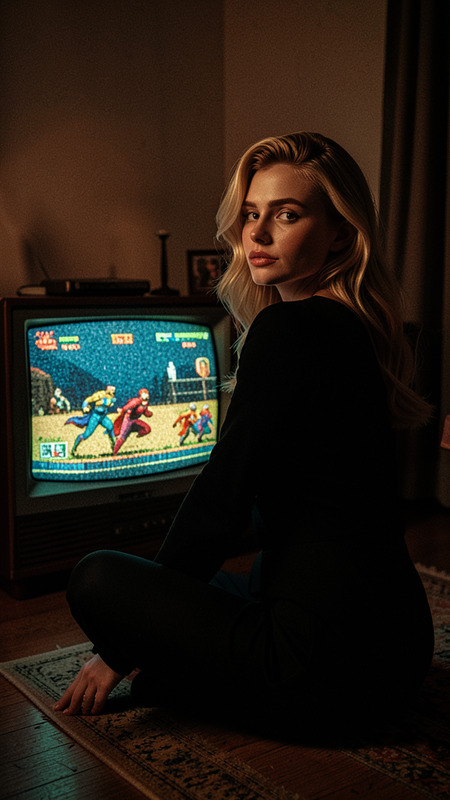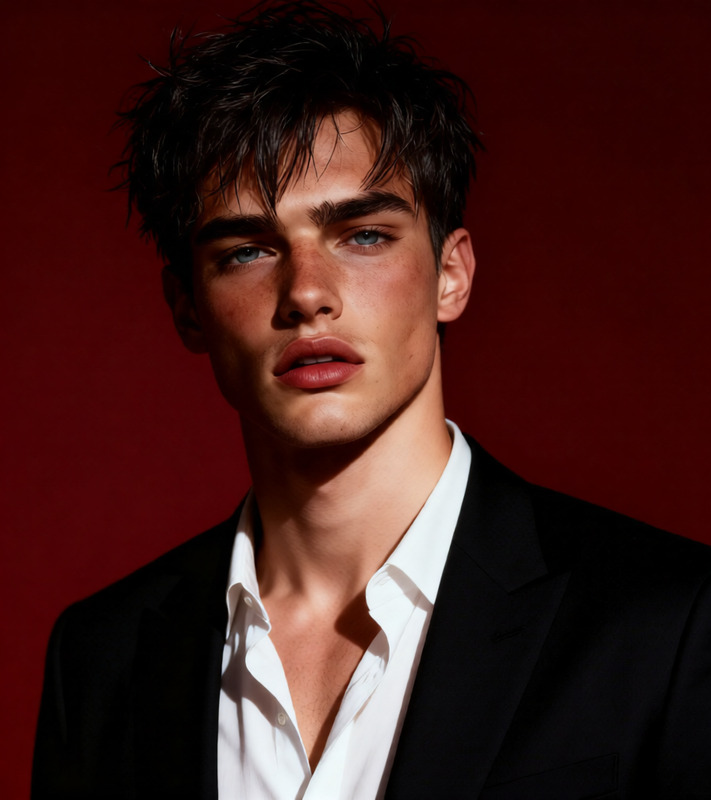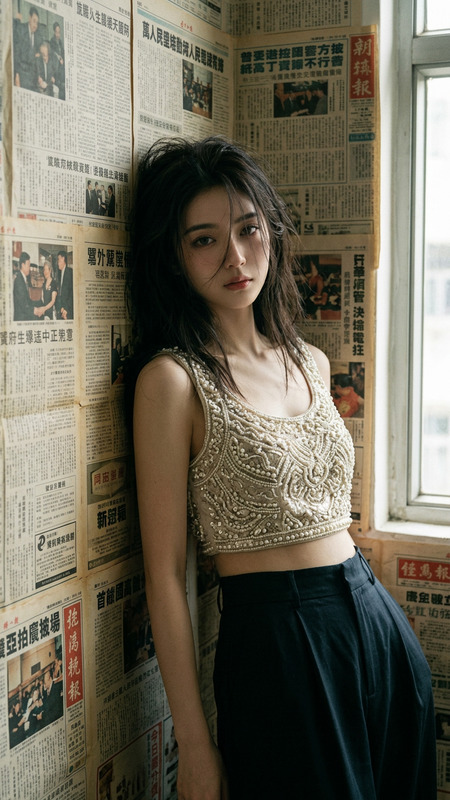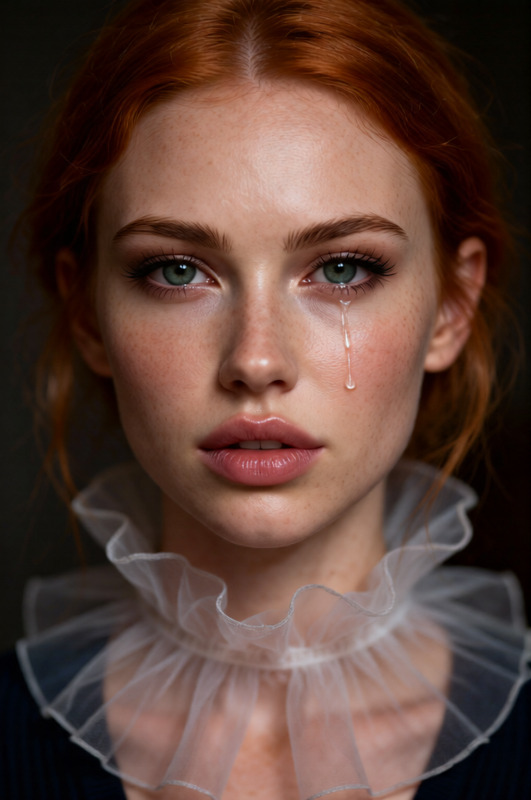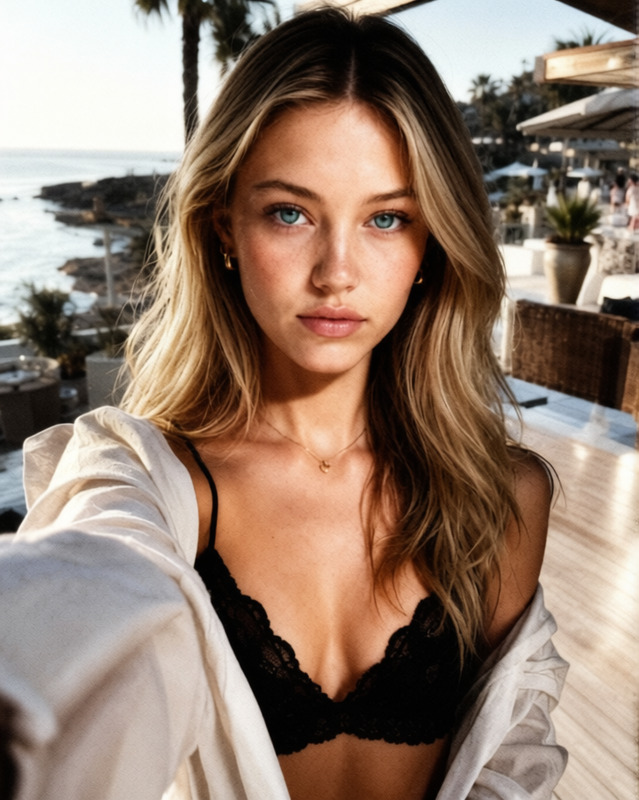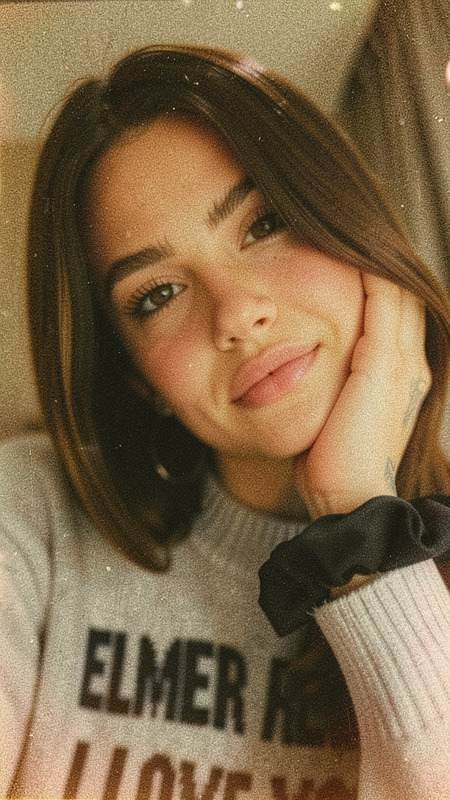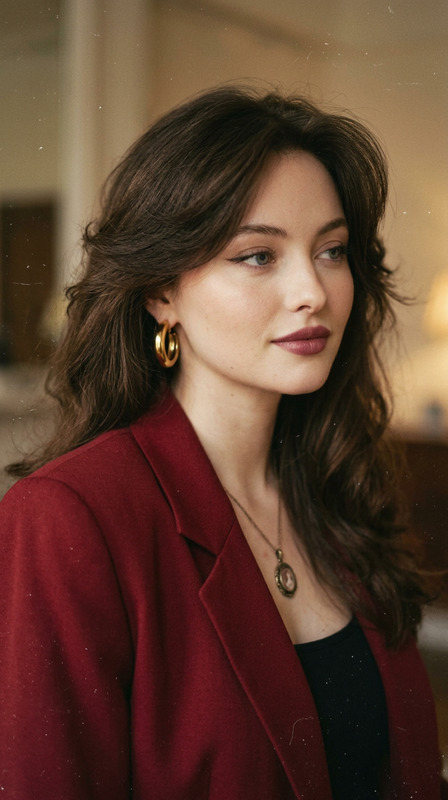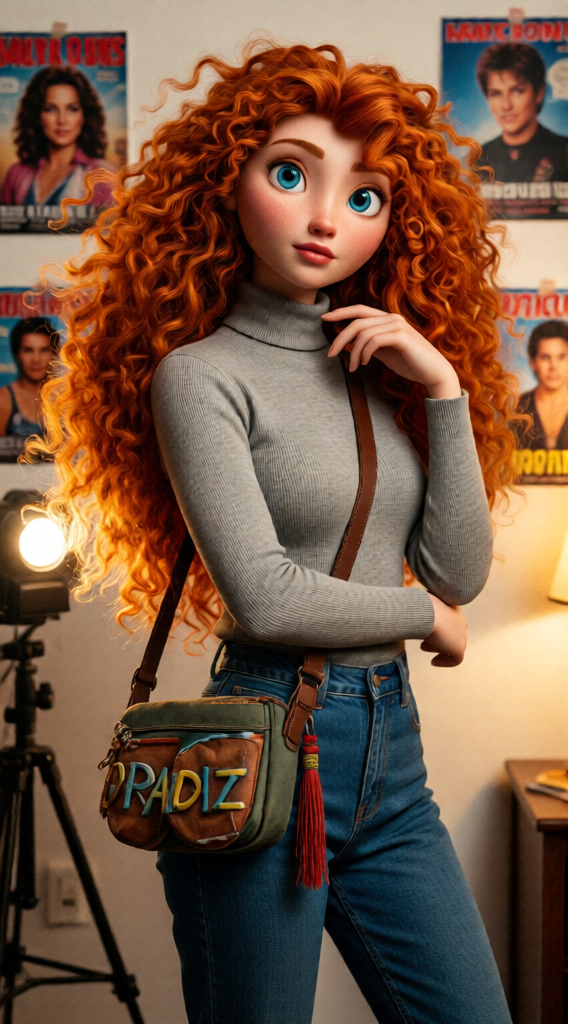
90s Flash Nostalgia Portrait
- Model
- Qwen Edit
- Image
- 568 × 1024 px
Prompt
A 90s-style portrait of the same subject using the reference image, preserving exact facial features and expression. The subject is shown from the upper body only, posing elegantly, wearing a simple stylish 90s outfit (casual shirt or turtleneck). The scene is set in a cozy, dimly lit room with a visible camera flash, creating warm tones and slight film grain. The background is a white wall with magazine clippings and 90s Hollywood star posters. Photorealistic, natural imperfections, nostalgic mood.
Any aspect ratio
Overview
The 90s Flash Nostalgia Portrait is a unique AI Image Editor template that transports your images back to the 1990s. Utilizing the Qwen-Edit model, this template flawlessly reproduces the distinct aesthetics of the era. Ideal for giving your photos a vintage touch, it maintains exact facial details while immersing the subject in a nostalgic setting.
What It Does
This template turns your reference images into stunning 90s-style portraits. The model ensures photorealistic outputs with natural imperfections, capturing warm tones and slight film grain typical of 90s camera effects. The backdrop, styled with magazine clippings and Hollywood star posters, adds to the authenticity, while maintaining the subject's original expression and features. Pair it with the AI Image Upscaler to enhance quality without losing the retro charm.
Who It's For
This template is perfect for photographers, graphic designers, and social media influencers looking to evoke nostalgia. It's also a great tool for project creators in need of a quick and effective way to produce vintage-themed visual content. Whether you're crafting a retro campaign or a personal project, the 90s Flash Nostalgia Portrait template integrates seamlessly with platforms like the AI Video Extender, ensuring dynamic visual narratives.
Summary
The 90s Flash Nostalgia Portrait template combines advanced AI technology with a timeless aesthetic, allowing you to create images with distinct 90s charm. By prioritizing facial details and maintaining a genuine retro feel, it offers endless creative possibilities. Perfectly suitable with the broader set of AI Image Editor tools, this template adds a touch of vintage to your portfolio.
How-To
Choose the 90s Flash Nostalgia Portrait Template

Customize Your Image

Generate and Download

Use Cases
Marketing Campaigns
- Vintage fashion promotions
- Nostalgic event announcements
Social Media Content
- Throwback Thursday posts
- Personalized profile pictures
Artistic Projects
- Aesthetic personal portraits
- Gallery exhibits featuring retro themes
Best Practices
Choose the Right Image
Select a reference image with clear facial features and simple lighting conditions to ensure the best outcome.Use Complementary Tools
Pair with the AI Image Upscaler for enhanced clarity and the AI Video Extender for transitioning images into video content.Match the Mood
Customize the elements like background and outfit to align with the nostalgic tone you desire.