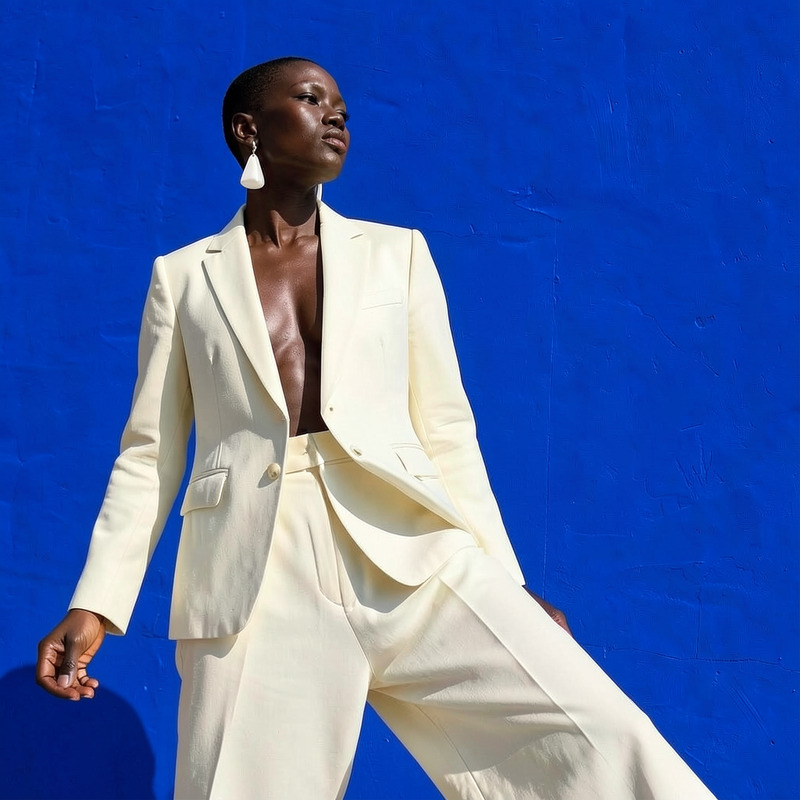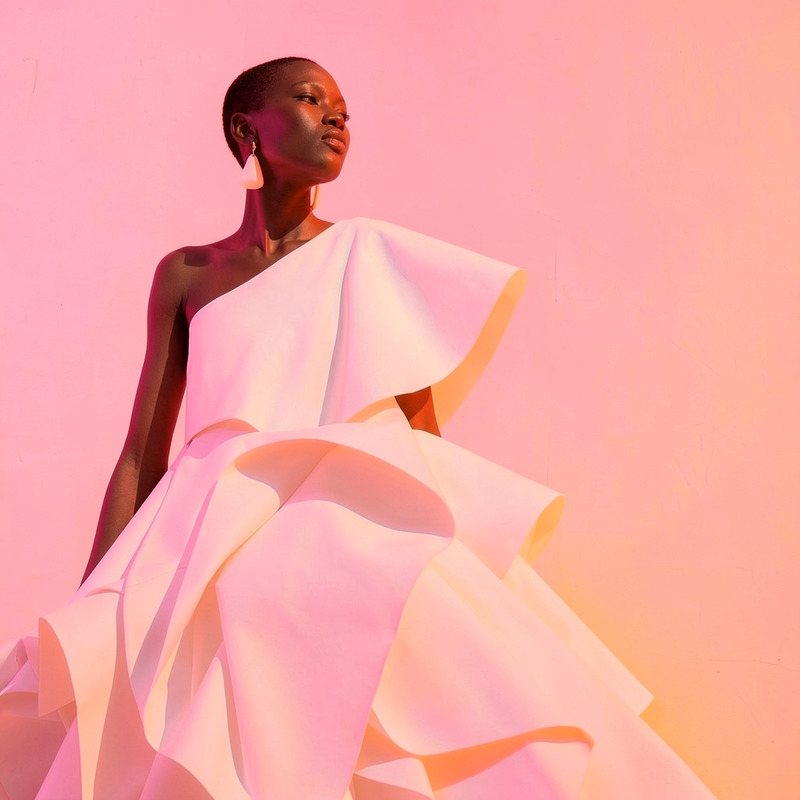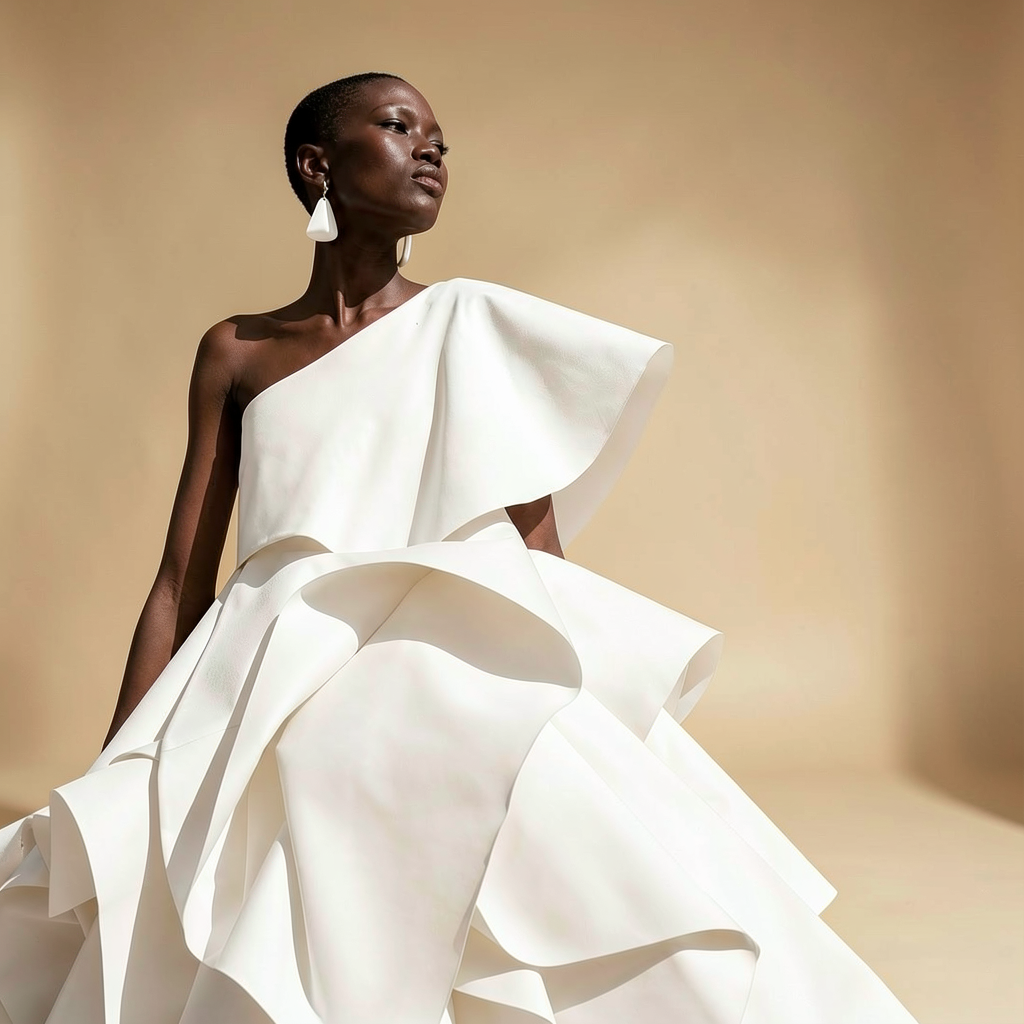
AI Image Editor · Replace the background with a

AI Image Editor · Replace the background with a

AI Image Editor
1 image
0 uses

Any aspect ratio

Prompt

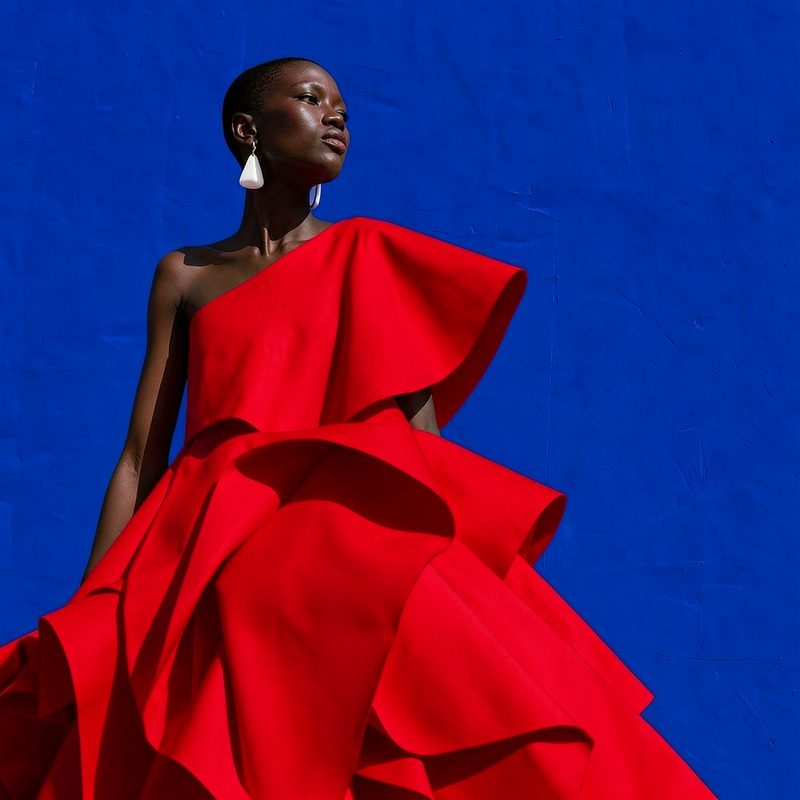
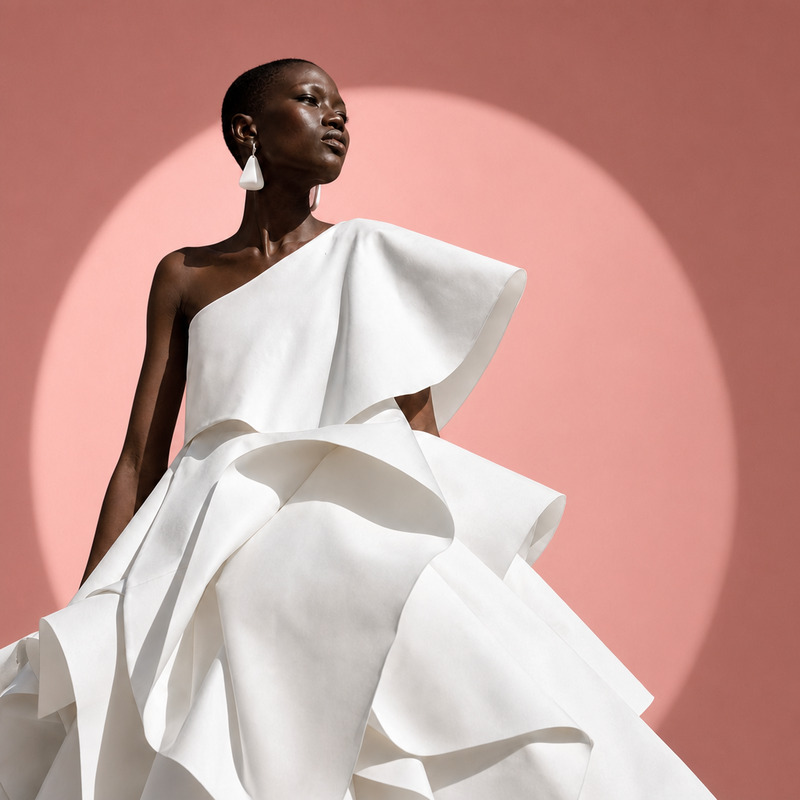
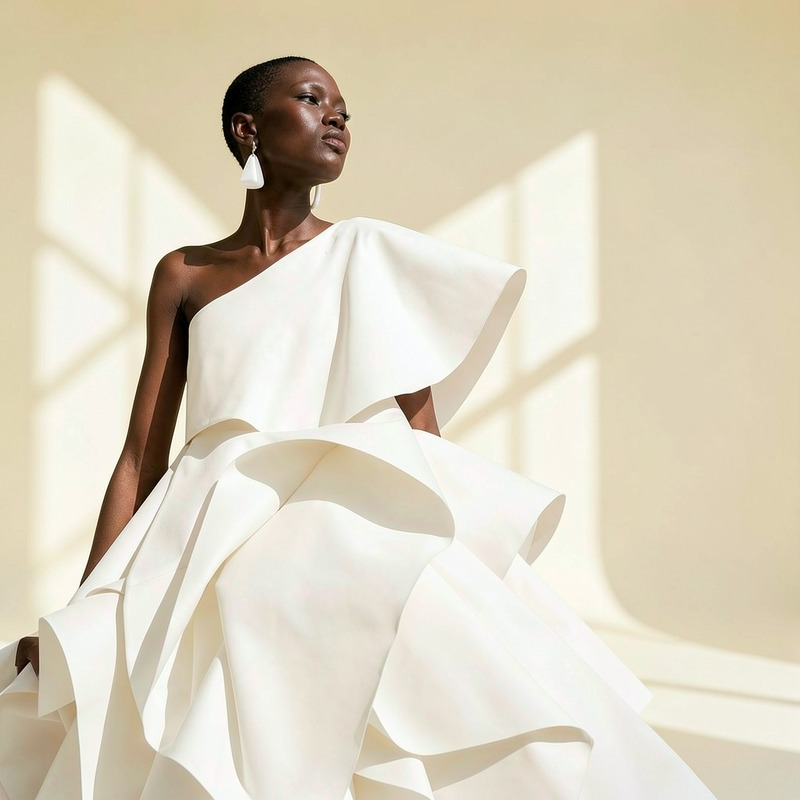
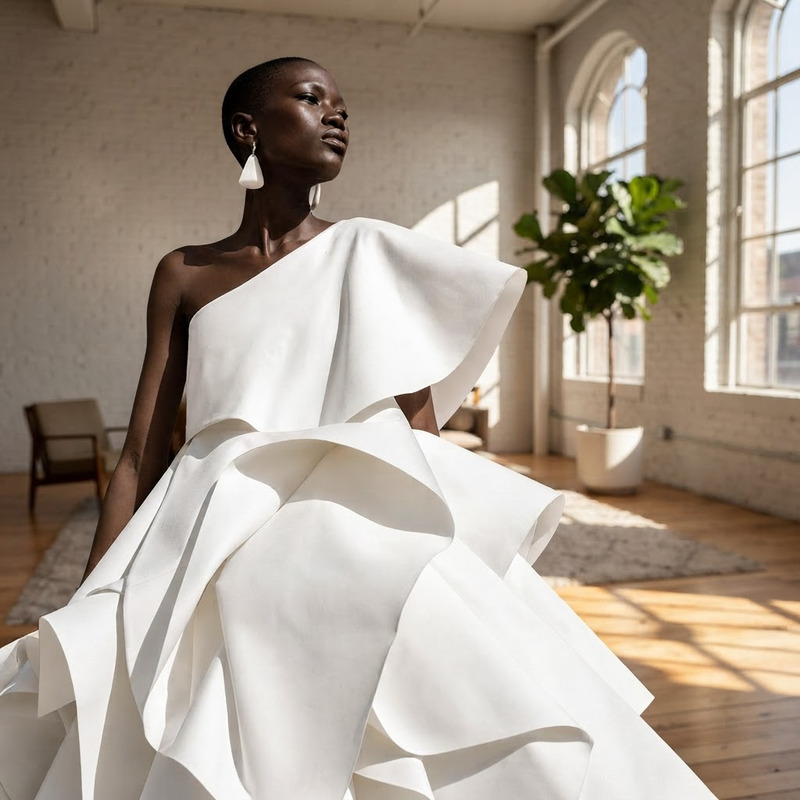
Replace the background with a warm beige editorial studio and subtle floor shadow

Overview

The AI Image Editor template allows you to replace image backgrounds with a warm beige editorial studio, complete with a subtle floor shadow, using the flux-2-klein model. This template enhances your subject with a professional studio look that is perfect for numerous creative projects.

What It Does

This AI Image Editor template enables users to transform ordinary images by changing their backgrounds to a sophisticated editorial studio setting. The template's prompt enhances the lighting and adds a subtle shadow, completing the look. For different stylistic needs, consider exploring the AI Image Generator.

Who It's For

This tool is perfect for content creators, photographers, and designers looking to elevate their imagery without a full studio setup. It's also beneficial for marketers who want to enhance product photography for e-commerce listings, as seen in AI Product Photography.

Summary

Leverage this AI Image Editor template to transform your photos with professional-grade background changes, elevating your visual content. It's an essential tool for anyone aiming to produce studio-quality images instantly. You might also find the AI Background Changer useful for additional versatility.

How-To

    01

    Choose Your Template

    Navigate to the AI Image Editor section on Magic Hour and select the 'Replace the background with a warm beige editorial studio' template.
    02

    Customize Your Inputs

    Upload the image you wish to edit. Adjust the settings to align with your creative vision, using the suggested prompt as a guide.
    03

    Generate & Download

    Click ‘Generate’ to produce your image. Once the process is complete, download your newly edited image file.

Use Cases

📸

Professional Photo Editing

Elevate professional photography with studio-grade background replacements.
  • Enhance portraits
  • Improve product images
  • Create consistent branding imagery
📈

Marketing and Advertising

Create high-quality images for campaigns and promotions.
  • E-commerce listings
  • Social media ads
  • Billboard and print media
🎨

Personal Projects

Enhance personal photos or creative works with professional tools.
  • Family photo edits
  • Artistic endeavors
  • DIY creative projects

Best Practices

  • Select High-Resolution Images

    For the best results, use images with high resolution to ensure the background replacement looks seamless.
  • Adjust Lighting and Shadows

    Fine-tune the settings in the editor to match the natural lighting and shadowing of your original image for a seamless blend.
  • Use Consistent Styles

    For brand consistency, maintain a similar style or tone across multiple image edits to reinforce visual identity.
Frequently asked questions

The AI Image Editor supports popular image formats such as JPEG and PNG for both input and output.

Yes, the editor allows modifications to shadow and lighting settings to fit your image needs.

Once an image is generated, you will need to re-upload it to make further edits or undo changes.

For optimal results, consider using the AI Image Upscaler to enhance resolution before editing.

More Like This

AI Image Editor · Replace the blue wall with war
NEW
AI Image Editor · Replace the blue wall with war
AI Image Editor · Replace the blue background wi
NEW
AI Image Editor · Replace the blue background wi
AI Image Editor · Change the dress color to vivi
NEW
AI Image Editor · Change the dress color to vivi
AI Image Editor · Change the lighting to dramati
NEW
AI Image Editor · Change the lighting to dramati
AI Image Editor · Add a bouquet of white calla l
NEW
AI Image Editor · Add a bouquet of white calla l
AI Image Editor · Create a high-contrast monochr
NEW
AI Image Editor · Create a high-contrast monochr
AI Image Editor · Transform the background into
NEW
AI Image Editor · Transform the background into
AI Image Editor · Change the background to a cle
NEW
AI Image Editor · Change the background to a cle
AI Image Editor · Replace the blue wall with a t
NEW
AI Image Editor · Replace the blue wall with a t
AI Image Editor · Turn the white dress into glos
NEW
AI Image Editor · Turn the white dress into glos
AI Image Editor · Change the outfit to a cream t
NEW
AI Image Editor · Change the outfit to a cream t
AI Image Editor · Add soft pink and orange gel l
NEW
AI Image Editor · Add soft pink and orange gel l

AI Image Editor