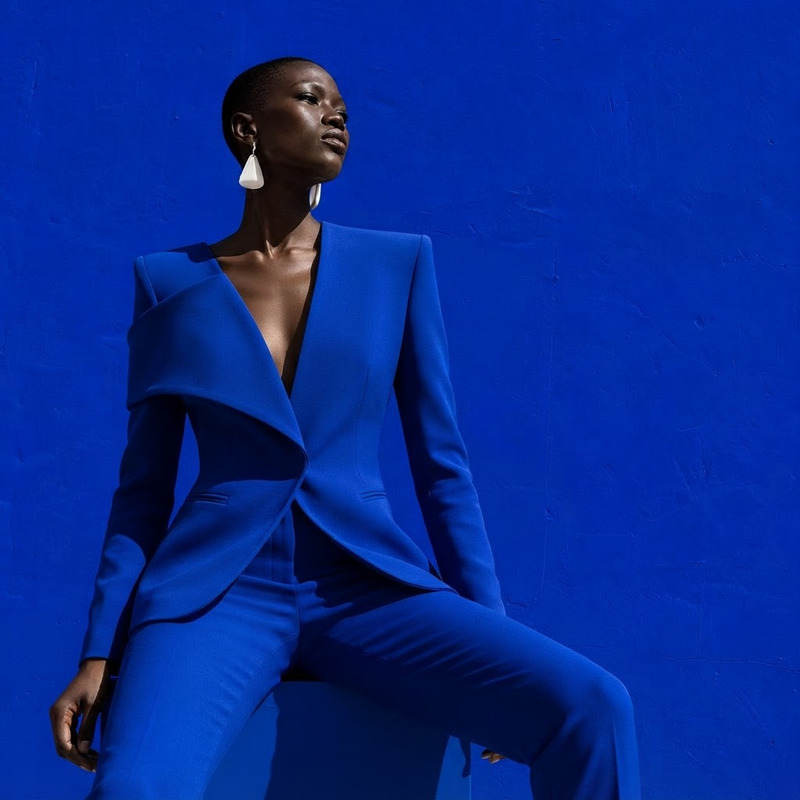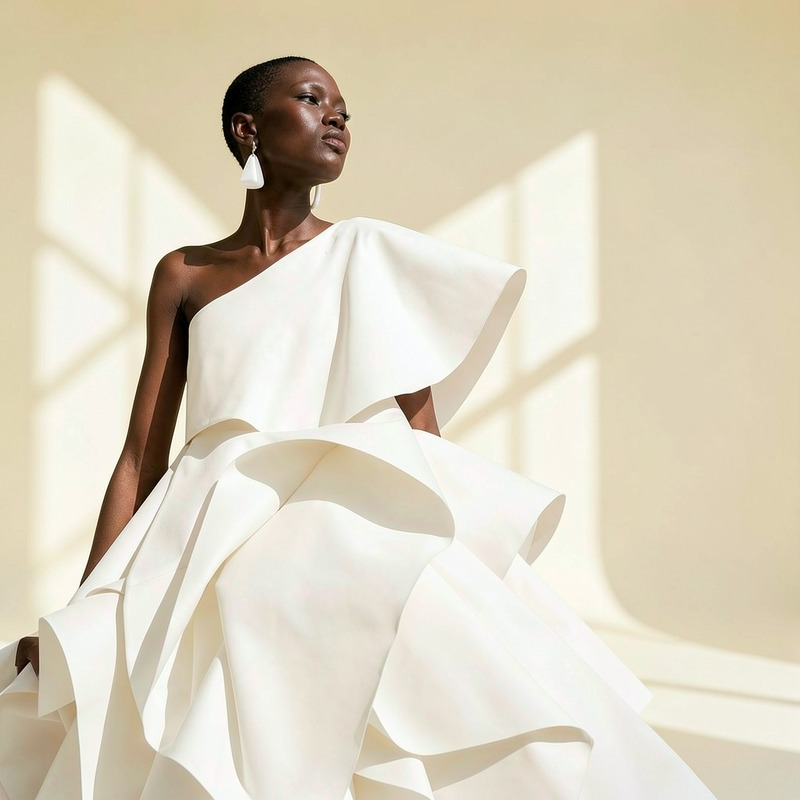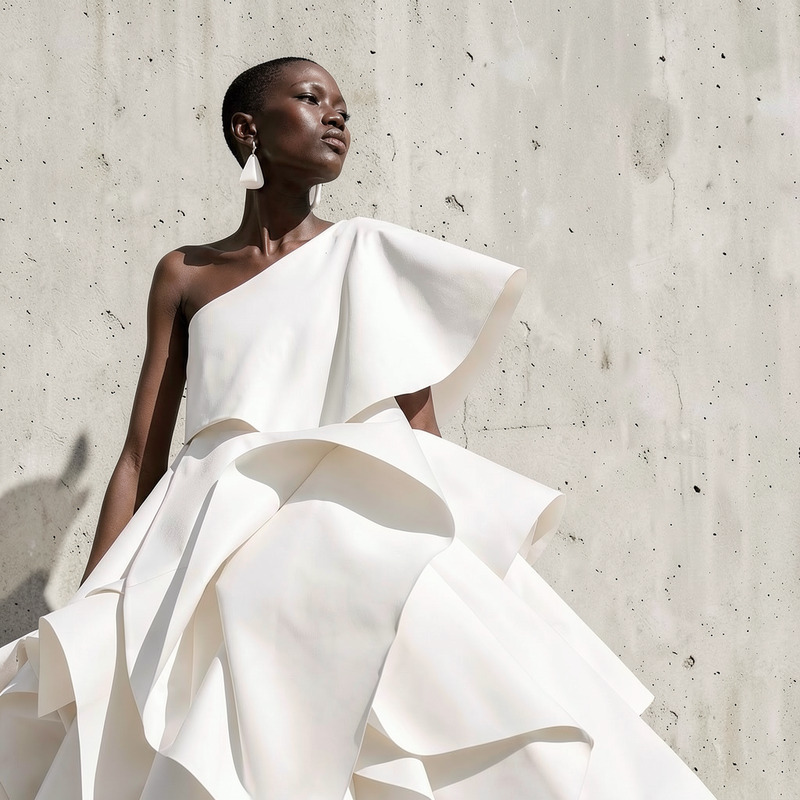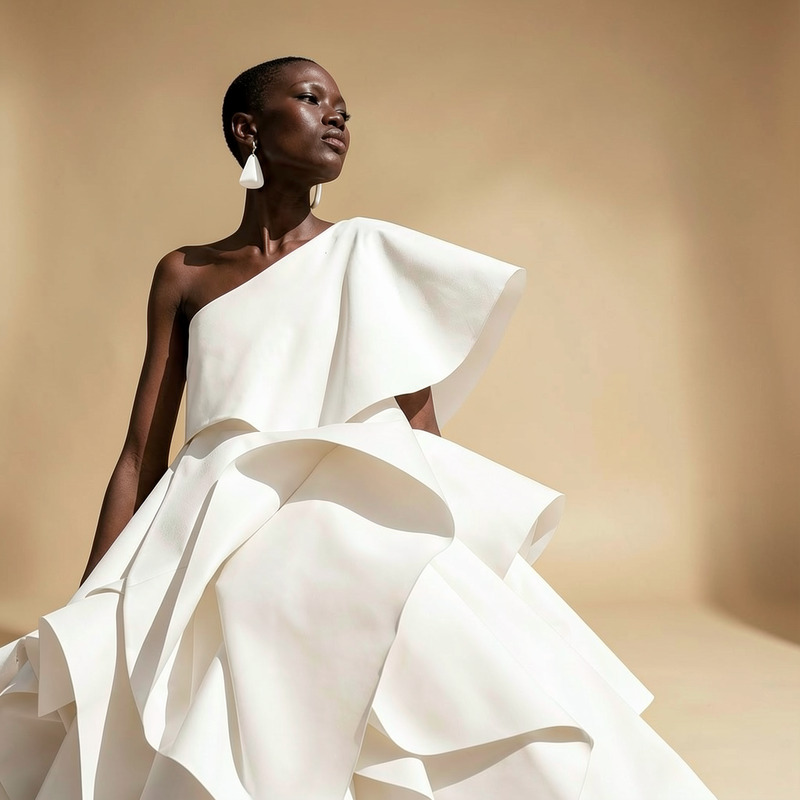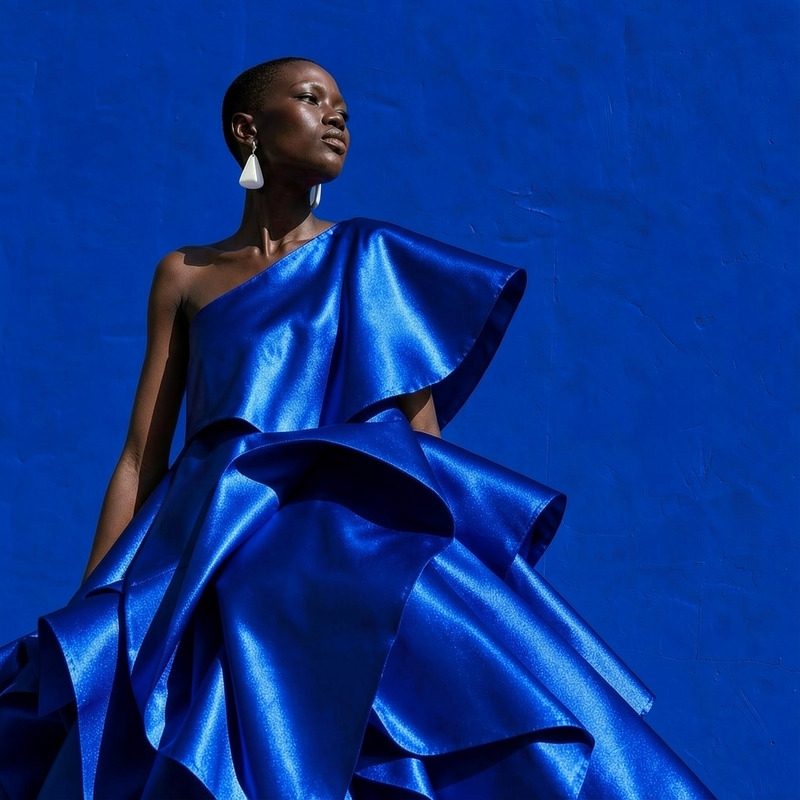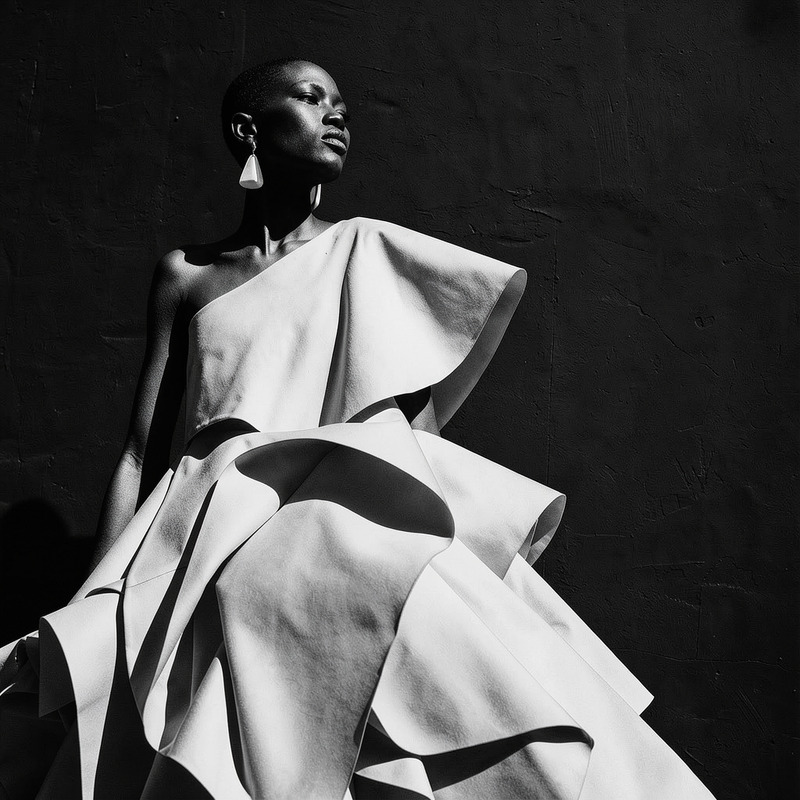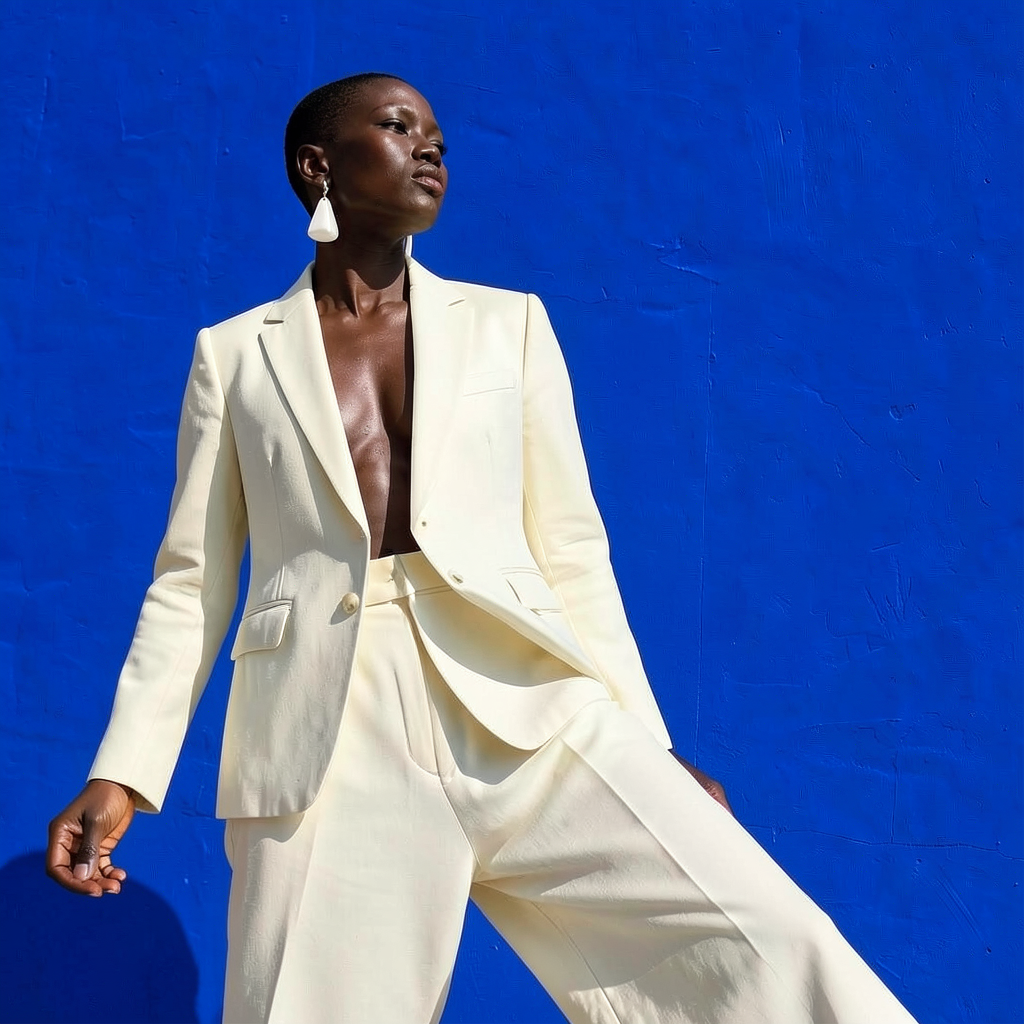
AI Image Editor · Change the outfit to a cream t

AI Image Editor · Change the outfit to a cream t

AI Image Editor
1 image
0 uses

Any aspect ratio

Prompt

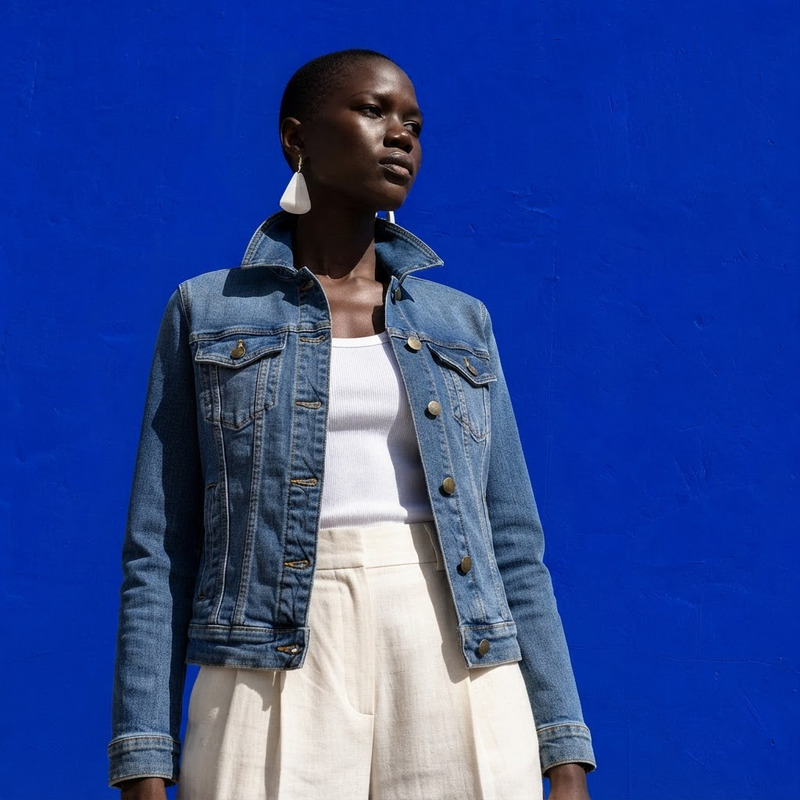
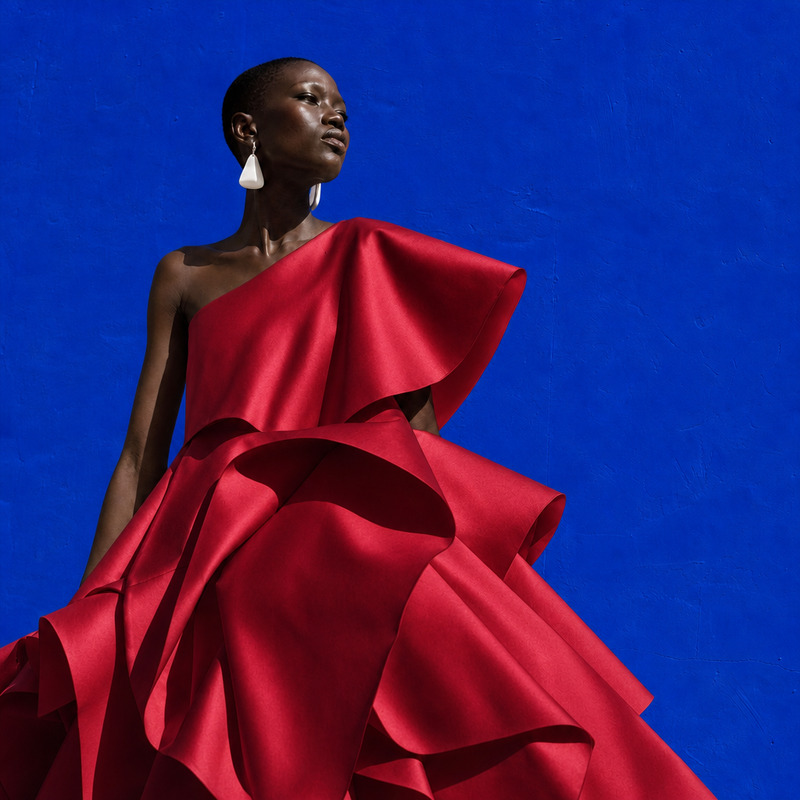
Change the outfit to a cream tailored blazer and wide-leg trousers, preserving face and pose

Overview

The AI Image Editor template allows users to change clothing styles in images while maintaining facial features and pose integrity. This template employs the advanced flux-2-klein model, ensuring high-quality output. Customize outfits to a cream tailored blazer and wide-leg trousers for a polished look that enhances the subject's style without altering their identity.

What It Does

This AI Image Editor template efficiently modifies attire in photos to specified garments, such as a cream tailored blazer and wide-leg trousers. The model ensures face and pose are untouched, providing a realistic and seamless transition of clothing. It taps into the capabilities of AI to deliver sophisticated fashion transformations suited for professional use.

Who It's For

Tailored for photographers, fashion designers, and creative professionals, this tool offers an easy way to visualize outfit changes without reshooting. Ideal for enhancing headshots and creating diverse fashion portfolios, it is perfect for anyone needing to update or change clothing in images swiftly and with precision.

Summary

Utilize the AI Image Editor to change outfits in photos, focusing on a cream tailored blazer and wide-leg trousers. Backed by the flux-2-klein model, the tool offers realistic transitions while keeping the subject's face and pose intact. Suitable for fashion projects, this template aids in producing diverse, high-quality visual content.

How To

Follow these steps to change the clothing in your image with the AI Image Editor.
    01

    Choose Your Template

    Navigate to the AI Image Editor template from our templates library. Select the option for altering clothing to specific styles, in this case, a cream tailored blazer and wide-leg trousers.
    02

    Customize Your Image

    Upload the image you wish to alter. Make sure the image clearly shows the subject's existing outfit so that the model can seamlessly integrate the new clothing style without altering facial features or posture.
    03

    Generate and Download

    Press 'Generate' to apply the changes. Once the process is complete, review your edited image and download the file for your use.

Use Cases

Explore diverse applications of the AI Image Editor for different fields.
📸

Fashion Photography

Quickly update outfits in photo shoots to align with styling needs.
  • Adapt clothing styles without reshooting
  • Enhance fashion portfolios
🎯

Marketing Campaigns

Create visually appealing content with diverse outfits for branding purposes.
  • Generate multiple ad variations
  • Maintain visual consistency across campaigns
🎤

Virtual Fashion Shows

Host virtual events showing varied looks on the same model efficiently.
  • Easily switch designs on models
  • Reduce preparation time for digital runways

Best Practices

Maximize the effectiveness of the AI Image Editor with these tips.
  • Select High-Quality Images

    Ensure your source images are clear and well-lit. High-resolution images provide better results when altering outfits.
  • Maintain Consistent Poses

    For best results, use images where poses are clear and natural. This allows the template to focus its alterations solely on clothing.
  • Check Compatibility

    Ensure the new outfit styles you're using fit the body shapes and postures in the original image, reducing unnatural results.
Frequently asked questions

No, this template is designed for single-image editing to ensure detailed and accurate transformation.

The AI Image Editor supports popular formats such as JPEG and PNG. Ensure your image is in one of these formats for uploading.

Yes, the AI Image Editor precisely preserves the face and pose, focusing solely on changing the clothing aspect.

While both change outfits, the AI Clothes Changer offers broader fashion transformations and design explorations, whereas the AI Image Editor is optimized for specific garment swaps, like changing to a cream tailored blazer and wide-leg trousers.

More Like This

Mob Wife
6
Mob Wife
AI Image Editor · Change the dress to sculptural
NEW
AI Image Editor · Change the dress to sculptural
AI Image Editor · Change the dress to a tailored
NEW
1
AI Image Editor · Change the dress to a tailored
AI Image Editor · Change the background to a cle
NEW
AI Image Editor · Change the background to a cle
AI Image Editor · Replace the blue wall with a t
NEW
AI Image Editor · Replace the blue wall with a t
AI Image Editor · Replace the background with a
NEW
AI Image Editor · Replace the background with a
Monochrome Streetwear Look
NEW
Monochrome Streetwear Look
AI Image Editor · Change the dress to tailored b
NEW
AI Image Editor · Change the dress to tailored b
AI Image Editor · Change the white dress to a ca
NEW
AI Image Editor · Change the white dress to a ca
AI Image Editor · Change the dress color to vivi
NEW
AI Image Editor · Change the dress color to vivi
AI Image Editor · Turn the white dress into glos
NEW
AI Image Editor · Turn the white dress into glos
AI Image Editor · Create a high-contrast monochr
NEW
AI Image Editor · Create a high-contrast monochr

AI Image Editor