AI Image Editor · Replace the blue wall with war

AI Image Editor · Replace the blue wall with war

AI Image Editor
1 image
0 uses

Any aspect ratio

Prompt

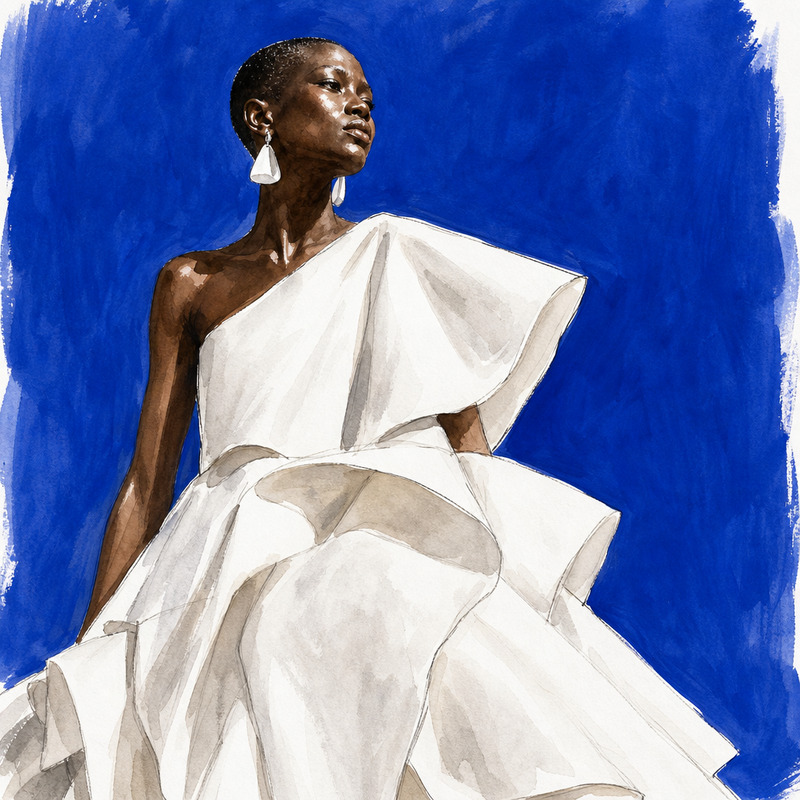
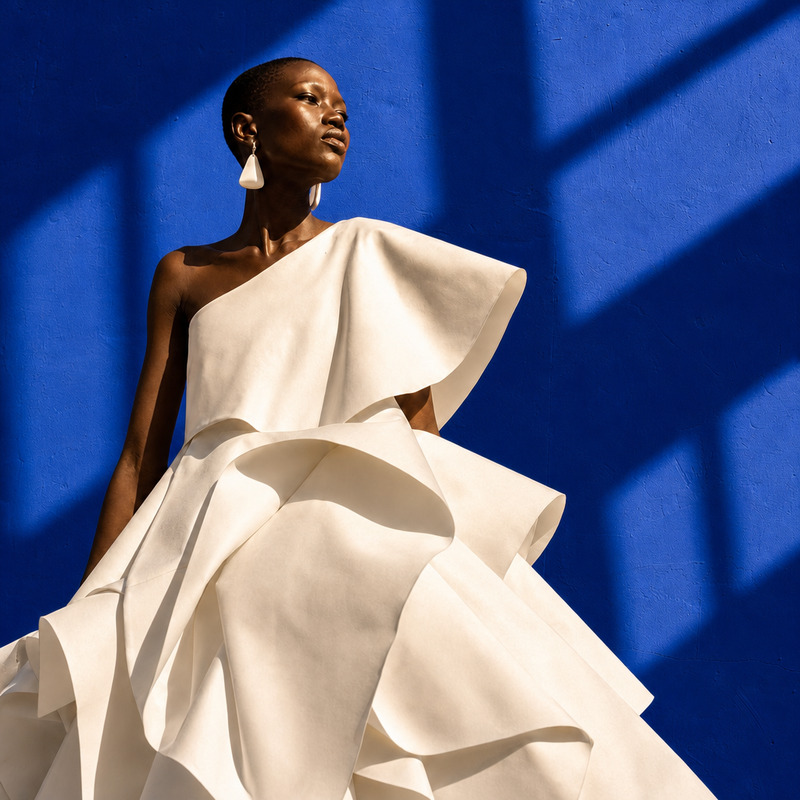
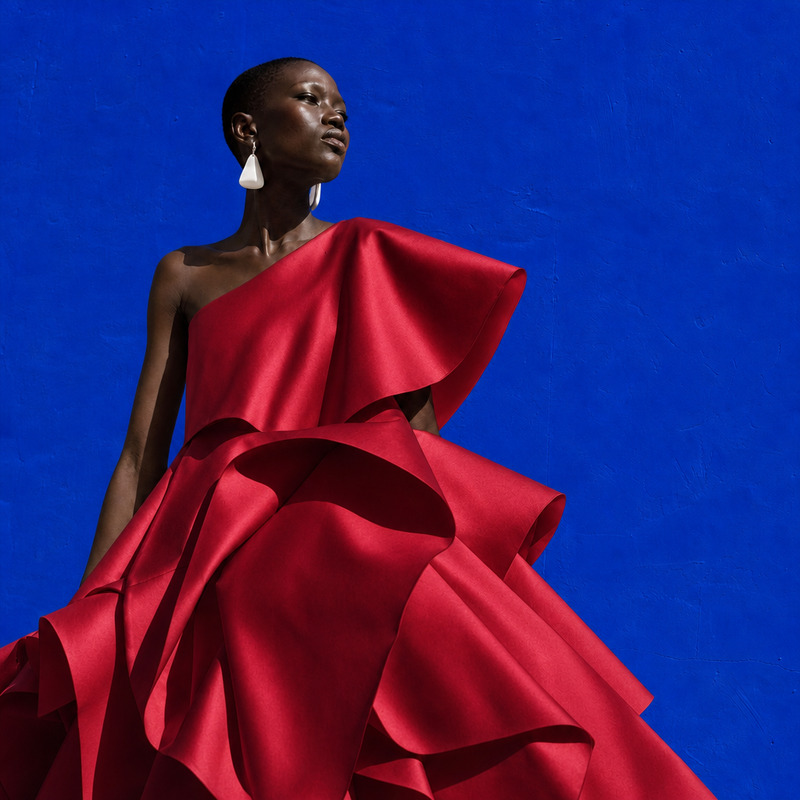
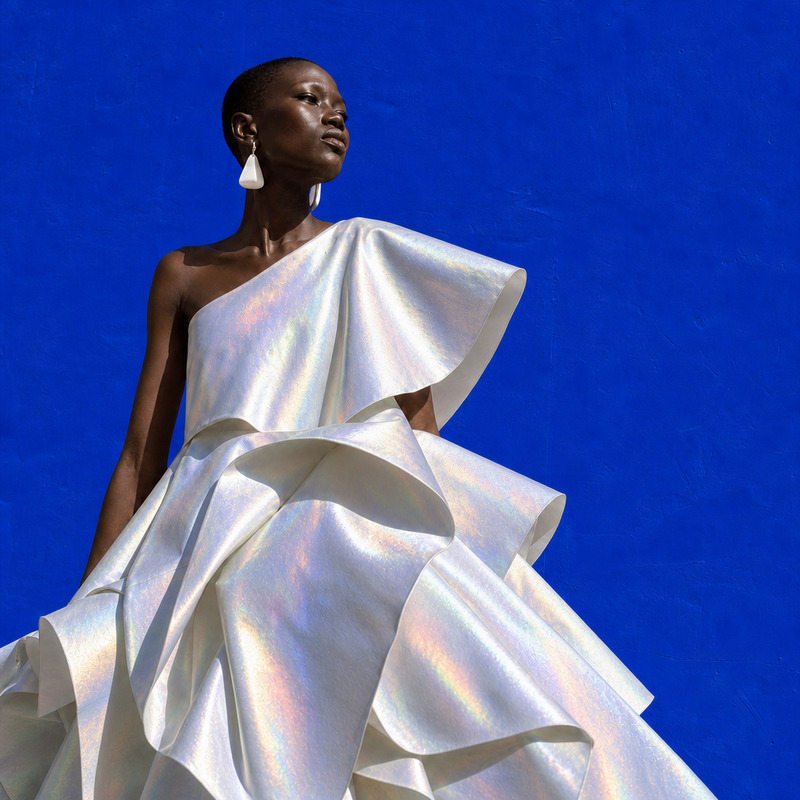
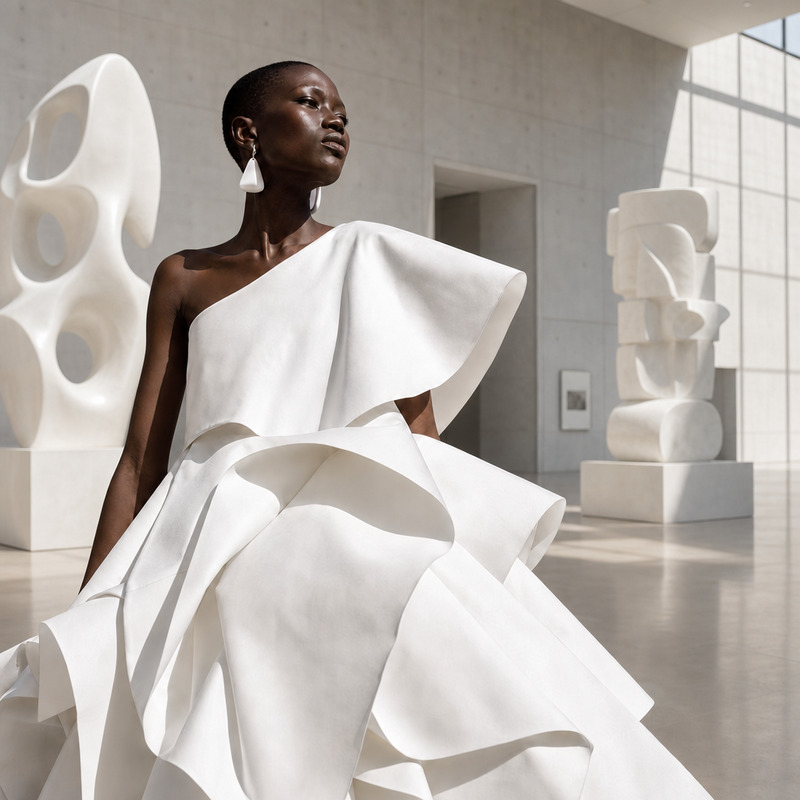
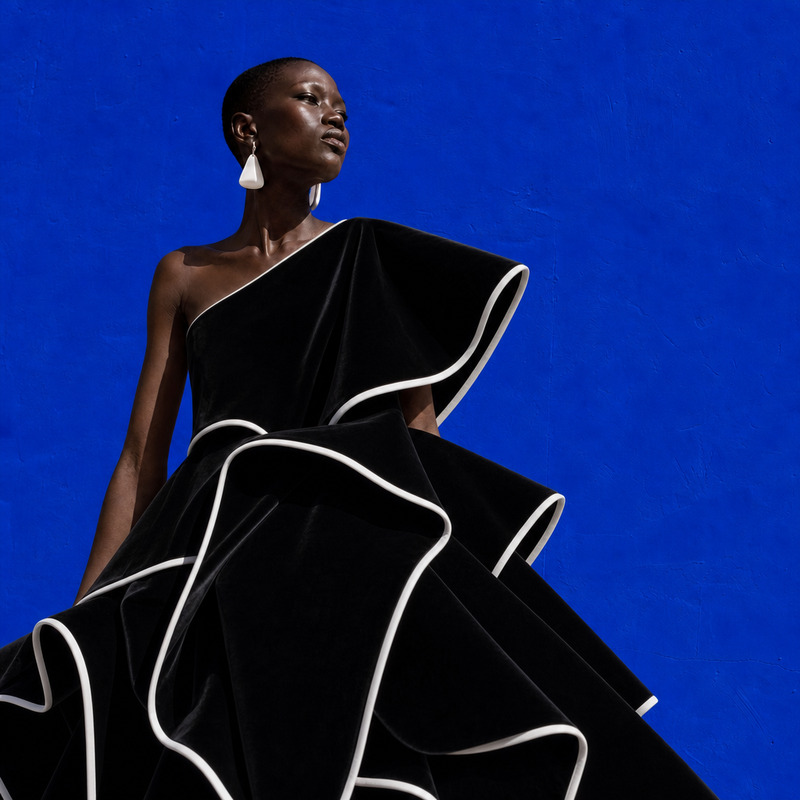
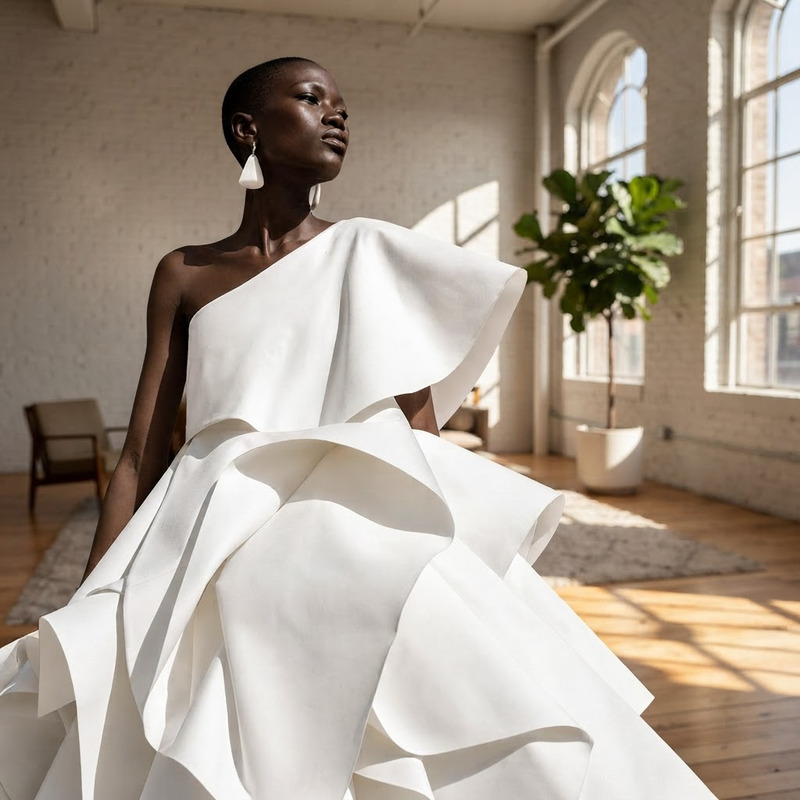
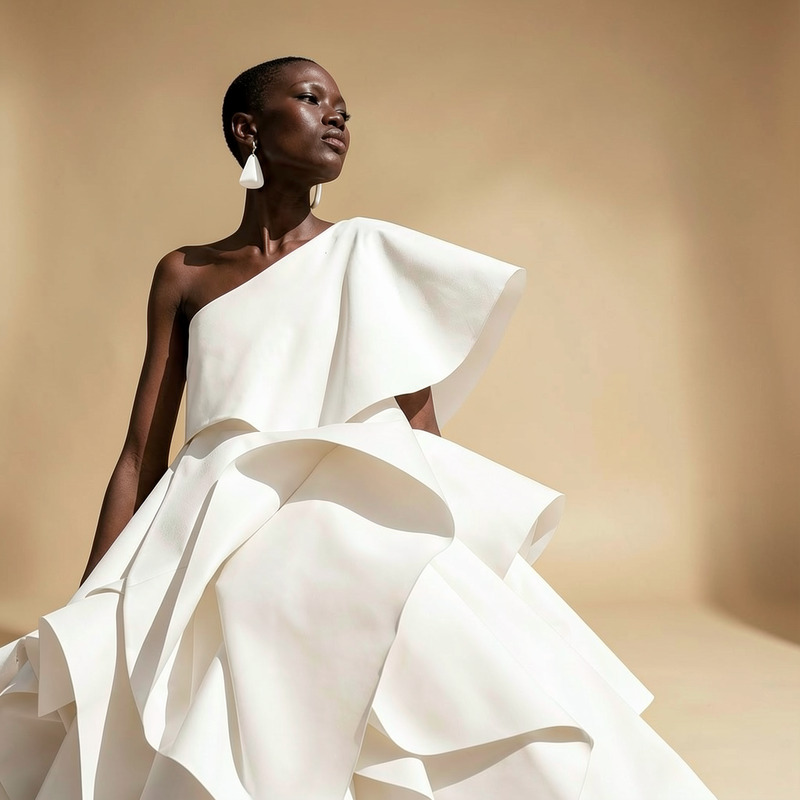
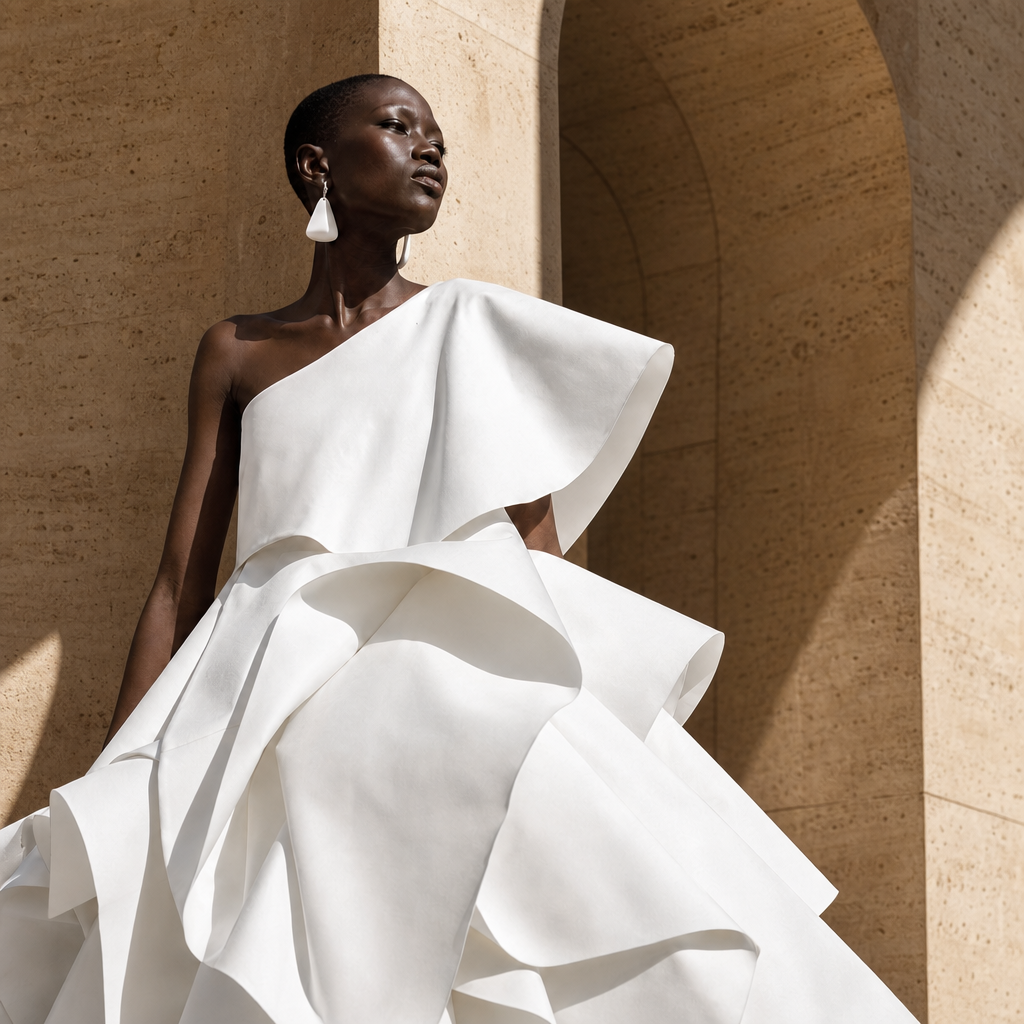
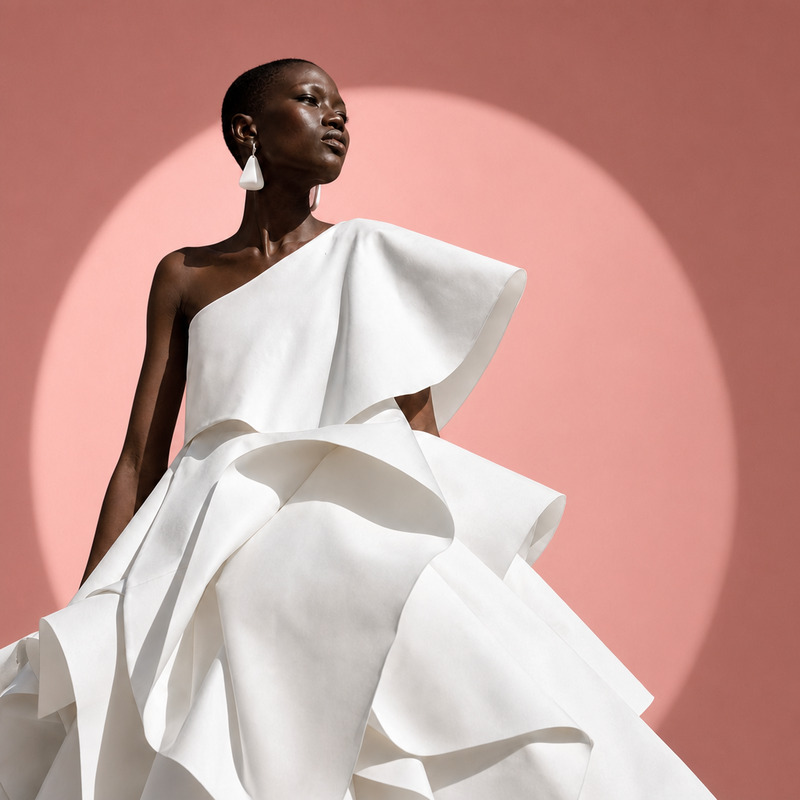
Replace the blue wall with warm travertine arches and soft afternoon shadows, preserving the model and white dress

Overview

The AI Image Editor template is designed to transform your image backgrounds effortlessly. Using the gpt-image-2 model, this tool modifies backgrounds while retaining key image elements, like your model and their attire. Perfect for elevating visual aesthetics in digital content.

What It Does

This template replaces a simple blue wall with elegant warm travertine arches, casting soft afternoon shadows to add depth and warmth. It keeps the focus on the subject, ensuring that the model and their white dress remain untouched.

Check out how AI Video Extender and Character Replace can complement this tool for enriched video content creation.

Who It's For

This template is ideal for photographers, digital marketers, and content creators who need to upgrade their images quickly and effectively. Whether you're creating a professional photo shoot or social media content, this template provides a polished, professional finish with minimal effort.

Summary

Utilizing the capabilities of the AI Image Editor, you can seamlessly blend artistic elements into your imagery. Builders who use this tool will find it enhances visual storytelling, making images more engaging and immersive.

Explore the potential of image transformations with the AI Image Upscaler for sharper, more detailed visuals.

How To

Follow these steps to harness the full potential of the AI Image Editor template.
    01

    Choose the Template

    Navigate to the AI Image Editor section and select the template designed to replace the blue wall with warm travertine arches.
    02

    Customize Inputs

    Upload your image with a blue wall. Modify the prompt if needed, ensuring it maintains the emphasis on the model and white dress.
    03

    Generate and Download

    Click 'Generate' to process. Once complete, download your edited image in the desired file format.

Use Cases

Explore diverse scenarios where this AI Image Editor template can be applied effectively.
📸

Lifestyle Photography

Create captivating lifestyle photos by transforming ordinary backgrounds into lavish settings, ideal for portfolios and professional showcases.
👍

Social Media Content

Enhance your social media posts, making them stand out with high-end artistic backdrops.
📈

Advertising Campaigns

Incorporate sophisticated elements into ads to capture audience attention and deliver persuasive messages.

Best Practices

Maximize the effectiveness of your image editing with these tips.
  • Select High-Resolution Images

    For best results, use high-resolution images to ensure clarity and detail when backgrounds are modified.
  • Maintain Focus on Subjects

    Ensure that the main subject remains the focal point by preserving its original quality and contrast.
  • Use Consistent Lighting

    Try to match the lighting conditions of your image with the shadows in the background for a cohesive look.
Frequently asked questions

Yes, you can adjust the prompt to replace the blue wall with different backgrounds as per your requirements.

No, the template is designed to preserve the subject and their attire while editing the background.

The AI Image Editor supports standard image formats such as JPEG and PNG for both input and output files.

Currently, this template processes one image at a time, ensuring quality and precision in each output.

More Like This

Biophilic Architecture
NEW
Biophilic Architecture
AI Image Editor · Transform the background into
NEW
AI Image Editor · Transform the background into
AI Image Editor · Restyle the image as a hand-pa
NEW
AI Image Editor · Restyle the image as a hand-pa
AI Image Editor · Add dramatic golden-hour windo
NEW
AI Image Editor · Add dramatic golden-hour windo
AI Image Editor · Replace the blue background wi
NEW
AI Image Editor · Replace the blue background wi
AI Image Editor · Replace the blue wall with a t
NEW
AI Image Editor · Replace the blue wall with a t
AI Image Editor · Change the dress to sculptural
NEW
AI Image Editor · Change the dress to sculptural
AI Image Editor · Change the dress material to i
NEW
AI Image Editor · Change the dress material to i
AI Image Editor · Place the model in a modern mu
NEW
AI Image Editor · Place the model in a modern mu
AI Image Editor · Change the dress to tailored b
NEW
AI Image Editor · Change the dress to tailored b
AI Image Editor · Replace the blue background wi
NEW
AI Image Editor · Replace the blue background wi
AI Image Editor · Replace the background with a
NEW
AI Image Editor · Replace the background with a

AI Image Editor