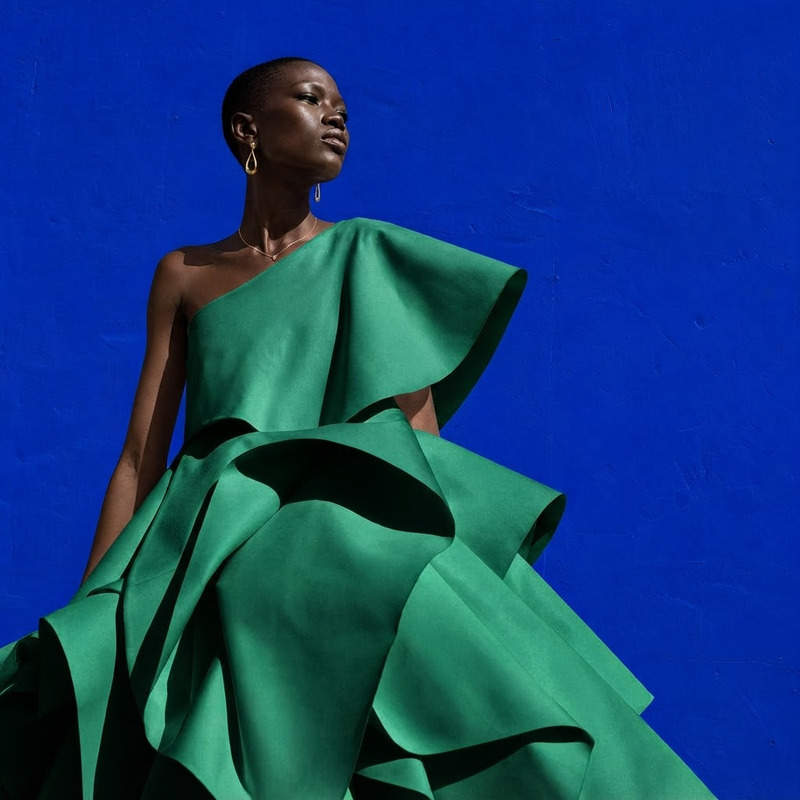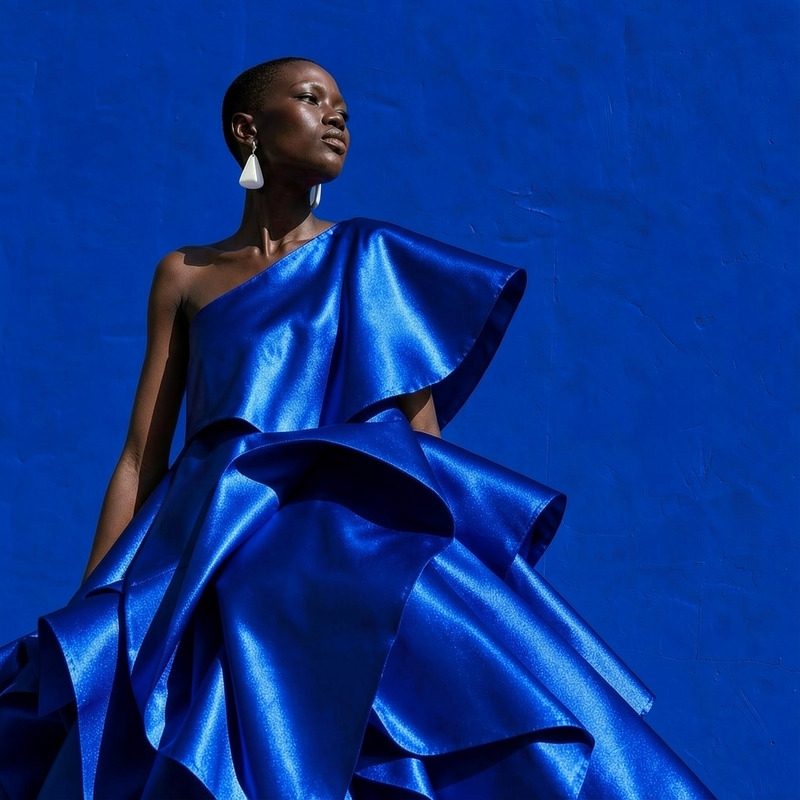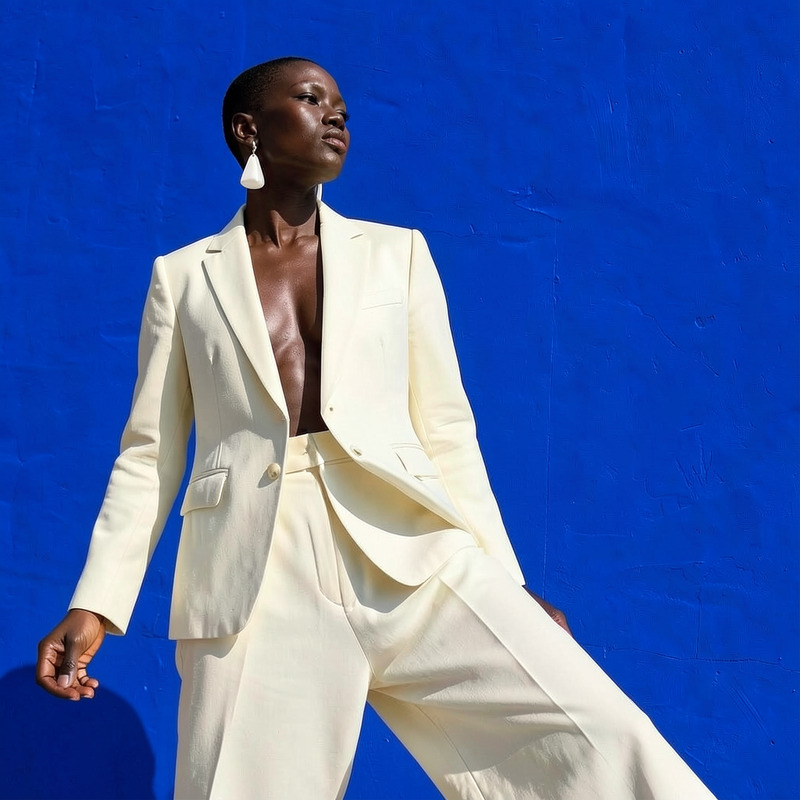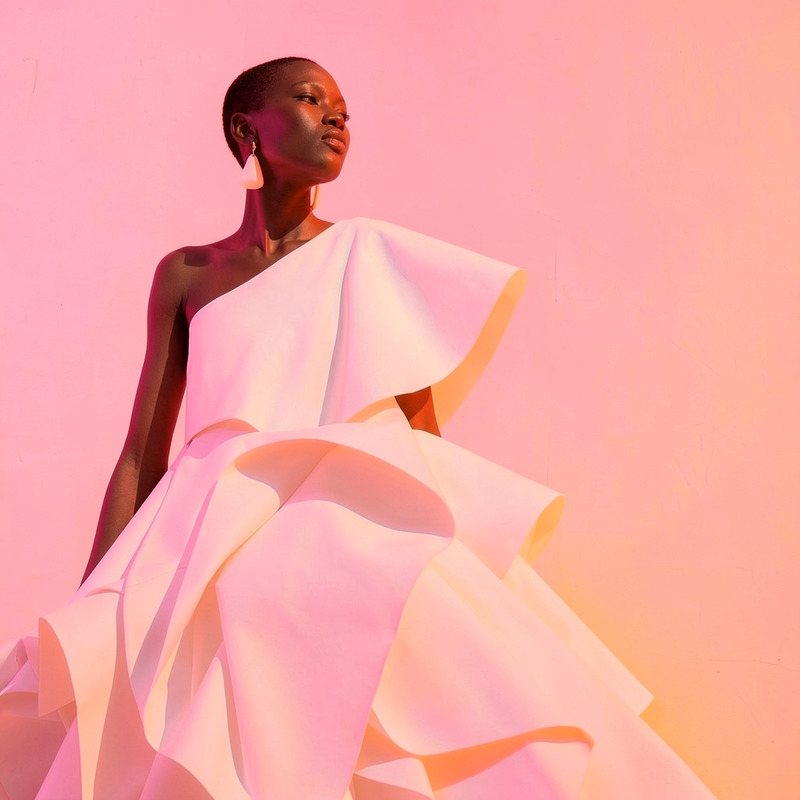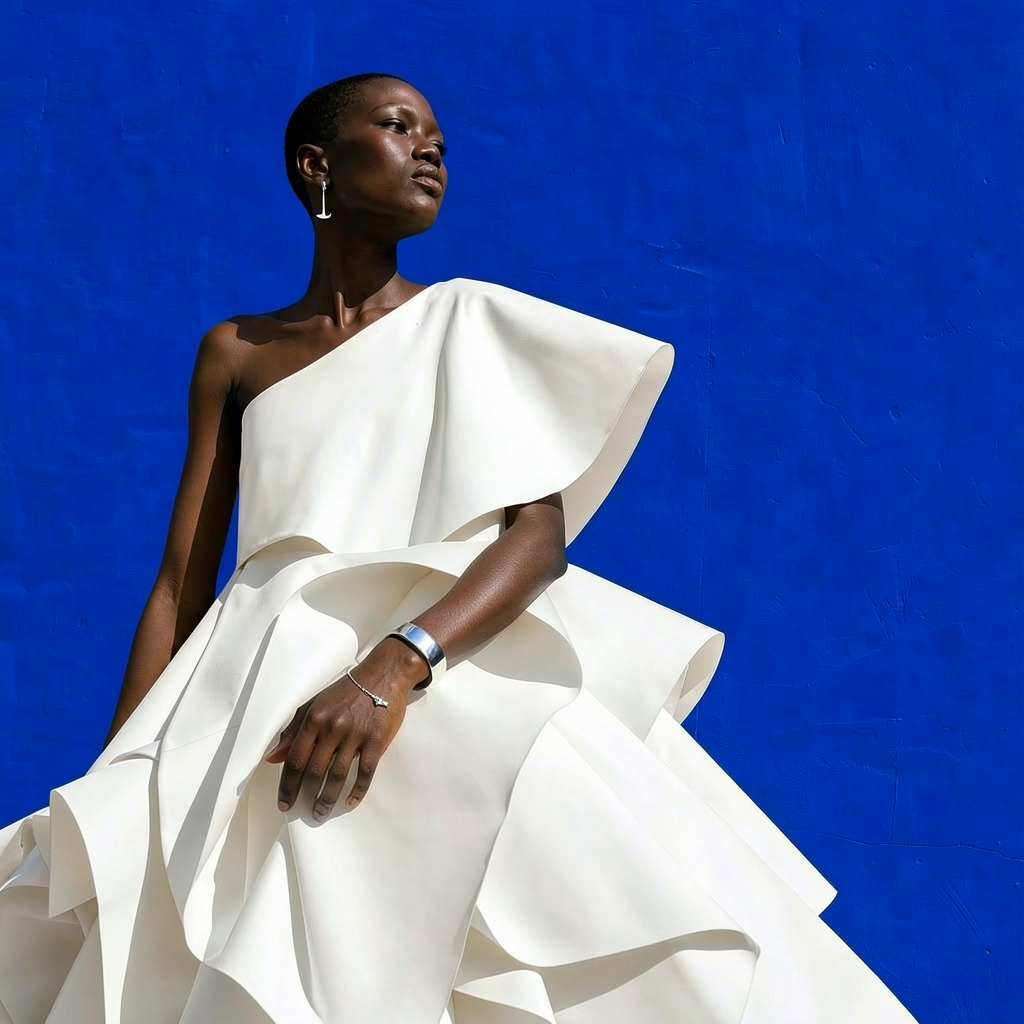
AI Image Editor · Add minimalist silver earrings
- Model
- Flux 2 Klein
- Image
- 1024 × 1024 px
Prompt
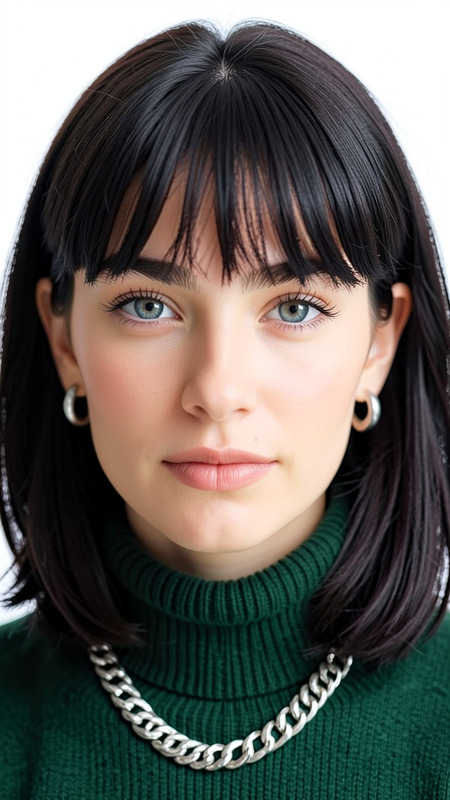
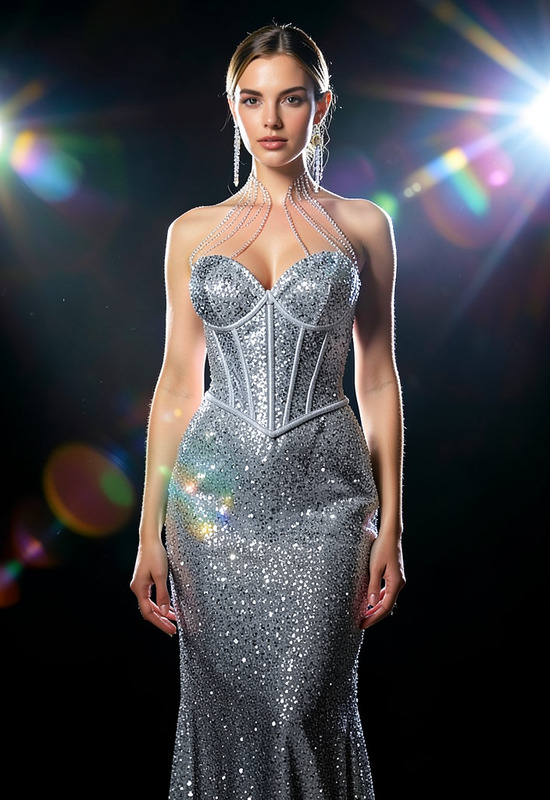
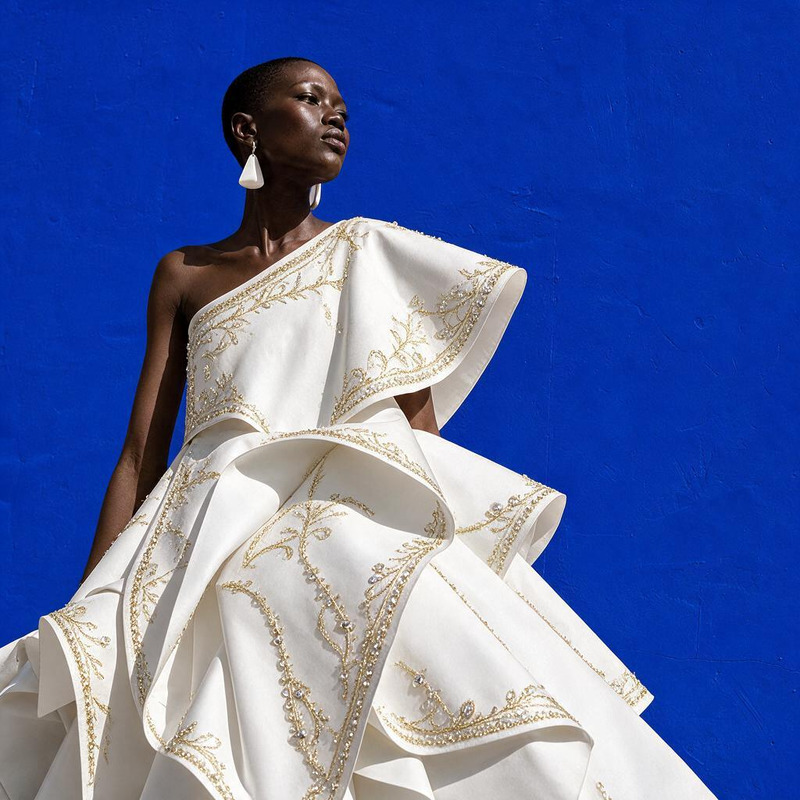
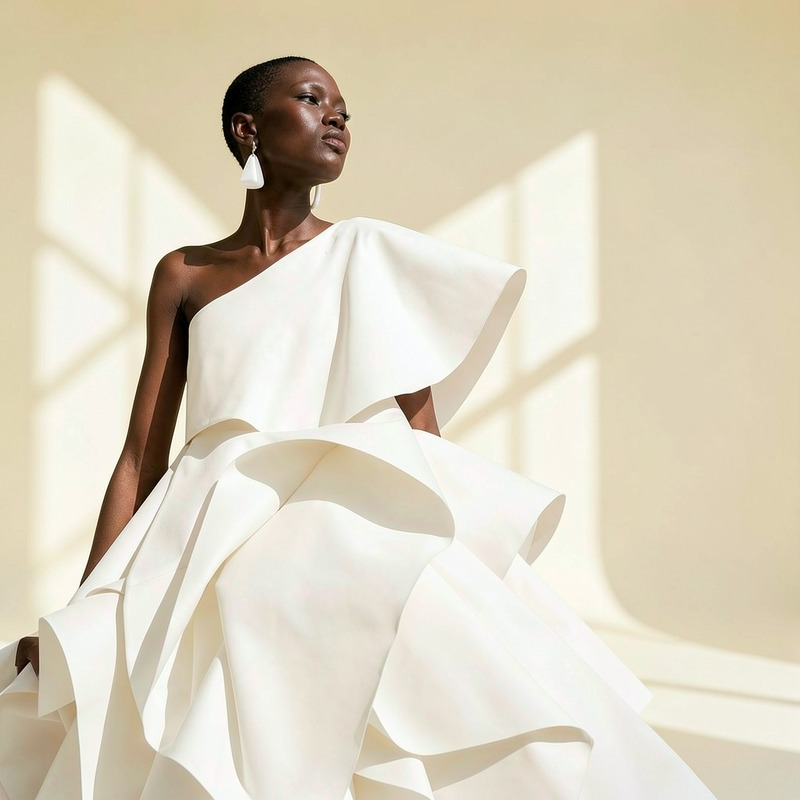
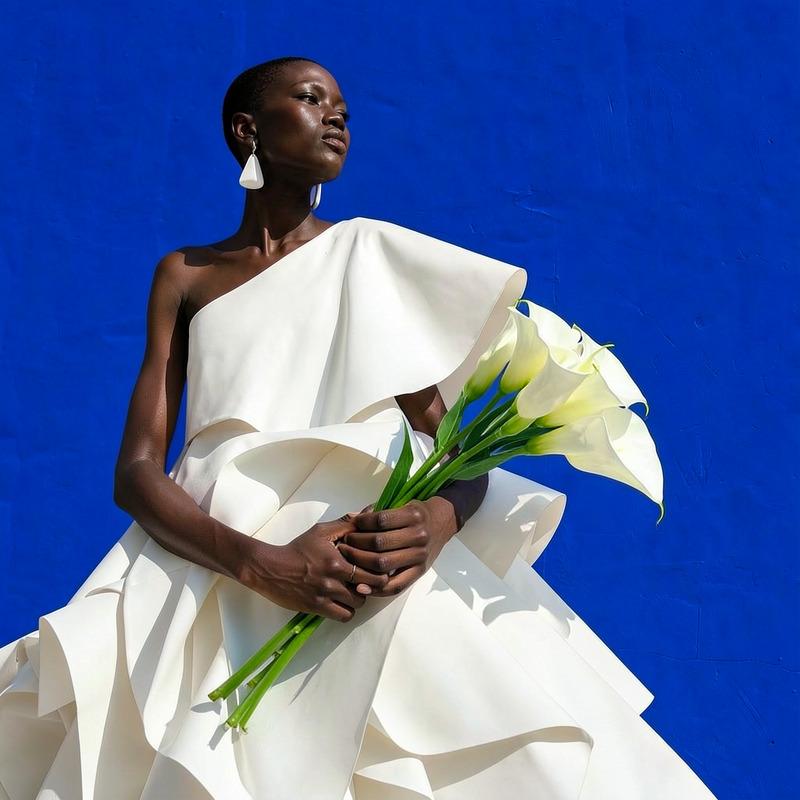
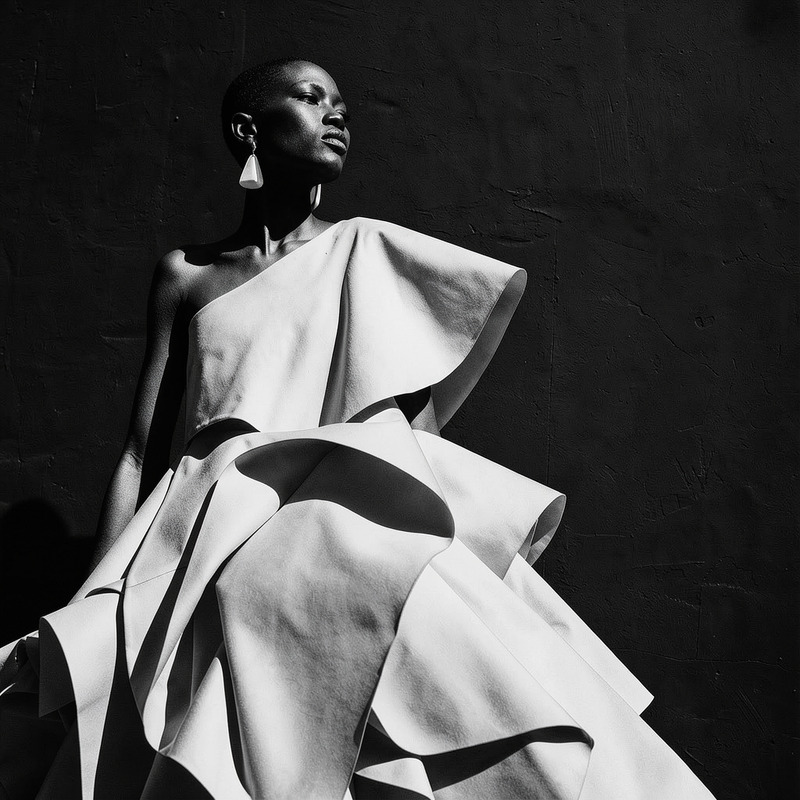
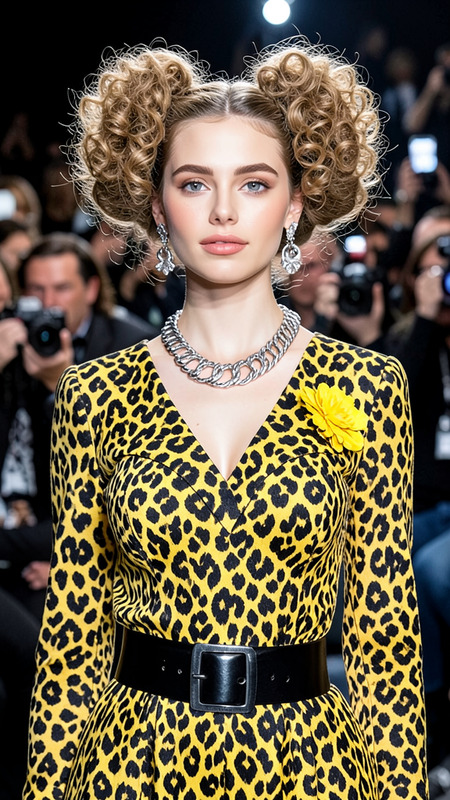
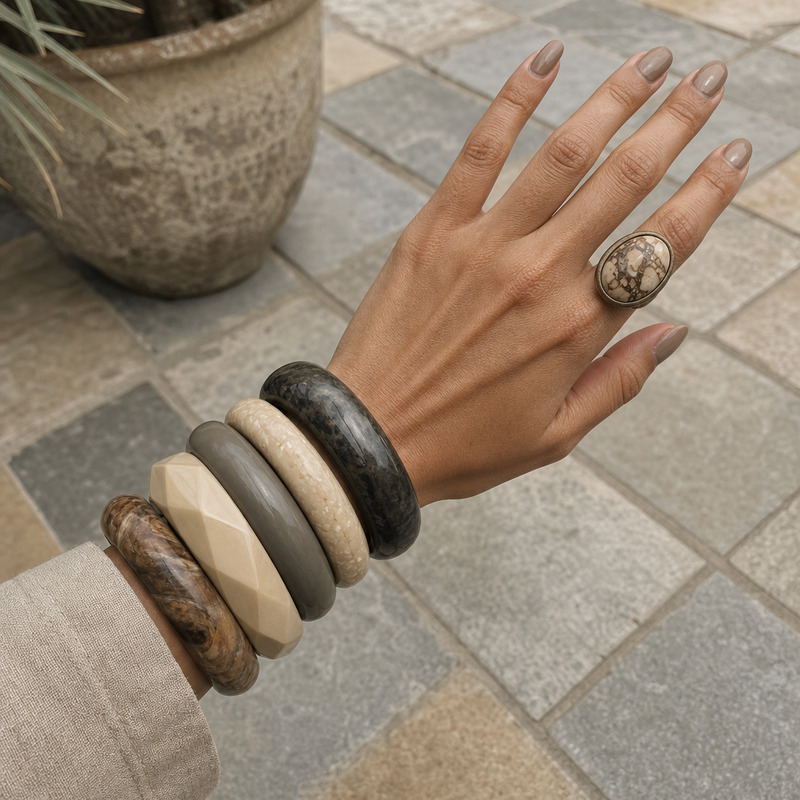
Add minimalist silver earrings and a matching cuff bracelet, preserving all other details
Any aspect ratio
Overview
The AI Image Editor template for adding minimalist silver earrings is a powerful tool designed to enhance portraits and fashion photography. Utilizing the flux-2-klein model, this template allows you to modify images by introducing elegant jewelry without altering other elements. Perfect for fashion photographers and designers, it offers a simple yet effective means of updating or enhancing visual content.
What It Does
This template specializes in editing images to add minimalist silver earrings and a matching cuff bracelet. It ensures a seamless integration of these accessories into the photograph while maintaining the integrity of the original details. This is ideal for quickly adjusting model photos for portfolio enhancement or marketing materials.
Who It's For
The AI Image Editor is tailored for fashion designers, photo editors, and digital creators who need to update or enhance images with supplementary jewelry. Professionals engaged in e-commerce can leverage this tool to create versatile product images. It's also beneficial for social media influencers looking to boost the aesthetic appeal of their content.
Summary
Create stunning visual updates with minimal effort using our AI Image Editor to add minimalist silver jewelry. The tool is built on the robust AI Image Editor product, providing reliable results for designers and content creators seeking to refine their visuals. Enhance your workflow with related models and products like the AI Product Photography and AI Profile Picture Generator.
How-To
Choose Your Template

Customize Your Inputs

Generate Your Edited Image

Use Cases
Fashion Lookbooks
- Use the editor to update seasonal accessories easily.
- Showcase diverse styles without need for reshoots.
E-commerce Product Display
- Improve product pages with dynamic visual updates.
- Optimize time and resources by editing rather than photographing new items.
Social Media Content Creation
- Experiment with new styles for Instagram or TikTok.
- Expand creative possibilities with minimal effort.
Best Practices
Select High-Quality Images
For best results, use high-resolution images where facial details are clearly visible.Mind the Background
Opt for images with uncluttered backgrounds to prevent distractions from the new earrings and bracelet.Tweak the Prompt Precisely
While the default prompt works well, small adjustments may be necessary to ensure the accessories complement the image appropriately.