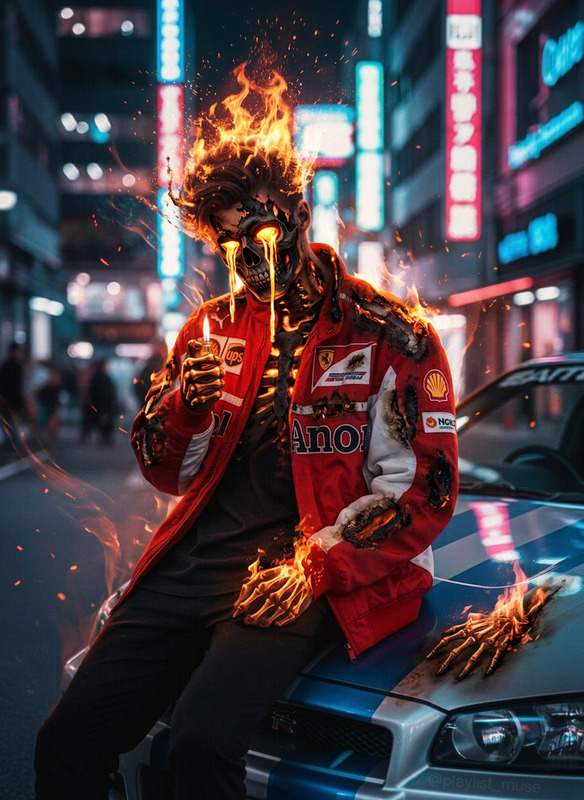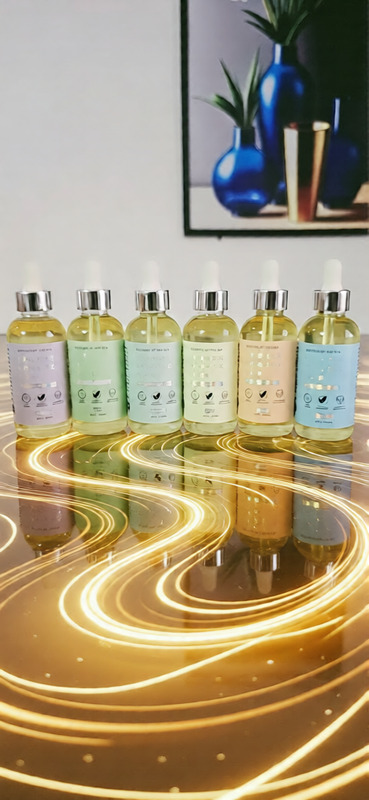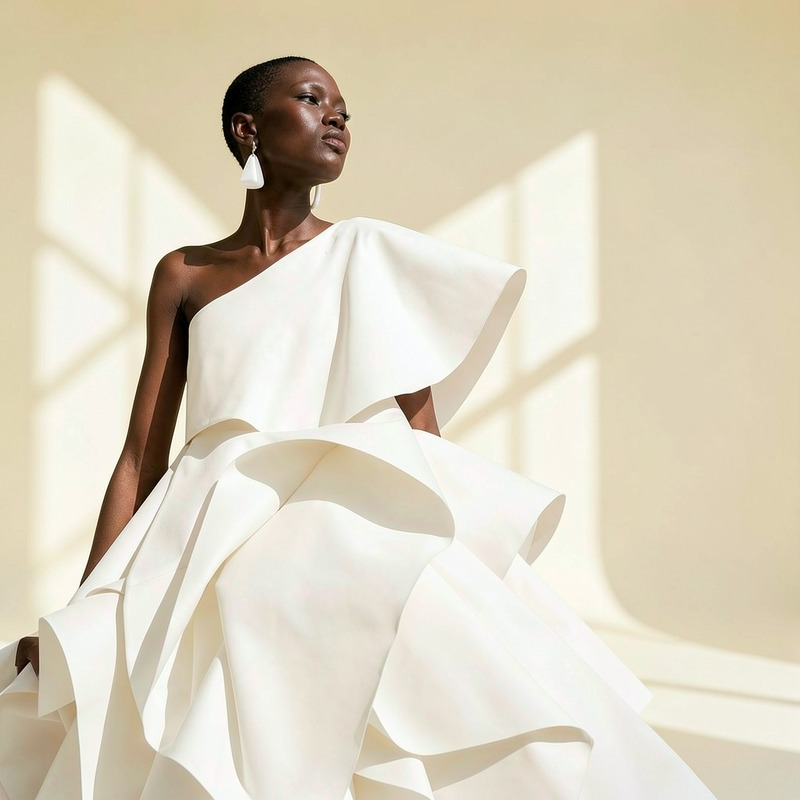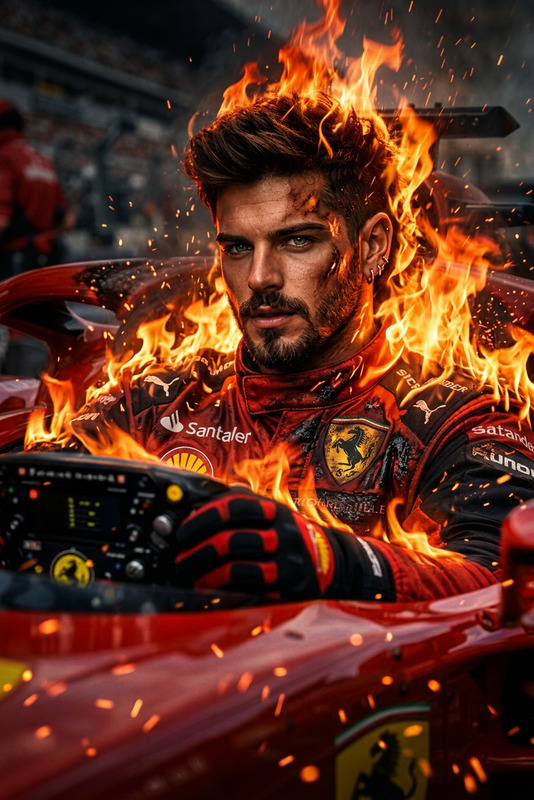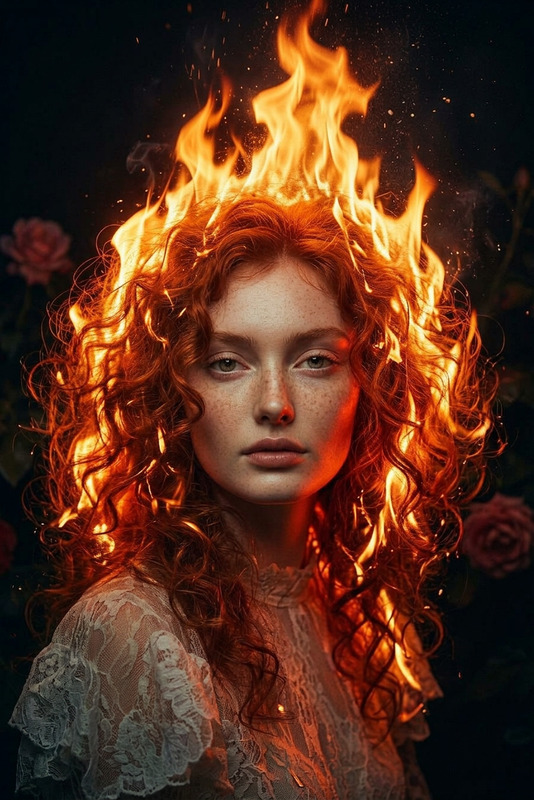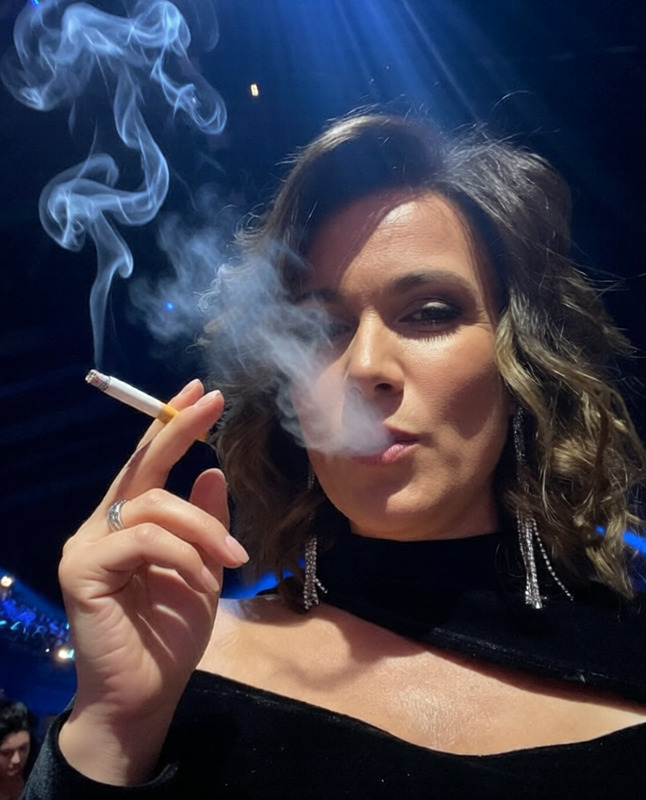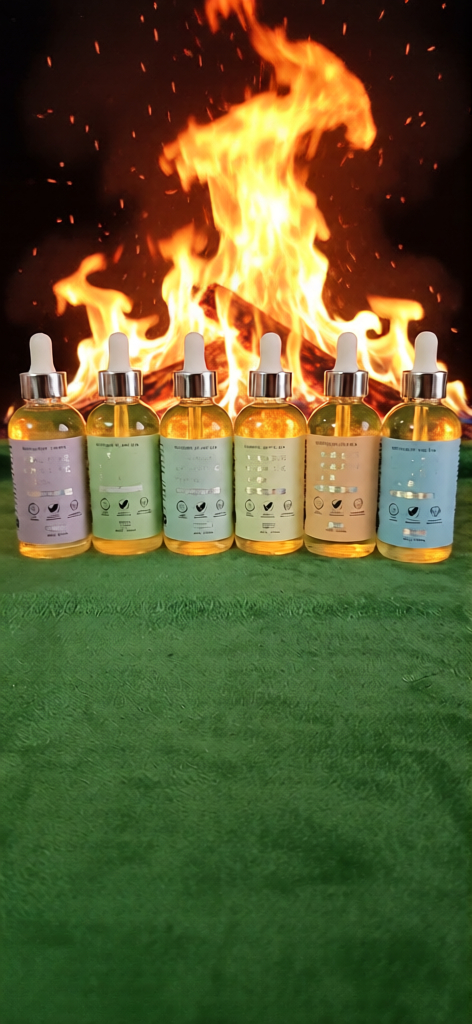
Burning products

Burning products

AI Image Editor
1 image
1 use

Any aspect ratio

Prompt

I want a flame burning background

Tags

showcase

Overview

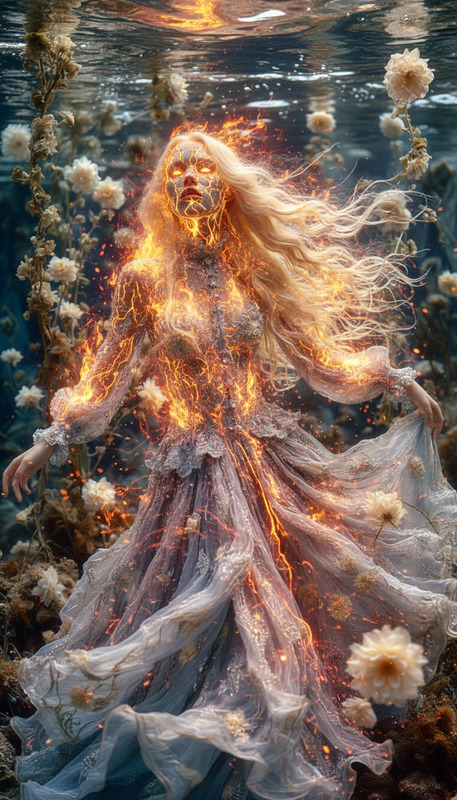
Introducing our AI Image Editor template, "Burning Products." Crafted to ignite your visuals, this template allows you to create immersive product showcases with a flame-burning background. Enhance your product highlights and captivate your audience effortlessly.

What It Does

The "Burning Products" template leverages the powerful Qwen-edit model to add dynamic flame effects to your images. Ideal for creating impressive visuals for product showcases, it helps boost engagement by providing eye-catching backgrounds.

Who It's For

This template is perfect for marketers and content creators looking to enhance their product images. If you're involved in ecommerce advertising or need visually striking product videos, this tool is tailored for you.

Summary

Utilize the "Burning Products" template to add a flame-burning background to your images, ensuring your products stand out. With the backing of the AI Image Editor, you can expect seamless integration and stunning outcomes.

How to Use

    01

    Choose the Template

    Find the "Burning Products" template in the AI Image Editor category.
    02

    Customize Your Image

    Select the images that you want to enhance and input them into the editor. Adjust any additional settings related to the flame background effect.
    03

    Generate and Download

    Click on the generate button to apply the flame background. Once processed, download your final product_image as a high-quality file.

Use Cases

🔥

E-commerce Product Images

Make your products stand out with fiery visuals that captivate buyers.
💥

Marketing Campaigns

Enhance promotional materials with dramatic backgrounds to attract attention.
📱

Social Media Posts

Create viral-worthy visuals that engage and excite your audience across platforms.

Best Practices

  • Choose High-Contrast Images

    Select images where a flame effect will enhance the product without overshadowing it.
  • Optimize Resolutions

    Ensure the image's resolution aligns with the flame background size to maintain quality.
  • Test Different Backgrounds

    Experiment with various flame intensities to see what best fits your product's theme.
Frequently asked questions

The AI Image Editor template supports all standard image formats like JPG, PNG, and TIFF.

Yes, you can customize the intensity of the flame effect to suit your image's needs.

Absolutely, the flame backgrounds can make your social media posts more engaging and eye-catching.

No, the template is designed to be user-friendly, and anyone can edit images without prior experience.

More Like This

Firelava
3
Firelava
Hellfire Rebirth
1
Hellfire Rebirth
Marble Swirl Floor
2
Marble Swirl Floor
Warm Photo
1
Warm Photo
Creative Burnout
Creative Burnout
AI Image Editor · Change the background to a cle
NEW
AI Image Editor · Change the background to a cle
Set on Fire
6
Set on Fire
Burning Hair Cinematic Portrait
9
Burning Hair Cinematic Portrait
Smoking
47
Smoking
Celebration Fire Cake
2
Celebration Fire Cake
AI Image Editor · Transform the background into
NEW
AI Image Editor · Transform the background into
AI Image Editor · Replace the background with a
NEW
AI Image Editor · Replace the background with a

AI Image Editor