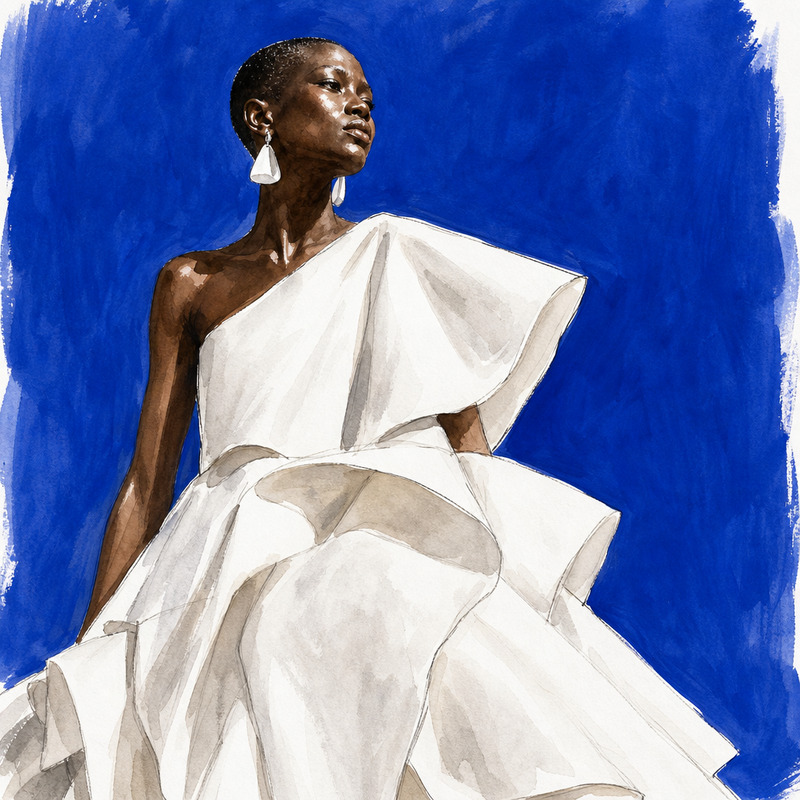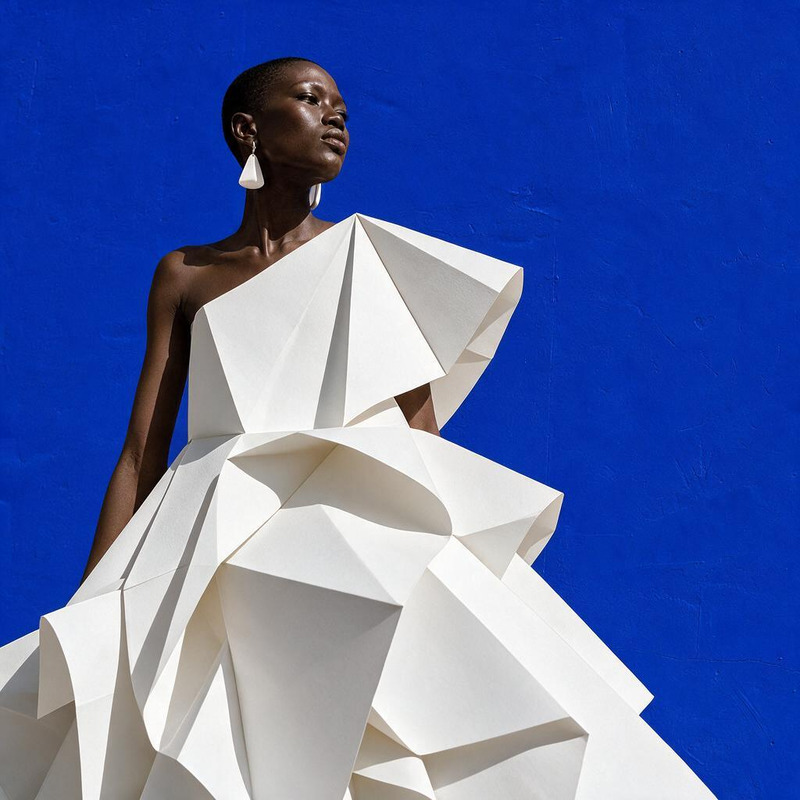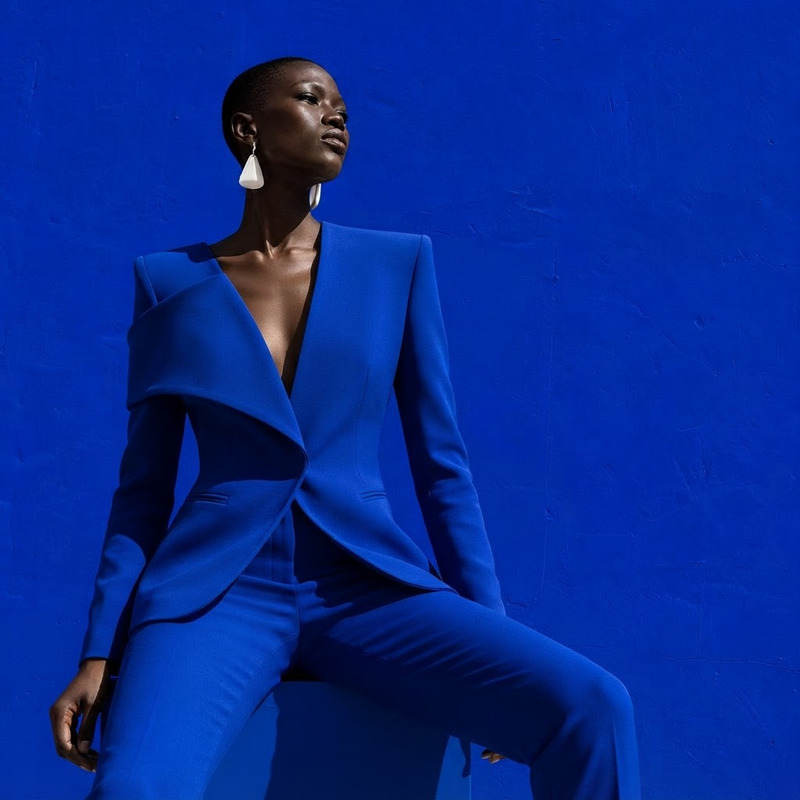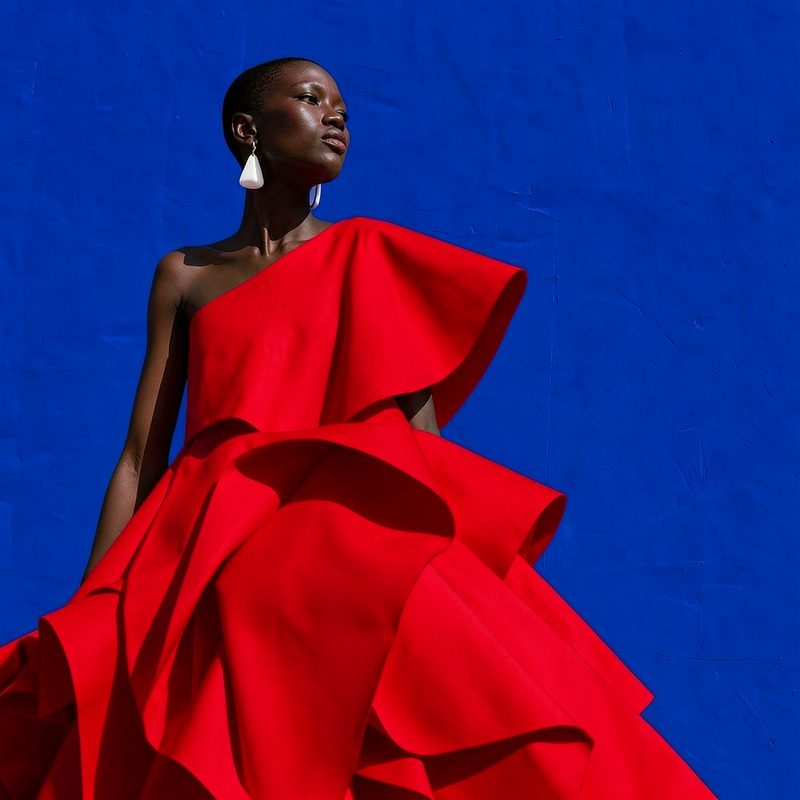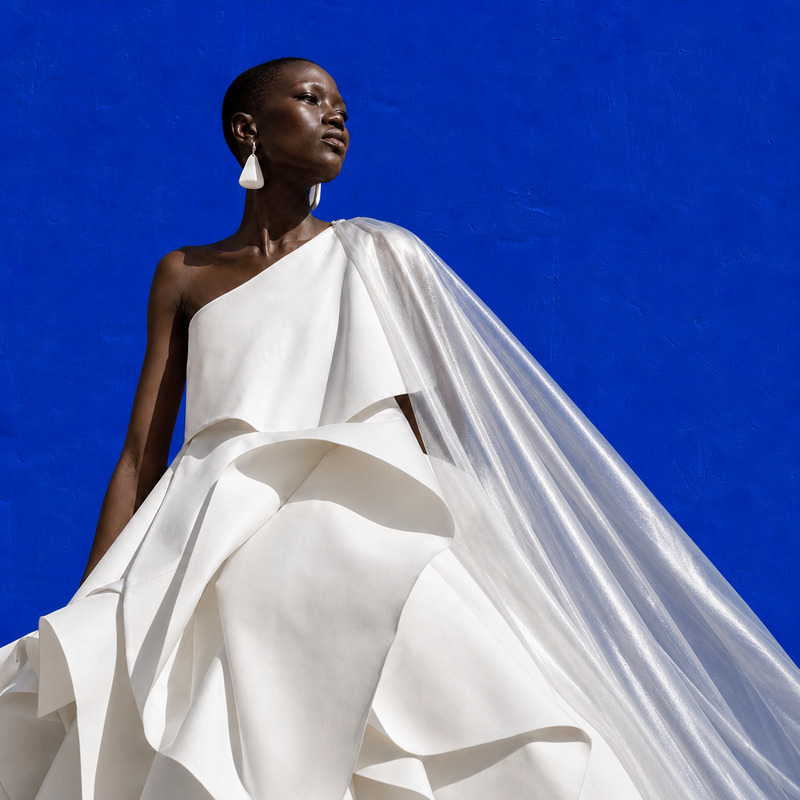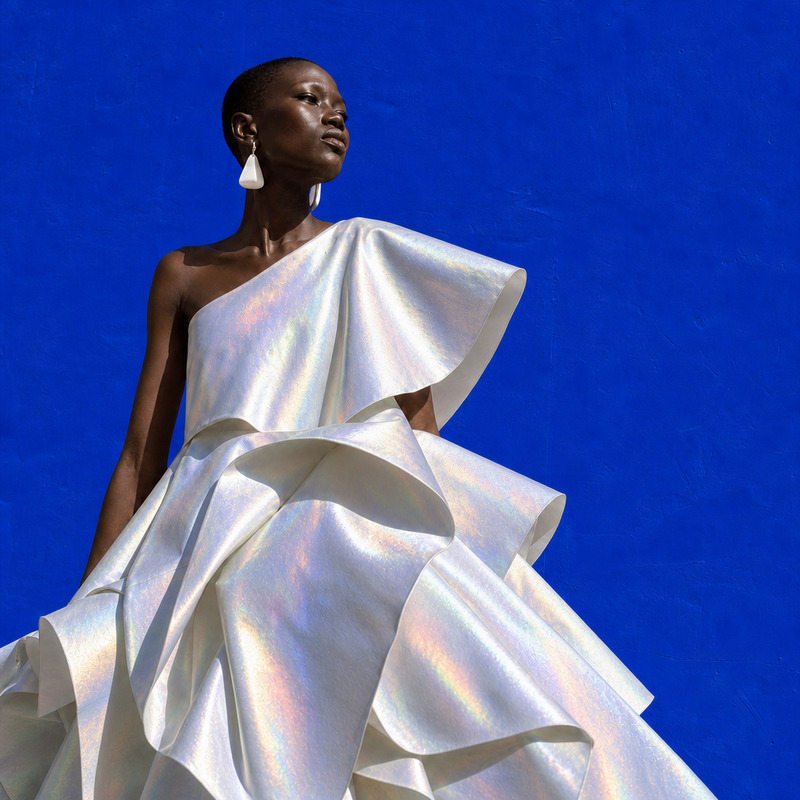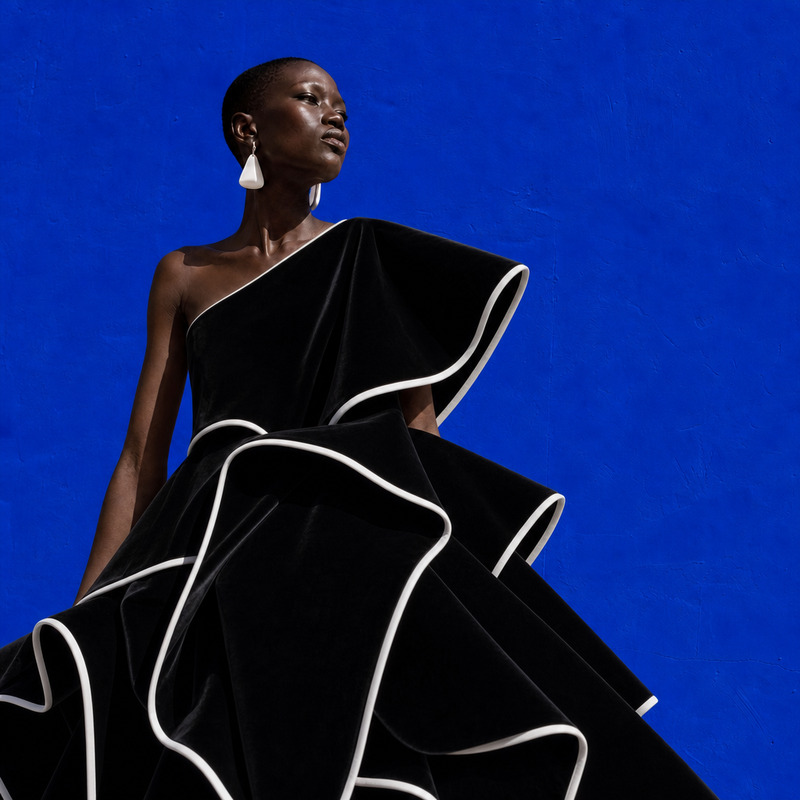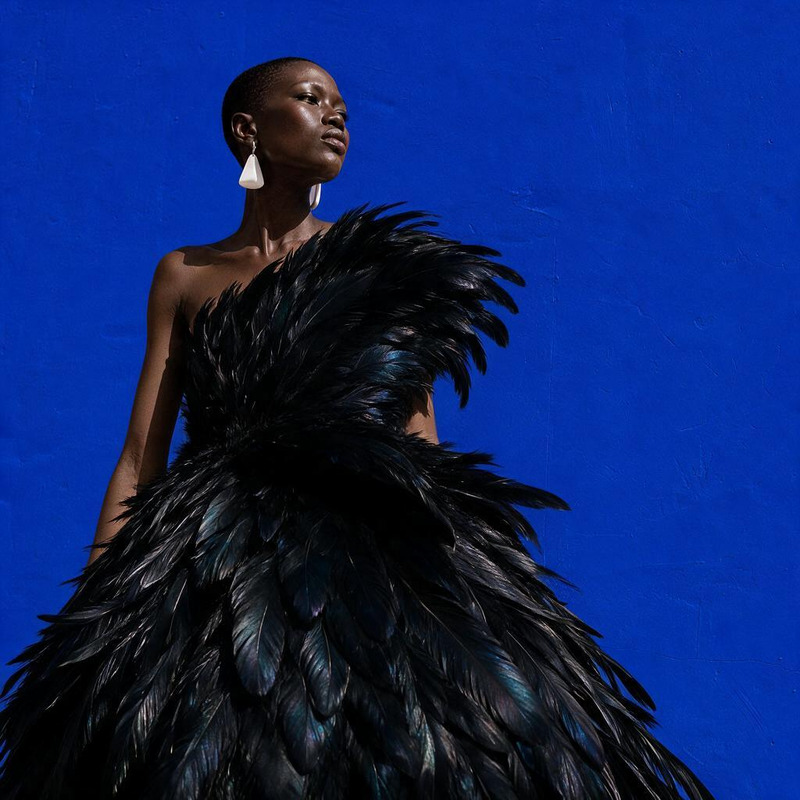
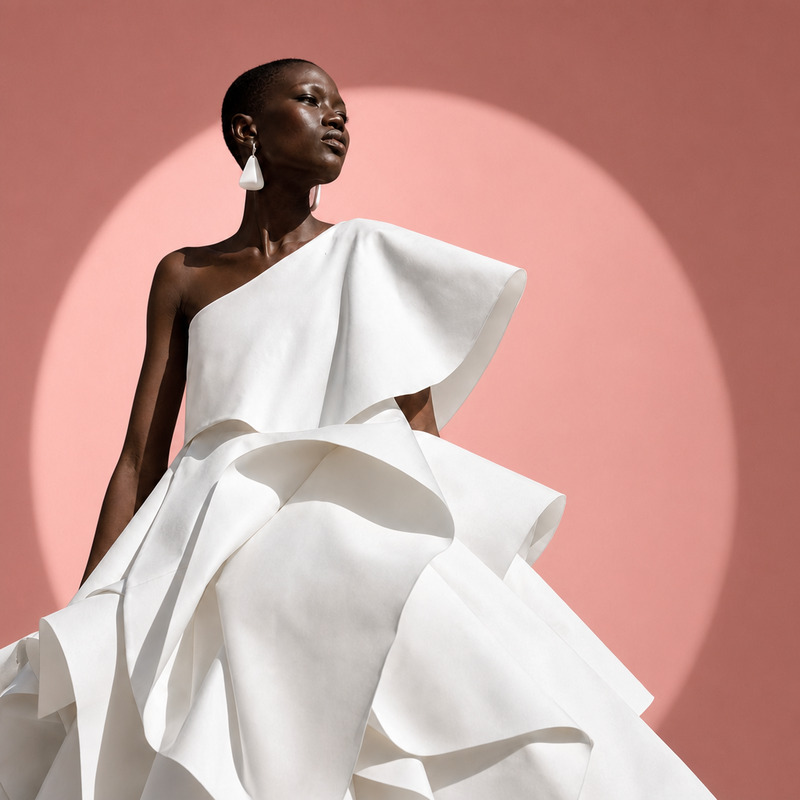
AI Image Editor · Change the dress to sculptural

AI Image Editor · Change the dress to sculptural

AI Image Editor
1 image
0 uses

Any aspect ratio

Prompt

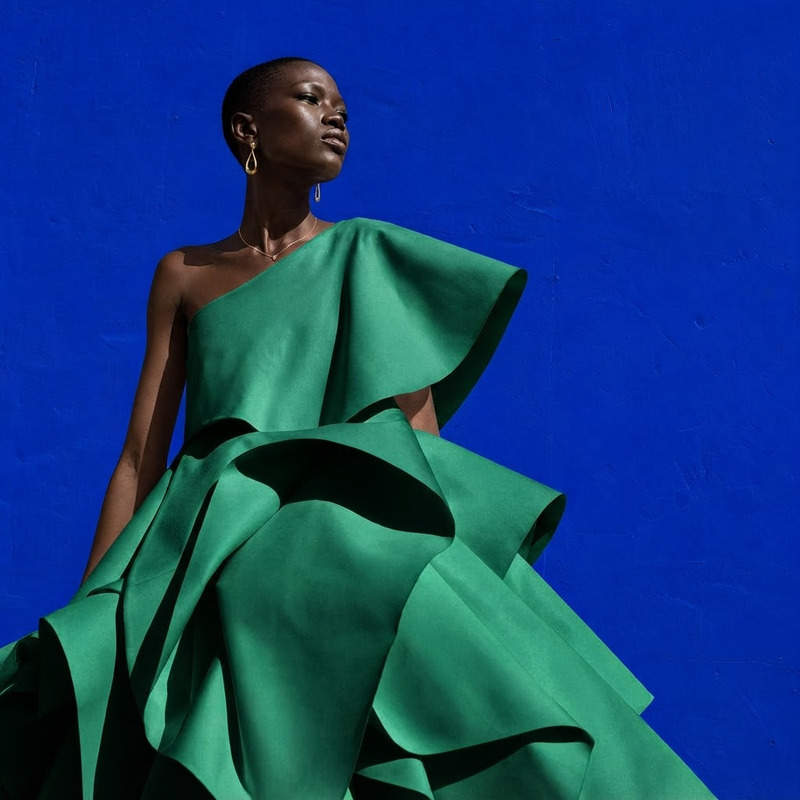
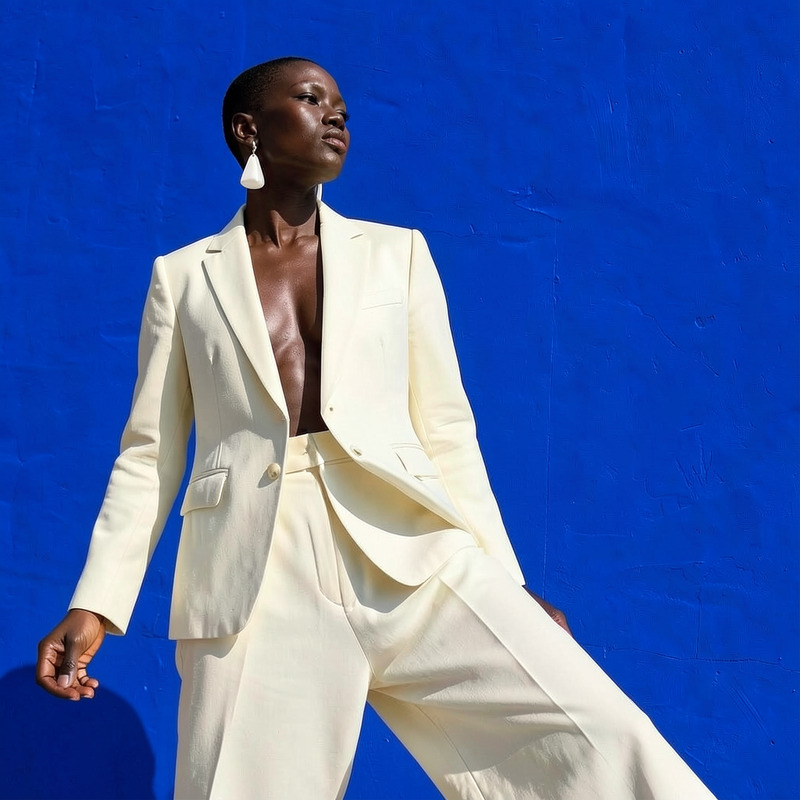
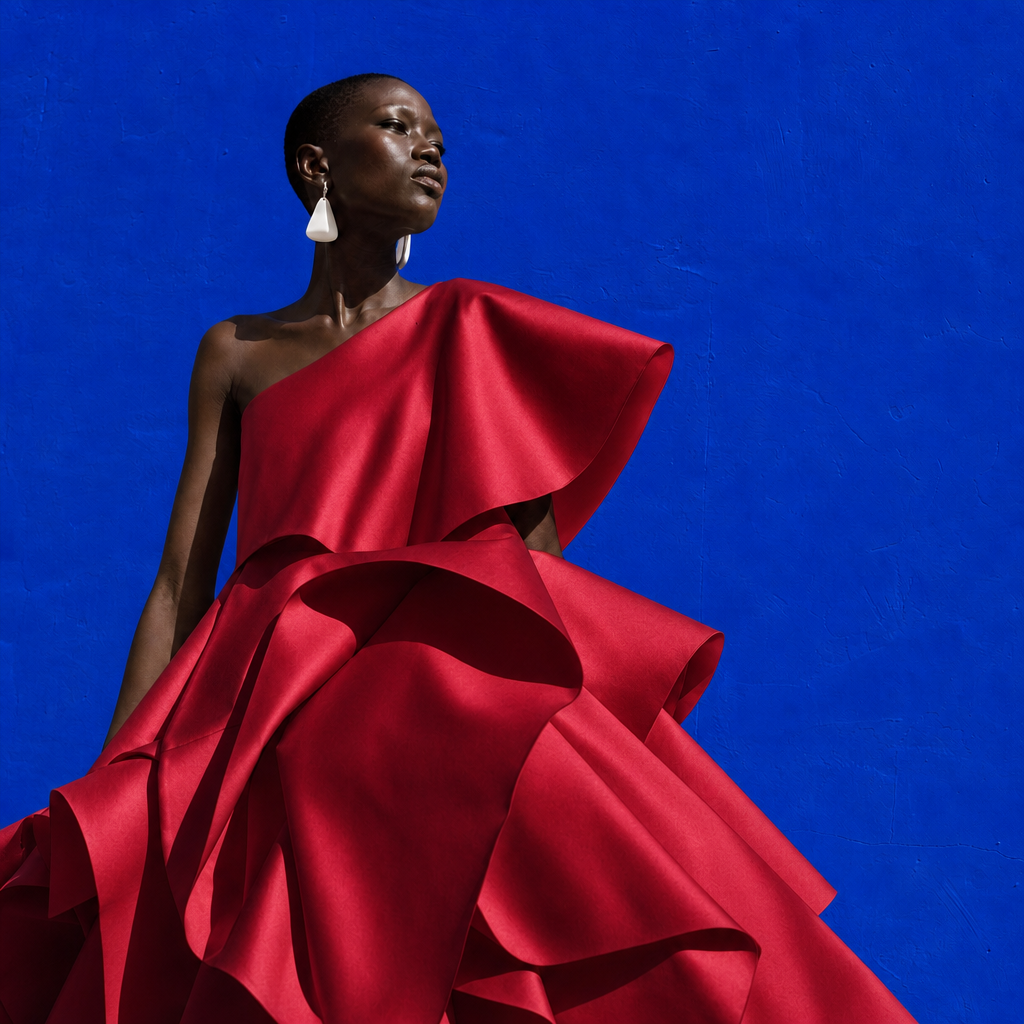
Change the dress to sculptural crimson silk while preserving the person, pose, face, and blue studio background

Overview

The AI Image Editor template "Change the dress to sculptural" empowers creators to transform a dress into sculptural crimson silk while maintaining essential elements like the person, pose, face, and blue studio background. Utilizing the gpt-image-2 model, this template is perfect for fashion designers, photographers, and creative directors seeking to deliver striking visuals with minimal effort.

What It Does

This template modifies the clothing in an image, turning any dress into a sculptural crimson silk masterpiece. It effectively uses AI to enhance the garment without altering the person's identity or the prevailing studio setting. The transformation is both seamless and efficient, making it ideal for projects where aesthetic precision is key.

Who It's For

Designed for fashion designers, photographers, and editors, this template is a valuable tool for anyone involved in visual content creation. It is particularly useful for those working in product photography and fashion lookbooks. By leveraging AI, professionals can create fashion-forward imagery without extensive manual editing.

Summary

With the AI Image Editor template, changing a dress to sculptural crimson silk becomes a straightforward process. Utilize advanced AI capabilities to focus on creative storytelling in your visuals. Enhance your workflow with support from AI Image Upscaler to achieve even greater image clarity.

How to Use

Modify your images by changing the dress to a sculptural design.
    01

    Choose the Template

    Select the AI Image Editor template "Change the dress to sculptural" from the template library to begin.
    02

    Customize Your Inputs

    Upload your image and specify the prompt to change the dress into sculptural crimson silk. Ensure the image includes the person, pose, and blue studio background you want to preserve.
    03

    Generate Your Image

    Click Generate to process the image transformation. After processing, download your upgraded image for use.

Use Cases

Explore how this template can enhance various aspects of your visual projects.
📰

Fashion Editorial

Enhance editorial photoshoots with a unique, high-fashion look.
  • Transform garment visuals
  • Maintain original pose and aesthetics
🛒

Product Promotions

Showcase your fashion products with eye-catching visuals.
  • Boost product appeal
  • Highlight design features
🎨

Creative Projects

Use the template in art projects requiring a sophisticated visual transformation.
  • Develop unique themes
  • Tie together visual narratives

Best Practices

Maximize the potential of changing dresses to sculptural designs with these tips.
  • Choose High-Resolution Images

    Opt for high-quality, detailed images to achieve the best results. Utilize the AI Image Upscaler to enhance image clarity where necessary.
  • Preserve Subject Details

    Ensure that the image's subject, including the person's identity and pose, is clearly defined and central to the image.
  • Refine the Prompt

    Customize the AI prompt to suit specific project needs, emphasizing elements like color, texture, and design style for a tailored outcome.
Frequently asked questions

Use high-resolution images and clearly define the subject in the frame. Consider using the AI Image Upscaler to enhance your image quality before applying the transformation.

Yes, but it's optimized for fashion imagery. Ensure the image consists of a clear subject with a distinct clothing item.

Typically, standard image file formats like JPEG, PNG, and similar are accepted.

Processing time varies based on image complexity but is typically completed within minutes.

While it can handle various backgrounds, it works best with a clean studio setting, such as the default blue studio background in the prompt.

More Like This

Red Evening Gown
3
Red Evening Gown
AI Image Editor · Transform the background into
NEW
AI Image Editor · Transform the background into
AI Image Editor · Restyle the image as a hand-pa
NEW
AI Image Editor · Restyle the image as a hand-pa
AI Image Editor · Transform the dress into folde
NEW
AI Image Editor · Transform the dress into folde
AI Image Editor · Change the dress to a tailored
NEW
1
AI Image Editor · Change the dress to a tailored
AI Image Editor · Change the dress color to vivi
NEW
AI Image Editor · Change the dress color to vivi
AI Image Editor · Add a translucent silver cape
NEW
AI Image Editor · Add a translucent silver cape
AI Image Editor · Change the dress material to i
NEW
AI Image Editor · Change the dress material to i
AI Image Editor · Change the dress to tailored b
NEW
AI Image Editor · Change the dress to tailored b
AI Image Editor · Transform the dress into sculp
NEW
AI Image Editor · Transform the dress into sculp
AI Image Editor · Change the dress color to emer
NEW
AI Image Editor · Change the dress color to emer
AI Image Editor · Change the outfit to a cream t
NEW
AI Image Editor · Change the outfit to a cream t

AI Image Editor