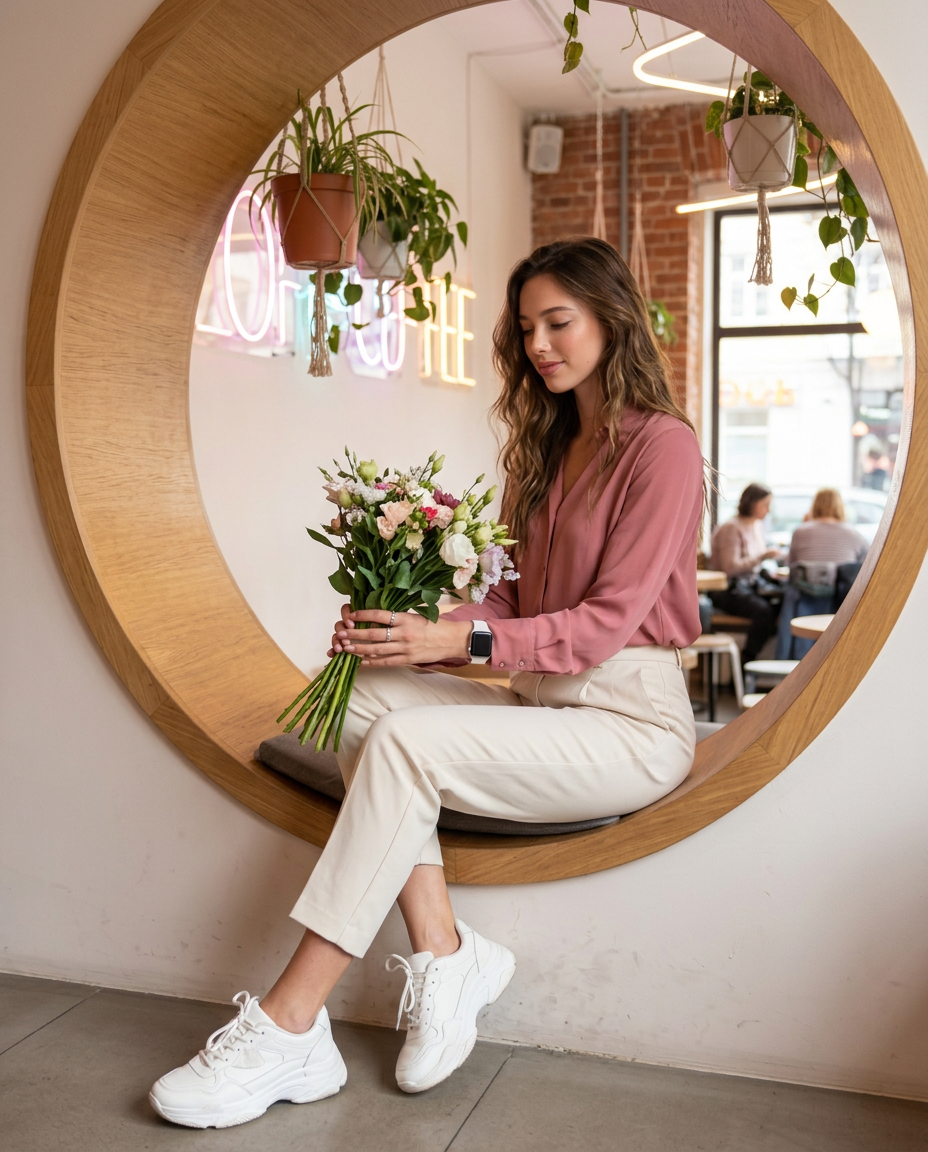
The Circular Cafe Window
- Model
- Nano Banana 2
- Image
- 928 × 1152 px
Prompt
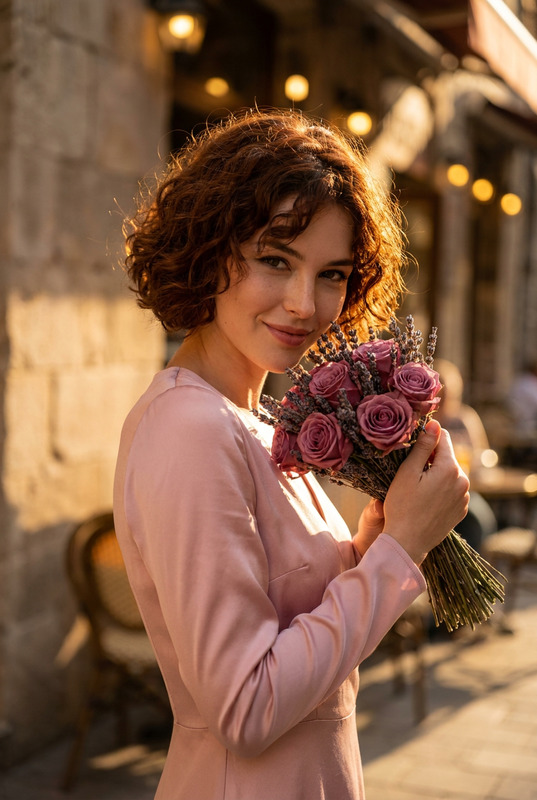
A high-quality, vibrant indoor lifestyle photograph of a young woman(face match) sitting in a casual, relaxed pose inside a large circular wooden nook built into the wall. She is looking slightly downward, gently holding a fresh bouquet of flowers. She is wearing a stylish rose-pink long-sleeve blouse tucked into chic cream high-waist trousers, accessorized with a white Apple Watch, delicate rings, and trendy chunky white sneakers. The setting is a cozy modern cafe with hanging potted plants, warm neon light. 4:5 aspect ratio.
Any aspect ratio
Overview
The Circular Cafe Window template in the AI Image Editor suite leverages the nano-banana-2 model to create vibrant, lifestyle-oriented images with precision and elegance. This template offers an ideal solution for those looking to capture high-quality images of style and modern life in cozy cafe settings.
What It Does
This AI Image Editor template prompts a photo of a young woman in a stylish and relaxed cafe setting, highlighting both fashion and interior design elements. The focus on accessories and details brings a sophisticated look to the lifestyle image, suitable for fashion blogs, cafe reviews, and interior design showcases.
Who It's For
The Circular Cafe Window is perfect for bloggers, social media influencers, and content creators in need of eye-catching images that combine personal style and architectural elements. It is especially useful for product promotions in the fashion and lifestyle domains.
Summary
Whether you're featuring fashion accessories like the latest Apple Watch, showcasing a serene lifestyle, or capturing the warmth of a modern cafe, this template supports the creation of stunning visuals. Explore complementary tools like the AI Image Upscaler to enhance any imagery you create with this template.
How to Use The Circular Cafe Window
Choose the Template

Customize the Inputs

Generate Your Image

Use Cases
Fashion and Lifestyle Blogs
- Highlight seasonal fashion trends
- Showcase cozy cafe aesthetics
Social Media Content
- Instagram posts featuring lifestyle aesthetics
- Facebook content for fashion events
Interior Design Showcases
- Display modern, cozy cafe elements
- Focus on innovative architectural designs
Best Practices
Choose High-Quality Reference Images
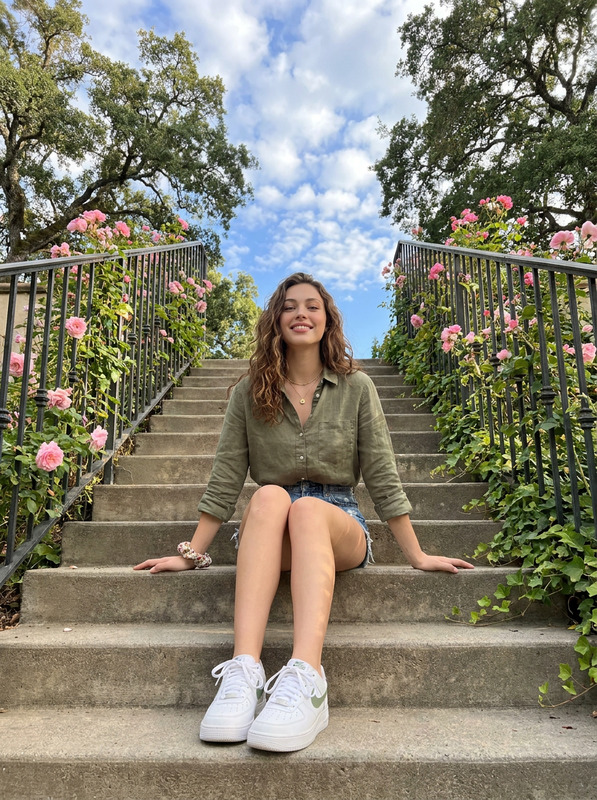
Ensure reference images are clear and capture the desired facial expressions for optimal face matching results.Focus on Composition
Pay attention to the balance between the subject and cafe elements to create a harmonious image that tells a story.Utilize Complementary Tools
Consider using the AI Image Generator for additional background variations that suit different themes.