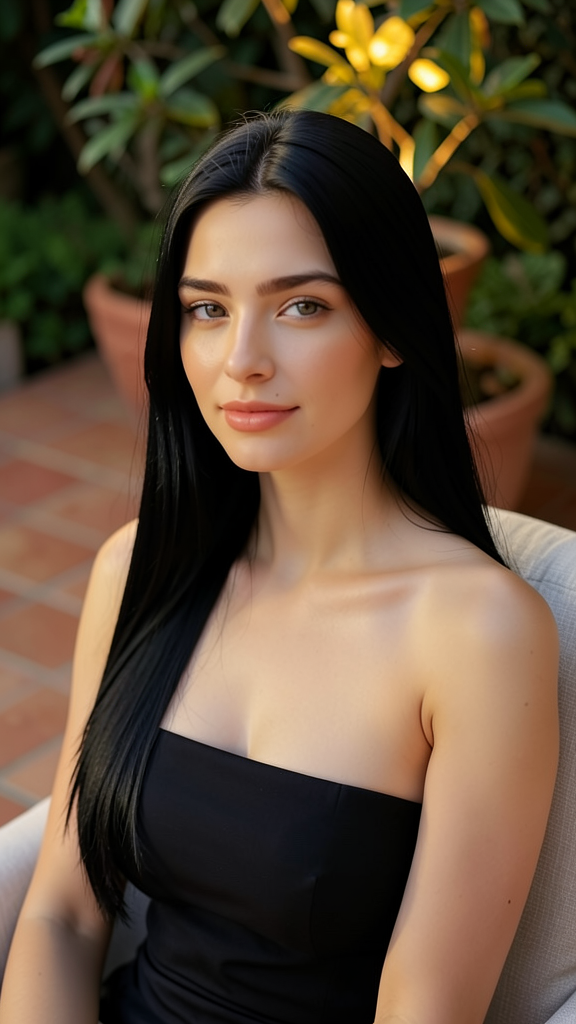
Warm Garden Portrait
- Model
- Flux 2 Klein
- Image
- 576 × 1024 px
Prompt
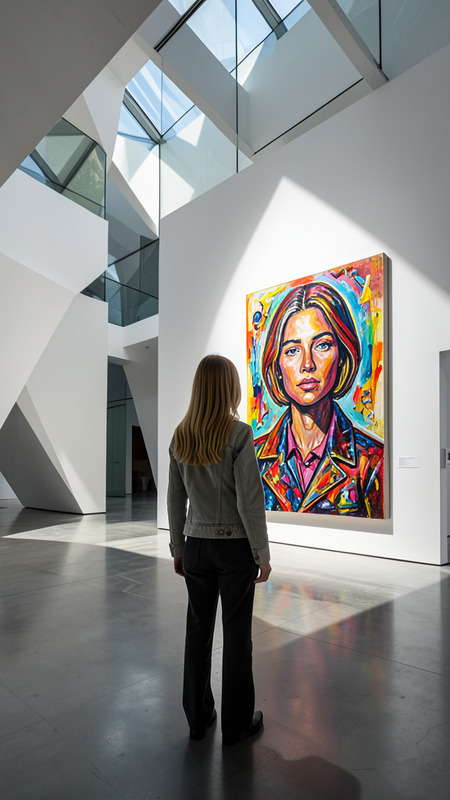
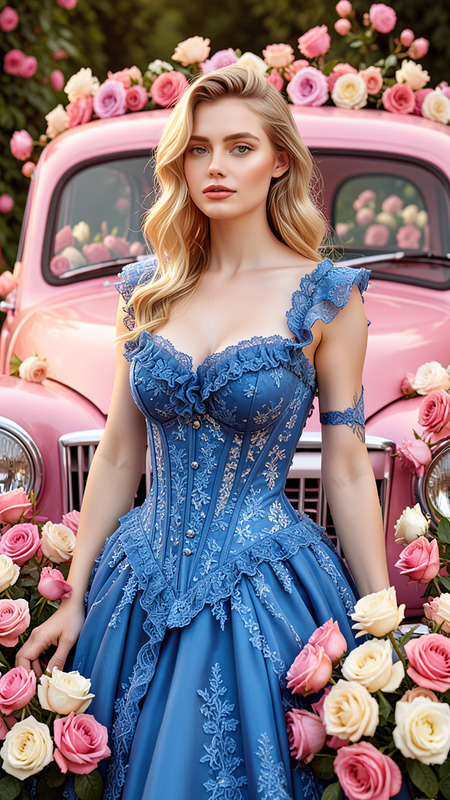
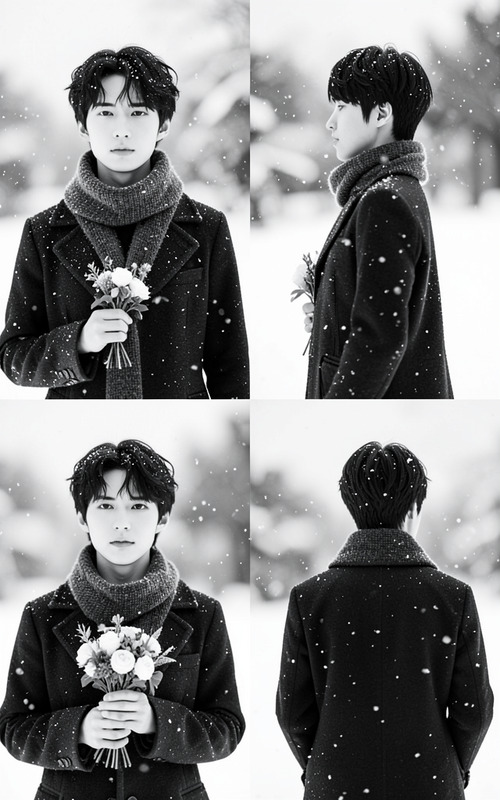
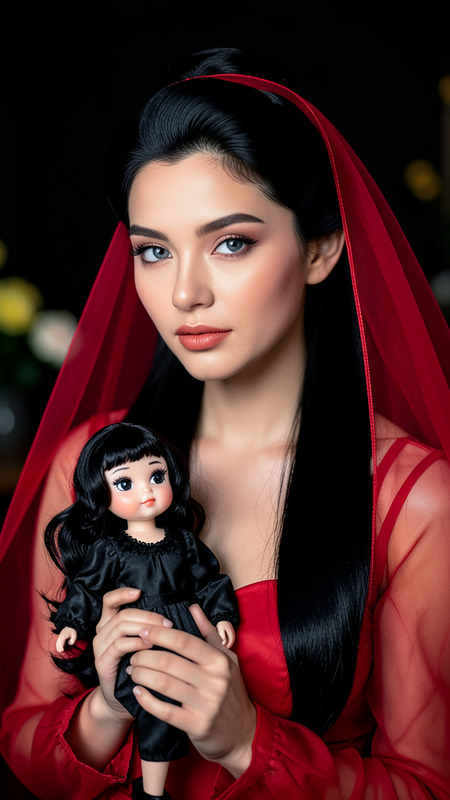
A close-up portrait of the subject with long black hair wearing a dark strapless top while seated on a light-colored chair outdoors. Warm natural lighting highlights the face and hair. A softly illuminated plant appears in the background, with a patio or garden setting featuring tiled flooring and greenery. Calm, elegant, and realistic atmosphere.
Any aspect ratio
Overview
The "Warm Garden Portrait" template is part of our AI Image Editor suite, designed for creating close-up, realistic portraits with natural outdoor settings. Using the flux-2-klein model, you can transform any image with a warm, garden-inspired ambiance.
What It Does
This template crafts serene and elegant portraits, featuring long black hair and warm lighting that highlights facial features. The natural setting is enhanced by a brightly lit plant and a tiled patio, captured in high-quality image formats. It's perfect for enhancing photos with a touch of outdoor charm using our Photo Colorizer tool.
Who It's For
The "Warm Garden Portrait" template is ideal for photographers, social media influencers, and creatives looking to enhance their portraits with a garden setting. Whether you're creating content for personal brands or commercial projects, the template helps you achieve a calm, elegant look that fits both casual and professional settings.
Summary
With the "Warm Garden Portrait" template, you can easily craft realistic and stylish images that highlight your subject in an outdoor garden setting. Explore additional transformations with our AI Image Generator, to further enhance image details and atmospheric qualities.
How To
Choose the Template

Customize Your Image

Generate Your Portrait

Use Cases
Social Media Content
- Enhance personal branding
- Stand out in social feeds
Professional Photography
- Improve client galleries
- Diversify session outcomes
Marketing Materials
- Design elegant brochure covers
- Enhance website visuals
Best Practices
Optimize Lighting Adjustments
Ensure the subject is well-lit before starting edits. Adjust the warmth and brightness levels to maintain a natural look.Focus on Composition
Make sure the plant and garden elements complement rather than distract from the subject's features.Experiment with Backgrounds
Don’t hesitate to switch out background elements to match the desired mood and tone of your project.