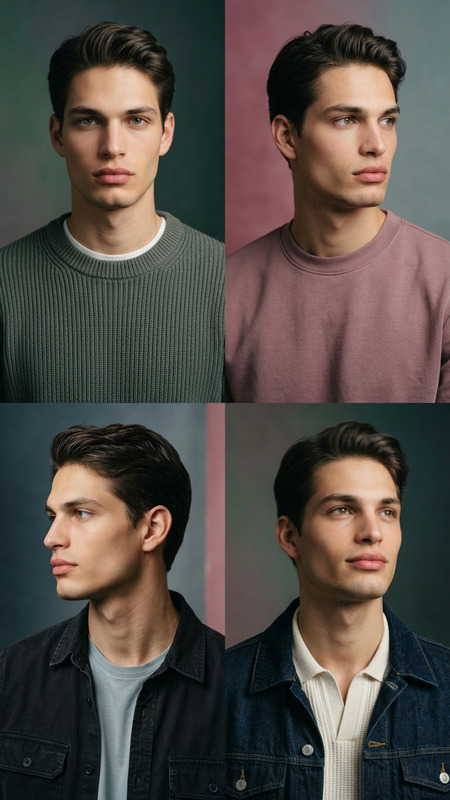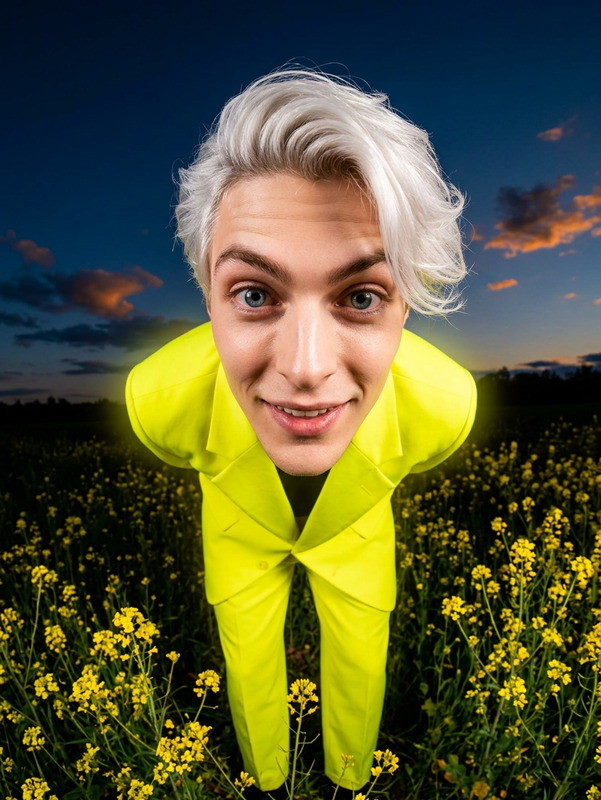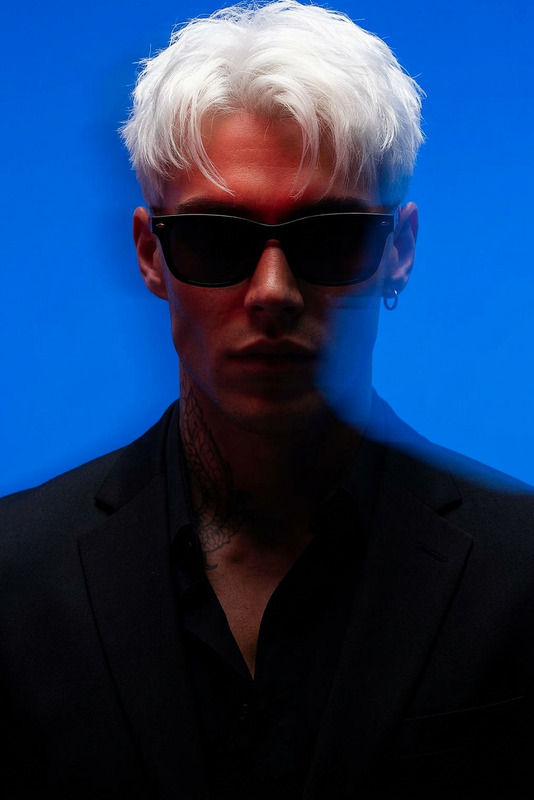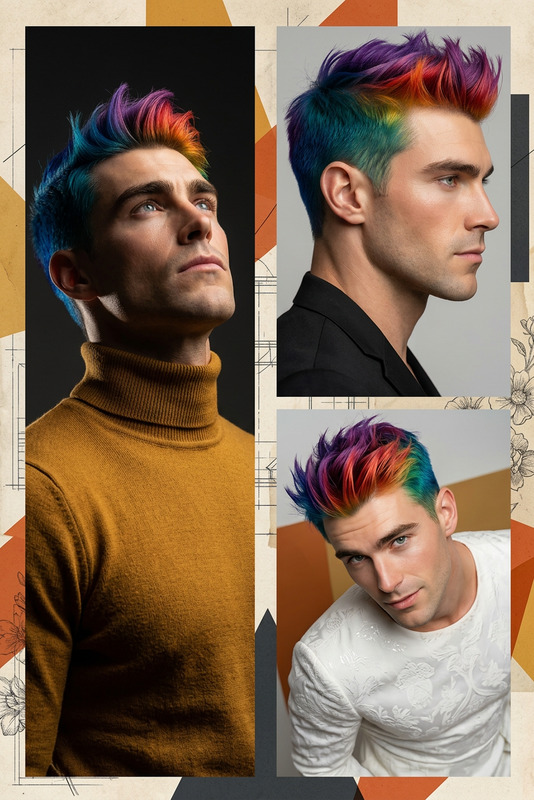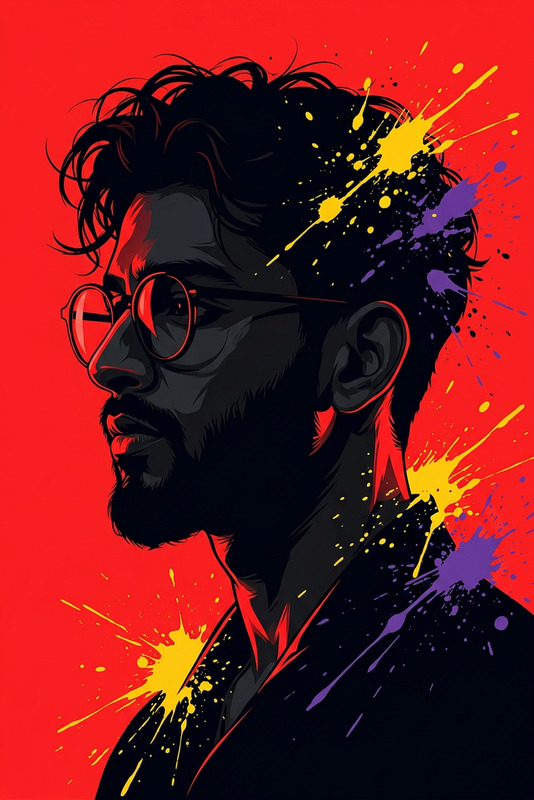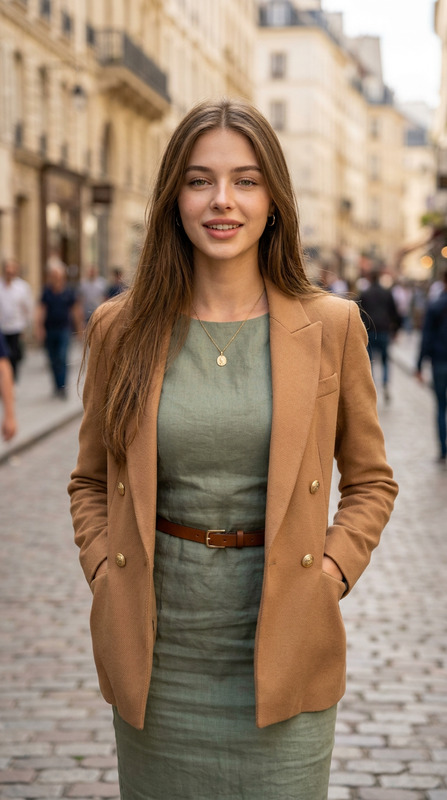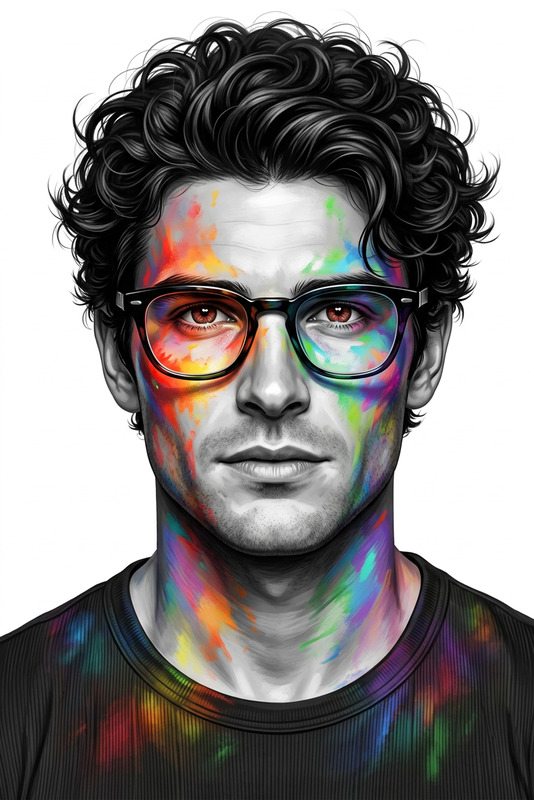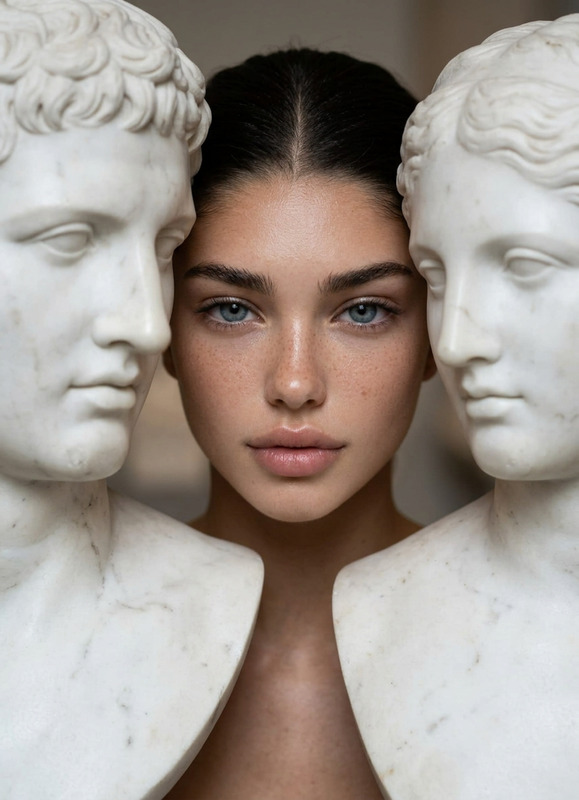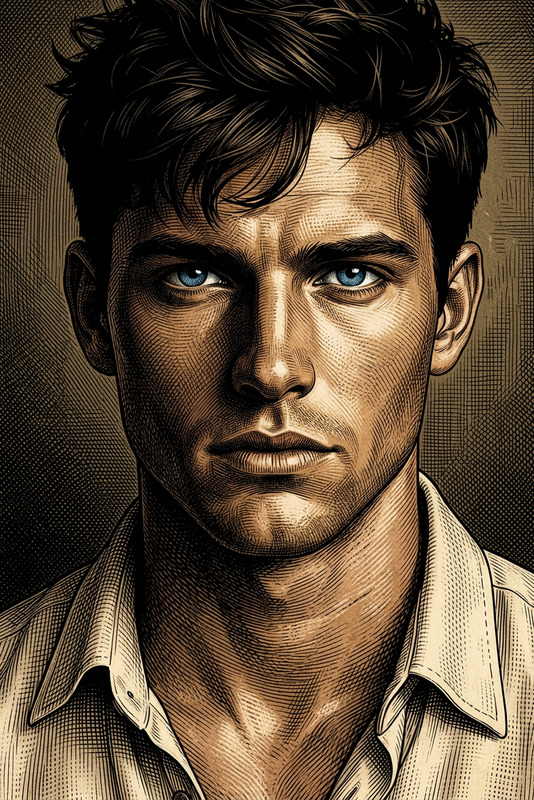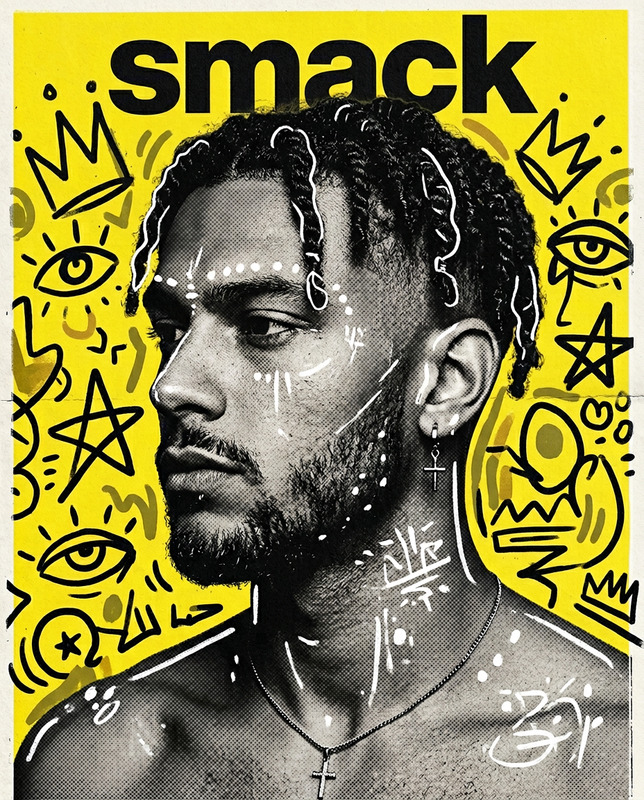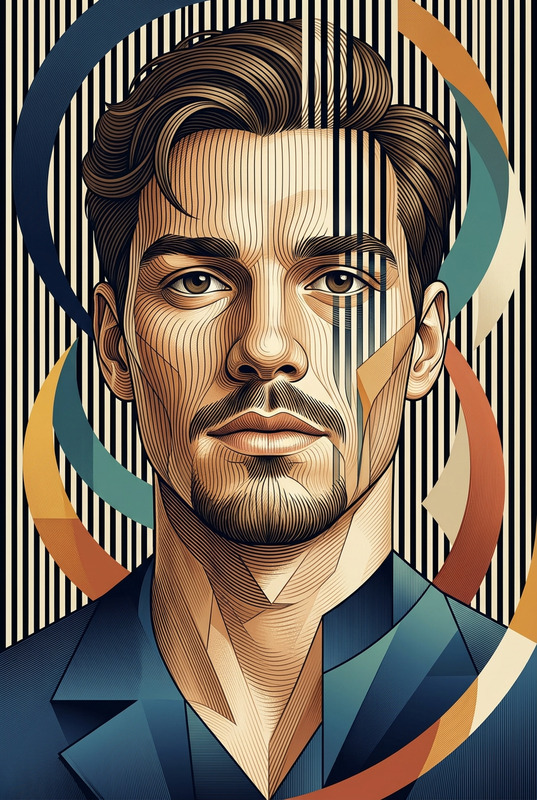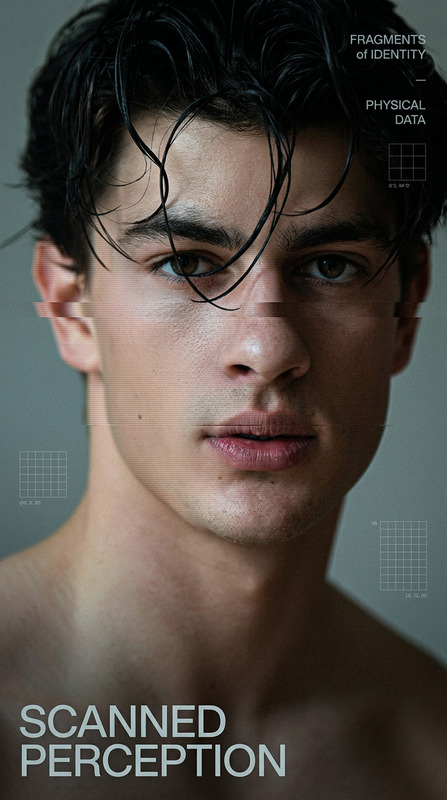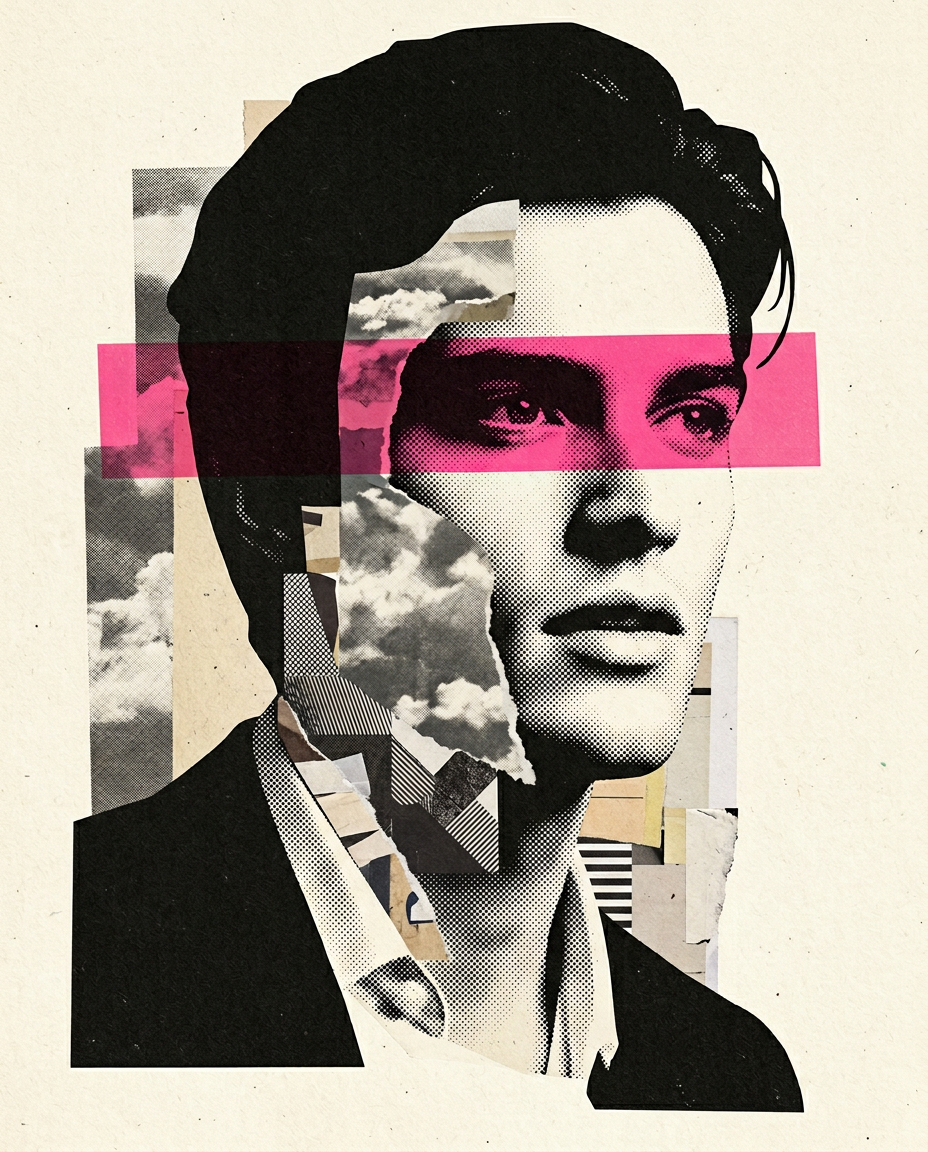
Editorial Collage Portrait
- Model
- Nano Banana 2
- Image
- 928 × 1152 px
Prompt
"Create a high-detail {argument name=""art style"" default=""mixed-media collage portrait illustration""} of the person from the reference image, keeping the face 100% accurate and unchanged; side-facing three-quarter profile, calm serious expression; style is handcrafted screenprint collage with visible paper texture, halftone dots, grain, and imperfect print feel (no digital/AI look); face rendered in black-and-off-white halftone style; hair as solid black cutout; add a bold {argument name=""eye band color"" default=""hot pink""} horizontal band across the eyes (semi-transparent); collage layers include abstract textures (clouds, geometric patterns, stripes, torn paper) placed across face, neck, and background; composition is vertical, head slightly right of center, clean negative space, warm off-white paper background; matte, tactile, editorial print aesthetic, high detail, no text, no glossy or 3D effects, aspect ratio {argument name=""aspect ratio"" default=""4:5""}."
Any aspect ratio
Overview
The Editorial Collage Portrait is a specialized template within our AI Image Editor. Using the capabilities of the nano-banana-2 model, it transforms ordinary reference images into high-detail mixed-media collage portrait illustrations. The style embodies a handcrafted screenprint collage, complete with visible paper textures and a retro print feel.
What It Does
This template allows users to create a highly detailed editorial collage portrait while maintaining 100% accuracy of the subject's facial features. The integrated prompt captures a side-facing three-quarter profile with a unique blend of screenprint aesthetics and modern collage elements, such as geometric patterns and a distinctive eye band color. Ideal for high-quality creative projects, this template heightens the traditional feel without a digital or AI appearance.
Who It’s For
The Editorial Collage Portrait template is perfect for illustrators, graphic designers, and artists seeking to incorporate an editorial style into their portfolios or professional projects. Marketing professionals in the fashion and lifestyle sectors can also leverage this tool for creating eye-catching collateral. Additionally, it serves creatives looking to enhance their storytelling potential in visual Image to Video formats.
Summary
Discover how the Editorial Collage Portrait merges traditional print aesthetics with modern design in a user-friendly process. By accurately rendering facial details, this template facilitates professional grade illustrations suitable for both digital and print mediums. It's a trailblazer among AI Image Generators, perfect for producing standout creative content.
How to Use
Choose Template

Customize Inputs

Generate Illustration

Use Cases
Editorial Marketing Materials
- Eye-catching editorials
- Stylish brochures
Creative Portfolios
- Unique artist portfolios
- Graphic designer showcases
Advertising Campaigns
- Fashion advertisements
- Lifestyle campaigns
Best Practices
Reference Image Quality
Ensure that the reference image is high resolution to maintain facial details.Parameter Adjustments
Experiment with different 'eye band color' and 'art style' combinations to achieve the best aesthetic fit.Texture Selection
Select textures in the prompt that complement the subject matter, enhancing the overall visual appeal of the collage.