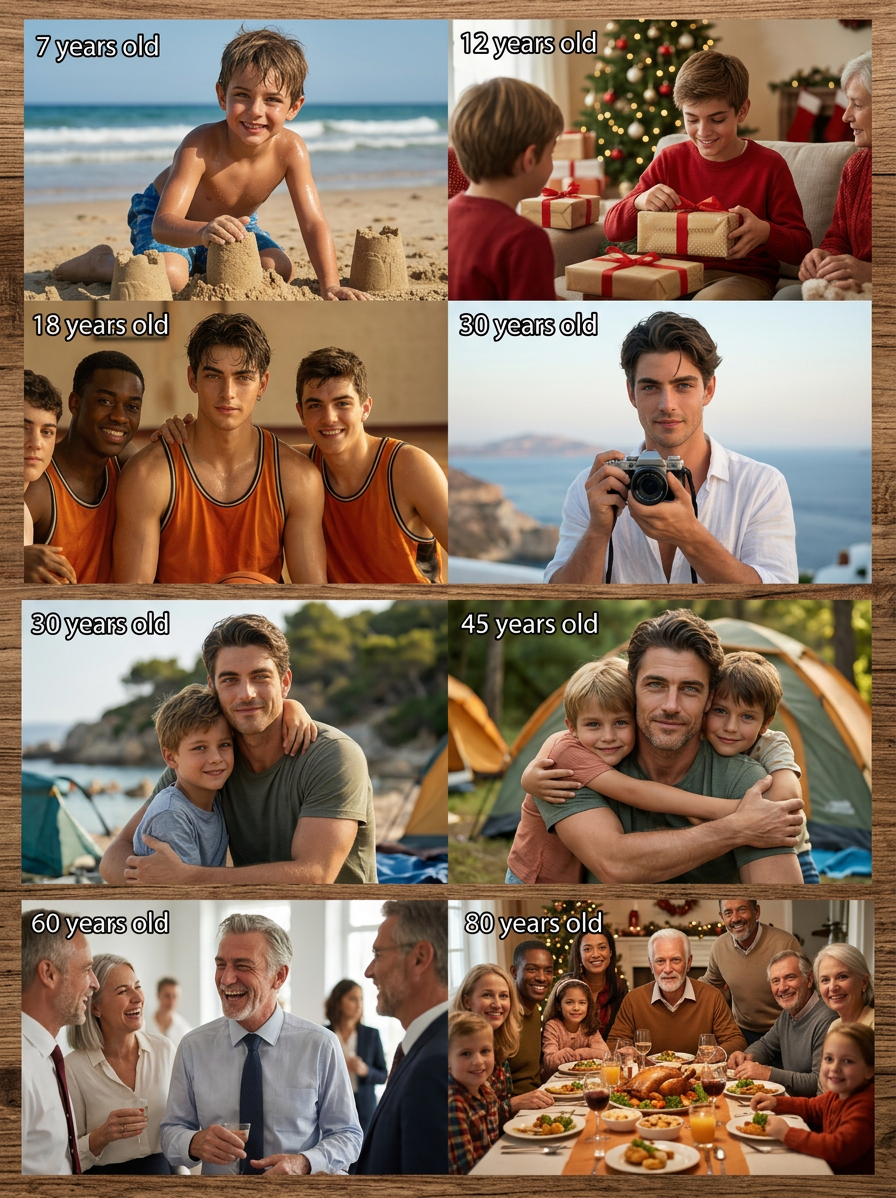
Lifetime Timeline

Lifetime Timeline

ai-image-editor

1 clip
6 uses

Any aspect ratio

Prompt

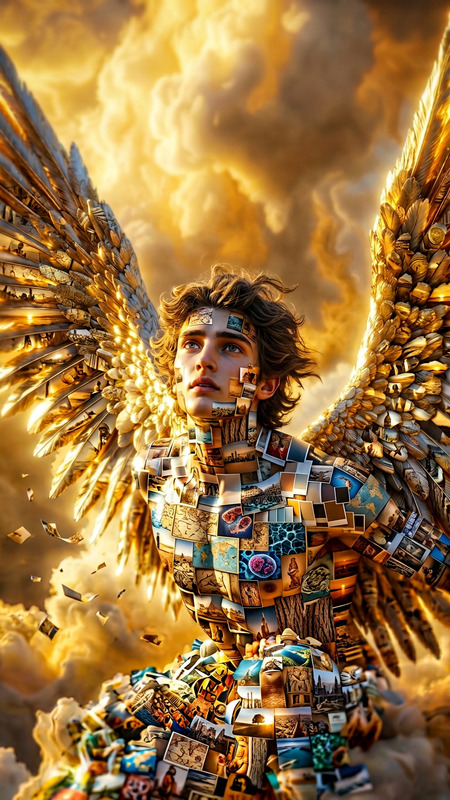
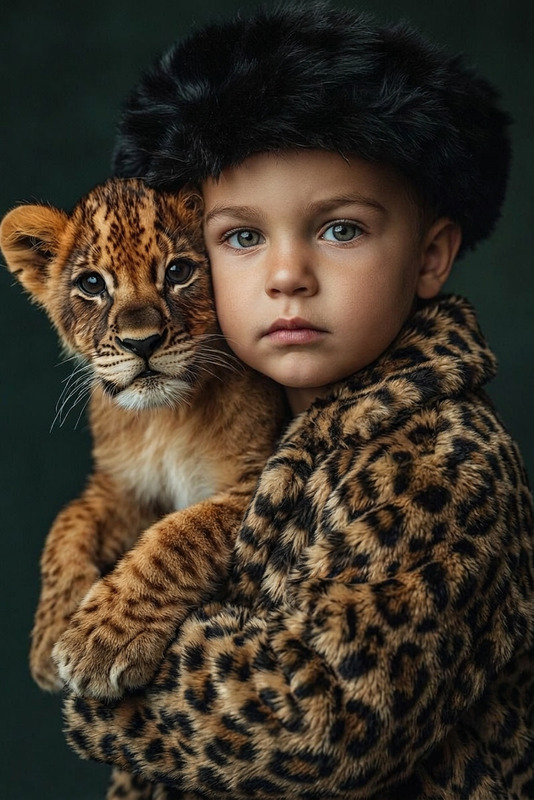
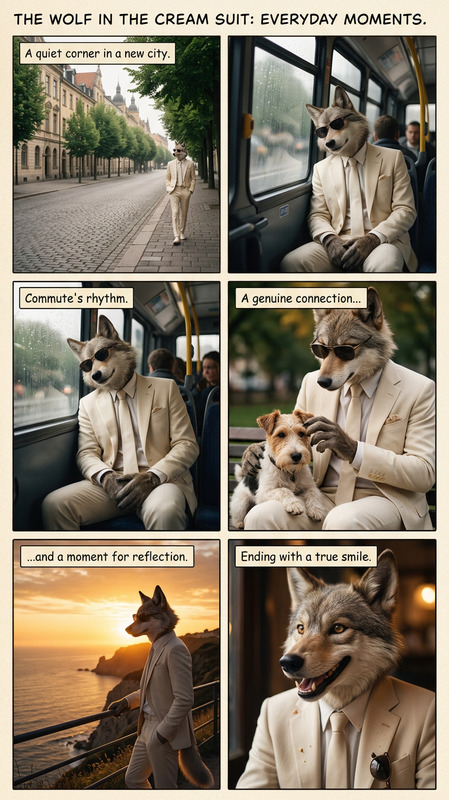
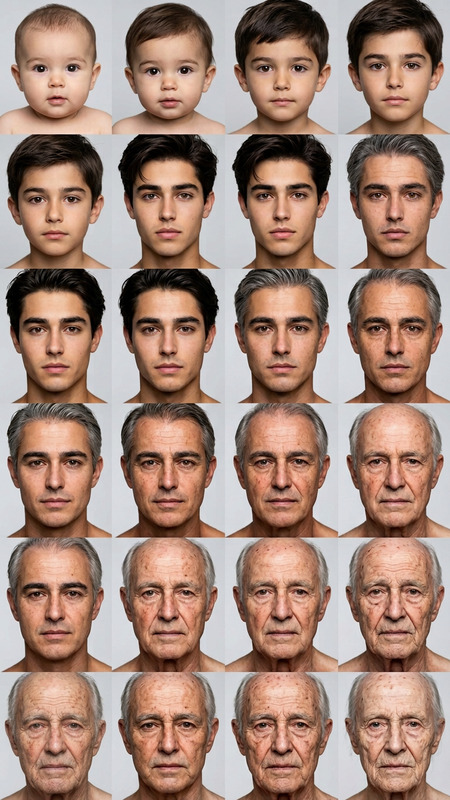
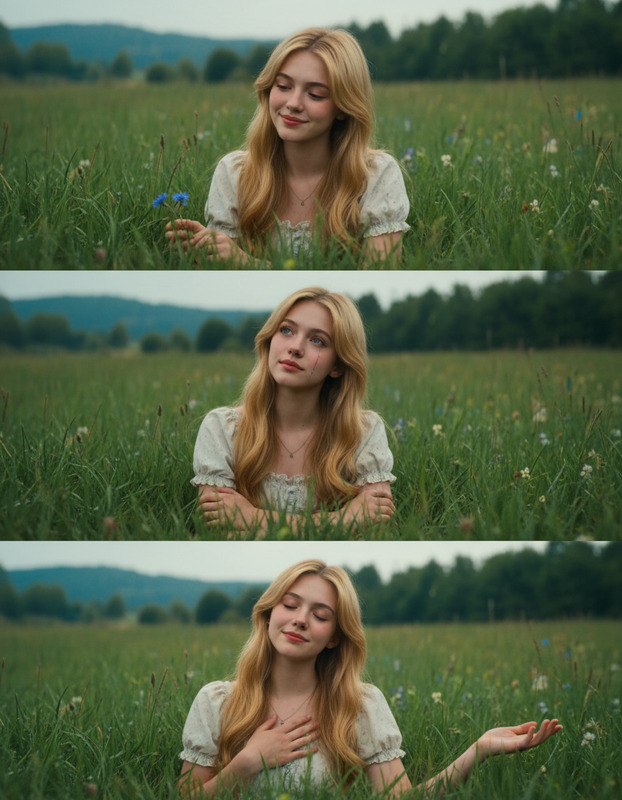
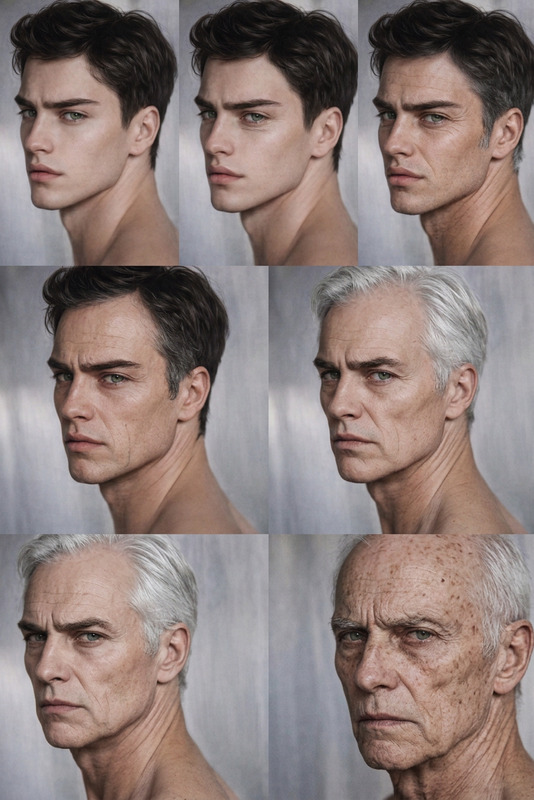
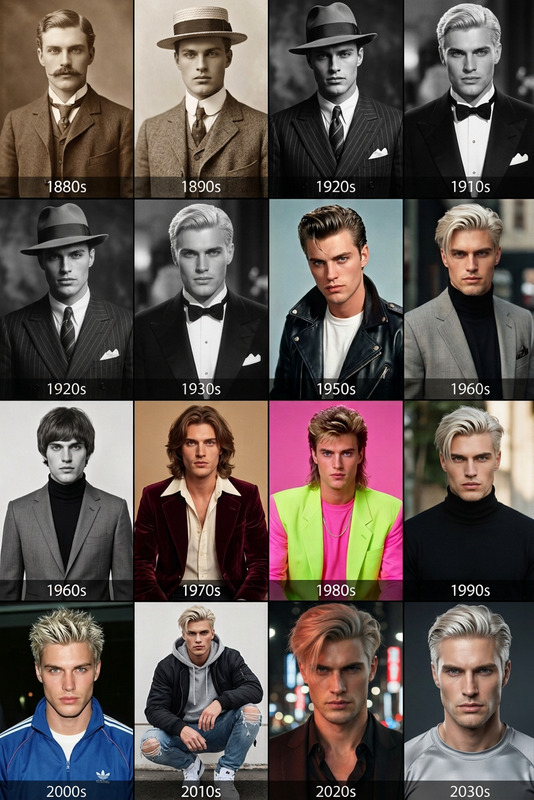
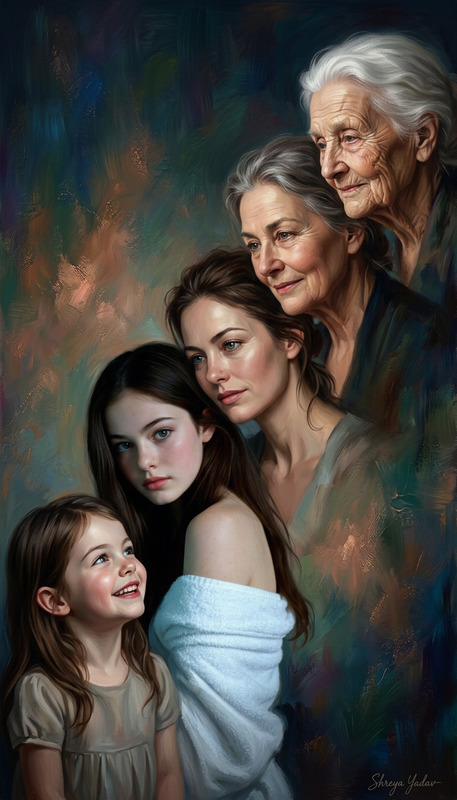
A photorealistic, high-detail series of holiday photos of the same subject across different ages, from childhood to 80 years old. The subject appears in multiple scenes, each representing a different stage of life, with consistent facial identity and natural aging progression. Each scene shows the subject during a holiday moment (e.g., beach trip, family gathering, travel), with natural lighting and authentic environments. The composition flows like a timeline, either arranged side-by-side or blended seamlessly, showing growth, emotion, and life progression. Cinematic, realistic, warm, and nostalgic atmosphere.

AI Image Editor Template: Turn Any Image Into a Polished, On‑Brand Visual in Minutes

Use this AI Image Editor–based template to quickly transform raw images into high‑quality, share‑ready assets—without leaving your browser and without needing traditional design tools. It’s built for creators, marketers, and product teams who need clean, on‑brand visuals at scale.


What This Template Is Best For

This template is ideal when you need to:

  • Clean up or enhance product photos for landing pages, ads, or marketplaces
  • Remove distracting objects, logos, or people from a shot
  • Replace or blur backgrounds for privacy or branding
  • Reframe or restyle user‑generated content into on‑brand visuals
  • Fix lighting, clarity, or composition for social posts and campaigns
  • Iterate on multiple creative variants quickly for A/B tests

Under the hood, it uses the AI Image Editor, which combines generative inpainting, outpainting, and local edits to let you modify specific parts of an image while keeping everything else intact.


How to Remix This Template in Magic Hour

You can use this template as‑is, or treat it as a starting point for your own custom workflow. To remix it inside Magic Hour:

  1. Open the template in Magic Hour.
  2. Duplicate / Remix it to create your own version.
  3. Swap in your own source images (product photos, screenshots, portraits, UGC, etc.).
  4. Use natural language prompts to describe the edit you want:
    • “Remove the person in the background and extend the wall”
    • “Replace the background with a soft gradient in brand colors”
    • “Turn this photo into a clean, flat illustration style”
  5. Apply local edits by selecting only the areas you want to modify (e.g., just the background, just a shirt, just a logo).
  6. Export the final result in the format and resolution you need for your website, ad platform, or internal docs.

Because this template is built on the core AI Image Editor, you can also chain it with other Magic Hour products for more advanced pipelines (examples below).


Practical Use Cases and Examples

Use this template when you need:

  • Landing page visuals: Take a rough product shot, remove clutter, and place it on a clean background for hero sections and feature blocks.
  • Paid ads & social creatives: Generate multiple visual variants from one base image, each with different backgrounds or props, for performance testing.
  • Brand clean‑up: Remove outdated logos, watermarks, or sensitive content from existing assets using the AI Remover, then refine with the AI Image Editor.
  • Profile & team photos: Clean backgrounds, adjust framing, and then upgrade to professional‑looking headshots with the AI Headshot Generator.
  • UGC repurposing: Restyle user‑generated content to be more consistent with your brand’s colors and visual language before using it in case studies, decks, or ads.

For teams running content operations, this template can become part of a repeatable creative pipeline that non‑designers can use safely.


How to Get the Best Results with AI Image Editing

Because this template uses the AI Image Editor, you can control it using natural language. Some practical guidance:

  • Be specific about what stays vs. what changes.

    • “Keep the product exactly as is, change only the background to a light gray studio look.”
    • “Remove everything except the person; replace the background with an office interior.”
  • Describe style and usage context.

    • “Edit this for a SaaS landing page hero, minimal, high contrast, no text on the image.”
    • “Make this suitable for LinkedIn as a professional profile photo.”
  • Think in terms of constraints, not just aesthetics.

    • “Make sure the phone screen remains readable and realistic.”
    • “Preserve shadows under the shoes so they don’t look floating.”

If you need more structural changes than simple edits, combine this template with:


Build Multi‑Step Creative Flows with Other Magic Hour Tools

This template is just one building block. Here are proven combinations used by teams and creators:

1. Product Shot → Clean Edit → Video Variant

  1. Start with this AI Image Editor template to clean and standardize your product image.
  2. Turn the final still into a short video using Image to Video.
  3. Upscale the output for ads or marketplace listings with Video Upscaler.

Useful when you need motion assets from static photos for TikTok, Meta, or YouTube campaigns.

2. Portrait → Edited Image → Talking Photo or Lip Sync

  1. Use the template to clean up and enhance a portrait (remove distractions, fix background, adjust framing).
  2. Turn the edited portrait into a talking asset with AI Talking Photo or Lip Sync.
  3. Clone or generate a voice using AI Voice Cloner or AI Voice Generator for sales videos, explainers, or onboarding flows.

3. Brand Visual System → Consistent Content at Scale

  1. Define your base look using AI Logo Generator, AI Background Generator, and AI Illustration Generator.
  2. Use this AI Image Editor template to bring legacy or third‑party visuals (screenshots, UGC, event photos) in line with your new brand system.
  3. Generate on‑brand avatars and characters for marketing or product UI using the Avatar Generator and AI Character Generator.

Related Templates and Tools You May Want to Explore

If this template is part of a broader content strategy, these Magic Hour experiences work well alongside it:


Implementation Notes for Teams and Builders

If you’re a startup, agency, or internal tools team designing workflows around this template:

  • Standardize prompts. Document a small library of approved prompts (e.g., “studio‑style background,” “LinkedIn‑ready headshot,” “screenshot for documentation”). This improves consistency and lets non‑designers get reliable results.
  • Integrate review steps. Use the template as a first pass, then add a lightweight human review step before publishing to production sites or ad platforms.
  • Chain tools thoughtfully. For example:
    • Restore and upscale → Edit with this template → Generate short video → Auto‑subtitle with Auto Subtitle Generator.
  • Respect rights and privacy. Ensure you have the right to edit and reuse all images you upload, and be especially careful with faces, trademarks, and sensitive locations.

How to Start

  1. Open this AI Image Editor template inside Magic Hour.
  2. Remix it into your own version so your team can reuse and adapt it.
  3. Connect it with other tools like AI Image Generator, Image Background Remover, AI Image Upscaler, and Image to Video to build a complete, repeatable creative pipeline.

This page can serve as your internal reference: a reusable pattern for how to turn any rough image into a polished, production‑ready asset using Magic Hour’s AI Image Editor.

More Like This

Insufficient credits