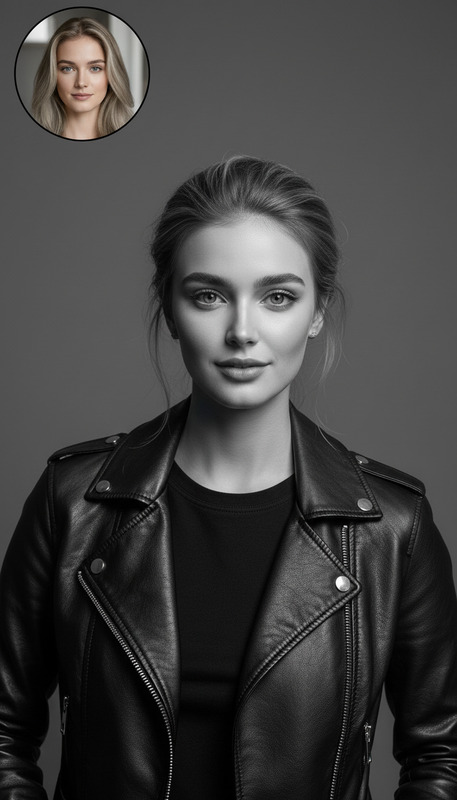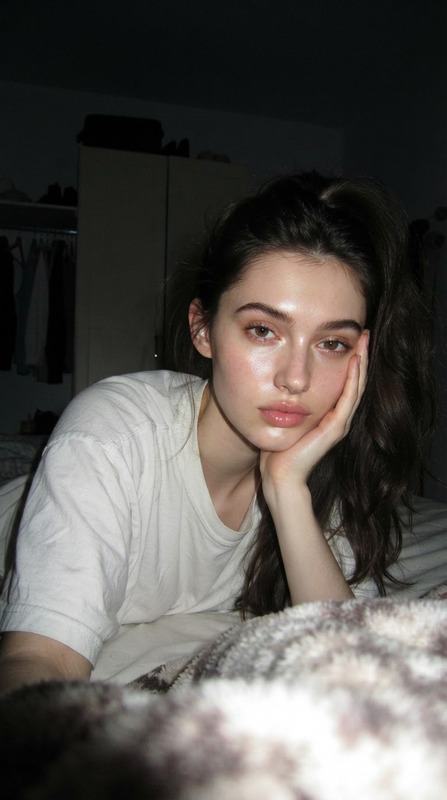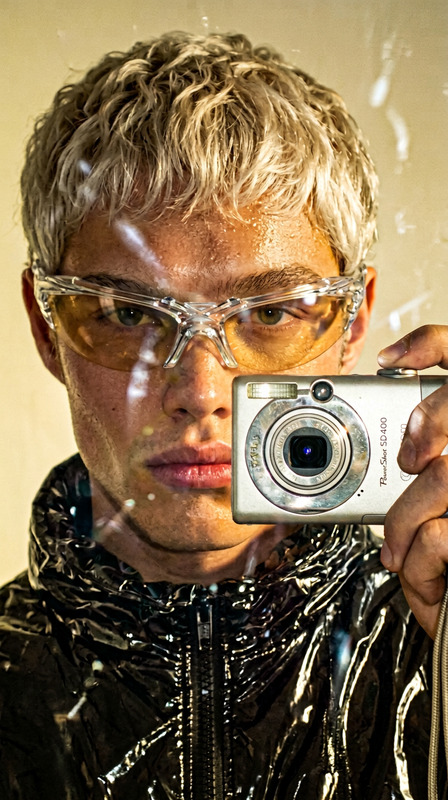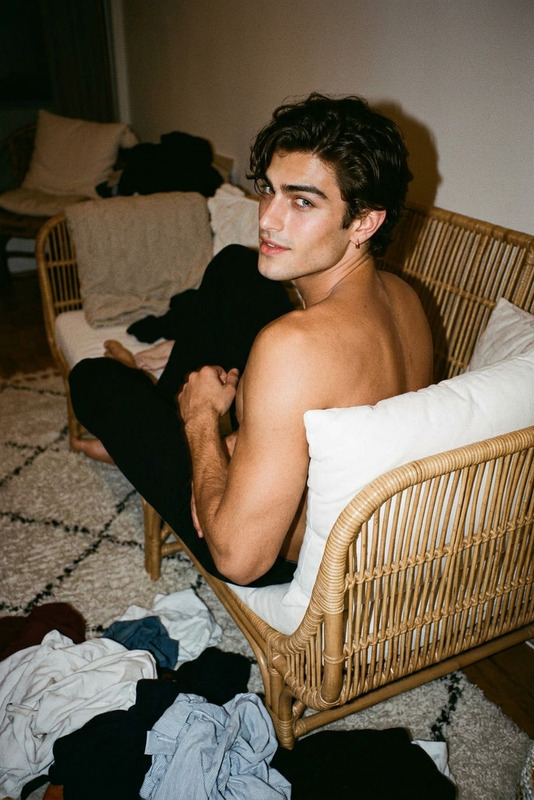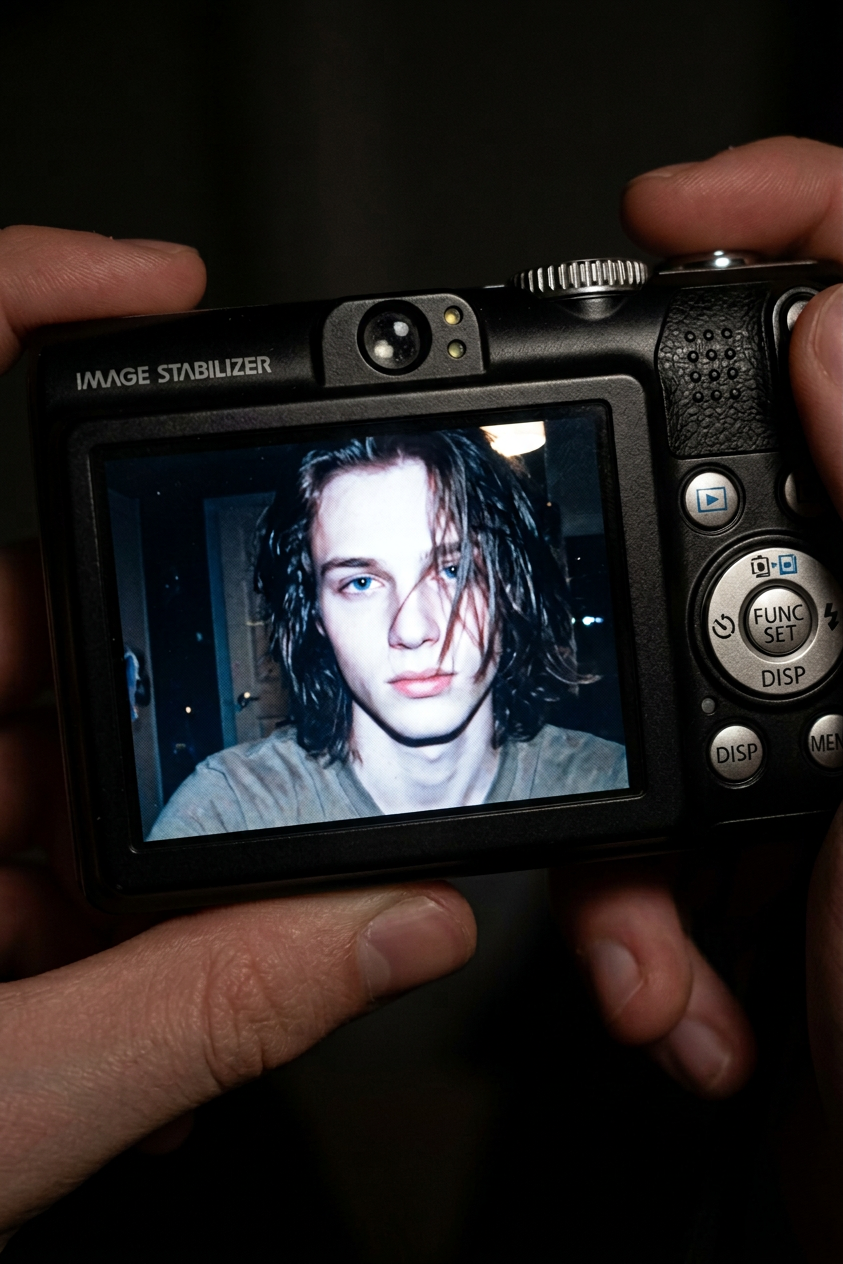
Canon Digicam Flash Memory Portrait

Canon Digicam Flash Memory Portrait

ai-image-editor

1 clip
3 uses

Any aspect ratio

Prompt

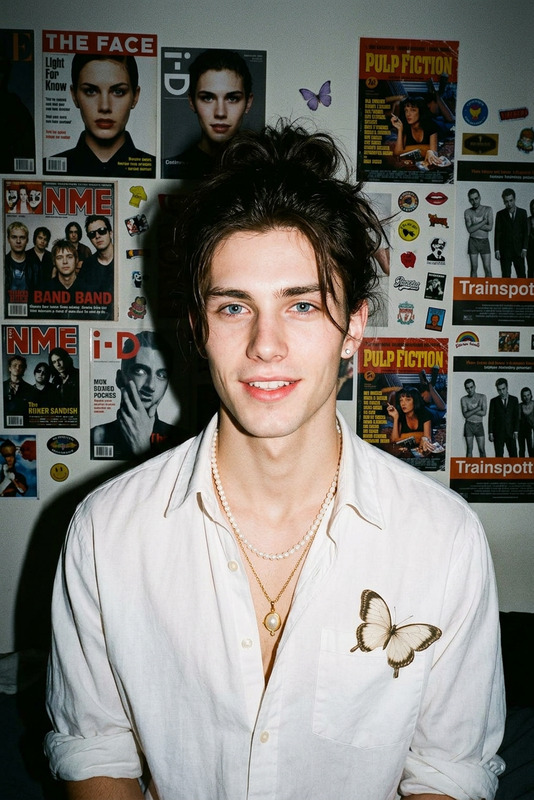
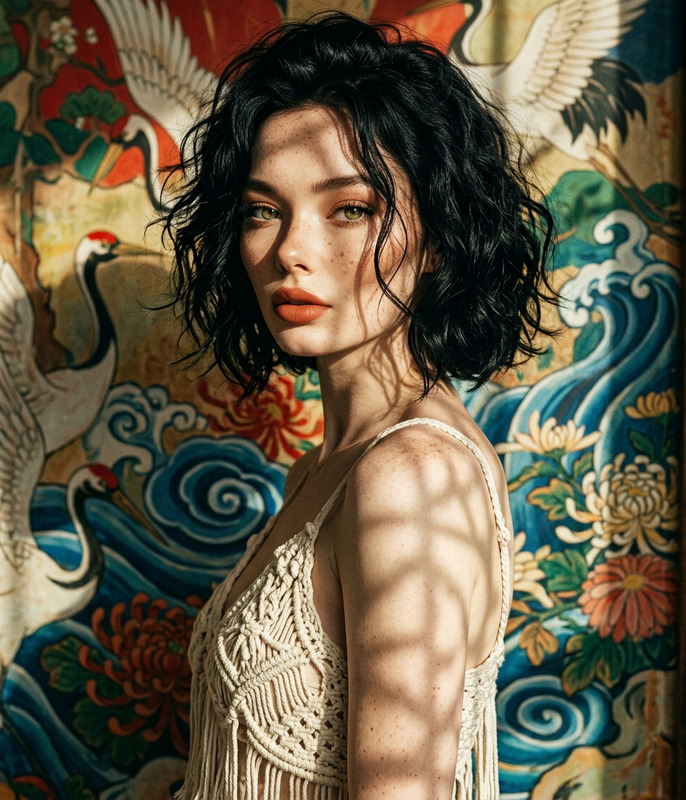
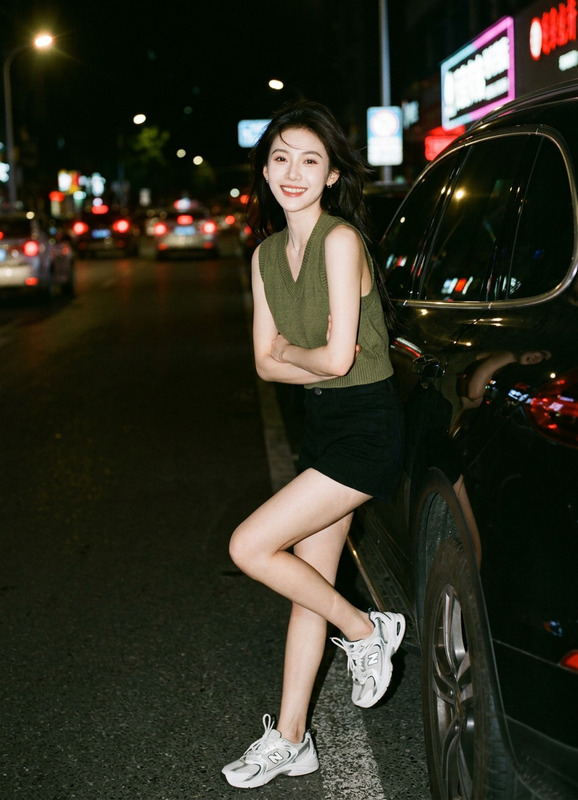
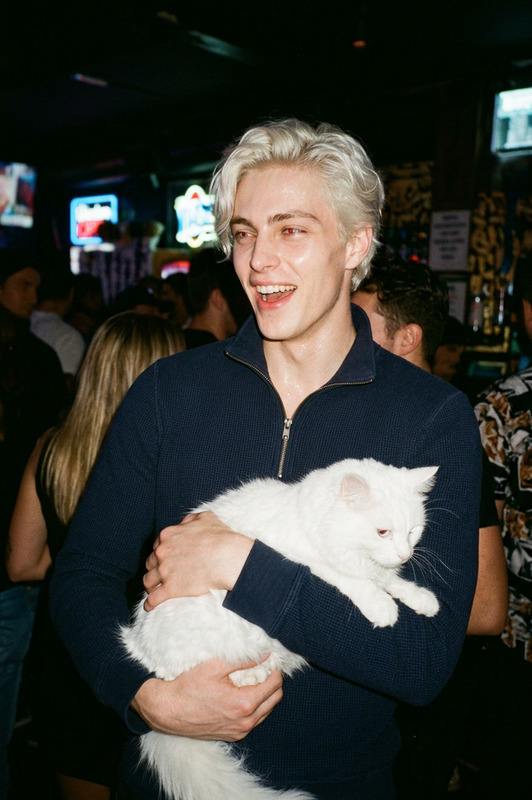
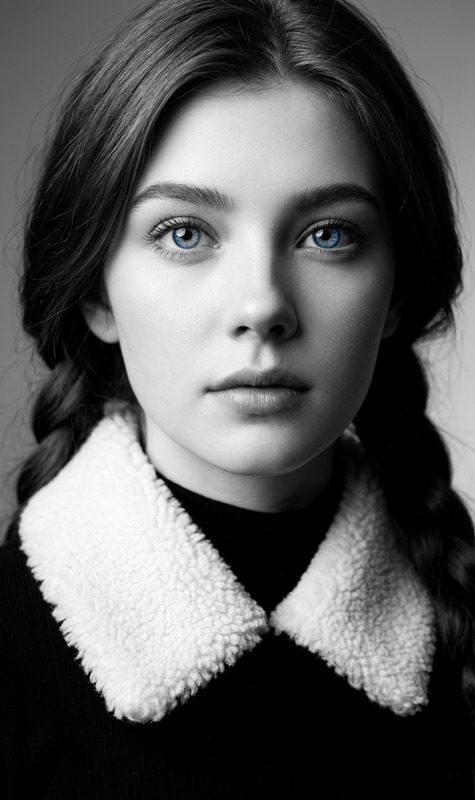
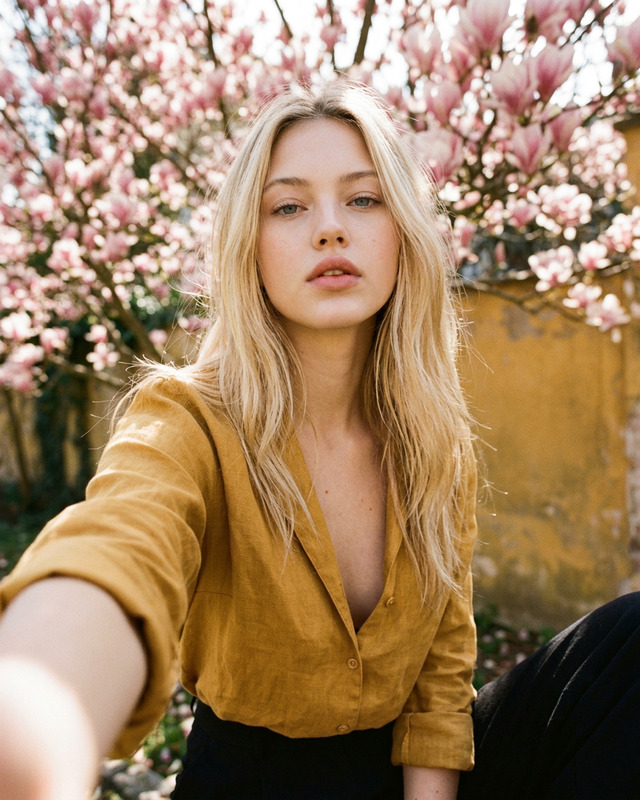
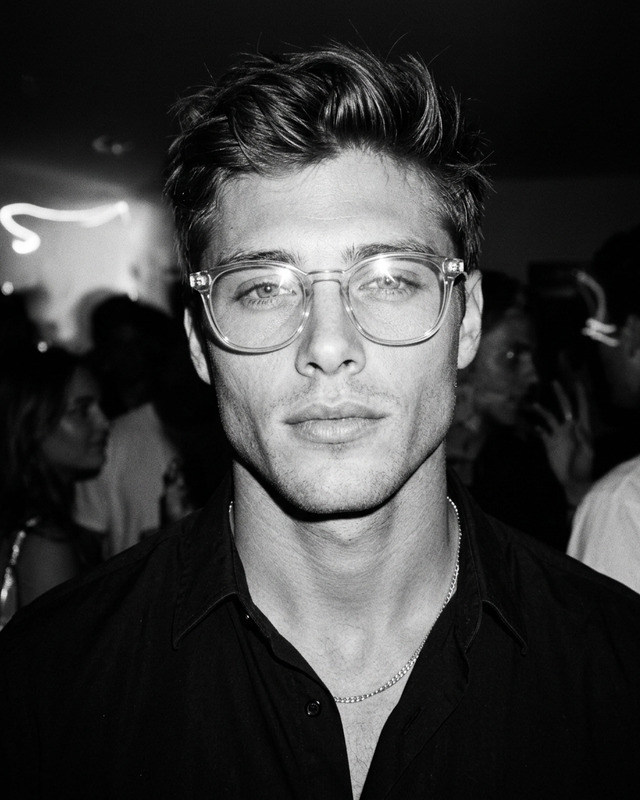
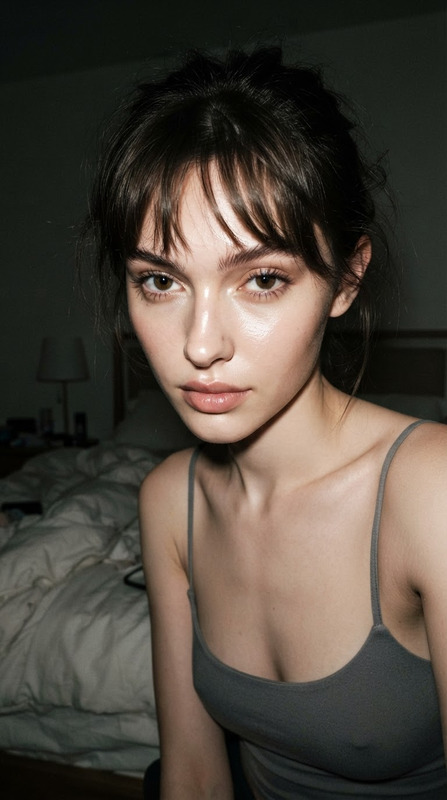
Use facial features of the attached photo without altering any identity or facial structure. A close-up shot of the subject displayed on the screen of a compact Canon digital camera, with the camera body clearly visible around the image including buttons, dials, textured grip, FUNC/SET wheel, DISP button, and “IMAGE STABILIZER” label along the side. The photo on the screen shows the subject indoors at night, illuminated by a bright built-in flash creating sharp highlights on the face and hair, with long dark hair partially falling across the face. The composition is candid, raw, nostalgic, early 2000s digital camera snapshot aesthetic, 28–35mm equivalent lens look, no text or logos inside the screen image, ultra-realistic, high detail, authentic flash photography mood.

AI Image Editor Template: Instantly Transform and Enhance Any Image

Use this template to quickly turn rough images into polished, on-brand visuals using the AI Image Editor. It’s designed for creators, marketers, and product teams who need fast, reliable image edits without opening Photoshop or writing prompts from scratch.


What this template is for

This AI Image Editor–based template is ideal when you need to:

  • Clean up or retouch product photos, UGC, or ads
  • Remove unwanted objects, people, or text
  • Replace or blur backgrounds for social, landing pages, or app stores
  • Change styles (photo → illustration, realistic → anime, etc.)
  • Improve resolution and clarity for print or high-res web use
  • Create multiple visual variations for A/B testing or campaigns

It works especially well alongside:


How to remix this template in Magic Hour

You can create your own version of this template in a few straightforward steps:

  1. Open the AI Image Editor
    Go to the AI Image Editor product page and launch the editor.

  2. Import your base image

    • Upload a product photo, portrait, screenshot, design mockup, or AI-generated image.
    • For best results, start with clear, well-lit images (e.g., 1024×1024 or higher).
  3. Define the task in natural language
    In your own words, describe the transformation you want. Examples:

    • “Remove the person in the background and extend the floor.”
    • “Turn this photo into a flat, minimal illustration for an app landing page.”
    • “Make this look like a professional LinkedIn headshot with a soft gray background.”
    • “Clean up JPEG artifacts and sharpen text while keeping colors natural.”
  4. Iterate until it matches your brand or brief

    • Run small, focused edits: object removal, color and lighting tweaks, style shifts.
    • Chain edits: for example, remove background → add a studio backdrop → lightly retouch → upscale.
    • Save multiple variants for testing (e.g., ad thumbnails, social posts, or app store screenshots).
  5. Save as your reusable workflow

    • Document your typical instructions (e.g., “product-on-white workflow,” “LinkedIn headshot cleanup,” “UGC ad polish”).
    • Reuse your prompt patterns across images to maintain a consistent look and feel.

If you start from a video or animated asset, you can pair this with:

  • Video to Video – stylize or transform videos and then extract key frames to refine with the AI Image Editor
  • AI GIF Generator – create short loops, then touch up key frames in the editor for sharper quality

Practical use cases for teams

For marketers & growth teams

  • Instantly clean up influencer and UGC content for paid campaigns
  • Localize creatives: swap backgrounds or visual references for different regions
  • Generate multiple ad concepts by combining this template with:

For product designers & founders

  • Turn low-fidelity mockups into presentation-ready visuals
  • Produce polished UI/UX screenshots for decks, landing pages, and app stores
  • Combine with the AI Icon Generator and AI Logo Generator to rapidly build cohesive branding assets

For creators & content studios


Related workflows you can build by remixing this template

Use this template as a base and extend it into more advanced pipelines:

  1. Face-focused pipelines

  2. Brand-ready portrait & headshot system

    • Generate or clean up portraits with AI Selfie Generator
    • Turn them into professional profiles via AI Headshot Generator
    • Use this AI Image Editor template to normalize colors, backgrounds, and lighting across your team or product marketing assets.
  3. E‑commerce and fashion pipelines

  4. Creative IP & worldbuilding


Advanced tips for power users

  • Prompt modularity
    Break your instructions into modular pieces (e.g., “retouch skin lightly,” “keep shadows realistic,” “no logo changes”). Reuse these segments across projects to reduce variance and maintain consistency.

  • Style consistency across campaigns

    • Define a style guideline in text (“soft natural light, minimal shadows, neutral color grading, desaturated backgrounds”).
    • Apply the same guideline every time you run this template on new assets.
    • For animated assets, mirror the style in Animation or Video to Video so stills and motion match.
  • Restoration and enhancement

    • Clean old or low-quality images with Old Photo Restoration and Unblur Image.
    • Finish with this template to correct color, remove artifacts, and align with your brand palette.
  • Object & background control


Going from image to video and beyond

Once your images look right, you can extend them into motion and audio:


How to get the most out of this template

  • Start with a single, clear outcome (e.g., “Amazon-ready white background product photo”)
  • Keep prompts specific, but not overly constrained
  • Save your best prompts as internal standards (“Brand Product Shot v1,” “LinkedIn Headshot v2”)
  • Combine this AI Image Editor template with other Magic Hour tools to build your own end-to-end creative pipeline—from idea to polished, production-ready assets

Use this template as your base editor, then remix, chain, and scale it to fit your own workflows in Magic Hour.

More Like This