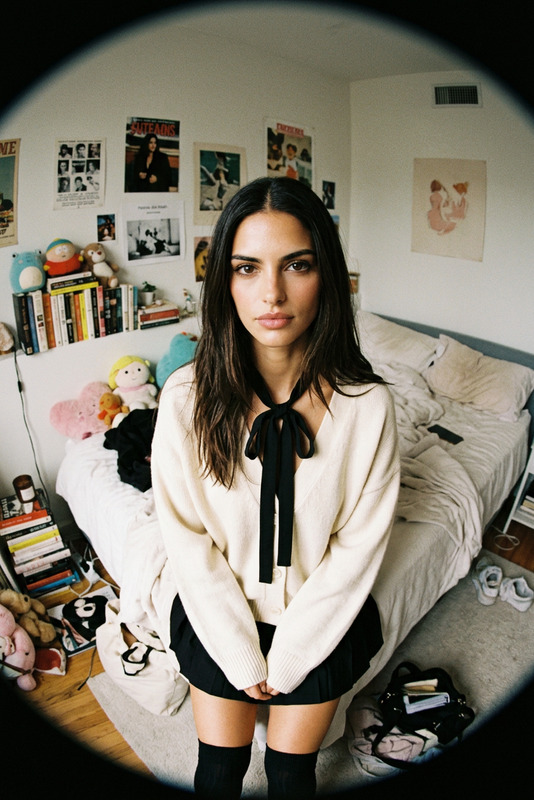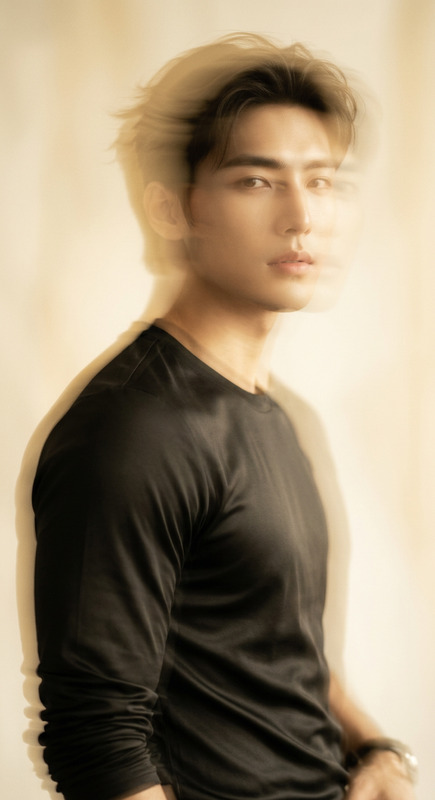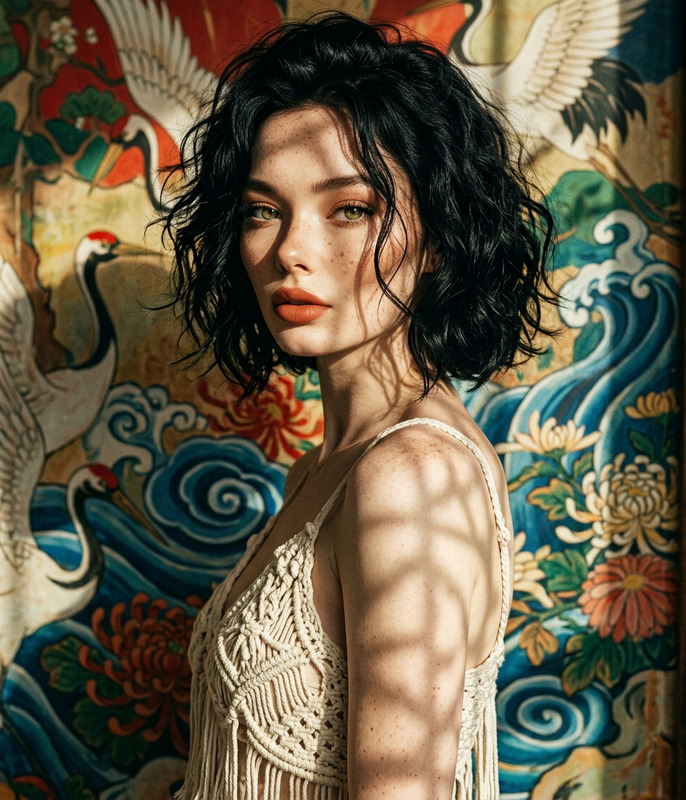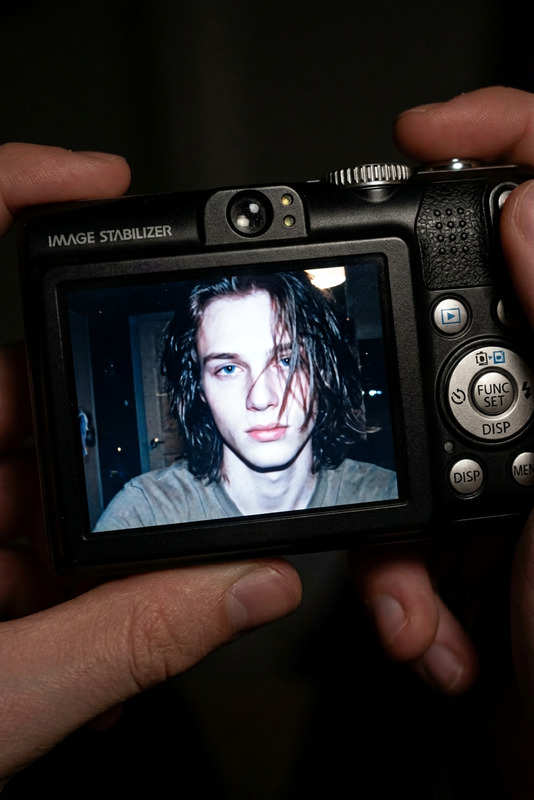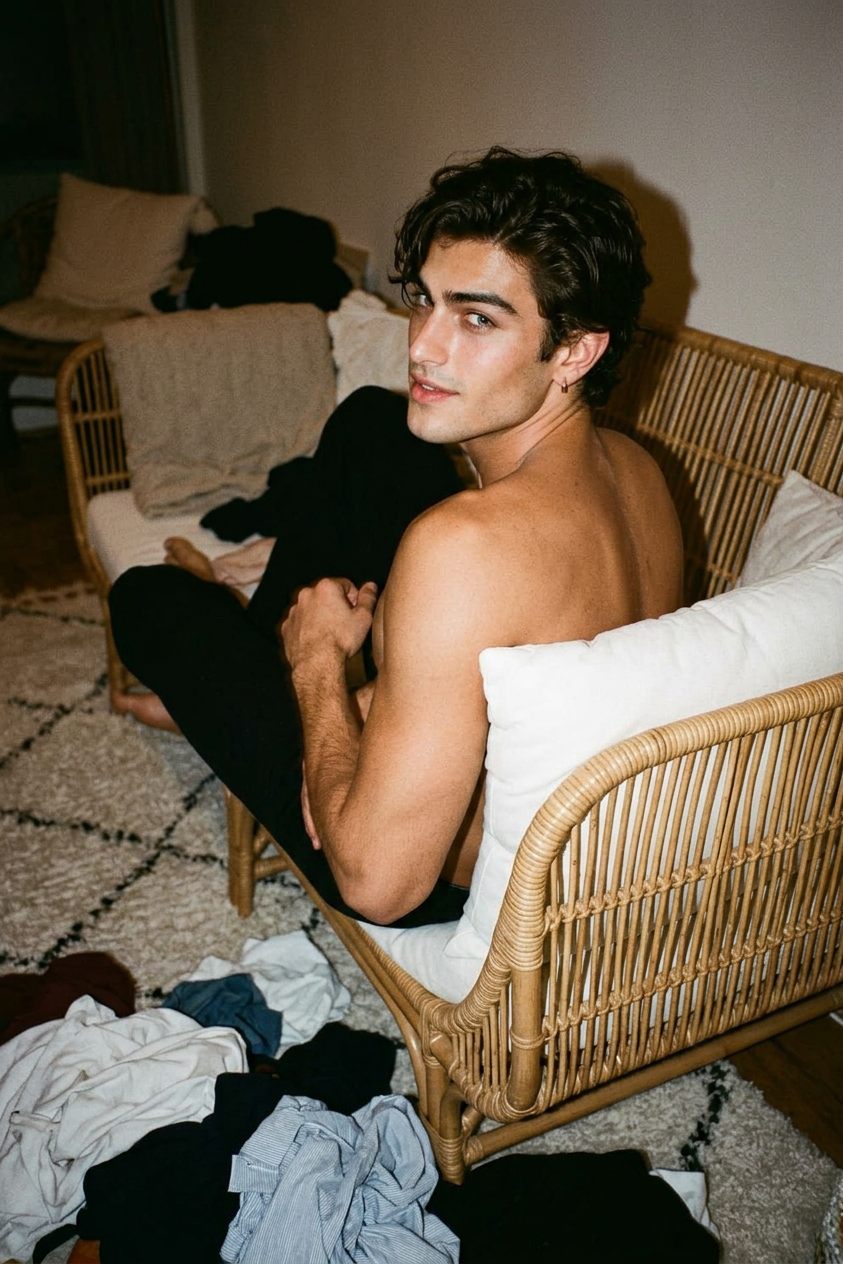
Cozy Vintage Over-Shoulder Flash

Cozy Vintage Over-Shoulder Flash

ai-image-editor

1 clip
3 uses

Any aspect ratio

Prompt

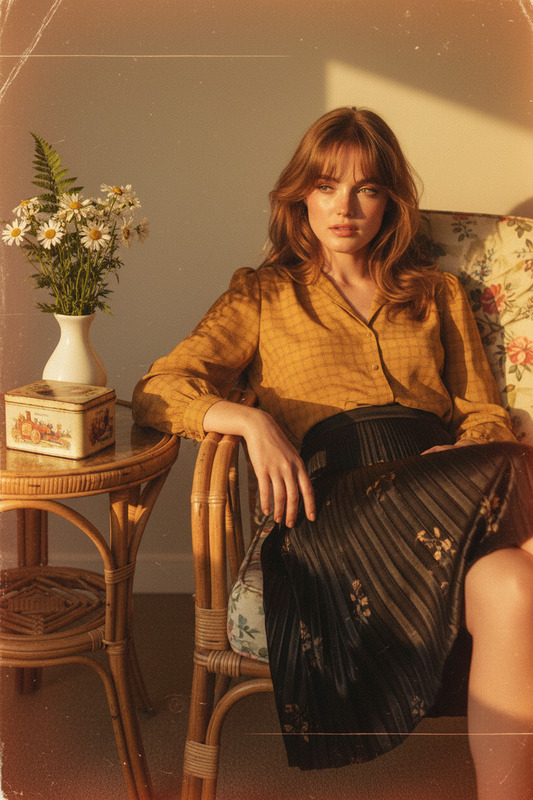
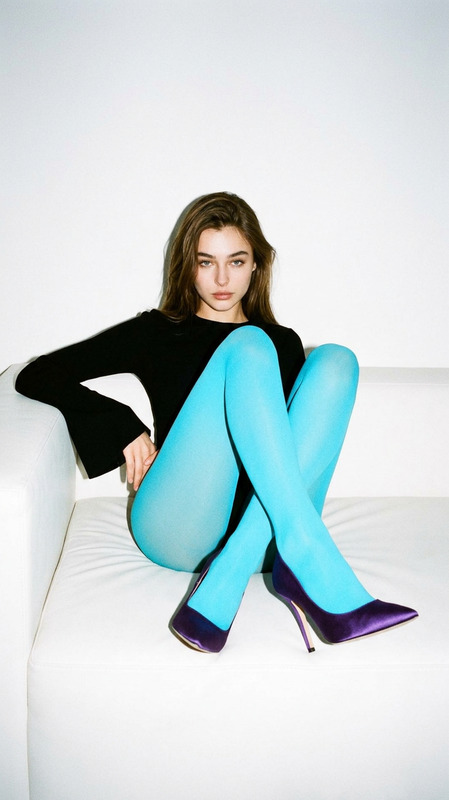
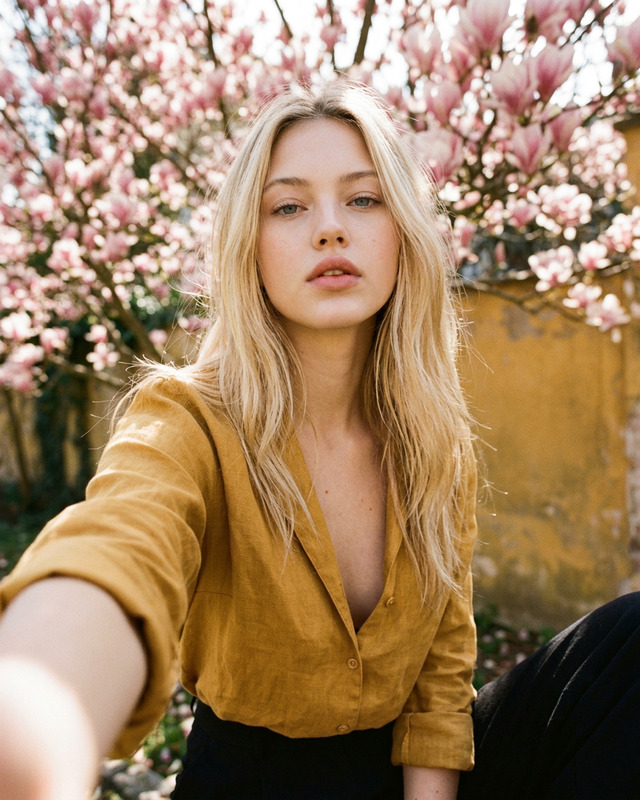
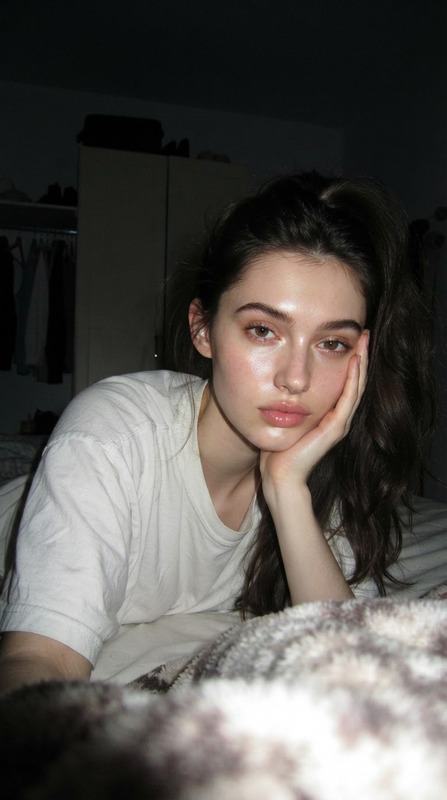
Facial features must remain exactly identical to the provided reference photo. Subject sits on a woven sofa with back turned to the viewer, folded comfortably, one hand resting on the sofa, looking back over the shoulder at the camera with a playful, soft, naturally charming expression. Cozy messy room setting with woven sofa, white pillows, and scattered clothes in the foreground for an authentic lifestyle feel. Warm dim indoor lighting or direct compact film camera flash, Olympus MJU II aesthetic, 35mm film-style look, warm vintage VSCO vibe, soft grain, subtle blur, rich room texture, candid lifestyle editorial photography, ultra-realistic, high detail.

AI Image Editor Template: Remixable AI Photo Editing for Creators & Teams

Use this template as a starting point to build fast, consistent AI-powered edits in the AI Image Editor. It’s designed for creators, marketers, and product teams who need repeatable workflows—so you can turn complex edits into a one-click, shareable template inside Magic Hour.


What this template is best for

This AI Image Editor–based template is ideal when you need to:

  • Clean up and enhance product photos, ads, and campaign assets
  • Replace backgrounds for ecommerce, social, or brand guidelines
  • Remove unwanted objects, people, or logos from images
  • Re-skin an image into a new style (e.g., “studio lighting”, “magazine cover”, “cyberpunk UI”)
  • Quickly test multiple creative directions for the same base photo

Under the hood, it uses the same engine that powers tools like:

Use it as-is, or duplicate/remix it to match your brand, campaign, or product.


How to remix this template in Magic Hour

You can create your own version of this template in a few minutes by:

  1. Open the AI Image Editor
    Go to AI Image Editor and upload any reference image (product shot, portrait, scene, UI screenshot, etc.).

  2. Define your editing intent in natural language
    Think of the template as a “reusable instruction set.” Describe what you want this template to always do. For example:

    • “Clean white background, natural shadows, ecommerce-ready, no harsh reflections”
    • “Turn this into a flat illustration in a soft pastel palette for landing pages”
    • “Transform into cinematic, high-contrast, dark sci‑fi key art”
  3. Use masks for precise control (optional but recommended)

    • Use AI selection or manual brush to mark regions you want to change (e.g., background only, product only, clothing only).
    • This turns your instructions into a reusable, controlled workflow instead of a one-off edit.
  4. Iterate once, reuse forever

    • Run a few variations until you’re happy with the look.
    • Save this as your “house style” and reuse the same instructions across new images.
    • Share the workflow with your team so everyone can get consistent results without manual Photoshop work.
  5. Chain with other Magic Hour tools for richer workflows

Once you like the flow, treat it as a template: same instructions + new input images = consistent outputs.


High-value use cases for this template

1. Brand-consistent marketing and ad creatives

If you’re running performance marketing, you can standardize your images across campaigns:

  • Create one template for “Meta / TikTok ads creative style”
  • Another for “Website hero images”
  • Another for “Pitch deck slides / investor updates”

Combine this with:

Use the template to quickly produce multiple variants while keeping a coherent design language.

2. Ecommerce & DTC product imagery

For ecommerce teams, this AI Image Editor template can act as your “virtual studio”:

  • Standardize product shots on white, gradient, or brand-colored backgrounds
  • Generate lifestyle mockups without a full photoshoot
  • Localize images for different markets (e.g., background scenes, seasons, props)

Helpful complementary tools:

Use this template as a repeatable pipeline: raw product photo → AI Image Editor template → marketplace‑ready image set.

3. Professional headshots and avatars

You can adapt this template to generate or standardize headshots for:

  • Team pages, pitch decks, and LinkedIn
  • Sales collateral and conference bios
  • Creator profile pictures and avatars

Combine AI Image Editor with:

You can lock in a “company headshot style” and then apply the same look to new hires in minutes.

4. Content, storytelling, and IP development

For content marketers, game devs, and storytellers, this template is useful for:

  • Defining a consistent visual style for characters or worlds
  • Iterating concept art for decks, demos, and prototypes
  • Turning rough ideas into polished visuals for stakeholders

You can chain this with:

Treat the template as your “style bible”: one reference workflow that keeps the look of your universe consistent.

5. Restoration, cleanup, and enhancements

Use this template to systematically clean and enhance any inbound visuals:

Once you find an enhancement recipe that works for your library, save it as your “cleanup” template and apply it to entire batches.


Turning edited images into video and motion

Once you have on-brand edited images from this template, you can push them further:

You can also combine this with template-driven video products:

  • Face Swap Video – to put your edited faces into existing footage
  • Lip Sync – to animate talking heads from your edited portraits
  • Video to Video – to re-style footage into the same aesthetic as your images
  • Animation – to bring your AI-edited characters into motion

This gives you a full pipeline: edit images once → reuse the same look in static and video assets.


Advanced tactics for power users

For creators and teams who are already deep into AI workflows:

  • Create modular templates
    Build multiple narrow templates instead of one “do everything” flow:

    • Template A: background cleanup
    • Template B: style transfer
    • Template C: lighting & contrast tuning
      Then chain them in your workflow for more predictable results.
  • Maintain a prompt library
    Keep a small internal library of prompts that work well with your brand, and plug them into the AI Image Editor. Treat them as versioned assets (e.g., “Brand style v1.2”).

  • Use reference images for style locking
    When generating new base art via AI Art Generator or AI Manga Generator, keep a few “golden” reference images. Build your templates around achieving a look close to those references.

  • Standardize across surfaces
    Use the same or similar templates for:

    • Product page images
    • Deck and one-pager visuals
    • Social / ad images
      This reduces creative fragmentation and improves brand recall.

Who this template is for

This AI Image Editor template is especially useful if you are:

  • A founder or marketer needing consistent visuals without a full-time design team
  • A designer who wants repeatable AI-powered polish on top of existing workflows
  • A content or social lead running multi-channel campaigns with limited production time
  • A developer or PM prototyping UX, product shots, or internal tools with visual polish

Instead of manually editing each image, you can encode your “creative decision-making” into a sharable template that anyone on your team can run.


Related Magic Hour tools worth exploring

To get the most out of this template, consider pairing it with:


Start remixing this template

  1. Open the AI Image Editor.
  2. Upload a sample image similar to what you’ll use in production.
  3. Describe your ideal edit in clear, specific language.
  4. Iterate until you get the look you want.
  5. Save and reuse the same instructions as your own template, and share it with your team.

From there, you can plug the outputs into other Magic Hour tools across images, GIFs, and video—building a consistent, AI-native creative stack around a single, reliable AI Image Editor workflow.

More Like This