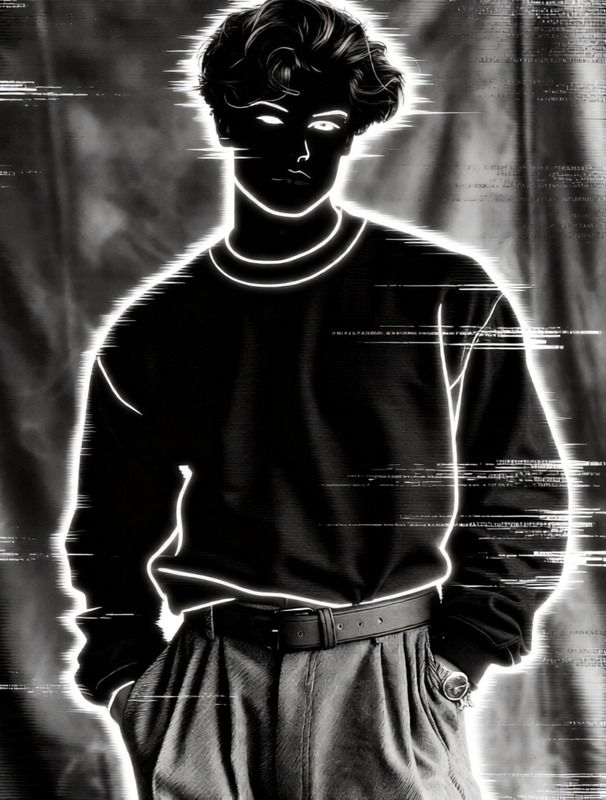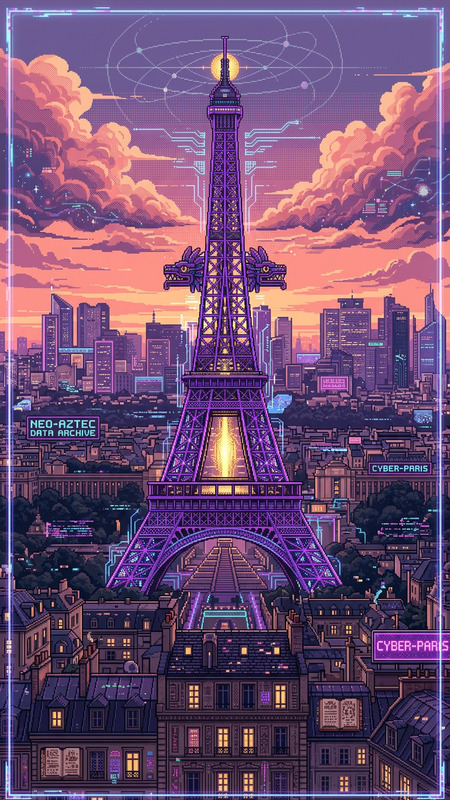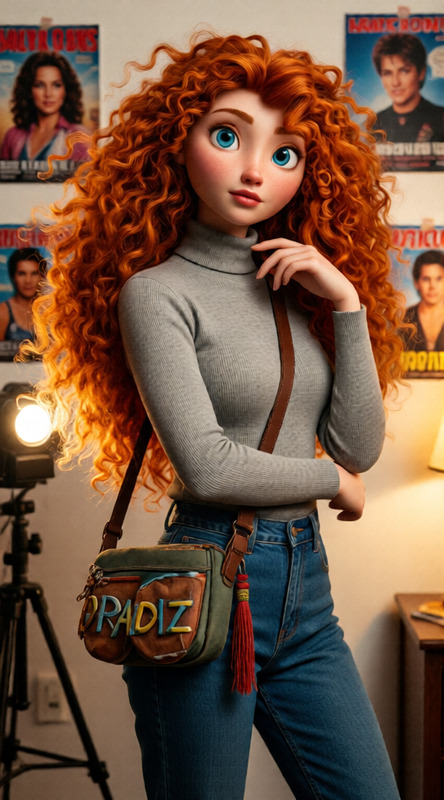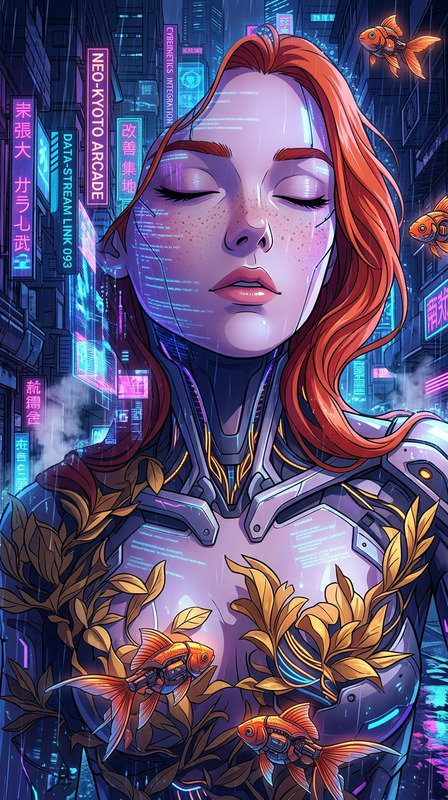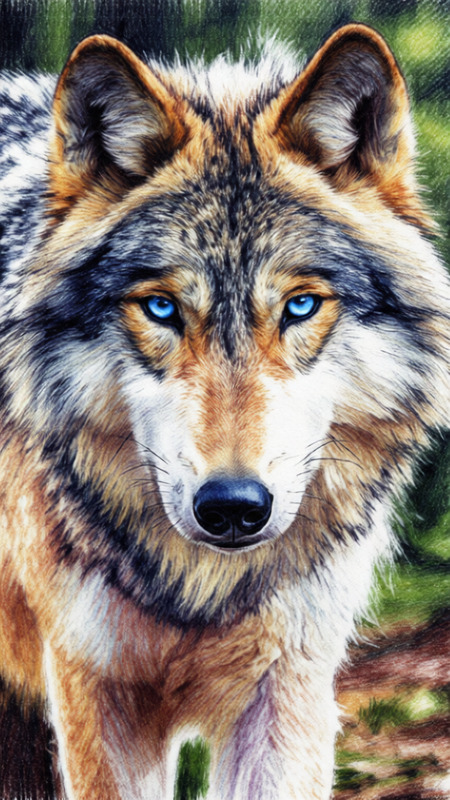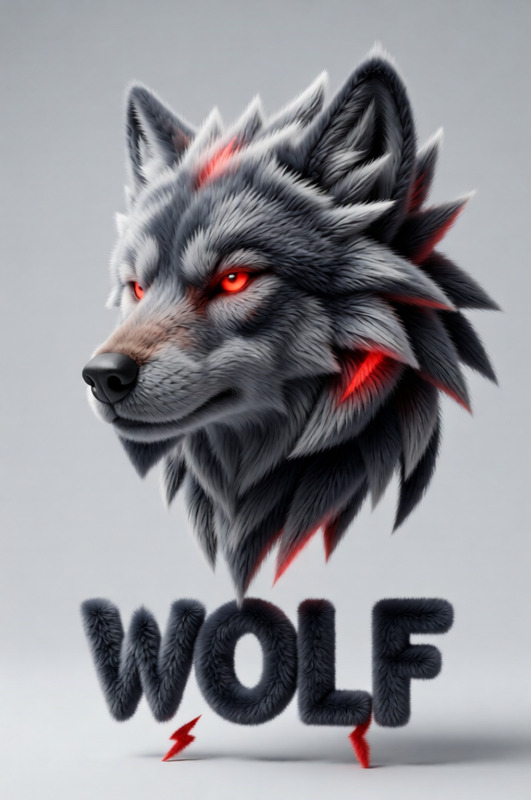
Reality to Pixel Fade
- Model
- Qwen Edit
- Image
- 680 × 1024 px
Prompt
The entire scene gradually transforms into detailed pixel art, smoothly transitioning from realism into a retro 8-bit style. Every element is recreated using tiny square pixels while preserving the original composition. Crisp blocky textures, limited color palette, nostalgic game aesthetic, smooth animated morphing effect, highly detailed and cohesive transformation.
Any aspect ratio
Overview
The Reality to Pixel Fade template in the AI Image Editor is designed to morph real-world images into enchanting pixel art. Utilizing the qwen-edit model, this template achieves a smooth transition from detailed realism to vibrant retro 8-bit style, offering a unique visual transformation.
What It Does
This template converts your images from realistic depictions into pixel art by applying a smooth morphing effect. It retains the original composition, recreating every element with crisp, blocky textures and a limited color palette reminiscent of nostalgic games. The transformation is highly detailed and cohesive, making it ideal for creative projects.
Who It's For
This tool is suitable for designers, content creators, and anyone fascinated by retro aesthetics. Whether you're developing a video game, a digital art project, or social media content, this template offers a unique way to transform visuals. It complements tools like the AI GIF Generator for animated projects and is perfect for pixel art enthusiasts.
Summary
The Reality to Pixel Fade template elevates your photos by blending realism with pixel art, powered by the Image Editor API. With its detailed transformation capabilities, it serves as a bridge between modern visuals and retro style, providing countless possibilities for creative expression.
How to Use
Choose Your Image

Customize Your Scene

Generate and Download

Use Cases
Game Development
- Pixel art sprites
- Game backgrounds
- Menu designs
Digital Art Projects
- Creating unique art pieces
- Generative art experimentation
Social Media Content
- Instagram posts
- Custom story highlights
- Profile picture effects
Best Practices
Select High-Resolution Images
Start with high-quality images to ensure the pixel transformation retains essential details.Adjust Pixel Density
Experiment with different levels of pixel density to achieve the desired balance between realism and retro style.Incorporate Complementary Elements
Pair with other retro-themed elements or features, such as those found in the AI Clothes Changer, to maintain a coherent aesthetic.