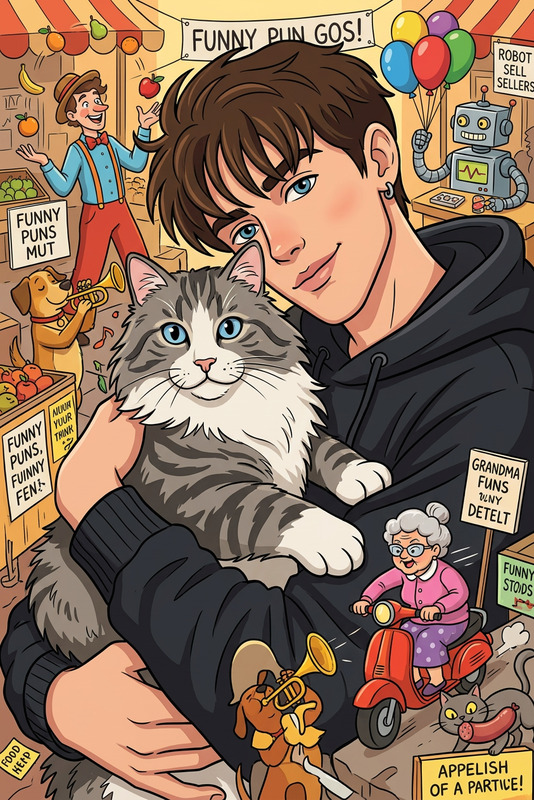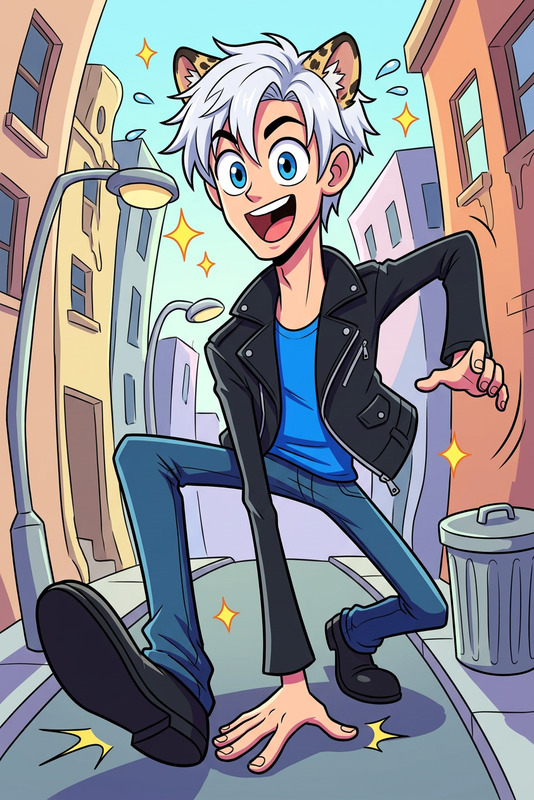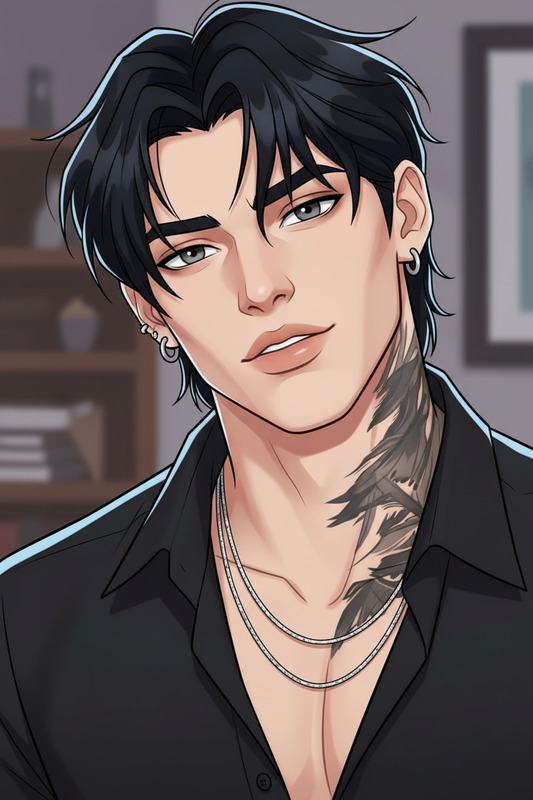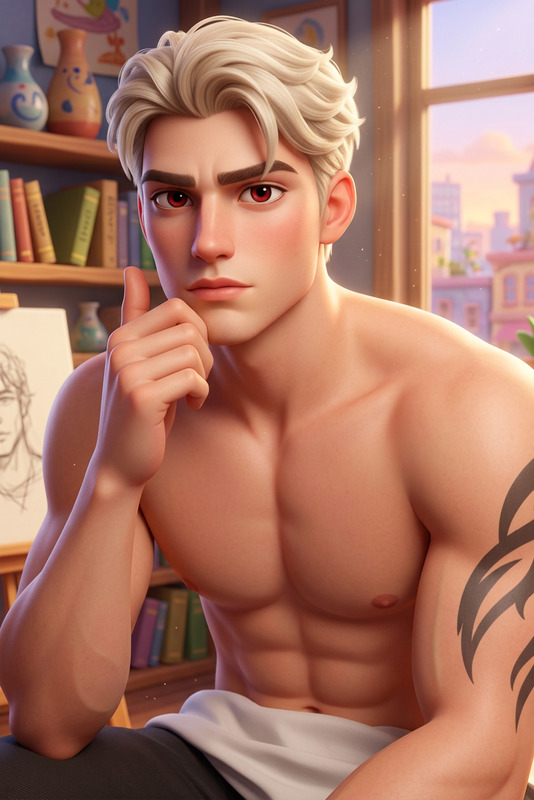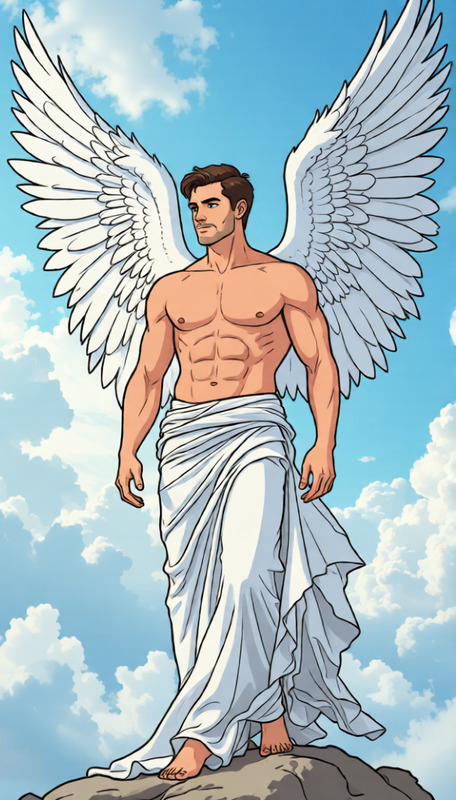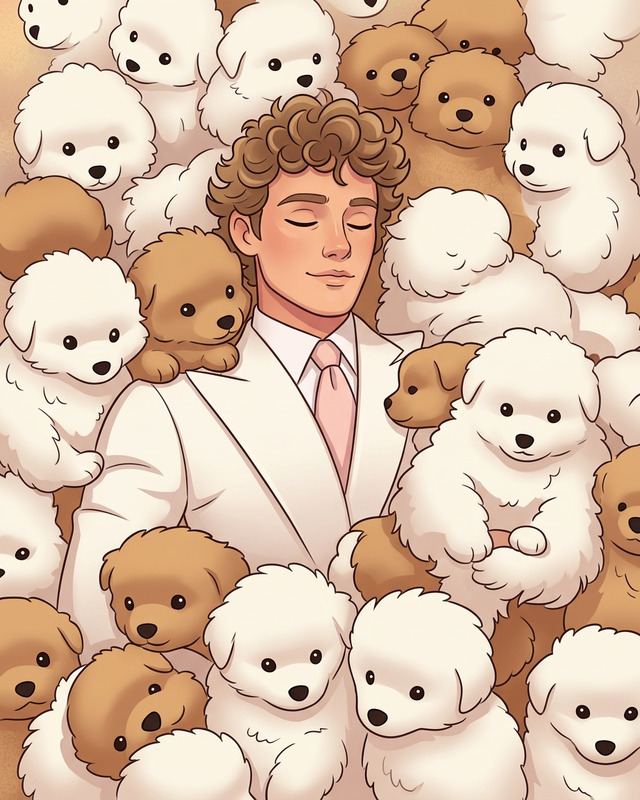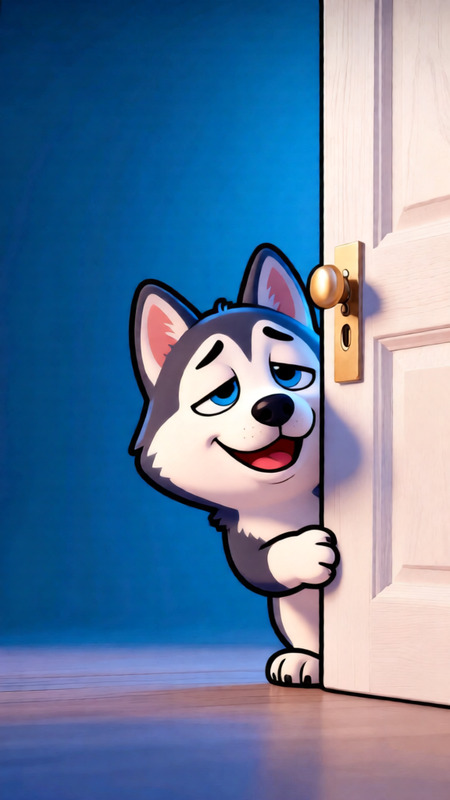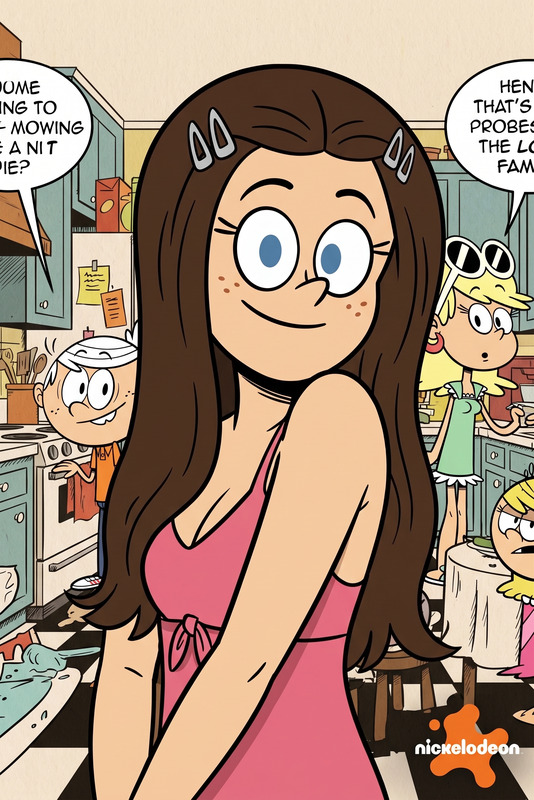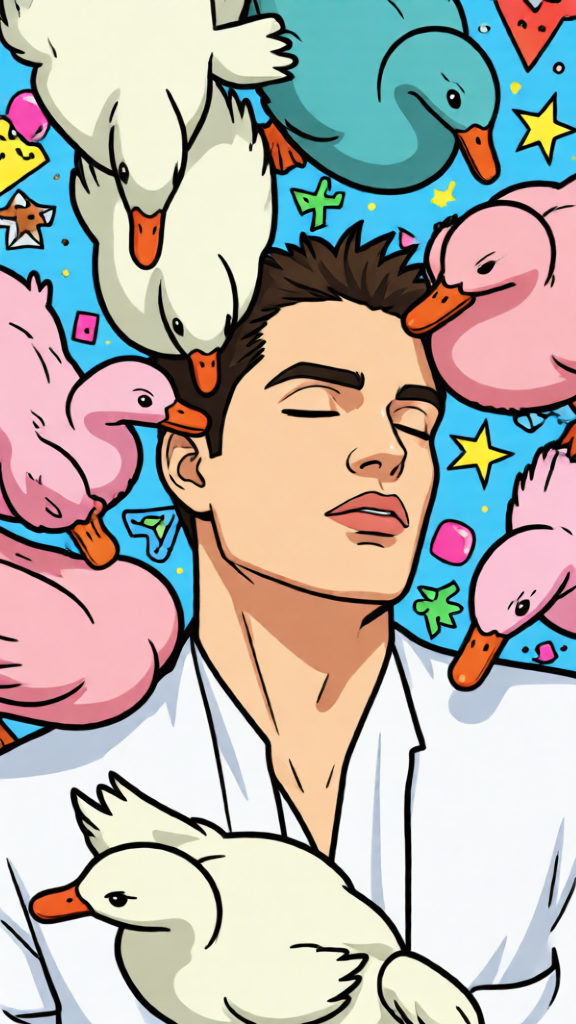
Nickelodeon Anime Cartoon Style

Nickelodeon Anime Cartoon Style

ai-image-editor

1 clip
3 uses

Any aspect ratio

Prompt

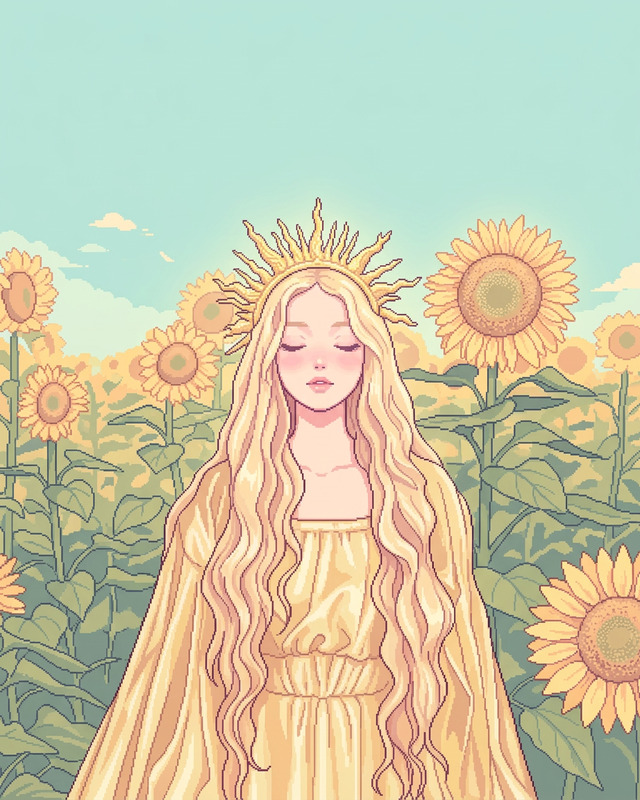
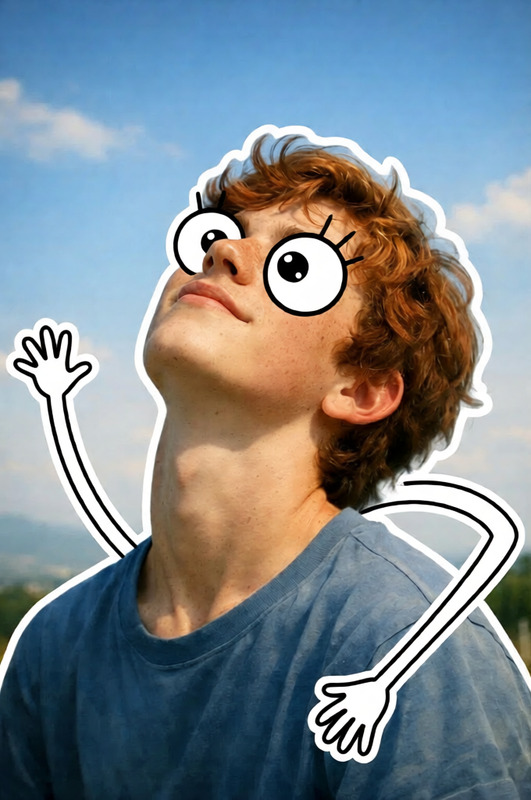
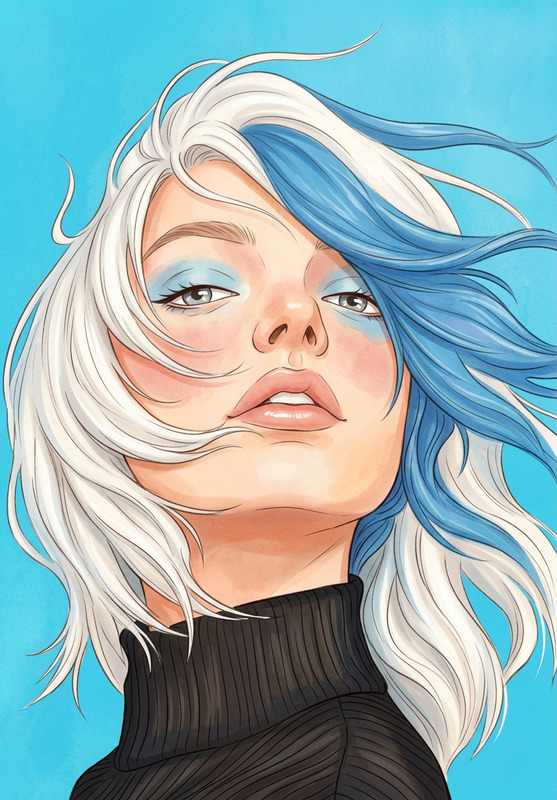
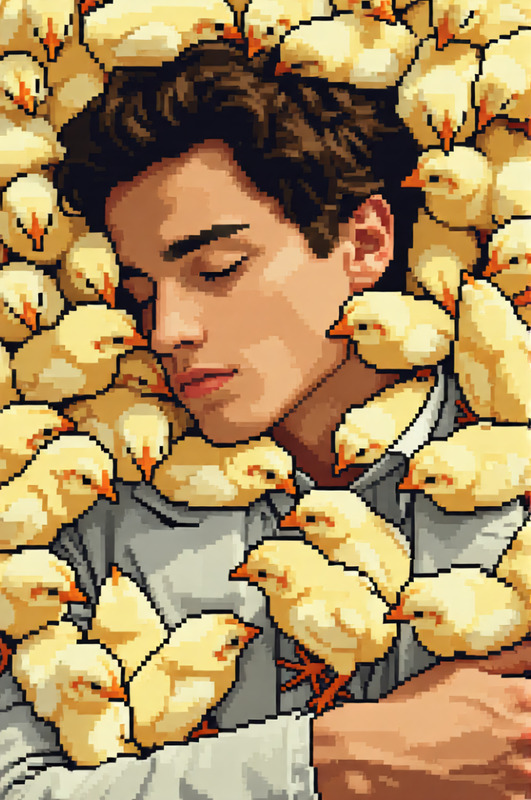
Transform the subject into a flat 2D cartoon character in a Nickelodeon-inspired anime style. Simplify features into bold shapes while preserving recognizable identity and key objects. Use clean outlines, vibrant colors, and expressive facial features. Stylize the background with playful, graphic elements while keeping original objects and layout intact. Flat shading, high contrast, lively and fun composition.

Tags

styles

AI Image Editor Template: Turn Any Photo Into High-Impact Visuals in Minutes

Use this template as a starting point to transform, clean up, and enhance your images with the AI Image Editor. Whether you’re a creator, marketer, or product builder, this page shows you exactly how to remix the template, what you can do with it, and how it connects with other Magic Hour tools.


What This Template Is For

This AI Image Editor–based template is designed for fast, repeatable visual edits, especially useful for:

  • Social posts and ad creatives
  • Product photos and landing page assets
  • Thumbnails, banners, and hero images
  • Content experiments (A/B tests, brand variations, concepts)

You can use it to:

  • Remove or replace distracting objects or backgrounds
  • Clean up and retouch faces and portraits
  • Change clothing, props, or styles in an existing photo
  • Add new elements (text, graphics, scenes) that look natively integrated
  • Prepare images for further use in video, animation, or social content

How to Remix This Template in Magic Hour

You can create your own version of this template in a few steps:

  1. Open AI Image Editor
    Go to the AI Image Editor.

  2. Upload a Base Image

    • Use a product shot, brand asset, portrait, or UGC image.
    • For best results, use a sharp, well-lit image (professional sources often recommend at least 1024×1024 for AI editing).
  3. Define What You Want to Change
    Common use cases you can build into a reusable editing “pattern”:

    • Remove unwanted objects or people
    • Replace backgrounds (e.g., studio → lifestyle scene)
    • Change outfits or styles for fashion/UGC
    • Add branding (logos, icons, UI elements, devices)
  4. Use Editing Actions as “Building Blocks”
    Within your template workflow, think in simple, repeatable actions like:

    • Remove: clean up clutter, logos, or watermarks using the editor or the dedicated AI Remover and Watermark Remover.
    • Replace: swap backgrounds or regions (e.g., change a desk setup, environment, color theme).
    • Add: insert text, props, or visual elements that align with your brand or campaign.
  5. Save Your Remix for Reuse

    • Once you find a reliable editing pattern that matches your brand (e.g., “clean product on a neutral gradient background,” or “portrait with soft studio lighting”), keep using that pattern with new images.
    • This allows your team or clients to reuse the same style without rethinking the workflow every time.

Practical Workflows You Can Build From This Template

Here are concrete ways to adapt and extend this template for serious, production-level work.

1. High-Conversion Product Photos

  • Start with your product image.
  • Use the AI Image Editor to:
    • Remove distracting backgrounds or objects.
    • Replace with clean studio-style or lifestyle scenes using AI Background Generator.
    • Upscale final outputs with AI Image Upscaler for crisp web and marketplace images.

Optionally, push these edited images into motion with Image to Video to create short product reveal clips.

2. Creator & Brand Portraits

You can then animate these portraits with AI Talking Photo or AI Voice Generator for talking head content, onboarding flows, or explainer videos.

3. Thumbnails, Banners & Social Assets

Use AI Image Editor to keep a consistent framing and composition, then swap text, background color, or props for each new creative.

4. Concept Art, Characters & Worlds

Creators and game/fiction builders can:

Later, animate these assets with Animation Templates or Video to Video.


How This Template Fits With Other Magic Hour Tools

This AI Image Editor template can act as the “hub” for a larger pipeline:


Who This Template Is For

This template is optimized for:

  • Growth & performance marketers
    Quickly generate multiple visual variants for ads, landing pages, and experiments without waiting on design cycles.

  • Founders & product teams
    Produce production-ready visuals for demos, decks, and MVPs, and keep your visual language consistent as you iterate.

  • Content creators & agencies
    Standardize your visual workflows: one template, infinite client or campaign variations.


Tips for Getting Strong Results

  • Start with the sharpest, cleanest image you have; AI models perform best on clear inputs.
  • Make one change at a time when you’re dialing in a look, then save that version as your “house style.”
  • Think in systems: define a repeatable look (background type, color palette, framing) and reuse it so your assets feel cohesive.
  • Use upscaling and enhancement tools like AI Image Upscaler and Photo Colorizer to polish outputs before publishing or handing them off.

Expand Your Template With Advanced Visual Experiments

If you want to push this template further, you can combine it with:

Each of these can feed assets into your AI Image Editor template, where you refine and standardize them for real-world use.


Use this template as your base, then remix it as your needs evolve—new products, new campaigns, or new formats. The core idea is simple: establish a reliable, reusable editing pattern inside the AI Image Editor, and plug the rest of Magic Hour’s tools into that workflow whenever you need to generate, enhance, or animate your visuals.

More Like This

Insufficient credits