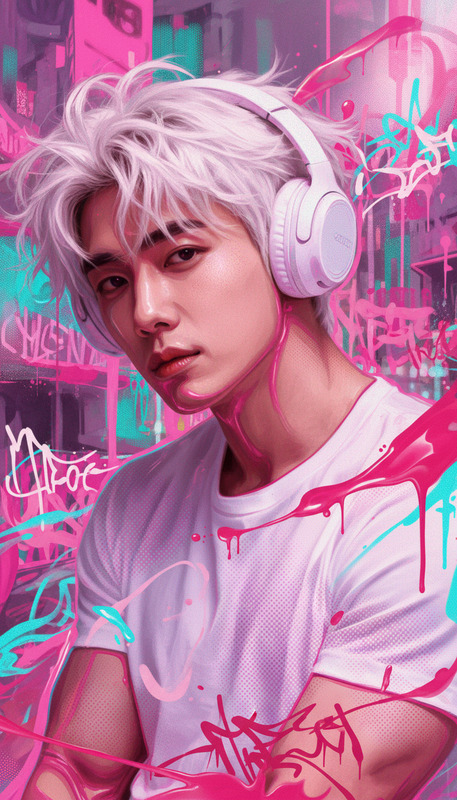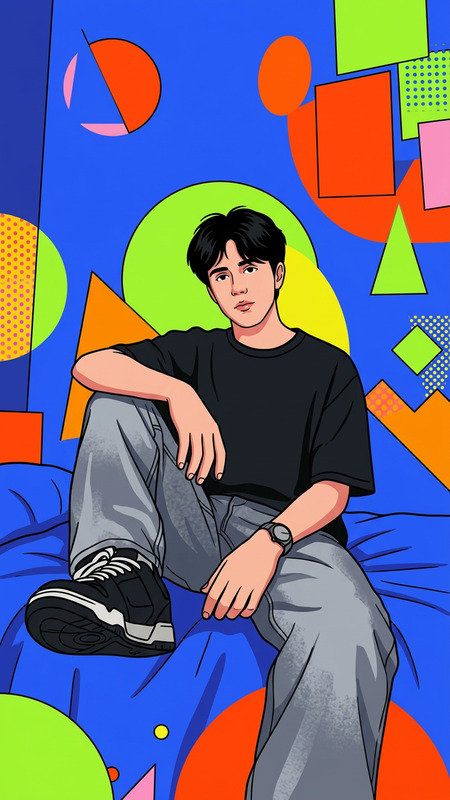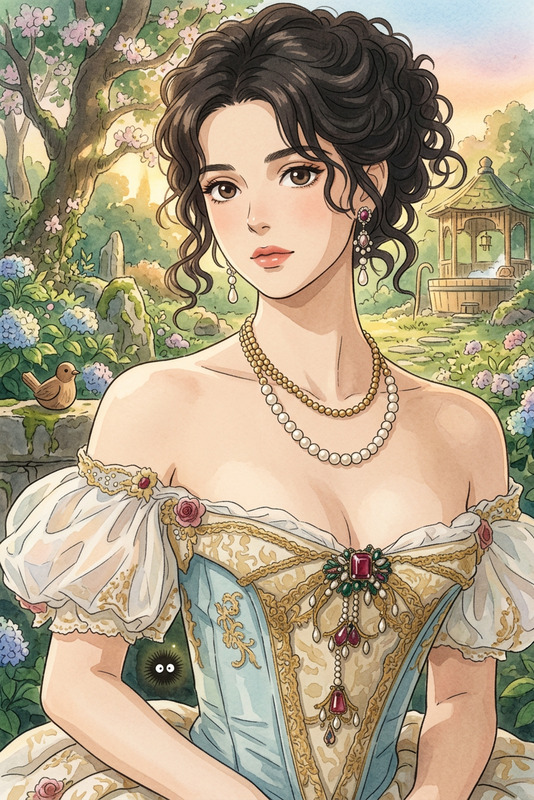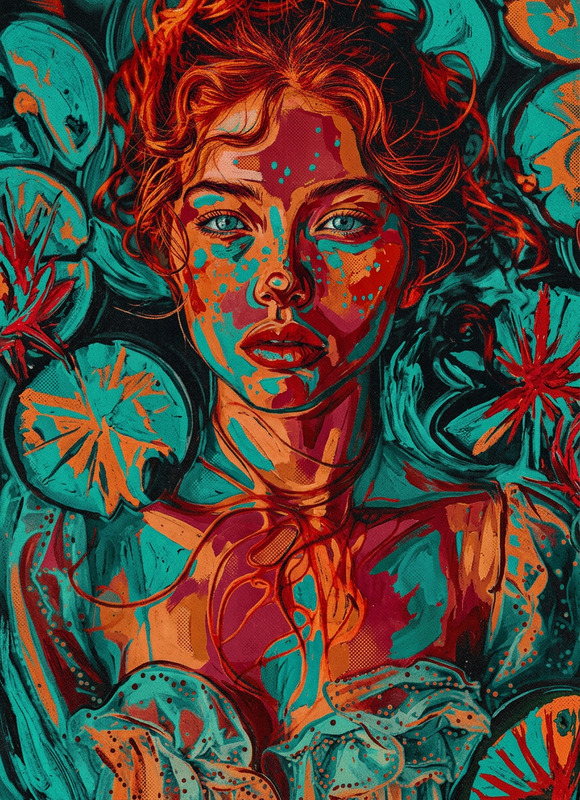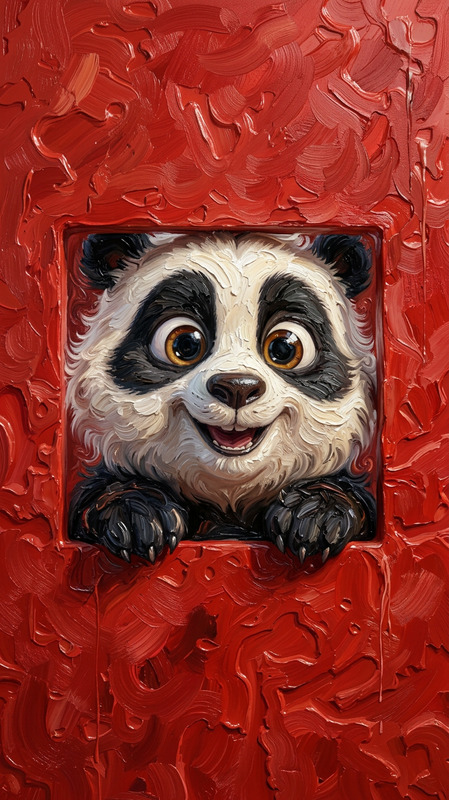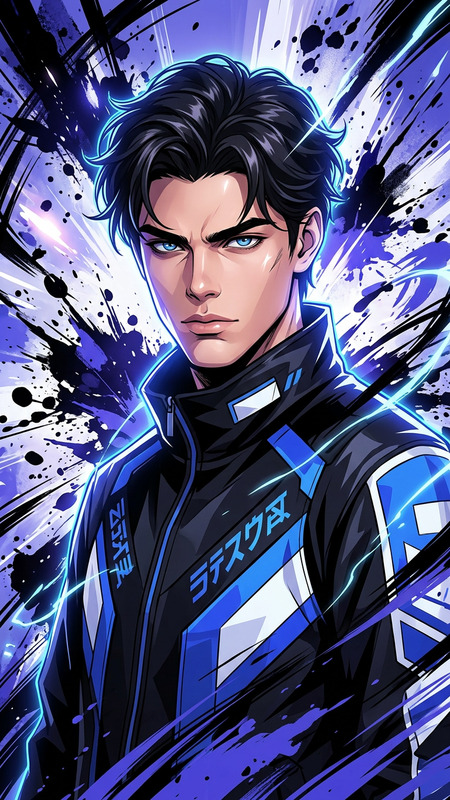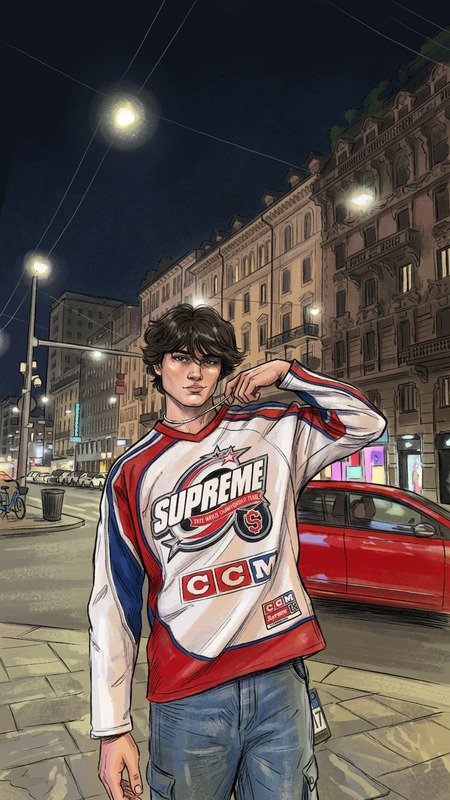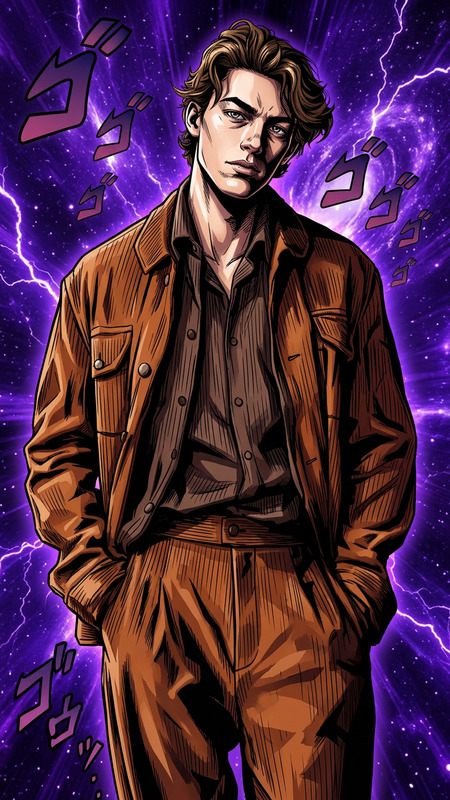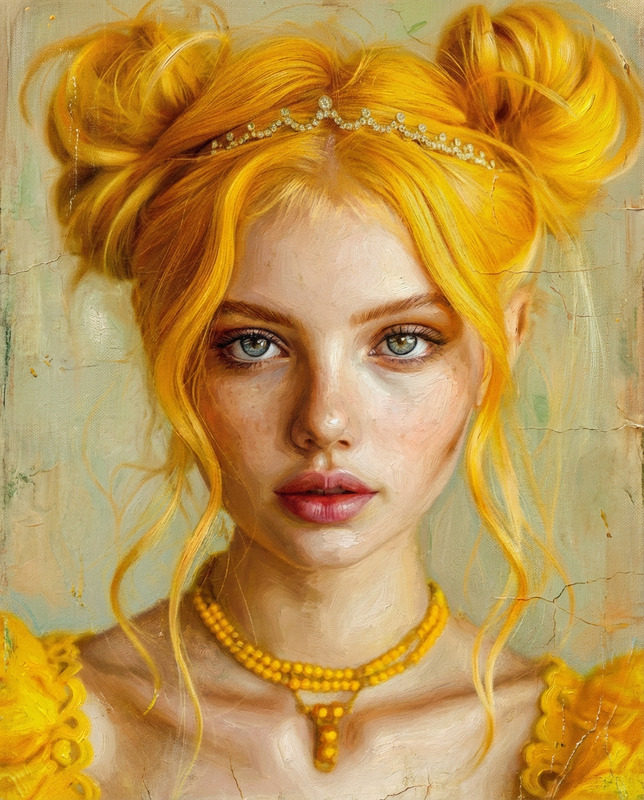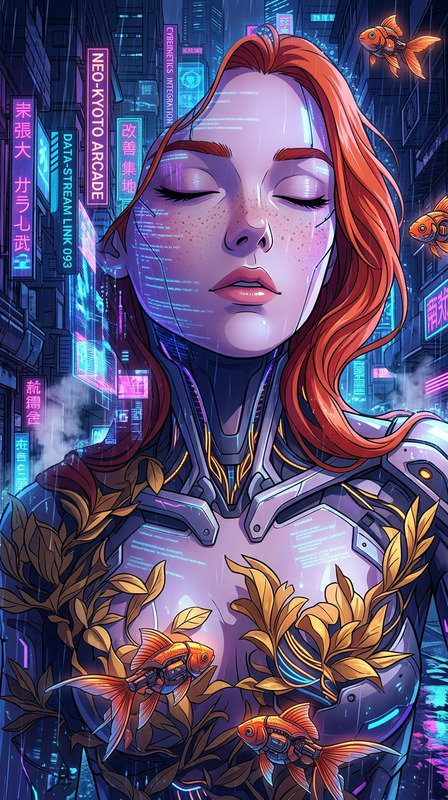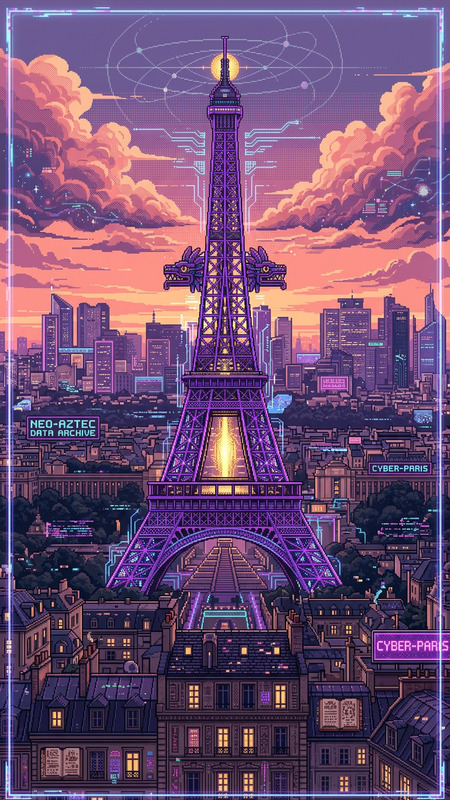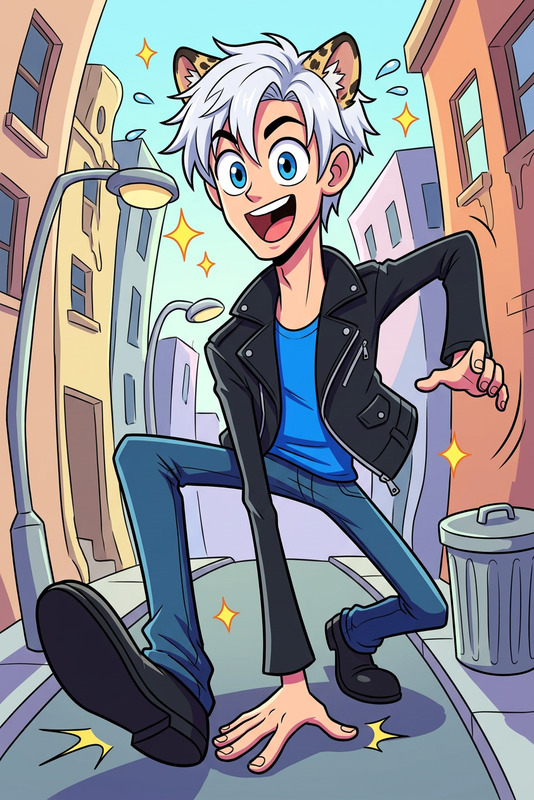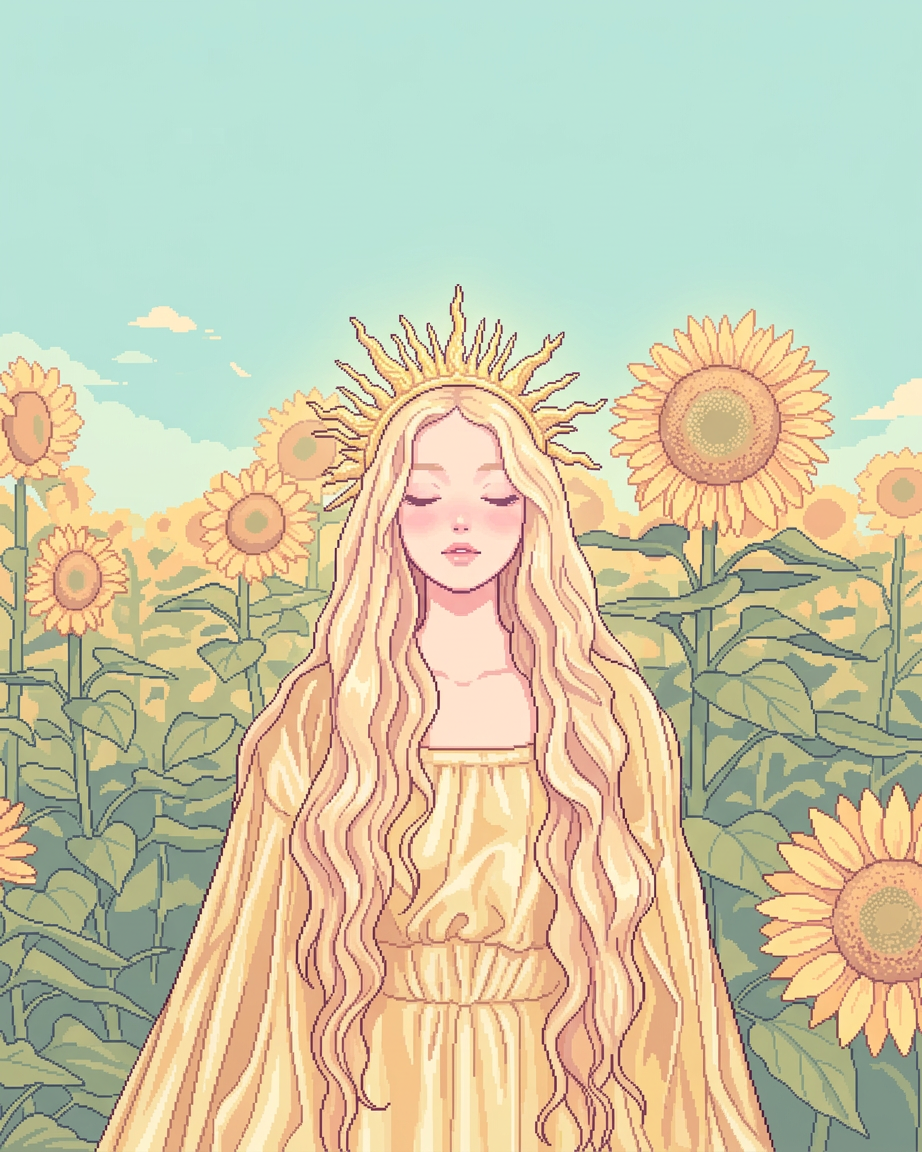
Pixel Anime
- Model
- Nano Banana 2
- Image
- 922 × 1152 px
Prompt
Subject and background fully transform into a 16-bit pixel art anime style with consistent rendering, detailed pixel shading, clean outlines, pastel colors, and soft lighting. Cozy mood with a retro game aesthetic and a uniform, polished look.
Any aspect ratio
Overview
Pixel Anime is an AI Image Editor template that converts images into a captivating 16-bit pixel art anime style. Utilizing the advanced nano-banana-2 model, it applies consistent rendering, detailed pixel shading, clean outlines, pastel colors, and soft lighting. Perfect for creators seeking a cozy mood and retro game aesthetic.
What It Does
This template transforms any subject and background into a detailed 16-bit pixel art rendering, maintaining a polished look throughout. By applying uniform pixel art characteristics, your images will achieve a cohesive appearance, consistent with the charming pixelated aesthetic seen in retro games. You'll find it particularly effective for stylized, eye-catching visual content.
Who It's For
Pixel Anime caters to digital artists, game designers, and content creators who aim to evoke nostalgia through a pixel art style. It is particularly useful for projects needing a soft, anime-inspired look. Whether you're developing character art, scene design, or visual storytelling, this template enhances your creations with an authentic retro feel.
Summary
Utilize Pixel Anime to breathe new life into your images by converting them into an anime-inspired pixel art style. Ideal for creators eager to embrace video game nostalgia with modern AI technology, the detailed shading and clean lines ensure a professional finish. By offering a combined approach with other AI tools, this template opens new possibilities for creative expression.
How to Use
Choose Template

Customize Your Image

Generate and Download

Use Cases
Game Development
- Perfect for indie games
- Adds nostalgia and charm
Digital Art Projects
- Unique style standouts
- Great for digital artists
Social Media Content
- Engages audiences
- Trendy and eye-catching
Best Practices
Choose High-Quality Images
Ensure that your source images are of high quality to maintain clarity in pixel shading and outlines.Consistent Themes
Use images with similar themes or styles for a cohesive aesthetic across your project.Experiment with Settings
Tweak the prompt settings to find the perfect balance between detail and retro charm.