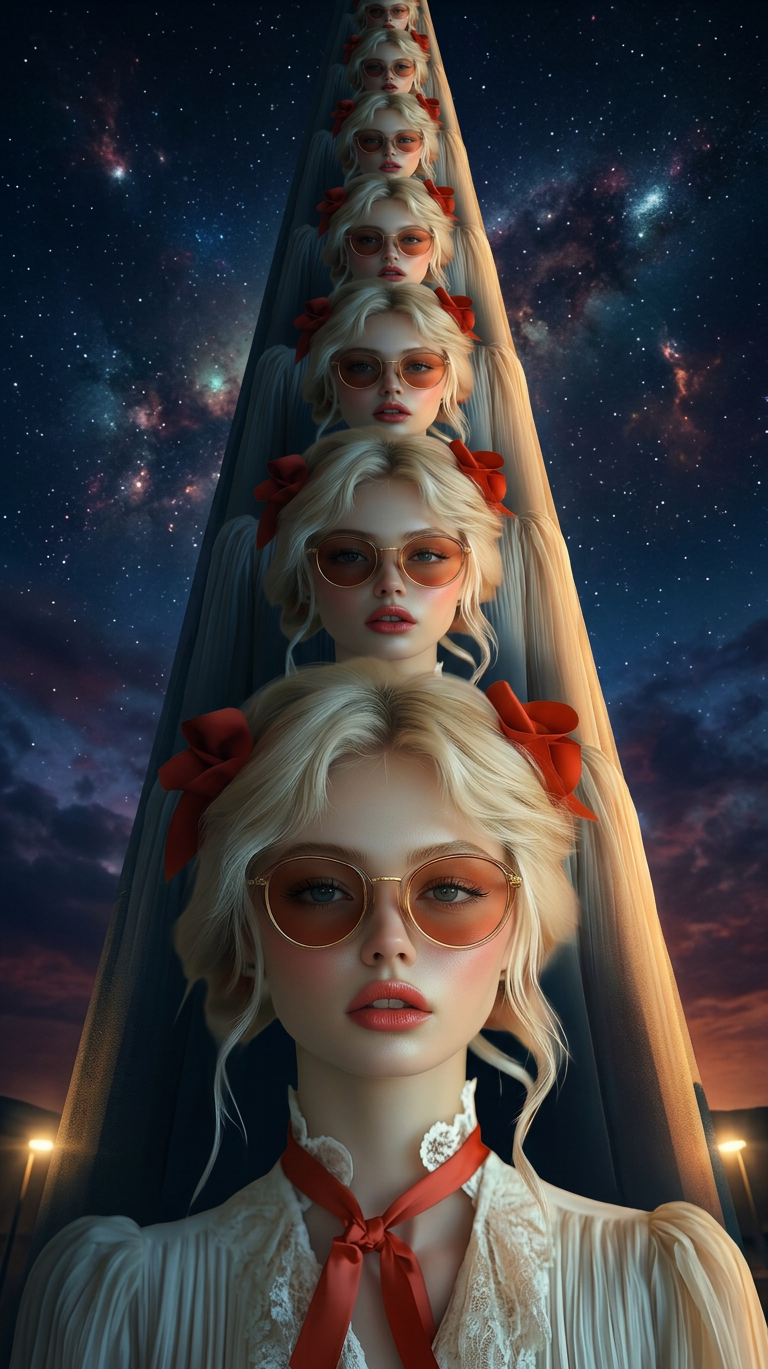
Human Tower Stack

Human Tower Stack

ai-image-editor

1 clip
5 uses

Any aspect ratio

Prompt

A surreal low-angle cinematic shot of multiple identical subjects stacked vertically on top of each other, forming a towering human column. Extreme perspective from below, emphasizing scale, depth, and height as the stack rises into the sky, surreal, ultra-detailed, cinematic lighting.

AI Image Editor Template: Clean Background Swap for Product & Portrait Shots

Use this template to instantly replace busy or low‑quality backgrounds with clean, on‑brand environments—perfect for product photos, profile pictures, marketing creatives, and social content.


What this template is for

This AI Image Editor–based template is designed for:

  • E‑commerce & product shots
    Turn quick smartphone photos into studio‑style images with consistent backgrounds for marketplaces, landing pages, and ads.

  • Creator & brand content
    Drop yourself or your product into minimalist, branded, or lifestyle scenes without reshooting.

  • Founders, marketers, and growth teams
    Quickly generate multiple creative variations to test in ads, emails, and social without a designer.

  • Design & dev teams
    Create clean “source” images you can reuse across decks, docs, and UI mockups.

Under the hood, this template uses the AI Image Editor to detect your subject, remove the original background, and generate a new one that matches your prompt.


How to use this template in Magic Hour

  1. Open the template

    • Click Remix on this template in Magic Hour to start from the existing setup.
    • The subject area and background separation are already configured for you.
  2. Upload your base image

    • Use a clear subject (person, product, or object) with reasonable lighting.
    • Avoid extremely low‑resolution, blurry, or heavily compressed images—if needed, first enhance with the AI Image Upscaler.
  3. Describe your new background

    • Type a simple, specific description like:
      • “white seamless studio background with soft shadow”
      • “minimal office setting, soft daylight, neutral tones”
      • “dark gradient tech background, subtle glow, product hero feel”
    • Treat this like a mini creative brief: include style (minimal, cinematic, flat, glossy), mood (warm, bold, clinical), and context (kitchen, office, street, void).
  4. Keep the subject clean

    • The template is tuned to preserve your subject while only changing the environment.
    • If the subject edges look soft or noisy, you can first refine the portrait with the AI Face Editor or sharpen with Unblur Image, then re‑upload.
  5. Export and reuse anywhere

    • Download the final image and reuse it across:
      • Product listings & landing pages
      • LinkedIn headshots & pitch decks
      • Ads, thumbnails, and email hero images

How to remix this into your own custom template

You can turn this into a reusable brand asset pipeline in a few minutes:

  1. Pick a “master” subject

    • For products: choose a front‑facing, well‑lit product shot.
    • For people: use a neutral pose with a clear view of the face.
    • If you don’t have good source shots, generate them with the AI Photo Generator or AI Selfie Generator, then edit here.
  2. Define a brand‑consistent background style

    • Example prompts:
      • “Clean, white background with subtle soft shadow below the product, e‑commerce style”
      • “Muted gradient in brand colors (#hex), soft vignette, no clutter”
      • “Modern office interior, shallow depth of field, warm but neutral, startup vibe”
    • Save a version that consistently matches your brand colors and tone.
  3. Save as a new template

    • Once you have a result you like, save or duplicate within Magic Hour as your own template.
    • Name it something functional like “Product – White Studio Background” or “Founder Headshots – Brand Gradient.”
  4. Create category‑specific variations

  5. Standardize across your team

    • Share this remixed template internally so everyone can produce on‑brand images without re‑briefing designers.

Advanced workflows for creators and teams

Use this template as the “clean base” step in more complex Magic Hour workflows:


Practical tips for better results

  • Subject clarity matters

    • Well‑lit, front‑facing subjects produce the cleanest cutouts.
    • For faces, you can pre‑enhance with the AI Headshot Generator if you need more professional results.
  • Use simple, concrete language

    • LLM‑driven image models respond best to concise, visual prompts:
      • Instead of “make it cooler,” try “dark blue gradient background, subtle glow behind subject, modern tech feel.”
  • Remove clutter before you add style

  • Keep text and UI separate

    • Use this template to produce clean, subject‑only or product‑only images.
    • Add overlays, UI frames, and typography later in your design tools or with Thumbnail Maker or Album Cover Generator.

Related Magic Hour tools for this workflow

If you want to go beyond background replacement, these tools integrate well with this template:


When to use this template vs. other Magic Hour tools

Use this AI Image Editor template when:

  • You already have a photo (person or product) and want to upgrade its background.
  • You need fast, repeatable, on‑brand visuals across campaigns.
  • You want fine control over the environment without reshooting.

Consider pairing or switching when:


Use this template as the backbone of a consistent visual system: one clean subject, many backgrounds, infinite variations—without re‑shoots, manual masking, or heavy post‑production.

More Like This

Insufficient credits