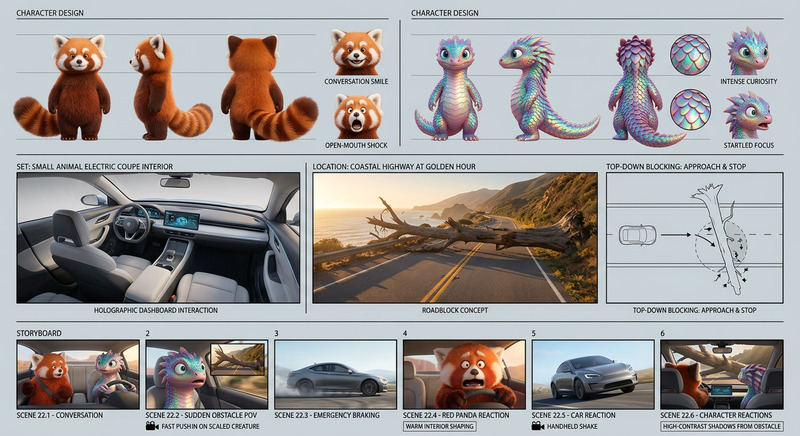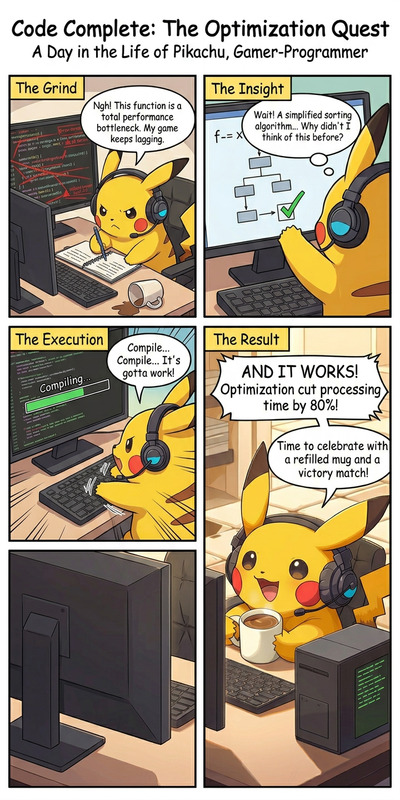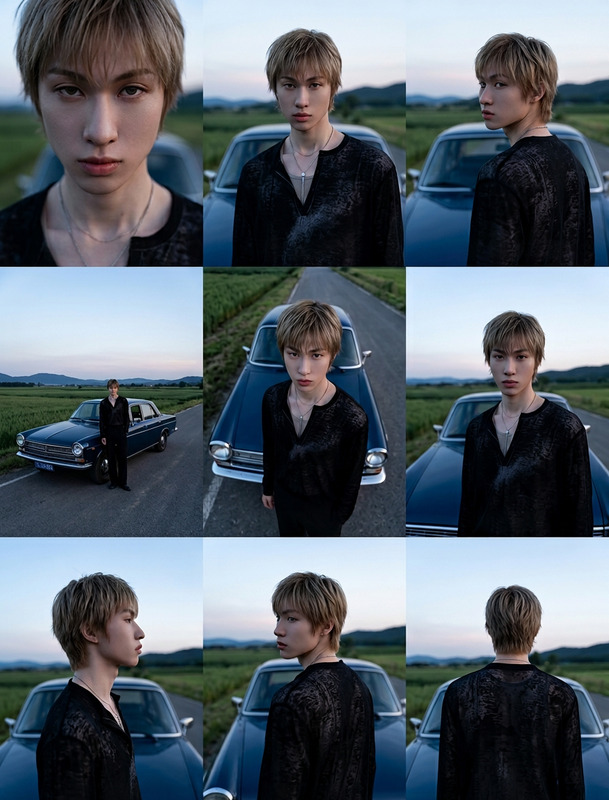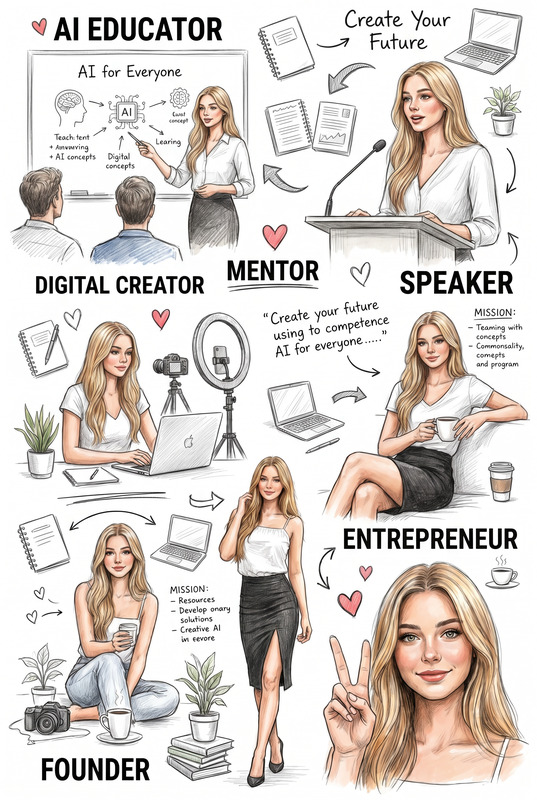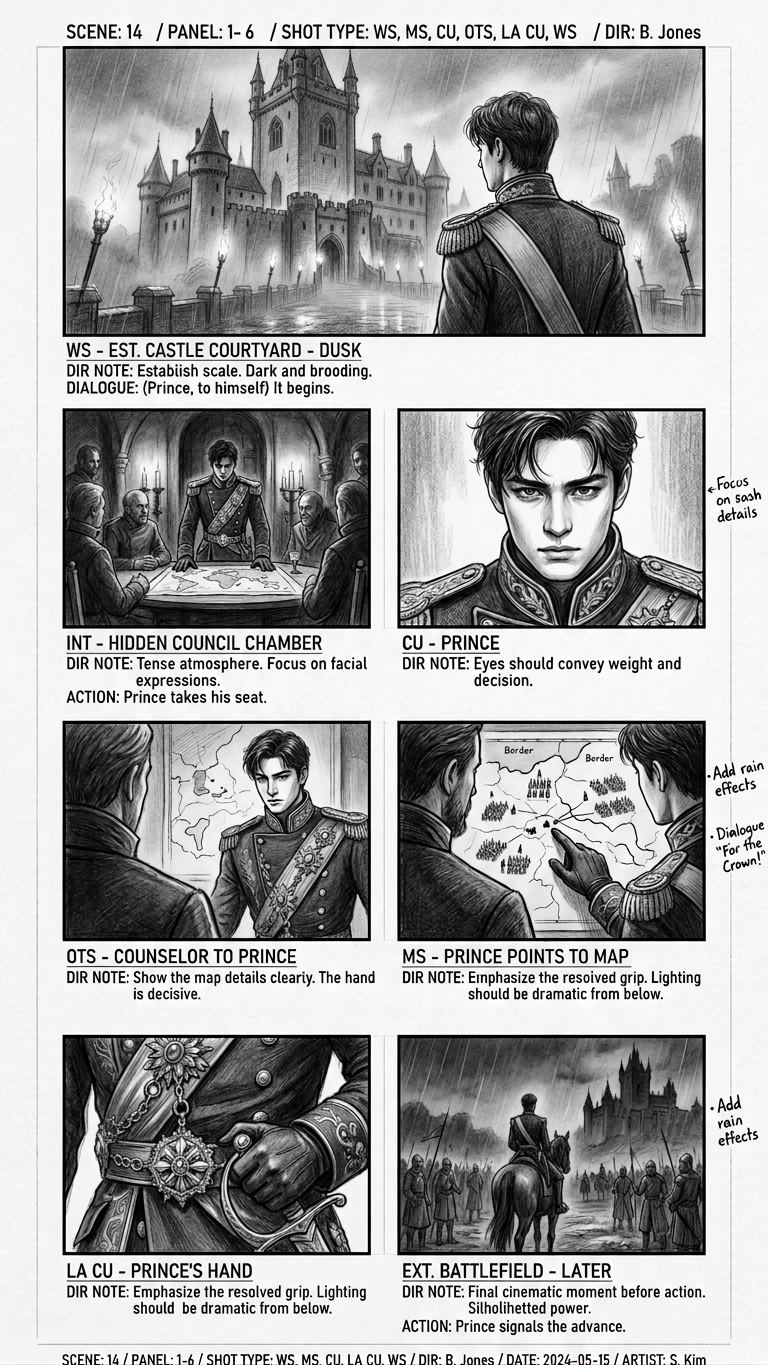
Cinematic Storyboard Sheet

Cinematic Storyboard Sheet

ai-image-editor

1 clip
22 uses

Any aspect ratio

Prompt

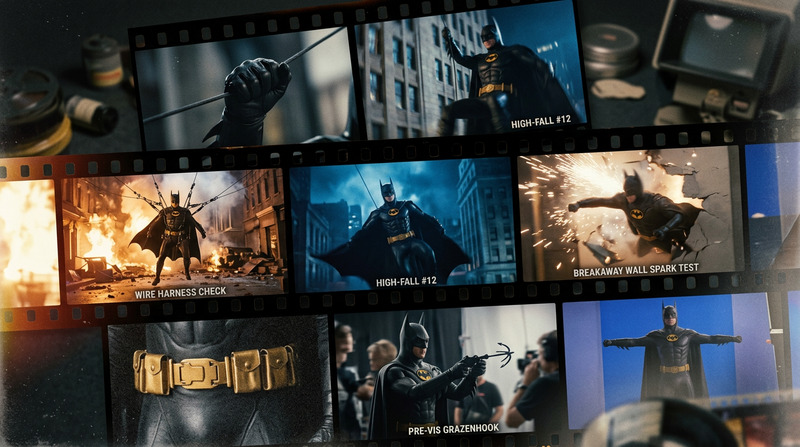
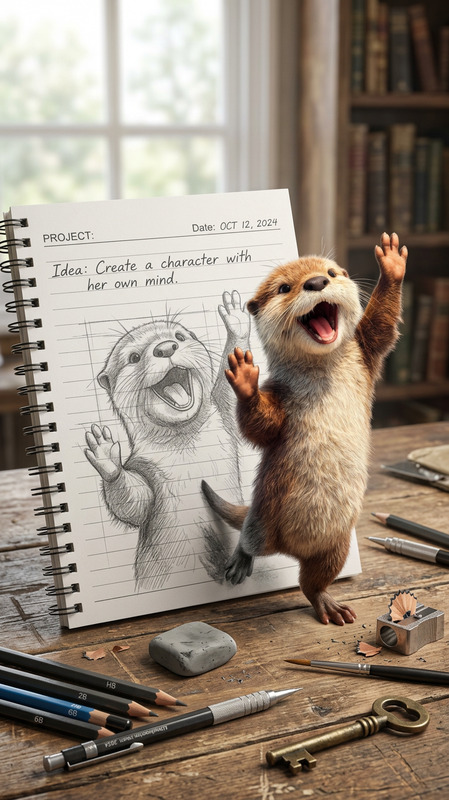
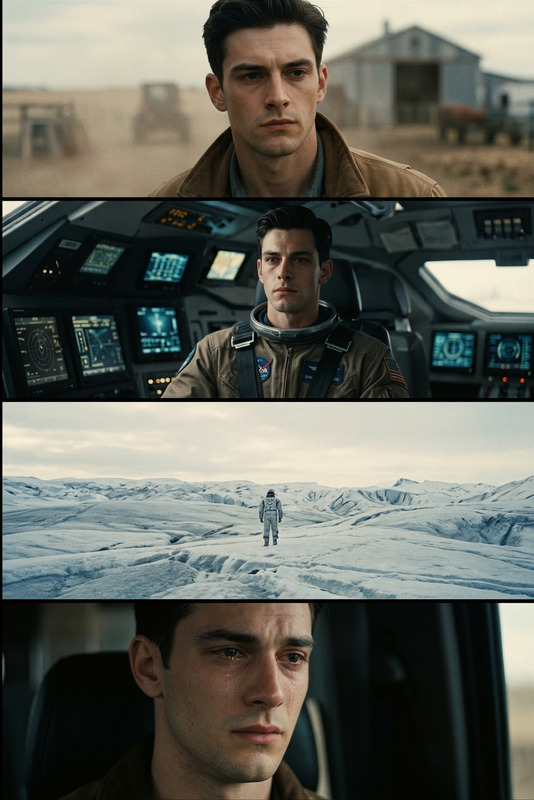
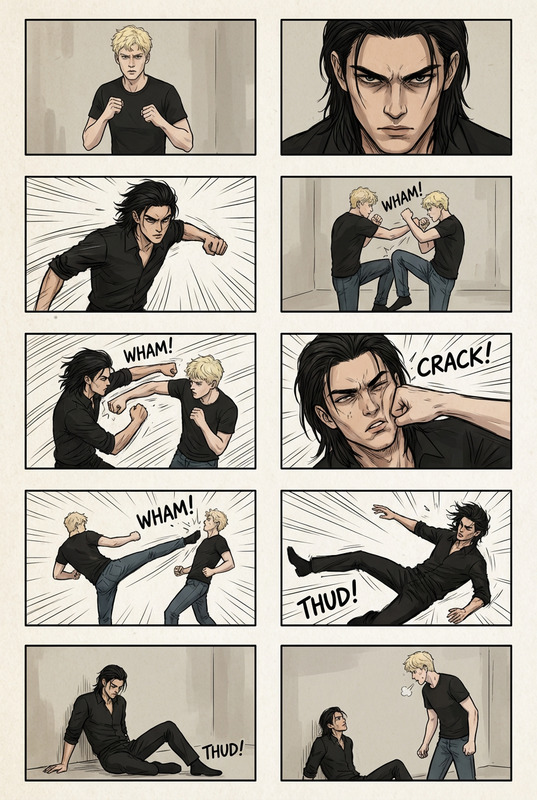
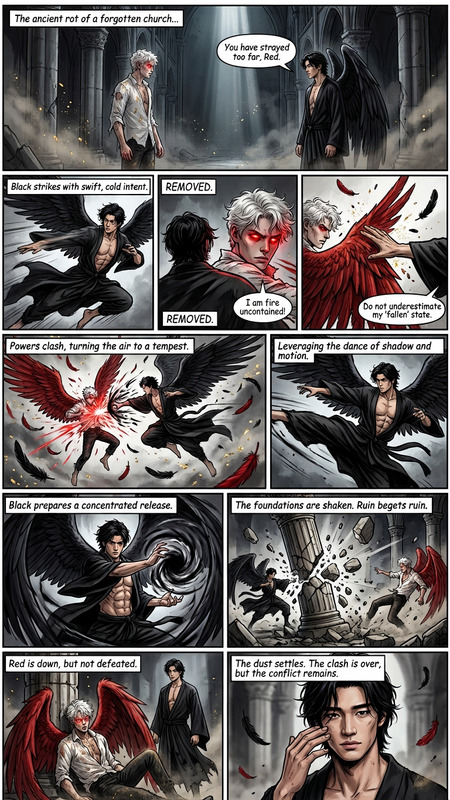
[Image reference/object/person] reimagined as a [movie/TV genre] storyboard, presented in six sequential panels on a single sheet. Pencil sketch style with detailed tonal shading, varied cinematic camera angles, and clear shot type labels (e.g., close-up, wide shot). Include handwritten director’s notes in the margins. Clean, high-resolution 4K storyboard layout with a professional film pre-production aesthetic.

Transform any photo with precise, AI-powered edits using this Magic Hour AI Image Editor template. It’s designed for creators, marketers, developers, and startup teams who need fast, production-quality image changes without hiring a designer or learning complex tools.


What this template does

This template shows how to use the AI Image Editor to:

  • Replace or remove objects cleanly
  • Change backgrounds while preserving realistic lighting and shadows
  • Edit faces and clothing in a photo-safe, controllable way
  • Fix small issues (unwanted items, artifacts, text) without redoing the entire image
  • Generate multiple on-brand variations of the same image

It’s ideal for:

  • Ad creatives and landing page visuals
  • Social media content and thumbnails
  • Product photos and mockups
  • Profile, headshot, and avatar polishing
  • Concept art and visual experiments

How to remix this template in Magic Hour

You can create your own version in a few minutes:

  1. Open AI Image Editor
    Go to the AI Image Editor.

  2. Upload a base image
    Use a product shot, portrait, social post, or any reference image you want to transform.

  3. Describe your edit
    In natural language, explain what you want changed. Examples:

    • “Remove the background and replace it with a modern office.”
    • “Change the hoodie color to dark navy and add subtle studio lighting.”
    • “Remove the person in the back, keep everything else the same.”
    • “Turn this selfie into a professional LinkedIn-style headshot.”
  4. Refine and iterate

    • Generate multiple variants and keep the best.
    • Re-run with slightly different prompts (“more cinematic”, “warmer colors”, “simpler background”) to dial in the look.
    • Use the output as input for further transformations, or combine it with other Magic Hour tools.
  5. Save and reuse as a personal template
    Once you have a look you like, reuse the same prompt pattern with different images to create a consistent, repeatable workflow.


Example use cases (and how to build them)

1. Clean, consistent product photos

  • Upload a raw product shot
  • Ask the AI Image Editor to:
    • Remove the original background
    • Place the product on a neutral gradient, lifestyle scene, or flat color
    • Enhance lighting and contrast while preserving product details
  • Reuse the same prompt across an entire catalog to keep branding consistent.

Pair this with:


2. High-quality social and ad creatives

Turn any raw image into polished creative:

  • Start with a basic photo (your product, a founder, a customer scenario)
  • Use the AI Image Editor to:
    • Swap backgrounds (office, studio, outdoor, abstract)
    • Add or remove props (laptops, phones, signage)
    • Align lighting and color grading with your brand style

Then:


3. Better profile photos, avatars, and team headshots

Start with any selfie or casual photo and turn it into something more polished:

  • Upload a face photo
  • In AI Image Editor, describe the new look:
    • “Neutral studio background, soft lighting, business casual outfit.”
    • “Cartoon-style avatar with similar face, simple colored background.”

To go further:


4. Content and brand experiments for startups

Founders and marketers can use this template as a rapid visual experimentation workflow:

  • Upload a product screenshot or interface mockup
  • Replace the background with different contexts: “startup office”, “conference stage”, “dark mode workspace”
  • Quickly test visual narratives: product in use, hero shots, lifestyle imagery
  • Reuse the same prompt structure whenever you update your product or messaging

Combine with:


Advanced workflows with other Magic Hour tools

Once you’ve edited an image with this template, you can extend it across formats:


Tips for stronger edits and reusable “mini-templates”

You can treat your prompts as reusable mini-templates. A few practical patterns:

  • Style + subject + purpose
    • “Minimalist, high-contrast product photo of [subject] for a SaaS landing page hero section.”
  • Lighting and mood
    • “Soft studio lighting, warm tones, clean tech aesthetic.”
  • Platform-aware
    • “Mobile-first social ad creative, framed for vertical viewing, clear subject, simple background.”

Save these patterns somewhere you can quickly copy/paste, then just swap in the subject or context each time.

For more stylization, explore:


Who this template is for

This AI Image Editor template is built for:

  • Creators who need high-quality visuals fast, without learning complex design suites
  • Marketers and growth teams who want to rapidly test visual angles, offers, and formats
  • Startup builders who need production-ready imagery for decks, landing pages, and investor updates
  • Developers and technical founders who want predictable, repeatable image transformations they can hand off to teams or integrate into content workflows

By remixing this template in the AI Image Editor and combining it with tools like AI Image Generator, AI Image Upscaler, and Image to Video, you can build an end-to-end visual pipeline: from raw photo to finished creative, with each step driven by clear, reusable AI prompts.

More Like This

Insufficient credits