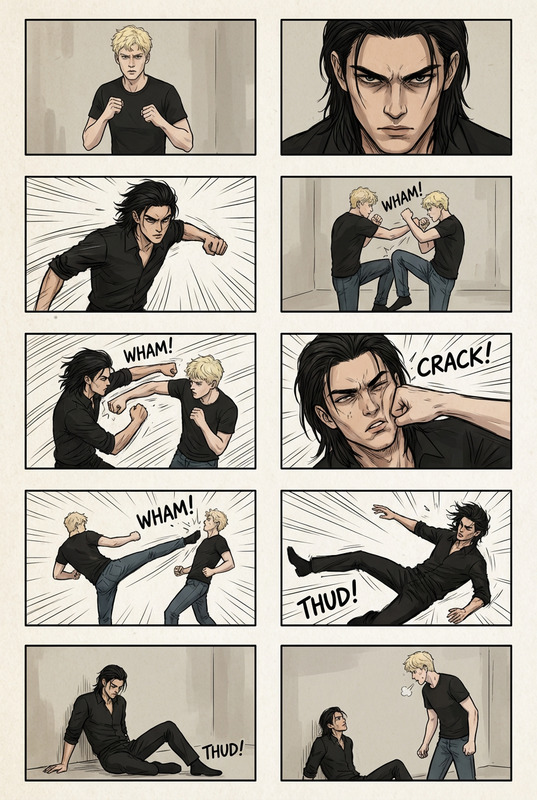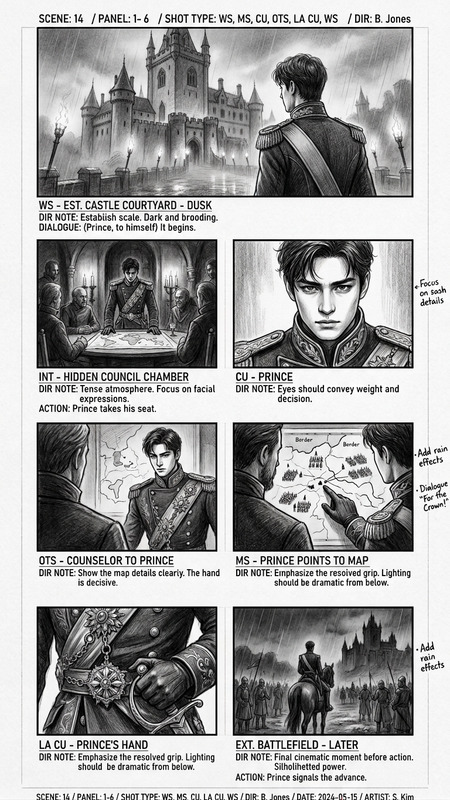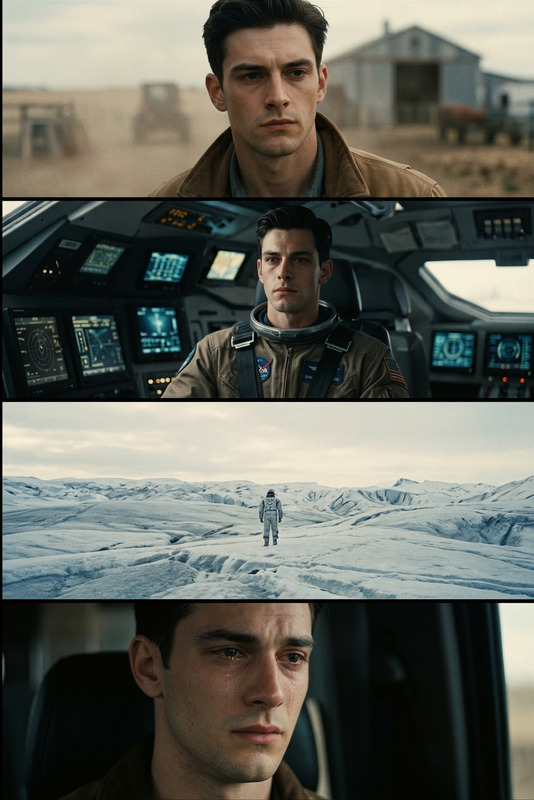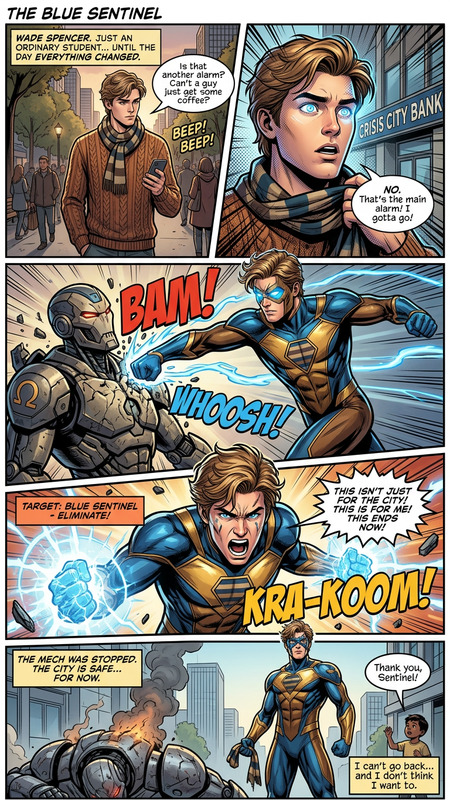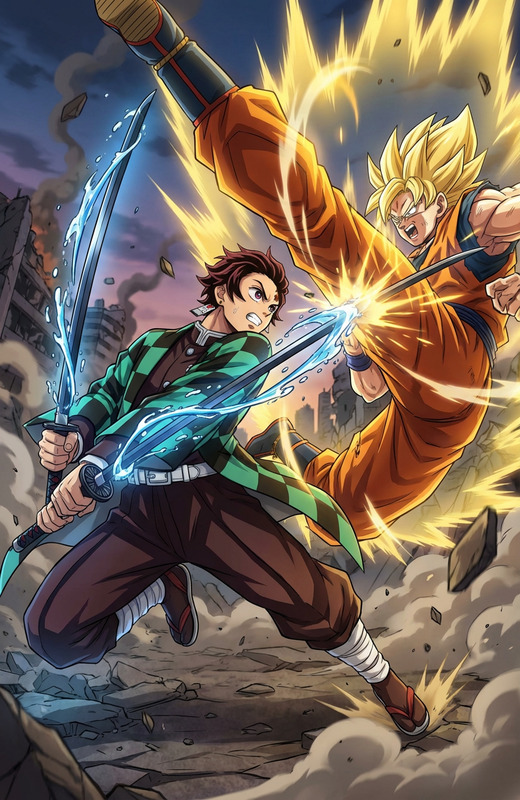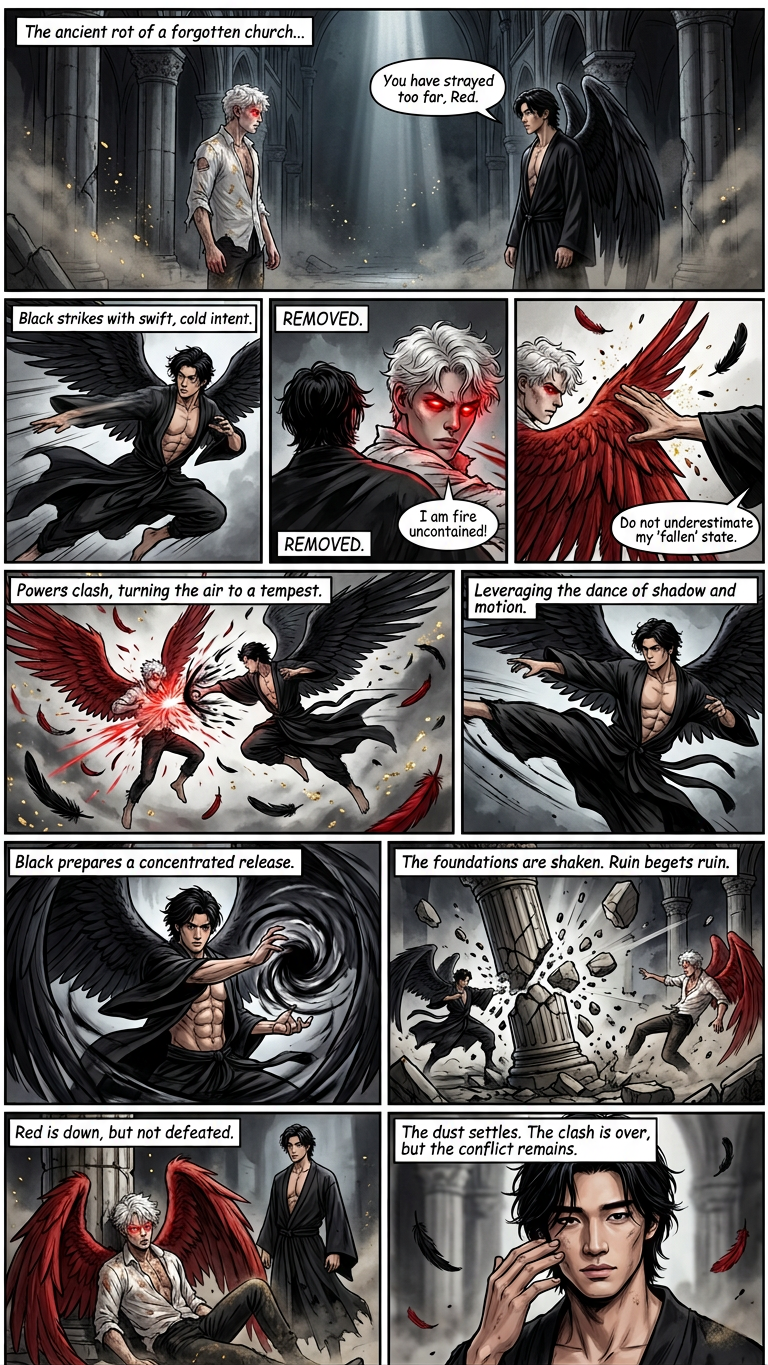
Cinematic Fight Storyboard Between Two Angels

Cinematic Fight Storyboard Between Two Angels

ai-image-editor

1 clip
0 uses

Any aspect ratio

Prompt

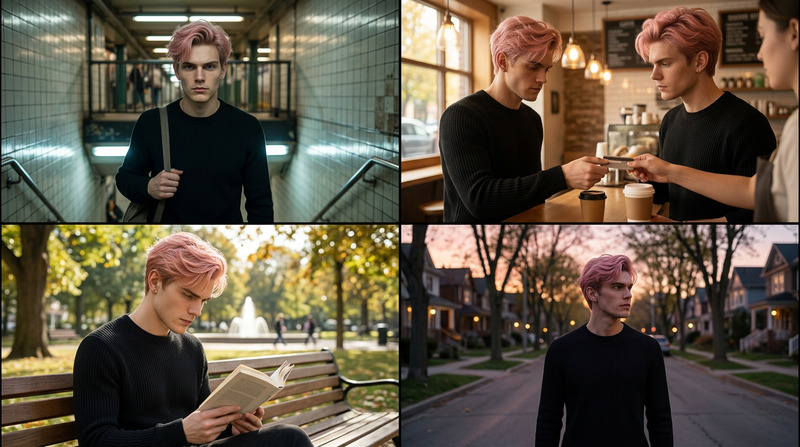
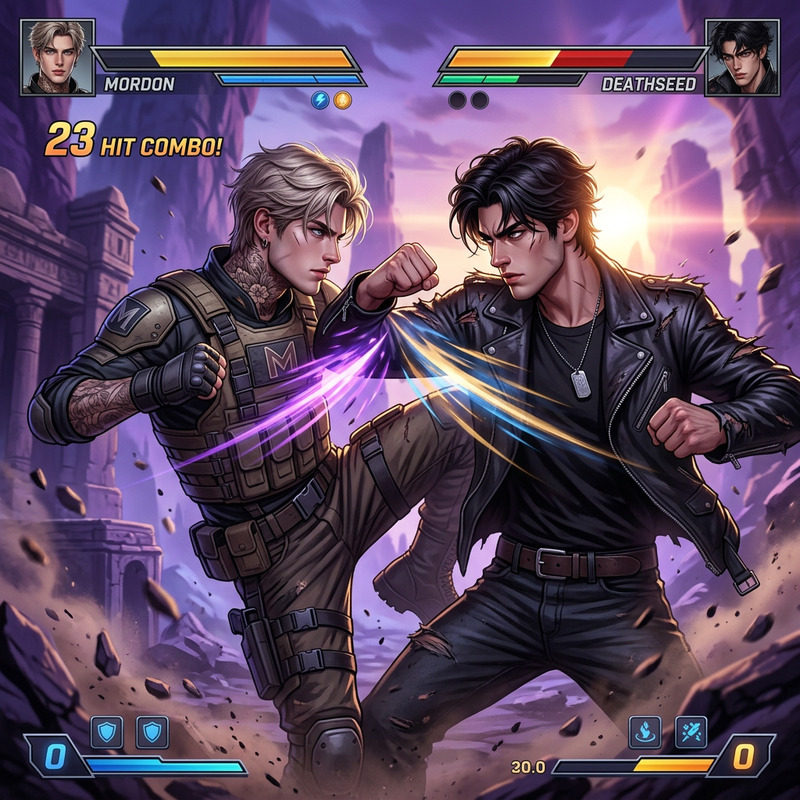
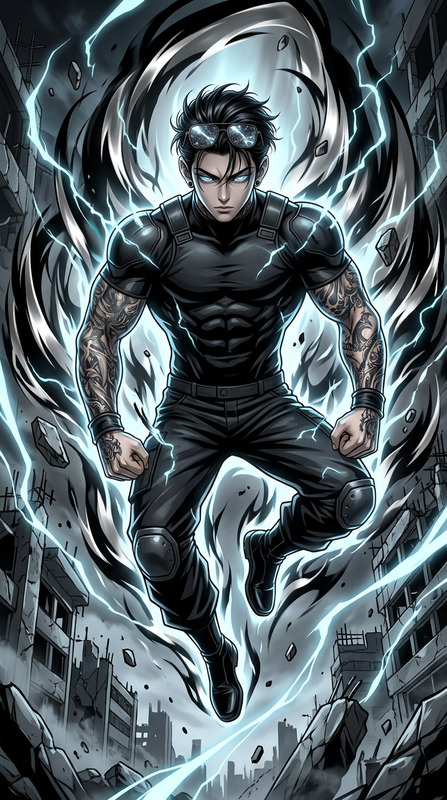
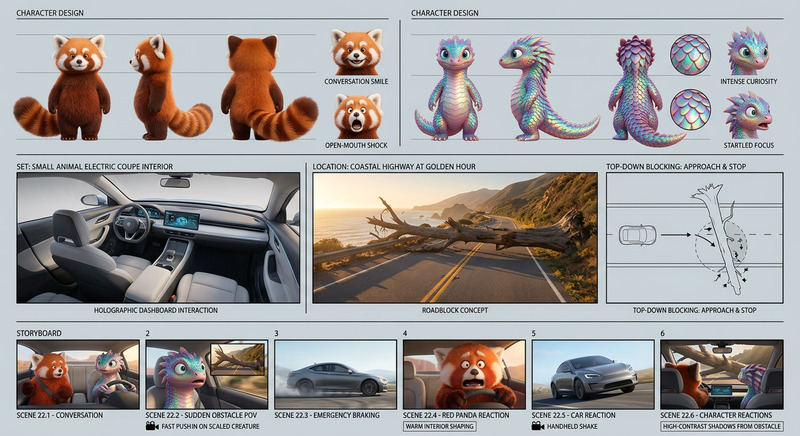
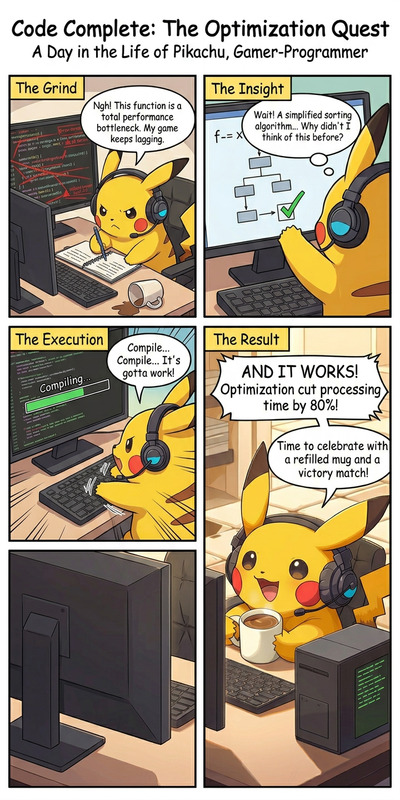
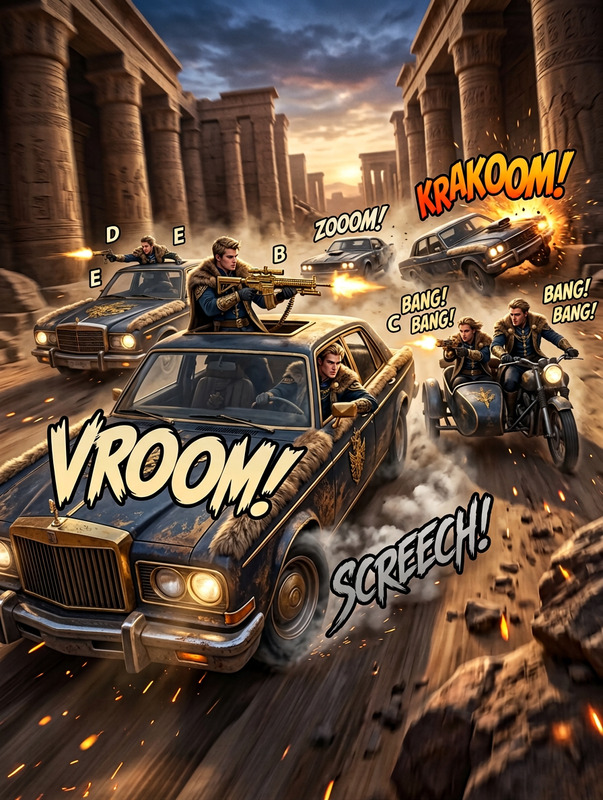
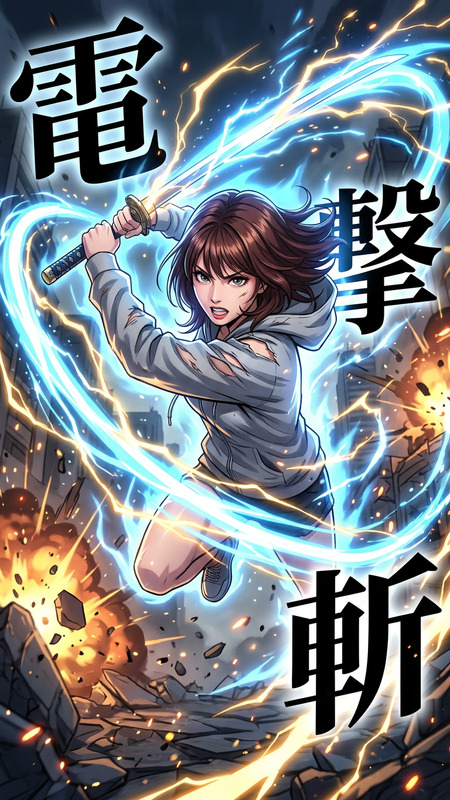
Using the two reference characters, create a dynamic cinematic storyboard of a fight scene. Include multiple panels (6–10 frames) showing key moments: tension buildup, first strike, counterattack, mid-fight clash, power move, and final outcome. Vary camera angles (close-ups, wide shots, over-the-shoulder, low/high angles) and compositions for dramatic effect. Emphasize motion, impact, and emotion with dynamic poses, motion blur, and environmental interaction (debris, lighting shifts). Keep character designs consistent with the references while allowing expressive action and storytelling. Clean storyboard layout with panel borders, minimal background detail, and optional caption or dialogue boxes for clarity.

AI Image Editor Template – Instantly Transform and Refine Any Image

Use this template to turn rough ideas, drafts, or existing photos into polished, production‑ready visuals in minutes. Built on Magic Hour’s AI Image Editor, it’s designed for creators, marketers, and builders who need to rapidly iterate on images without jumping between tools.


What You Can Do With This Template

With this AI Image Editor–based workflow, you can:

  • Edit and re-style existing photos
    Replace backgrounds, adjust composition, or shift the visual style (realistic, cinematic, illustrated, anime, etc.) using natural language prompts.

  • Remove or replace objects cleanly
    Erase unwanted elements (logos, people, clutter) and fill the space with context‑aware AI. For precision object removal and cleanup, you can also use the dedicated AI Remover or Remove Object From Photo.

  • Change faces and fine‑tune portraits
    Subtly refine facial features, expressions, or angles, or pair this with AI Face Editor and AI Face Generator for more advanced facial and character control.

  • Generate consistent brand or character visuals
    Start from a reference image (logo, character, product shot) and iteratively transform it into multiple, on‑brand variants. For recurring characters or avatars, consider combining with AI Character Generator or Avatar Generator.

  • Clean up, upscale, and restore
    Enhance older or low‑resolution assets and make them usable across channels. For heavier restoration and enhancement workflows, connect this template with tools like AI Image Upscaler, Old Photo Restoration, or Unblur Image.


How to Remix This Template in Magic Hour

You can treat this template as a starting point and adapt it to your own use case inside Magic Hour:

  1. Open the template in Magic Hour

    • Start from this AI Image Editor–based template within your Magic Hour workspace.
    • Load your input asset: a product photo, portrait, illustration, or any other reference image.
  2. Define your editing goal clearly in text
    Use concise, explicit instructions. For example:

    • “Remove the background and replace with a clean white studio backdrop.”
    • “Turn this photo into a comic‑book style illustration while keeping the person recognizable.”
    • “Remove the watermark and extend the sky to the top of the frame.”
    • “Make this a professional LinkedIn‑style headshot with soft lighting and neutral background.”
  3. Iterate and branch with versions

    • Generate multiple variations and keep the best ones as “branches” of your template.
    • Maintain separate versions for different channels (e.g., ad creative, social, pitch decks) instead of starting from scratch each time.
  4. Combine with other Magic Hour tools for richer pipelines
    This AI Image Editor template can be chained with other Magic Hour products to build end‑to‑end creative flows:

  5. Save your setup as a reusable template

    • Once you have a flow that consistently gives the results you want (e.g., “product hero image cleanup,” “podcast cover art restyle,” “LinkedIn headshot upgrade”), save it in Magic Hour.
    • Reuse it across campaigns, clients, or projects—just swap the input image and adjust the prompt.

Popular Use Cases for This Template

This AI Image Editor template is optimized for productivity‑focused, repeatable workflows. Common use cases include:

1. Product & Marketing Creatives

2. Professional Headshots & Personal Branding

3. Social Content, Memes, and Quick Visuals

4. Concept Art, Characters, and Worldbuilding

5. Design, Branding, and UI/UX Assets


Best Practices for Using This Template Effectively

  • Be specific with prompts
    Specify subject, style, background, and mood. For example:
    “Remove the background, keep the same person, and place them in a modern office with soft natural light, 16:9 composition.”

  • Protect identity and likeness when needed
    If you’re editing faces, combine this template with tools like Gender Swap or Face Swap only when you have proper rights and consent.

  • Maintain brand consistency
    Reuse the same template, prompts, and example images across campaigns. This consistency is critical for performance marketing, pitch decks, and public brand assets.

  • Start non‑destructive
    Always keep an original version of your image. Use this template to generate edited variants instead of overwriting your source files.


Example Pipelines You Can Build by Remixing This Template

Here are a few practical, remixable flows you can implement directly in Magic Hour:

  1. E‑commerce Product Refresh

    • Clean original product photo with AI Image Editor (this template).
    • Remove background and generate a consistent studio look.
    • Use AI Background Generator to create lifestyle scenes.
    • Turn top performers into short promo clips with Image to Video.
  2. Founder Headshot → Talking Intro Video

    • Upgrade a casual photo using this template (lighting, background, polish).
    • Generate alternate crops for LinkedIn, website, and slides.
    • Convert the portrait into a talking intro with AI Talking Photo and voice from AI Voice Generator or AI Voice Cloner.
  3. Content Thumbnail Factory

    • Start from a screenshot or still frame.
    • Use AI Image Editor to remove clutter, enhance subject, and add a cleaner background.
    • Generate multiple thumbnail variants with Thumbnail Maker.
    • Test performance across channels using consistent prompts and saved templates.
  4. Concept to Stylized Character


When to Use This Template vs. Other Magic Hour Tools

Use this AI Image Editor template when:

  • You already have an image and need to edit, enhance, or restyle it.
  • You want fine‑grained control via text instructions (remove, replace, adjust).
  • You’re building repeatable workflows around existing visual assets.

Consider pairing or switching to:


Why This Template Is Useful for Teams and Builders

For fast‑moving founders, marketers, and product teams, this template:

  • Removes bottlenecks in creative production by offloading routine edits to AI.
  • Standardizes output quality across campaigns, clients, and channels.
  • Makes experimentation cheap: you can spin up dozens of variations from a single source image.
  • Integrates with broader Magic Hour workflows, including video, voices, avatars, and upscaling.

Remix this AI Image Editor template, connect it with the other Magic Hour tools that fit your stack, and turn image editing from a manual chore into a fast, modular part of your creative pipeline.

More Like This