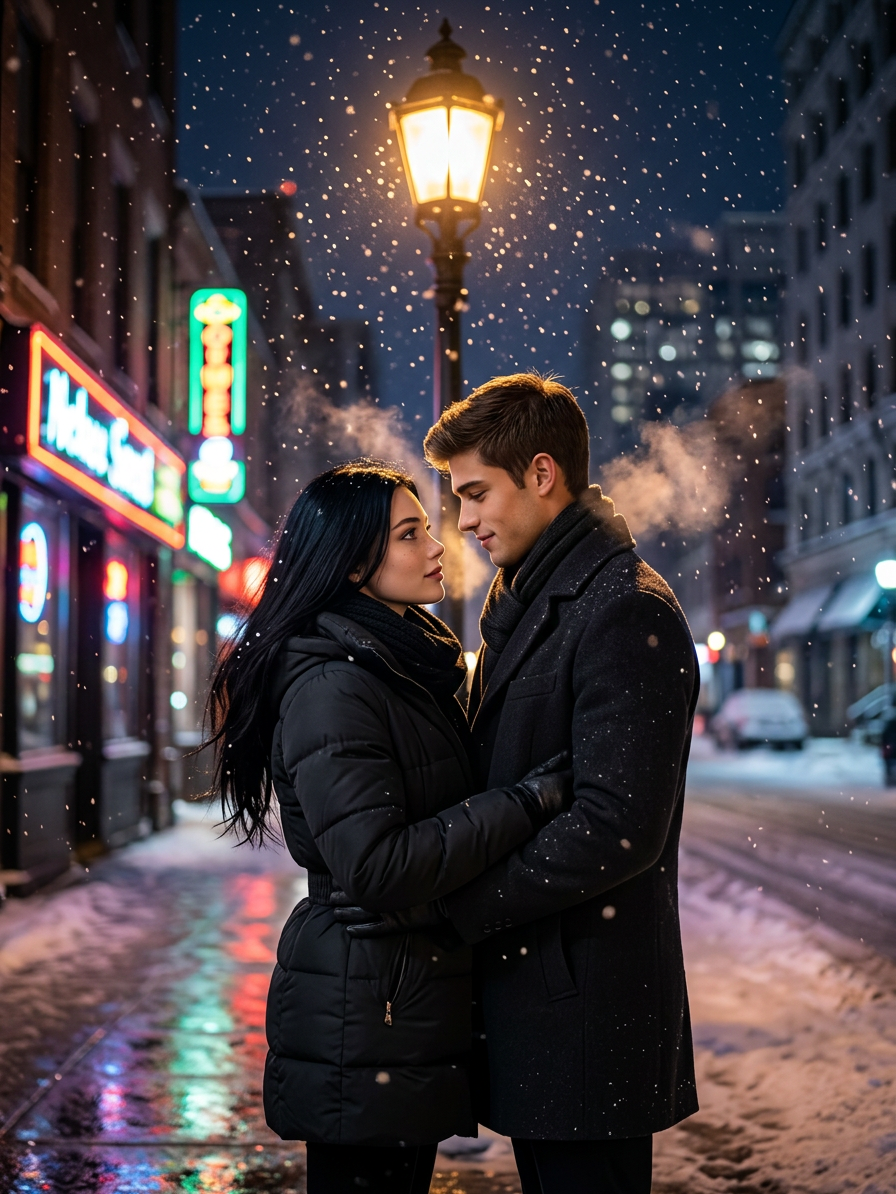
Neon Winter Embrace
- Model
- Nano Banana 2
- Image
- 896 × 1194 px
Prompt
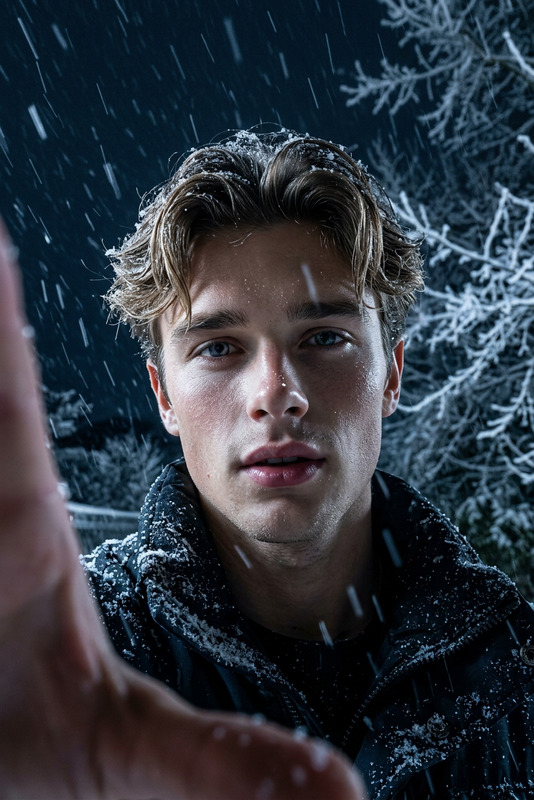
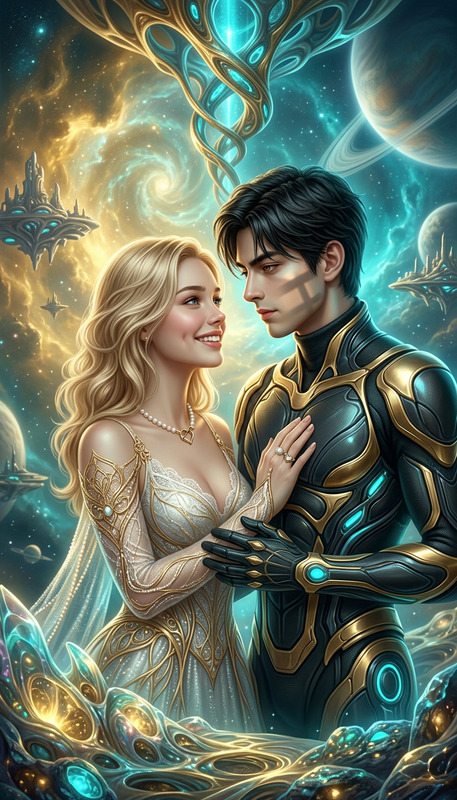
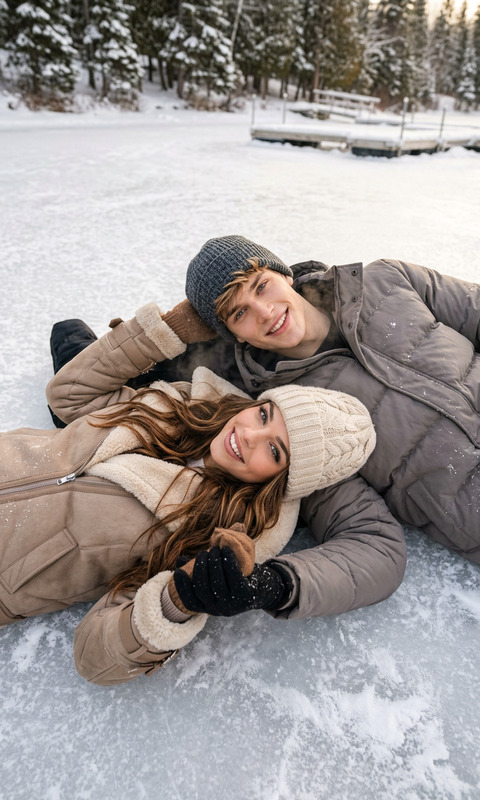
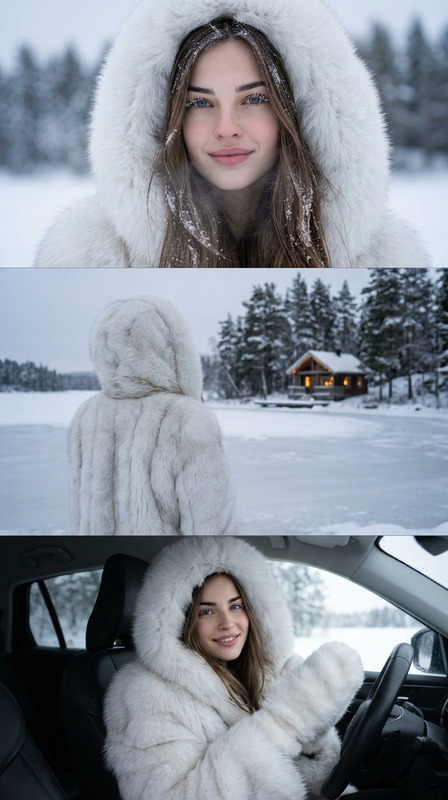
Subjects transform into two figures standing close in a snowy city night, warmly embracing beneath a glowing streetlamp. Short brown hair and brown eyes on one subject, flowing black hair and blue eyes on the other. Visible breath in cold air, shot from a distant cinematic perspective. Blurred neon signs reflect on wet pavement, snowflakes glimmer in the light. Photo-realistic style, ultra-detailed textures, HDR, RTX-quality lighting. Dark yet vibrant, romantic and atmospheric scene.
Any aspect ratio
Overview
The Neon Winter Embrace template offers a sophisticated AI Image Editor experience that transforms your visuals into a magical scene full of depth and emotion. Leveraging the nano-banana-2 model, this template crafts a breathtaking view of two figures in a wintry cityscape, with a blend of HDR lighting and realistic textures.
What It Does
This template allows users to create ultra-detailed images that fuse romantic and atmospheric elements under neon lights. The AI Image Editor draws attention to the vivid emotions within a snowy evening scene, emphasizing the contrast between darkness and vibrancy.
As part of AI Image Editor offerings, it uses cutting-edge technology to enhance textures, lighting, and photo-realism, turning simple images into captivating narratives.
Who It's For
The Neon Winter Embrace template is ideal for digital artists, content creators, and marketers looking to produce eye-catching advertisements or stories. It's perfect for those who want to explore the capabilities of AI in achieving high-quality, cinematic visuals for social media, storytelling, or brand promotion.
Summary
Embrace a new level of creative expression with the Neon Winter Embrace template using AI Image Editor technology. Ideal for generating detailed, atmospheric scenes, this template combines HDR, photo-realism, and intricate details to produce an image that's both poignant and dynamic. Perfect for projects in need of a romantic, cinematic touch.
How to Use Neon Winter Embrace
Select the Template

Customize Your Scene

Generate and Download

Use Cases
Social Media Content
- Instagram posts and stories
- Facebook ads
Digital Marketing
- Banner ads
- Promotional campaigns
Storytelling
- Graphic novels
- Blog illustrations
Best Practices
Leverage Details for Drama
Ensure the details in the characters and environment are finely tuned for a dramatic effect. Pay attention to HDR settings for that extra touch of realism.Focus on Lighting
The interplay of light and shadow is crucial. Experiment with different lighting configurations to emphasize the romantic atmosphere under the neon glow.Texture Perfection
Use the enhanced texture settings to make elements like falling snow and wet surfaces pop, reinforcing the overall realism of the scene.