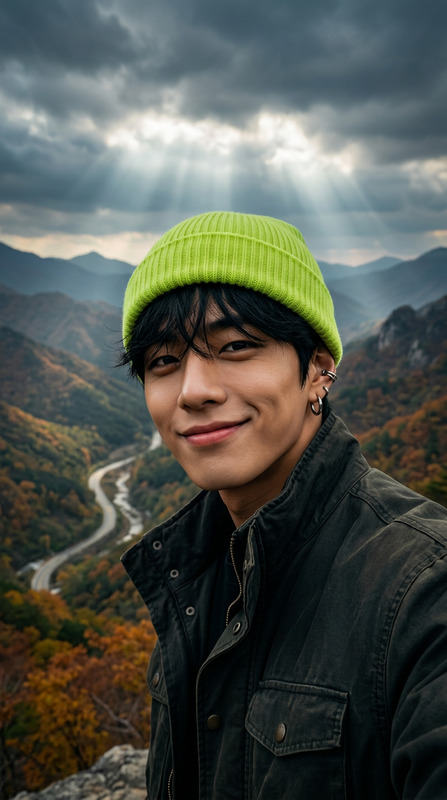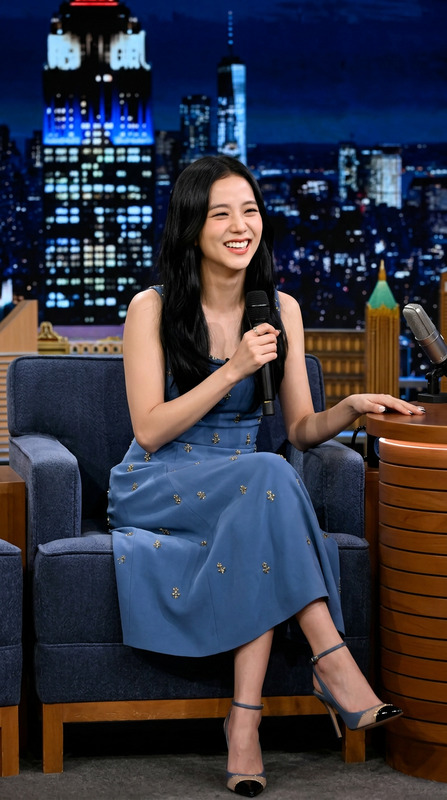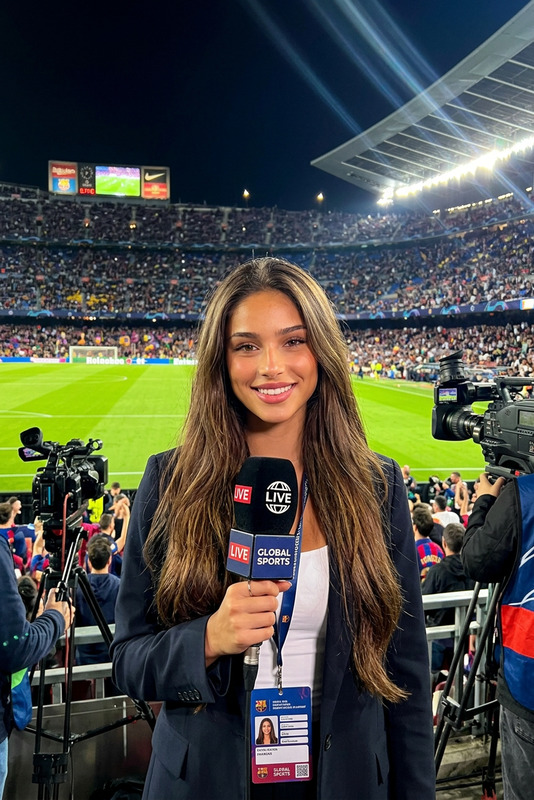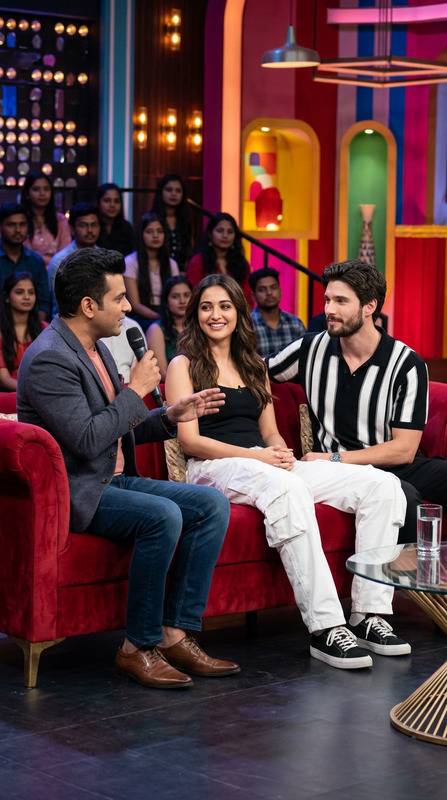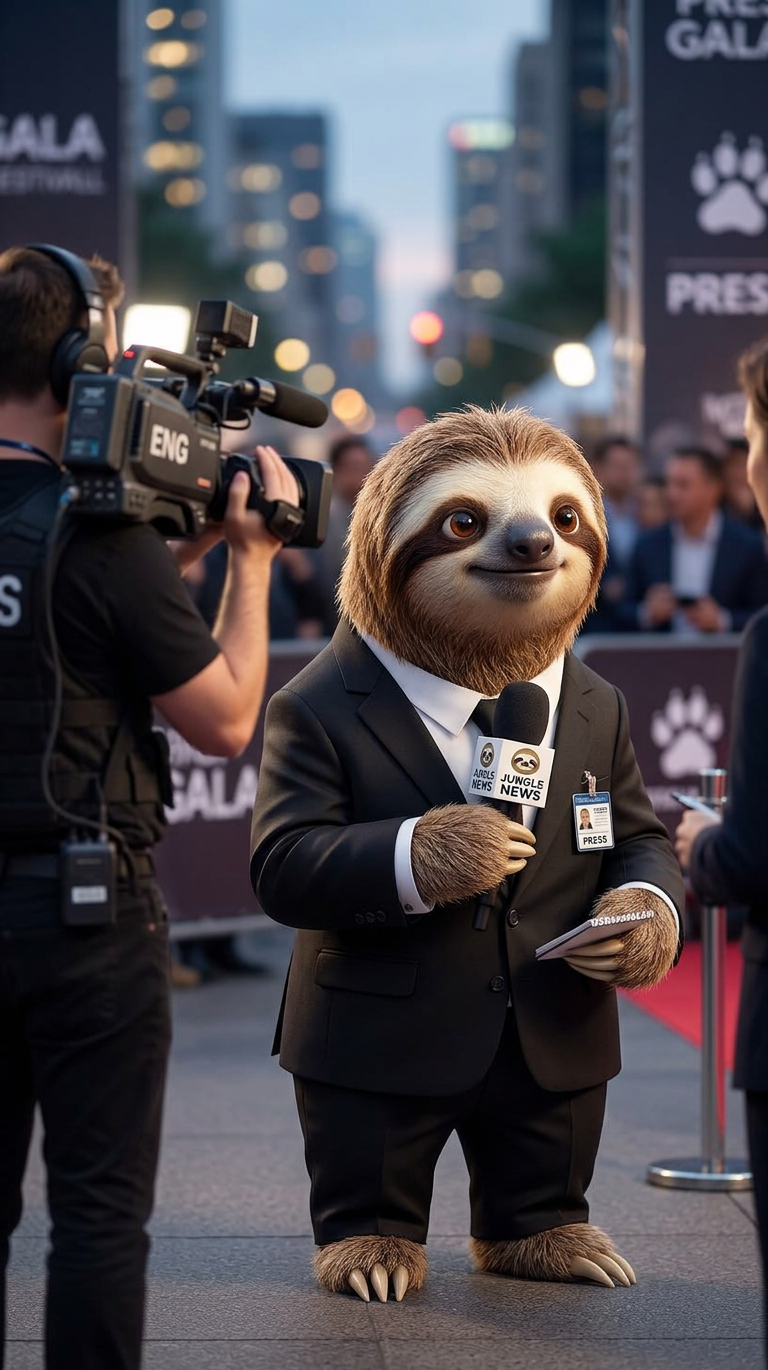
On-Scene Interview Broadcast
- Model
- Nano Banana 2
- Image
- 768 × 1370 px
Prompt
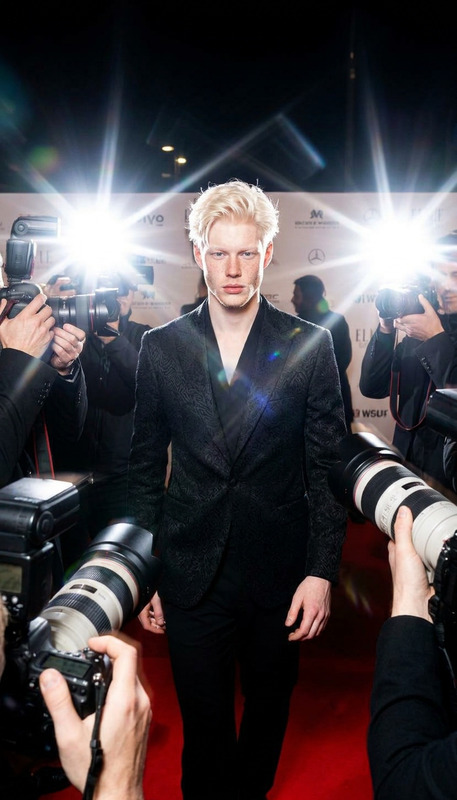
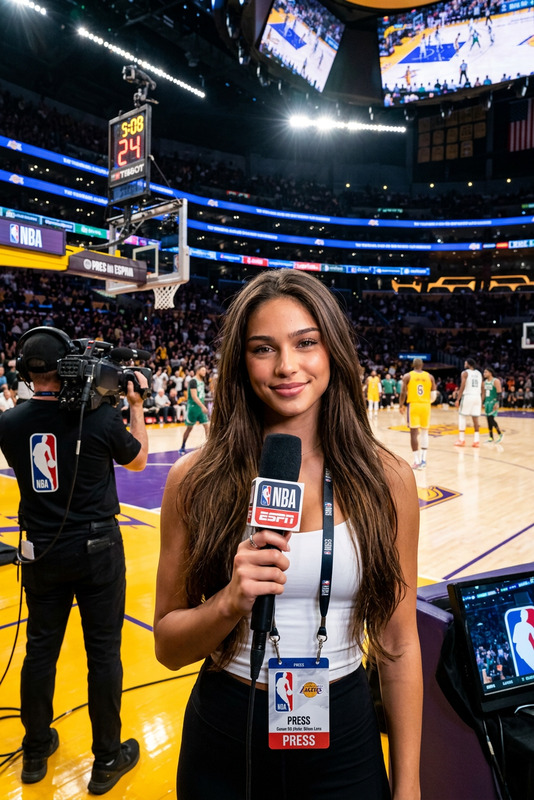
Subject transforms into a professional reporter in a sleek black suit and white shirt, holding a handheld microphone and confidently interviewing someone off-camera. A cameraman stands nearby filming with a professional video camera, adding a behind-the-scenes documentary feel. Slight handheld camera movement, urban/event background softly blurred with shallow depth of field, natural lighting, cinematic broadcast style, ultra-detailed, modern news atmosphere.
Any aspect ratio
Overview
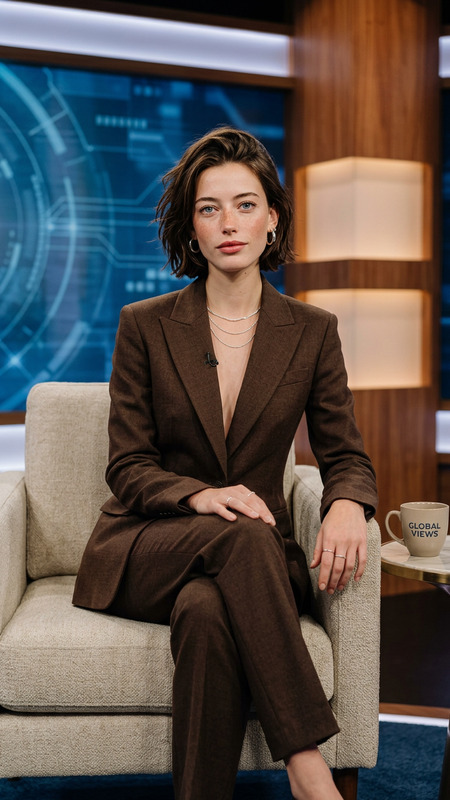
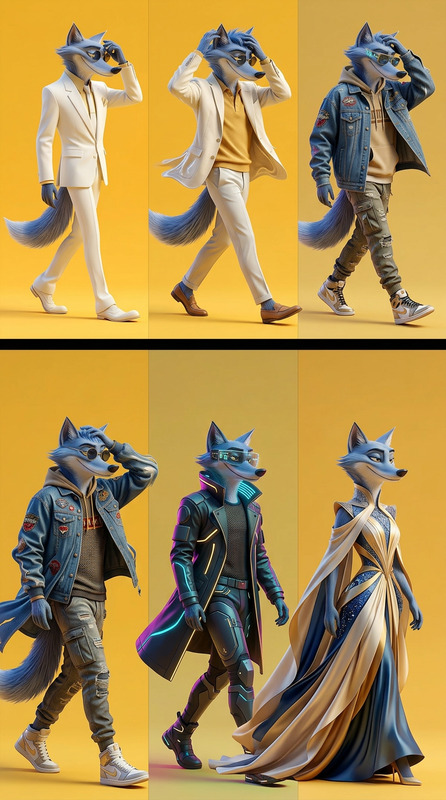
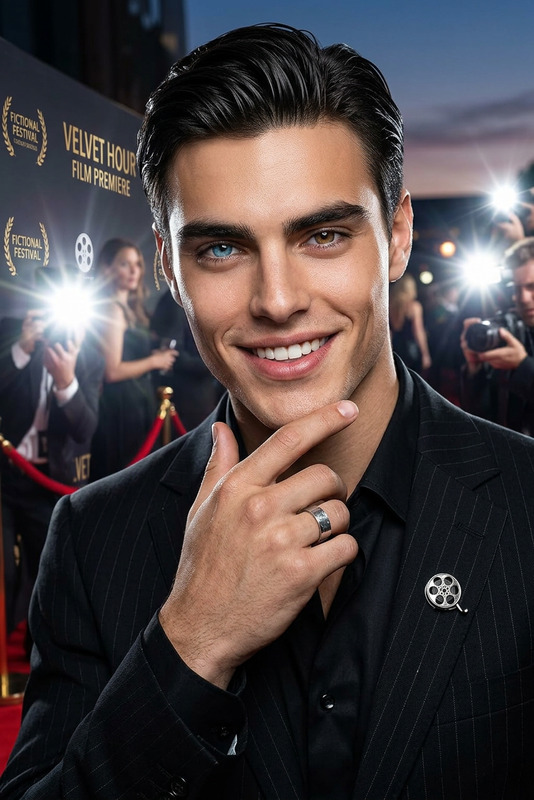
The On-Scene Interview Broadcast template is a versatile AI Image Editor tool designed for transforming visuals into professional news content. It offers a detailed transformation with high-end cinematic style and news-oriented atmosphere, making it ideal for modern broadcasting projects.
What It Does
This template allows creators to transform a subject into a polished reporter within seconds. By utilizing the AI Image Editor capabilities, users can adjust aspects like camera angle and background depth, giving an ultra-detailed behind-the-scenes look crucial for broadcasts. The slight handheld camera effect introduces realism, enhancing the viewing experience.
Who It's For
Designed for journalists, content creators, and educators who engage in video production or storytelling, the On-Scene Interview Broadcast template is perfect for anyone aiming to generate professional content quickly. It's particularly suitable for enhancing event coverage, academic presentations, and social media ads with a newsworthy touch.
Summary
Whether you're covering a bustling city event or creating dynamic social media posts, this template brings cinematic quality to your screen. Leverage its features with our AI Image Upscaler to ensure high-resolution outputs. Enhance your storytelling with ease using this powerful template.
How to Use the AI Image Editor Template
Choose

Customize

Generate

Use Cases
News Reporting
- Field news segments
- Press conference coverage
- Live interview framing
Event Coverage
- Award shows
- Corporate events
- Public gatherings
Educational Content
- Virtual field trips
- Documentary-style lessons
- Interactive presentations
Best Practices
Choose the Right Lighting
Ensure natural lighting to enhance the cinematic feel and avoid too many artificial light sources.Use the Background Blur Strategically
Emphasize subjects by blurring out the background appropriately, focusing on details that matter.Incorporate Movement
The slight handheld effect adds realism; apply just enough to simulate a live-action broadcast.