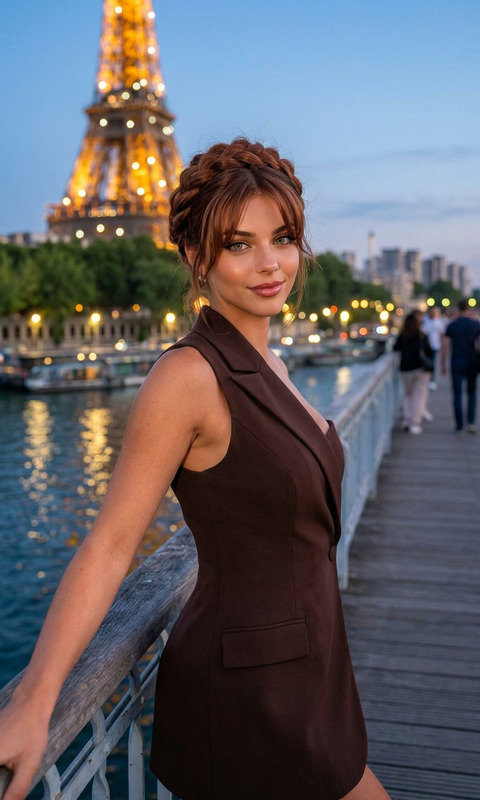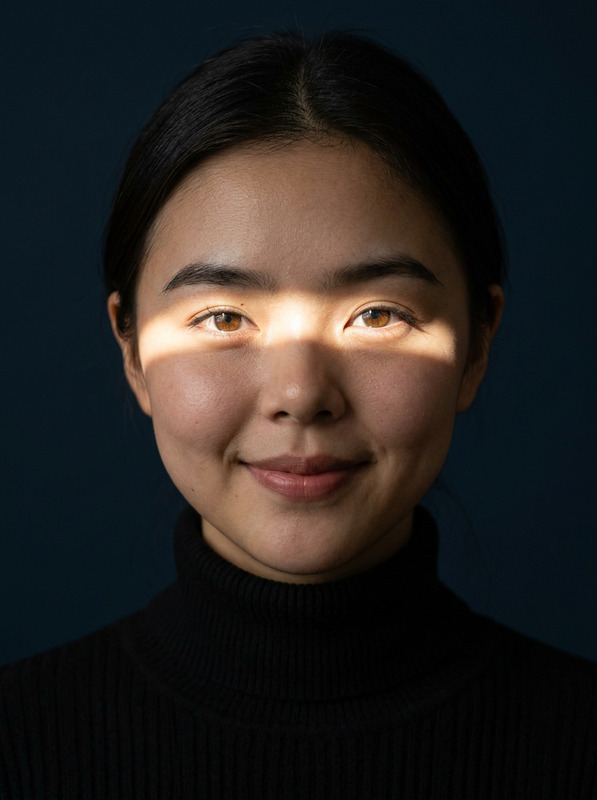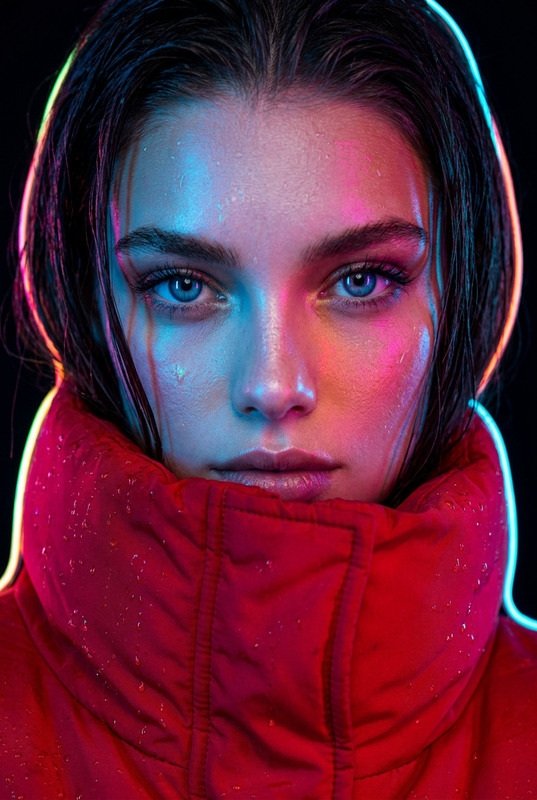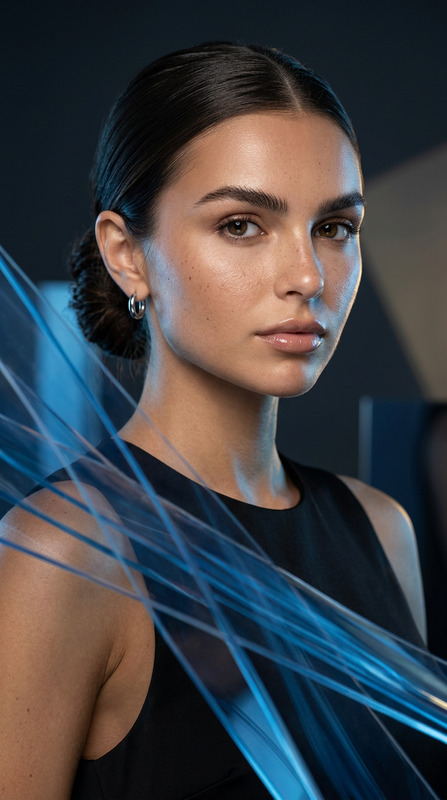
AI Image Editor · IMG_4543.jpeg
ai-image-editor
Any aspect ratio
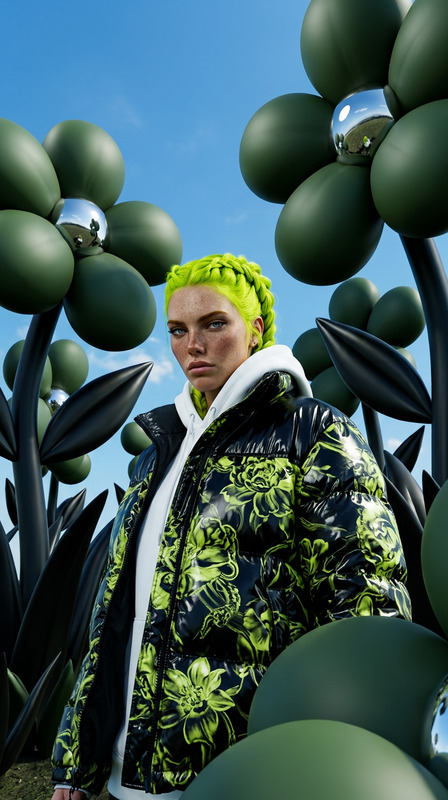
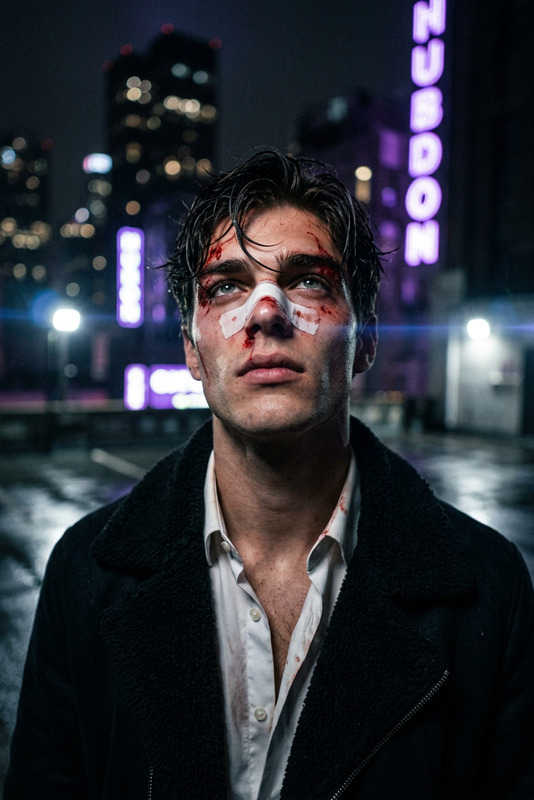
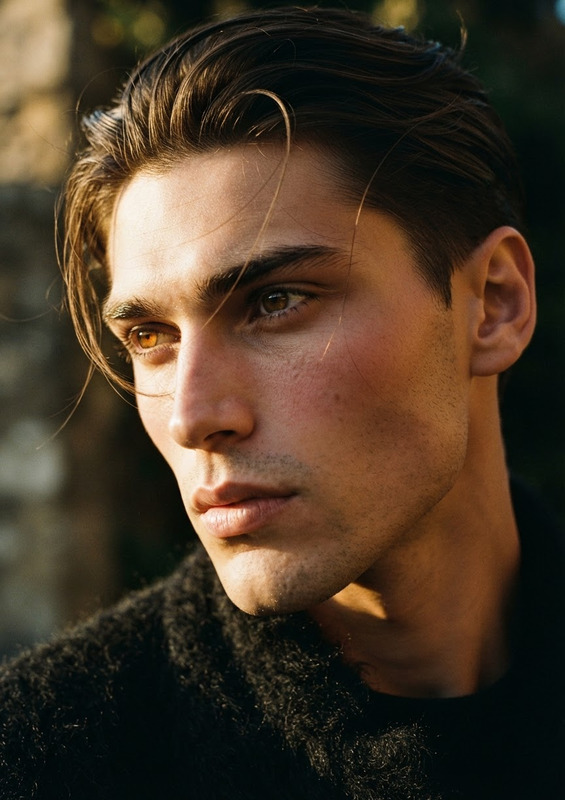
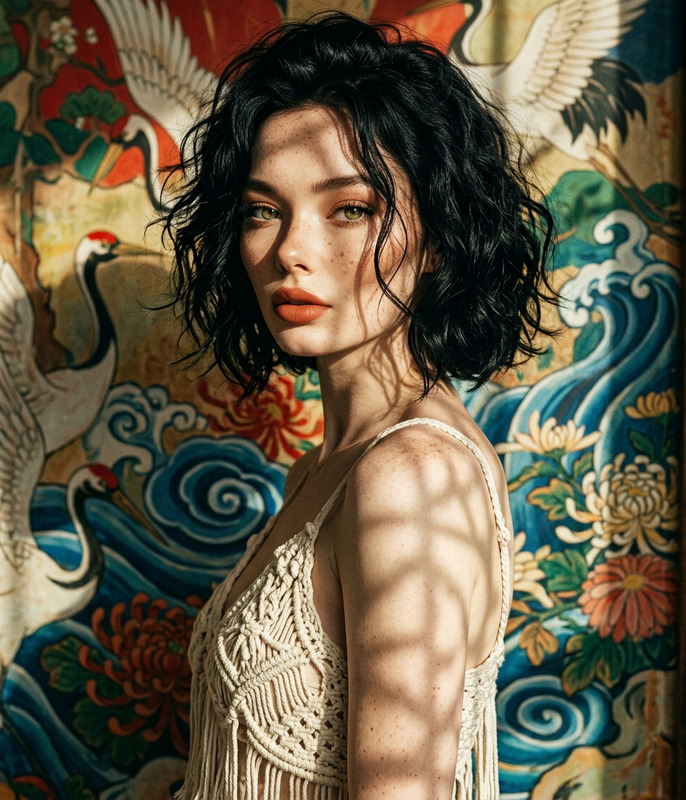
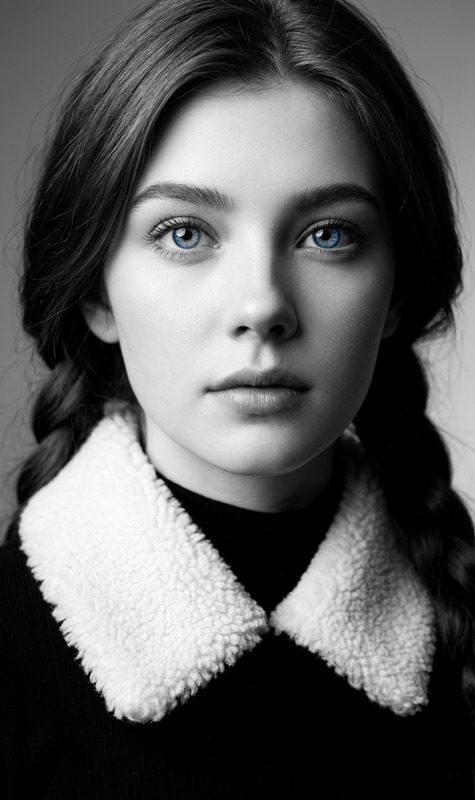
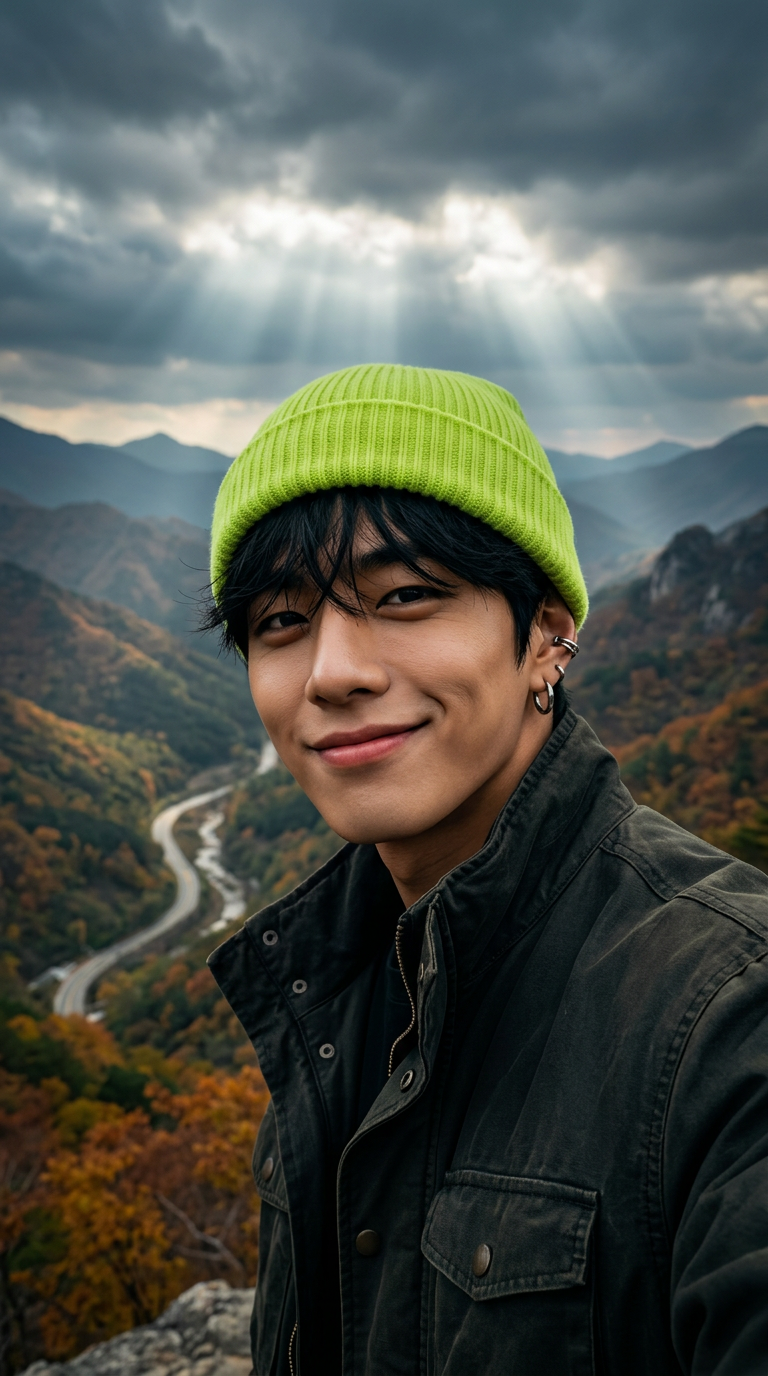
Cinematic close-up of a confident subject with dark hair and a bold, playful expression, slightly while maintaining a piercing gaze. The subject wears a neon-green ribbed beanie and a dark jacket. Background: dramatic cloudy sky over Korean-style mountains and a winding valley road in late autumn. Moody atmosphere with volumetric god rays breaking through clouds. Shallow depth of field isolates the face, which is hyper-detailed with natural skin texture. Epic composition, cinematic framing, and professional color grading reminiscent of a K-drama poster. Ultra-realistic, high dynamic range, shot on Arri Alexa, 16K quality, vertical 9:16 aspect ratio, stylized cinematic aesthetic.
AI Image Editor Template: Turn Any Photo Into a Polished, On-Brand Visual in Minutes
Use this AI Image Editor–powered template to transform raw photos into production‑ready visuals for campaigns, product pages, social posts, pitch decks, and more. No complex tools, no manual masking—just upload, edit, and export.
This template is built on the AI Image Editor, so you can selectively change parts of a photo, clean up backgrounds, swap objects, and enhance quality while keeping everything else intact.
What You Can Do With This Template
This template is ideal if you need to:
- Clean up and enhance product photos
- Remove clutter and distractions
- Replace messy backgrounds with clean, branded ones
- Sharpen details and upscale low‑res shots using the AI Image Upscaler
- Adapt a single photo for multiple channels
- Create versions for web, social, ads, pitch decks, and thumbnails
- Generate alternate crops and layouts with the Thumbnail Maker
- Edit portraits and marketing shots
- Fix minor issues, remove unwanted objects or people with the AI Remover
- Change outfits or looks for A/B testing with the AI Clothes Changer
- Generate matching headshots for teams via the AI Headshot Generator
- Quickly prototype creative directions
- Test new backgrounds with the AI Background Generator
- Turn photos into sketches or illustration‑style mockups using Photo to Sketch or the AI Illustration Generator
- Restore and modernize existing assets
- Repair and enhance old or low‑quality photos with Old Photo Restoration
- Colorize black‑and‑white images using Photo Colorizer
- Remove watermarks or logos (for assets you own) via the Watermark Remover
How This Template Works in Magic Hour
This template uses the AI Image Editor as its core engine. At a high level, it combines three capabilities:
Region‑aware editing
The model understands where objects, people, and backgrounds are in your image, so you can:- Modify only a specific area (e.g., replace background, adjust an outfit, remove an object)
- Keep faces, products, or key elements intact while changing everything around them
Generative replacement and enhancement
Instead of just erasing pixels, the editor can:- Generate new content to fill gaps (backgrounds, props, textures)
- Match lighting, perspective, and style so edits look natural
- Restore detail and clarity in low‑quality areas using super‑resolution models
Style‑consistent outputs
With the broader Magic Hour ecosystem you can:- Generate matching visuals via the AI Image Generator or AI Art Generator
- Keep consistent branding across images, covers, and social creatives using tools like the Book Cover Generator, Album Cover Generator, or AI Logo Generator
Step‑by‑Step: Remix This Template for Your Own Use
You can use this template as‑is, or remix it to create a custom editing workflow tailored to your brand or project.
1. Start from this template in Magic Hour
- Open the template from your Magic Hour dashboard (or any template gallery entry that mentions “AI Image Editor”).
- Upload a source image: a product shot, portrait, social asset, illustration, or even a scanned photo.
2. Define your editing goal
Typical high‑leverage goals for busy teams:
- “Remove background and place the subject on a clean, branded color.”
- “Replace the environment with a studio or lifestyle setting.”
- “Polish a founder headshot for website and press kit.”
- “Turn a rough sketch or concept shot into a presentable mockup.”
- “Create multiple variations of the same shot for A/B testing.”
3. Apply focused image edits
Within the AI Image Editor, you can then:
Isolate and refine subjects
- Cleanly separate people or products from the background
- Remove unwanted objects using Remove Object from Photo
- For more complex clean‑up (logos, text, artifacts), combine with the AI Remover
Replace or redesign backgrounds
- Generate new scenes, branded gradients, or minimal backgrounds via the AI Background Generator
- For specific aesthetics (e.g., manga, anime, comic book, fantasy), you can also try:
Enhance quality and clarity
- Upscale and sharpen using the AI Image Upscaler or Unblur Image
- Restore old or damaged assets with Old Photo Restoration and Photo Colorizer
Modify people and outfits where allowed
(Useful for creative testing, not for impersonation or misuse.)- Change outfits, styles, or vibes with the AI Fashion Generator or AI Outfit Generator
- Generate consistent, polished avatars for profiles or product shots via the Avatar Generator or AI Selfie Generator
- Explore stylized full‑body renders with the Full Body Generator
4. Create a reusable “system” for your brand
Once you like the result, treat your edited image as a pattern you can scale:
- Save a canonical product or founder layout.
- Use the same approach for:
- Product catalogs
- Landing pages and hero images
- Campaigns (social, paid, email)
- Pitch decks and investor materials
You can pair this with other Magic Hour tools for an end‑to‑end pipeline:
- Generate matching visuals from text via the AI Photo Generator or AI Character Generator
- Turn static images into motion assets with Image to Video or the AI GIF Generator
- Add on‑brand titles and overlays for social using the Thumbnail Maker
Going Beyond Static Images: Connect With Other Magic Hour Templates
If you like this template, you can extend your edited images into richer media experiences with other Magic Hour creation templates:
Face Swap Video Template
Use the Face Swap Video template to map your edited portraits or avatars onto existing video clips. Ideal for:- Personalized explainer videos
- Creative campaigns where one actor represents different “personas”
- Fast experimentation with character concepts
(Always follow consent and platform policies when using faces.)
Lip Sync Template
Take a static headshot you edited with this template and animate it to speech with the Lip Sync template, optionally combined with the AI Voice Generator or AI Voice Cloner for:- Founder intro videos
- Product explainers
- Localization and multilingual content
Video‑to‑Video Template
If you’ve established a strong visual look (lighting, backgrounds, character style), keep it consistent across motion content with the Video to Video template. Start from reference footage and transform the style to match your edited imagery.Animation Template
Turn your edited characters, mascots, or concept art into motion sequences using the Animation template. Combine this with:- Animated Characters Generator to design characters
- AI Talking Photo to give them speech and expression
Example Use Cases for Creators, Marketers, and Builders
For startups and product teams
- Create investor‑ready visuals from scrappy product screenshots or photos
- Maintain consistent imagery across landing pages, app stores, decks, and ads
- Turn a rough hardware prototype photo into a clean, marketable render using the AI Background Generator and AI Art Generator
For marketers and growth teams
- Spin up variations for A/B tests in minutes
- Localize campaign visuals (e.g., adapt the same layout to different regions or audiences)
- Generate memes and social content at scale with the AI Meme Generator
For designers and creative directors
- Rapidly explore creative directions without committing to a full design sprint
- Use tools like the AI Illustration Generator, Comic Book Generator, or AI Interior Design Generator to iterate quickly on concepts
- Build coherent brand universes using specialized generators such as:
Tips for High‑Quality, On‑Brand Outputs
Start from the best available source image.
AI editing works best with reasonably clear, well‑lit photos. If your image is noisy or blurry, improve it first using the AI Image Upscaler or Unblur Image.Edit selectively, not globally.
Use the AI Image Editor’s ability to focus on specific regions. Preserve the elements that matter—faces, products, logos—and edit everything around them to avoid over‑processed results.Standardize formats for repeatability.
Once you find a layout that works (e.g., product centered, branded gradient background, light shadow), replicate that pattern across your catalog. This is where templates really shine.Respect rights and consent.
When editing images of people or copyrighted assets, ensure you have permission and follow legal and platform guidelines. This is especially important if you later use tools like Face Swap, Gender Swap, or Face Swap Video.
Related Magic Hour Tools Worth Exploring
If you’re building a broader creative stack on top of this template, these tools pair well with AI image editing:
For identity, avatars, and faces
For branding, covers, and content
For motion and video
For niche creative projects
Start Remixing This Template
This AI Image Editor template is designed as a practical building block:
- Upload a single photo
- Edit it into a clean, on‑brand visual
- Repeat the pattern across your entire content pipeline
- Extend it into video, animation, and interactive formats with other Magic Hour templates
Open this template inside Magic Hour, duplicate it, and adapt it to your own brand system—so every new visual starts from something that already works.