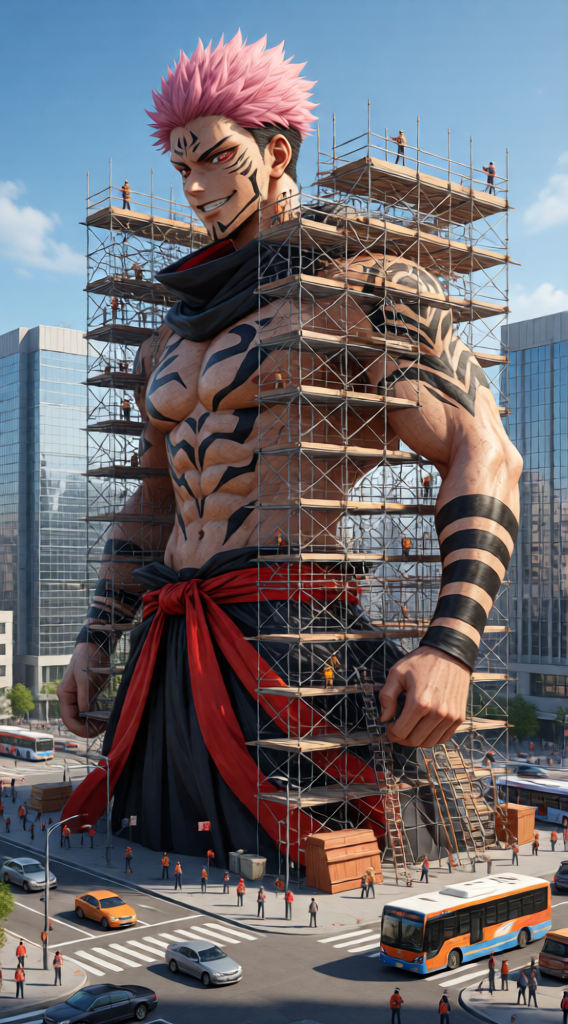
Giant Construction Scene
- Model
- Qwen Edit
- Image
- 568 × 1024 px
Prompt
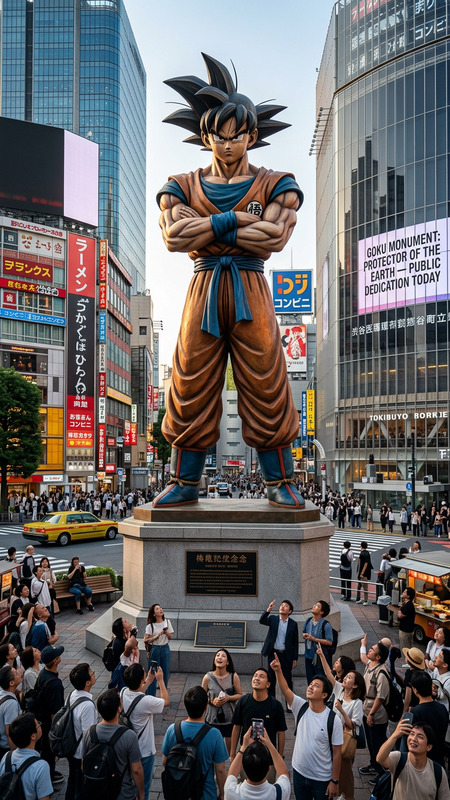
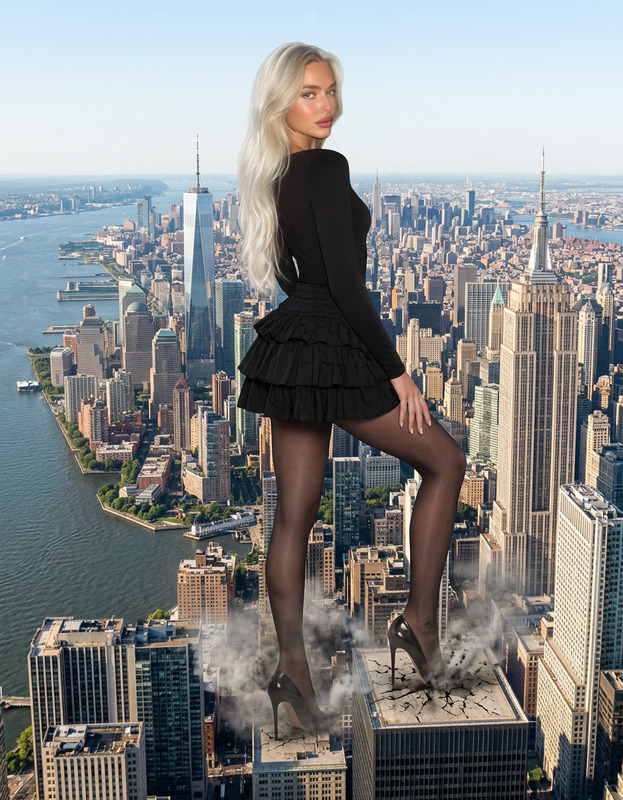
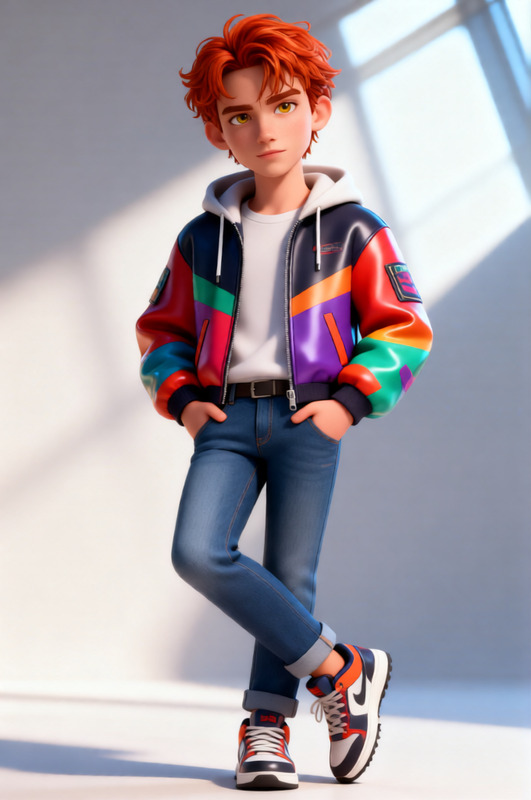
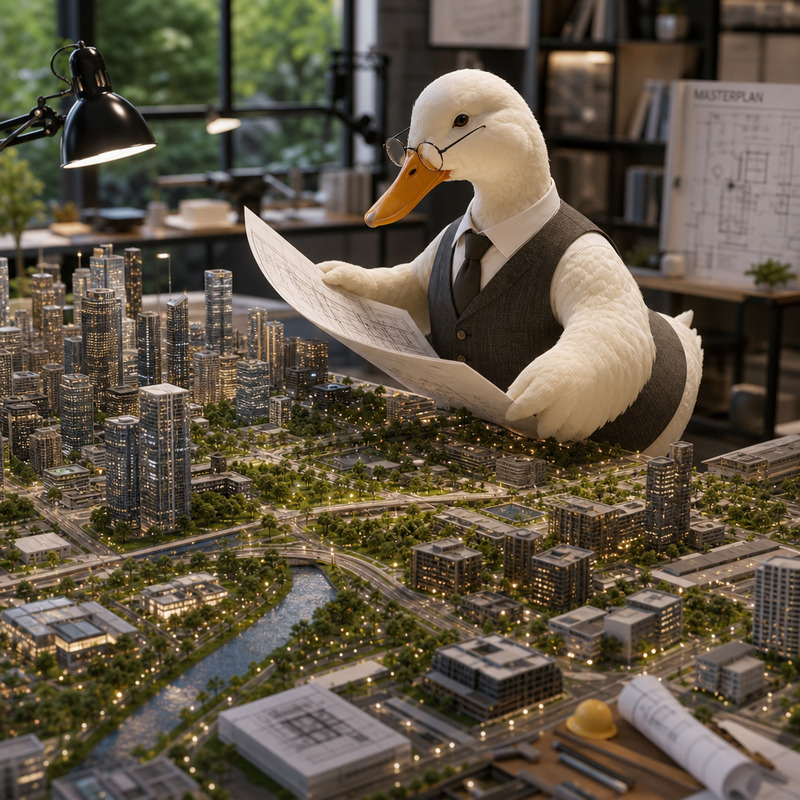
Create a hyper-realistic 3D render of the person standing, scaled as a giant figure in a city square. Preserve the subject’s facial identity and features. Surround the giant with massive construction scaffolding, with many tiny workers actively building, climbing, and adjusting structures. Set the scene in a lively urban environment with modern buildings, moving vehicles (cars, buses), and pedestrians below. Use a bright, clear blue sky with cinematic lighting, realistic shadows, and reflections. Emphasize scale contrast between the giant figure and small workers. Ultra-detailed textures, photorealistic materials, and immersive composition.
Any aspect ratio
Overview
The Giant Construction Scene template lets you create hyper-realistic 3D renders where the subject appears as a towering figure in a bustling cityscape. Utilizing the Qwen-Edit model, this template captures every intricate detail, from facial characteristics to the expansive urban environment.
What It Does
This AI Image Editor template generates a 3D scene where your selected subject stands as a giant in a city square, accentuated by construction scaffolding. The scene includes tiny workers, modern urban elements, and dynamic lighting and shadows for photorealistic output.
Who It's For
Ideal for builders, architects, and designers wanting to visualize construction projects on an epic scale. It's also great for storytellers and marketers looking to create impactful visuals by turning ordinary subjects into larger-than-life figures.
Summary
With the AI Image Editor and the capabilities of Qwen-Edit, this template offers a creative and visually compelling way to represent your ideas. Whether for marketing, presentation, or artistic purposes, the Giant Construction Scene elevates your visual content to new heights.
How To
Choose Your Template

Customize Your Scene

Generate and Download

Use Cases
Architectural Visualization
- Showcase future construction plans
- Visualize urban developments with dramatic attention
Creative Storytelling
- Create compelling visual stories for books or media
- Engage viewers with unique perspective shifts
Marketing Campaigns
- Enhance product launch imagery
- Highlight brand presence in urban settings
Best Practices
Maintain Realism
Ensure the subject's features and positioning are natural to preserve realism, as this enhances the dramatic contrast between the giant and the workers.Fine-tune Lighting
Adjust the lighting settings to match the cinematic quality of your desired output, enhancing realism with proper shadows and reflections.Detail Composition
Pay attention to the placement of tiny workers and urban elements to improve the scene's immersion and narrative depth.