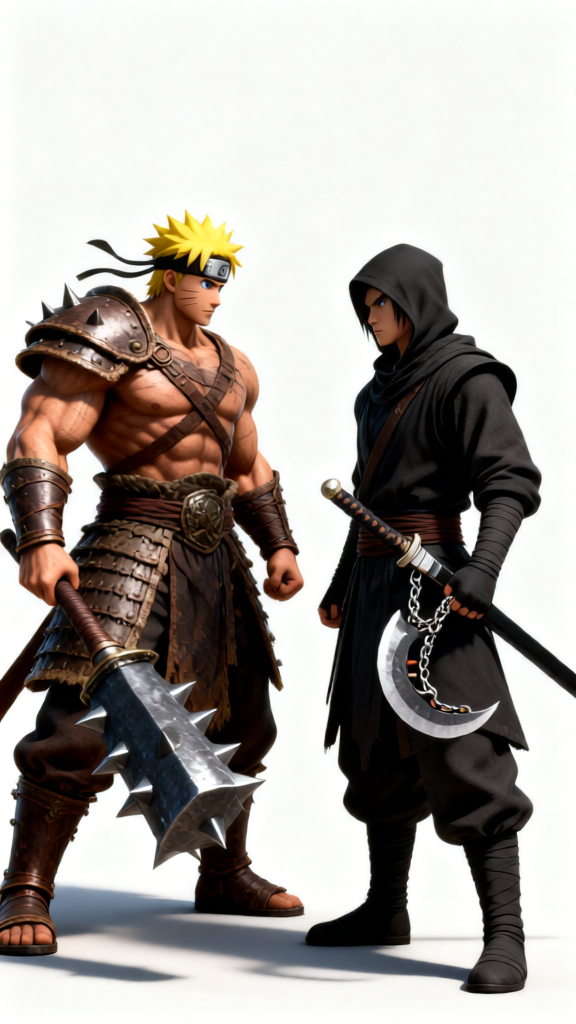
AAA Face-Off Render

AAA Face-Off Render

ai-image-editor

1 clip
10 uses

Any aspect ratio

Prompt

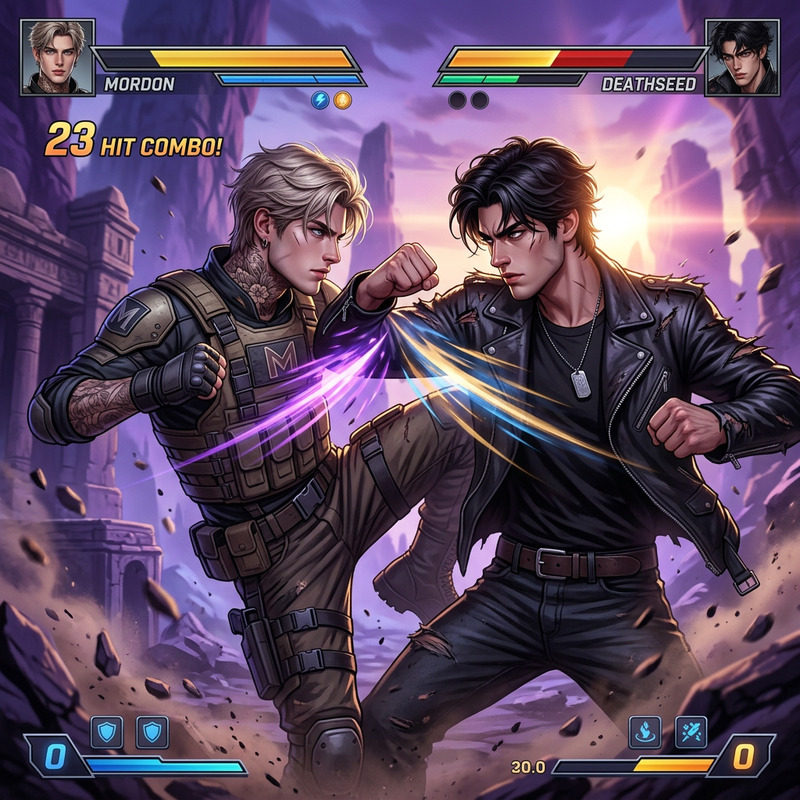
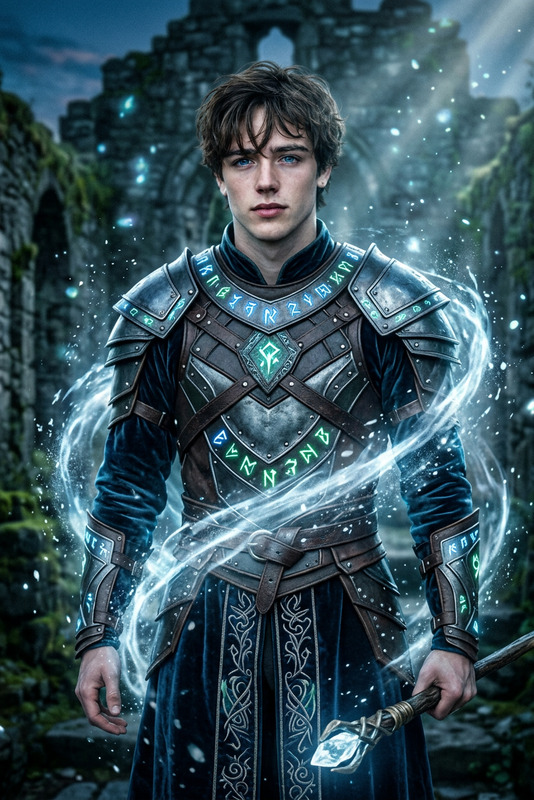
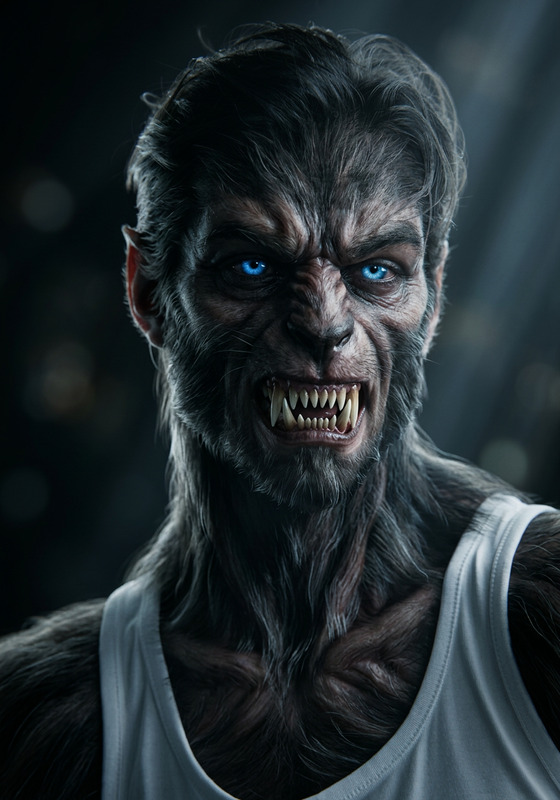
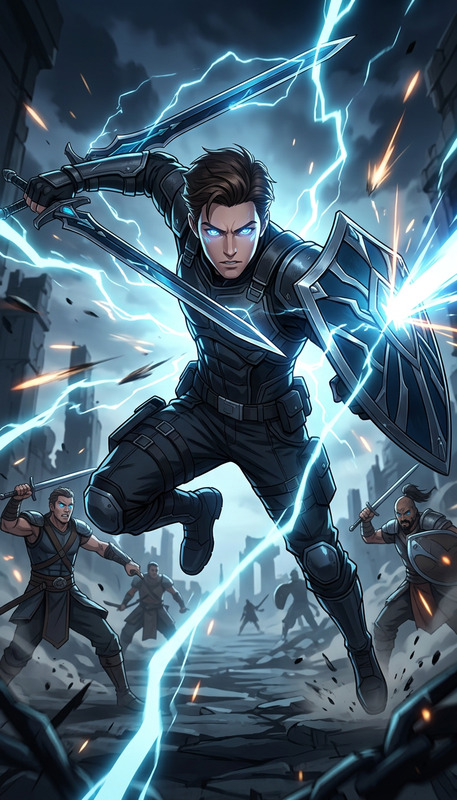
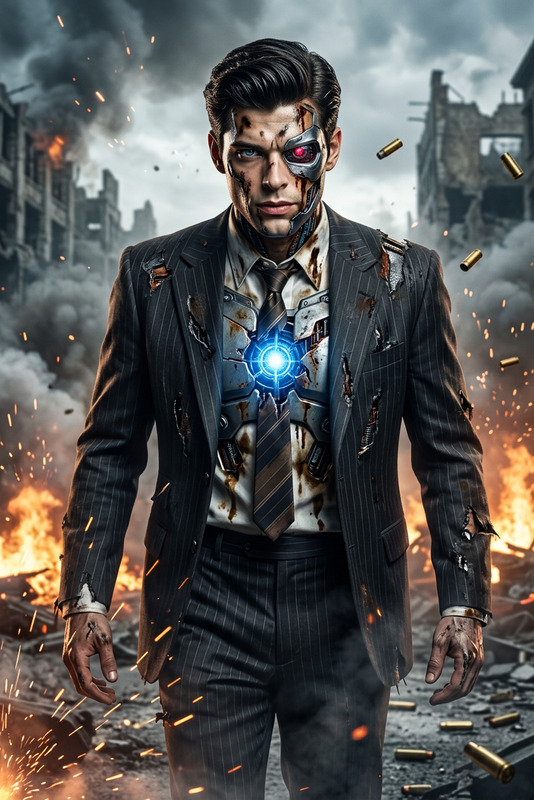
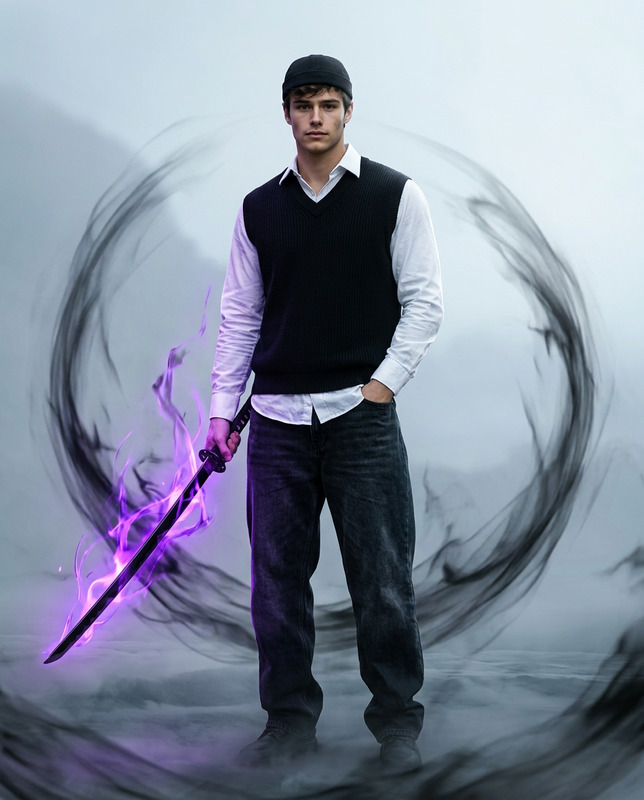
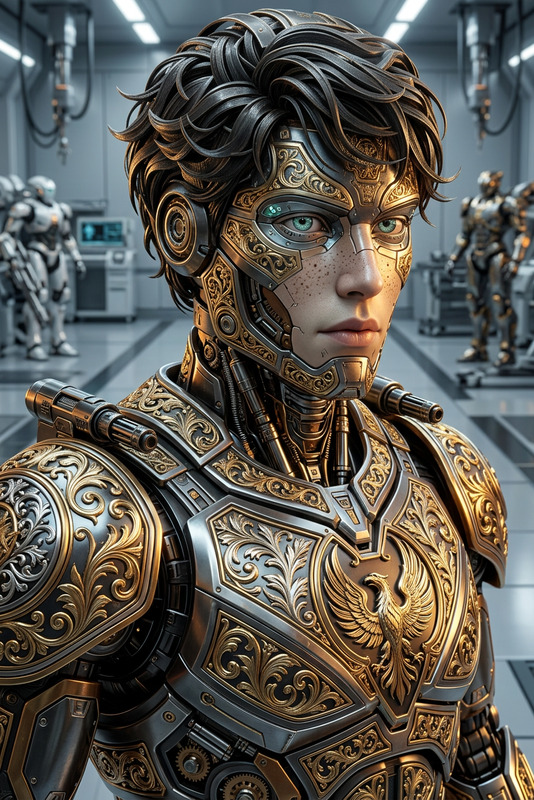
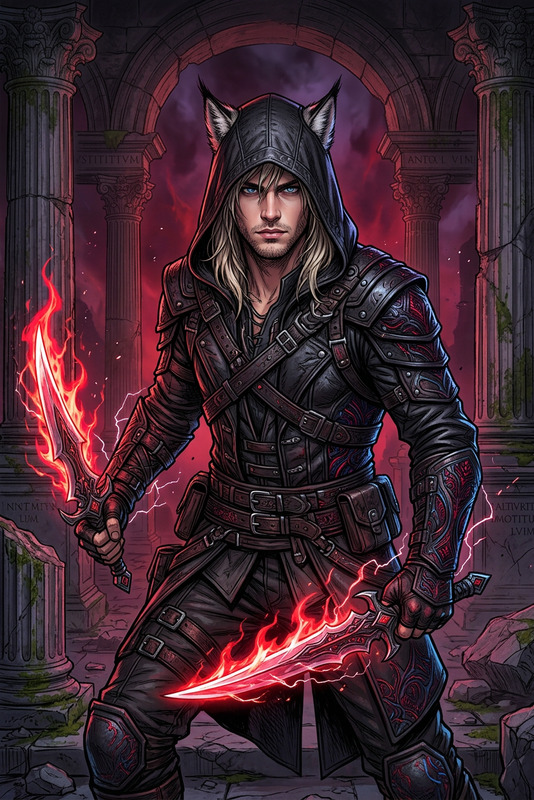
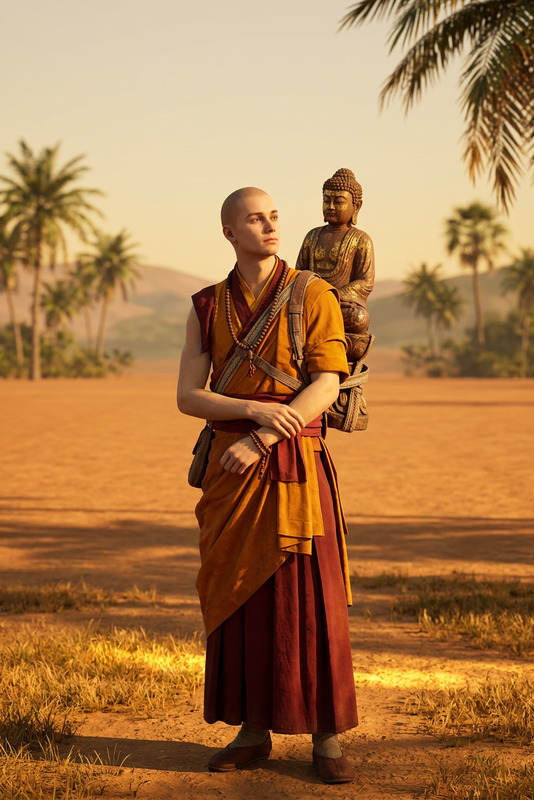
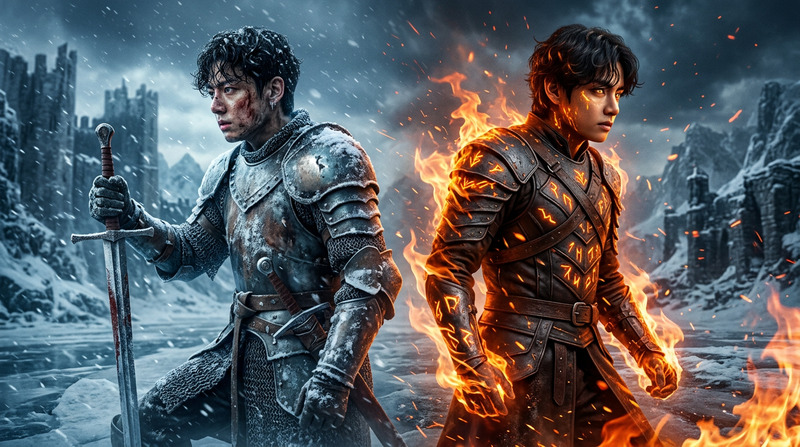
Subject rendered as a highly detailed 3D scene of two AAA game characters in a dynamic face-off pose—a muscular ancient warrior in rugged armor wielding a heavy spiked mace versus a stealthy ninja in dark layered attire with a katana and chained sickle; ultra-realistic anatomy, sharp textures, cinematic sculpting, and believable fabric physics; both in full-body combat stance with strong silhouette contrast; clean white minimalist background, soft studio lighting, subtle ground shadows, high contrast, ultra-sharp detail, professional game concept art quality, 16:9 ratio, no extra elements.

Transform any photo in seconds with this AI Image Editor template on Magic Hour. Remix it, experiment with your own prompts, and build a reusable editing workflow you can apply across campaigns, brands, and projects.


What this template does

This template showcases what you can do with the Magic Hour AI Image Editor:

  • Start from an existing image (product photo, portrait, concept art, screenshot, etc.)
  • Edit it with natural language prompts (e.g., “turn this into a cinematic cyberpunk scene at night”)
  • Change style, mood, and details while keeping the core subject recognizable
  • Remove or replace elements, enhance composition, or generate creative variants

It’s built to be:

  • Fast to reuse – drop in a new image, tweak the prompt, and re-run
  • Reliable – preserves key structure and identity while changing style
  • Composable – can be combined with other Magic Hour tools for full pipelines (e.g., image → video, image → talking avatar, etc.)

How to remix this template in Magic Hour

You can recreate or fork this workflow directly inside Magic Hour using the AI Image Editor. Here’s a practical way to turn this into your own template:

  1. Upload or select your base image
    Use a product photo, portrait, illustration, logo, or layout you want to iterate on.

  2. Define your “always-on” constraints in the prompt
    Write a prompt that clearly states what must stay consistent across versions, such as:

    • “Keep the person’s face and pose the same”
    • “Preserve brand colors and logo placement”
    • “Maintain overall composition and lighting direction”
  3. Add style and transformation instructions
    Then describe how the image should change:

    • Artistic style: “in studio-quality portrait photography,” “as watercolor concept art,” “minimalist flat illustration”
    • Context: “set in a modern office,” “on a clean white background,” “in a fantasy forest”
    • Mood: “dramatic side lighting,” “soft morning light,” “neon cyberpunk at night”
  4. Save your prompt as a reusable editing pattern
    Use the same core prompt with different source images to create:

    • Consistent product visuals across a catalog
    • On-brand marketing images for campaigns
    • Visual variants for A/B testing on landing pages and ads
  5. Iterate with small prompt adjustments
    Duplicate your base prompt and change only:

    • Style (e.g., “analog film photography” vs. “3D Pixar-style render”)
    • Season / theme (“winter holiday,” “back to school,” “Halloween”)
    • Channel-specific format (“optimized for website hero,” “optimized for mobile story ad”)

Practical use cases for creators, marketers, and teams

This AI Image Editor template is particularly useful if you:

  • Run marketing campaigns

    • Create on-brand variations of hero images and ads
    • Localize visuals for different markets by changing background environments
    • A/B test creative directions without new photoshoots
  • Build products or startups

    • Generate consistent product visuals from rough photos or mockups
    • Quickly adapt visuals to new positioning, branding, or pricing pages
    • Create investor deck imagery that matches your product aesthetic
  • Create content at scale

    • Turn a single photoshoot into dozens of stylized assets
    • Generate thumbnails, blog visuals, and social assets from a few base images
    • Maintain a visual “system” across multiple channels

Example workflows you can build from this template

You can treat this template as a building block in larger pipelines. For example:

1. Image → Video storytelling

  • Use this template to create stylized images
  • Then turn them into motion content with:

2. Image → Character → Animation

3. Image clean-up and enhancement pipeline


How to design strong prompts for this template

High-quality results with AI image editing usually come from clear, structured prompts. You can model yours roughly as:

“Edit this image into [desired style] while keeping [elements that must stay] the same. Show [subject] in [setting] with [mood/lighting]. Avoid [what you do NOT want].”

For example:

  • “Edit this image into a clean, high-end e‑commerce product photo while keeping the product shape and logo the same. Show it on a soft gradient background with subtle reflections, studio lighting, and no text or extra objects.”
  • “Turn this portrait into a cinematic, low-key, dramatic photo while preserving the person’s identity and pose. Dark background, soft rim lighting, shallow depth of field, no heavy makeup, no fantasy elements.”

Over time, you can evolve this into a library of internal “house style” prompts that your team reuses across campaigns.


Related Magic Hour tools worth combining with this template

If you’re building a more advanced or automated pipeline around this template, you may also want to explore:

You can generate raw assets with these tools, then refine and unify them visually with this AI Image Editor template.


Why use Magic Hour for AI image editing?

Magic Hour’s AI Image Editor is designed for creators who care about:

  • Consistency – Keep identity, layout, and brand elements stable across large sets of images.
  • Speed – Go from concept to production-ready visuals in minutes, not days.
  • Composability – Chain image editing with face swap, animation, video, and audio tools to build custom creative systems.
  • Team workflows – Reuse prompts as internal “templates” so designers, marketers, and founders can all generate on-brand visuals without constant manual art direction.

Getting started

To use or remix this template:

  1. Open the AI Image Editor.
  2. Upload your base image.
  3. Adapt the prompt pattern outlined above to match your brand, campaign, or creative direction.
  4. Save your favorite prompt as a reusable pattern and iterate from there.

Use this template as a starting point, then evolve it into your own internal “image editing engine” on Magic Hour—one that consistently turns simple inputs into polished, on-brand visuals across your entire stack.

More Like This

Insufficient credits