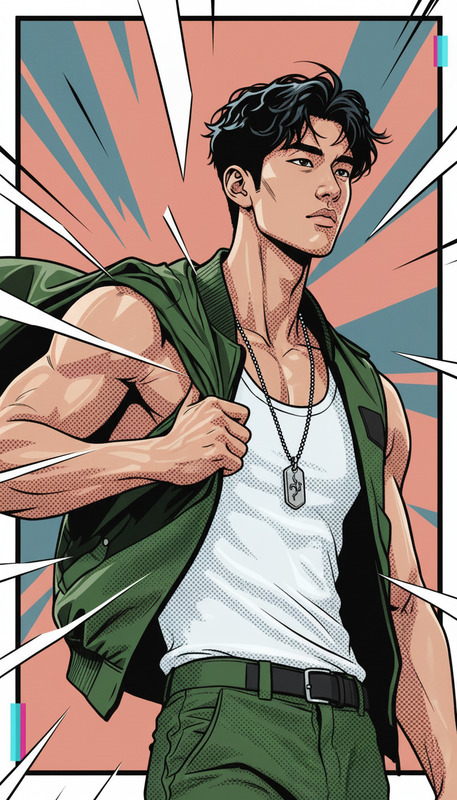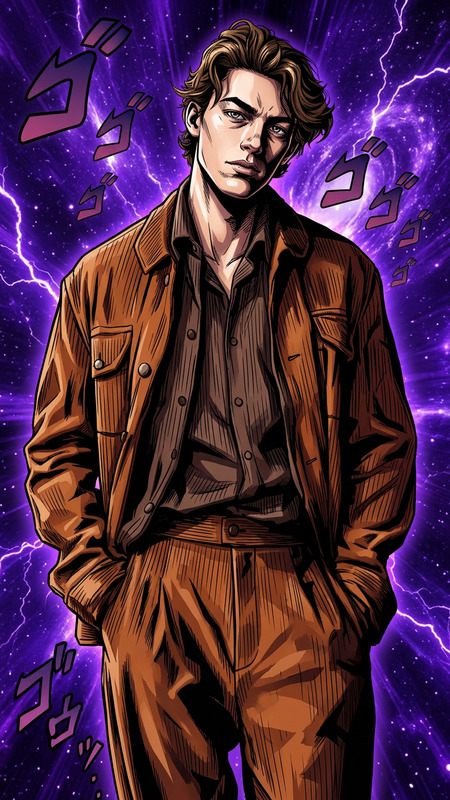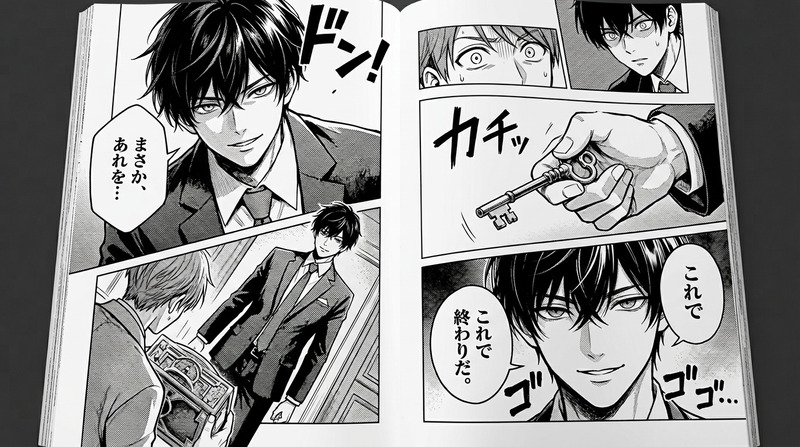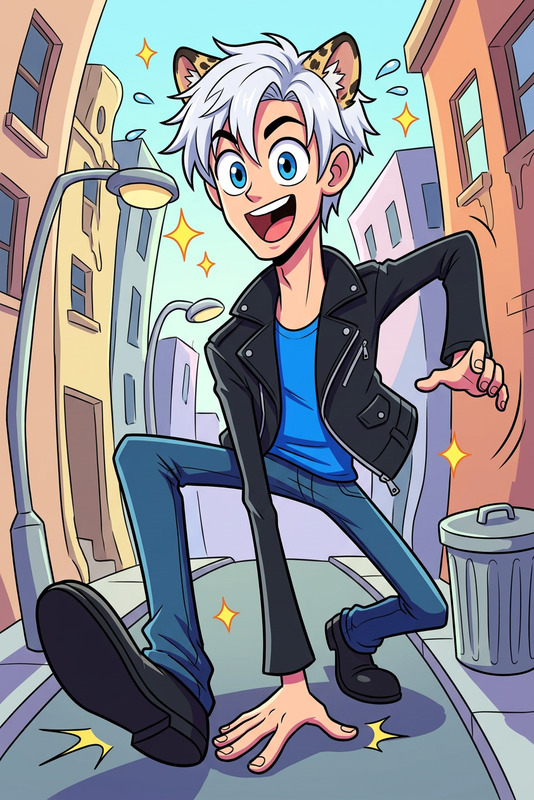
Superhero Comic Strip Creation
- Model
- Nano Banana 2
- Image
- 768 × 1365 px
Prompt
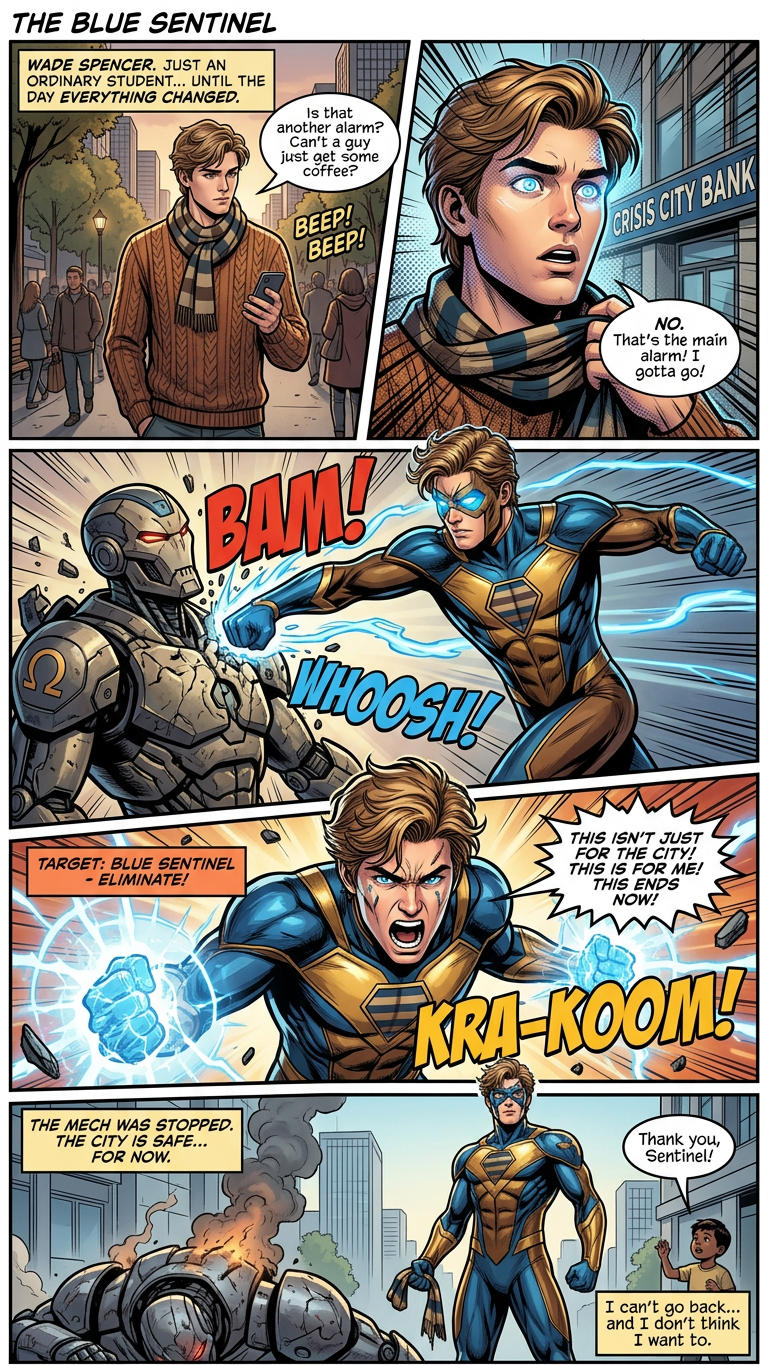
Transform the uploaded image into a dynamic superhero comic book strip. Preserve the subject’s identity and adapt them into a stylized comic hero with enhanced action poses, dramatic expressions, and cinematic framing. Divide the scene into multiple comic panels showing a compelling story arc (introduction, rising action, action moment, climax, and resolution). Use bold inking, dynamic linework, and vibrant comic-style coloring with dramatic lighting and motion effects. Add speech bubbles, narration boxes, and onomatopoeia (e.g., “BAM!”, “WHOOSH!”) to enhance storytelling. Write a short, engaging superhero story that fits the panels, focusing on action, emotion, and transformation. Maintain a cohesive comic book aesthetic with strong visual rhythm and readability.
Any aspect ratio
Overview
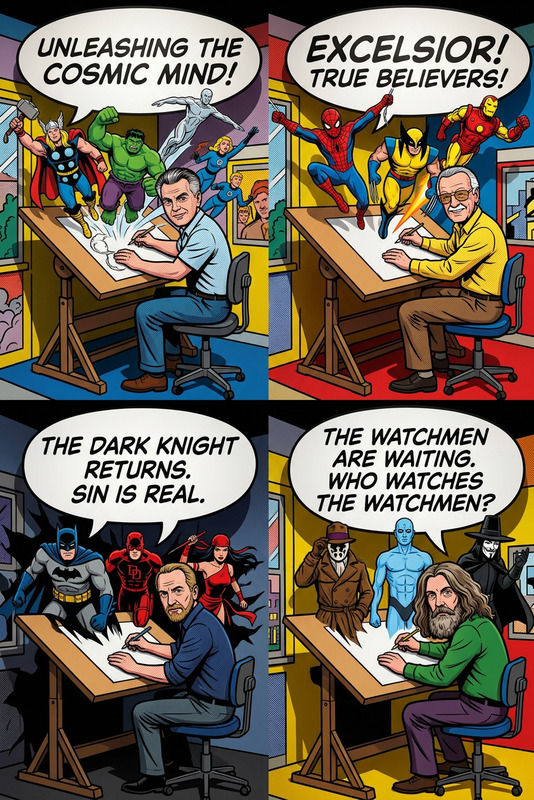
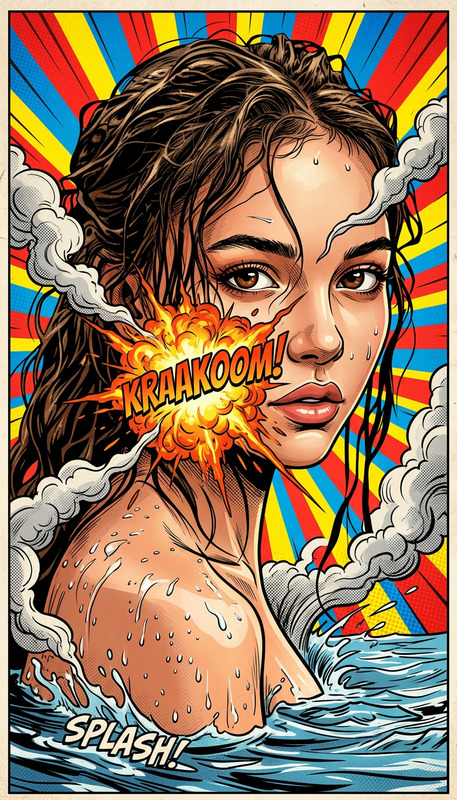
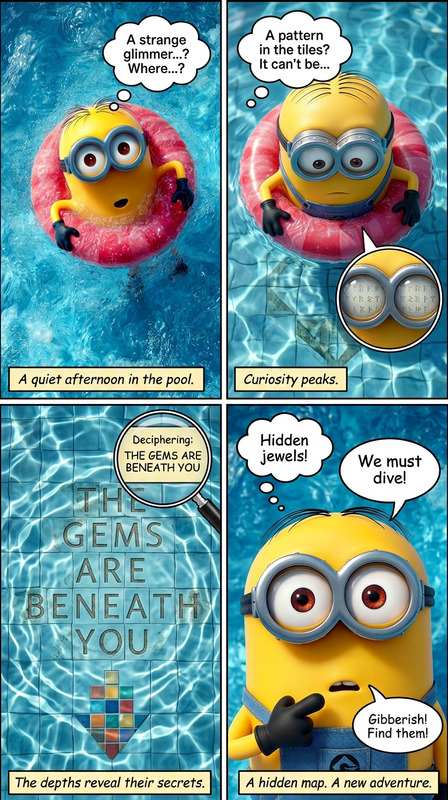
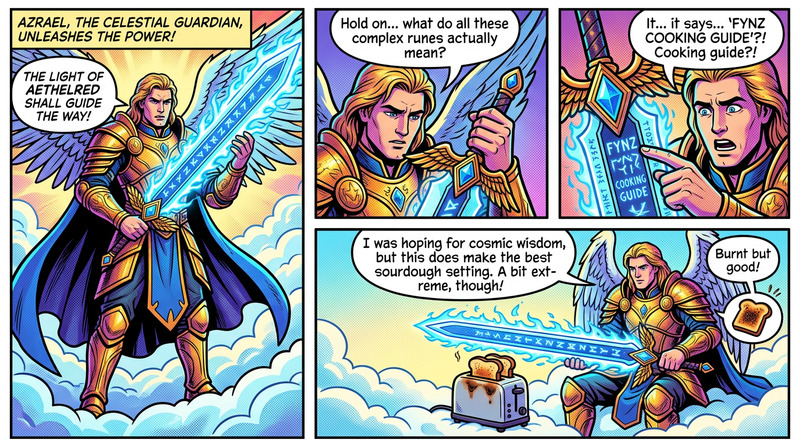
Enter the world of comics with our Superhero Comic Strip Creation template, powered by the nano-banana-2 model. This AI Image Editor template transforms your photos into dynamic superhero comics with action-packed panels and vivid storytelling elements.
What It Does
This template refines any image you upload into a stylized superhero comic strip. It rearranges the scene into multiple panels that outline a complete story arc, from introduction to resolution, using bright comic book-style colors and dramatic linework. Speech bubbles and onomatopoeia enhance the narrative, turning ordinary images into extraordinary adventures.
Who It's For
The Superhero Comic Strip Creation template is ideal for creators, storytellers, and marketing professionals looking to breathe life into images. Whether designing a pitch for a new comic idea or adding flair to a promotional campaign, this tool meets diverse creative needs. It's particularly useful for product launch videos and social media ads, where visual dynamism is key.
Summary
Create visually stunning superhero comic strips from your images with ease. Use this template to develop compelling stories that capture emotional depth and action. With the AI Image Editor, you can expect a seamless blend of photo realism and comic artistry.
How to Use
Choose the Template

Adjust Inputs and Creative Elements

Generate Your Comic Strip

Use Cases
Marketing and Promotions
- Enhance product launches with engaging visual narratives.
- Create dynamic social media assets.
Creative Storytelling
- Design comic stories for personal art projects.
- Develop concepts for comic books and graphic novels.
Educational Content
- Use comic strips to convey complex ideas to students.
- Develop learning materials that engage and inform.
Best Practices
Select High-Quality Images
Ensure your starting image is high-resolution to give your comic strip optimal detail and clarity.Focus on Storytelling
Craft a captivating narrative that resonates with your audience to make the comic strip both visual and engaging.Experiment with Comic Elements
Play around with speech bubbles, onomatopoeia, and narration to find the right fit for your story's tone.