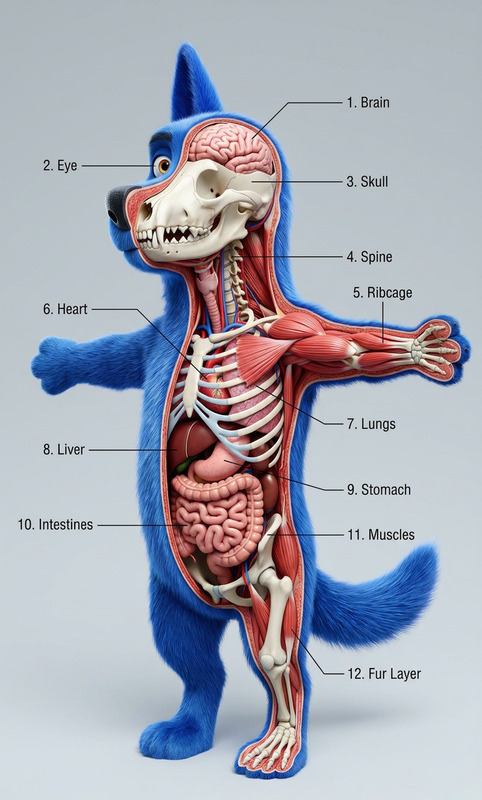
Precision Cross-Section
- Model
- Nano Banana 2
- Image
- 848 × 1264 px
Prompt
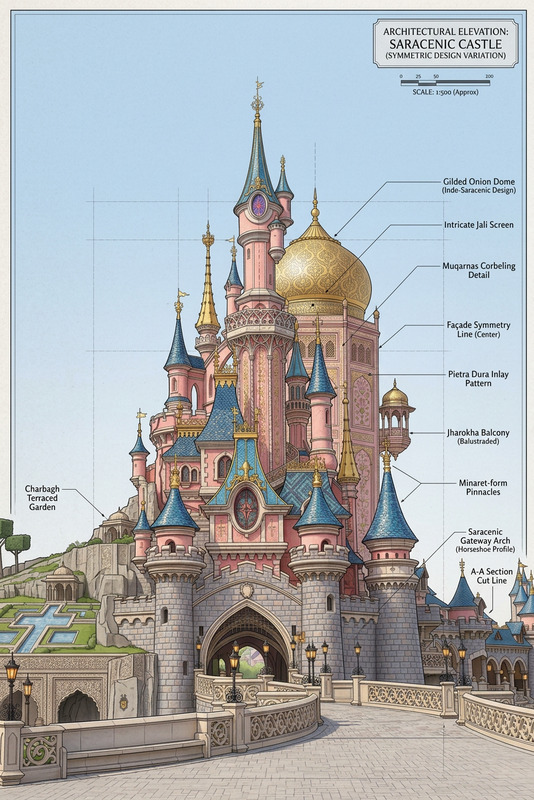
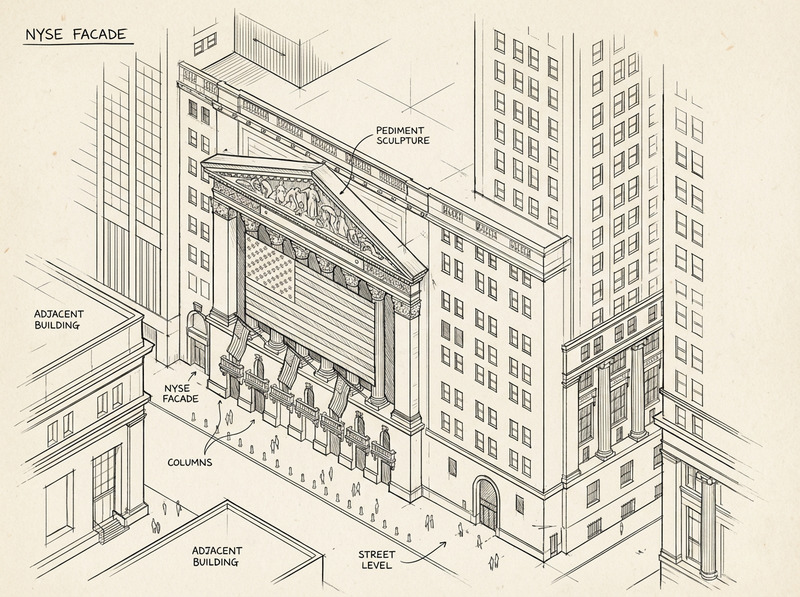
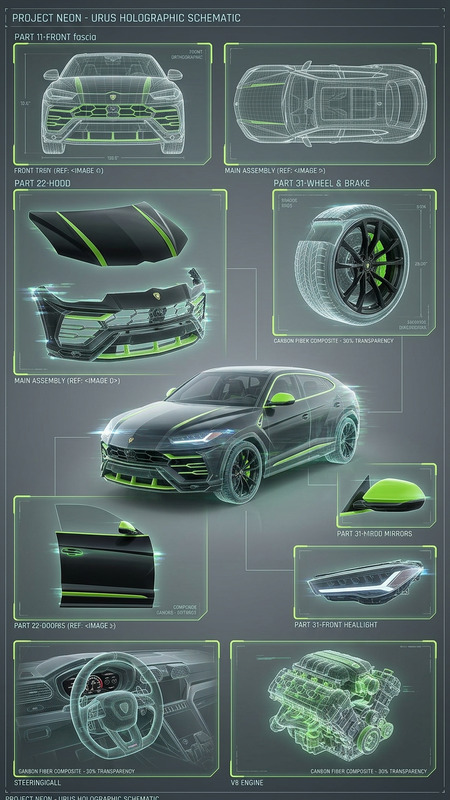
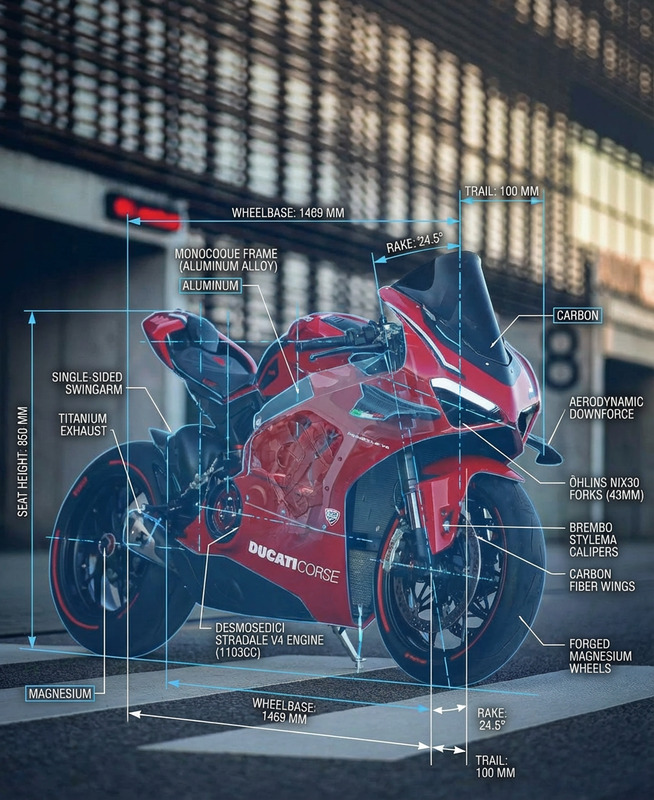
Generate a precise cross-sectional view of the item. Show the intact exterior on the left side and a clean cutaway on the right revealing internal components. Maintain accurate proportions, scale, and placement. Render internal parts clearly with distinct materials, subtle shading, and optional labels for clarity. Ensure a technical, realistic, and well-aligned presentation.
Any aspect ratio
Overview
The Precision Cross-Section template is a tool within the AI Image Editor suite, leveraging the nano-banana-2 model to deliver detailed visualizations. This template is perfect for engineers, architects, and designers who require a precise depiction of an object's internal and external views.
What It Does
This template generates clear and accurate cross-sections of items, showcasing both the smooth exterior and the intricate internal components. The left side of the image remains intact to provide a full external view, while the right side delivers a meticulous cutaway view, revealing internal structures with realistic shading and optional labels. It's designed for precise alignments and realistic depictions, ensuring technical presentations are both informative and visually appealing.
Who It's For
The Precision Cross-Section template is ideal for professionals in engineering, architecture, product design, and education. It helps users such as project managers, technical instructors, and graphic artists clearly communicate complex internal structures of various objects. Whether you're preparing a presentation, a technical document, or educational materials, the AI Image Editor allows you to create compelling visuals with ease.
Summary
By using the AI Image Editor with the Precision Cross-Section template, users achieve a combination of artistic and technical detail that brings designs to life. Harness the power of nano-banana-2 technology to enhance your visualization projects, ensuring accuracy and clarity in every rendering.
How to Use
Choose the Template

Customize Your Image

Generate and Download

Use Cases
Engineering Design
- Convey internal mechanisms
- Highlight functional components
Architectural Visualization
- Reveal hidden structural elements
- Present interior layouts
Product Development
- Display intricate product designs
- Explore materials and configurations
Educational Illustrations
- Engage students with detailed diagrams
- Support learning modules visually
Best Practices
Choose High-Quality Images
Always use high-resolution images for clear and detailed cross-sections. This ensures that intricate parts and materials are rendered accurately.Focus on Key Components
Highlight essential internal components to simplify complex designs. Use optional labels for added clarity without cluttering the image.Maintain Scale and Proportion
Keep elements proportionate to each other to avoid misrepresentation of components. Use AI tools to adjust scale and align images correctly.