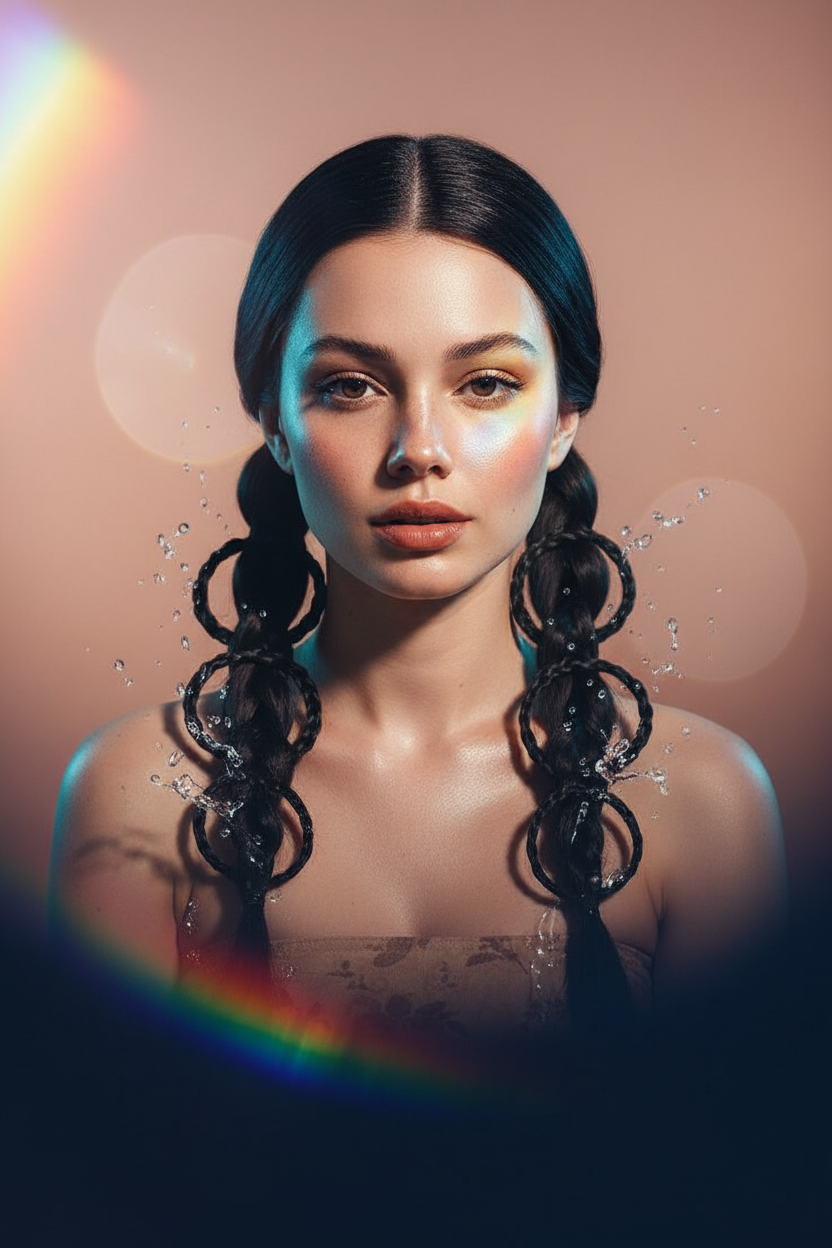
Ethereal Muse
ai-image-editor
Any aspect ratio
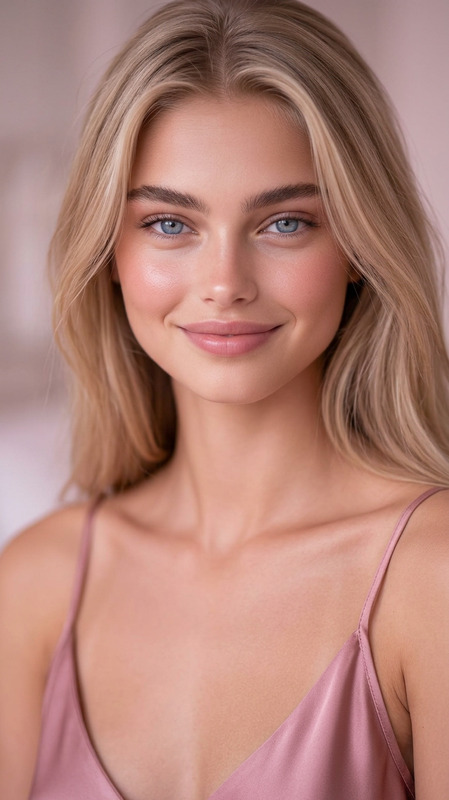
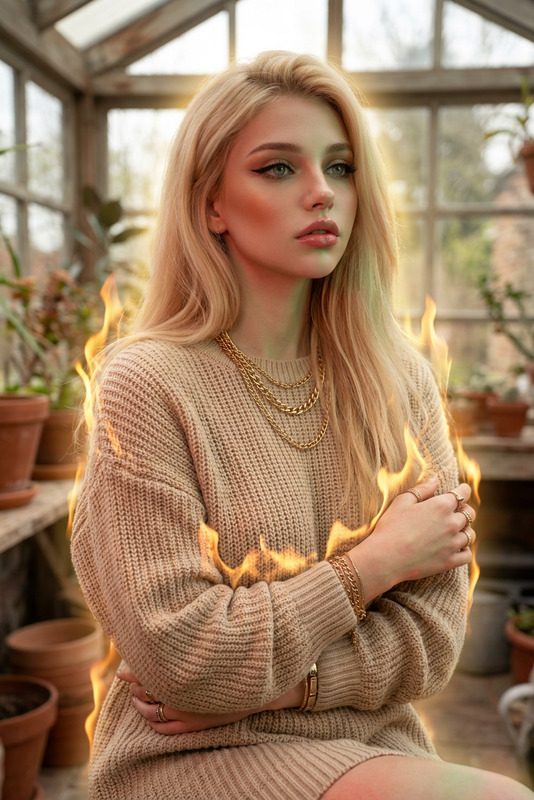
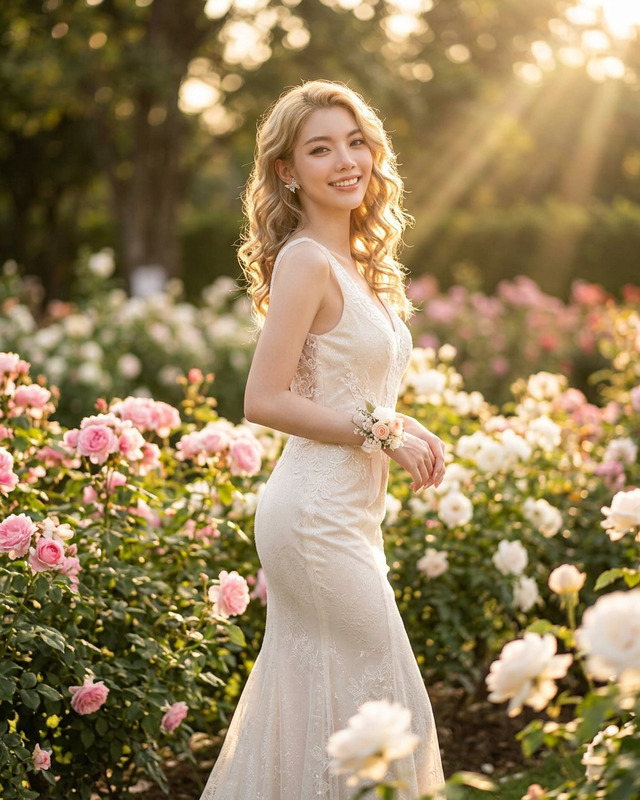
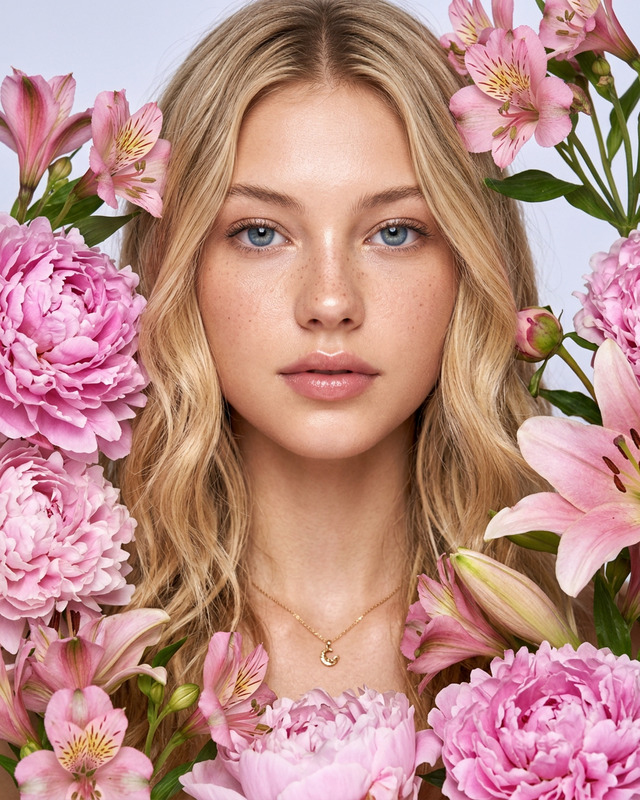
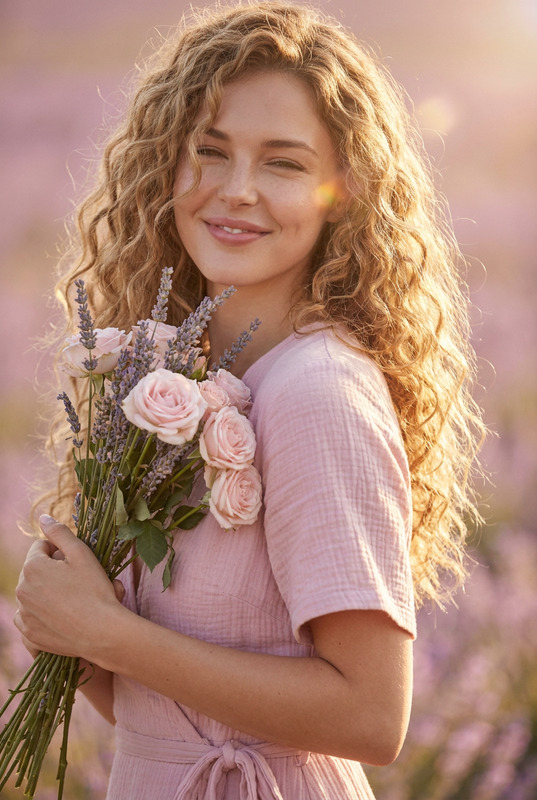
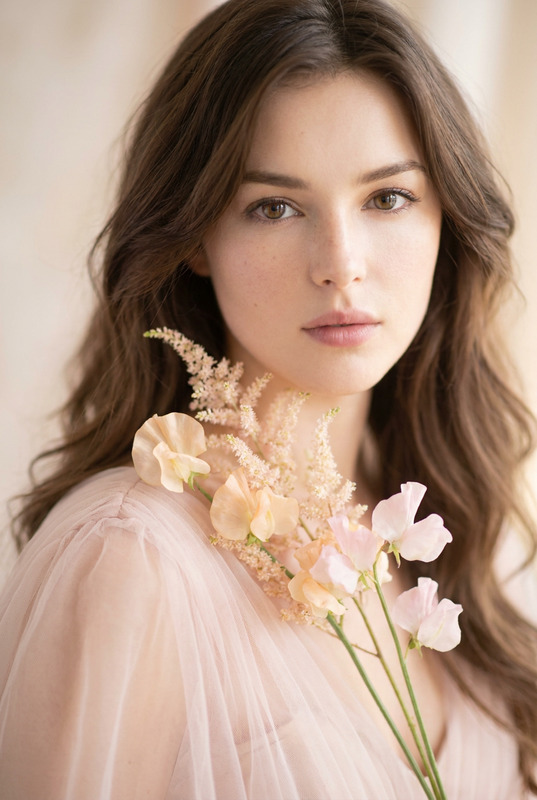
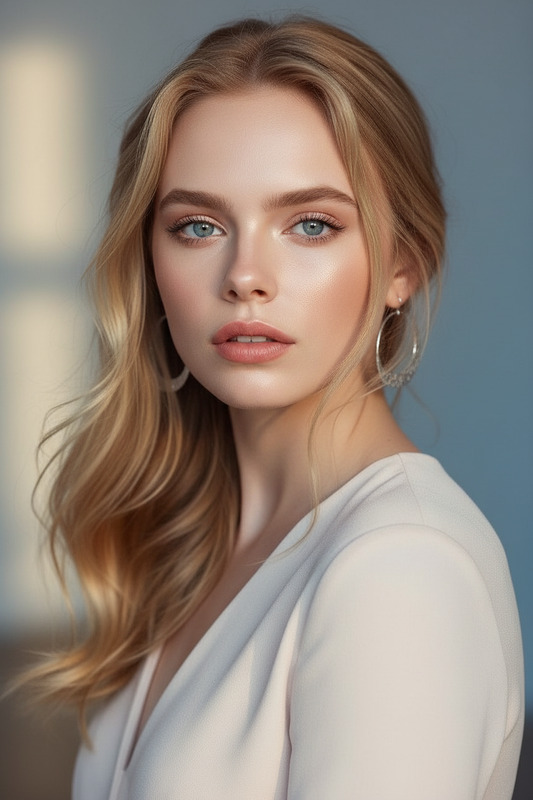
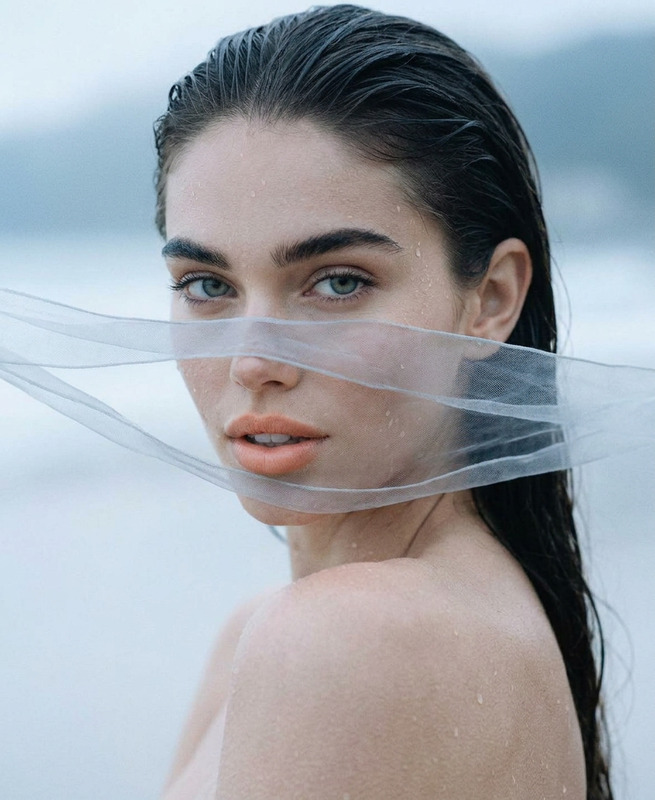
Close-up editorial beauty portrait of a subject facing forward, gaze slightly downward, soft contemplative expression. Porcelain skin with dewy blush, minimal shimmer makeup, natural lips. Glossy ornate pigtails with braided loops. Prism rainbow flare on cheek and translucent resin-like splashes on hair. Soft cyclorama studio, high-key lighting with cool rim light, peach and navy tones. Telephoto lens, shallow depth of field, bokeh, lens halation, ultra-realistic, surreal editorial style.
Tags
stylesAI Image Editor: Turn Any Photo Into Studio-Quality Creative Assets
This template was built with the AI Image Editor, so you can take any existing image—product shot, portrait, logo, concept art—and transform it into a polished, on-brand visual in minutes. It’s designed for creators, marketers, founders, and product teams who need fast iteration without sacrificing quality.
What This Template Is For
Use this template to:
- Clean up and enhance existing photos (colors, details, composition)
- Change or remove distracting backgrounds
- Add or remove objects and people
- Adjust faces, expressions, or styles for campaigns
- Turn rough mockups into production-ready visuals
It’s especially effective for:
- Landing pages and product marketing
- Founder and team photos
- Social and ad creatives (A/B test variants)
- Pitch decks and product screenshots
- Content thumbnails and hero images
Because it’s powered by the AI Image Editor, you’re always working from real source images, not starting from scratch.
How to Remix This Template in Magic Hour
You can create your own version of this template in a few steps:
Open the AI Image Editor
Go to the AI Image Editor. This is the same core tool this template uses.Upload Your Base Image
- Product photo (e‑commerce, SaaS UI, app screen)
- Portrait or headshot
- Illustration, logo, or brand asset
- Existing marketing creative you want to improve
Define Your Goal Before You Edit
Decide what you’re optimizing for:- Higher conversion (clearer product focus, fewer distractions)
- Brand consistency (colors, mood, style)
- Platform fit (LinkedIn, X, TikTok, landing page hero, app store)
Use Edit Types Intentionally
In the editor, structure your changes around clear intent:- Background changes – swap messy or generic backgrounds with on-brand scenes. If you’re focused on backgrounds, you may also want to explore the AI Background Generator and Image Background Remover.
- Object removal – clean out logos, clutter, or confidential data; tools like AI Remover and Remove Object from Photo can help when you want a dedicated workflow.
- Object addition – add props, UI elements, or context to better explain your product.
- Face & people tweaks – refine expressions, adjust looks, or prep assets for video; for more advanced facial work, see AI Face Editor, AI Face Generator, and Gender Swap.
Generate Multiple Variants
Treat this like an experiment:- Create several versions tailored to different channels (website hero, ad creative, email header, pitch deck slide)
- Keep one “control” version plus 2–3 test variants
- Export and plug into your existing A/B testing stack or analytics
Save as Your Own Template
Once you like the result:- Save the edited image in your workspace
- Reuse it as a base: upload that version next time, apply similar edits, and keep iterating
- Build a small system of “brand-safe” image baselines your whole team can remix
Example Workflows You Can Build from This Template
Because this template uses the AI Image Editor as its foundation, you can turn it into your own micro-workflows:
1. Founders & Team Photo System
- Start with a single team photo or headshot series
- Use the AI Image Editor to:
- Unify backgrounds and lighting
- Adjust attire, crop, and framing
- Clean up distractions and artifacts
- For more specialized outputs:
- Use AI Headshot Generator for professional portraits
- Use AI Selfie Generator for social-native, casual variants
- Animate select photos with AI Talking Photo or Lip Sync for intros, explainers, or onboarding flows
2. Product & SaaS Marketing Images
- Import product UI screenshots or hardware photos
- In the AI Image Editor:
- Remove sensitive data, emails, or customer info from the UI
- Place the product into contextual scenes (desks, devices, offices)
- Adjust colors to match brand guidelines
- Then:
- Turn selected frames into motion with Image to Video
- Create short looping visuals from hero images with the AI GIF Generator
- Export variants for thumbnails via the Thumbnail Maker
3. Content, Social, and Meme Production
- Start with a simple base image (stock, photo, or sketch)
- Use the AI Image Editor to:
- Add overlays or objects relevant to your content
- Clean up artifacts or inconsistent styles
- Localize visuals for different regions or audiences
- Combine with:
- AI Meme Generator for rapid meme formats
- AI QR Code Generator to embed scannable CTAs in your visuals
- AI Voice Generator or AI Voice Cloner plus Text to Video to build full short-form video posts
Advanced Creative Extensions Using This Template
Once you’ve dialed in a strong base image with the AI Image Editor, you can extend it across the rest of Magic Hour:
Turn static images into short videos
- Use Image to Video to add motion, camera moves, or transitions
- Build full animated sequences with Animation Templates or Video to Video
Animate people and faces
- Start from an edited portrait
- Create talking avatars with AI Talking Photo
- Apply lipsync to your own audio or cloned voice using Lip Sync and AI Voice Cloner
Swap faces across your assets
- Use cleaned, edited portraits as source images
- Apply them to GIFs or short clips with Face Swap GIF or Face Swap Video Templates
- For static creative, rely on Face Swap
Build stylized campaigns and IP
- Turn edited images into consistent visual universes using:
Pairing AI Image Editing with Other Magic Hour Tools
To build more robust creative systems around this template, consider combining:
Quality & restoration
- AI Image Upscaler and Unblur Image for sharper outputs
- Old Photo Restoration and Photo Colorizer for archival content
Branding & packaging
Fashion, product, and lifestyle
- AI Clothes Changer and AI Fashion Generator
- AI Outfit Generator for lookbooks, styling, and UGC
- AI Interior Design Generator and Architecture Generator for real estate, product staging, and concept visuals
Creative IP, worlds, and characters
Practical Tips for High-Impact Use
Think in systems, not single images
Use this template to define a repeatable way you want your visuals to look. Save before/after examples and reuse them as references when you generate or edit new assets.Combine “generate” and “edit” workflows
- Use AI Image Generator or AI Photo Generator for net-new concepts
- Refine and productionize them with the AI Image Editor template flow
- Upscale and polish with AI Image Upscaler
Respect rights and privacy
When editing real people or brand assets:- Ensure you have the right to use and modify the images
- Be transparent with collaborators or customers when using AI-transformed visuals
- Use tools like Watermark Remover only on content you own or are licensed to modify
Optimize for distribution
Use:- Video Upscaler when turning edited images into videos
- Auto Subtitle Generator for social video made from your edited visuals
- AI Voice Changer and AI Voice Generator to adapt content for different markets or personas
Start Remixing This Template
To build your own version of this template:
- Go to the AI Image Editor.
- Upload an image that matters to your product, campaign, or brand.
- Edit with a clear goal: remove friction, highlight value, and align with your visual system.
- Save your best outputs and reuse them as the foundation for future edits, videos, and campaigns across Magic Hour.
This template is a starting point for a broader workflow: use it to define your visual standards, then leverage the rest of the Magic Hour stack to turn those standards into scalable, repeatable creative production.