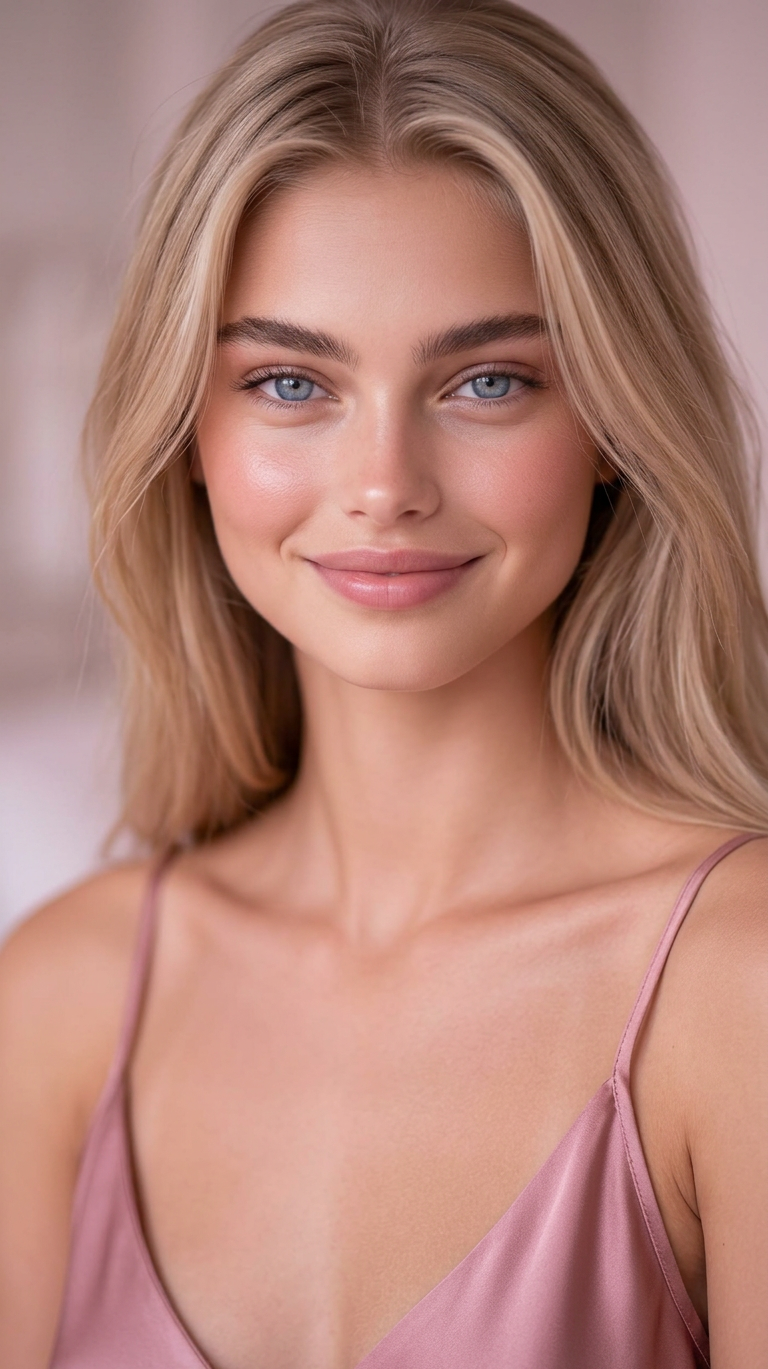
Pink Tone Portrait
ai-image-editor
Any aspect ratio
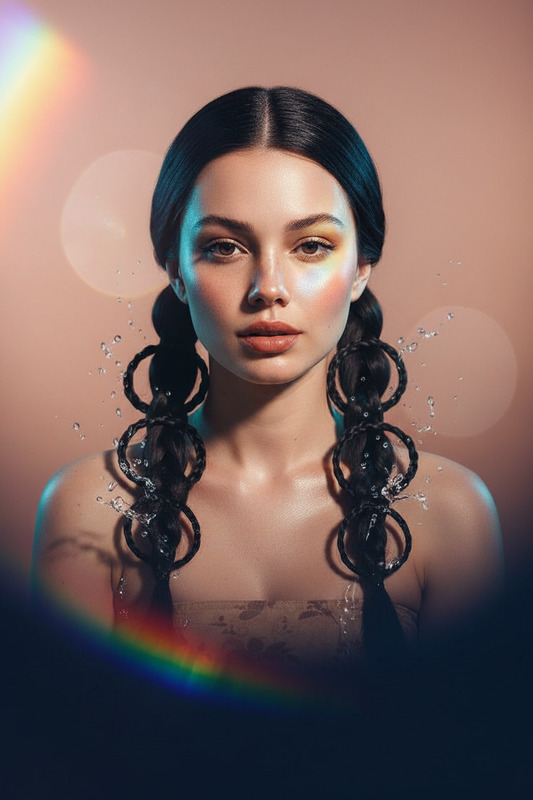
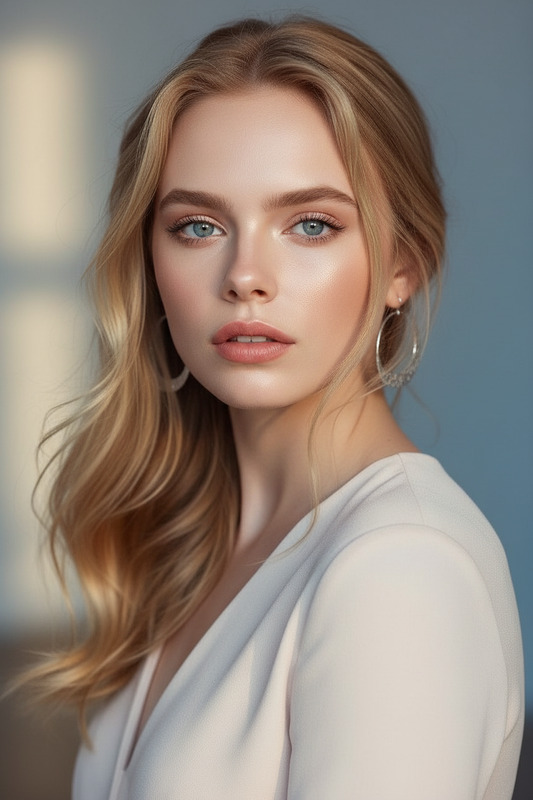
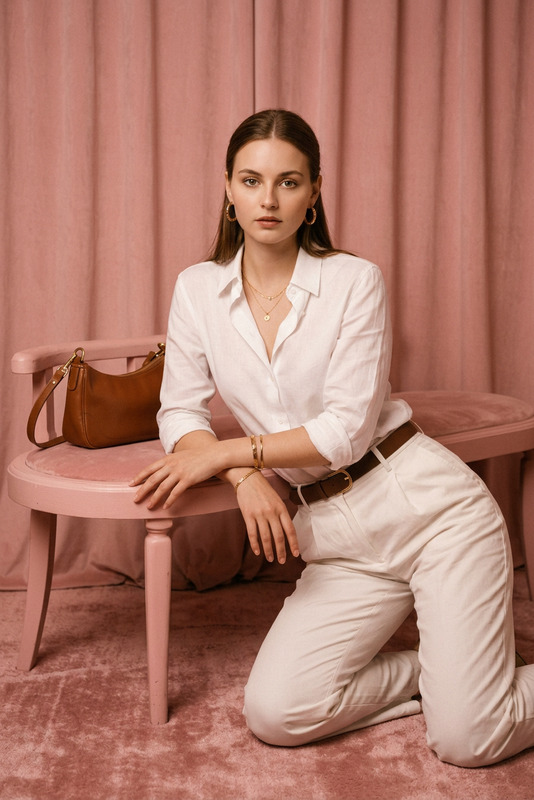
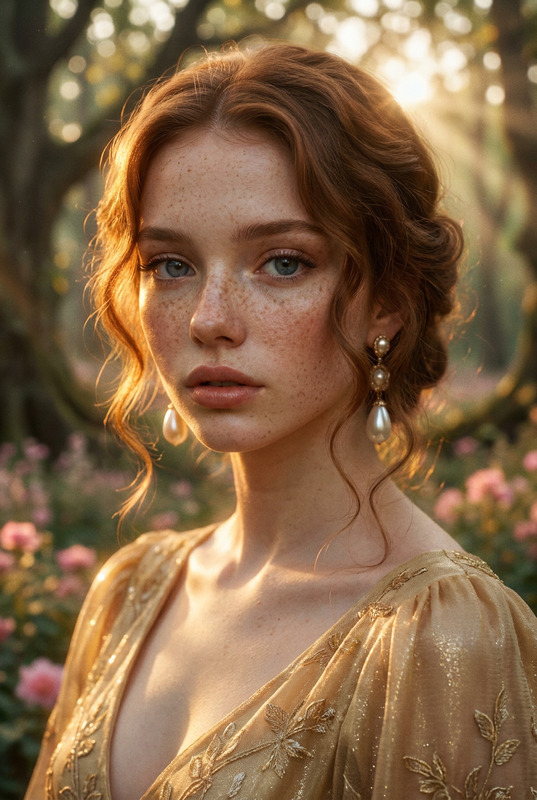
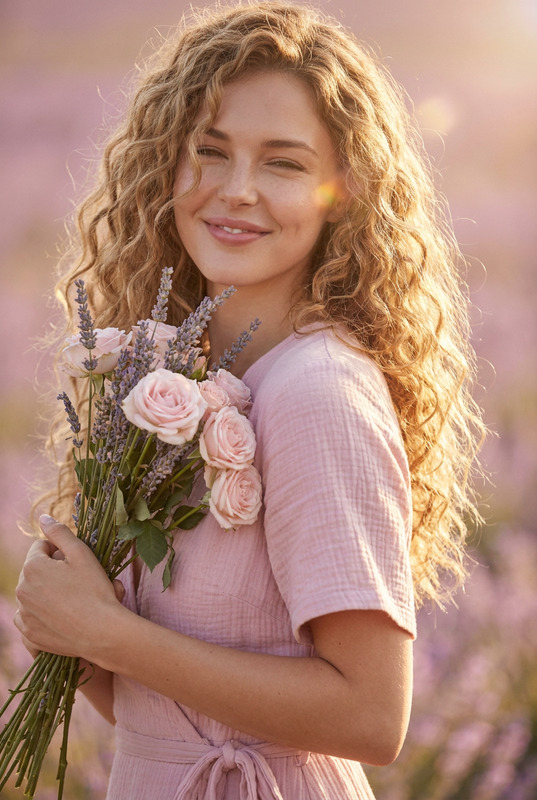
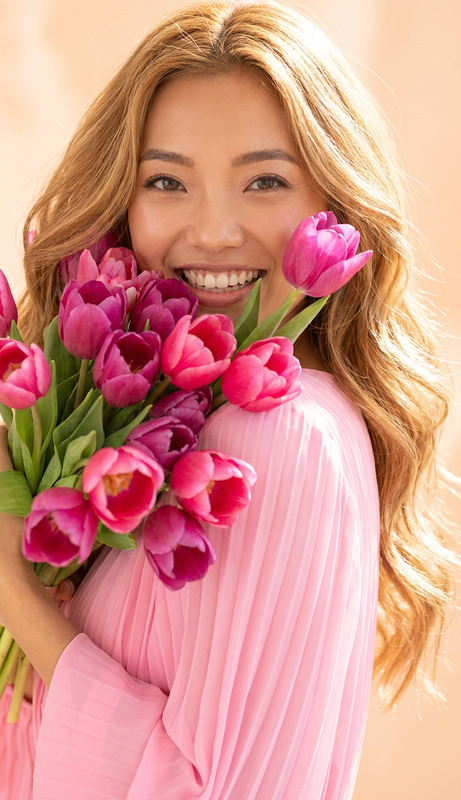
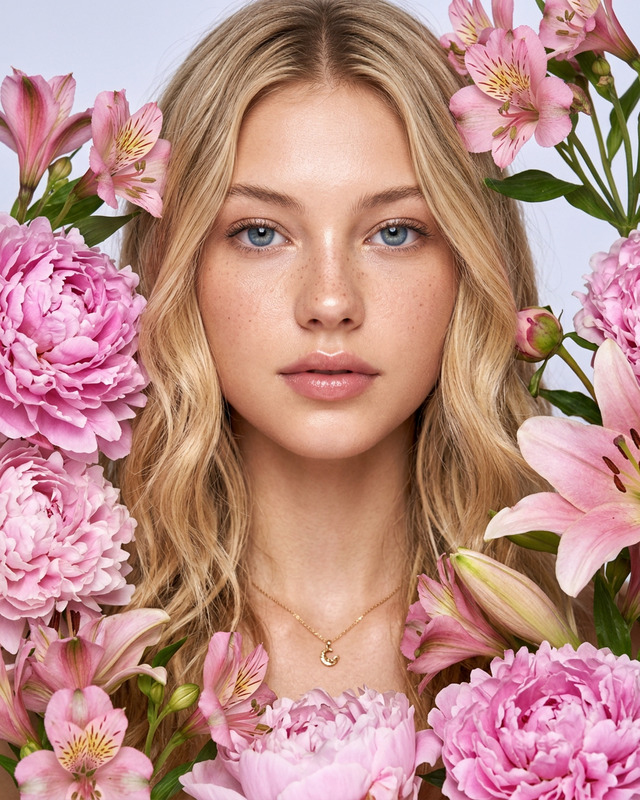
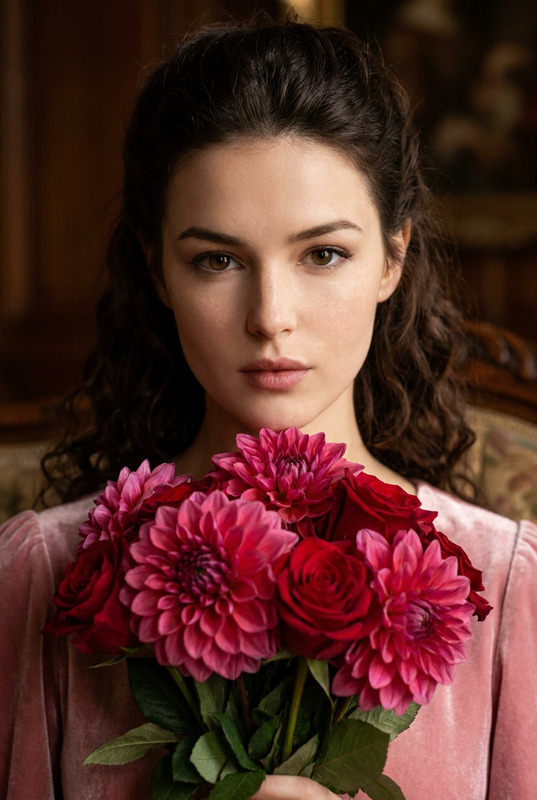
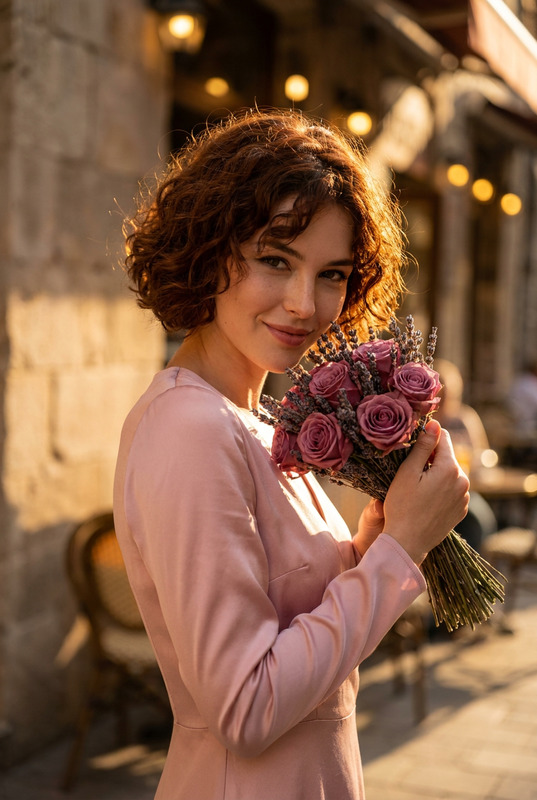
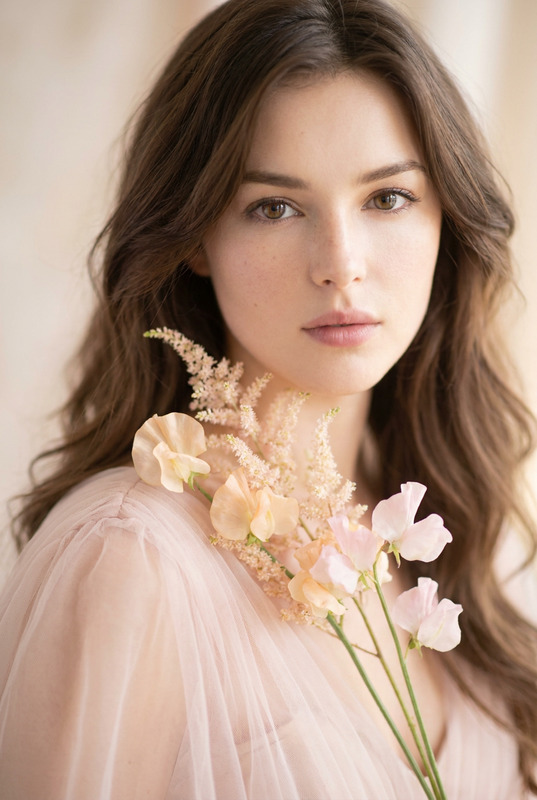
Subject in a soft slightly pink-toned aesthetic wearing a spaghetti strap outfit. Cinematic close-up portrait with gentle natural lighting, smooth skin tones, subtle blush highlights, dreamy atmosphere, shallow depth of field, ultra-realistic, high detail, soft feminine mood.
AI Image Editor Template: Turn Any Photo Into High-Impact, On-Brand Assets in Minutes
This template was built with the AI Image Editor to help you transform a single source image into multiple polished variants—ideal for marketing campaigns, product shots, social content, pitch decks, and experiments.
Use it as-is or remix it into your own branded editor inside Magic Hour.
What This Template Is For
This template is designed for creators and teams who need to:
- Clean up or enhance photos (lighting, sharpness, colors, background)
- Remove unwanted objects, logos, or distractions
- Reframe or recompose an image for different formats (social, ads, thumbnails)
- Re-skin or restyle a visual asset to match a campaign or brand system
- Prototype creative directions before handing off to design
It works especially well for:
- Product mockups and ecommerce imagery
- Founder and team photos
- Social posts, ads, and thumbnails
- Landing page hero images
- Concept art and moodboards
Under the hood, it uses Magic Hour’s AI Image Editor, with the same core tech used across tools like AI Photo Generator, AI Background Generator, and AI Art Generator.
How to Remix This Template in Magic Hour
You can treat this template as a starting point and quickly adapt it for your own use case. To create a custom version of it in Magic Hour:
Duplicate / remix the template
- Open the template in Magic Hour.
- Use the remix or duplicate option to create your own editable copy.
Swap in your own base images
- Use a product photo, headshot, illustration, or brand asset as the starting image.
- For best results, choose images that are:
- Clear and well-lit
- Not heavily compressed
- Closely aligned with the framing you want
Define your core editing actions
You can structure your remixed template around common workflows:- Background changes: pair Image Background Remover with AI Background Generator to isolate the subject and rebuild a new scene.
- Cleanup and object removal: integrate AI Remover or Remove Object from Photo steps for dust, logos, or clutter.
- Style + brand alignment: reference examples created with the AI Art Generator, AI Illustration Generator, or AI Fashion Generator to define the look you want (e.g., “flat illustration,” “editorial photography,” “neon cyberpunk,” “minimalist tech brand”).
- Resolution and quality: route final images through AI Image Upscaler or Unblur Image when you need print-ready or ad-quality outputs.
Add reusable prompts and instructions
- Spell out the kinds of edits your team should make:
- “Keep skin tone realistic; avoid plastic or overly airbrushed looks.”
- “Maintain brand colors: #000000, #FFFFFF, #FF5A5F.”
- “Keep product proportions realistic; don’t distort packaging or labels.”
- Include examples or mini-styleguides so collaborators and future you can get consistent results.
- Spell out the kinds of edits your team should make:
Chain image → video or animation (optional)
If your flow includes motion content, you can connect this image-editing template to:- Image to Video to animate your edited image into short clips.
- Animation Templates to generate animated characters or looping GIF-like sequences.
- AI GIF Generator to turn edited images into shareable GIFs for social and messaging.
Best Practices for High-Quality AI Image Editing
To get reliable, production-ready results from this template and your remixes:
1. Start with the strongest possible input
Research across imaging tools and AI pipelines consistently shows that input quality strongly constrains output quality. In practice:
- Use the highest-resolution source you have.
- Avoid heavy compression, watermarks, or extreme noise if possible.
- Make sure your subject is clearly visible (face, product, or focal object).
If you only have low-res or old material, run it through:
- AI Image Upscaler
- Old Photo Restoration
- Photo to Sketch for stylized restorations
before detailed editing.
2. Use targeted edits instead of “do everything” prompts
Practitioners generally get better results from narrow instructions than from vague “make this look better” requests. For example:
- “Remove the reflection on the glasses and smooth the background.”
- “Change the background to a soft, defocused office environment.”
- “Match the color grading to a cool, blue-tinted tech brand aesthetic.”
The AI Image Editor is designed to respond well to these concrete, localized changes, especially when paired with tools like:
- Watermark Remover
- AI Face Editor for facial refinements
- AI Clothes Changer or AI Outfit Generator for wardrobe tweaks
3. Keep people and brands realistic and consistent
If you’re working with people, founders, or brand characters:
- Use AI Headshot Generator for consistent corporate or LinkedIn-style headshots.
- Use AI Selfie Generator or Avatar Generator for more casual or stylized portraits.
- For more radical changes (gender, style, age, genre) while staying on a single identity, you can incorporate:
For brand-heavy imagery (logos, UI, packaging, album art, or book covers):
- Use AI Logo Generator to explore or refine brand marks.
- Combine this template with:
to prototype campaign assets directly from edited images.
Example Use Cases You Can Clone
You can easily remix this template into specialized editors tailored to your workflow:
1. Founder / Team Photo System
- Start from this AI Image Editor template.
- Bake in steps for:
- Background standardization (same color or environment)
- Light retouching (removing minor distractions, not changing identity)
- Resolution upgrades via AI Image Upscaler
- Use AI Talking Photo to convert selected portraits into short talking-head explainer clips.
2. Product + Packaging Editor for Landing Pages
- Use the template to:
- Remove messy backgrounds and props.
- Place the product into branded backgrounds (studio, lifestyle, abstract).
- Add stylized lighting and reflections inspired by work done with AI Art Generator.
- Then:
- Turn hero product visuals into short promos with Text to Video or Image to Video.
- Upscale for ad platforms using Video Upscaler.
3. Content & Social Template
- Adapt this image editor to:
- Add consistent framing for Reels/TikTok thumbnails using Thumbnail Maker.
- Quickly generate memes and social variations with AI Meme Generator.
- Turn stills into animated clips via Image to Video or AI GIF Generator.
- For talking content:
- Combine headshots with AI Talking Photo and AI Voice Generator or AI Voice Cloner.
- Add automatic captions using Auto Subtitle Generator.
Connecting This Template With Other Magic Hour Pipelines
The AI Image Editor template fits naturally into larger workflows that use other Magic Hour tools:
Face-driven video content
- Prep and clean faces with this editor, then:
- Animate them with Face Swap Video Templates or Face Swap GIF.
- Drive lip movements with Lip Sync Templates.
- Turn static portraits into dynamic scenes via Video to Video Templates.
- Prep and clean faces with this editor, then:
Character, fantasy, and worldbuilding workflows
- Use this editor on characters created by:
- Clean up, restyle, and then animate them using Animation Templates or Animated Characters Generator.
Architecture, interiors, and layouts
- Start with sketches or base renders.
- Polish or recolor them in this editor.
- Use:
- Then finalize details or remove artifacts using AI Remover.
Why Use This Template Instead of Editing From Scratch?
For time-constrained teams, templates function like internal “playbooks” for creative work:
- Repeatability: Everyone on the team can reproduce the same kind of edit without deep prompt-engineering knowledge.
- Speed: You skip setup and jump directly into the transformation you care about.
- Consistency: Brand, style, and quality stay aligned across campaigns and channels.
- Extensibility: You can extend the template into specialized flows (e.g., headshots → talking videos, products → shoppable clips, concept art → animated sequences) using other Magic Hour tools.
Because it’s built on the AI Image Editor, you’re working with the same core capabilities that power Magic Hour’s ecosystem of tools, from AI Face Editor and AI Clothes Changer to AI QR Code Generator and AI QR-based visuals.
How to Get the Most Leverage From This Template
To turn this into a durable asset for your team:
Name it clearly
Use a descriptive, action-oriented name such as:- “Brand Image Editor – Web + Social”
- “Founder Photos – Clean & Consistent”
- “Ecommerce Product Cleanup & Backgrounds”
Document your rules inside the template
Add short, precise notes on:- Brand colors and typography.
- What not to change (e.g., product geometry, logo proportions, skin tone).
- Acceptable levels of stylization.
Pair with one or two adjacent tools
For example:- Image edit → AI Image Upscaler → Thumbnail Maker for YouTube.
- Portrait edit → AI Talking Photo → Auto Subtitle Generator for social explainers.
Iterate based on real outputs
As you test with real campaigns and assets, refine:- Prompts and guidance.
- Example images embedded in the flow.
- Notes about edge cases (e.g., reflections, glasses, complex patterns).
Use this AI Image Editor template as a practical, extensible base layer for your visual workflow—and remix it into the specific, reusable editing systems your team needs across images, video, and animation.