Sunrise
- Model
- Flux 2 Klein
- Image
- 576 × 1024 px
Prompt
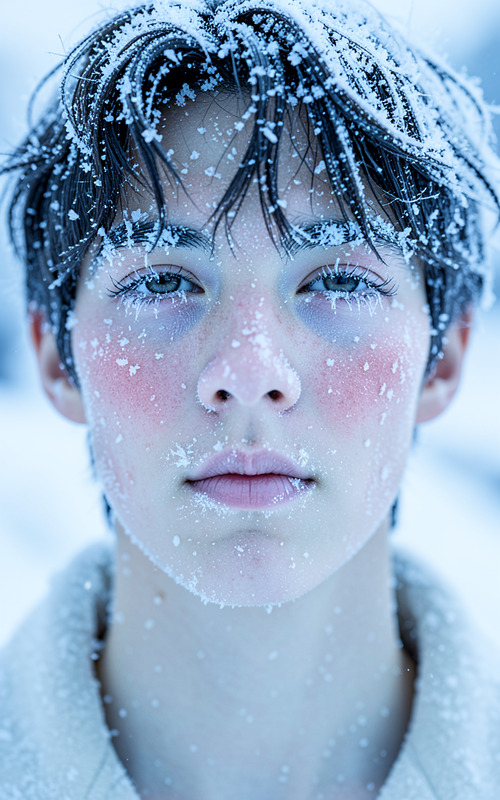
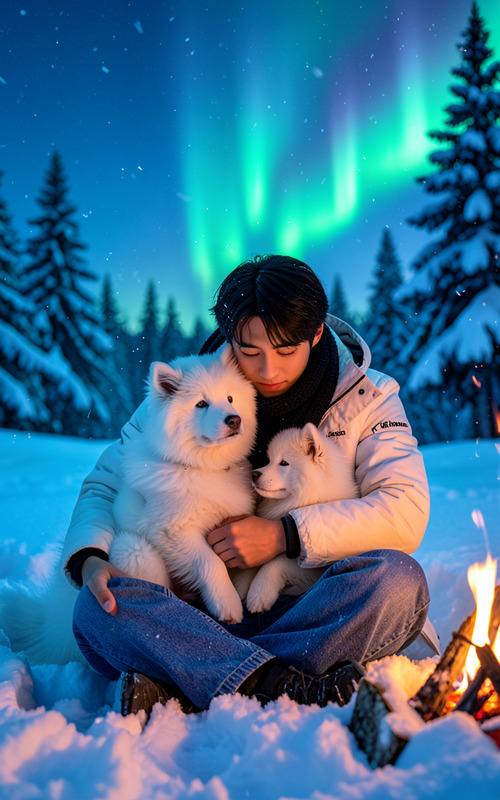
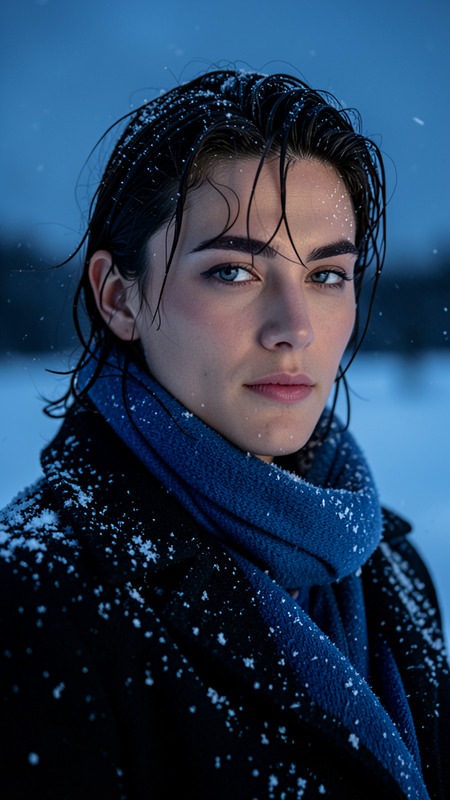
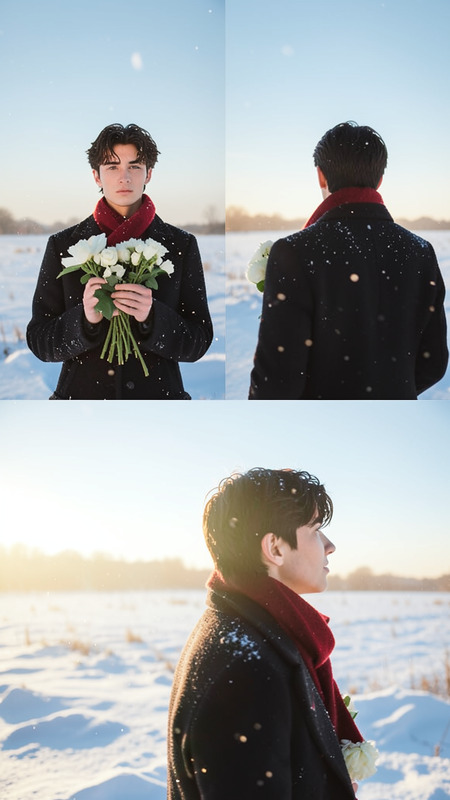
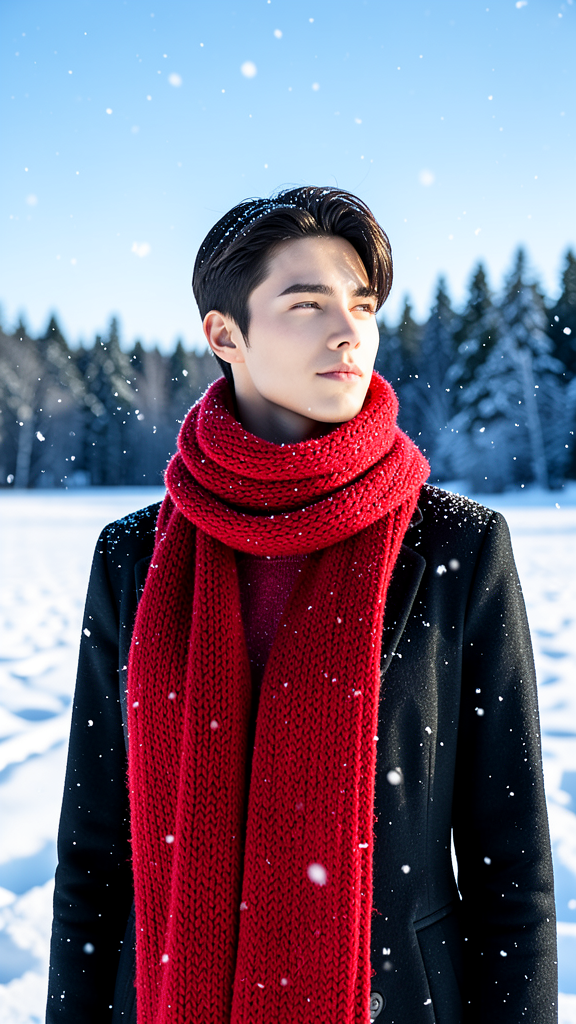
The subject standing outdoors in a snowy landscape with clear vivid tones and sharp details. The subject wears a dark coat and a large red knitted scarf. Snowflakes fall gently around them while a snow-covered field and forest stretch into the distance. Natural lighting highlights a peaceful and thoughtful expression, creating a calm winter atmosphere.
Any aspect ratio
Overview
Capture the serene beauty of winter mornings with our Sunrise template, designed for the AI Image Editor. This template leverages the power of flux-2-klein to transform your images into crisp, vivid scenes. With detailed adjustments available for lighting and tones, it sets the perfect ambiance for a tranquil, snowy setting.
What It Does
The Sunrise template enhances your images by adding a layer of winter magic. It meticulously refines details, sharpening every element from the falling snowflakes to the textures of a knit scarf. Perfect for achieving a dramatic yet peaceful winter scene, the template fine-tunes natural light to emphasize calm expressions and the cold beauty of snowy landscapes.
Who It's For
This template is ideal for photographers, graphic designers, and social media creators aiming to evoke a sense of calm and beauty in their winter-themed visuals. Whether you're enhancing holiday portraits or creating captivating social media posts, this tool provides the finishing touch to your imagery.
Summary
Bring your winter imagery to life with the Sunrise template. By integrating this option with the AI Image Generator tool, photographers and creators can enhance the mood and feel of their snowy landscapes effortlessly. Explore more of our creative solutions like AI Background Changer to tailor your backgrounds for even more dramatic effect.
How to Use
Choose the Template

Customize Your Image

Generate Your Image

Use Cases
Winter Portraits
Holiday Cards
Social Media Content
Best Practices
Optimize Lighting
When adjusting lighting, aim for natural highlights to maintain the template's tranquil atmosphere.Focus on Detail
Use the sharpness settings to ensure fine details like falling snowflakes are crisp.Experiment with Tones
Choose color settings that enhance the cold winter ambiance without over-saturating.