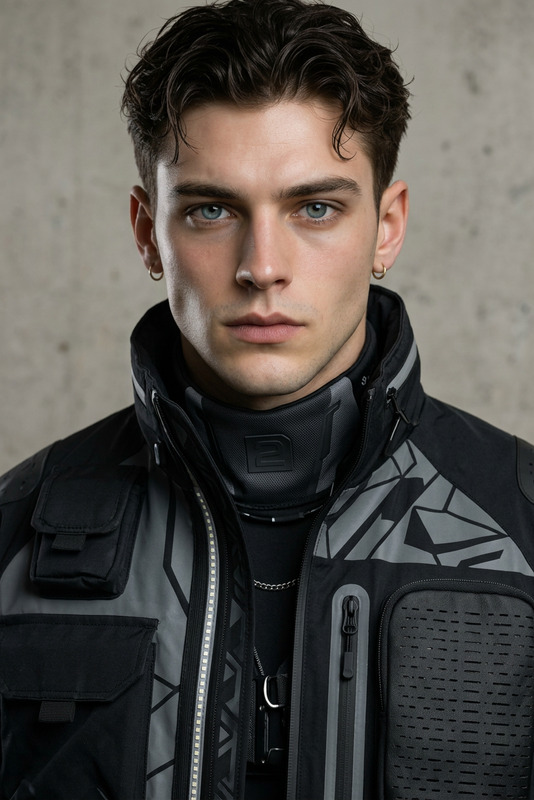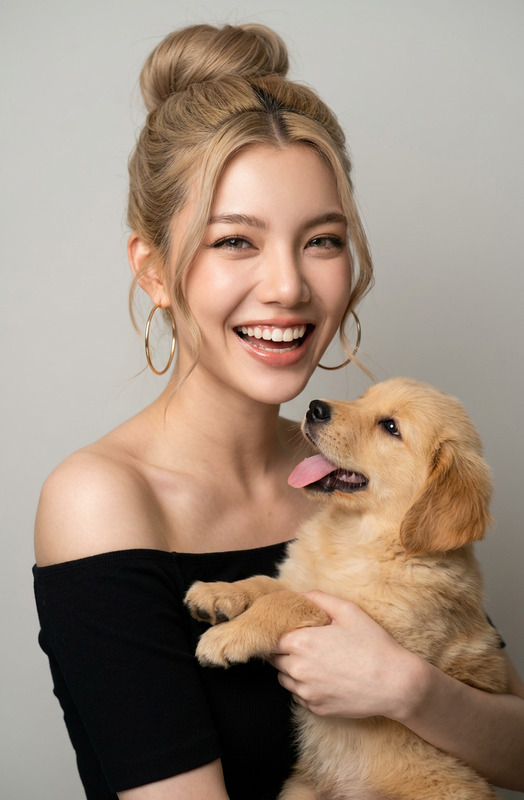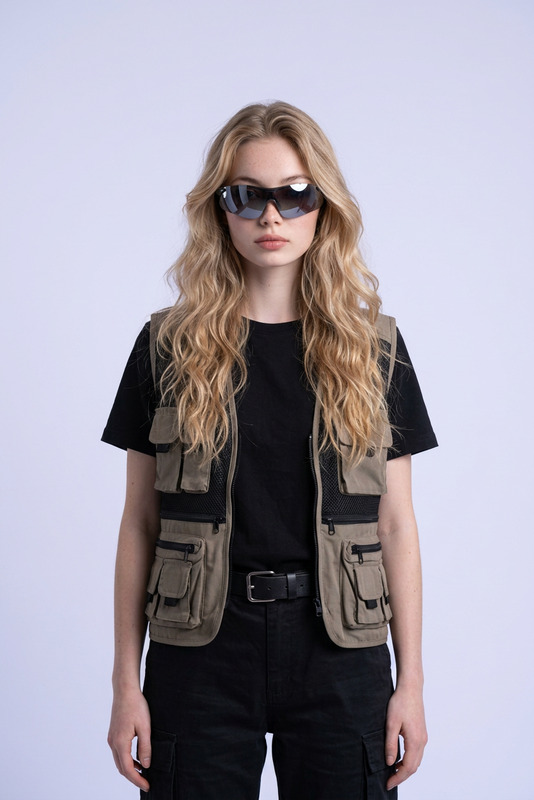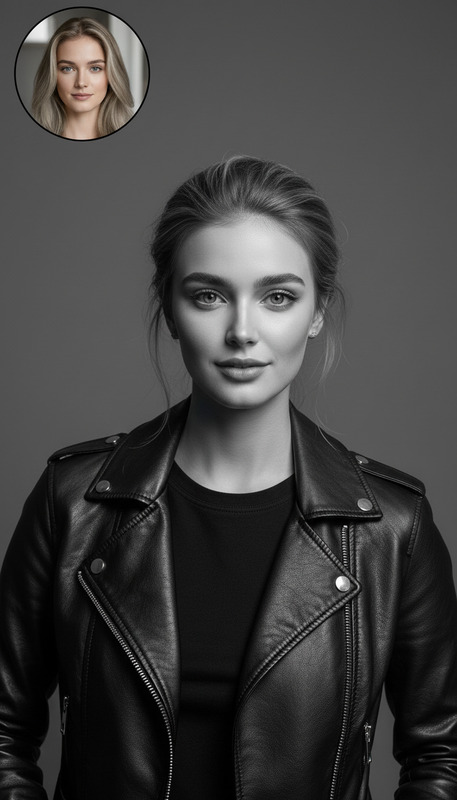
Mono Icons
- Model
- Nano Banana 2
- Image
- 832 × 1270 px
Prompt
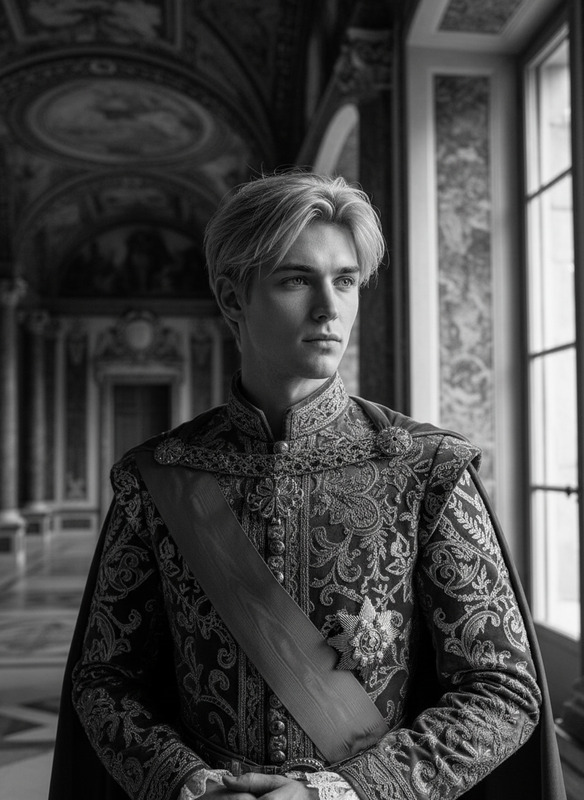
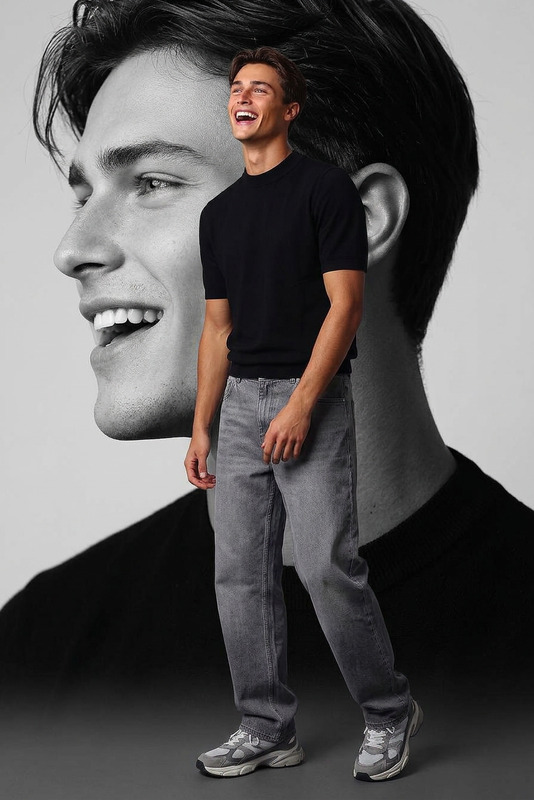
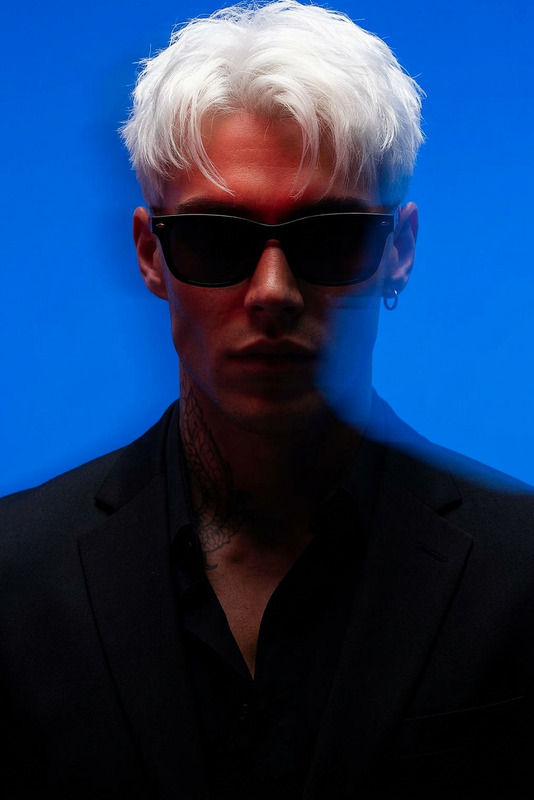
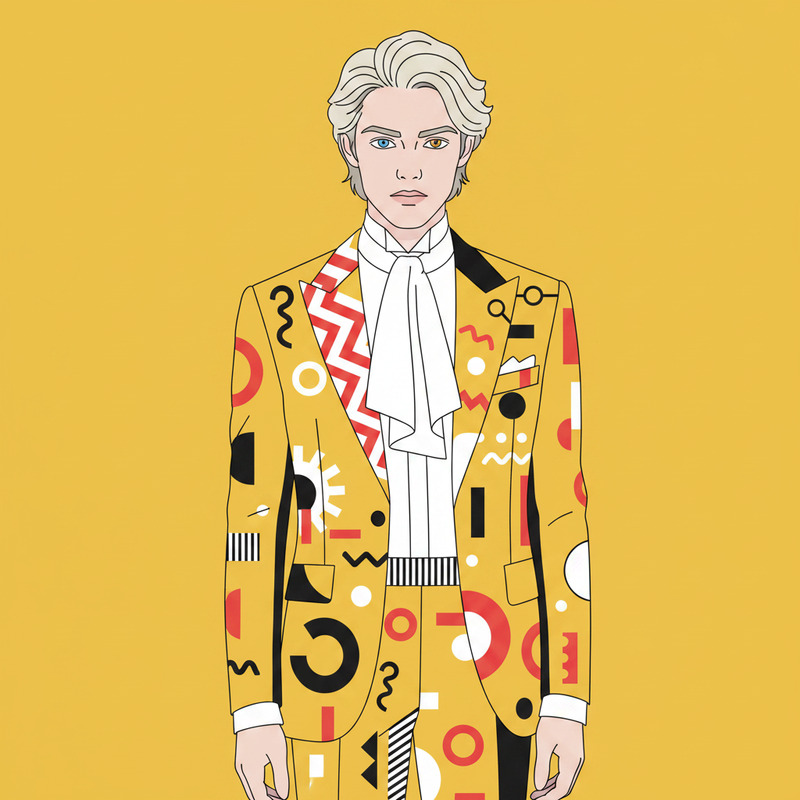
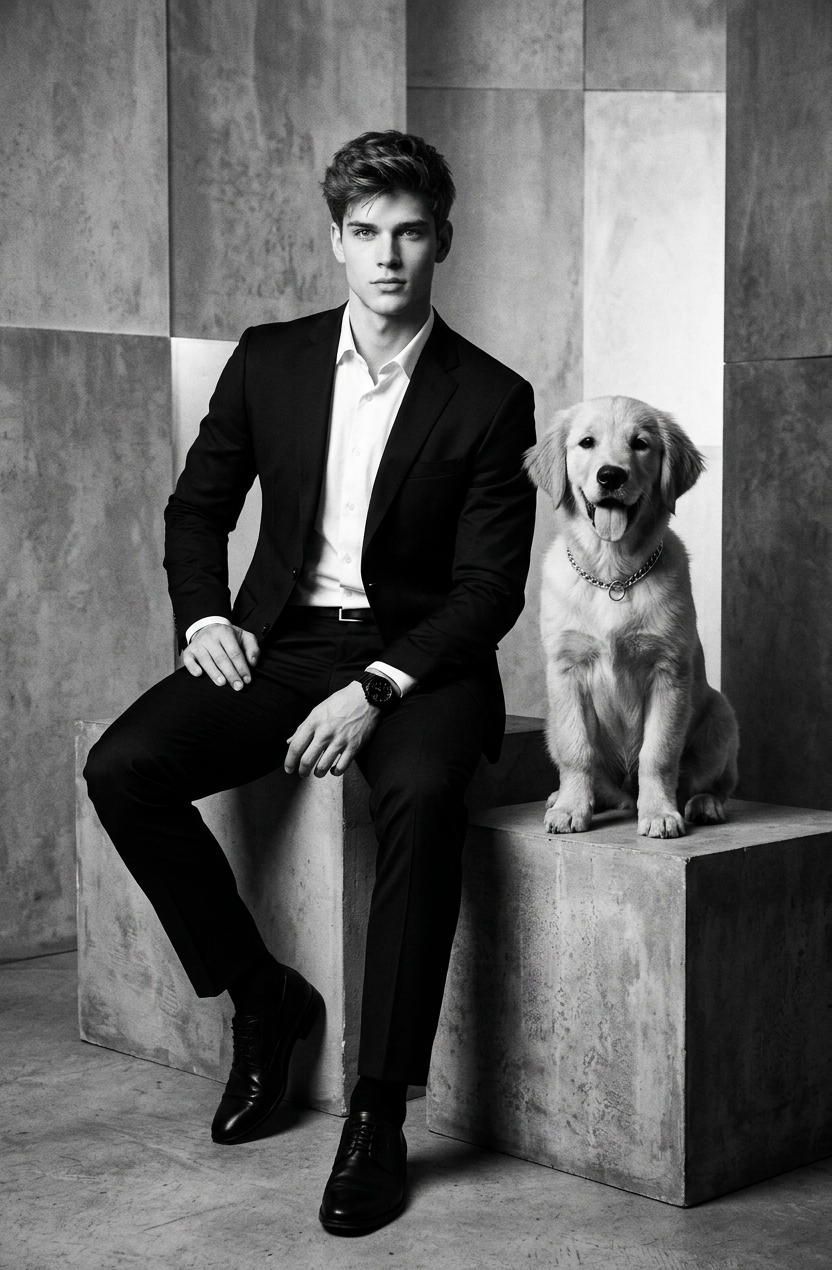
A professional black and white fashion portrait of a subject 1 in a sharp black suit and white shirt, sitting on a gray concrete block. Next to subject 1 , a majestic subject 2 with a silver chain collar is sitting alertly on another block. The background is a clean studio setup with geometric gray panels. Elegant studio lighting with high contrast and a strong, powerful atmosphere.
Any aspect ratio
Overview
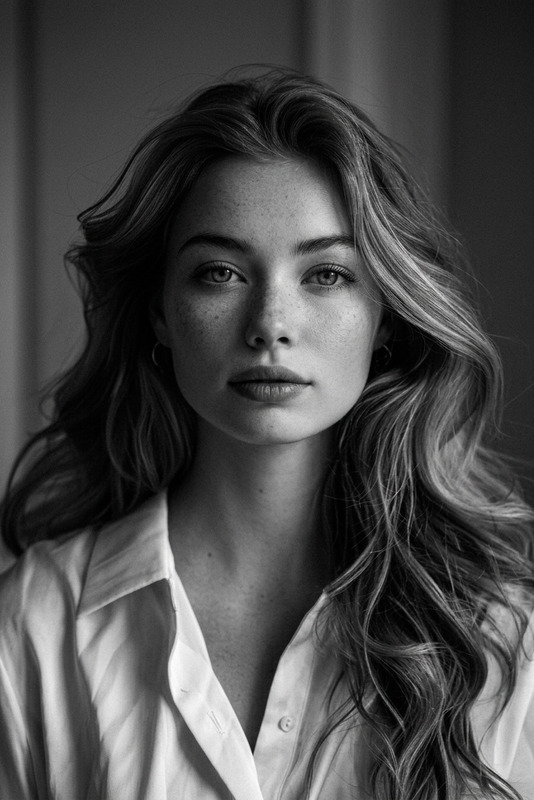
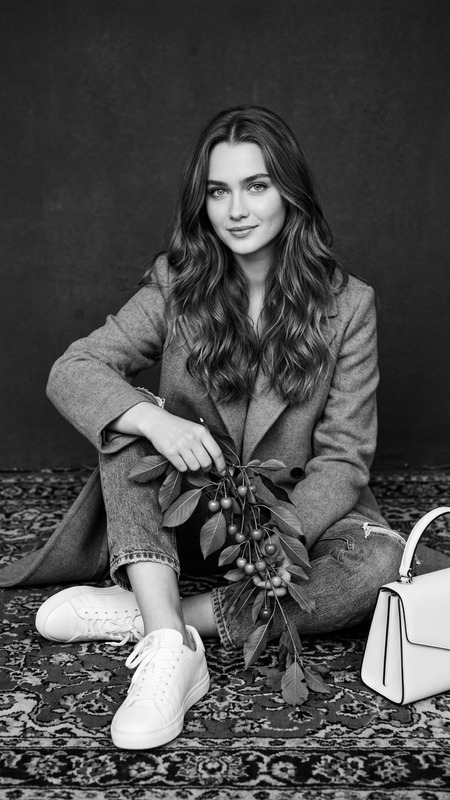
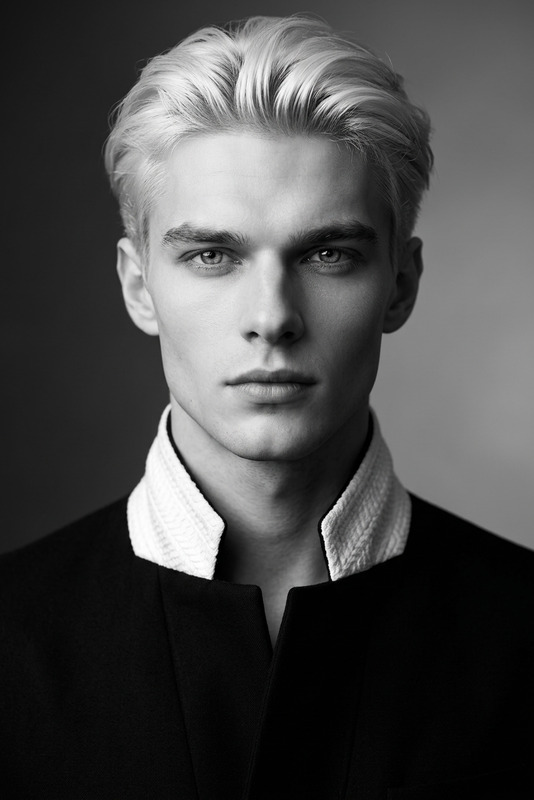
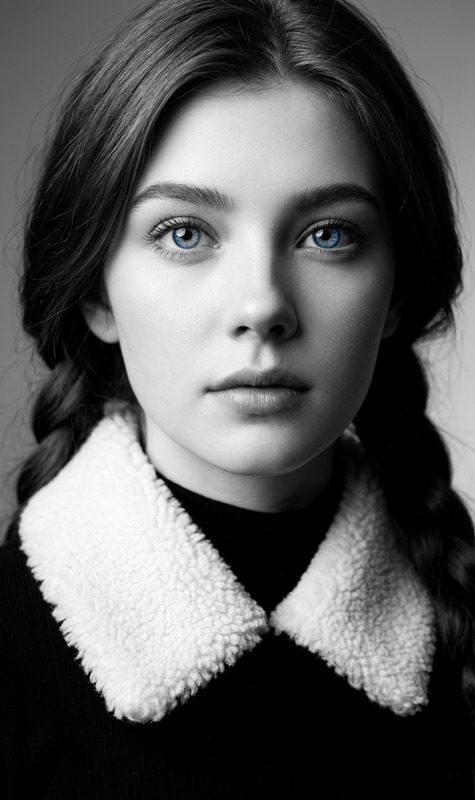
Mono Icons are crafted to bring a striking, high-contrast look to your fashion and portrait photography efforts. Integrated within the AI Image Editor, these templates are ideal for adding a polished, professional aesthetic to your projects. Whether you're working on a high-end fashion shoot or stylized brand visuals, this tool saves time while ensuring impeccable quality.
What It Does
The Mono Icons template uses the nano-banana-2 model to generate professional monochrome images. The setup involves a classic black and white theme, featuring a subject in a stylish black suit alongside a majestic companion. With high contrast and studio lighting, it delivers a powerful atmosphere perfect for modern media. Add a sophisticated touch to your work without complex editing skills.
Who It's For
This template is perfect for professional photographers, fashion brands, and anyone in the media industry looking to create striking, high-contrast imagery. It is also valuable for social media ads and product videos, providing a quick way to craft visually appealing content.
Summary
Mono Icons streamline the production of refined, high-contrast images, making it an invaluable tool for professionals who demand quality and efficiency. Pair it with the AI Image Generator to expand your creative possibilities and deliver outstanding results across various applications.
How To
Choose Your Template

Customize the Scene

Generate the Image

Use Cases
High-End Fashion
- Elegant editorial shoots
- High-contrast brand visuals
Social Media Content
- Stylized posts
- Engaging brand stories
Product Photography
- Catalog shots
- Promotional materials
Best Practices
Leverage Contrast
Utilize the high-contrast settings to emphasize your subject and add depth to your images.Perfect Studio Settings
Ensure the lighting in your input images complements the elegant studio setup described in the prompt.Experiment with Angles
Try different subject poses and positions on the concrete block for dynamic variations.