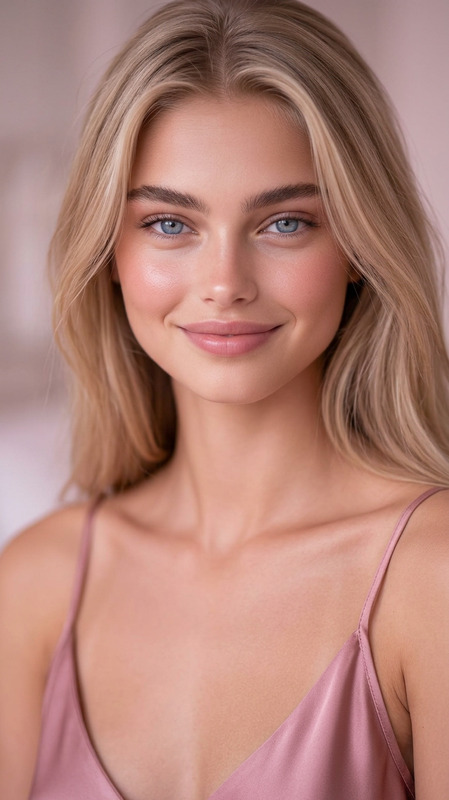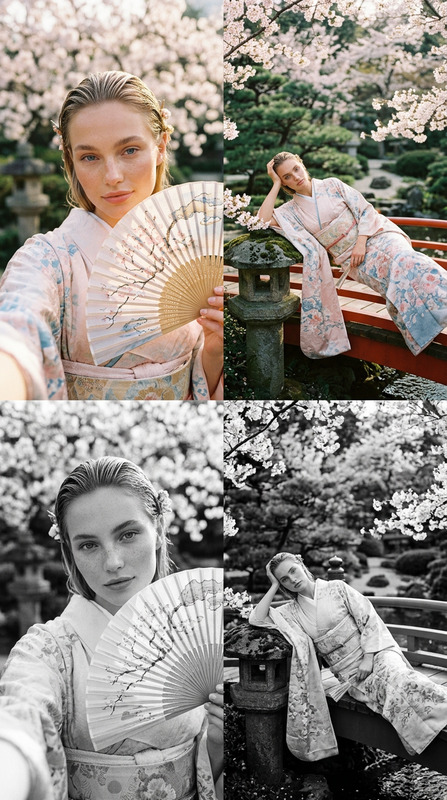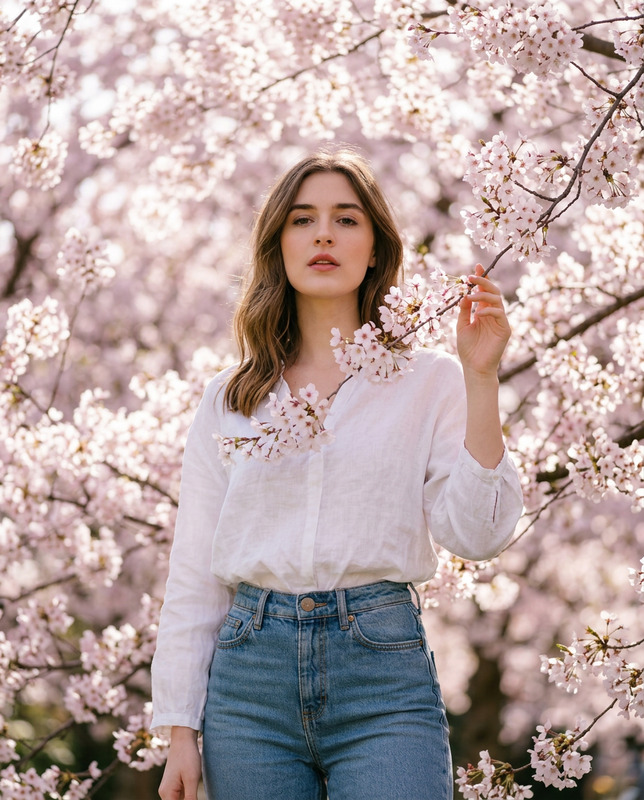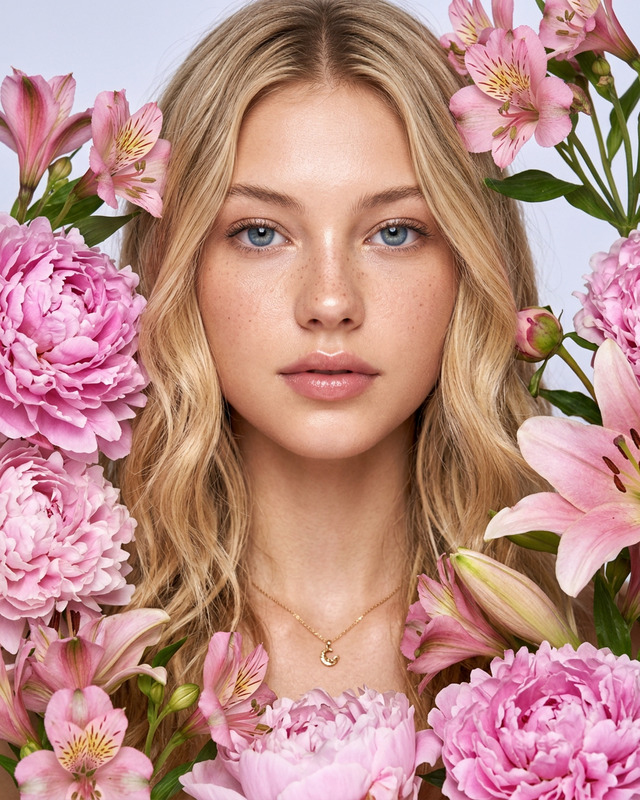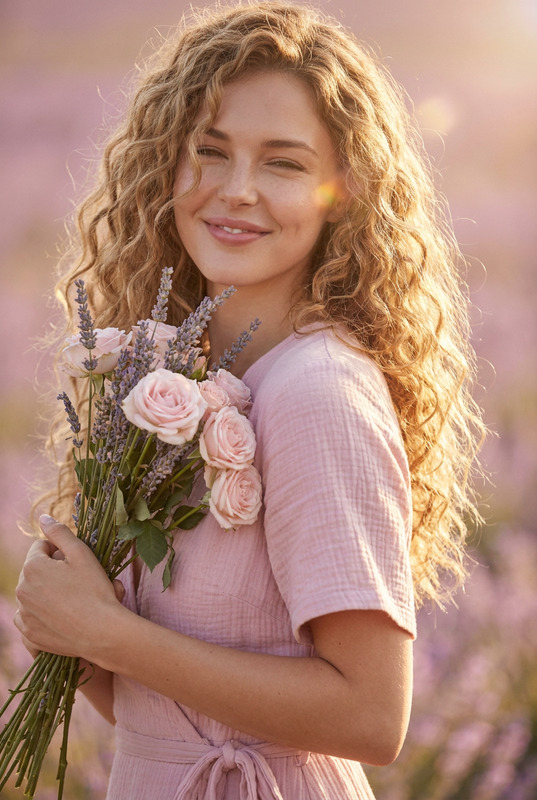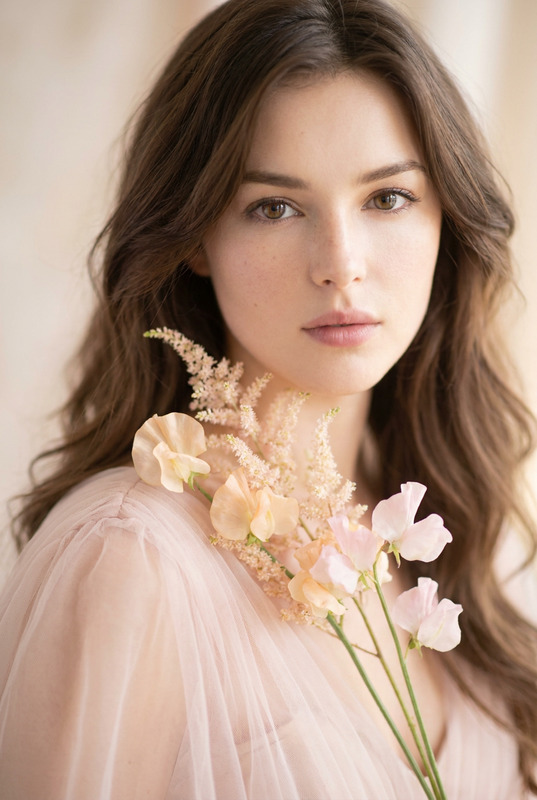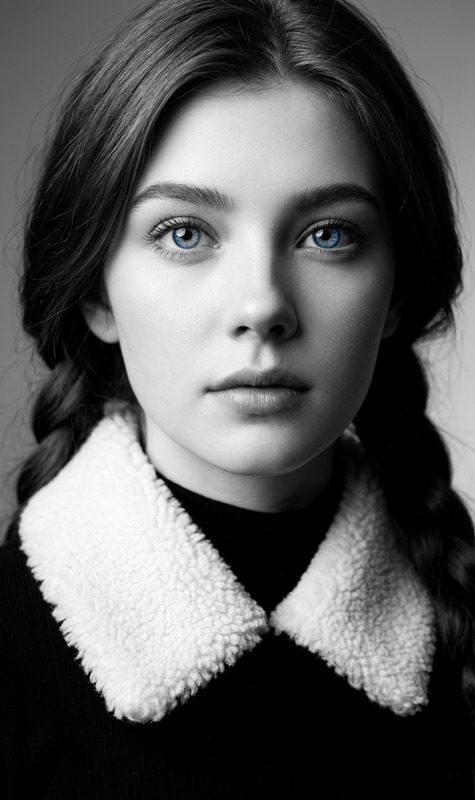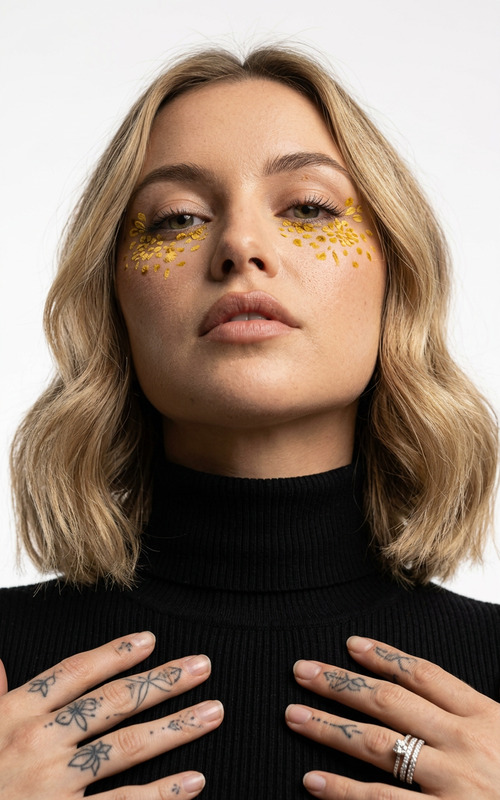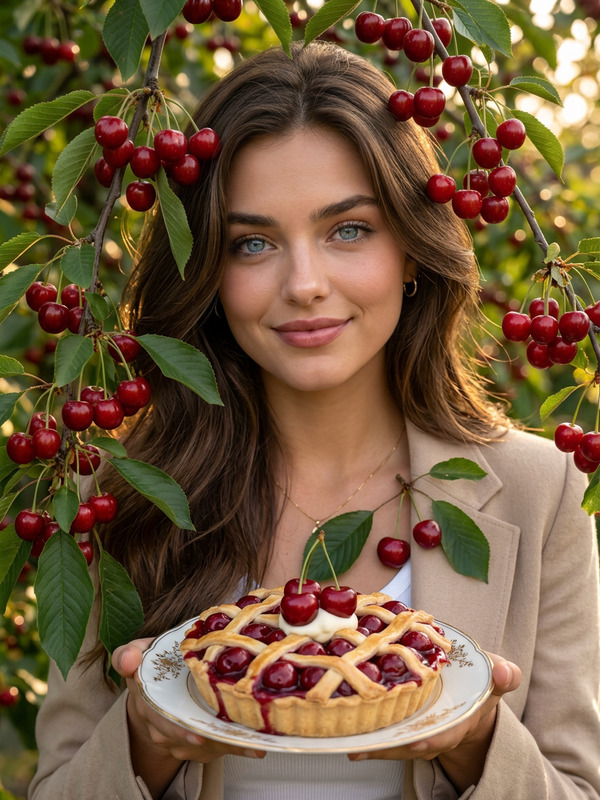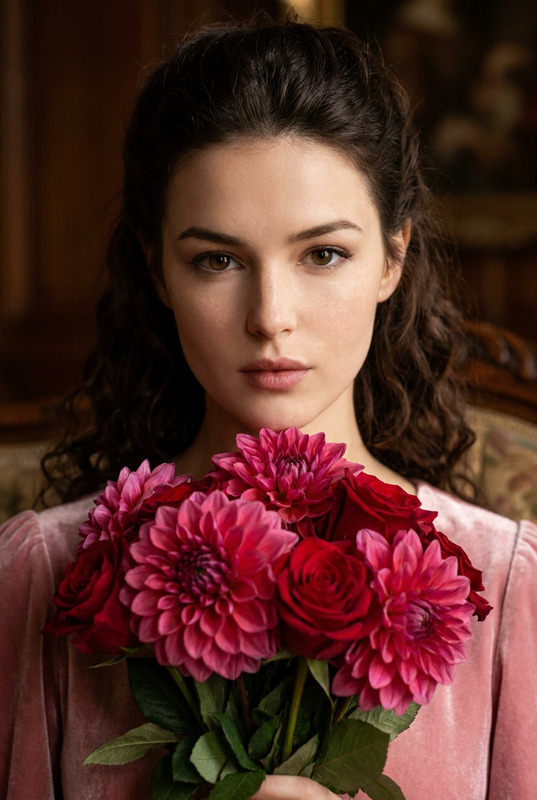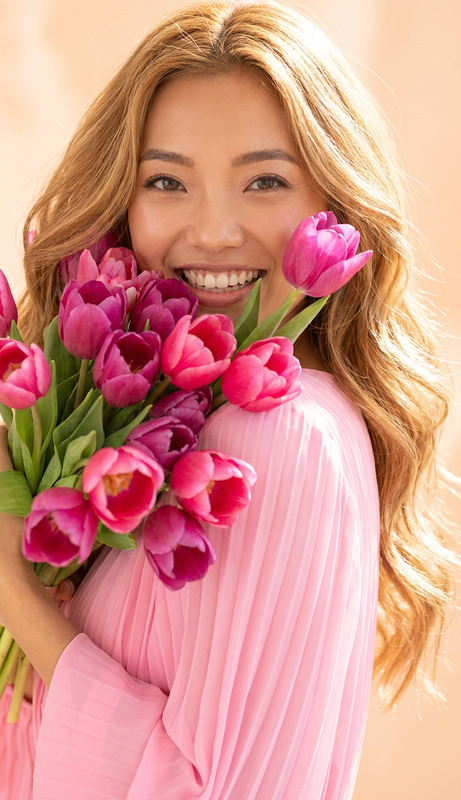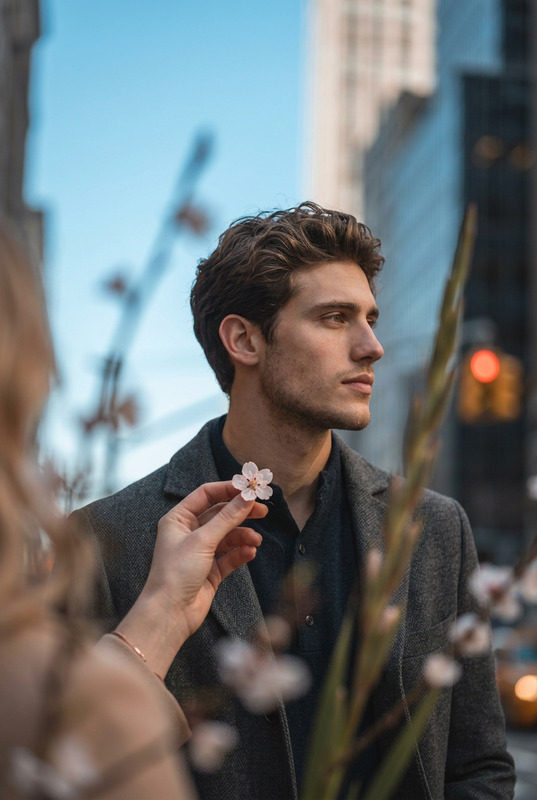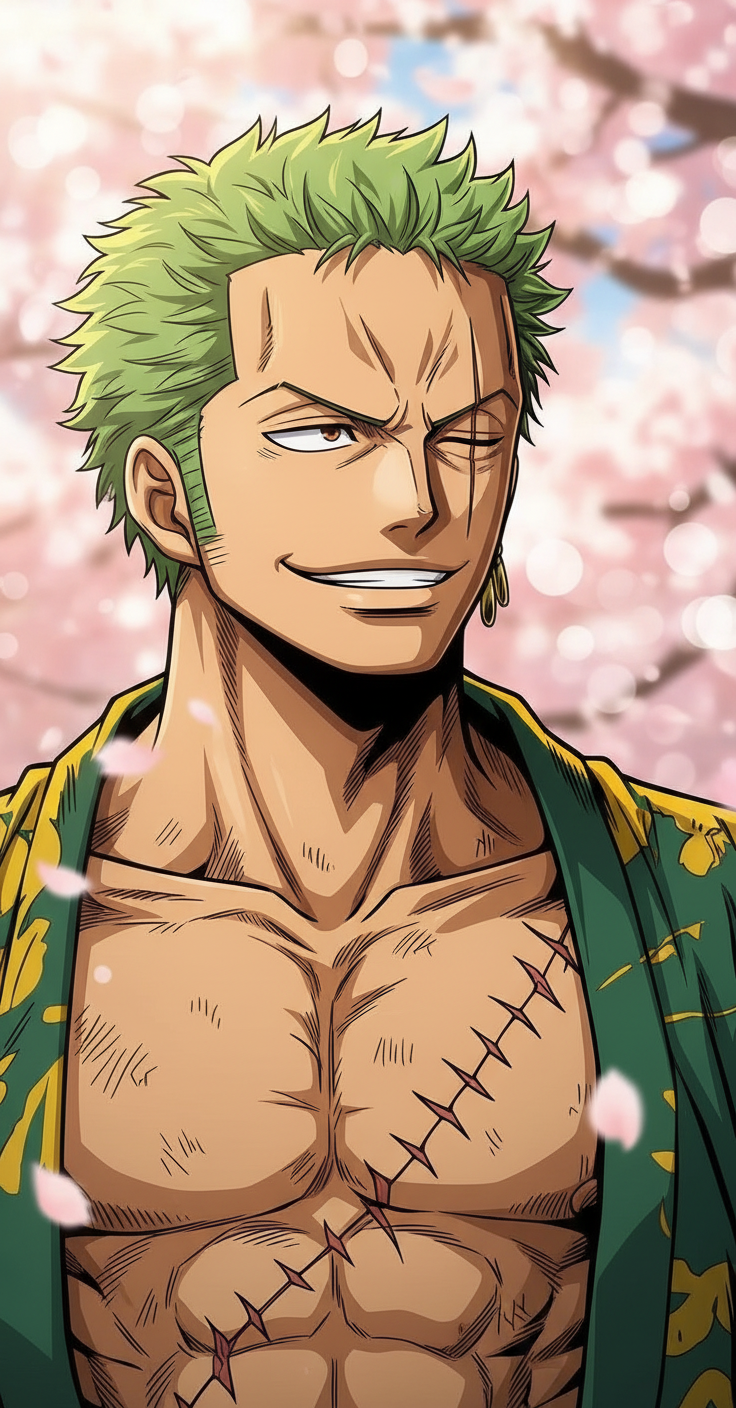
Cherry Blossom Close-Up
- Model
- Nano Banana
- Image
- 736 × 1408 px
Prompt
Close-up portrait, head and shoulders only, subject unchanged, face fills most of the frame, looking thoughtfully to the side. Soft pink cherry blossom bokeh background, shallow depth of field, photorealistic, natural light.
Any aspect ratio
Overview
The Cherry Blossom Close-Up template is part of our advanced AI Image Editor suite, designed to add a lush, natural backdrop to your close-up portraits. With a focus on photorealism and natural light, this template allows you to effortlessly overlay a bokeh cherry blossom background onto your subject's portrait, while maintaining the subject's integrity.
What It Does
This template utilizes the nano-banana model to transform your portrait images. It retains the original composition of the subject while enhancing the surrounding environment with a cherry blossom bokeh effect. The shallow depth of field gives the final image a sophisticated, high-quality look that is perfect for various visual projects.
Who It's For
The Cherry Blossom Close-Up template is ideal for photographers, videographers, and content creators aiming to enhance their portraits with an artistic touch. Whether you're developing content for social media, promotional materials, or personal projects, this template caters to professionals who need a quick and efficient way to add natural beauty to their visuals.
Summary
Use the Cherry Blossom Close-Up template to quickly elevate the aesthetic of your portraits. Its easy-to-use platform means you can drop in your photos and enjoy a professional-grade transformation. Connect your creations seamlessly to other tools like the Face Swap or the AI GIF Generator for diverse project needs.
How to Use
Choose Your Template

Customize Your Inputs

Generate Your Image

Use Cases
Social Media Content
- Instagram updates
- Facebook profile enhancements
- LinkedIn professional headshots
Marketing Materials
- Brochures
- Flyers
- Posters
Personal Art Projects
- Photo albums
- Online portfolios
- Custom art prints
Best Practices
Select High-Resolution Images
Ensure the portrait images you upload are of high quality for the best results, capturing clear details of the subject's face.Keep the Subject's Pose Natural
For the most authentic look, use images where the subject is posed naturally, which complements the serene cherry blossom backdrop.Experiment with Background Adjustments
Don't hesitate to tweak background parameters like color intensity and depth of field to suit the mood you want to convey.