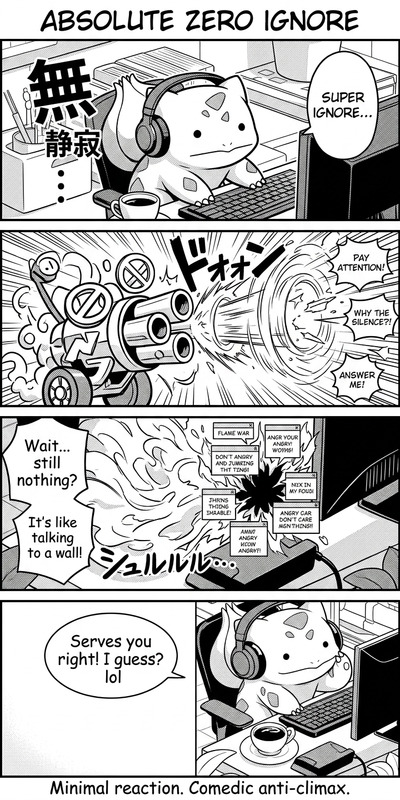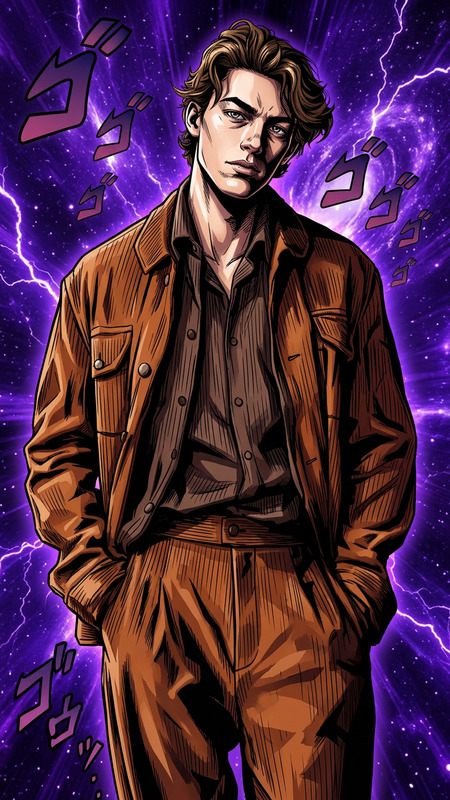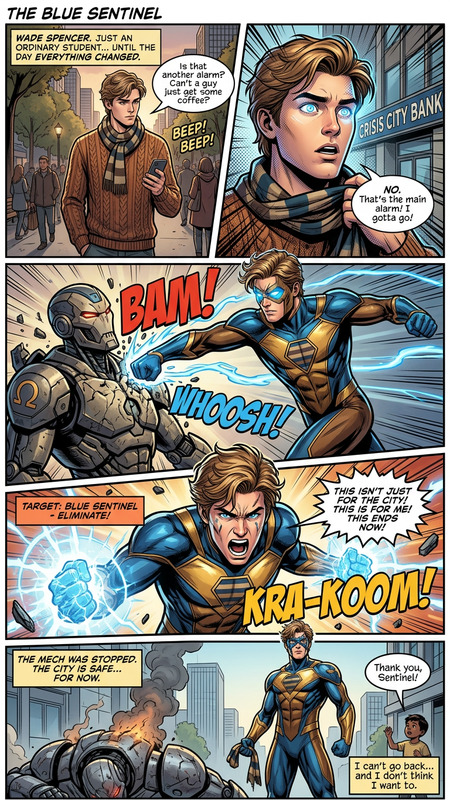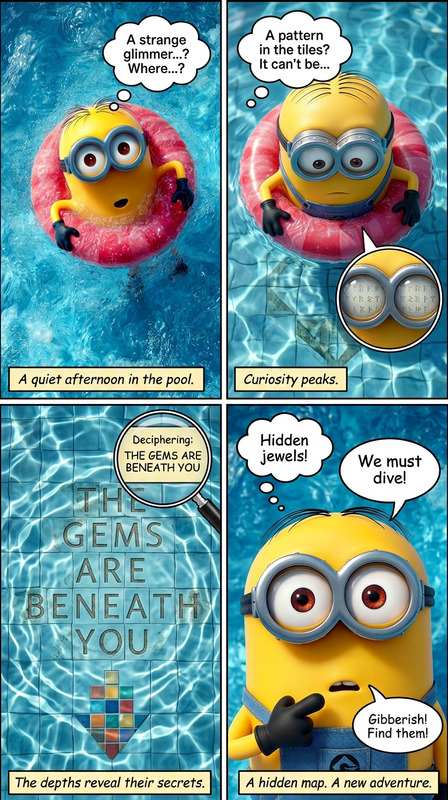
Manga Double-Spread Dynamic Panels
- Model
- Nano Banana 2
- Image
- 1376 × 768 px
Prompt
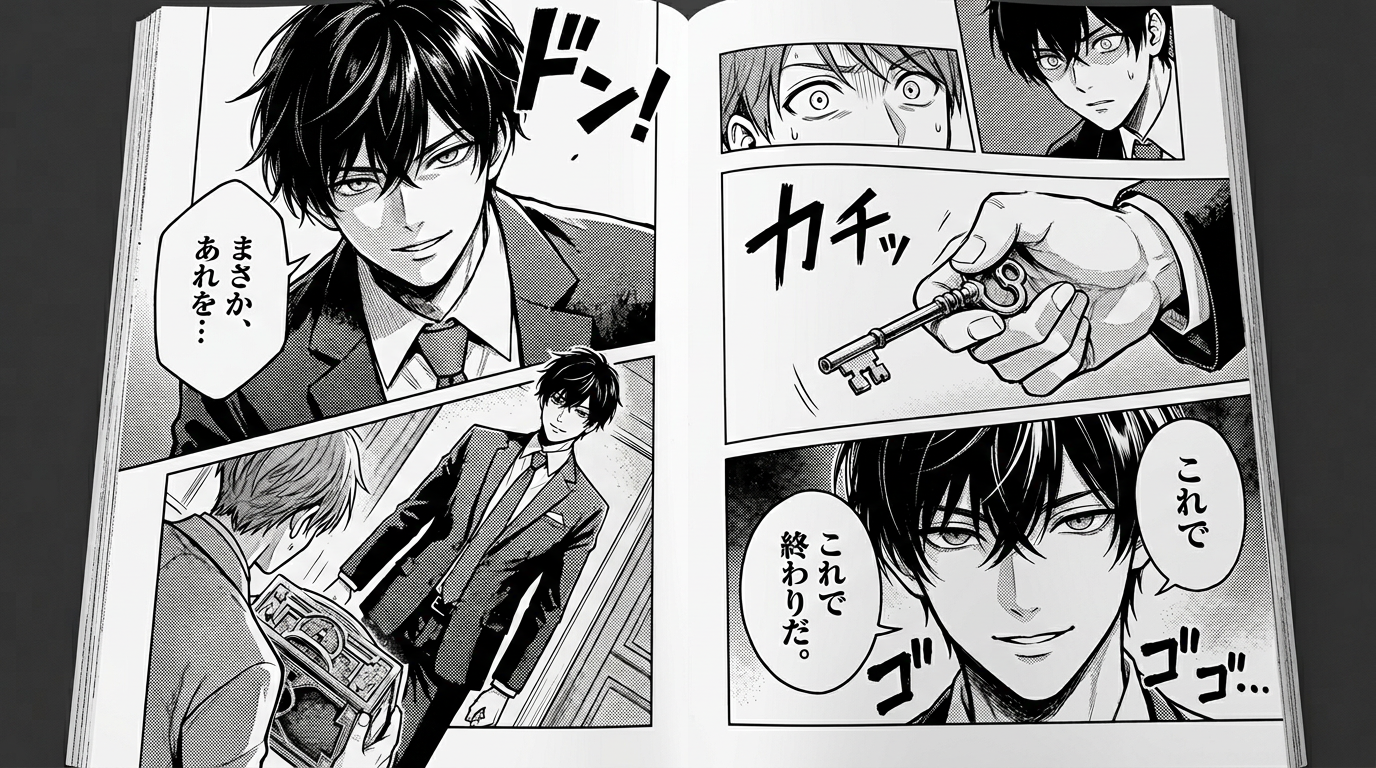
A black-and-white Japanese manga double-page spread with bold ink lines, styled like a professionally printed magazine. Panels arranged in a dynamic layout with seamless flow between left and right pages as one continuous scene. Use traditional manga framing: close-ups, wide shots, diagonal panels, and dramatic angles. Include speech bubbles, expressive character dialogue, Japanese sound effects (ドン!, ゴゴゴゴ), and smooth panel transitions to convey action, emotion, and pacing. Authentic manga composition, high contrast, detailed linework.
Any aspect ratio
Overview
Dive into the world of Japanese manga creation with our Manga Double-Spread Dynamic Panels template. Designed for the AI Image Editor, this template leverages the power of the nano-banana-2 model to craft intricate and expressive manga-style double-page spreads. Capture the essence of manga artistry with ease, whether you are a budding artist or a seasoned creator.
What It Does
This template transforms your concept into a professional black-and-white manga spread, complete with bold ink lines and dynamic panel layouts. It supports traditional manga framing styles, such as close-ups, wide shots, and diagonal panels, to enhance storytelling, action, and emotion. Incorporate speech bubbles, character dialogue, and Japanese sound effects seamlessly across the pages. Achieve detailed linework and high contrast imagery quickly, making your manga pages striking and authentic.
Who It's For
Ideal for comic artists, manga creators, and graphic storytellers, this template offers powerful tools to produce engaging manga content. Whether you're working on self-published comics or professional projects, this tool helps deliver quality results efficiently. New creators will find it easy to use, while professionals will appreciate the precision and level of detail possible with the model.
Summary
The Manga Double-Spread Dynamic Panels template in the AI Image Editor provides a robust solution for creating manga-style illustrations. With this tool, artists can produce high-quality pages that capture the traditional manga aesthetic. The Photo Colorizer and Head Swap products can further enhance and expand creative options, adding versatility to your toolkit.
How To
Choose Your Template

Customize Your Panels

Generate and Download

Use Cases
Professional Manga Publications
- Engage readers with authentic manga aesthetics
- Maintain high standards of production quality using AI
Comic Creation for Digital Platforms
- Adapt to different digital formats with ease
- Enhance visual appeal with dynamic layouts
Storyboard Pre-visualization
- Accelerate pre-production phases
- Visualize scenes with accurate manga styling
Best Practices
Leverage Panel Dynamics
Utilize varied panel sizes and angles to balance action and dialogue, ensuring your story remains engaging and visually stimulating.Integrate Speech and Sound Effects
Incorporate expressive speech bubbles and traditional sound effects to add authenticity and depth to your pages.Optimize for Print and Digital
Adjust resolution and contrast settings, ensuring your manga translates well both in print and digital formats. Consider using the AI Video Extender for adapting static images into animated formats.