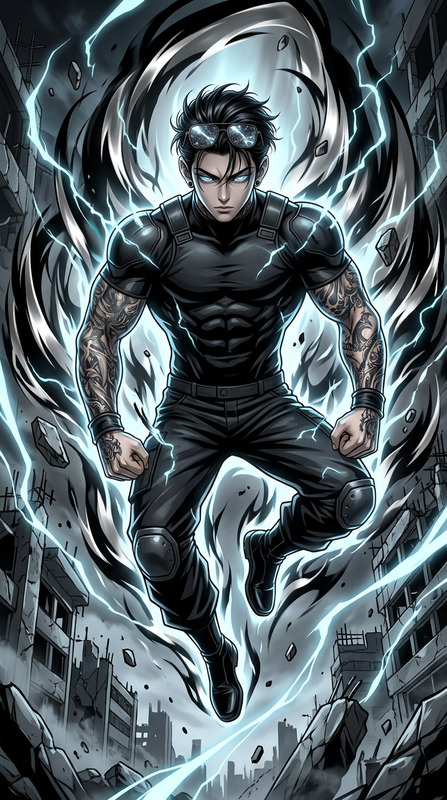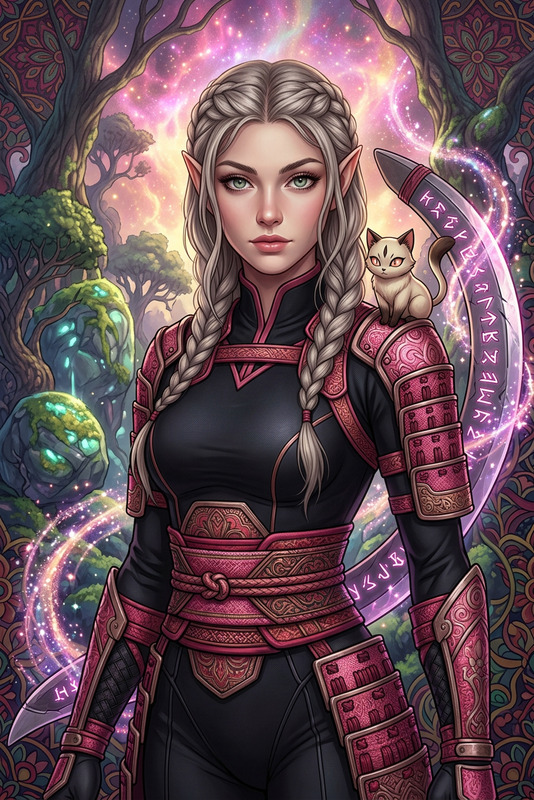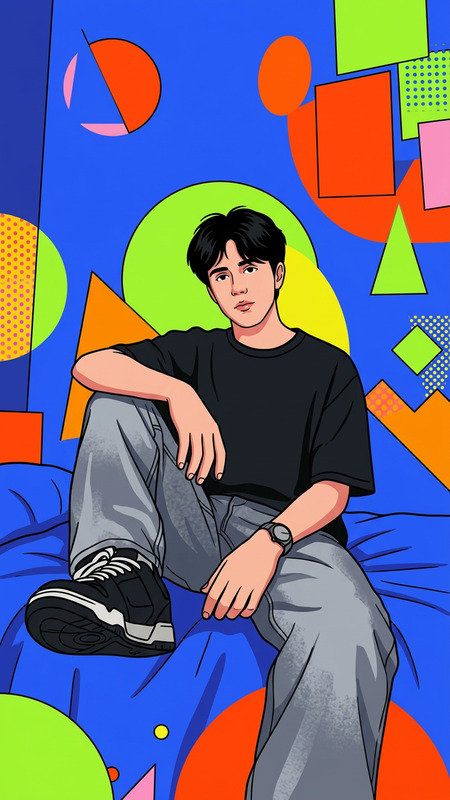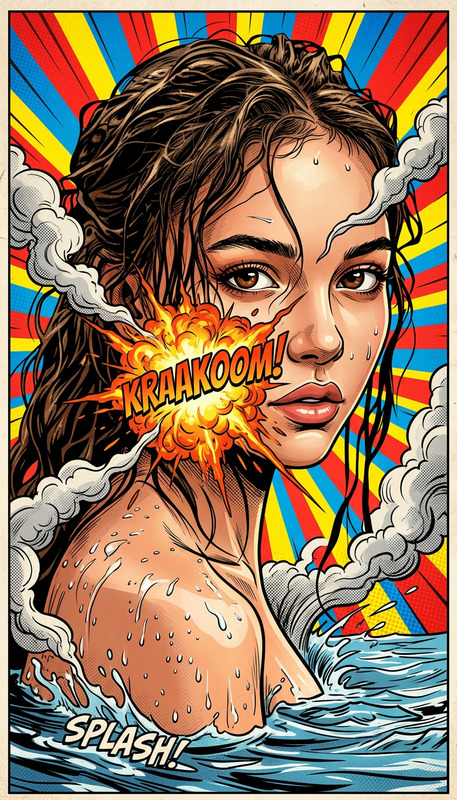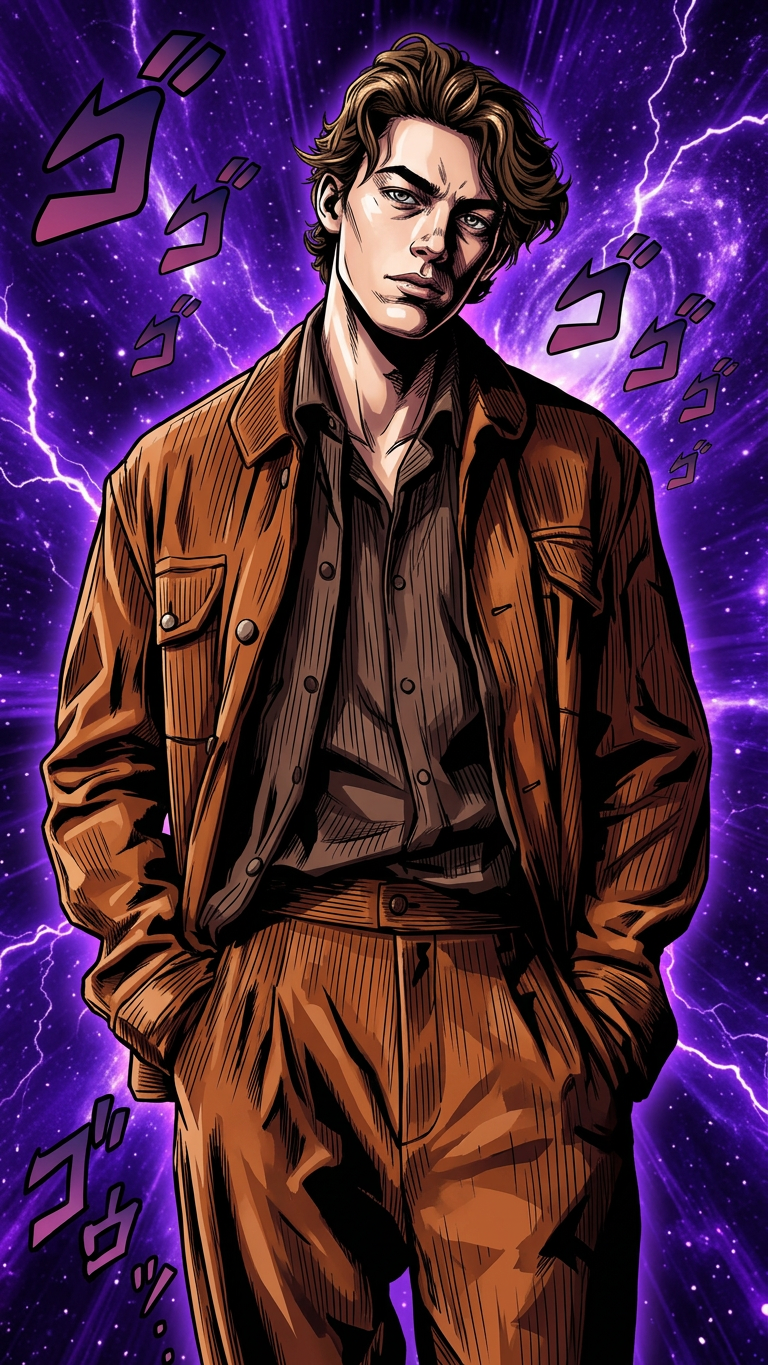
Manga styles

Manga styles

ai-image-editor

1 clip
3 uses

Any aspect ratio

Prompt

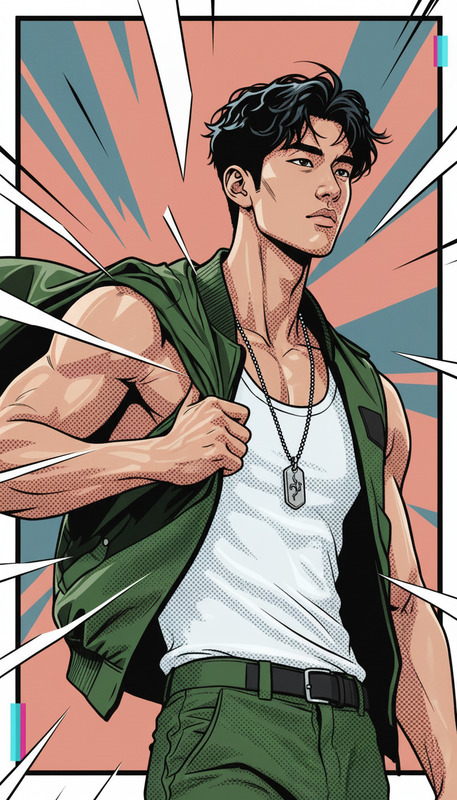
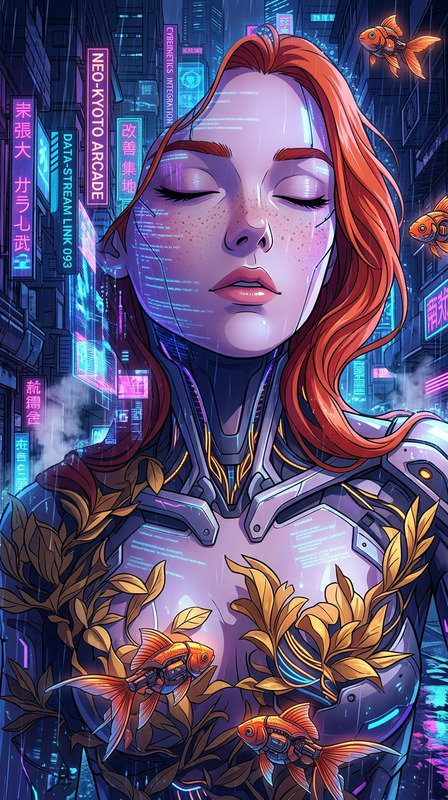
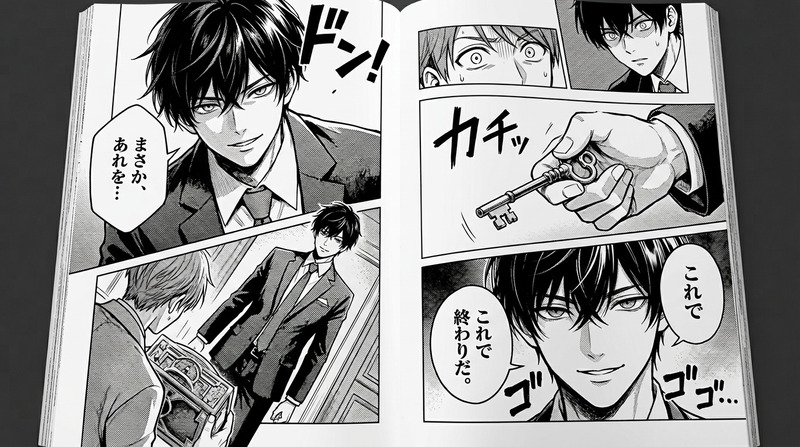
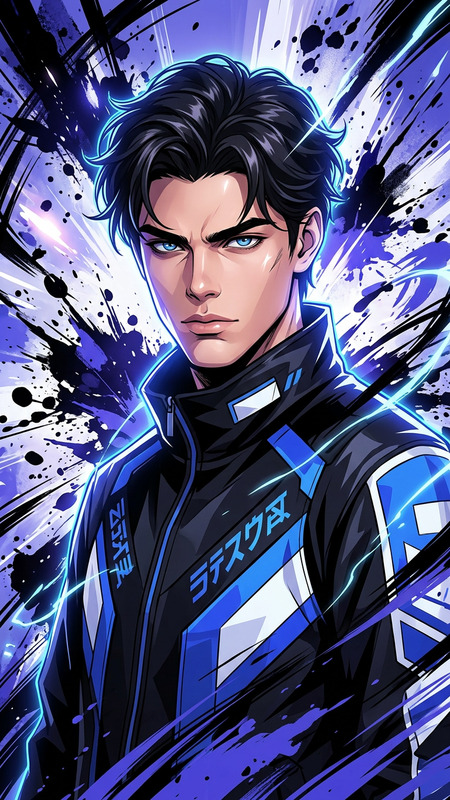
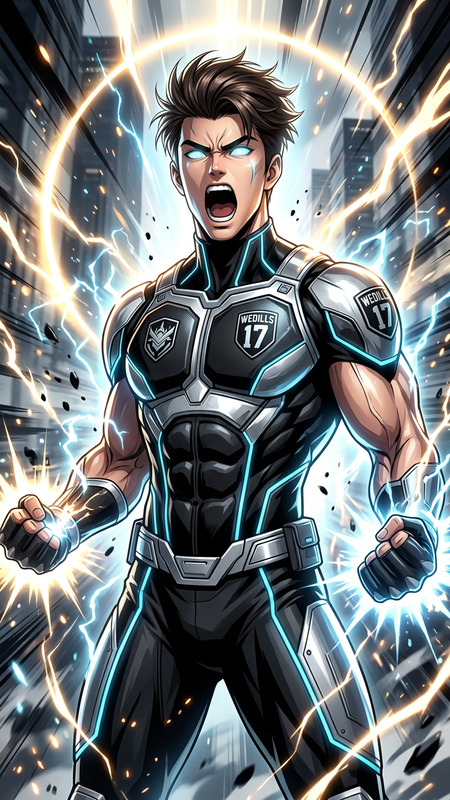
the subject transforms into a full manga-style character with sharp linework, bold outlines, and dramatic cel-shading. The background shifts into a deep abstract purple energy field. Cinematic, high contrast, dynamic energy, anime style, 4K.

Tags

styles

AI Image Editor Product Mockup Template

Turn rough product ideas into polished, launch-ready visuals in minutes. This template uses Magic Hour’s AI Image Editor to help you quickly generate, refine, and iterate on product mockups for landing pages, pitch decks, app stores, and investor updates—without needing a designer.


What You Can Do With This Template

Use this template as a starting point to:

  • Create product mockups from screenshots or sketches

    • Drop in app UI screenshots, wireframes, or hand‑drawn layouts
    • Replace messy backgrounds with clean, on‑brand scenes
    • Add devices (phones, laptops, tablets, watches) around your UI
  • Design marketing visuals and hero images

    • Generate landing page hero images around your existing product
    • Add props, environments, or people using the AI Art Generator
    • Remove unwanted elements with the AI Remover
  • Produce variants for A/B tests and campaigns

    • Test different angles, lighting, and color schemes
    • Localize visuals for different regions (e.g., currency, signage, context)
    • Create multiple on‑brand versions for ads, email, and social
  • Refresh old assets instead of starting from zero


How to Remix This Template in Magic Hour

You can treat this template as a reusable workflow. To create your own version in Magic Hour:

  1. Start from the AI Image Editor

    • Go to the AI Image Editor.
    • Upload your base image: app screenshot, product photo, device render, or even a sketch.
  2. Define the “product mockup” structure in your prompt

    • Be explicit about:
      • What the “product” is (e.g., SaaS dashboard, mobile app, physical device)
      • Where it should appear (inside a laptop frame, on a desk, held in a hand, etc.)
      • The environment (studio, office, coffee shop, abstract gradient, etc.)
    • Example prompts you can adapt:
      • “Place this mobile app UI inside a modern iPhone on a clean, soft‑gradient background, minimal, lighting from top left, suitable for a SaaS landing page hero.”
      • “Turn this rough hardware photo into a polished studio product shot on a neutral background, soft shadows, realistic reflections, high‑end tech branding style.”
  3. Iterate with small, focused edits

    • Use the editor to:
      • Erase and regenerate only the background
      • Add or adjust devices around your UI
      • Tweak colors or materials to match your brand palette
    • Keep prompts tight and goal‑oriented (e.g., “simpler background”, “more realistic shadows”, “warmer lighting”).
  4. Generate variants for testing

    • Duplicate the image and try:
      • Different device types (laptop vs phone vs tablet)
      • Different scenes (desk workspace, studio shot, outdoor, abstract)
      • Different visual styles (flat, 3D, cinematic, minimal)
    • Use these variants in landing page A/B tests, ad experiments, or pitch decks.
  5. Combine with other Magic Hour tools for richer mockups


Example Use Cases for Creators, Developers, and Marketers

This template is designed for teams that need high‑quality visuals under time and budget constraints:

  • SaaS & B2B startups

    • Turn raw product screenshots into investor‑grade mockups
    • Build consistent visuals for decks, landing pages, and app store listings
    • Quickly update visuals as your UI changes
  • Mobile apps and consumer products

    • Create app‑in‑device mockups for the App Store and Google Play
    • Generate lifestyle scenes (people using your app) with AI Face Generator and composite them using AI Image Editor
  • Agencies and marketers

    • Produce client‑ready product mockups without waiting on a designer
    • Rapidly generate and test multiple visual concepts and angles
    • Adapt global campaigns with localized scenes and props
  • Indie hackers and solo builders

    • Build a credible brand presence from day one
    • Avoid generic stock photos by generating custom product‑first visuals
    • Create quick visuals for launch posts, Product Hunt, and newsletters

Tips for Strong Product Mockups with AI

AI image editing is powerful, but the quality of your mockup still depends on your input and guidance. Some practical tips:

  • Start with the highest‑quality base image you have

    • Clear, high‑resolution screenshots or photos perform best.
    • If your original is low‑res or blurry, run it through the AI Image Upscaler or Unblur Image first.
  • Be precise in your prompts about the role of the product

    • Clarify that the UI/device/product should remain accurate while the environment can change.
    • Mention “realistic proportions and perspective” for more believable compositions.
  • Maintain brand consistency

    • Describe color schemes (e.g., “dark blue and teal accent”), tone (“minimalist”, “playful”, “enterprise”), and lighting (“soft diffused light”, “studio lighting”).
    • Use the same base screenshot across variants so copy and layout stay consistent.
  • Focus on clarity over complexity

    • For landing pages and ads, simpler backgrounds often convert better.
    • Remove visual noise with the Remove Object from Photo tool before compositing.

For background on why clean, product‑focused visuals matter for conversion, see industry resources like the Baymard Institute’s UX research on product pages and case studies from CRO practitioners (e.g., CXL, Nielsen Norman Group). While their examples focus on photography, the same principles apply to AI‑generated mockups: clarity, trust, and relevance.


Advanced Combinations: From Static Mockup to Animated Demo

If you want to go beyond static product images, you can chain this template with other Magic Hour tools:

  • Turn product mockups into short explainer clips

    • Start with a polished mockup from this template.
    • Use Image to Video to add subtle camera movement or parallax.
    • Optionally, bring it into Text to Video to script a short product overview.
  • Create animated character or mascot product scenes

  • Build narratives and social content around your product


Related Magic Hour Tools You Might Use with This Template

Depending on your project, you may want to mix this template with:


How to Start

  1. Go to the AI Image Editor.
  2. Upload your product screenshot, photo, or sketch.
  3. Use a prompt describing the mockup you want (device, environment, style, and purpose).
  4. Iterate, generate variants, and export the versions you need for your site, deck, or campaign.

Use this template as a repeatable workflow: each time your product evolves, you can refresh all your visuals in a single editing session, keeping your brand consistent and your visuals up to date.

More Like This

Insufficient credits