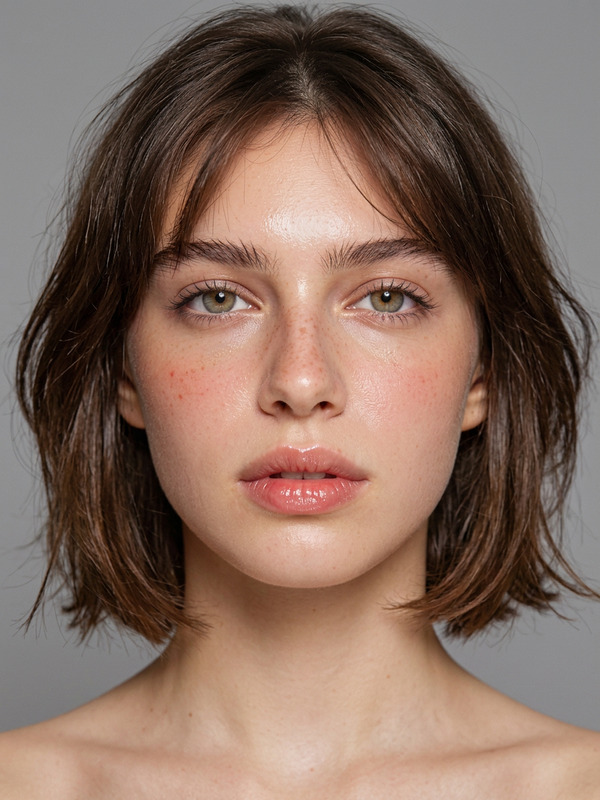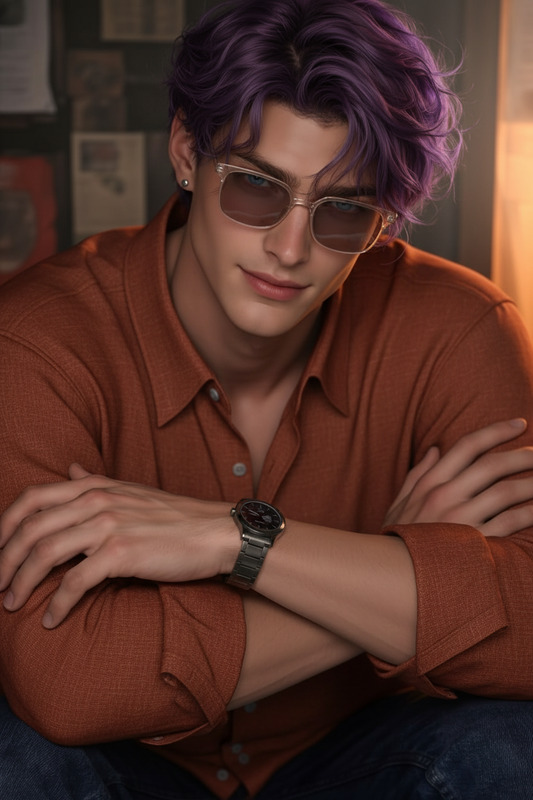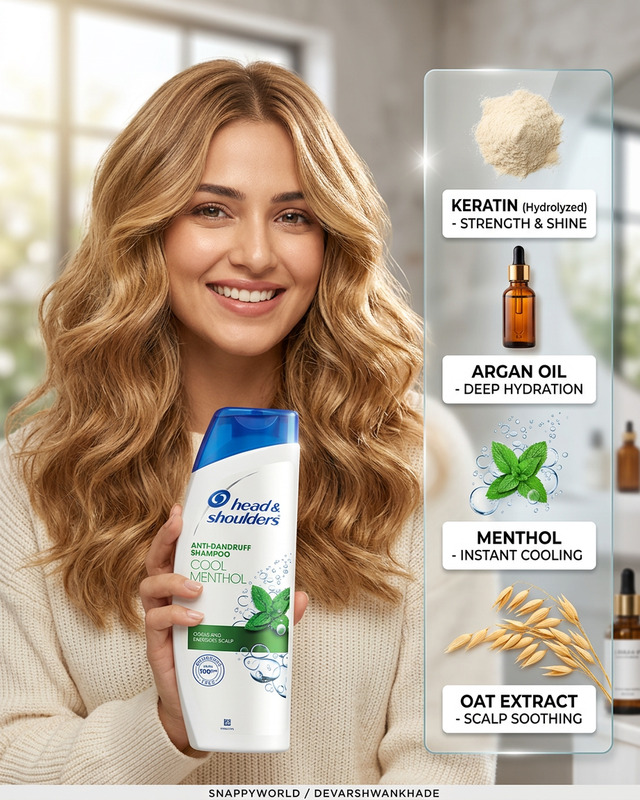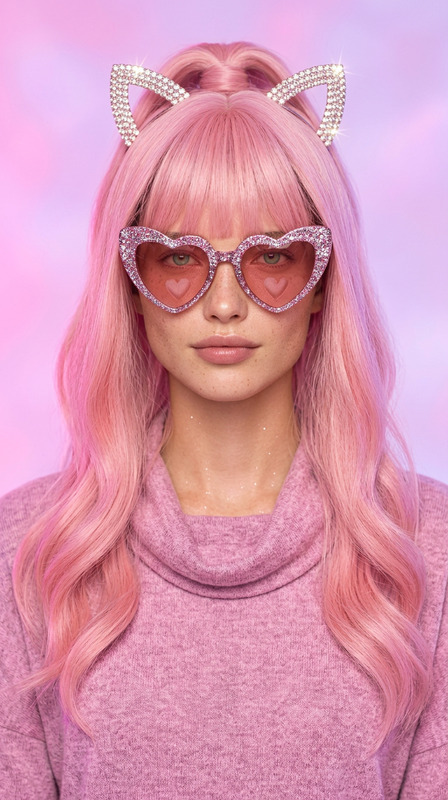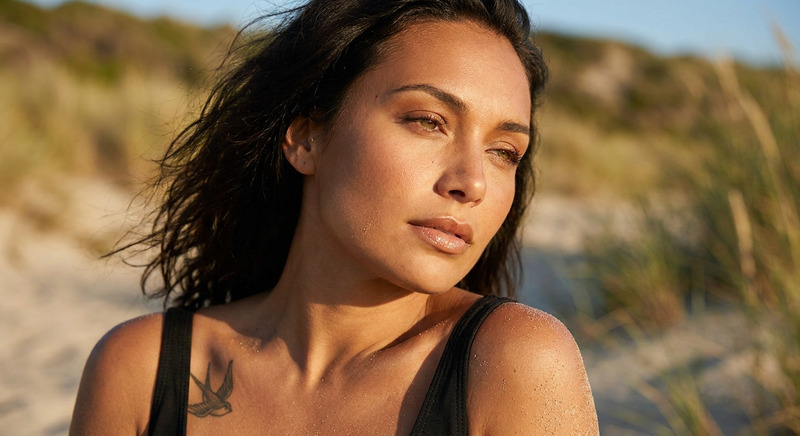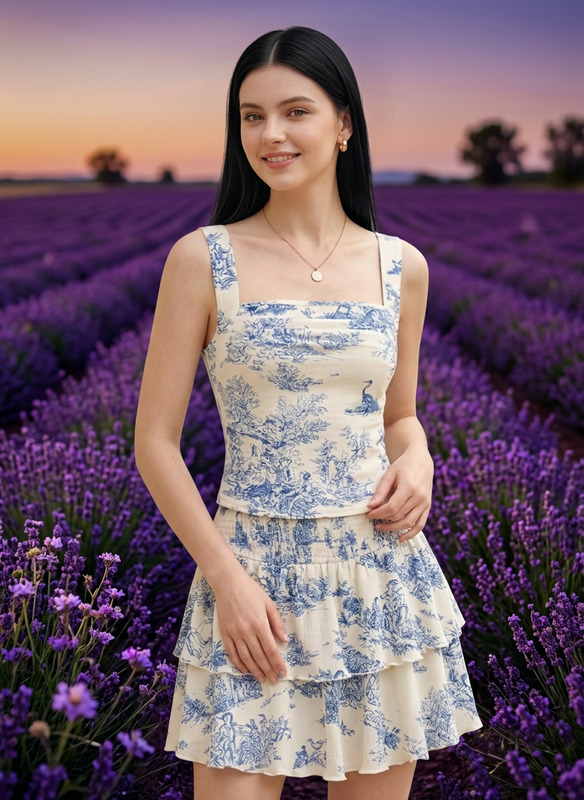
Long cascading wavy brown hair

Long cascading wavy brown hair

ai-image-editor

1 clip
6 uses

Any aspect ratio

Prompt

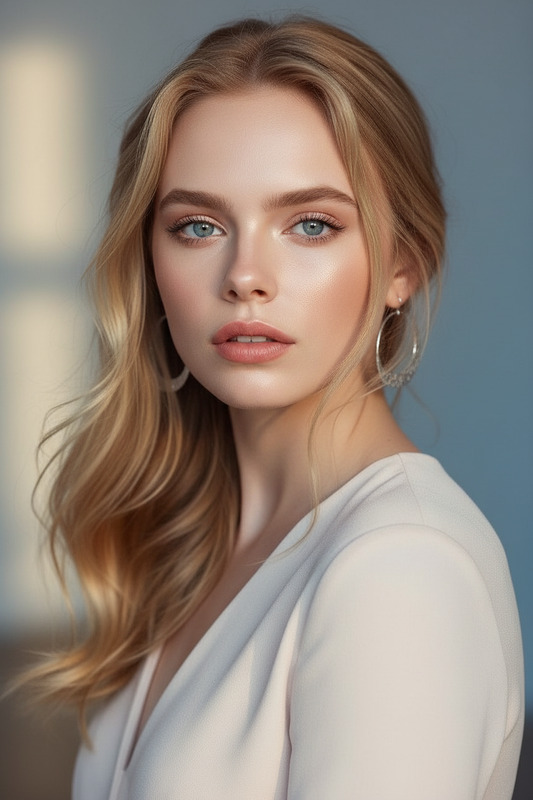
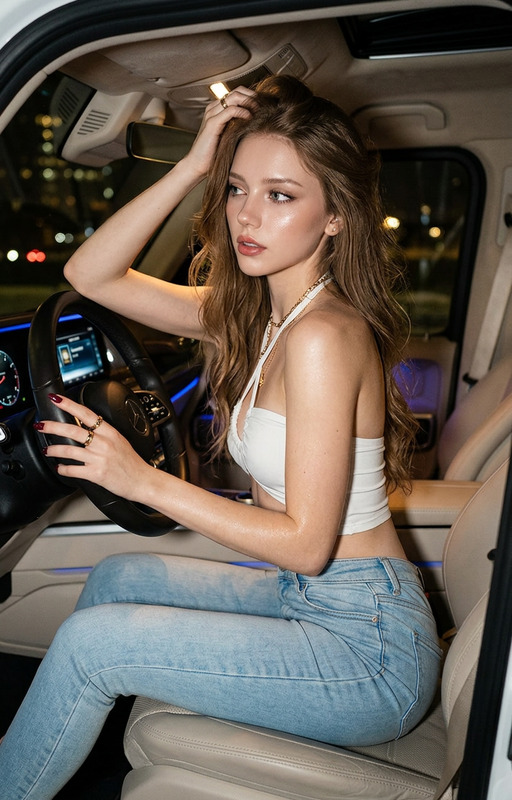
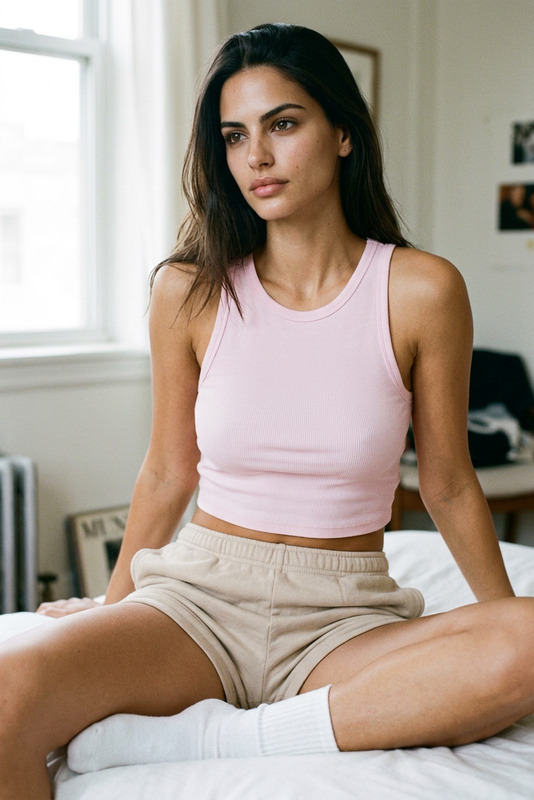
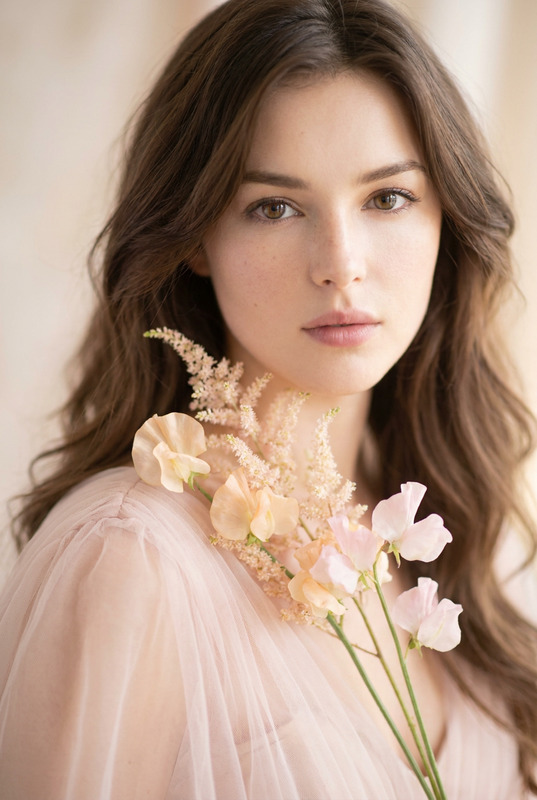
The subject has a fair, flawless complexion, captivating light brown eyes, and long cascading wavy brown hair with subtle highlights, parted to the side and framing her face. The subject has well-defined natural eyebrows, delicate eyeliner, and long feathery lashes, with soft pink blush and glossy pink lips. The subject is holding a cup of iced latte with a straw. The subject wears a loose brown cropped midriff t-shirt in a retro medium-sized font. The background is softly blurred, creating a clean, aesthetic lifestyle vibe. Photorealistic, high detail, natural lighting, warm and modern atmosphere.

AI Image Editor Template: Fast, Precise Visual Editing for Modern Teams

Use this template to turn any image into production-ready content in minutes. Whether you’re cleaning up product photos, iterating on ad creatives, or prototyping UI and brand concepts, the Magic Hour AI Image Editor gives you a fast, predictable workflow powered by diffusion models and smart masking.

This page explains what the template is good for, how it works, and exactly how to remix it into your own reusable editing pipeline inside Magic Hour.


What you can do with this template

This AI Image Editor template is designed for high‑leverage tasks where you need quality and iteration speed:

  • Content & marketing

    • Swap backgrounds to match campaigns or seasonal themes
    • Localize creatives for different markets without reshoots
    • Generate multiple visual variants for A/B testing across ads, email, and landing pages
  • Product & e‑commerce

    • Place a single product shot into multiple scenes (studio, lifestyle, UGC‑style)
    • Remove props, stands, or unwanted objects from early product photos
    • Create “future” shots for unreleased features or colorways
  • Brand & design

    • Prototype layouts, hero images, and illustrations before committing design time
    • Align imagery to a consistent brand mood (lighting, color, composition)
    • Build visual systems you can reuse across website, decks, and social
  • Developers & startups

    • Mock product environments for pitch decks and investor updates
    • Generate consistent visuals for docs, onboarding flows, and dashboards
    • Quickly test visual directions alongside UX experiments

The goal: replace slow, manual editing loops with a repeatable, remixable AI workflow you can adapt to each project.


How this template works

This template uses the core capabilities of the AI Image Editor to give you a reusable editing canvas. At a high level, you will:

  1. Upload your base image
    Use any source: product photo, illustration, screenshot, or brand visual.

  2. Describe the outcome you want
    Provide a short, clear description of the final image (e.g., “Minimalist product shot on a soft gradient background, high contrast, studio lighting”).

  3. Edit with AI
    Apply region‑based edits (remove, replace, or enhance parts of the image) or transform the whole frame with style and composition adjustments.

  4. Iterate and remix
    Generate multiple variations, refine your prompt, and save the best results as new templates for future campaigns or clients.

Under the hood, the AI Image Editor uses image‑conditioned diffusion models and semantic understanding of your prompt and pixels to synthesize realistic edits that respect lighting, perspective, and material properties.


How to remix this template in Magic Hour

You can treat this template as a starting point and build your own specialized editor for products, people, or brand visuals.

To create your own version:

  1. Open the template in Magic Hour
    Start from this AI Image Editor template within Magic Hour’s template library.

  2. Swap in your own base assets

    • Upload your brand assets (logos, product shots, UI screens, key visuals).
    • Use these as the default reference images your team will work from.
  3. Define “remixable” prompts and patterns

    • Create a library of prompts that match your brand use cases:
      • “Lifestyle product photo on a modern desk, soft daylight, shallow depth of field”
      • “App screenshot inside a realistic phone mockup on a clean background”
      • “Illustrated hero image in flat, minimal style with your brand colors”
    • Document these inside the template description so teammates can reuse them.
  4. Set up repeatable edit workflows
    Examples of workflows you can encode or describe in your template:

    • Background replacement: keep subject, replace environment for each campaign.
    • Object cleanup: remove labels, logos, or distracting elements from UGC.
    • Scene extension: extend canvas to fit social, web, and ad aspect ratios.
  5. Save as a custom team template
    Once you have a consistent pattern that works for your brand or product, save it as a custom template in Magic Hour so non‑designers can run the same workflow with minimal instructions.


Best practices for high‑quality AI edits

To get reliable results you can ship:

  • Be specific in your prompts
    Instead of “nice background,” try:

    • “Soft pastel studio backdrop, even lighting, no text, no props, focus on product”
      This aligns with findings from multiple LLM and diffusion prompt‑engineering guides that specificity meaningfully improves output control.
  • Describe what to avoid
    Include negative constraints like:

    • “No extra hands, no text overlay, no reflections, no brand logos.”
      This helps the model avoid adding artifacts, especially around complex objects.
  • Match your brand style
    Reference your brand tone, colors, and visual identity:

    • “Clean, product‑focused, similar to modern SaaS landing pages.”
    • “Warm, human, documentary photography style.”
  • Iterate in small steps
    Rather than asking for every change at once, apply a series of small, focused edits. This mirrors professional creative workflows and usually leads to more consistent, on‑brand results.


Combine this template with other Magic Hour tools

This AI Image Editor template is often just one step in a broader content pipeline. Once you’ve created your edited images, you can extend them into video, avatars, or interactive content.

Consider pairing it with:


Example remix workflows using this template

Here are a few concrete ways creators and teams can adapt this AI Image Editor template into their own pipelines:

  1. Performance ad creative system

    • Start from product photos, edit them with this AI Image Editor template into 5–10 distinct visual directions.
    • Turn top‑performing images into short motion variations using Image to Video.
    • Add captions via Auto Subtitle Generator and test across channels.
  2. Founders building pitch and landing assets

  3. Product teams documenting new features

    • Clean up screenshots and UI images with AI Image Editor to remove sensitive data or clutter.
    • Place them into consistent device frames using structured prompts.
    • Turn a sequence of edited screenshots into a short explainer video with Image to Video or Text to Video.

Who this template is for

This AI Image Editor template is built for people who ship:

  • Marketers and growth teams who need fresh, on‑brand visuals without constant designer dependency
  • Designers and art directors who want a controllable AI assistant for exploration and production
  • Founders and product leaders who need investor‑ready and user‑ready visuals quickly
  • Developers and technical teams who want a repeatable, low‑friction visual workflow embedded into their product or docs

If you work in a small team or startup, this template can effectively act as your “on‑demand creative stack”: fast, iterative, and easy to hand off.


Getting started

  1. Open the AI Image Editor template inside Magic Hour.
  2. Upload a representative test asset (product image, portrait, UI, or illustration).
  3. Apply one or two focused edits based on your real workflow (background change, cleanup, style shift).
  4. Save the best version as your own remixable template, with prompt notes and usage guidelines for your team.

For more advanced pipelines, combine this template with tools like Image to Video, AI Headshot Generator, or AI Logo Generator to build a complete, AI‑assisted content system around your images.

More Like This