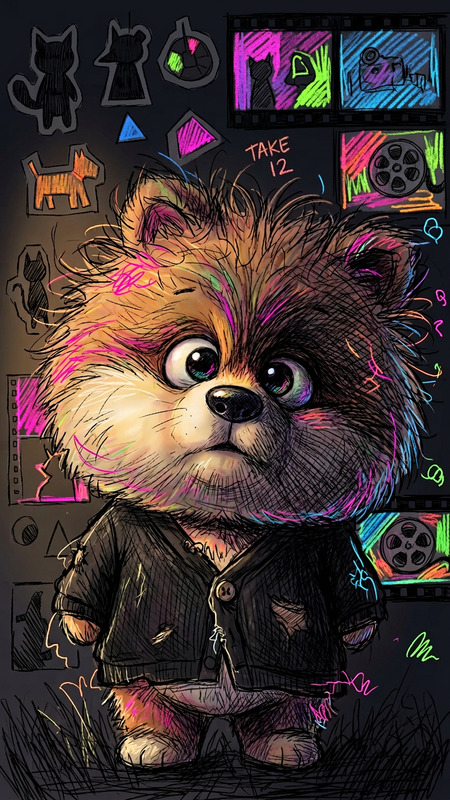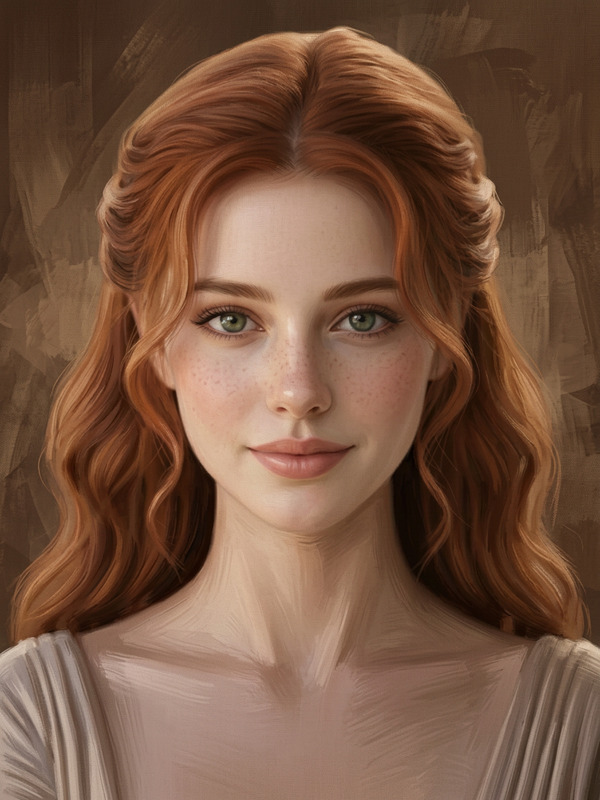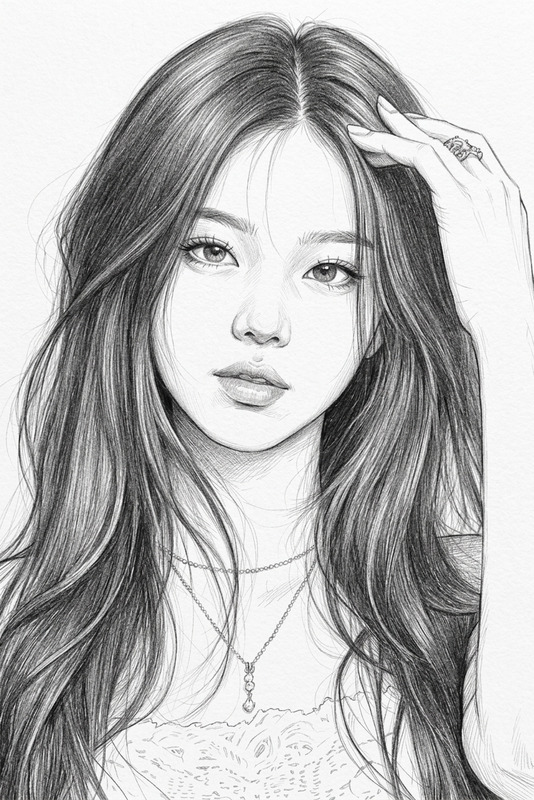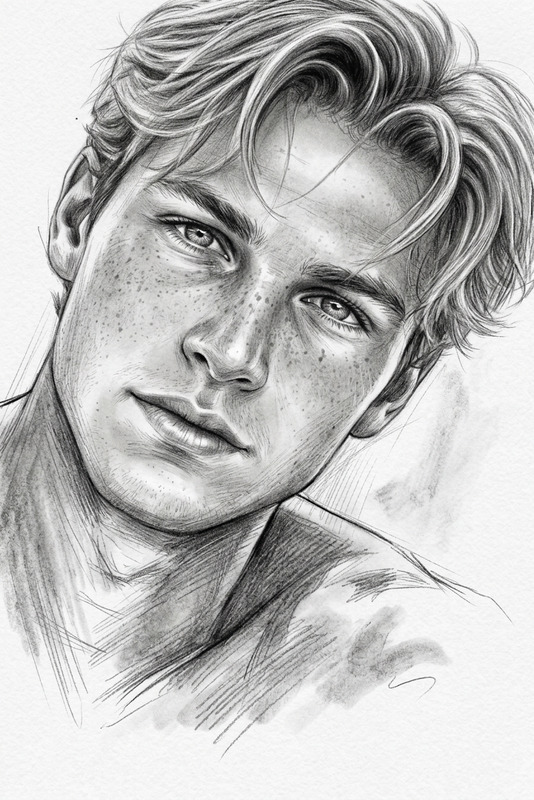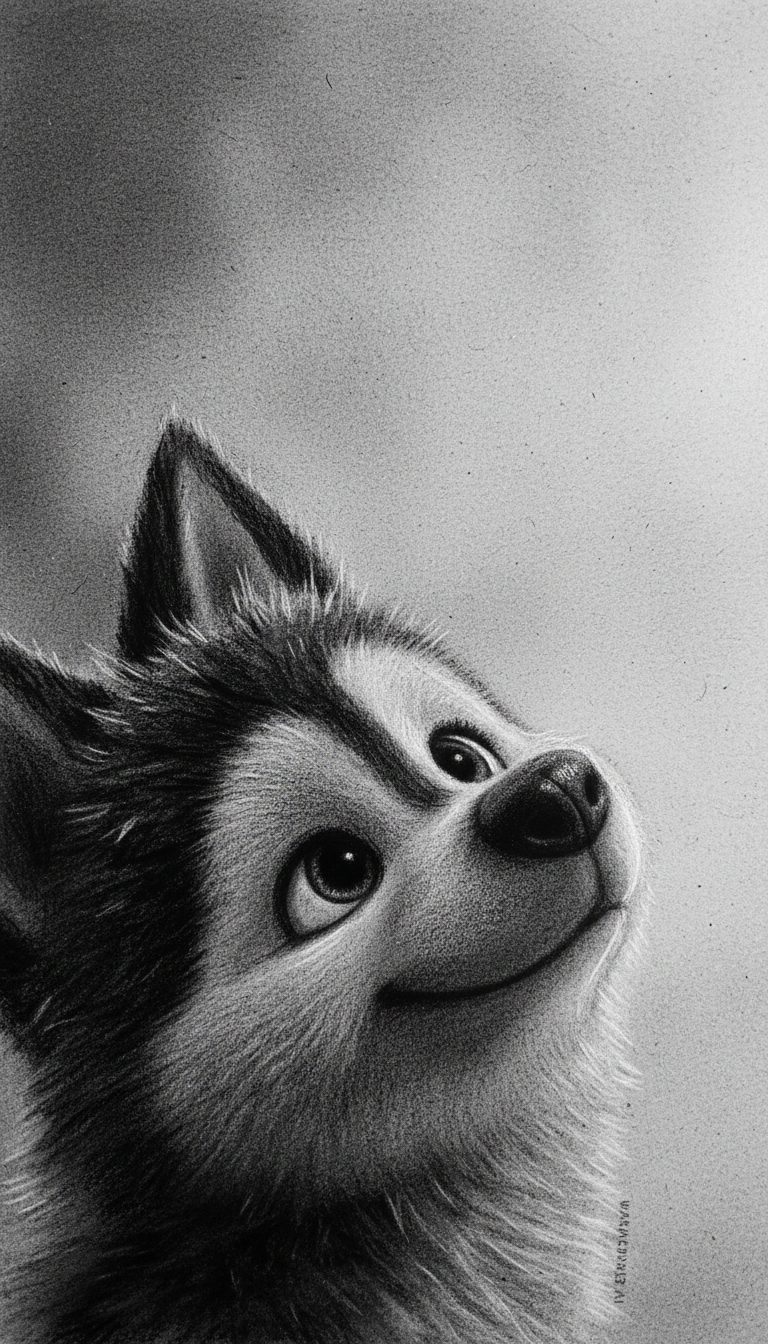
Charcoal Drawing
- Model
- Nano Banana
- Image
- 768 × 1344 px
Prompt
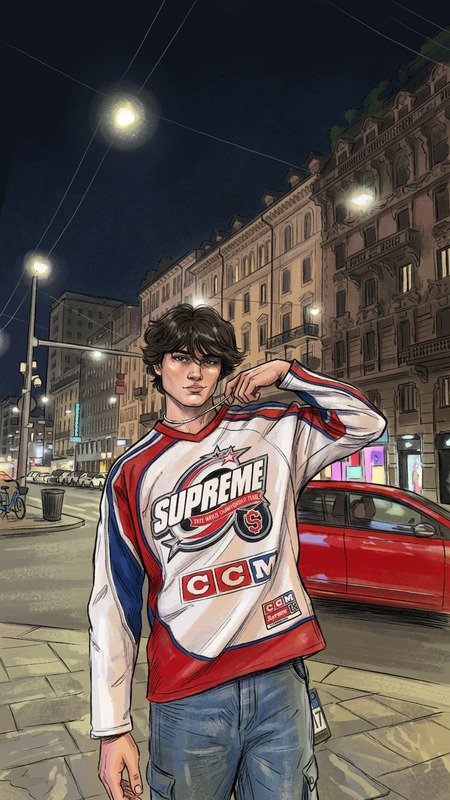
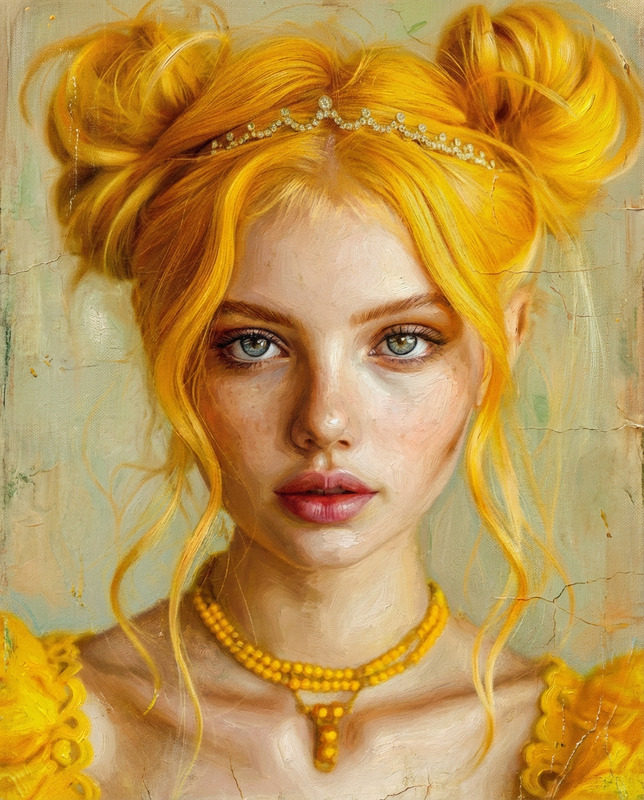
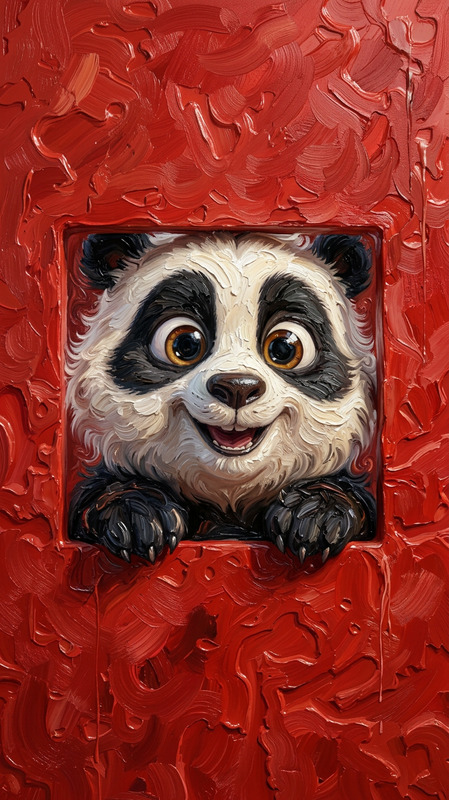
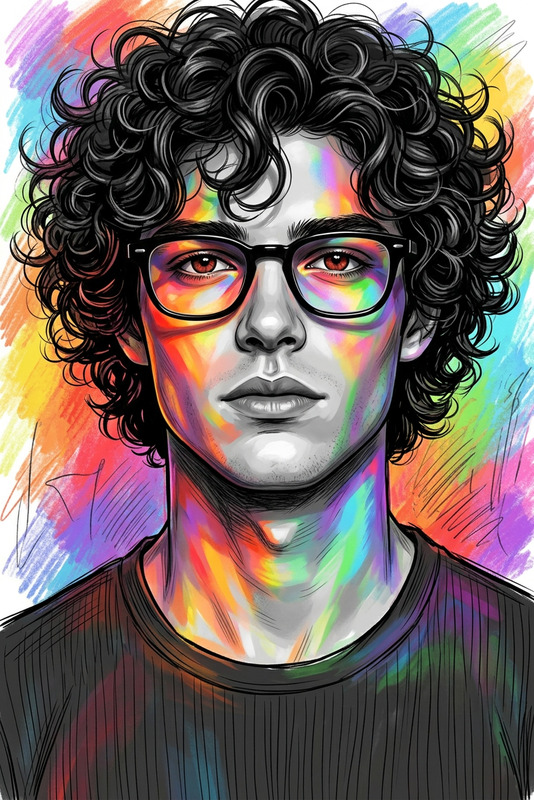
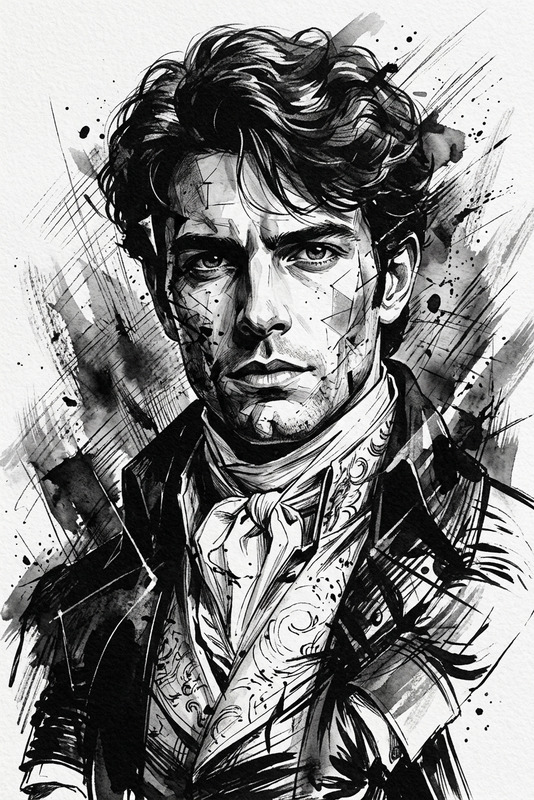
The subject and entire background quickly transform into a charcoal drawing while preserving the original silhouette and composition. The scene is rendered in deep black tones, soft gray gradients, and expressive charcoal strokes. All forms are defined with dark smudgy lines, heavy shading, rough textures, and visible hand-blended areas. The subject’s face and body fully become charcoal-rendered while maintaining likeness. Edges are slightly diffused with natural smears, dust-like imperfections, and organic texture. Artistic, raw, ultra-detailed, cinematic lighting.
Any aspect ratio
Overview
The Charcoal Drawing template transforms any image into a masterful piece of charcoal art, retaining the integrity of the original silhouette and composition. This tool uses the nano-banana model to achieve ultra-detailed textures typical of genuine charcoal sketches. It's perfect for artists and designers who want to explore new dimensions of their work or add a dramatic effect to presentations and designs.
What It Does
With this AI Image Editor, transform your photos into detailed charcoal sketches. The model creates deep black tones enhanced with soft gray gradients and expressive strokes, providing a raw and artistic finish to any image. This tool ensures the subject's face and body maintain likeness while being fully rendered in charcoal style, enriched with the authentic feel of smudgy lines and diffuser edges.
Who It's For
Tailored for artists, designers, and content creators, the Charcoal Drawing template is ideal for enhancing creative projects or developing unique marketing visuals. Whether you're crafting AI-generated videos or need high-quality imagery for print, this tool provides a powerful edge with its cinematic detail and artistic flair.
Summary
The Charcoal Drawing template is a reliable option for anyone looking to integrate traditional art styles within digital media. Utilizing the AI Image Generator, this tool offers intricate yet accessible image editing capabilities thanks to its AI-driven approach. This ensures a professional result every time, integrating the raw texture of charcoal with modern digital precision.
How to Use the Charcoal Drawing Template
Choose Your Template

Customize Your Inputs

Generate Your Art

Use Cases
Artistic Portfolio Development
- Charcoal effect adds depth to traditional photography
- Creates a contrast-rich addition to any art collection
Marketing and Advertisements
- Create unique posters with a handmade touch
- Develop eye-catching magazine spreads
Product Design and Branding
- Highlight product features with dramatic shading
- Promote special editions with themed graphics
Best Practices
Choose High-Resolution Images
For best results, start with high-resolution images to ensure that all details are crisply rendered as charcoal strokes.Adjust Lighting Carefully
Ensure that your original images have balanced lighting to complement the dramatic charcoal effects.Experiment with Composition
Try different angles and compositions to see how the charcoal effect interacts with various elements.