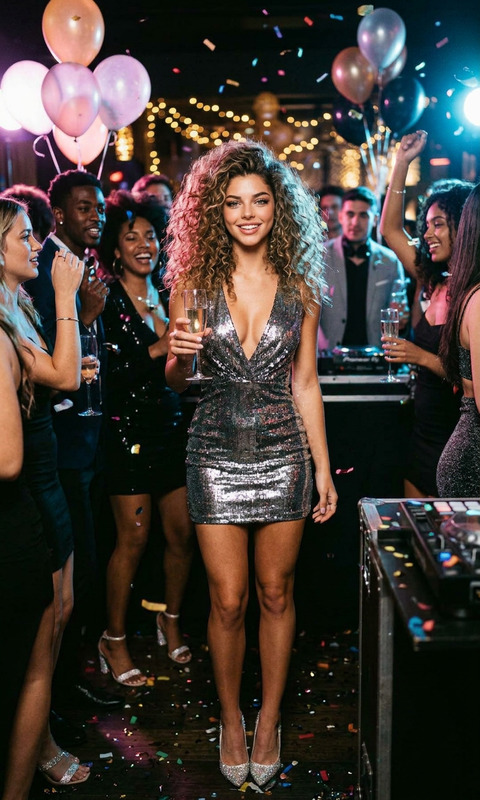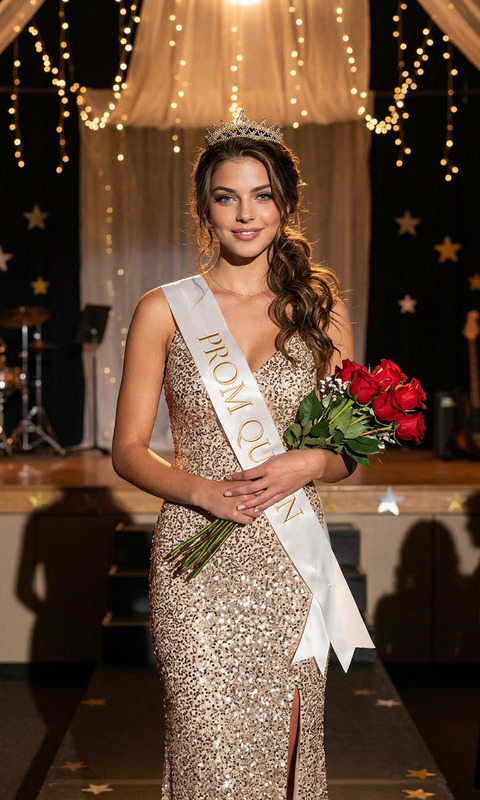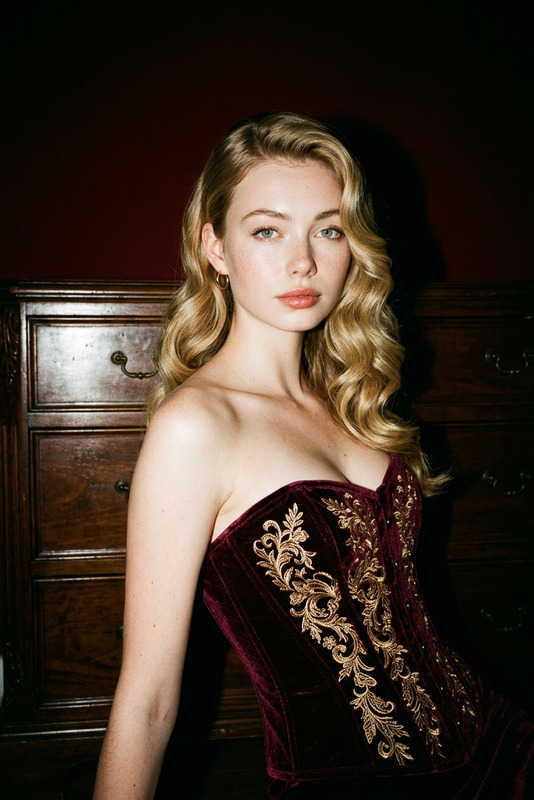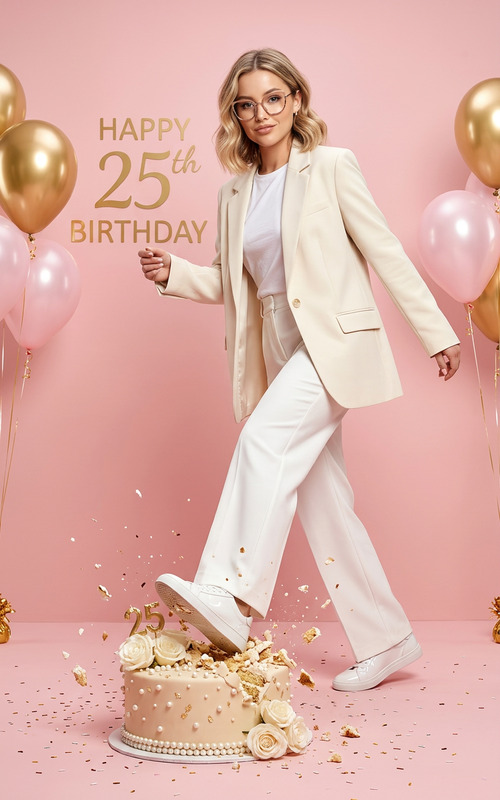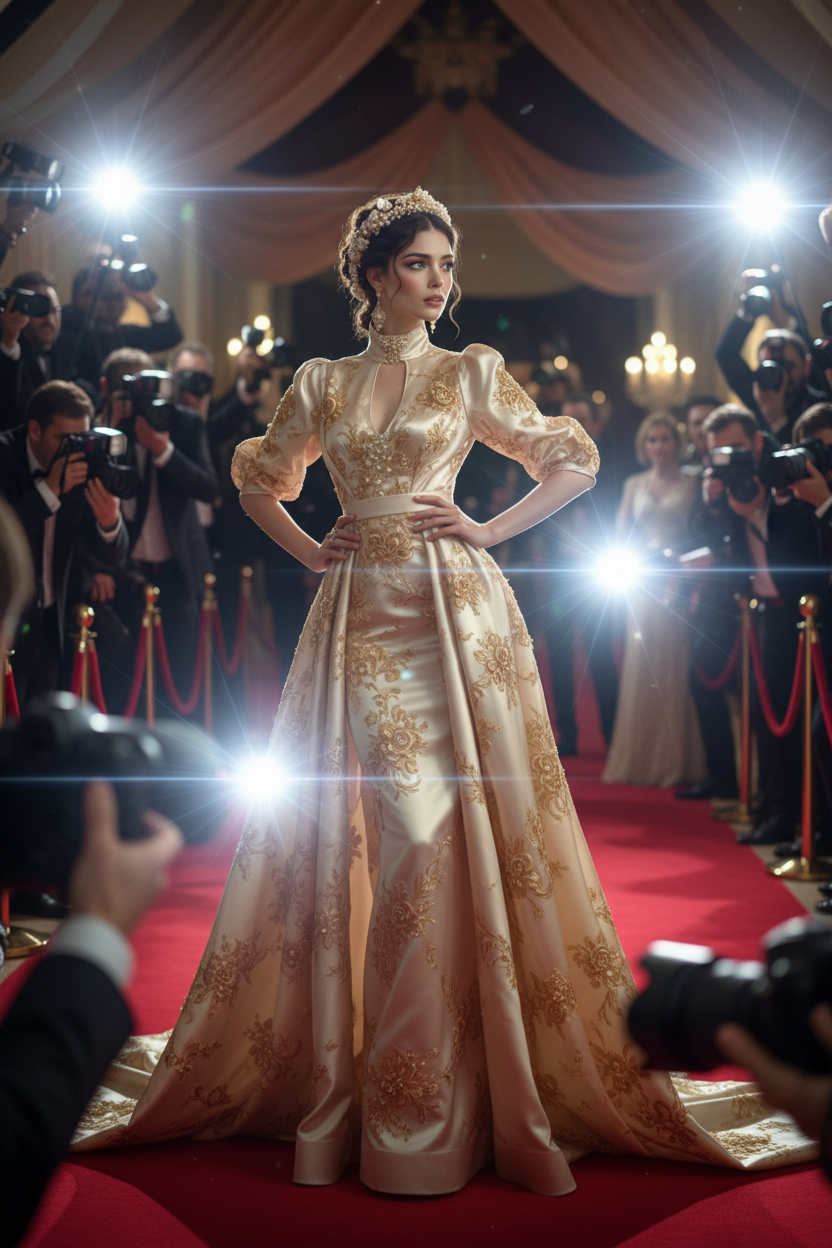
Red Carpet
ai-image-editor
Any aspect ratio
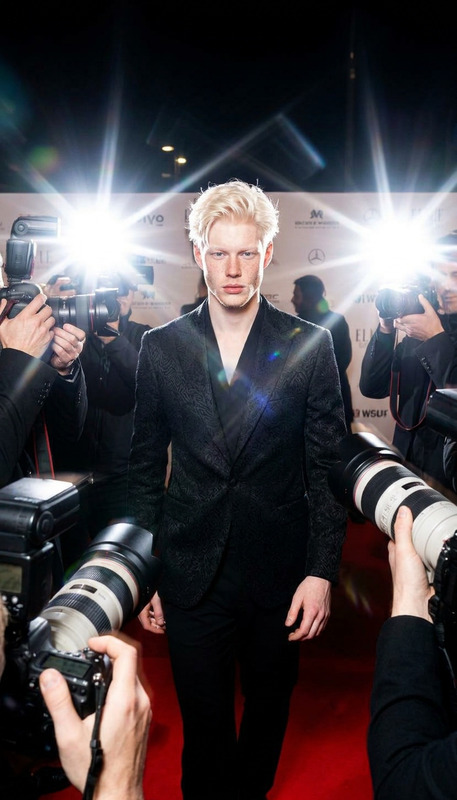
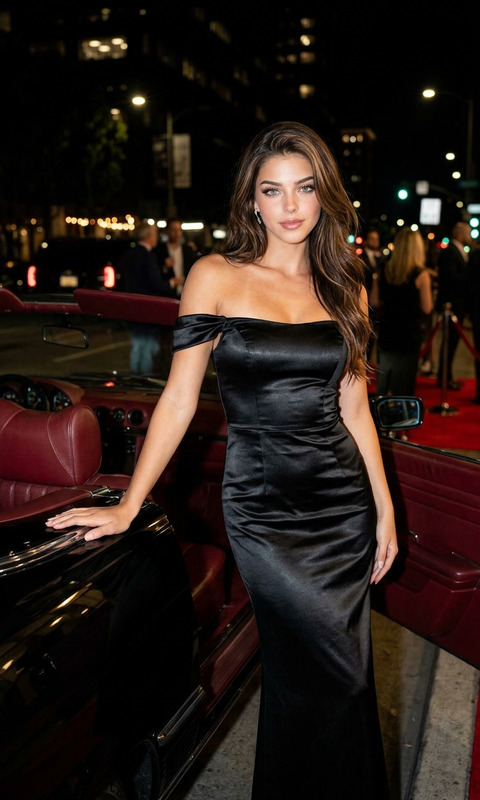
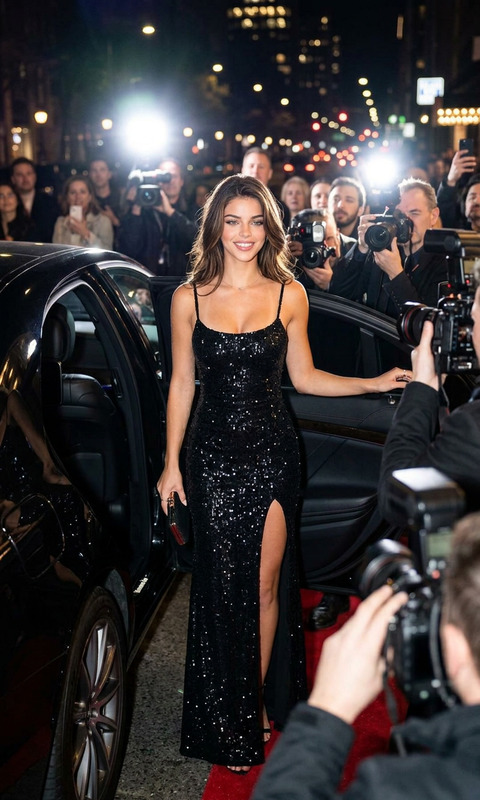
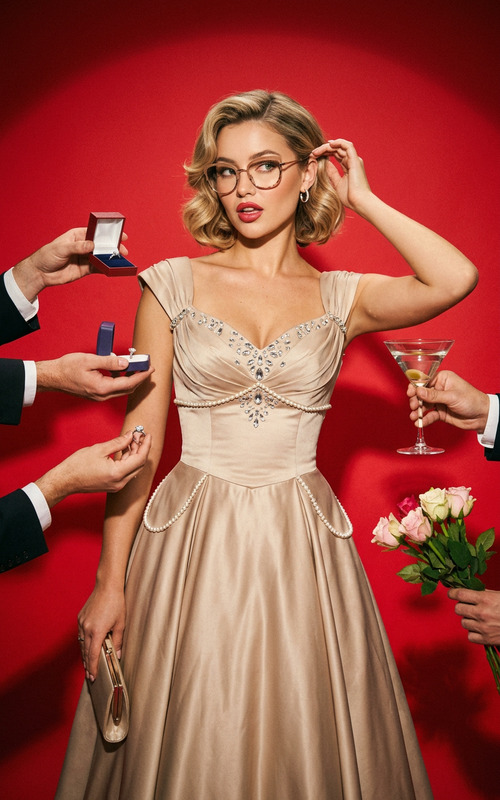
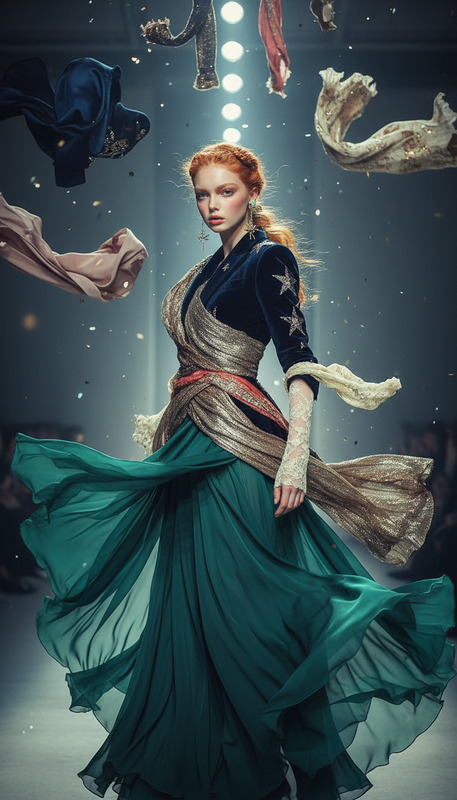
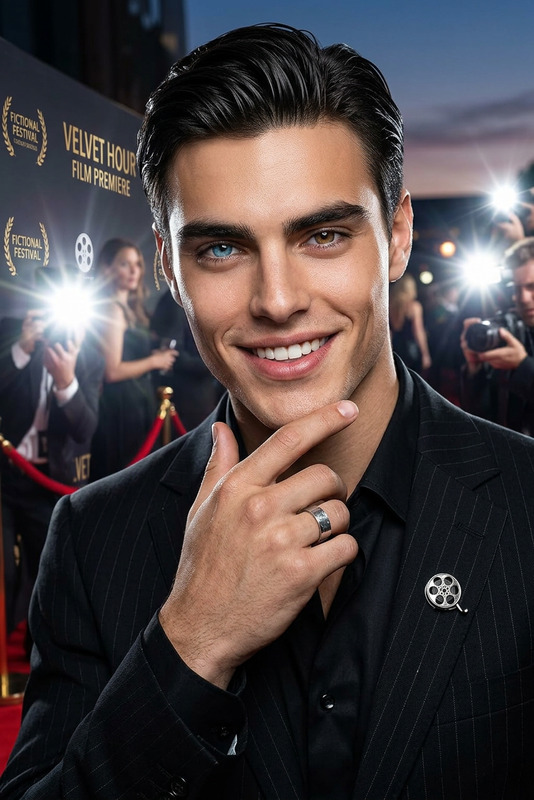
A subject making a glamorous entrance on a red carpet, striking a confident high-fashion pose as intense camera flashes burst from all directions, paparazzi crowding around, luxury event atmosphere, elegant outfit flowing naturally, cinematic spotlight and lens flares, high-end celebrity vibe, ultra-detailed, 4K.
Tags
popularAI Image Editor Template: Transform Any Image in Minutes
Use this AI Image Editor–powered template to quickly transform, fix, or restyle images for content, campaigns, prototypes, and product shots—without opening Photoshop. Remix it in Magic Hour to adapt it to your own brand, style, or workflow.
What This Template Is For
This template is built on the AI Image Editor and is ideal if you want to:
- Remove or replace objects, people, or text in a photo
- Change backgrounds (e.g., studio, lifestyle, branded colors)
- Clean up visuals for ads, landing pages, and decks
- Create multiple on-brand variants of the same base image
- Turn quick mockups into polished, production-ready assets
Typical use cases:
- Marketing & growth: ad creatives, social assets, thumbnails, hero images
- Product & startups: product mockups, app UI in context, pitch deck visuals
- Creators: YouTube covers, podcast art, book and album covers, memes
- Design & branding: concept iterations, moodboards, visual explorations
How to Remix This Template in Magic Hour
You can use this template as a starting point and customize it for your own workflow in a few minutes:
Open the template in Magic Hour
- Start from this template and copy it into your own workspace.
- All steps are editable—treat it as a working example, not a locked preset.
Swap in your own base images
- Upload your product photos, portraits, UI screenshots, or brand assets.
- For best results, use images that are clear, well-lit, and not overly compressed.
Edit the prompt logic
- Describe what you want changed:
- “Replace the background with a minimal white studio setup.”
- “Remove the person in the background and extend the scenery.”
- “Turn this into a cinematic cyberpunk scene, neon lighting, high detail.”
- Keep instructions specific and visual where possible.
- Describe what you want changed:
Chain additional tools for richer outputs (optional)
You can create more advanced workflows by combining this template with other Magic Hour products:- Add face edits using AI Face Editor or AI Face Generator
- Generate brand-new assets for compositing via the AI Image Generator or AI Photo Generator
- Clean and upscale outputs with AI Image Upscaler or Unblur Image
Save as your own reusable template
- Once you’re happy with the logic and example prompts, save it as your own Magic Hour template.
- Your team can reuse it as a repeatable “recipe” for future images.
Example Workflows You Can Build From This Template
Use this as a base to design reusable flows tailored to your role or product.
1. Product Photo → Ad-Ready Creative
- Start with a plain product shot.
- Use the AI Image Editor template to:
- Remove clutter and imperfections
- Add a branded or seasonal background
- Generate variants for different channels (e.g., “Instagram story vertical lifestyle scene”)
- Optionally, refine the asset with:
- AI Background Generator for contextual scenes
- Thumbnail Maker for YouTube and social covers
2. Founder or Team Photo → Polished Headshots
- Upload a casual portrait or selfie.
- Use the template to:
- Clean the background, adjust composition, and remove distractions
- Align visuals with your brand style (e.g., “soft studio lighting, neutral gradient backdrop”)
- Enhance with:
- AI Headshot Generator to explore alternative headshot looks
- AI Selfie Generator for more informal creator-style content
3. UI / App Screenshots → Marketing Mockups
- Drop in a raw screenshot of your product.
- Use this template to:
- Place it in a realistic device mockup scene
- Add lighting, depth, and context (e.g., “on a desk, next to a laptop, modern office background”)
- Combine with:
- Book Cover Generator or Album Cover Generator for companion visuals
- AI Logo Generator for brand elements
4. Concept Art & Character Exploration
- Start from a sketch, a rough reference, or a simple AI-generated base image.
- With the AI Image Editor template you can:
- Iteratively refine character design, outfits, or environments
- Create multiple stylistic passes (comic, anime, dark fantasy, etc.)
- Explore further using:
- AI Art Generator or AI Manga Generator
- Animated Characters Generator or AI Character Generator for motion / character sets
Advanced Use Cases for Teams and Builders
If you’re a marketer, product lead, or technical founder, this template can anchor more complex workflows:
Campaign experimentation
- Quickly produce multiple creative directions from a single base asset.
- Use consistent prompt structures so you can A/B test angles and messaging.
Brand systems at scale
- Integrate brand language (colors, mood, photography style) into your prompt patterns.
- Combine with AI Logo Generator, AI Fashion Generator, or AI Outfit Generator for consistent look and feel across visuals.
Prototyping for product and UX
- Turn rough wireframes or early mockups into polished visuals for user testing or investor decks.
- Use Architecture Generator or AI Interior Design Generator for spatial and product-in-context shots.
Creative automation pipelines
- Build a stack around this template:
- Generate base imagery: AI Photo Generator, AI Art Generator
- Edit / iterate with this AI Image Editor template
- Upscale, clean, or restore with AI Image Upscaler, Old Photo Restoration, or Photo Colorizer
- Extend into motion using Image to Video or AI GIF Generator
- Build a stack around this template:
Connect Image Editing to Video and Animation
You can also bridge this template into Magic Hour’s video tools to create image-to-video workflows:
Turn your edited image into motion using:
Start from a character or portrait edited with this template, then:
- Animate it with AI Talking Photo or Animation Templates
- Create lip-synced content with Lip Sync Templates
- Swap faces into existing footage via Face Swap Templates or Face Swap GIF
- Enhance and sharpen final videos with Video Upscaler and caption them with the Auto Subtitle Generator
This makes it easy to go from static image → edited visual → animated video in a single ecosystem.
Best Practices for High-Quality Results
To get consistent, production-grade outputs with this AI Image Editor template:
Start with solid inputs
- Use images that are in focus, not heavily compressed, and have clear subjects.
- Avoid extremely dark or overexposed photos when quality is critical.
Make prompts specific and visual
- Prefer “soft natural window light, neutral gray studio background, subtle shadows” over “make it look better.”
- Mention framing, style, mood, and any brand constraints you care about.
Iterate in small steps
- Apply a few targeted changes at a time and review; treat this like a versioned design process.
- Save successful prompt patterns directly into your remixed template.
Use the right tool for each step
- Complex background replacements and object removal: AI Image Editor or Remove Object from Photo
- Cleanup and isolation: Image Background Remover or Watermark Remover
- Enhancement and repair: AI Image Upscaler, Unblur Image, Old Photo Restoration
Related Magic Hour Tools Worth Exploring
Depending on your use case, you may want to connect this template with:
Brand & marketing assets
Stylized or thematic visuals
Specialized transformations
Use this AI Image Editor template as your base layer, then layer these tools depending on whether you’re building brand systems, ad pipelines, content for a channel, or a product demo.
How to Start
- Open this AI Image Editor–based template in Magic Hour.
- Replace the example images with your own assets.
- Adjust the prompt instructions to match your brand, product, or campaign.
- Save your remixed version as a reusable template for your team.
From there, you can keep extending it into image generation, enhancement, or video and voice workflows using the rest of the Magic Hour suite.