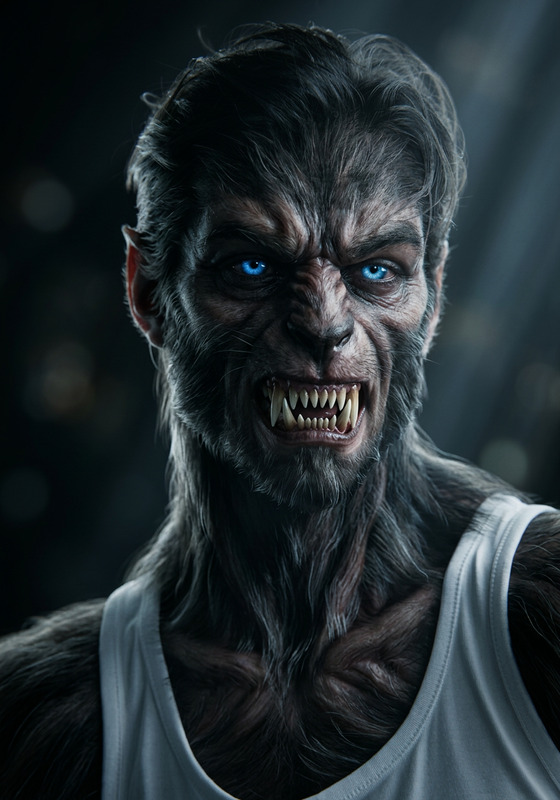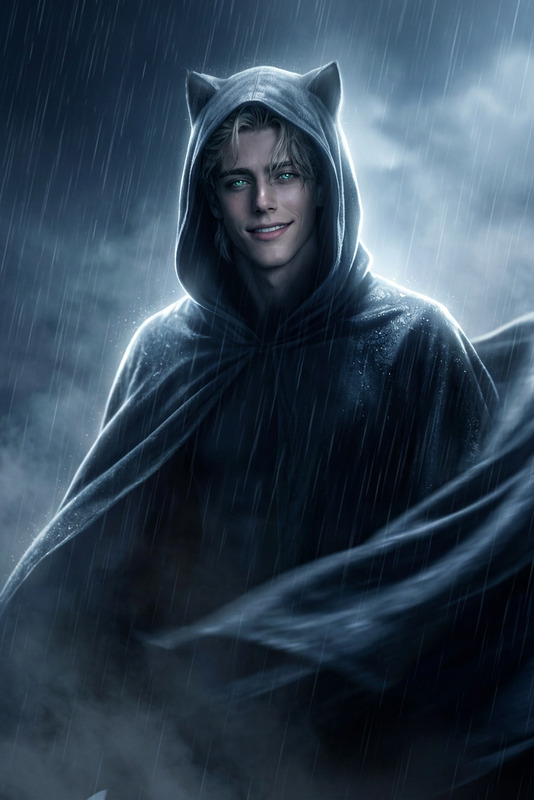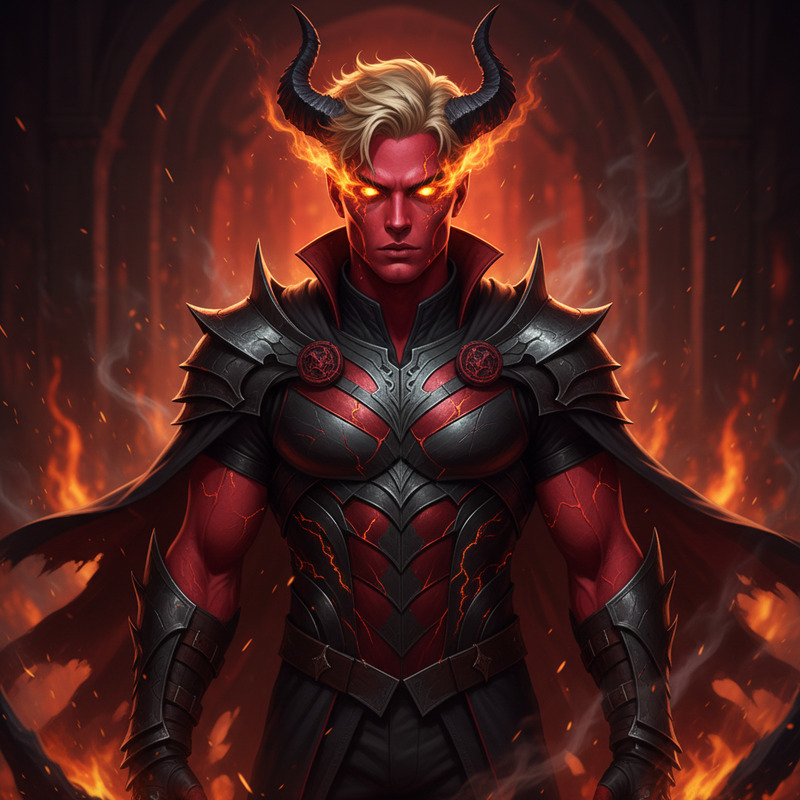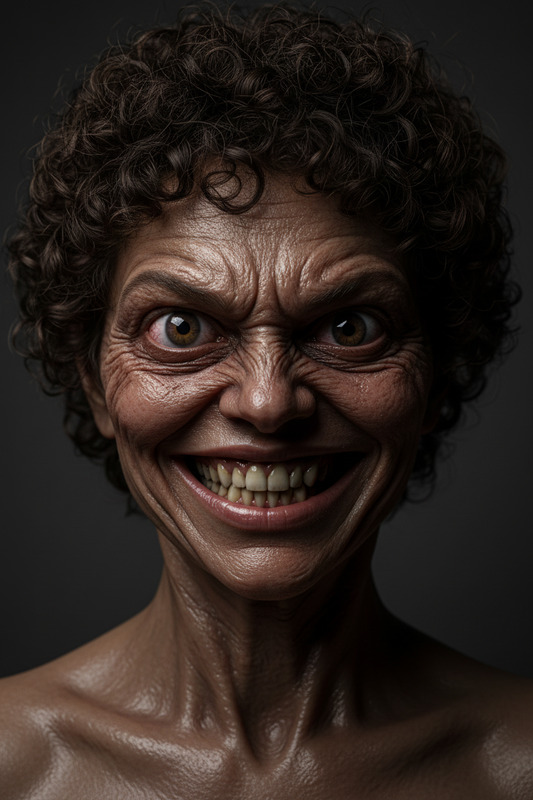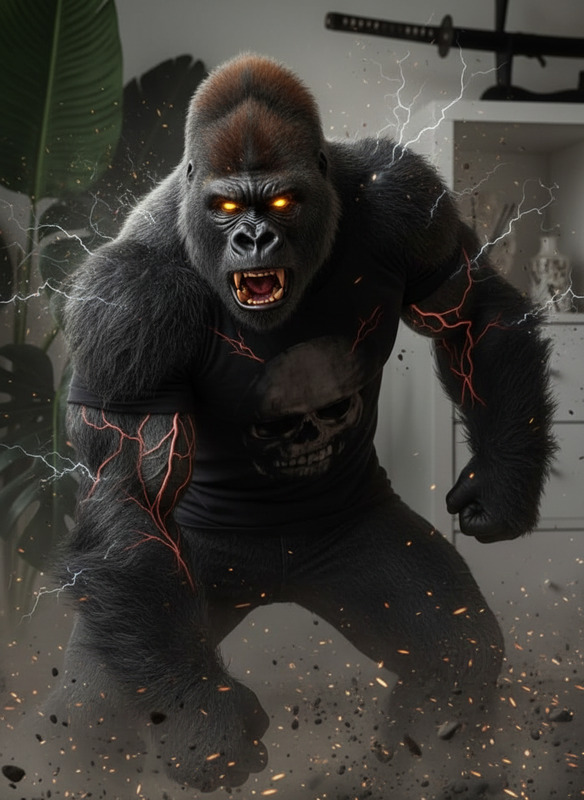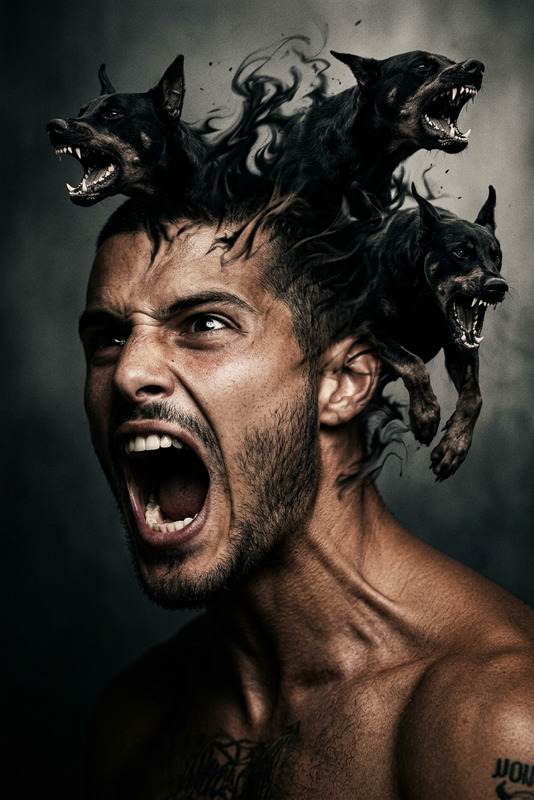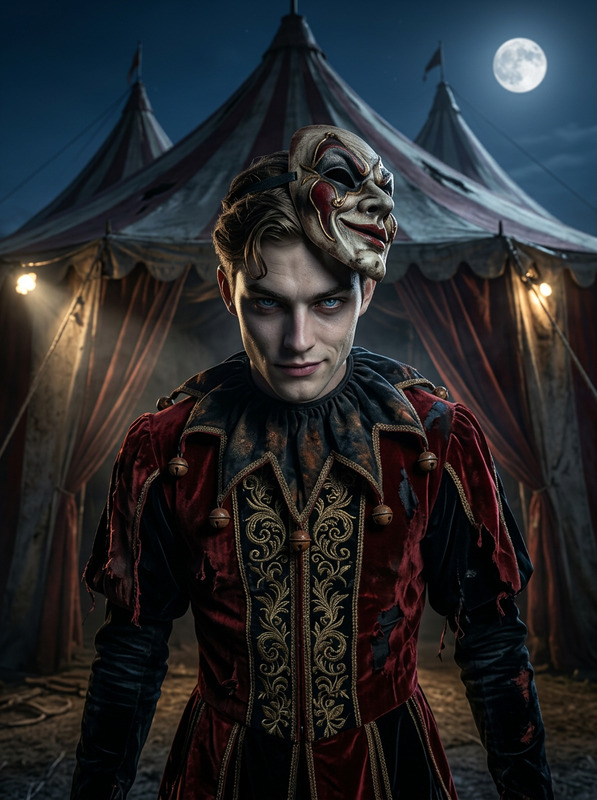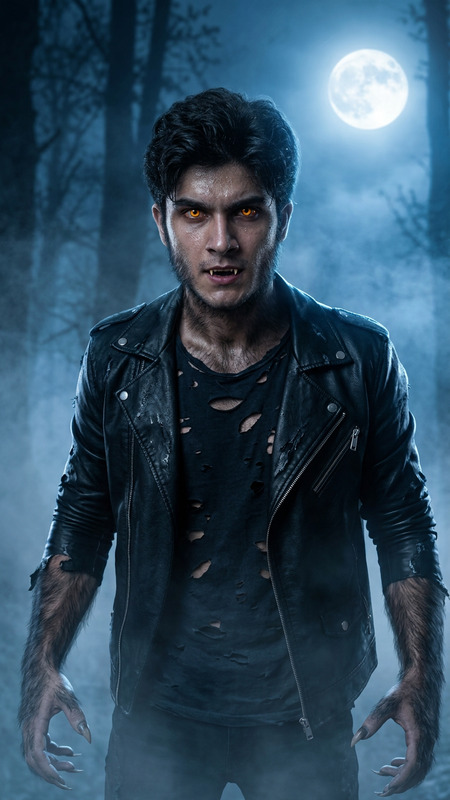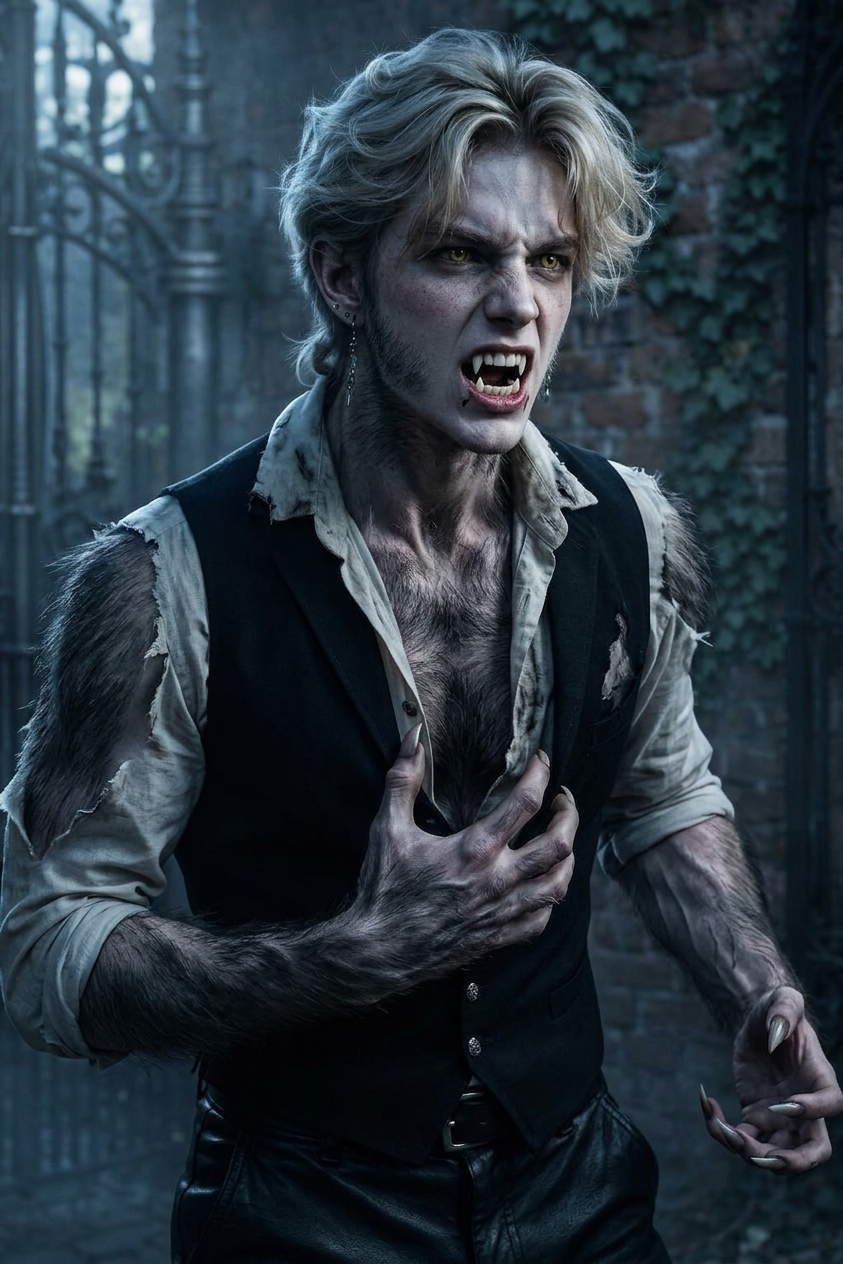
Werewolf
ai-image-editor
Any aspect ratio
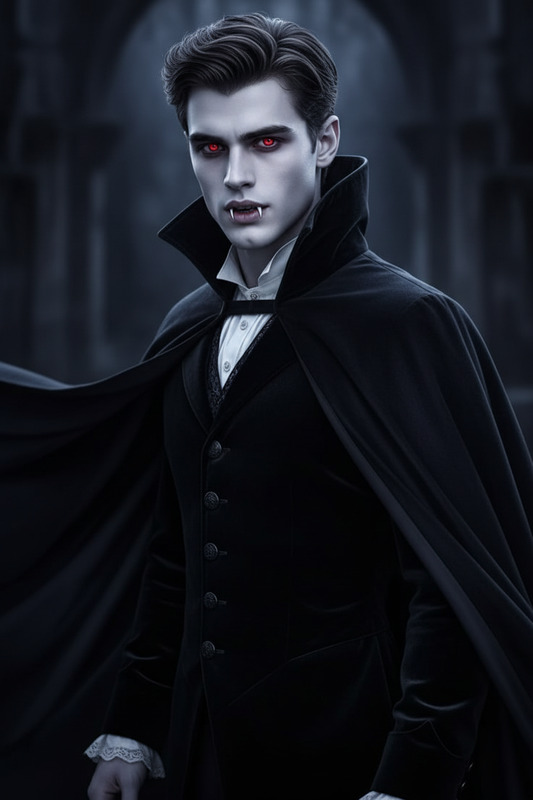
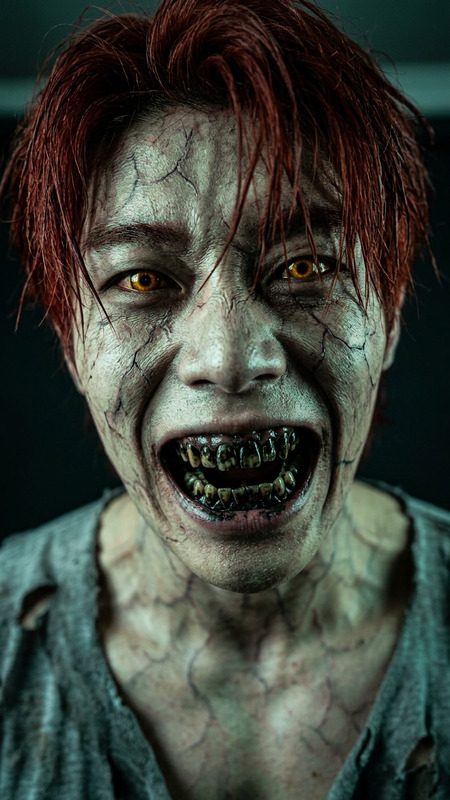
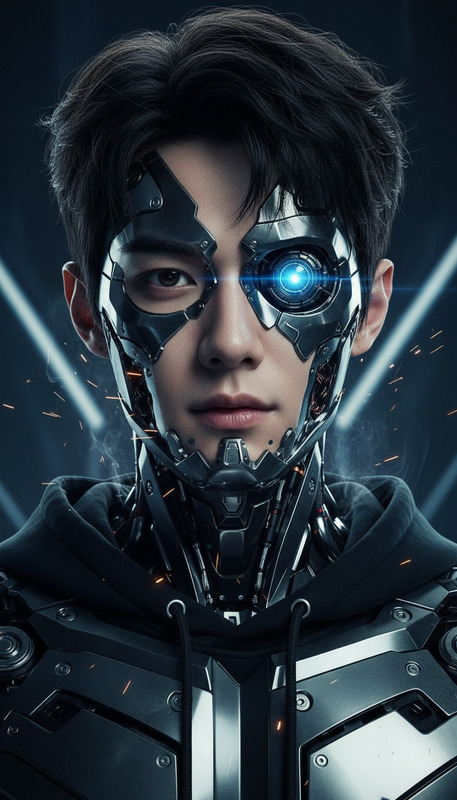
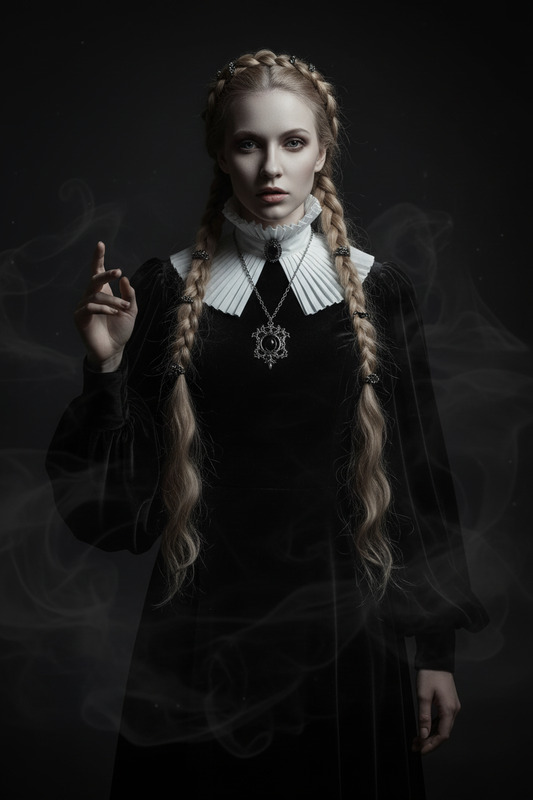
Cinematic night shot of a subject under full moonlight, mid-transformation into a werewolf—fur erupting, fangs emerging, muscles tensing in a primal surge. Cold moonlight highlights the shifting form as shadows deepen the intensity. Wild, savage, powerful, ultra-realistic, HDR, high contrast, shallow depth of field.
Tags
transformationspopularAI Image Editor Template: Clean Product Mockups from Real Photos
Turn quick phone shots into polished, studio-quality product images in minutes with this AI Image Editor template. Ideal for ecommerce founders, marketers, designers, and developers who need fast, repeatable visuals without a full photo shoot or complex Photoshop work.
What this template does
This template transforms a real product photo into a clean, minimal mockup by:
- Removing distracting backgrounds and props
- Cleaning up lighting, reflections, and minor flaws
- Standardizing colors and contrast for a “studio” look
- Reframing your subject for consistent, on-brand composition
Use it for:
- Ecommerce product pages
- App store / SaaS UI mockups
- Marketing landing pages and pitch decks
- A/B testing different backgrounds and aesthetics
- Quick prototypes for client presentations
Under the hood, it uses the AI Image Editor to apply targeted, localized edits while preserving the core structure of your original photo.
How to remix this template in Magic Hour
You can recreate or extend this template directly inside Magic Hour by starting with any image and then iterating:
Open the AI Image Editor
Go to AI Image Editor and upload your base photo (product shot, UI screenshot, mockup, etc.).Isolate the main subject
- Use the object selection / erase tools to remove unwanted elements (props, clutter, logos you don’t have rights to).
- Tools like AI Remover and Remove Object from Photo are especially useful for cleaning up messy backgrounds or extra objects.
Replace or simplify the background
- Create a neutral, brand-aligned background (solid colors, gradients, soft textures) using the editor.
- If you need more stylized or thematic backdrops, generate them with the AI Background Generator or AI Art Generator, then bring them back into the editor.
Standardize color and lighting
- Ensure your product colors are accurate and consistent across a series of mockups.
- Use the editor to gently enhance lighting, contrast, and sharpness so the product stands out while looking realistic.
Create alternate versions for testing
- Duplicate your edited image and try multiple background styles (e.g., white, pastel, dark mode) for landing pages or ads.
- Use versions for A/B tests in your storefront, email campaigns, or social ads.
Export and reuse in other Magic Hour tools
Once you have a clean hero image, you can:- Turn it into a short product clip with Image to Video
- Create animated loops or product GIFs with the AI GIF Generator
- Generate matching social thumbnails with the Thumbnail Maker
This “remixable” flow lets you keep iterating on a visual system: same product, different moods, backgrounds, and channels.
Example workflows for different teams
For ecommerce & DTC brands
- Start with a quick warehouse or home photo of your product.
- Use AI Image Editor to remove the environment and create a clean studio-style background.
- Add variants: lifestyle-inspired scenes via AI Background Generator, then keep your product’s shape and proportions intact.
- Upscale final assets for marketplaces or hero sections with the AI Image Upscaler.
For SaaS & app marketers
- Capture your UI as a screenshot.
- Use the editor to place it into device frames, abstract 3D environments, or minimalist gradients.
- Build a consistent visual suite (hero, feature callouts, app store screenshots) by remixing the same core layout.
For agencies & freelancers
- Quickly “rescue” low-quality client photos with cleaning, background replacement, and upscaling.
- Standardize a messy set of assets into a unified, on-brand visual library.
- Use AI Art Generator or AI Illustration Generator to design complementary visuals that match the edited photos.
Best practices: getting strong, realistic edits
To keep your results usable and on-brand:
Start with the best image you have
Good lighting and a clear subject make edits far more believable. If needed, sharpen with Unblur Image before editing.Keep the subject structure intact
Use the editor to modify the environment, not the core shape of your product. That preserves visual trust for customers comparing photos to reality.Stay consistent across a series
- Use a recurring background style (same color or gradient family) across your product line.
- Apply similar lighting and contrast so the grid of products looks like a single photo shoot.
Use separate layers/steps for experiments
If you’re trying bold backgrounds or stylized looks, duplicate your base image first so you always have a clean fallback.Respect rights and trademarks
When removing or changing logos, text, or branded objects, make sure you have permission or that your use is clearly editorial and compliant with your platform’s policies.
Advanced: combining this template with other Magic Hour tools
For more dynamic and multi-channel campaigns, you can chain this template with other tools:
From clean product photo → animated content
- Start with a polished image from this template.
- Use Image to Video to add subtle motion or camera movement.
- Enhance with Video Upscaler if you need 4K hero clips.
From still product → talking or interactive demo
- If your “product” is a character, face, or spokesperson image, you can later animate it with
- Combine with AI Voice Generator or AI Voice Cloner for sales explainers, onboarding flows, or in-product education.
From brand visuals → content system
- Use this template to define a clean product visual style.
- Extend that style to avatars (Avatar Generator), icons (AI Icon Generator), and social content (AI Meme Generator).
- Generate consistent book covers, album art, or campaign visuals through tools like Book Cover Generator and Album Cover Generator.
How this compares to manual editing
Compared with traditional workflows in Photoshop or similar tools:
- Speed: Most simple product cleanups can be done in a few minutes.
- Consistency: Once you’ve dialed in a style, you can apply it repeatedly, even if your raw photos vary in quality or location.
- Accessibility: Non-designers can produce “agency-level” visuals without advanced training.
- Iterability: You can test multiple creative directions quickly instead of committing to a single retouched version.
This makes the template especially valuable for:
- Fast-growing ecommerce brands needing dozens of SKUs shot and cleaned each month
- Startup teams iterating on landing pages and investor decks weekly
- Solo creators who need to move quickly without hiring a designer for every asset
Building your own version of this template
If you want to customize or extend this workflow for your specific use case:
- Start from your core product photo in AI Image Editor.
- Define a “house style” for backgrounds (color palette, gradient style, lighting mood).
- Save/export a few variants that match your brand system.
- Use those edited images as your own internal template set—drop new products into similar backgrounds, reuse layouts, and keep your design language coherent.
- When you need motion or richer storytelling, extend with tools like Image to Video, Animation, or Video-to-Video.
By starting with this AI Image Editor template and then remixing it inside Magic Hour, you can turn one good product shot into an entire, reusable visual system for your brand.