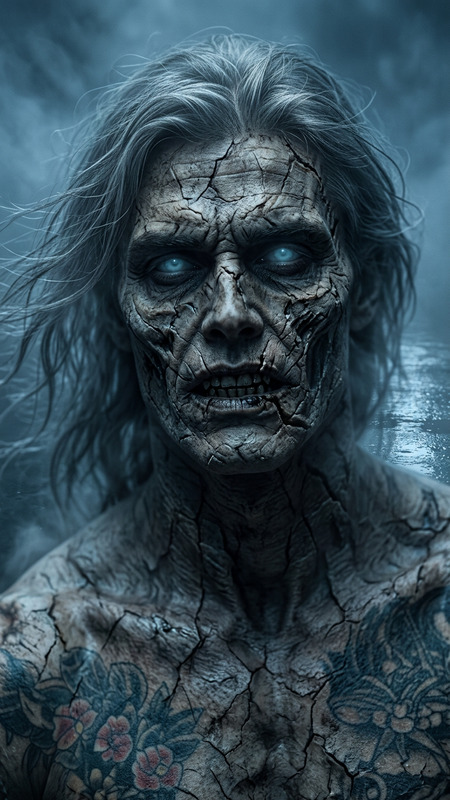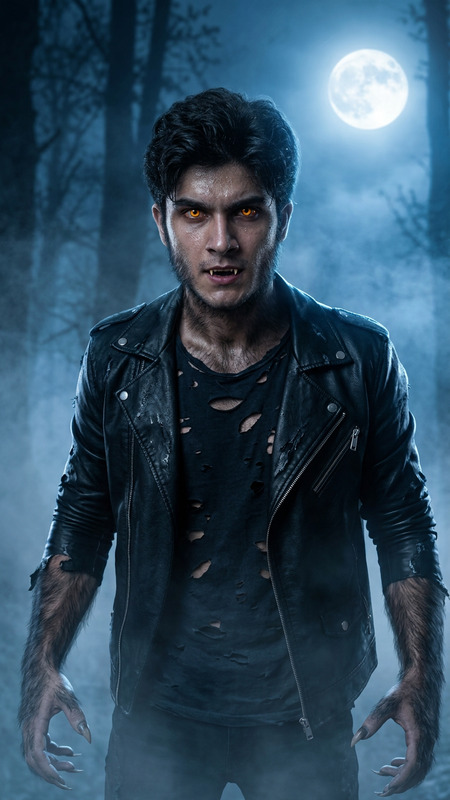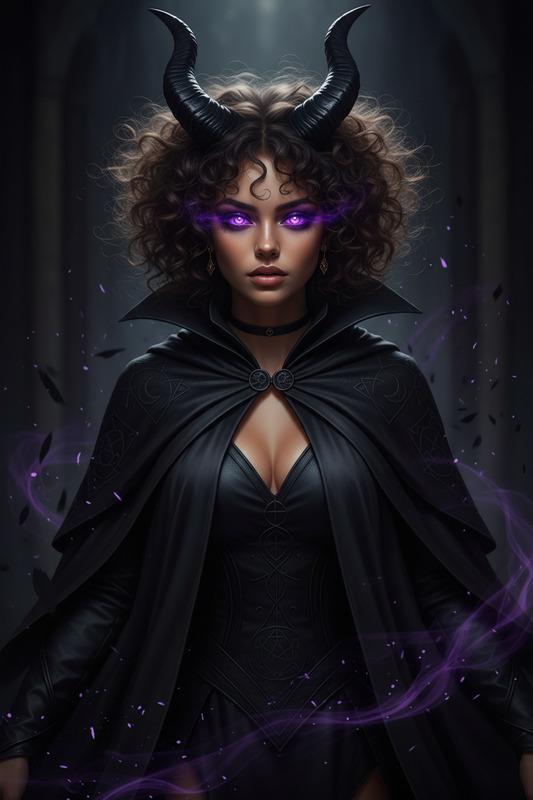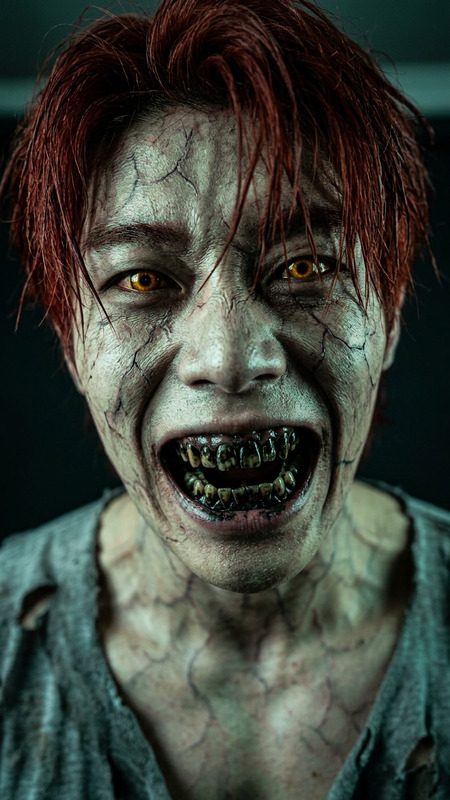
Vampire Transformation

Vampire Transformation

ai-image-editor

1 clip
1 uses

Any aspect ratio

Prompt

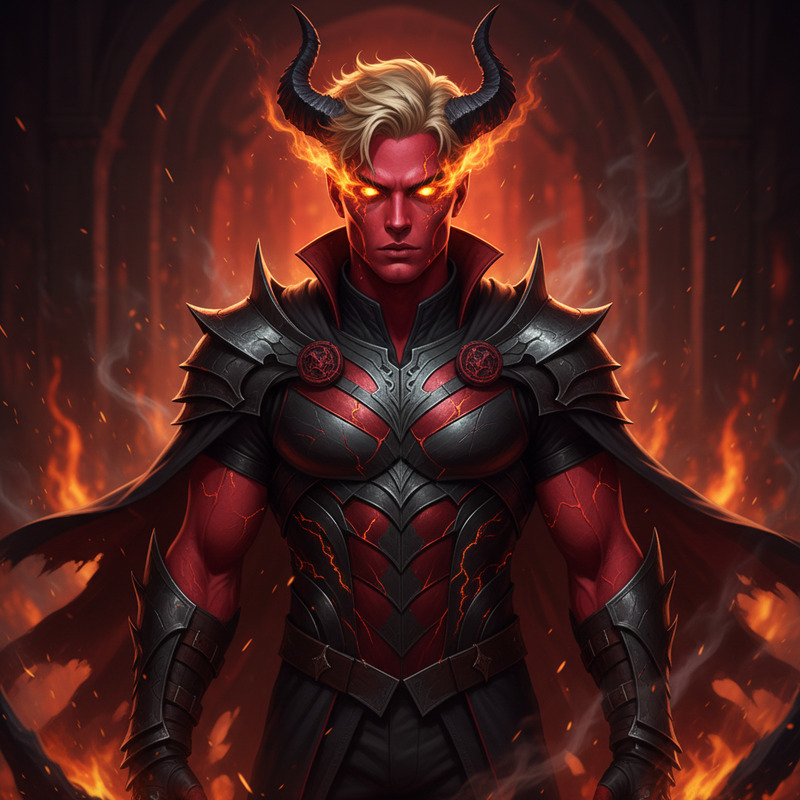
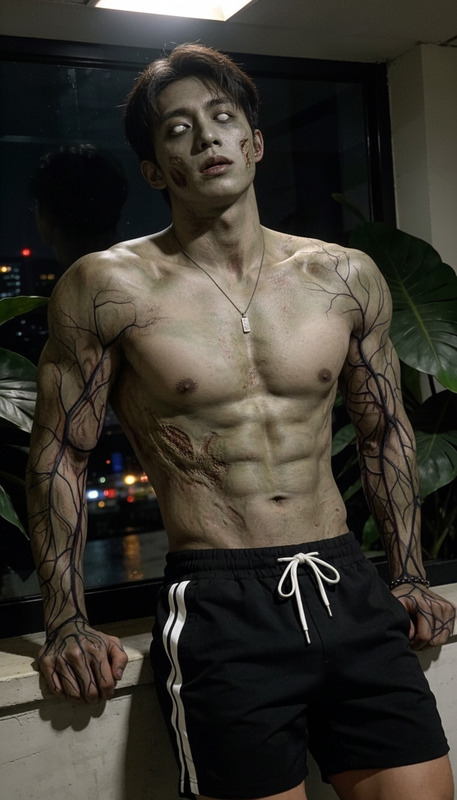
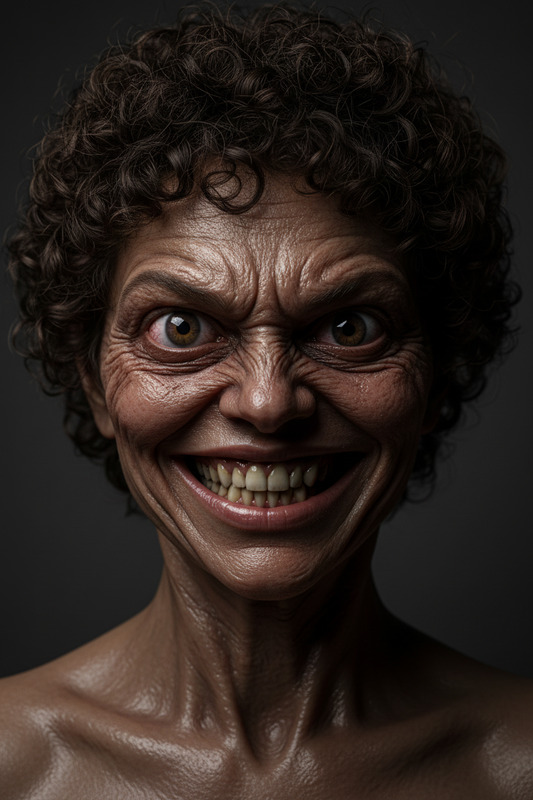
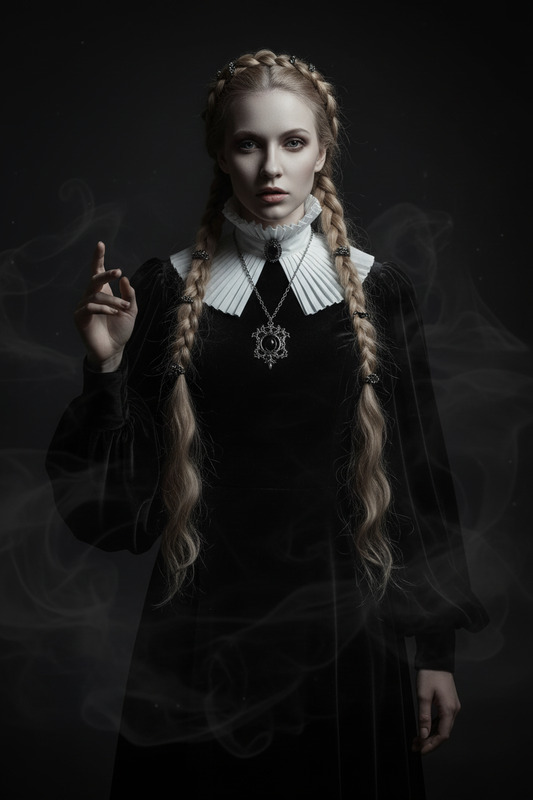
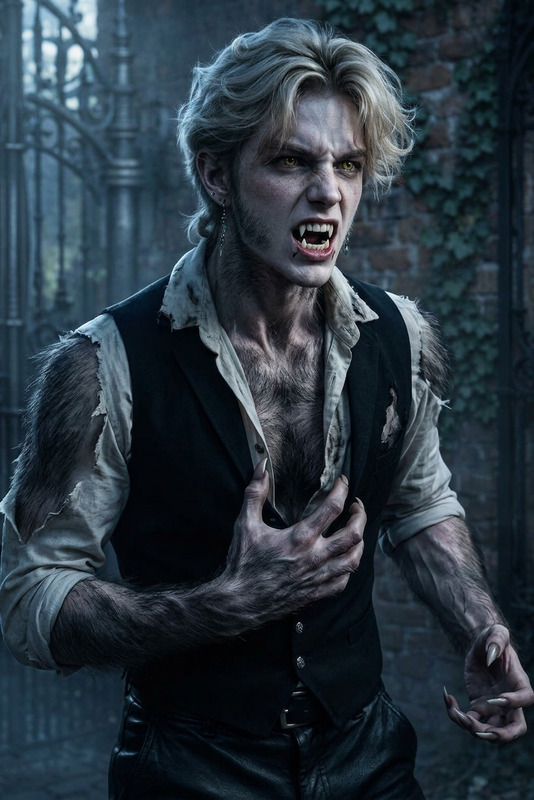
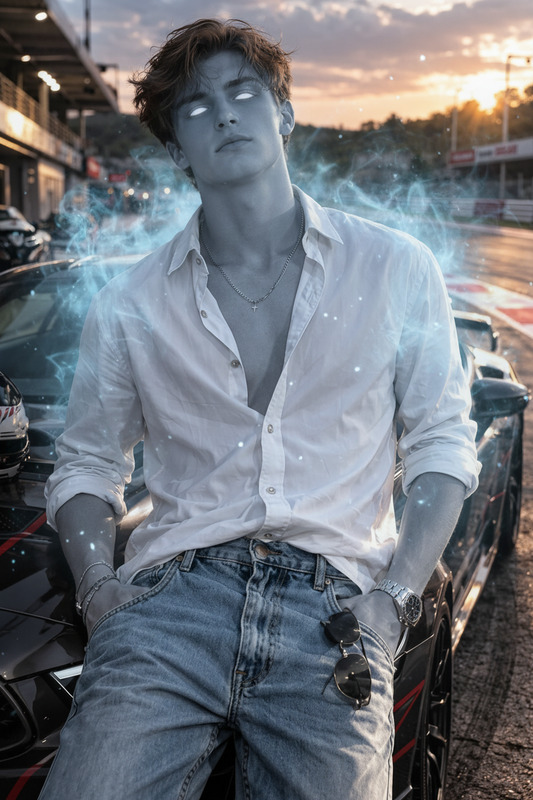
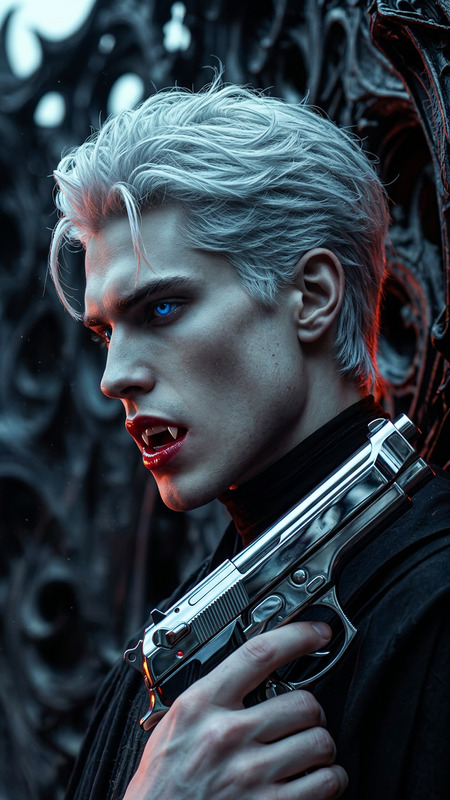
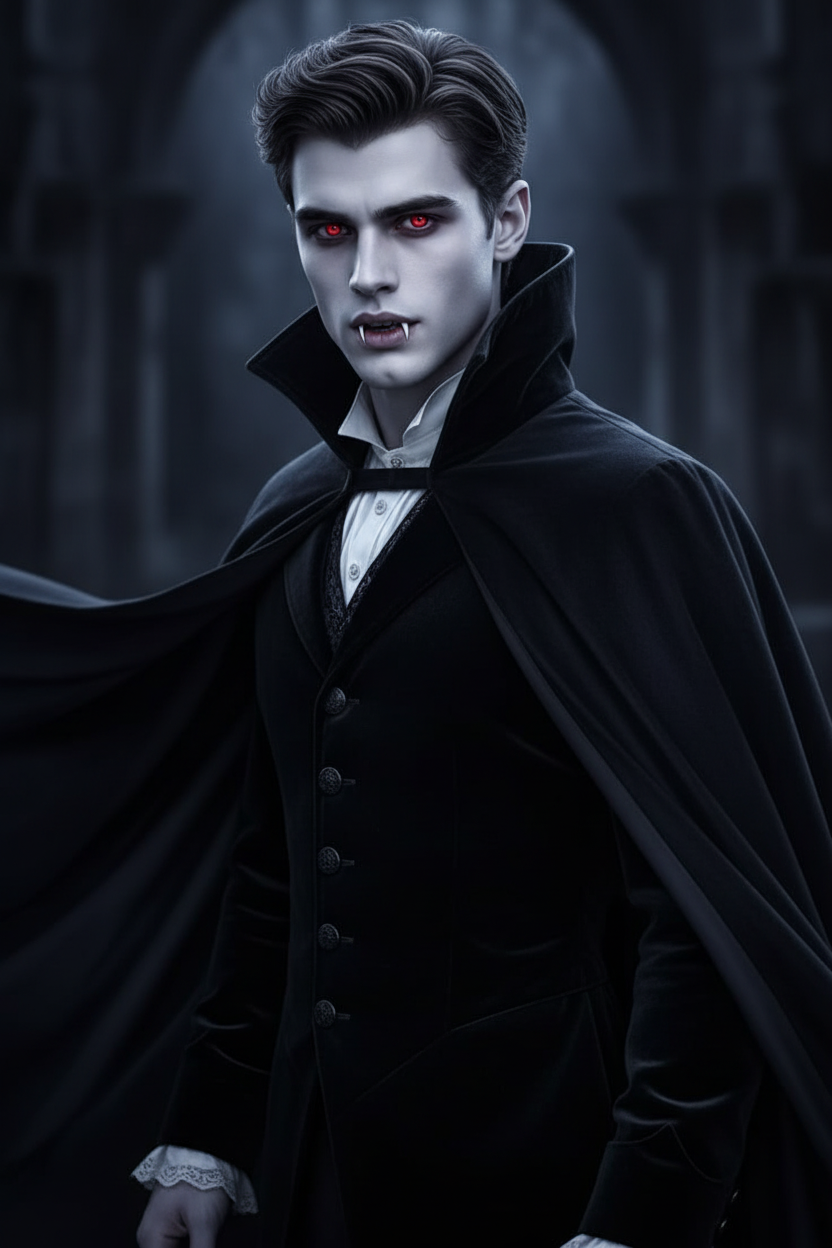
A subject undergoes a vampire transformation—fangs extend, skin turns pale, and eyes glow deep red. The subject wears a dark gothic vampire outfit: a tailored black velvet coat with a high collar, layered over a silk shirt with subtle lace details. A flowing cape moves slightly as the transformation completes. Shadows deepen around the face, enhancing the eerie, immortal presence with a cold, night-bound atmosphere.

Tags

transformations

AI Image Editor Template: Quick, Precise Visual Edits for Modern Teams

Use this template to turn any image into a clean, on‑brand asset in seconds. Whether you’re a marketer cleaning up campaign visuals, a founder iterating on product shots, or a designer prototyping concepts, this AI Image Editor template gives you a fast, repeatable workflow you can remix for your own use cases.


What This Template Is Best For

This AI Image Editor–based template is optimized for:

  • Product photos
    • Remove cluttered backgrounds
    • Add simple studio-style scenes
    • Highlight key features or variants
  • Marketing & growth assets
    • Social posts, ads, thumbnails, hero images
    • Consistent brand framing and aspect ratios
  • Profile & founder images
    • Clean up headshots or portraits
    • Remove distracting elements and refine composition
  • Design & content experiments
    • Try alternate layouts quickly
    • Test multiple versions for landing pages and campaigns

Paired with other Magic Hour tools like the AI Photo Generator and AI Background Generator, you can go from rough concept to polished image in a single workflow.


How to Remix This Template in Magic Hour

You can treat this template as a starting point and adapt it to your own pipeline:

  1. Open the template in Magic Hour

    • Start from this template and import your image (product shot, portrait, banner, etc.).
    • The AI Image Editor will let you target specific areas to edit, replace, or remove.
  2. Define your editing goal clearly
    Common high‑leverage edits include:

    • Remove unwanted objects or people (great for repurposing UGC or event photos).
    • Swap or simplify backgrounds (e.g., create a clean studio look).
    • Adjust composition (more whitespace for copy, tighter crop on subject).
    • Refine small details for clarity (logos, screens, labels, UI shots).
  3. Use text instructions to drive the edit

    • Describe what you want in plain language:
      • “Remove the background and replace with a light gradient.”
      • “Remove the person in the back and extend the wall.”
      • “Clean up the desk, remove cables, keep the laptop and mug.”
    • The AI Image Editor interprets your text prompt and applies edits directly to the image.
  4. Iterate quickly and branch versions

    • Generate multiple versions with slightly different prompts.
    • Save variants for A/B testing in ads, landing pages, and thumbnails.
    • Keep the best-performing versions as your new internal “template” to reuse.
  5. Combine this with other Magic Hour products
    Once you have a clean, edited image, you can:

Remixing is as simple as:
Duplicate → Swap input image → Update text instructions → Generate new variations.


Example Workflows for Creators and Teams

1. Product launch visuals for startups

  • Use the AI Image Editor to:
    • Remove messy backgrounds from founder or product photos.
    • Add clean, brand‑aligned backdrops (solid colors, gradients, abstract shapes).
  • Extend your visuals into motion by:

2. High‑conversion ad and social creatives

  • Start with UGC, screenshots, or rough product photos.
  • Use the AI Image Editor to:
    • Remove distracting elements and reframe the subject.
    • Create multiple backgrounds or compositions for testing across channels.
  • Turn top‑performing visuals into:

3. Branded content and thumbnails for content creators

4. Professional headshots and team photos


Related Magic Hour Tools to Extend This Template

If you need to go beyond basic image editing, this template combines well with:


Why Use the AI Image Editor Template Instead of Manual Editing?

Compared to traditional tools:

  • Speed: Complex edits (object removal, background changes, layout tweaks) that might take 15–30 minutes in manual software often complete in seconds.
  • Scalability: You can run the same editing logic across many images by simply swapping inputs and lightly adjusting prompts.
  • Accessibility: Non‑designers—founders, marketers, growth teams—can execute production‑ready edits without deep design skills.
  • Consistency: Once you settle on a look and process, you can duplicate and remix this template to maintain a stable visual language across channels.

This makes the AI Image Editor template particularly valuable for:

  • Startup teams iterating quickly on landing pages and paid campaigns.
  • Agencies standardizing visual workflows across multiple clients.
  • Content creators producing frequent, high‑quality visuals on tight schedules.

How to Turn This Template Into Your Own System

To make this template part of your ongoing workflow:

  1. Decide on your “canonical” look

    • Background style (solid color, soft gradient, minimal texture).
    • Typical framing (close‑up, mid shot, extra whitespace for copy).
    • Preferred color palette and mood.
  2. Document a core prompt pattern

    • Save a short, reusable description of how you want the AI Image Editor to treat images (e.g., remove background, center subject, maintain natural lighting).
    • Reuse and tweak this pattern for each new asset type (product shots, headshots, thumbnails).
  3. Create internal variations of the template

    • One remix for product photography
    • One remix for people/headshots
    • One remix for thumbnails and social banners
  4. Integrate with downstream tools

By treating this AI Image Editor template as a reusable pattern—rather than a one‑off—you create a consistent, scalable system for visual production across your brand.


Use this template as your baseline, then remix it to match your brand, your product, and your channel mix. The more you refine your prompts and workflows around this AI Image Editor setup, the more leverage you’ll get from all the other Magic Hour tools that plug into it.

More Like This