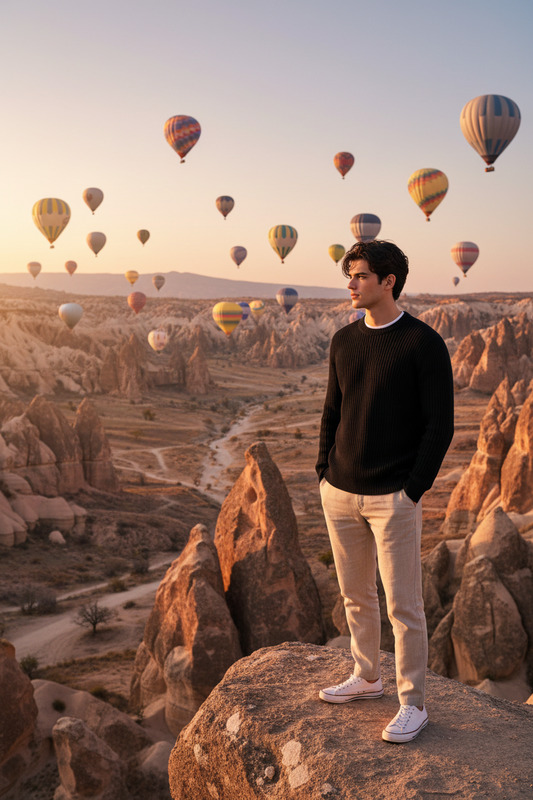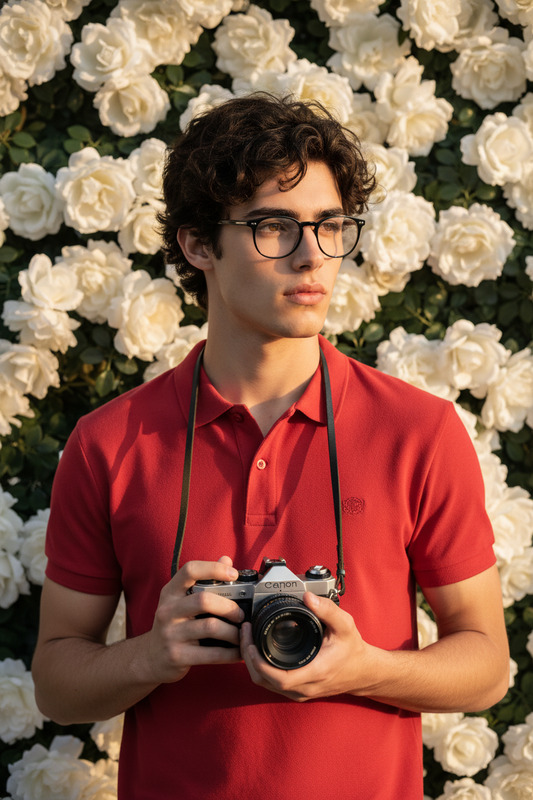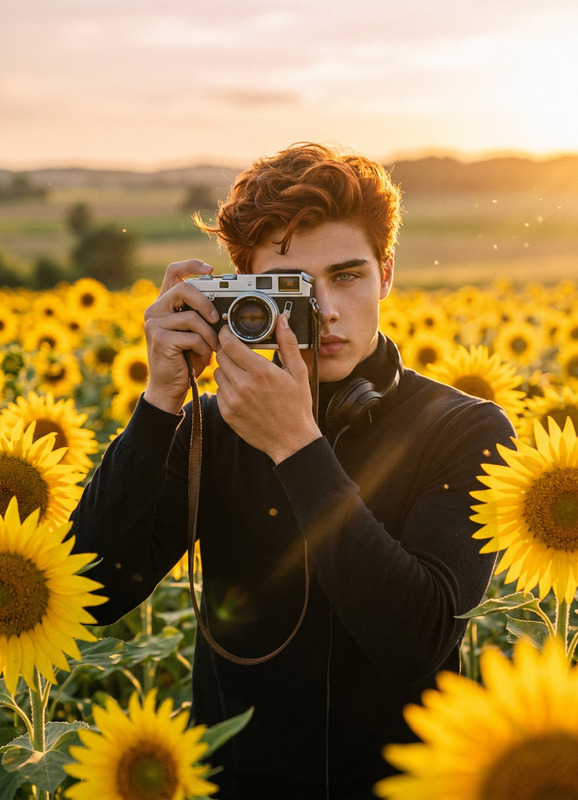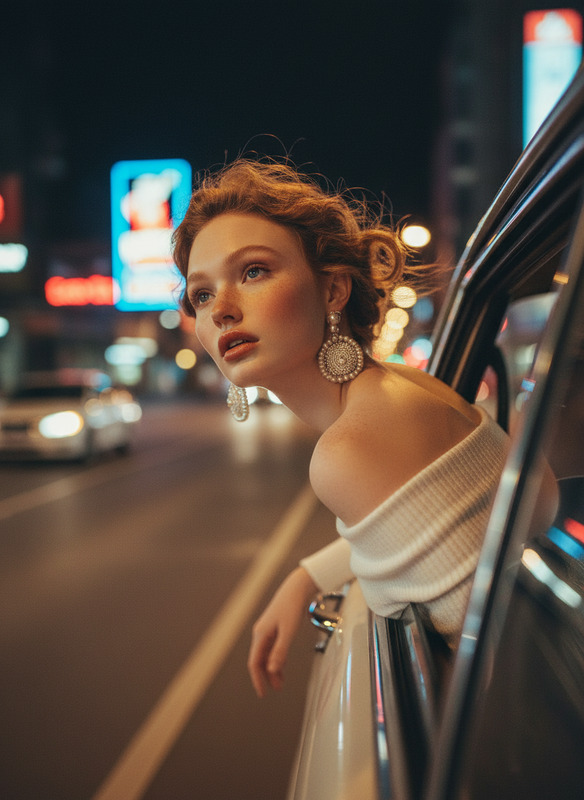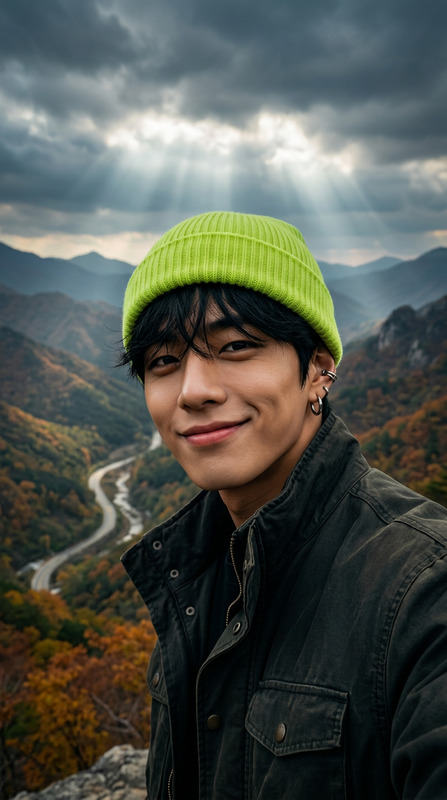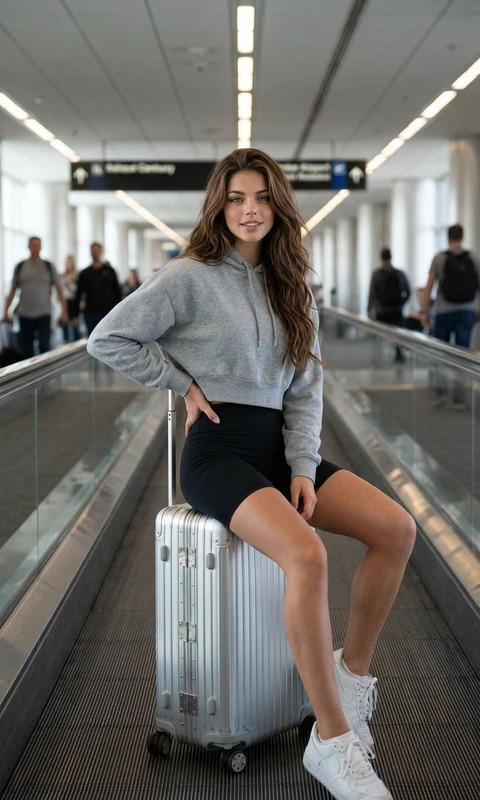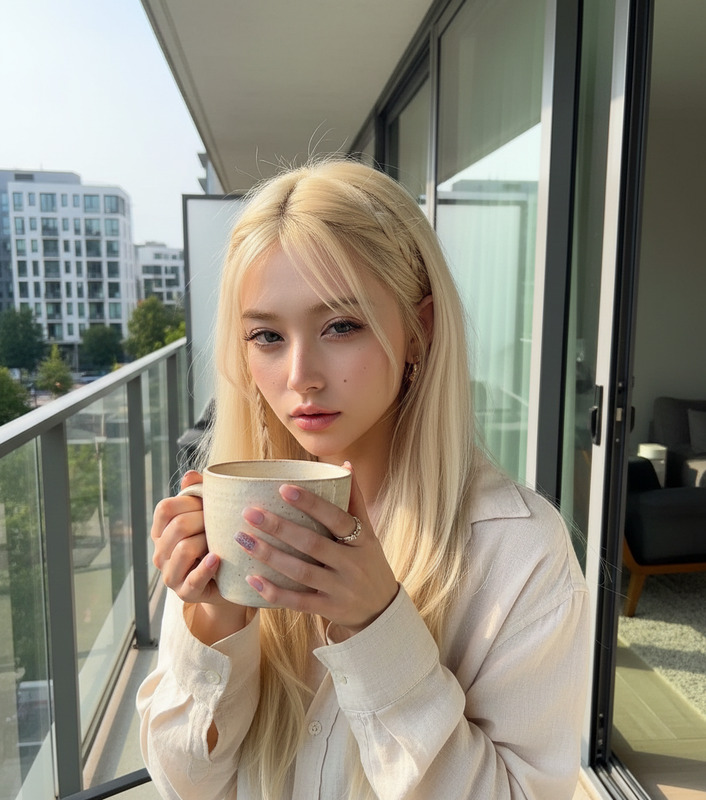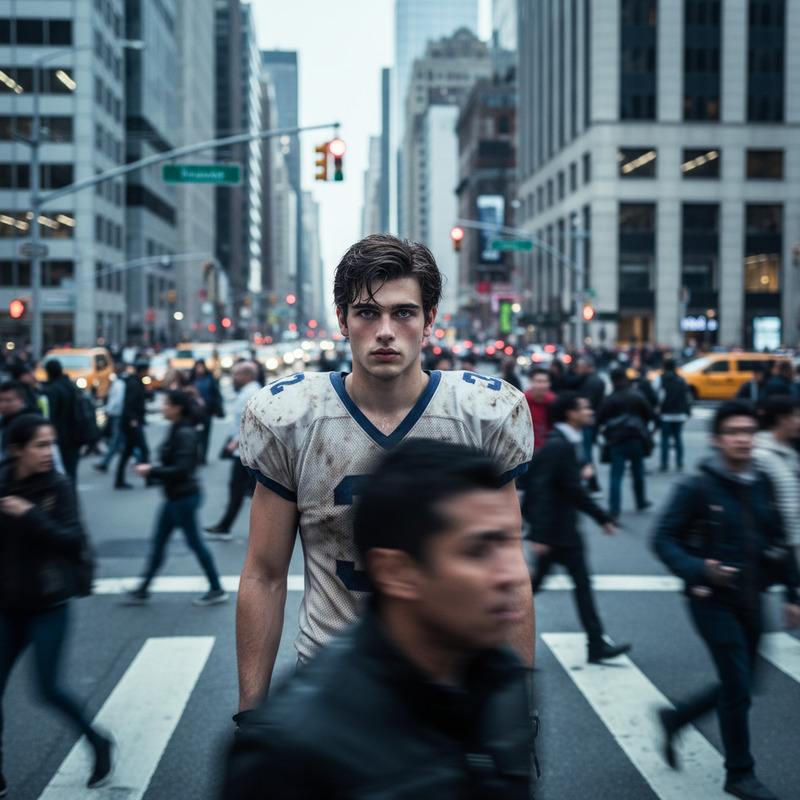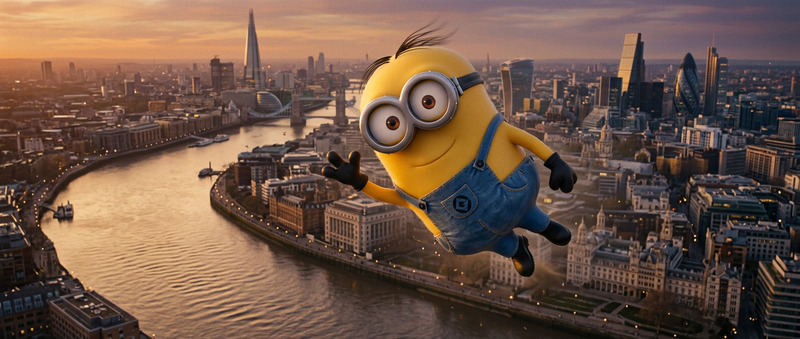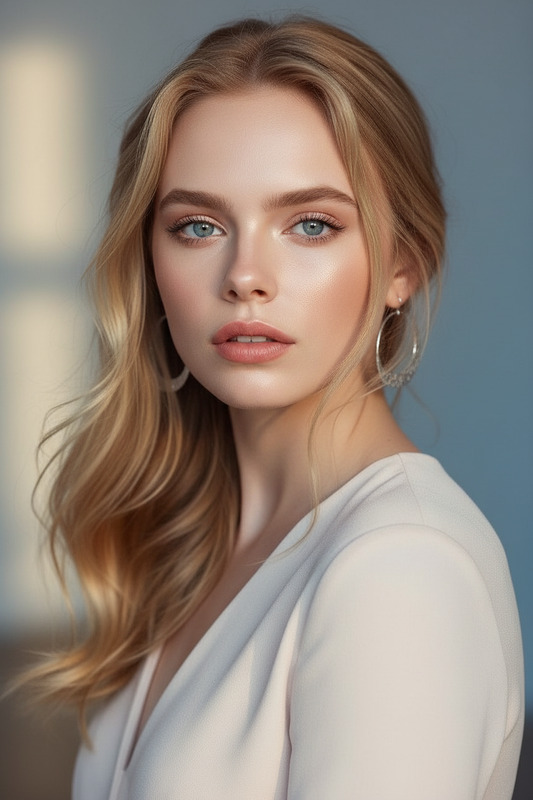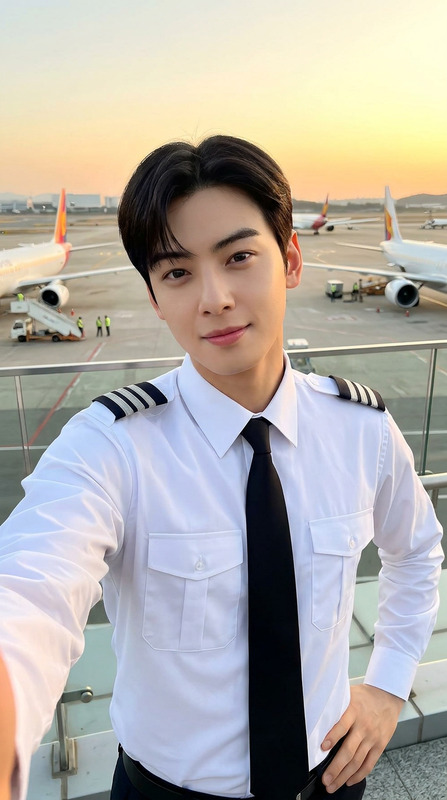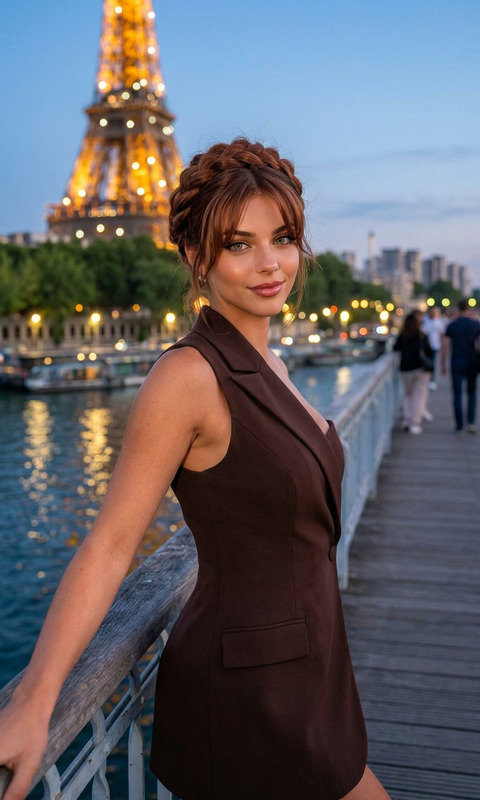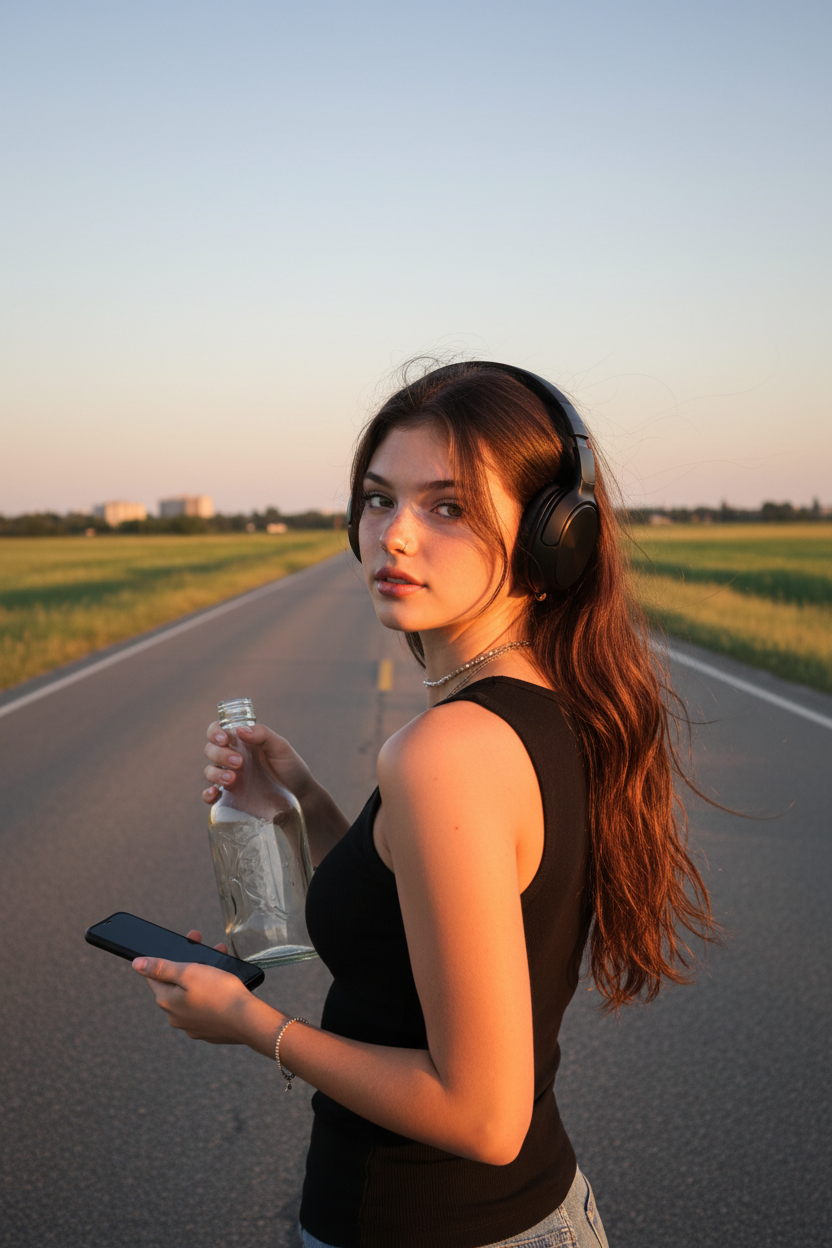
Take photo in airport road
- Model
- Nano Banana
- Image
- 832 × 1248 px
Prompt
The subject standing on an open road at sunset, wearing large over-ear headphones and a sleeveless black shirt, holding a glass bottle and a smartphone in hand, looking back at the camera with a calm, confident expression, warm golden hour lighting casting long soft shadows, open landscape with grassy fields and distant buildings in the background, cinematic composition, natural wind slightly moving the subject’s hair, candid lifestyle moment, high detail textures (skin, hair, fabric, glass), soft pastel sky gradient, ultra realistic, 4K, film-style color grading
Any aspect ratio
Overview
Capture stunning lifestyle moments on the road with pinpoint precision using our AI Image Editor template. Designed with the nano-banana model, this template ensures every detail is accounted for, from the intricate textures of a glass bottle to the natural grace of windswept hair. Perfect for achieving that golden hour look with cinematic flair.
What It Does
This template utilizes advanced AI to transform your photos into ultra-realistic images with high detailing. Whether it's enhancing skin, fabric, or environmental details, the AI Image Editor brings depth and clarity. It integrates well with AI Image Editor tools, ensuring your photos stand out with film-style color grading.
Who It's For
Perfect for photographers, travel bloggers, and digital content creators seeking to produce high-quality road imagery. This template is ideal for those interested in blending personal style with cinematic elements, making it a great match for users of the AI Image Generator and those creating travel-centric content.
Summary
By providing a comprehensive toolset for image enhancement, this template offers the capability to craft visually stunning, emotion-evoking photos. Use it in conjunction with the Image to Video tool to create dynamic visual narratives that transport viewers directly onto the road at sunset.
How-To
Choose Your Template

Customize Your Inputs

Generate Your Image

Use Cases
Travel Blog Enhancements
- Eye-catching header photos
- Rich storytelling through visuals
- Consistent branding imagery
Social Media Aesthetics
- Increased follower engagement
- Share-worthy lifestyle shots
- Cinematic aesthetic consistency
Promotional Materials
- Professional-grade images for ads
- Inspirational backdrops for campaigns
- Enhanced brand imagery
Best Practices
Optimal Image Resolution
Ensure your photograph is of high resolution to maintain image clarity when using the AI Image Editor, enhancing textures and details effectively.Experiment with Lighting
Utilize the warm golden hour lighting in the template to add depth and warmth. Adjust lighting settings as needed for dramatic effects.Focus on Natural Elements
Highlight natural movements such as flowing hair or shifting shadows to create dynamic and engaging imagery.