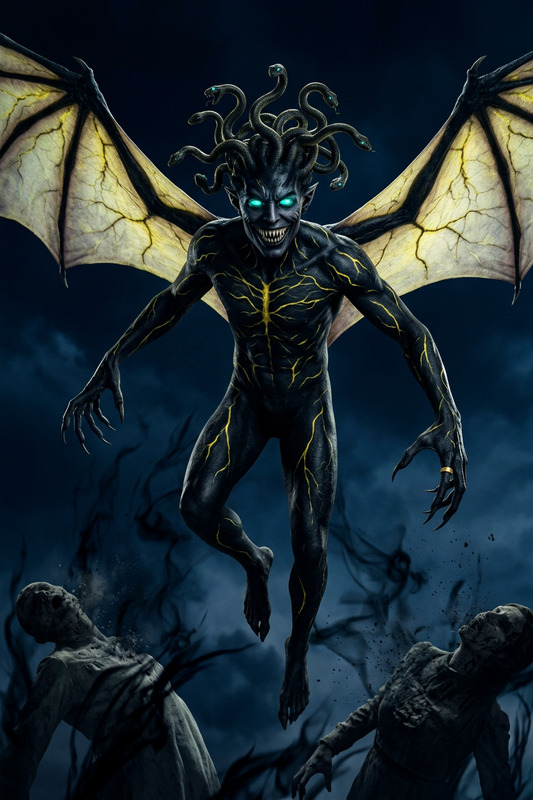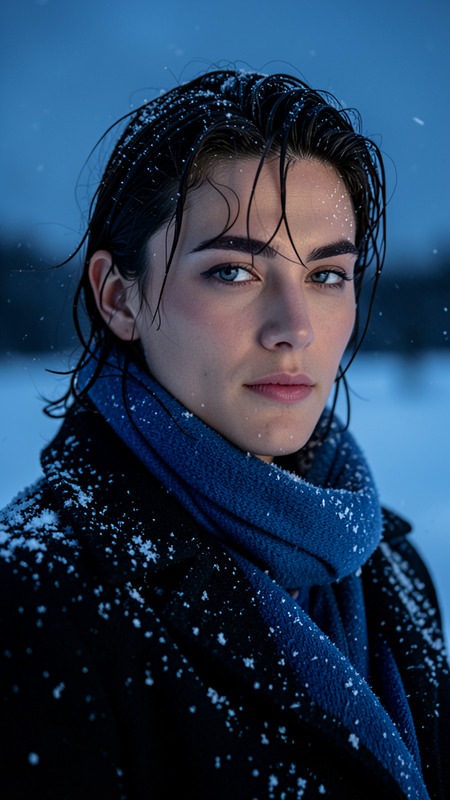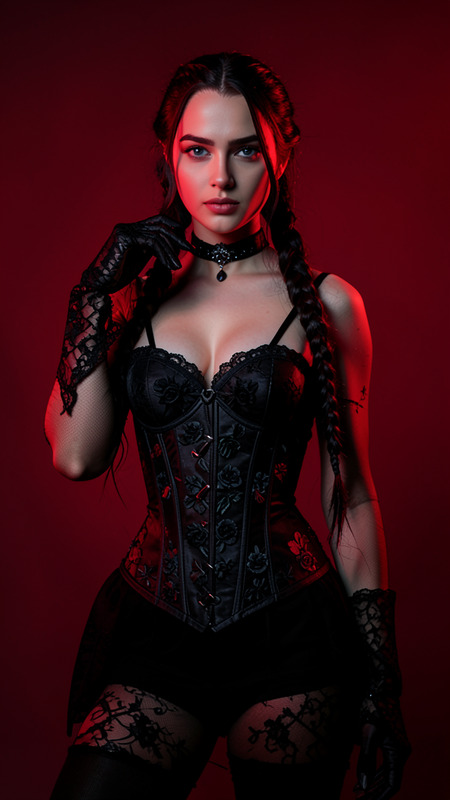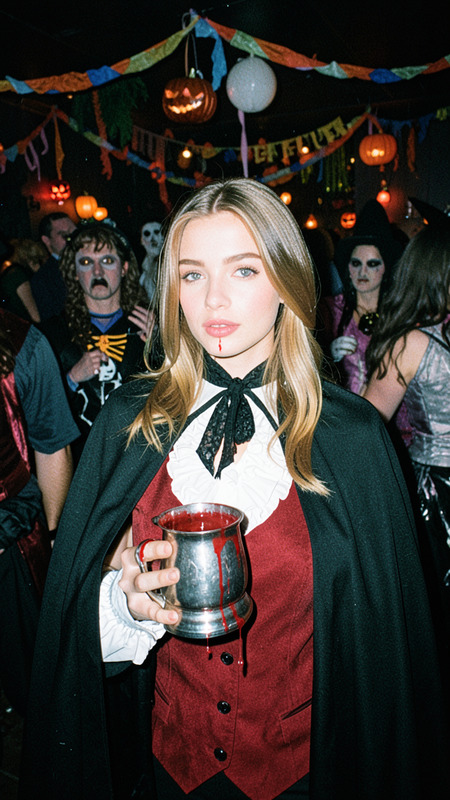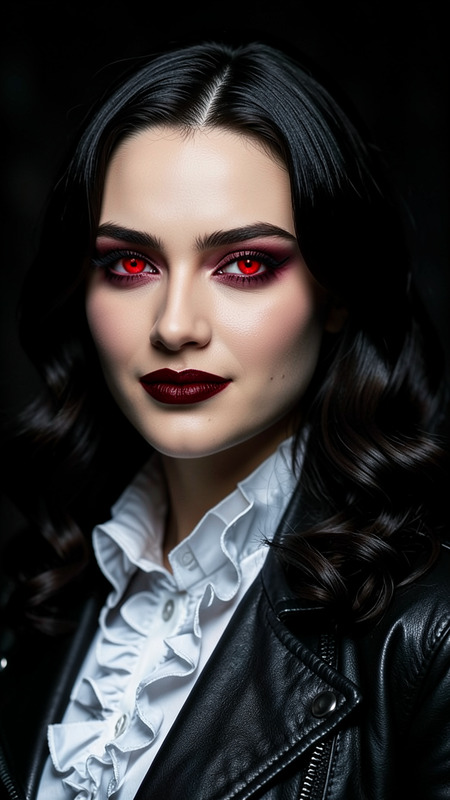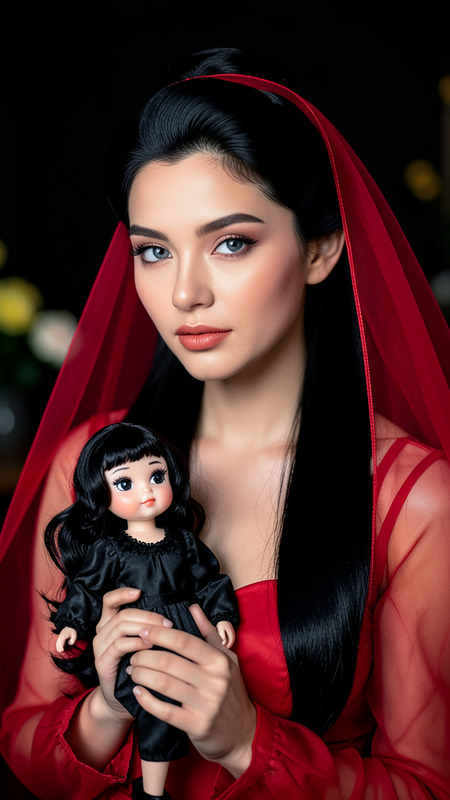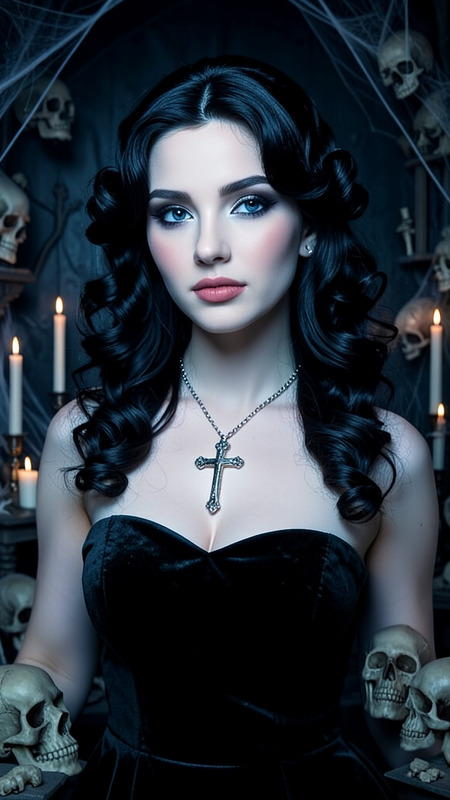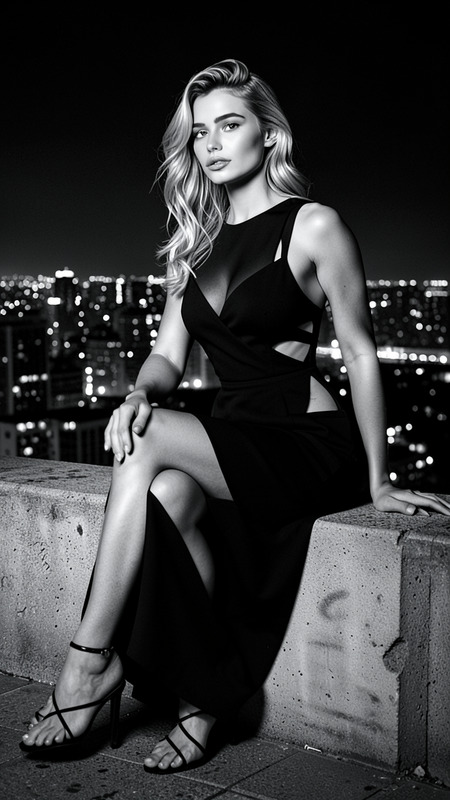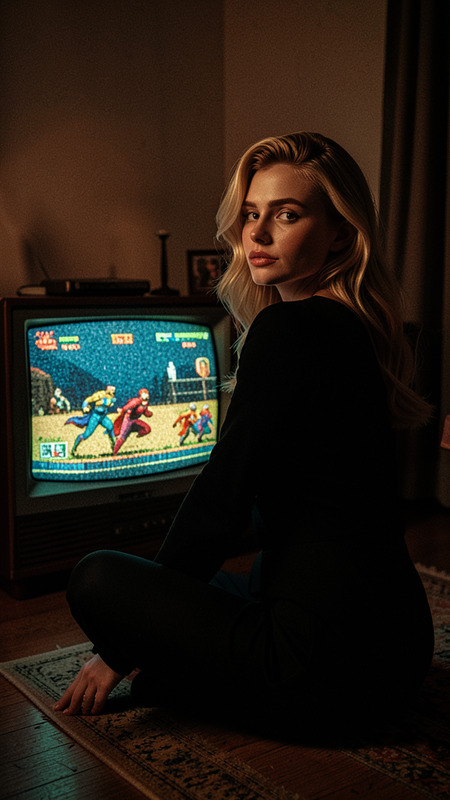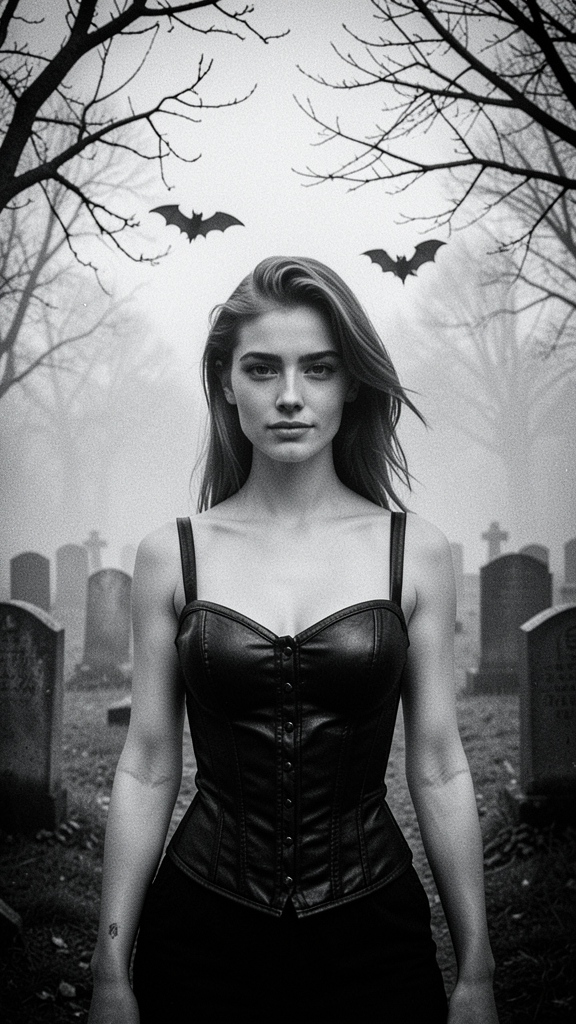
Vampire
- Model
- Flux 2 Klein
- Image
- 576 × 1024 px
Prompt
A black-and-white portrait of the subject standing in a foggy graveyard filled with tombstones. Preserve exact facial features and identity from the reference image. The subject wears a black leather corset-style outfit while bats fly overhead and leafless branches frame the scene. Vintage grain, soft fog, and gothic horror aesthetics create a haunting atmosphere.
Any aspect ratio
Overview
The Vampire template is a feature of the AI Image Editor, utilizing the flux-2-klein model. It's designed to transform images into haunting gothic scenes, perfect for creating atmospheric portraits. Ideal for projects involving character design, storytelling, or themed social media posts with a vintage horror vibe.
What It Does
This template takes your subject and places them into a meticulously crafted gothic landscape, maintaining their facial identity. With elements like foggy graveyards, bats, and vintage grainy effects, it captures the essence of gothic horror in a black-and-white format. The AI Image Generator ensures the scene is free from any edits that obscure the subject's identity.
Who It's For
Artists, photographers, and content creators will find the Vampire template useful for creating captivating visuals that align with themes of mystery and horror. It's particularly suited for those in the entertainment industry, social media influencers aiming to engage their audience with striking imagery, and anyone involved in creative storytelling or fantasy literature.
Summary
The Vampire template provides a unique tool for creating thematic images that uphold the mood of gothic horror while preserving the individuality of the subject. It's a part of the broader capabilities of the AI Image Editor, enabling both creative expression and practical applications in visual narratives.
How To
Choose the Vampire Template

Customize Your Image

Generate Your Gothic Scene

Use Cases
Gothic Portrait Creation
Social Media Content
Storytelling and World-building
Best Practices
Focus on Clear Facial Features
Ensure the uploaded image has clear and distinct facial features to maintain identity preservation.Align Scene Elements
Customize clothing and background details to fit the narrative you want to tell.Leverage Vintage Effects
Use vintage grains and soft fog to heighten the gothic aesthetic, delivering a more dramatic impact.