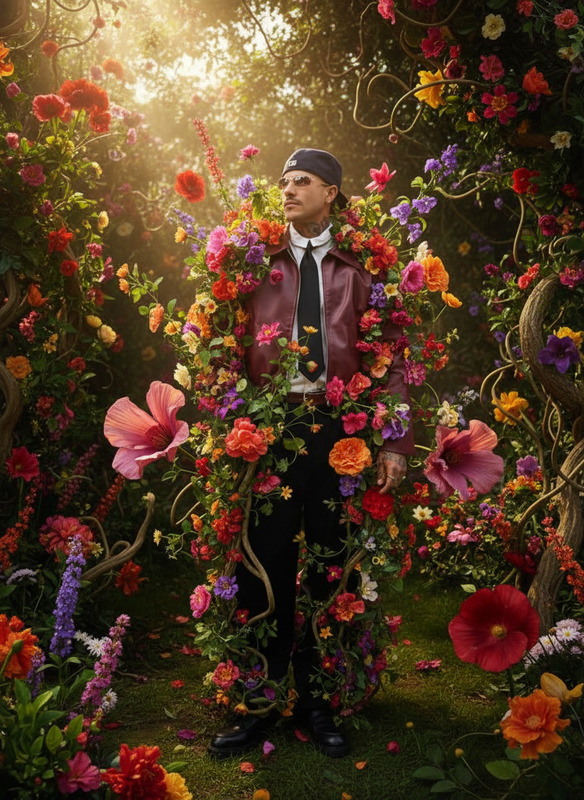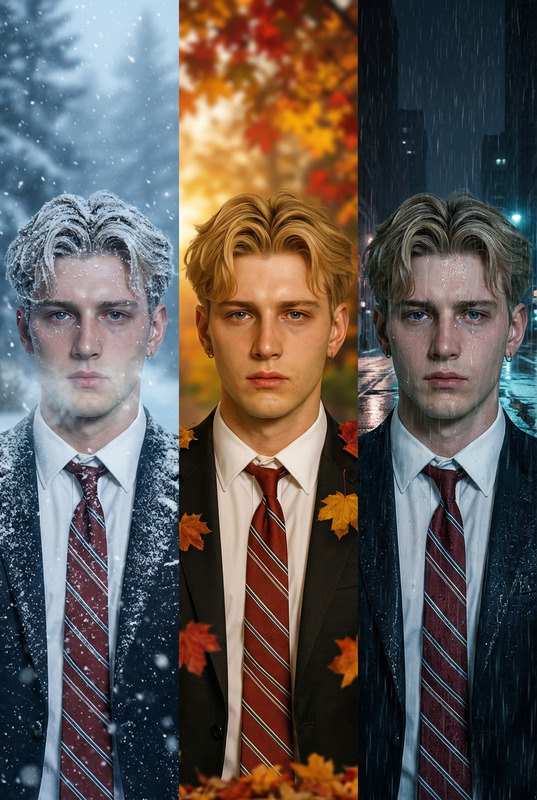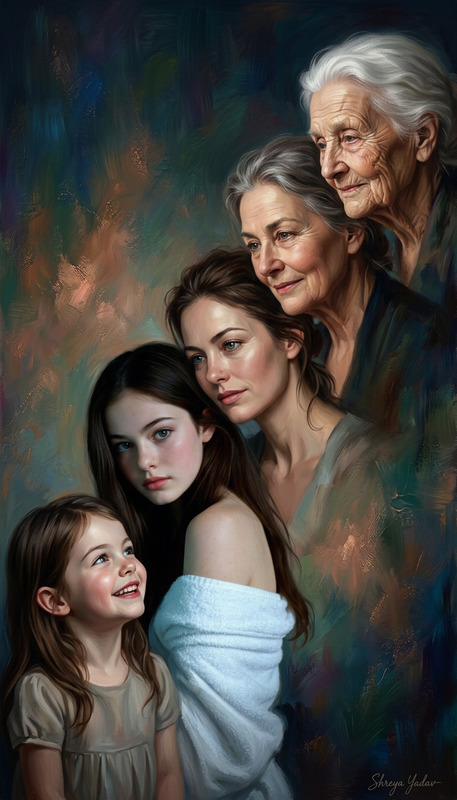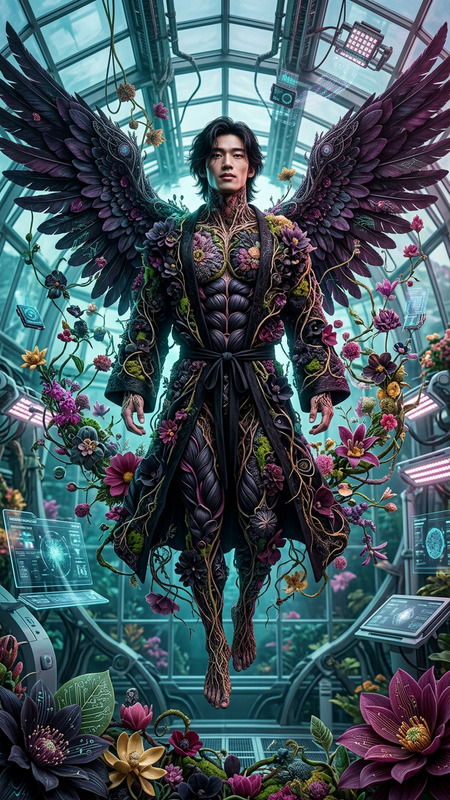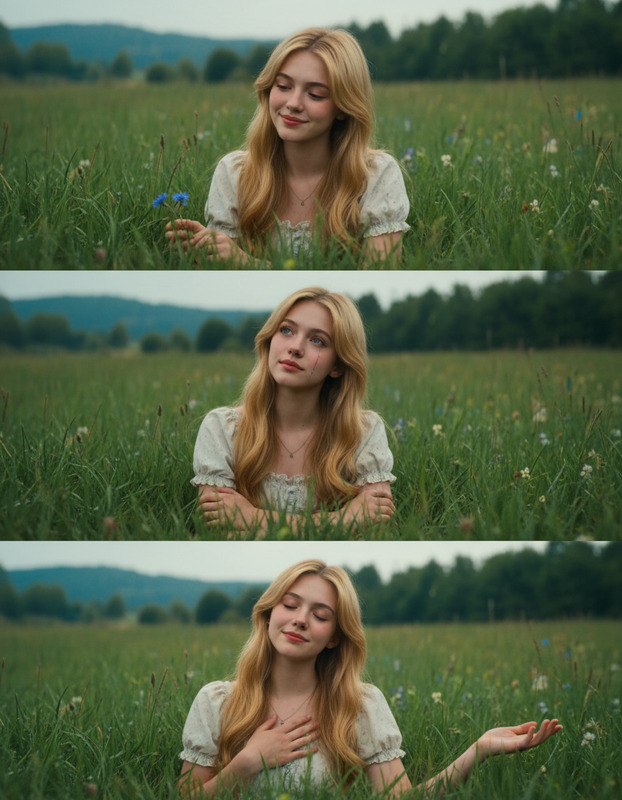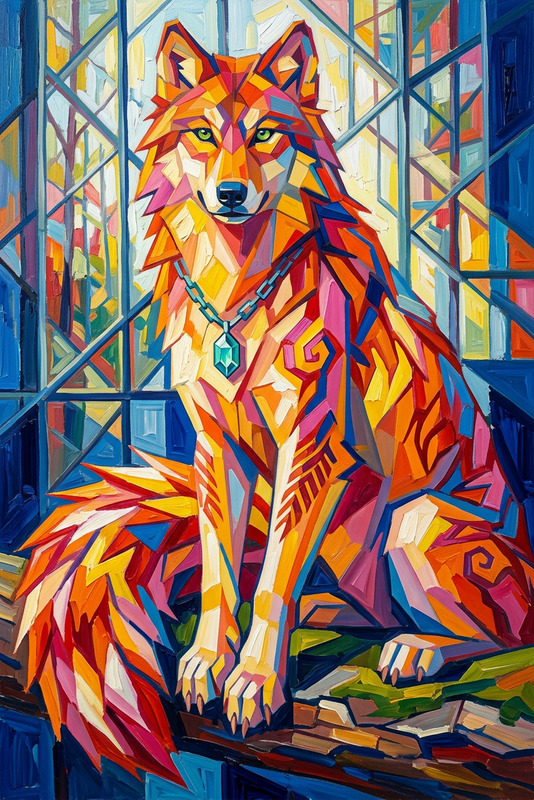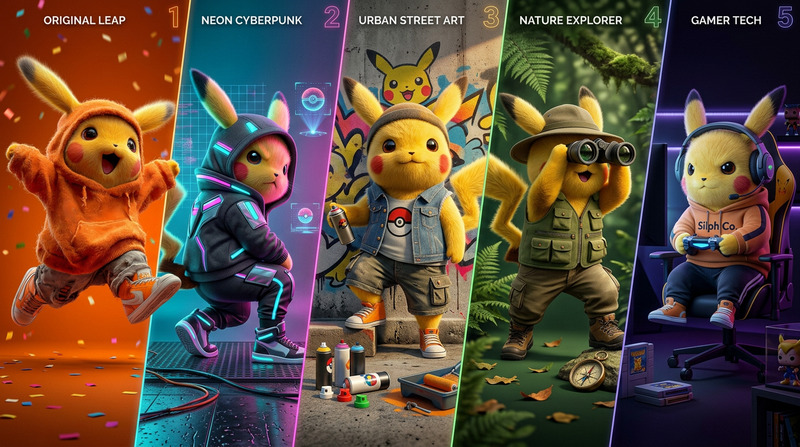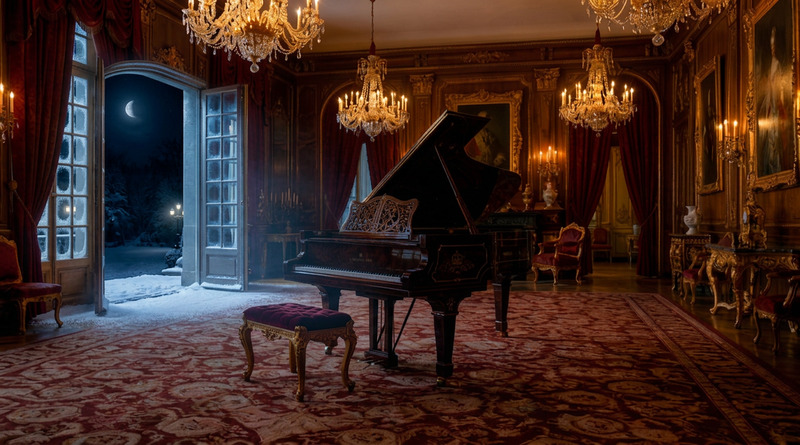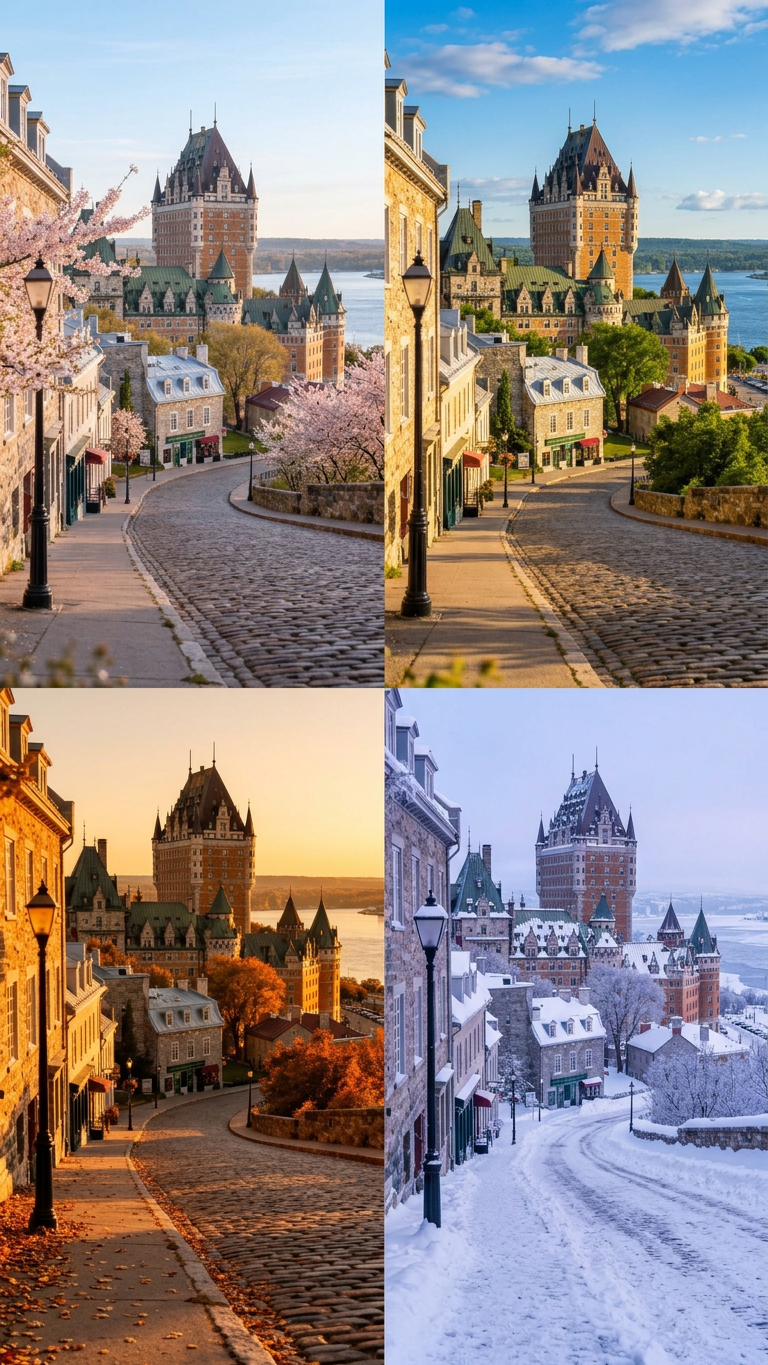
Seasonal Transformation Grid

Seasonal Transformation Grid

ai-image-editor

1 clip
0 uses

Any aspect ratio

Prompt

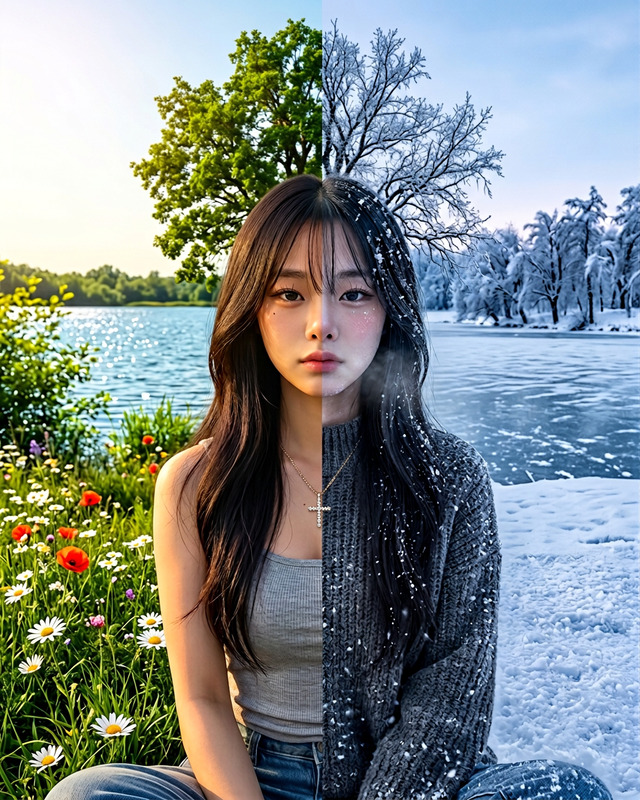
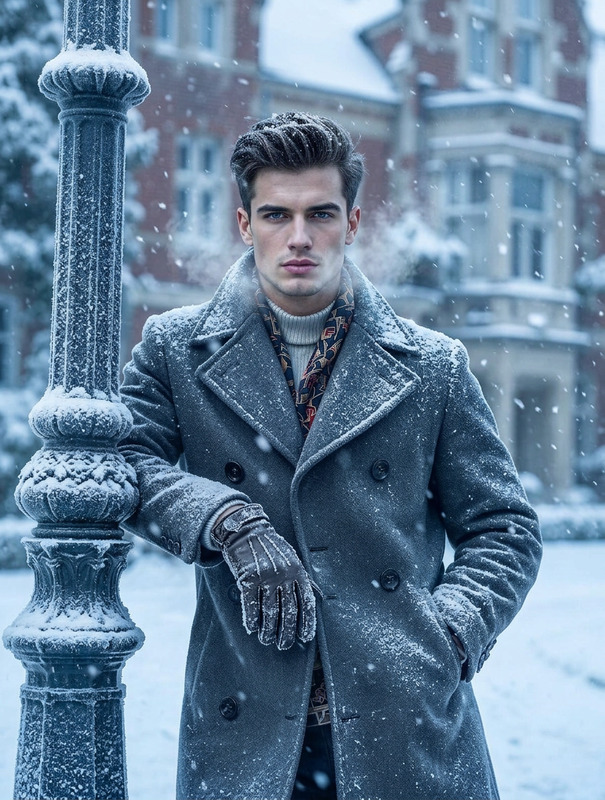
Subject is a 2x2 grid showing the same subject across four seasons; top-left is spring with cherry blossoms and soft pastel colors; top-right is summer with bright golden light and lush green tones; bottom-left is autumn with orange leaves and warm colors; bottom-right is winter with snow and cool blue tones; same camera angle in all panels, balanced composition, cinematic lighting, clean and cohesive style.

Transform Photos with AI Image Editor: Cleanups, Retouching & Smart Edits in Minutes

Use this template to quickly remove distractions, retouch photos, and make precise, on‑brand edits with the Magic Hour AI Image Editor. It’s designed for creators, marketers, and founders who need production‑ready visuals without opening Photoshop.


What This Template Is For

This AI Image Editor–based template is ideal when you need to:

  • Remove unwanted objects, people, or text from photos
  • Clean up product shots (dust, cables, logos, background clutter)
  • Retouch portraits (blemishes, flyaway hair, minor corrections)
  • Fix or replace backgrounds while keeping the subject intact
  • Create multiple on‑brand variations of a single key image for campaigns
  • Prepare social posts, ads, landing pages, pitch decks, and thumbnails fast

Because it’s built on the Magic Hour image stack, you can combine it with other tools like:


How to Use This Template in Magic Hour

You can use this template directly, or remix it to create your own version.

1. Start from the template

  • Open the template in Magic Hour.
  • Upload the image you want to edit (portrait, product shot, scene, etc.).

2. Describe what you want changed
In the text prompt, be explicit about:

  • What to remove: e.g., “Remove the person in the background on the left,” “Erase the power outlet on the wall.”
  • What to fix: e.g., “Smooth out wrinkles on the shirt,” “Remove glare on glasses,” “Clean up dust on the product.”
  • What to add or replace: e.g., “Replace the background with a soft gradient in brand colors,” “Add a subtle studio shadow under the product.”

Examples of prompts that work well:

  • “Remove the trash can on the right and extend the brick wall behind it.”
  • “Clean up blemishes and flyaway hair while keeping skin texture realistic.”
  • “Remove all text from the poster, keep the design, and leave space for new copy.”
  • “Replace the background with a minimal light‑gray studio backdrop; keep lighting consistent.”

3. Refine and iterate

  • If something looks off, update your prompt (“make the background less saturated,” “keep the original shadows,” “don’t blur the edges of the product”).
  • Generate a few variations and pick the version that best matches your brand or use case.

Remixing: Build Your Own Image Editing Workflow

You can treat this template as a starting point and remix it into custom workflows for different jobs.

A. Product Photo Cleanup Flow

For e‑commerce, ads, and landing pages:

  1. Clean the image with AI Image Editor

    • Remove props, stands, reflections, or stray items.
    • Simplify surfaces and remove visual noise around the product.
  2. Create better backdrops

  3. Finish for production

B. Portrait & Headshot Retouch Flow

For founder headshots, team pages, LinkedIn, press kits:

  1. Start with a photo or generate a base look using the AI Headshot Generator.
  2. Use AI Image Editor to:
    • Remove distractions in the background
    • Tidy hair, clean blemishes, and adjust small details
  3. If needed, refine the face separately via AI Face Editor for subtle, natural‑looking changes.

You can remix this into:

  • “Investor deck headshots”
  • “LinkedIn‑optimized portraits”
  • “Press‑ready founder photos”

C. Social, Meme, and Content Workflows

Combine this template with:

  • AI Meme Generator – create templates, then erase or replace text and elements as formats evolve
  • AI GIF Generator – prepare clean base frames before animating
  • AI Talking Photo – polish the still image before turning it into a talking avatar

For more stylized work (content, campaigns, or community), you can also feed edited images into:


Advanced Use Cases for Builders & Teams

If you’re building products or running campaigns at scale, this template can anchor repeatable workflows:

  • Brand systems: Create reusable prompts for specific brand looks (“light, airy, high‑key studio,” “dark, cinematic tech keynote style”) and apply them to new images.
  • A/B testing: Generate multiple clean variants of the same hero image (different backgrounds, crops, or prop removals) for landing page experiments.
  • Prototype assets: Use AI Photo Generator or AI Image Generator to prototype visuals, then refine them with this editor before testing in your product or marketing.
  • Content pipelines: Pair the template with Auto Subtitle Generator, Text-to-Video, or Image-to-Video to go from cleaned images to video content.

Combining Image Editing with Other Magic Hour Products

This template works especially well in multi‑step creative flows:


When to Use AI Image Editor vs. Other Tools

Use this AI Image Editor–based template when you need surgical, photo‑realistic changes to an existing image: remove, clean up, or lightly modify.

Use other Magic Hour tools when you need to:

You can chain these tools: restore or upscale first, then perform detailed edits with this template.


Practical Tips for Better Results

  • Be specific with language – name objects, positions, and intent (“remove the blue sign behind the model” vs. “clean the background”).
  • Preserve what matters – explicitly state what should stay the same (“keep skin texture,” “keep original lighting and shadows”).
  • Iterate intentionally – small prompt adjustments often work better than restarting from scratch; treat it like versioning assets in design.
  • Use it as a shared standard – teams can converge on a single template + prompt library to keep all visuals consistent across campaigns.

Related Magic Hour Templates & Tools to Explore

Once you’re comfortable with this AI Image Editor template, you may want to explore:

All of these can start from images you’ve already cleaned and polished with this template.


Use this template as your default “image cleanup and refinement” step in Magic Hour: start with the photo you have, describe the image you want, then remix it into repeatable workflows that your whole team can rely on.

More Like This

Insufficient credits