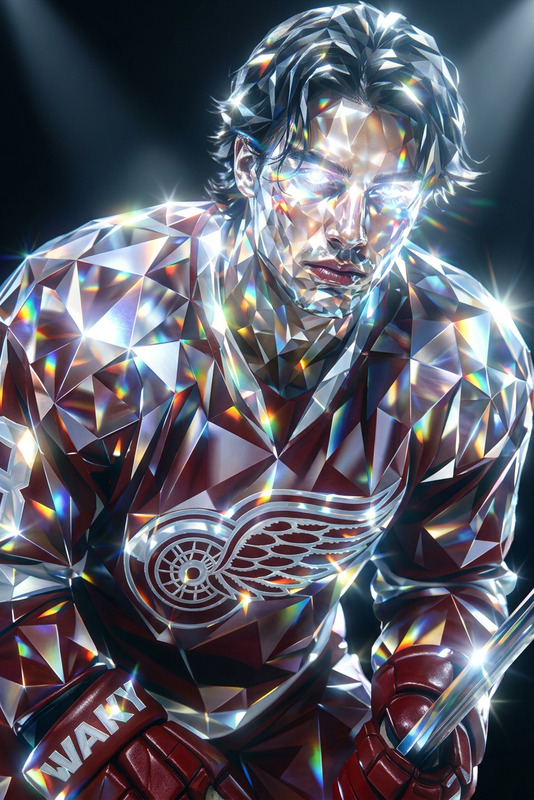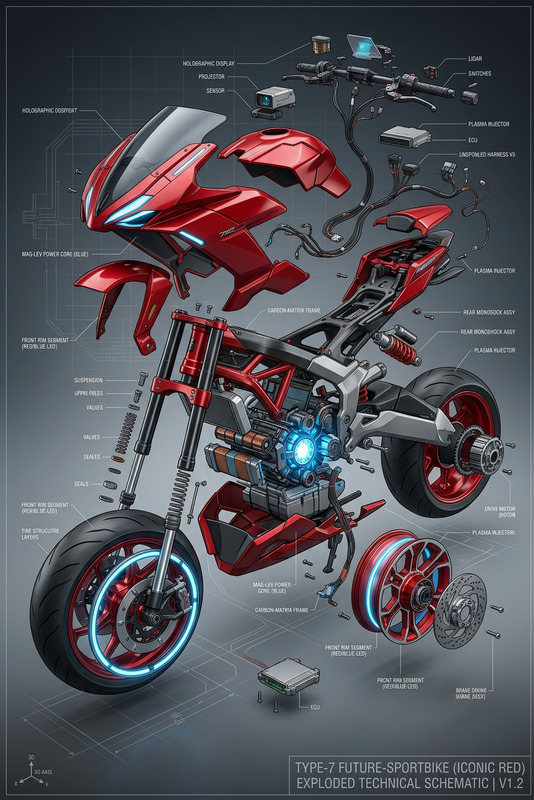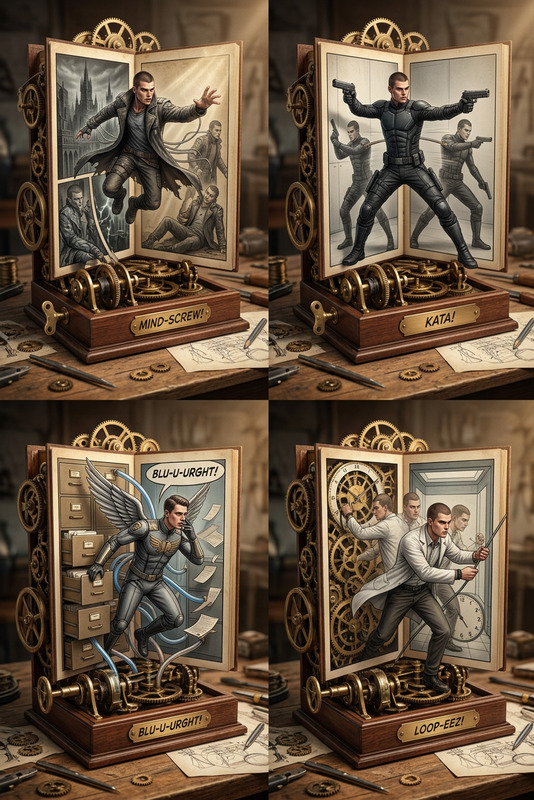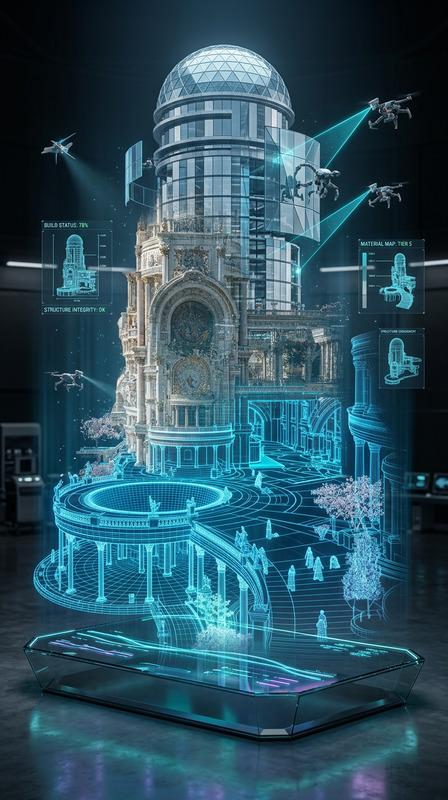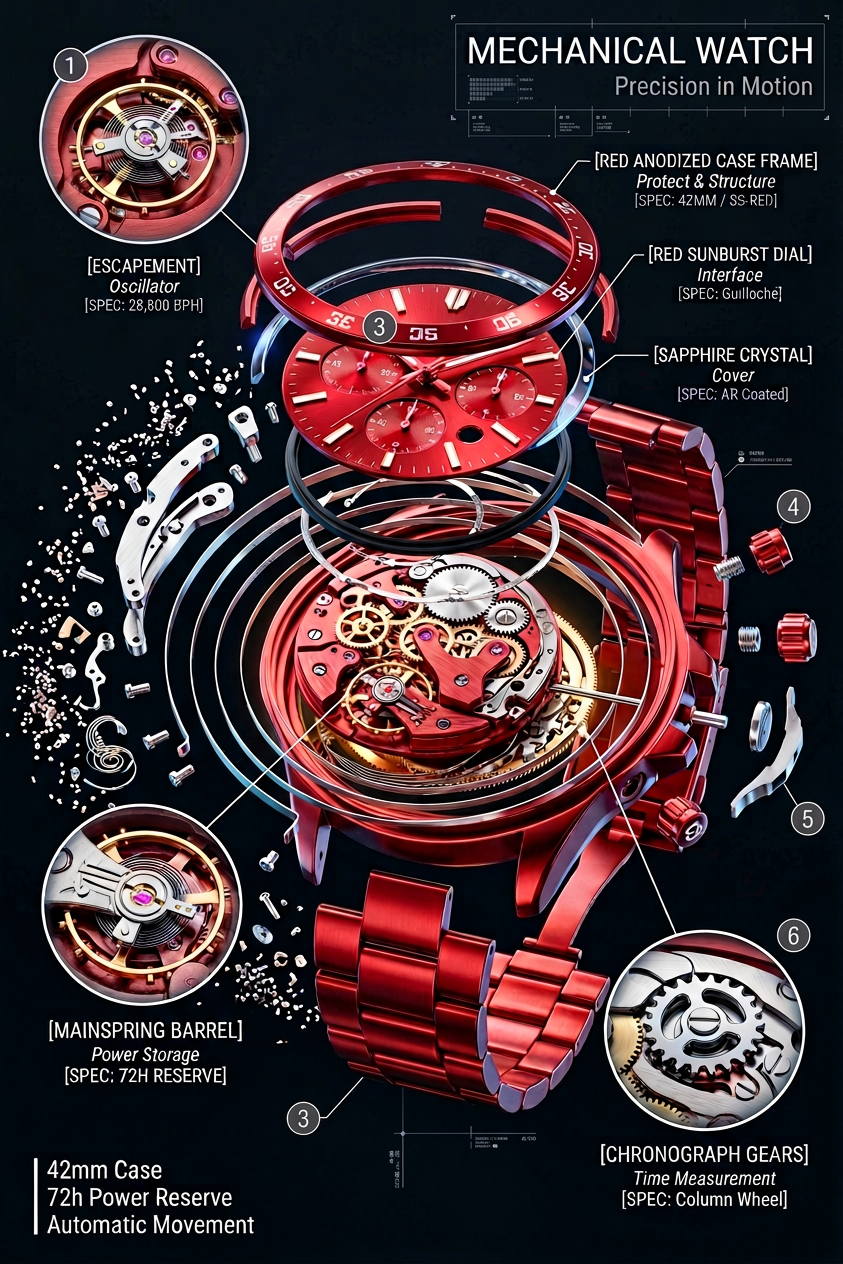
Radial Exploded Tech View
- Model
- Nano Banana 2
- Image
- 843 × 1264 px
Prompt
Subject transforms into a hyperrealistic 3D radial exploded view of a luxury wristwatch, with 120+ precision components bursting outward from a central axis in all directions, frozen mid-air. True spatial explosion with visible depth and parallax. Component hierarchy radiates from core outward: Sapphire Crystal → Dial & Hands → Case Frame → Mechanical Movement (gears, escapement, balance wheel) → Mainspring Barrel → Micro Components (highlighted in three floating callout circles). Materials are ultra-detailed—sapphire glass with crisp refraction, brushed and polished stainless steel, gold gear trains, ruby jewels glowing subtly, matte rubber gaskets, and finely tensioned springs. Precision labels connect via hairline leaders to floating boxes: “[COMPONENT]” uppercase / “[FUNCTION]” italic / “[KEY SPEC]” monospace. Even radial spacing, no overlaps. Lighting combines cool diffused overhead, warm amber glow illuminating internal gears, and a thin blue rim light on the outer case. Subtle reflections on metal, inner mechanics softly glowing. Deep non-reflective midnight black background. Title “MECHANICAL WATCH” top right, subtitle “Precision in Motion”. Spec block bottom left: “42mm Case / 72h Power Reserve / Automatic Movement”. Ultra-clean, 4K, tack-sharp, extreme material fidelity—watchmaking teardown meets high-end technical editorial.
Any aspect ratio
Overview
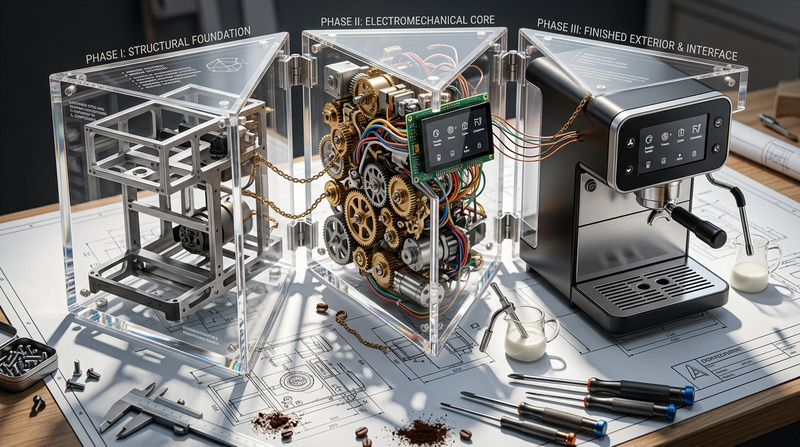
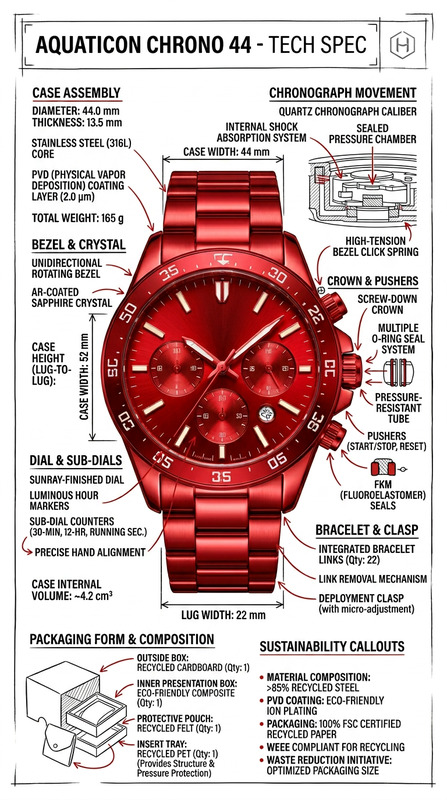
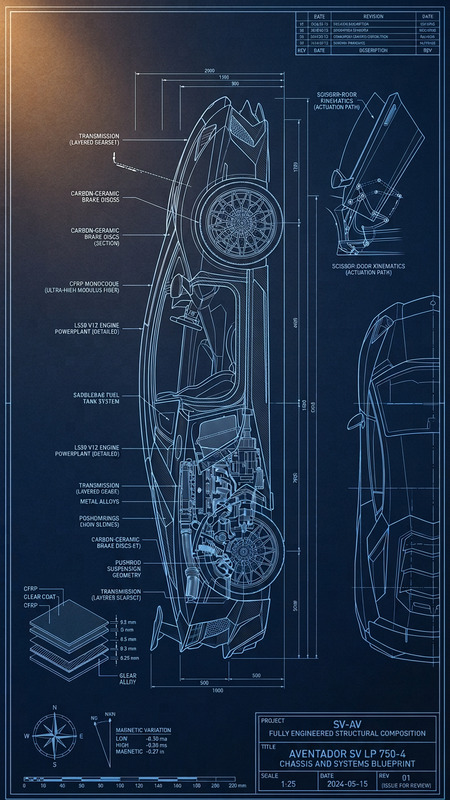
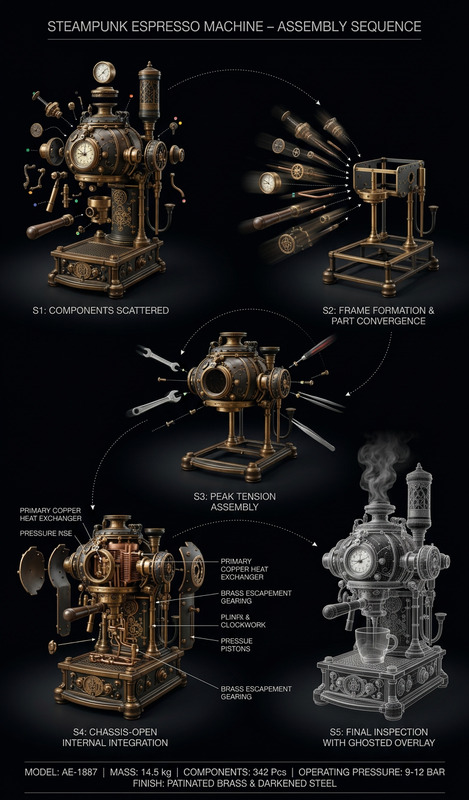
The Radial Exploded Tech View is a revolutionary addition to the AI Image Editor suite, showcasing a stunning hyperrealistic 3D portrayal of a luxury wristwatch. This template brings out 120+ precision components in a dramatic radial explosion, offering unmatched detail and depth. Perfect for anyone looking to create captivating technical visuals or presentations.
What It Does
This template transforms your subject into an intricate radial exploded view of a wristwatch. Each component, from the sapphire crystal to the micro components, is meticulously detailed and positioned to create a seamless 3D effect. The lighting and material textures evoke the sophistication of high-end watch design, while maintaining clarity and readability with precision labels and floating callouts.
Who It's For
The Radial Exploded Tech View is ideal for product designers, technical illustrators, and watch enthusiasts who require high-fidelity images to illustrate complex mechanical structures. It's also perfect for those in the tech and luxury goods sectors, looking for premium visuals for presentations, marketing materials, or editorial content.
Summary
Utilize this template to create exceptional technical illustrations that highlight the intricacies of mechanical designs. With its capability to deliver ultra-clean, 4K images, this tool is a must-have for anyone needing crisp, detailed visuals. Integrate this with other tools like the AI GIF Generator for animated presentations or the AI Clothes Changer for diversifying your visual storytelling.
How-To
Select the Template

Customize Your Inputs

Generate and Download

Use Cases
Technical Illustrations
- Watch design presentations
- Mechanical component breakdowns
- Educational materials
Marketing and Editorial Content
- Luxury product advertisements
- Magazine features
- Technical blogs
Design and Prototyping
- Product development reviews
- Prototyping discussions
- Client presentations
Best Practices
Choose High-Resolution Inputs
Start with high-quality base images to ensure the final output retains maximum detail and clarity.Leverage the Lighting Controls
Experiment with different lighting settings to highlight key components and materials effectively.Adjust Component Labels Thoughtfully
Ensure that precision labels and callouts are clear and readable by tweaking leader line directions and text positioning.