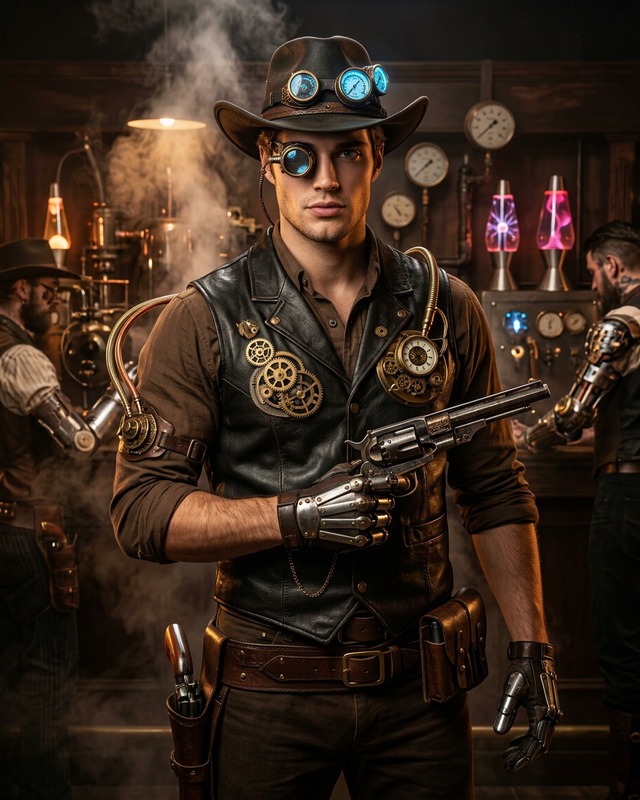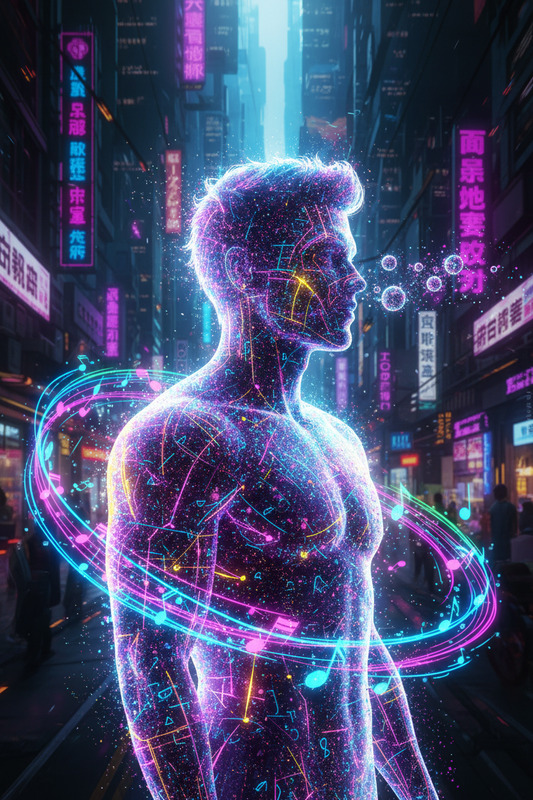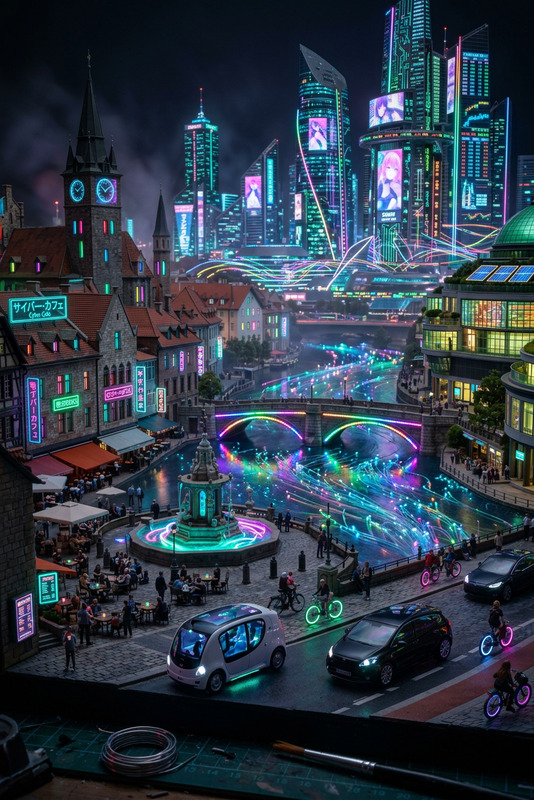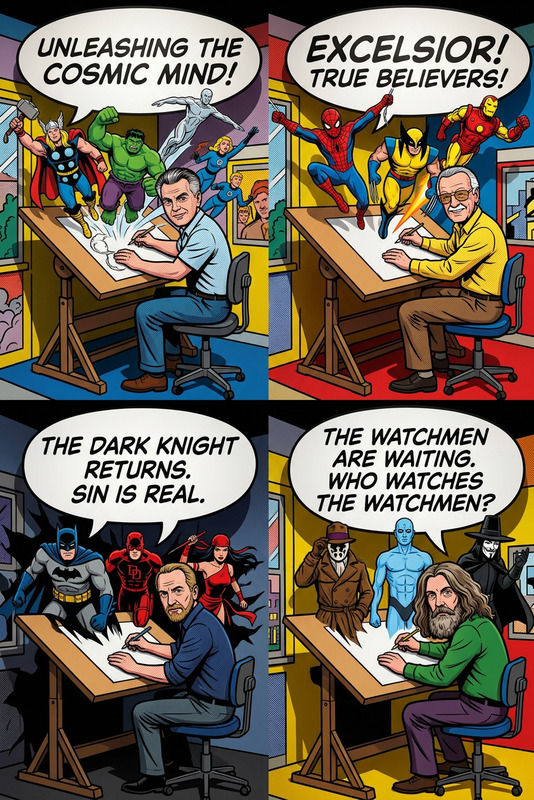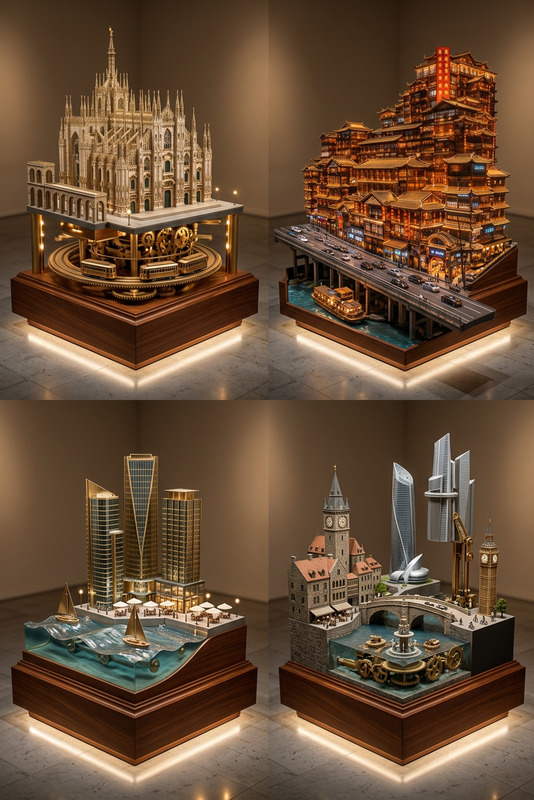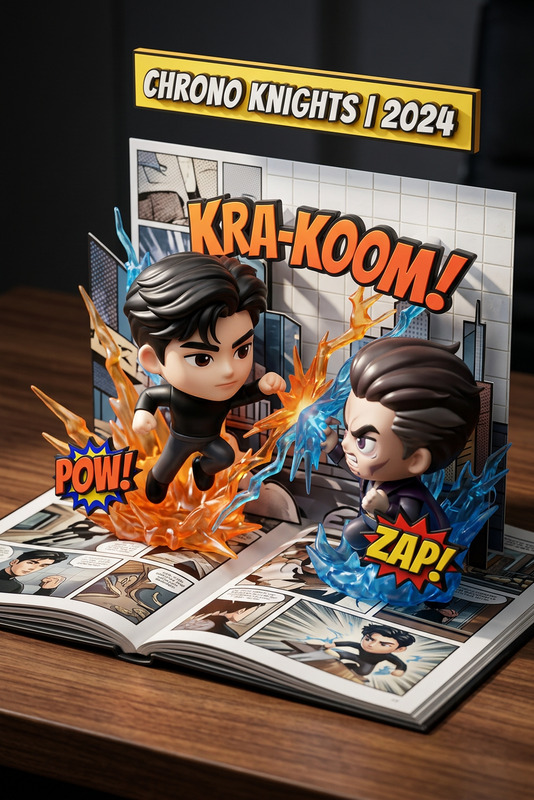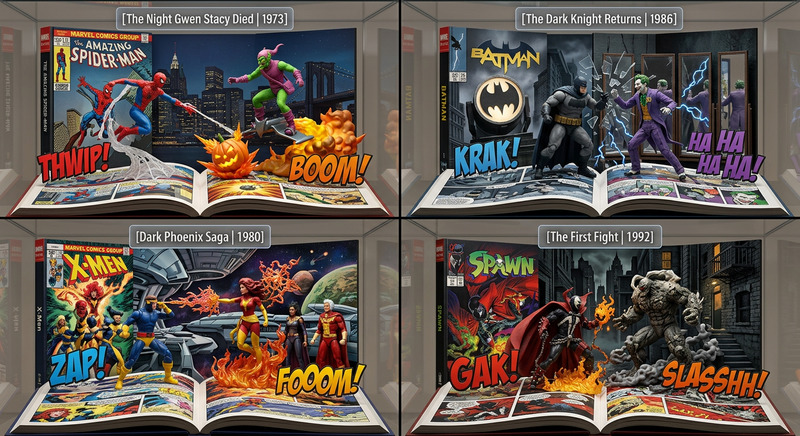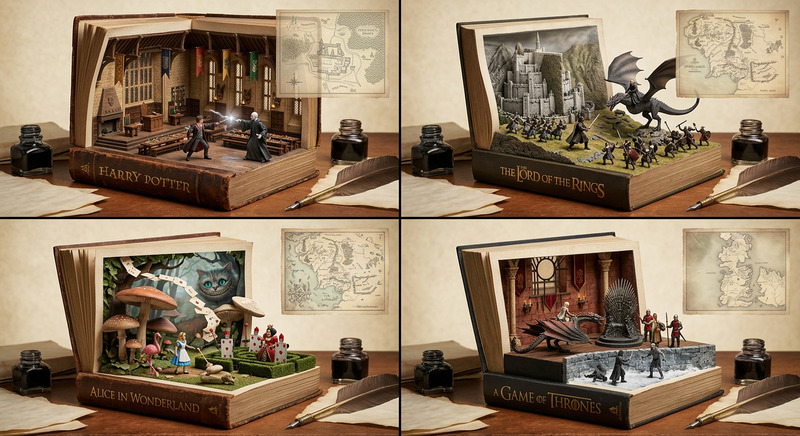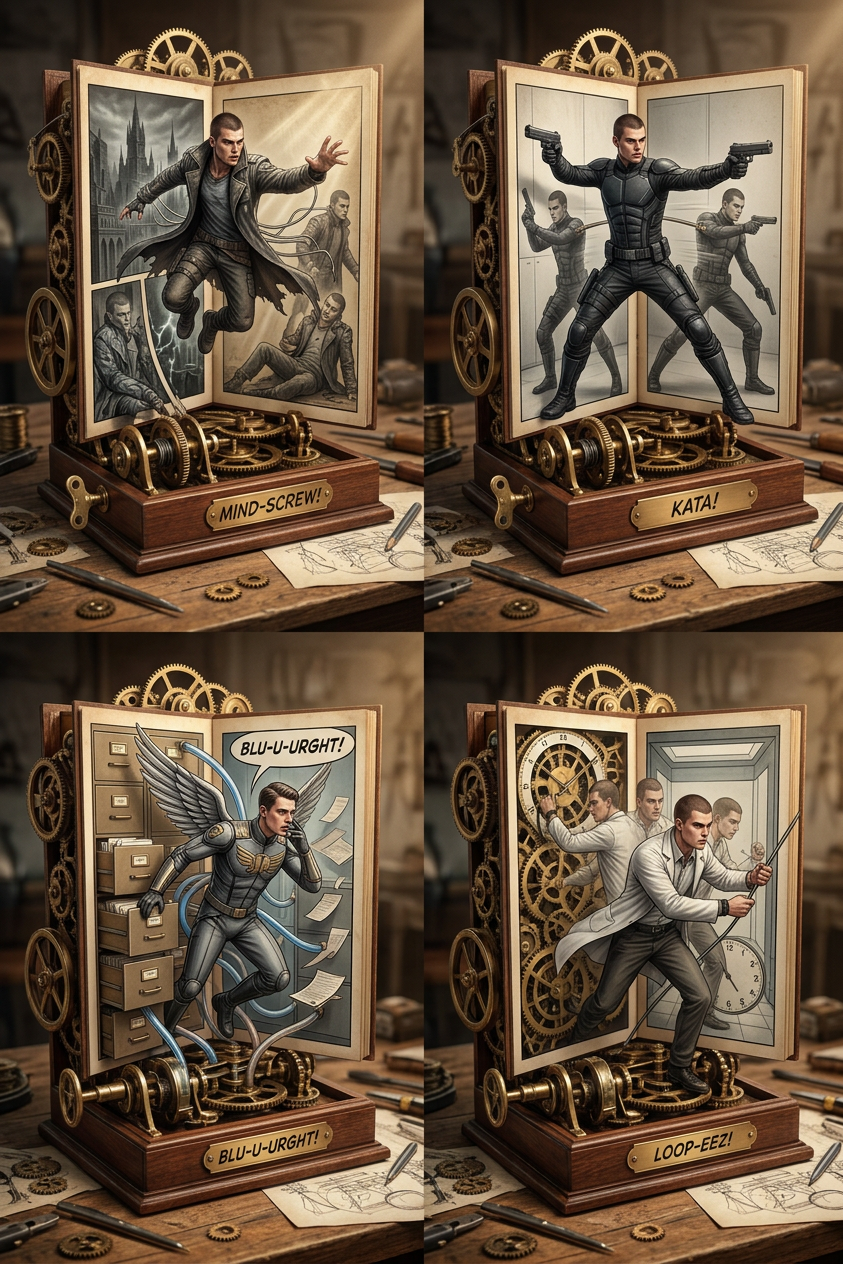
Steampunk Sci-Fi Diorama Grid
- Model
- Nano Banana 2
- Image
- 843 × 1264 px
Prompt
2×2 grid composition, each panel inspired by a different lesser-known sci-fi movie, visualized as a mechanical wind-up diorama. Scene: intricate brass-and-wood kinetic sculpture on a desk with visible gears, springs, and custom mechanical elements suggesting perpetual motion. In each panel, a superhero character is captured mid-signature action, bursting out of hinged comic panels that flip open like doors. Multiple pose variants are subtly connected through hidden mechanisms, reinforcing continuous motion. Surrounding props (tools, parts, workshop clutter) hint at handmade construction. Engraved onomatopoeia plates enhance the comic aesthetic. Style: steampunk macro photography, warm tungsten lighting casting dramatic gear shadows, polished metal reflections, aged paper textures, hyper-realistic motion blur, cinematic depth, ultra-detailed 8k octane render with caustic light play.
Any aspect ratio
Overview
Set your creativity in motion with the Steampunk Sci-Fi Diorama Grid, a specialized AI Image Editor template designed to fuse the intricate details of steampunk aesthetics with the futuristic allure of sci-fi movies. This tool transforms complex compositions into engaging visual narratives.
What It Does
Using the powerful AI Image Editor, this template generates a 2×2 grid composition inspired by lesser-known sci-fi films. Each segment resembles a mechanical wind-up diorama, featuring superhero characters in dynamic poses. The diorama includes brass-and-wood kinetic sculptures with visible gears, creating a perpetual motion effect. The template utilizes nano-banana-2 for rendering exceptionally detailed, 8k octane images.
Who It's For
This template is ideal for artists and creators who are passionate about AI product photography, steampunk enthusiasts, and sci-fi aficionados. It's perfect for anyone looking to create visually rich, mechanical art that resonates with both vintage and futuristic styles.
Summary
The Steampunk Sci-Fi Diorama Grid brings together artistic imagination and technical precision. It offers a platform for crafting multifaceted stories with a steampunk flair, suitable for both personal enjoyment and professional presentation. Using dramatic lighting and detailed texturing, each creation becomes a masterpiece.
How To
Choose Your Template

Customize Your Input

Generate Your Image

Use Cases
Illustrative Steampunk Art
- Art exhibitions
- Themed galleries
Unique Comic Panels
- Graphic novel designs
- Promotional comic art
Sci-Fi Merchandise Design
- Merchandise like posters
- Collector items
Best Practices
Experiment with Lighting
Leverage the warm tungsten lighting options to create dramatic shadows and reflections that enhance the steampunk aesthetic.Focus on Detail
Pay attention to the tiny elements like springs and gears; these details add depth and realism to the diorama.Vary Scenic Elements
Incorporate different props and textures to ensure each panel in your grid tells a unique part of your story.