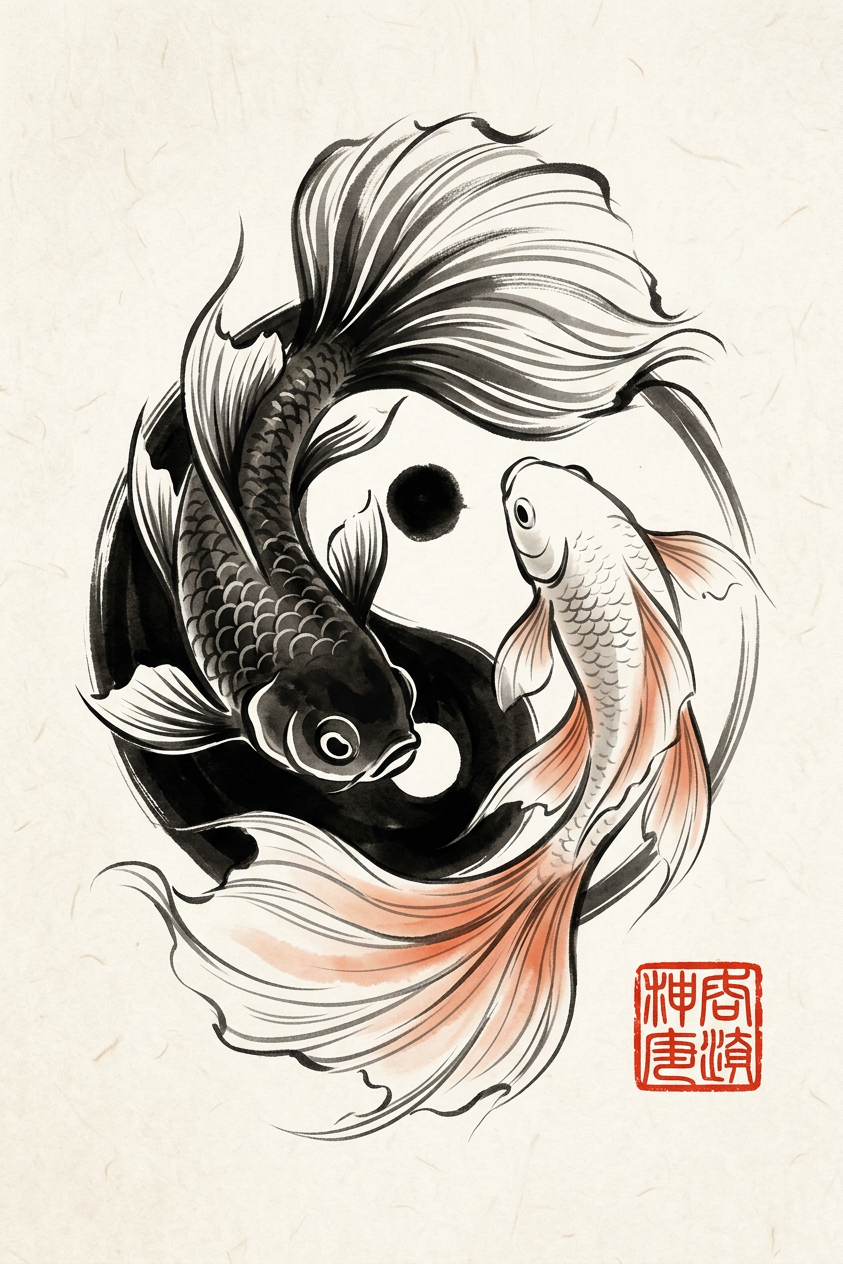
Yin-yang Balance

Yin-yang Balance

ai-image-editor

1 clip
0 uses

Any aspect ratio

Prompt

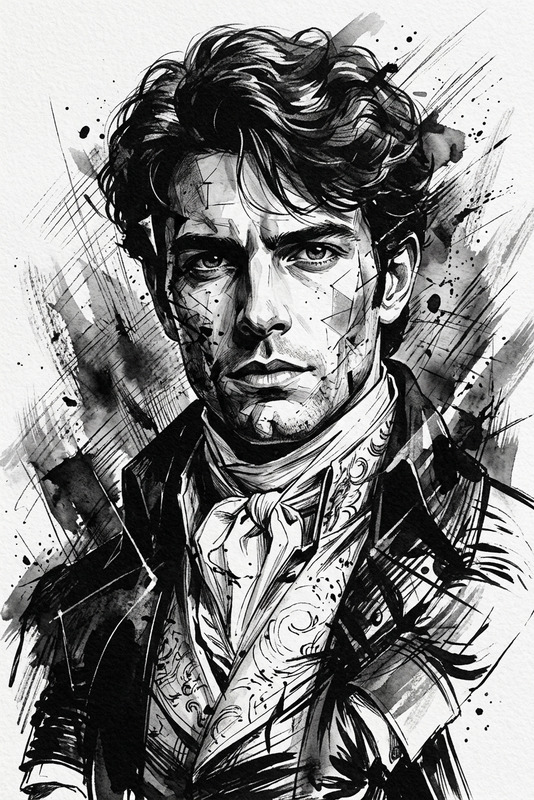
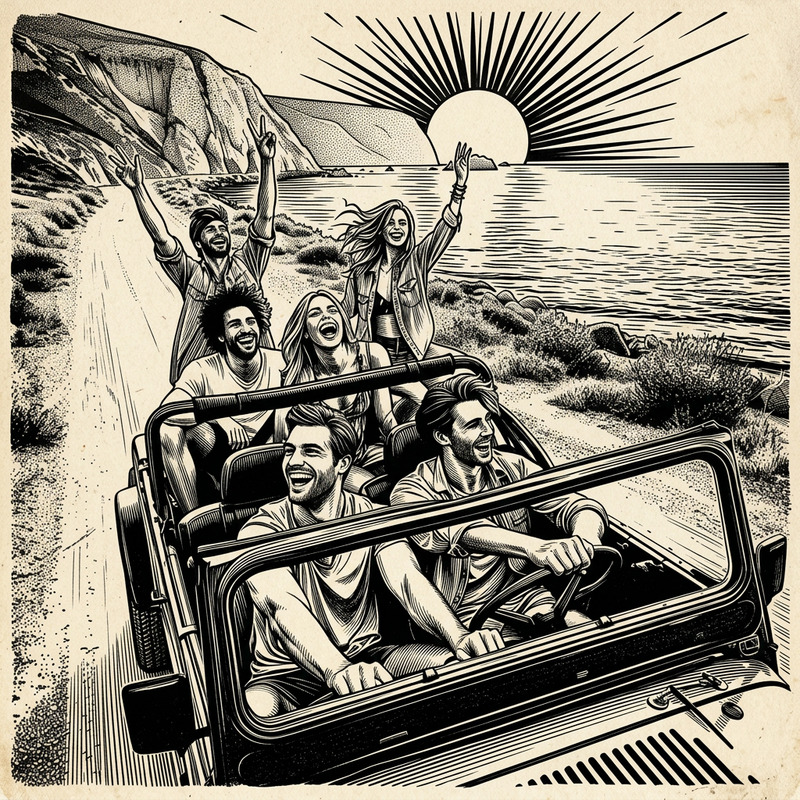
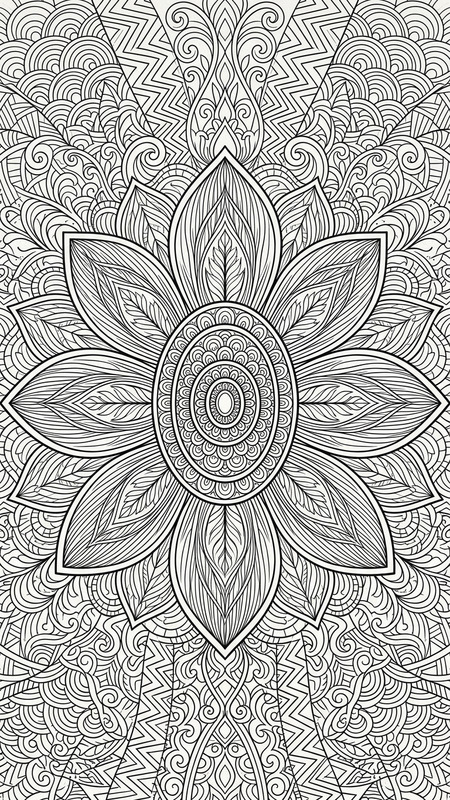
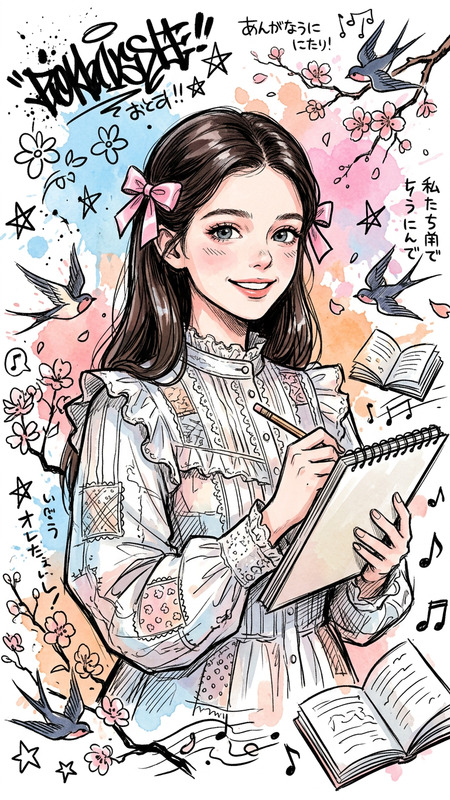
Subject expressed as a minimalist yin-yang inspired form in Japanese sumi-e ink painting style; fluid, expressive black ink brush strokes on a clean white background with subtle washi paper texture; strong use of negative space and centered composition; bold red Hanko stamp adds contrast and authenticity; soft studio lighting enhances ink gradients and paper texture; serene, balanced, zen aesthetic.

AI Image Editor Template: Instantly Transform Any Image with Precision Editing

This template is built on Magic Hour’s [AI Image Editor], giving you a fast way to clean up, enhance, and creatively transform images with AI—directly in your browser. It’s designed for practical, repeatable workflows that creators, marketers, and developers can quickly remix for their own projects.


What This Template Does

Use this template to:

  • Remove unwanted objects, people, or text from photos
  • Replace or redesign backgrounds for social, product, or campaign images
  • Clean up screenshots and UI mockups
  • Refine portraits (lighting, distractions, small cosmetic fixes)
  • Generate alternate versions of the same image for A/B testing
  • Add or modify elements to fit a new brand, concept, or storyline

Under the hood, it uses the same core model as Magic Hour’s [AI Image Editor] and related tools like [AI Face Editor], [Image Background Remover], and [AI Remover], so you get high-quality, production-ready outputs rather than one-off “AI art experiments.”


How to Remix This Template in Magic Hour

You can treat this template as a starting point and adapt it to your own workflow in a few minutes:

  1. Open the template in Magic Hour

    • Start from this template and load your own reference image (product shot, portrait, screenshot, etc.).
  2. Define your editing goal clearly

    • Examples:
      • “Remove the person in the background and extend the wall.”
      • “Change the background to a minimalist studio scene.”
      • “Clean up skin blemishes while keeping natural texture.”
    • Write this as a clear, outcome-focused instruction to the AI.
  3. Use masks and regions strategically

    • Focus the AI only on the areas you want changed (e.g., background, clothing, objects).
    • Keep important brand or identity elements (faces, logos) unmasked when you don’t want them altered.
  4. Iterate with small, targeted changes

    • Run several small edits instead of one massive transformation.
    • Save intermediate versions so you can compare and roll back easily.
  5. Turn it into a reusable workflow

    • Save your prompt and edit pattern as your own version of this template.
    • Reuse it for new campaigns (e.g., same product, new background each season) or repeatable brand assets.

For more robust pipelines, you can combine this editing template with other Magic Hour tools:

  • Generate base images with [AI Image Generator] or [AI Photo Generator], then refine them with the AI Image Editor.
  • Clean up or upscale old assets using [AI Image Upscaler], [Unblur Image], or [Old Photo Restoration] before editing.
  • Remove or replace specific elements via [Remove Object from Photo], [AI Remover], or [Watermark Remover], then finalize details in the editor.

Practical Use Cases for Creators, Marketers, and Builders

1. Marketing & Growth Teams

  • Turn one product photo into dozens of on-brand variants (different backgrounds, seasons, or audiences).
  • Localize visuals for different regions without reshooting (change props, environment, or visual style).
  • Clean up UGC (user-generated content) by removing cluttered backgrounds or sensitive information.

Combine this template with:

  • [AI Background Generator] for fast, context-specific scenes
  • [Thumbnail Maker] to adapt edited images into YouTube or social thumbnails
  • [AI Meme Generator] when you need quick, campaign-relevant meme variations

2. Product & Brand Imagery

  • Create “studio-quality” product shots from simple photos by replacing the scene and adjusting context.
  • Standardize catalog backgrounds across hundreds of SKUs.
  • Generate alternate hero images and test which performs best in your landing pages or ads.

Helpful tools to pair with this template:

  • [Book Cover Generator] and [Album Cover Generator] for packaging or hero visuals
  • [AI Logo Generator] for experiments with brand identity mockups
  • [AI Illustration Generator] and [AI Art Generator] for illustrative variants of product imagery

3. Portraits, Headshots, and Identity

  • Clean up professional headshots without over-editing or losing realism.
  • Adjust outfits, backgrounds, or composition for different platforms (LinkedIn vs. landing page vs. pitch deck).
  • Create stylized versions (e.g., manga, anime, or Disney-inspired portraits) while maintaining recognizable identity.

Consider combining this template with:

  • [AI Headshot Generator] for new professional portraits
  • [AI Selfie Generator] to rapidly explore look variations
  • [AI Clothes Changer], [AI Outfit Generator], and [Full-Body Generator] for wardrobe and composition changes
  • [AI Anime Generator], [Disney AI Generator], [Manga Generator], or [Animated Characters Generator] for stylized identity content
  • [Gender Swap] or [AI Face Generator] for character exploration and concept art

4. Product Demos, Pitch Decks, and UI Mockups

  • Clean and align UI screenshots by removing clutter or personal data.
  • Modify interface elements to show future features or experiments.
  • Generate polished visuals for investor decks, product updates, and documentation.

Layer this template with:

  • [AI Icon Generator] for consistent UI iconography
  • [AI QR Code Generator] to embed branded, scannable codes into your visuals
  • [AI Interior Design Generator], [Architecture Generator], or [Fantasy Map Generator] if your product relates to spatial or design workflows

Power-User Flows: Connecting Image Editing to Video, Faces, and Voice

This template is especially powerful when used as the first step in a larger pipeline that includes video, faces, or synthetic characters:

  • From static images to animation

    • Start with an edited image, then bring it to life with:
      • [Image-to-Video] to create short cinematic movements
      • [Animation] templates for quick animated sequences
      • [AI GIF Generator] for shareable loops and motion previews
  • From edited faces to talking characters

    • Clean or stylize a face using the Image Editor, then:
      • Turn it into a talking avatar with [AI Talking Photo]
      • Sync it to speech using [Lip Sync] or [Text-to-Video]
      • Generate or clone voice with [AI Voice Generator] or [AI Voice Cloner]
  • From edited images to narrative content

    • Use the same character or world across assets with:
      • [Animated Characters Generator] for recurring cast members
      • [DND AI Art Generator], [Dark Fantasy AI], or [Comic Book Generator] for narrative visuals
      • [Pokemon Generator], [Superhero Generator], or [Optical Illusion Generator] when building playful, high-contrast visuals for campaigns or games

How This Template Helps with Consistency, Speed, and Cost

  • Consistency: Use a single, reusable editing template to keep style, lighting, and composition aligned across campaigns or product lines.
  • Speed: Replace many manual Photoshop-style operations with a few targeted AI edits, while still retaining creative control.
  • Cost efficiency: Reduce the need for reshoots, freelance retouching, or entirely new design cycles when only small changes are needed.

For teams working on multiple channels, you can also:

  • Upscale and adapt assets for different platforms using [Video Upscaler] and [AI Image Upscaler]
  • Restore or repurpose archival assets with [Old Photo Restoration] and [Photo Colorizer]
  • Quickly prepare post-ready visuals synced with audio using [Auto Subtitle Generator] on your edited video content

Tips for Getting Strong, Reliable Results

  • Be explicit in your instructions

    • Instead of: “Fix the background”
    • Try: “Replace the background with a clean white studio wall, remove all text and objects, keep the subject lighting consistent.”
  • Edit in passes

    • First pass: structural changes (remove objects, change background).
    • Second pass: detail and polish (refine edges, adjust artifacts).
    • Third pass: stylistic alignment (color mood, brand tone, or aesthetic).
  • Reuse prompts and structures

    • Once you find a phrasing that works—especially for your brand or product line—save it inside your remix of this template so new team members can get consistent results quickly.

Related Magic Hour Tools Worth Exploring

If you like this template and want to expand your workflow, these tools integrate well:

  • [AI Face Editor] – detailed control over facial features and expressions
  • [AI Meme Generator] – transform edited images into viral-friendly content fast
  • [Avatar Generator] – build brand or product mascots from your edited imagery
  • [AI Background Generator] – generate tailored scenes for your products or personas
  • [AI Fashion Generator] and [AI Outfit Generator] – explore styling variations without reshooting
  • [AI Art Generator] and [AI Illustration Generator] – extend your edited images into full scenes or illustrated campaigns

Build Your Own Version of This Template

  1. Start with this AI Image Editor template in Magic Hour.
  2. Load an image from your current project (product, brand asset, portrait, UI).
  3. Define a clear editing goal (e.g., “campaign variant,” “clean headshot,” “catalog consistency”).
  4. Run a few focused edit passes and save the prompts that work best.
  5. Save your customized version as a reusable template for your team.

Once you’ve done that once, you can generate new, on-brand visual assets in minutes instead of hours—without leaving the Magic Hour ecosystem.

More Like This