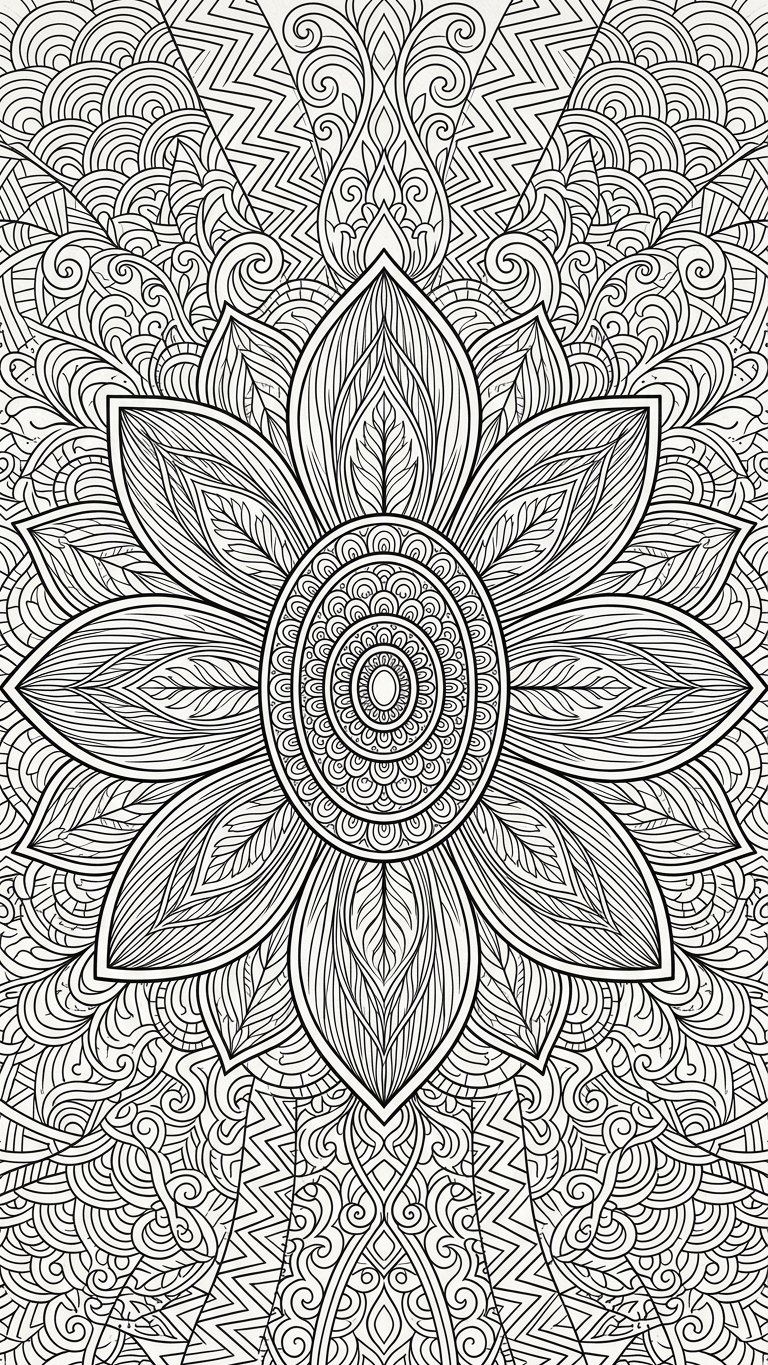
Intricate Floral Mandala

Intricate Floral Mandala

ai-image-editor

1 clip
0 uses

Any aspect ratio

Prompt

Subject transforms into a black-and-white line drawing of a stylized flower with intricate patterns filling the frame. Central oval core with layered circular details, surrounded by eight large petals. Each petal features parallel linework and subtle leaf-like forms. Background expands into dense geometric and organic patterns—semicircles, zigzags, swirls, and dotted grids—radiating symmetrically outward. Highly detailed, balanced composition with clean line art, ornamental, meditative, and decorative aesthetic.

Transform any photo with AI Image Editor in Magic Hour—cleanly, precisely, and at production quality. This template shows what’s possible with non-destructive AI edits: object removal, retouching, background changes, style shifts, and more, all inside your browser.

Use this page as a starting point: you can remix it, swap in your own assets, and turn it into your own reusable template.


What this template is for

This AI Image Editor–based template is designed for creators who need fast, reliable image changes without going into full manual design tools:

  • Founders & marketers: polish product shots, social assets, and ads on-demand
  • Designers & content teams: prototype variations before handing off to Figma/Photoshop
  • Developers: generate and refine images programmatically as part of a content workflow
  • Solo creators: turn rough photos into clean, publish-ready visuals in minutes

Typical use cases:

  • Remove distracting objects from photos (people, logos, signs, clutter)
  • Clean up product images and replace messy backgrounds
  • Generate multiple versions of a hero image for A/B tests
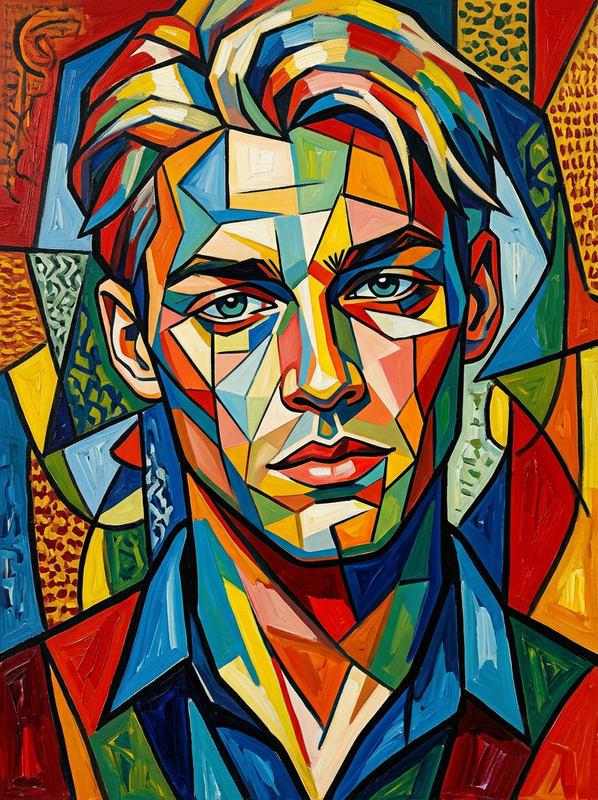
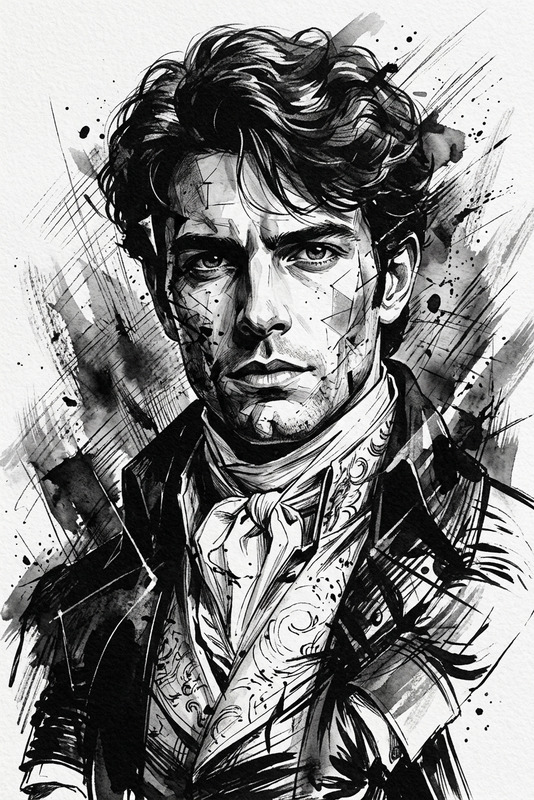
  • Turn a regular photo into stylized art (anime, comic, cinematic)
  • Quickly adapt images for landing pages, pitch decks, and socials

Under the hood, this template uses the AI Image Editor and plays well with other Magic Hour tools, so you can take an image from idea → edit → video or animation without leaving the platform.


How to remix this template in Magic Hour

You can recreate or adapt this template in three steps:

  1. Start from the existing template

    • Open this template in Magic Hour.
    • Duplicate or remix it to create your own version.
  2. Swap in your own source images

    • Upload your product photos, headshots, or reference images.
    • Use multiple example images if you plan to reuse this as a team template.
  3. Customize your editing flow
    Without touching internal settings, you can still design a repeatable workflow:

    • Decide the core transformation you want (e.g., object removal, background cleanup, style change).
    • Add simple natural-language instructions to guide the AI:
      • “Remove all text from the background and keep lighting realistic.”
      • “Replace the background with a clean white studio setup.”
      • “Turn this into a comic-book style illustration, high contrast, bold outlines.”
    • Save your version as a reusable Magic Hour template for your team or future projects.

Because the system is prompt-driven, you can iterate fast: run small test batches, refine your prompt, then lock in the best version.


Recommended workflows and related Magic Hour tools

To get more value out of this template, pair it with other Magic Hour products:

1. Clean, upscale, and finalize images

Ideal for: e‑commerce product pages, pitch decks, investor updates, and portfolio sites.

2. Edit people photos & headshots

If you’re working with portraits:

This stack is useful for team pages, LinkedIn headshots, hiring materials, and profile-driven products.

3. Turn edited images into video and animation

Once your images are clean, you can convert them into dynamic assets:

This is effective for UGC-style ads, launch videos, personalized onboarding flows, and product explainers.

4. Generate new images, then refine with this template

If you don’t have a strong starting photo:

This is particularly useful when you need on-brand illustrations, mascots, or IP-safe characters but don’t want to start from a blank canvas in design software.


Prompt patterns that work well in this template

Because this template is powered by AI Image Editor, the text instructions you provide matter. You can structure prompts with a simple pattern:

  1. Goal: what outcome you care about
  2. Constraints: what must stay the same
  3. Style: only if relevant

Example patterns to adapt:

  • “Remove all background objects and make it a solid, neutral color. Keep the subject’s proportions and lighting realistic.”
  • “Turn this into a stylized illustration while preserving facial identity. Keep colors close to the original outfit.”
  • “Make this product photo look like a high-end studio shot, consistent shadows, no reflections, no text.”
  • “Replace the background with a modern office interior, shallow depth of field, natural daylight.”

You can save these as reusable prompt snippets inside your own remixed version of the template for consistency across your team.


Combining this template with brand workflows

Teams often combine this template with other Magic Hour tools to create a light-weight design system:

AI Image Editor then becomes the “last-mile” tool to enforce visual consistency (colors, composition, clarity) before images go live.


Advanced creative use cases

Beyond straightforward editing, this template is useful for more experimental work:

By centralizing your edits in this template, you can keep a consistent art direction across very different asset types.


Quality, restoration, and legacy content

If you work with older or imperfect images, chain this template with restoration tools:

This is useful for founders documenting company history, archivists, and media teams working with legacy materials.


Integrating edited images into multimedia experiences

Once your images are finalized:

This lets you move from edited static images to complete, on-brand video content with minimal overhead.


How to make this template your team’s “default editor”

To turn this into a reusable, team-ready asset in Magic Hour:

  1. Remix the template

    • Duplicate it into your workspace.
    • Replace example images with your brand’s reference shots (products, founders, core visuals).
  2. Standardize prompts

    • Add a small set of standardized editing instructions:
      • “Brand background style”
      • “Standard product framing”
      • “Campaign illustration look”
    • Keep them simple and composable, so teammates can mix and match.
  3. Connect it with your other templates

By treating this AI Image Editor template as a shared, remixable building block, your team can move faster while keeping visuals sharp, coherent, and on-brand.

More Like This

Insufficient credits