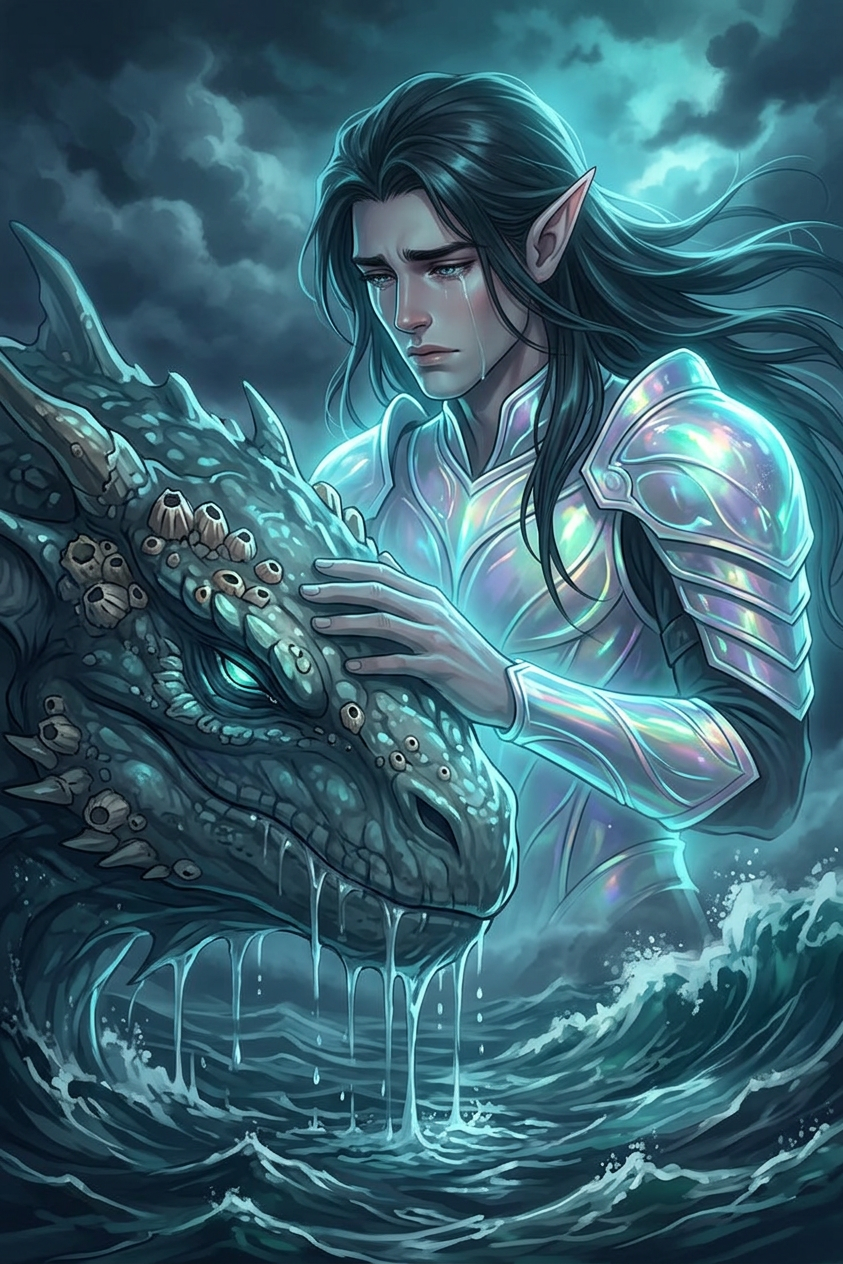
Tears Beneath the Tides

Tears Beneath the Tides

ai-image-editor

1 clip
1 uses

Any aspect ratio

Prompt

Ethereal fantasy portrait of the subject as a ghost-like elf in glowing armor, full vertical composition, standing beside a massive sea creature emerging from dark, stormy waves. Long flowing dark hair, tearful expression, gently touching the creature’s textured, barnacle-covered head. Dramatic lighting with glowing accents on armor and eyes, water dripping into the agitated ocean. Dark clouds overhead, palette of deep blues, teals, and grays. Anime-influenced digital painting, somber, mystical, highly detailed atmosphere.

AI Image Editor Template: Precision Editing for Creators, Marketers, and Product Teams

Use this template to turn the Magic Hour AI Image Editor into a fast, repeatable workflow for high‑quality image edits—without learning complex design tools or writing prompts from scratch.

This template is ideal if you need to:

  • Clean up product photos for landing pages, ads, and marketplaces
  • Create multiple visual variations from one base image
  • Remove or replace elements in photos for campaigns and A/B tests
  • Enhance user-generated content for social, newsletters, or pitch decks
  • Build consistent visual assets for startups, SaaS, DTC, and creative projects

What This Template Does

This AI Image Editor–based template gives you a reusable editing flow you can apply to any image:

  • Upload any image (product shot, portrait, screenshot, illustration, meme template, etc.)
  • Define the edit in natural language (e.g., “Remove the background and replace it with a soft gray studio backdrop,” “Change the hoodie color to dark navy,” “Make it look like a cinematic movie still”)
  • Apply targeted edits to faces, objects, backgrounds, text, or overall style
  • Generate multiple options so you can quickly pick the best version for your use case

Because it’s built on Magic Hour’s AI Image Editor, you can chain this with other tools in your workflow—such as turning edited images into videos, avatars, memes, or ads.


How to Remix This Template in Magic Hour

You can use this template as‑is, or quickly remix it to create your own version tailored to your brand or product.

  1. Open the template in Magic Hour

    • Start from the AI Image Editor template and run it once with a test image.
    • Observe the outputs and decide what you’d like to systematize (e.g., background style, brand colors, framing).
  2. Customize the editing instructions

    • Replace generic instructions with your specific use case, for example:
      • “Make all backgrounds a clean white e‑commerce style.”
      • “Apply a bright, colorful, social‑media look for Instagram posts.”
      • “Make the subject look like a professional LinkedIn headshot.”
    • You can create multiple saved versions (e.g., “E‑commerce clean,” “Social hero,” “Pitch deck visuals”) for different contexts.
  3. Standardize your brand look

    • Define consistent visual rules inside your template text, such as:
      • Brand color palette (e.g., “Use accent colors close to #0F172A and #6366F1”)
      • Lighting and mood (e.g., “Soft, natural daylight, minimal shadows”)
      • Framing (e.g., “Center the main subject, keep empty space on the right for copy”)
    • Use this once, and the template becomes your “house style” editor for all future images.
  4. Create specialized variants for your workflow
    Some practical template variations you can create by remixing this one:

    • Product photos – studio backgrounds, color corrections, removal of props or stands
    • Founder & team photos – professional AI headshots from casual photos
    • UGC & social content – stylized edits for TikTok/Instagram, memes, and carousels
    • Presentation visuals – consistent pitch deck, investor update, and blog imagery
  5. Chain with other Magic Hour tools


High-Impact Use Cases

This template is especially useful for:

1. Product & E‑commerce Teams

  • Clean, consistent product photos for Shopify, Amazon, or marketplace listings
  • Removal of distracting backgrounds using the Image Background Remover
  • Quick seasonal or campaign variations (e.g., holiday themes, color changes)
  • Upscaling legacy images with the AI Image Upscaler

You can combine this template with the AI Clothes Changer for apparel shots or the AI Fashion Generator for concept visuals.

2. Creators, Marketers, and Growth Teams

This template is a good “last mile” step after you generate new images with tools like the AI Art Generator, AI Illustration Generator, or Book Cover Generator.

3. Founders, Startups, and Pitch Decks

  • Turn casual team photos into polished, consistent images via the AI Headshot Generator, then refine them here for color, framing, or backgrounds
  • Design quick mockups for landing pages and investor decks
  • Create branded assets for product hunts, newsletters, and social announcements

You can also prototype product visuals for future videos using Text to Video or turn edited images into explainer clips with Image to Video.


Advanced Workflows & Combinations

Because this template is powered by the AI Image Editor, it plays well with other Magic Hour tools and templates:


Examples of Templates You Can Build by Remixing This One

You can remix this AI Image Editor template into many specialized editors, such as:

  • “Product-Ready Editor”

    • For DTC and SaaS landing pages
    • Rules: white or neutral background, high contrast, centered subject, no text overlays
  • “LinkedIn Headshot Refiner”

    • Input: any portrait or selfie
    • Output: professional, neutral background, balanced lighting, subtle enhancements
    • Combine with: AI Headshot Generator
  • “Podcast / YouTube Thumbnail Builder”

    • Input: host or guest photos
    • Output: high‑contrast faces, bold color blocks, clean negative space for text
    • Combine with: Thumbnail Maker
  • “Brand Illustration & Mascot Editor”

Once you define your rules once, this template becomes a repeatable “one‑click” editor for that asset type.


Tips for Better Results

  • Use clear, specific instructions
    • Instead of “make this look better,” try “increase clarity, soften skin slightly, and brighten the overall image while keeping it realistic.”
  • Describe the end use
    • Mention where the image will be used: “for e‑commerce listing,” “for LinkedIn profile,” “for YouTube thumbnail,” etc.
  • Reference styles and formats
    • You can describe a style (“minimalist tech landing page,” “editorial fashion shoot,” “comic‑book style”) and then refine from there.

If you’re generating images from scratch first, tools like the AI Art Generator, AI Anime Generator, AI Manga Generator, or Comic Book Generator are natural starting points before running them through this template.


Why Use Magic Hour for AI Image Editing?

Magic Hour’s image tools are designed for creators and teams who care about quality, speed, and control:

  • End-to-end workflow: Generate, edit, enhance, animate, and publish—from images to videos and voice—with tools like AI Voice Generator, AI Voice Cloner, and AI Voice Changer.
  • Creator‑first design: You don’t need to learn complex editing software; natural language instructions and templates do the heavy lifting.
  • Template-friendly: Once you have an editing flow that works, you can reuse, remix, and scale it across teams and campaigns.

Next Steps

  1. Run this AI Image Editor template with a few of your real assets.
  2. Note what you change manually each time—those rules should live inside your remixed template.
  3. Create specialized variants (e‑commerce, LinkedIn, thumbnails, memes, brand visuals) and save them as your team’s default editors.
  4. Connect your edited images to other Magic Hour tools—like Image to Video, the Animation template, or AI GIF Generator—to build end‑to‑end creative pipelines.

Use this template as your foundation, then remix until it matches your brand, your product, and your workflow.

More Like This