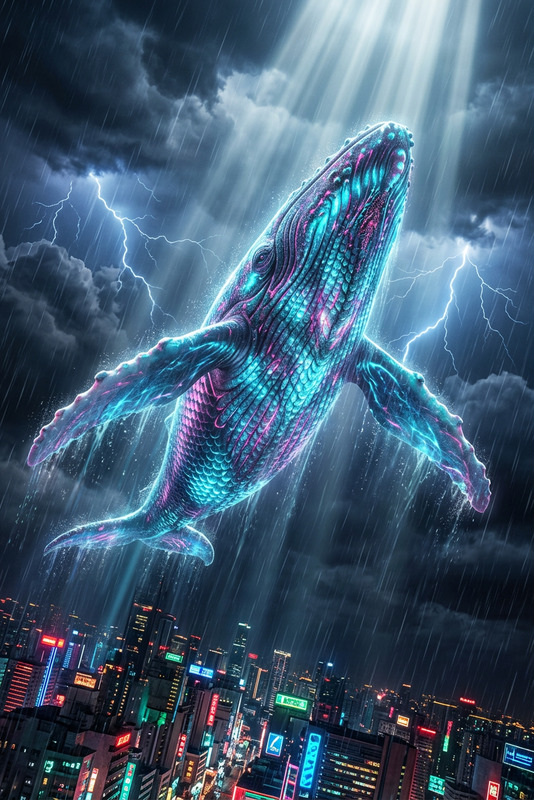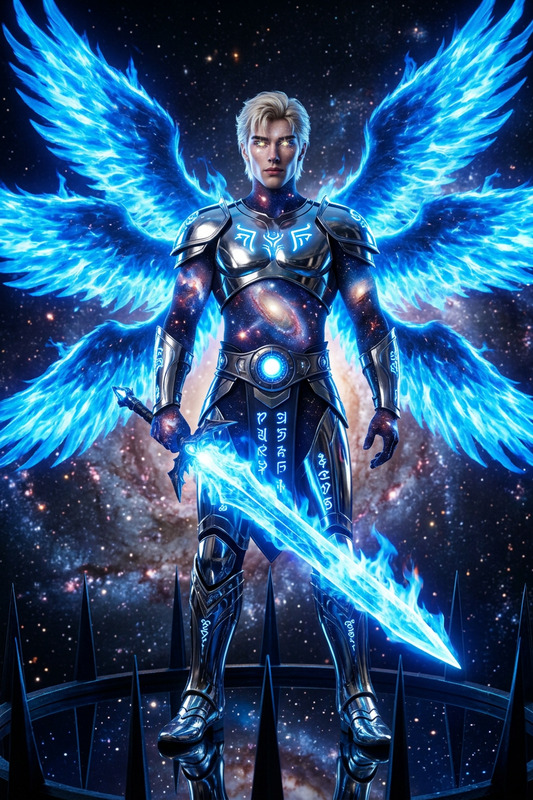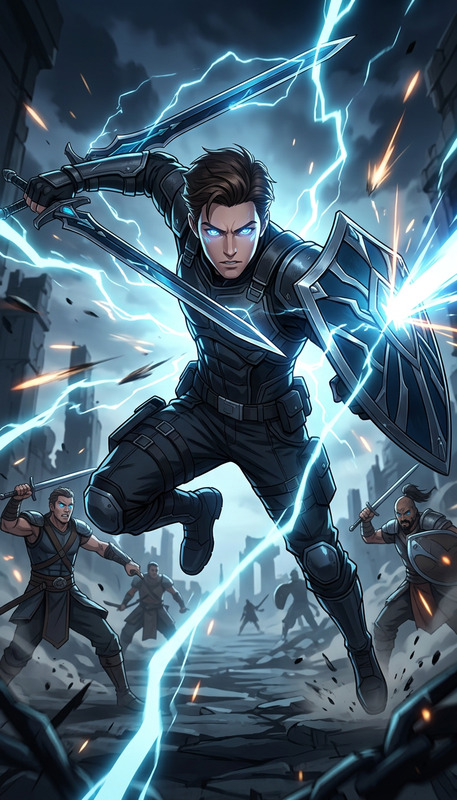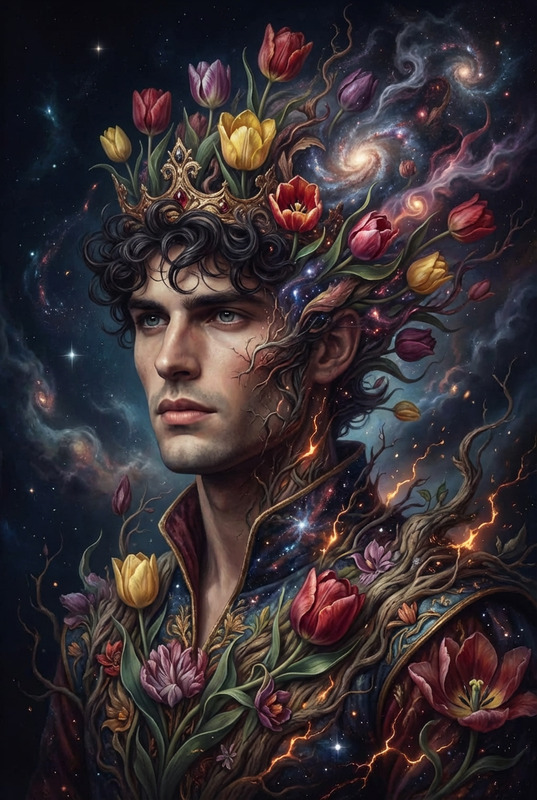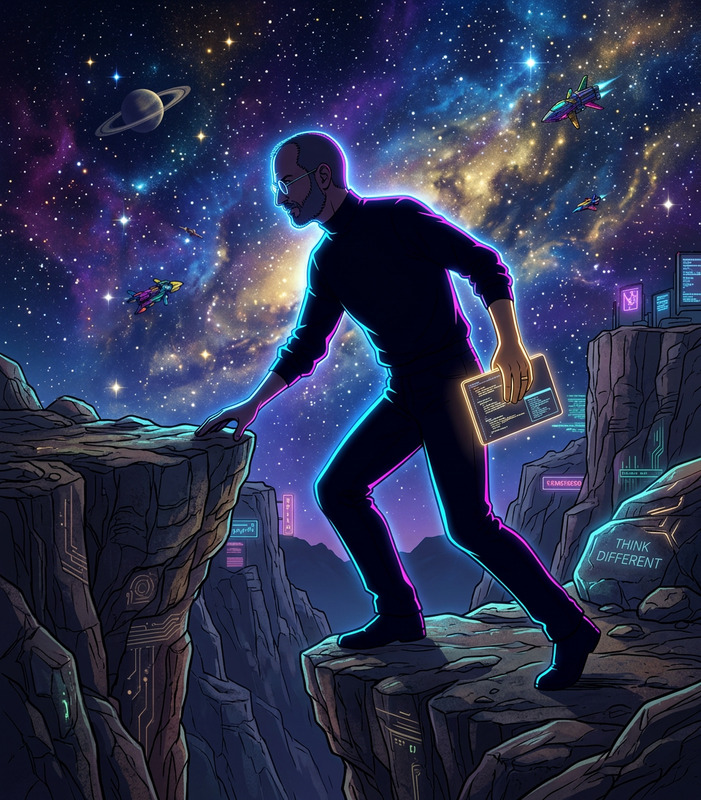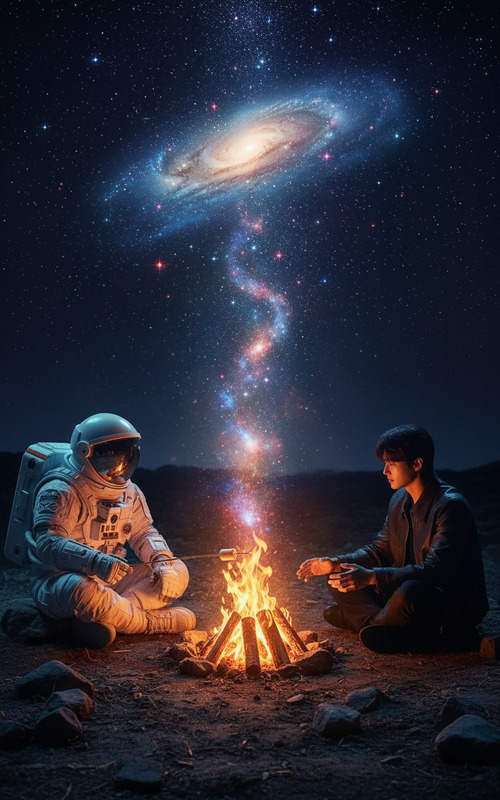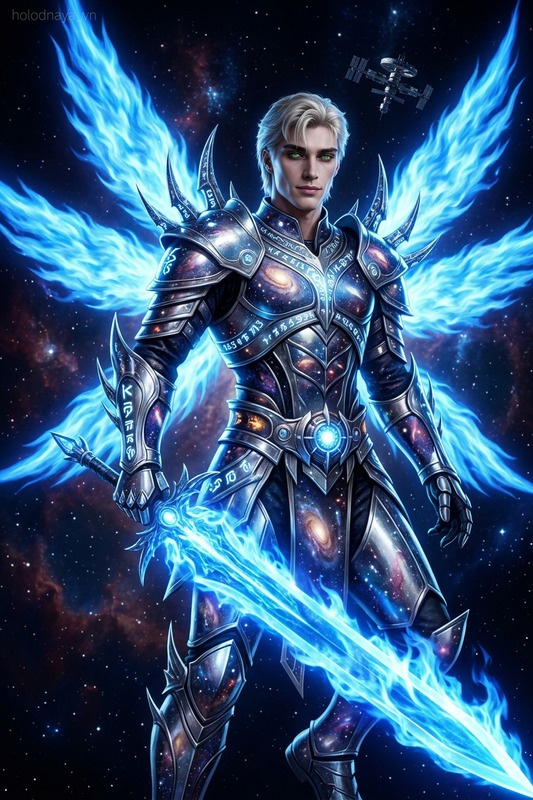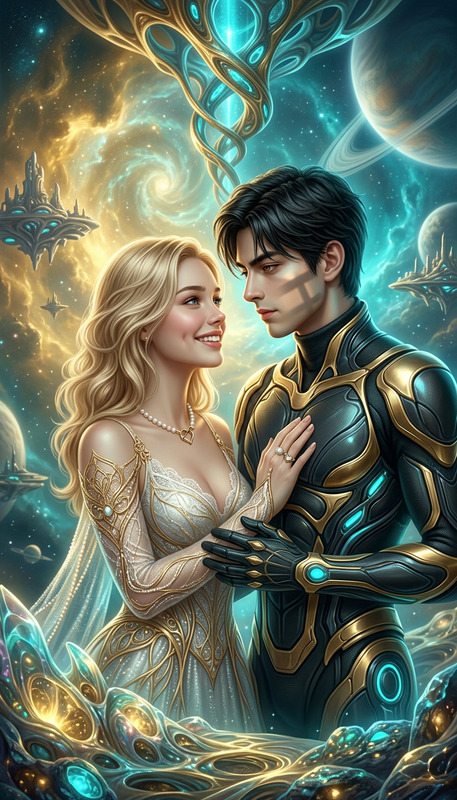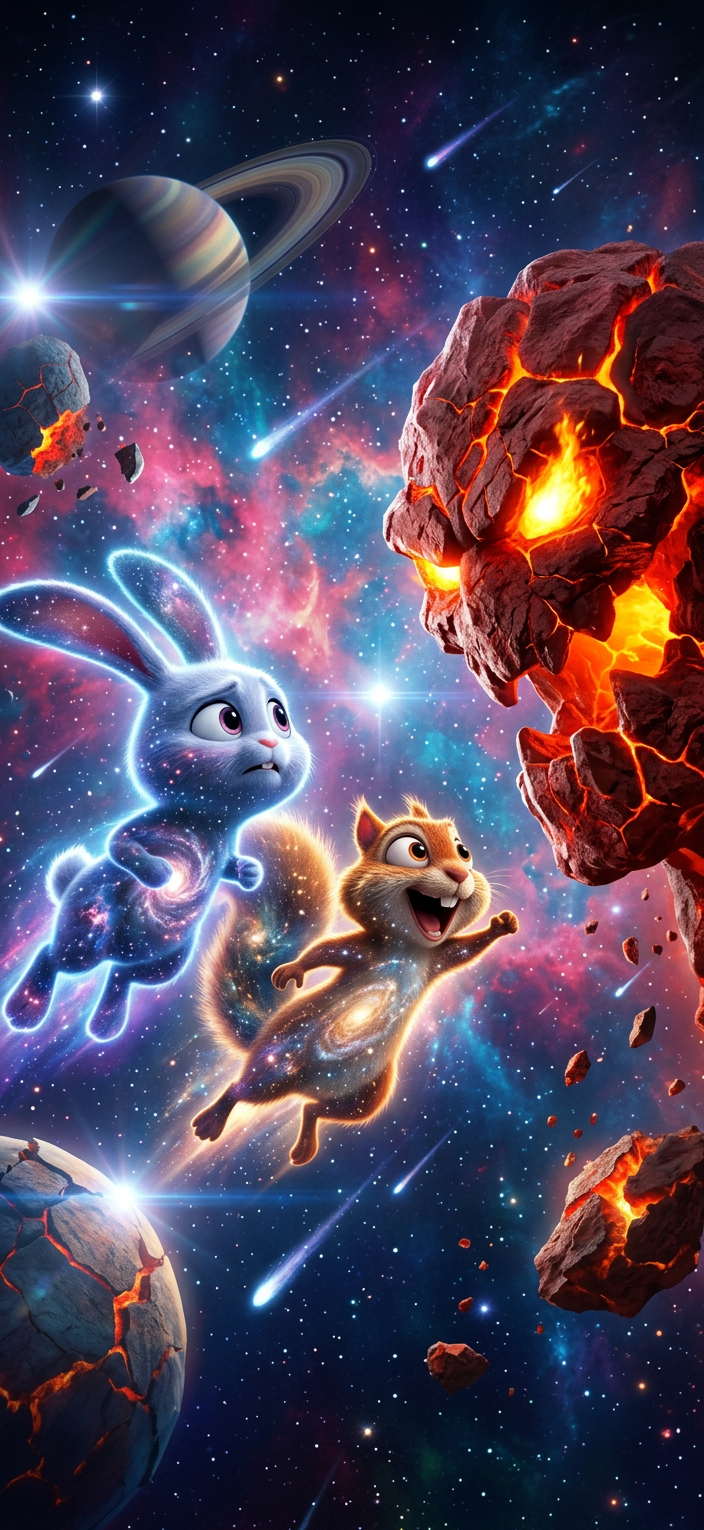
Cosmic Clash Scene

Cosmic Clash Scene

ai-image-editor

1 clip
0 uses

Any aspect ratio

Prompt

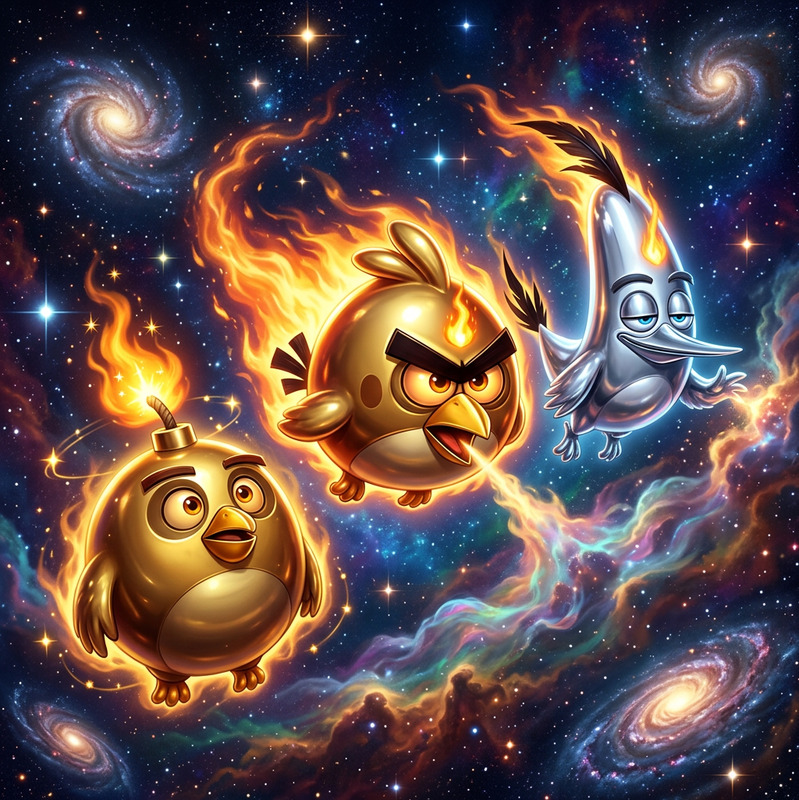
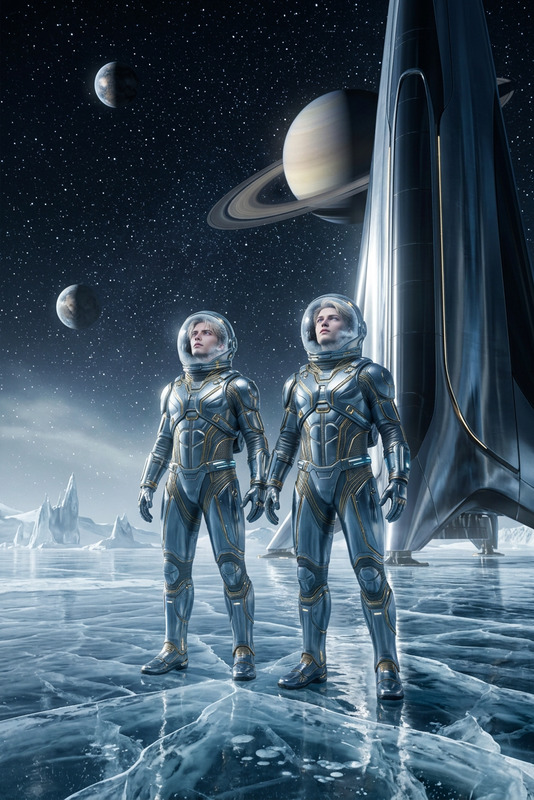
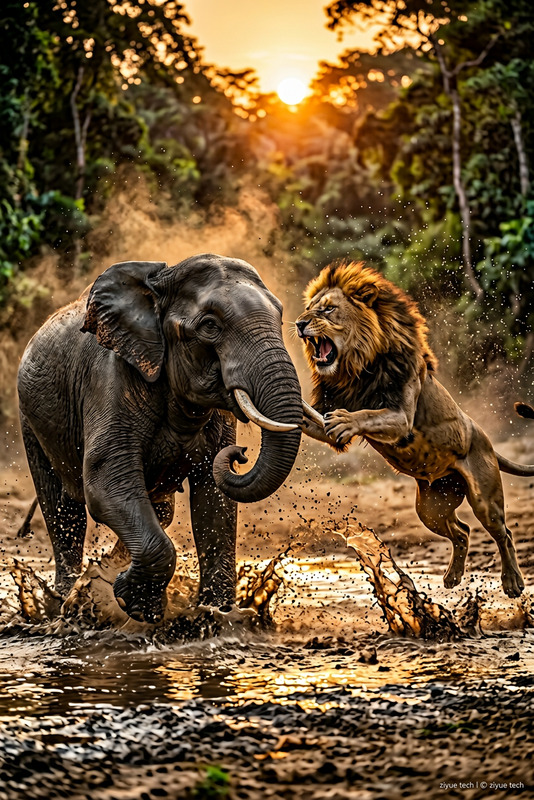
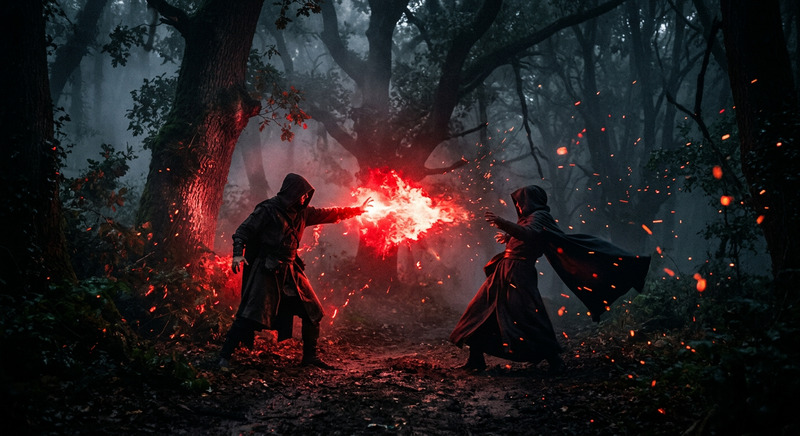
Cosmic battle scene as subject, two glowing galaxy-filled subject -shaped figures confronting lava-cracked entity, vast space environment, vibrant otherworldly aesthetic, epic fantastical atmosphere, high contrast lighting, dynamic composition

AI Image Editor Template: Transform Any Image in Minutes

Use this template to quickly remix, clean up, and enhance your images with Magic Hour’s AI Image Editor. It’s designed for creators and teams who need production‑ready visuals without opening Photoshop or writing a single line of code.


What You Can Do With This Template

This AI Image Editor–based template is ideal for:

  • Marketing & growth teams

    • Remove distractions, polish product shots, and generate variations for A/B tests
    • Localize creatives (swap text, backgrounds, or objects for different regions)
    • Turn a single hero image into multiple ad formats and concepts
  • Founders, indie hackers, and startup teams

    • Rapidly iterate on landing page imagery and app store visuals
    • Clean up investor deck images and mockups
    • Create quick concept art for new features or product ideas
  • Designers & content creators

    • Non-destructive edits for social posts, thumbnails, and brand assets
    • Replace or refine backgrounds without tedious masking
    • Prototype visual directions before handing off to design tools

Because it’s built on the AI Image Editor, you can combine object-level edits, style changes, and enhancements in a single workflow.


How This Template Works (Conceptually)

Under the hood, this template uses generative models similar to modern inpainting/outpainting and diffusion-based editors. In practice, that means you can:

  • Select what to change (an object, region, or background)
  • Describe the desired result in natural language
  • Let the model generate coherent, high-quality pixels that blend with the original image

For non-technical users, this behaves like a smart, context-aware brush: you specify “what” and “why,” and the AI handles the “how.”


How to Remix This Template in Magic Hour

You can treat this template as a starting point and build your own version in a few minutes:

  1. Open AI Image Editor
    Go to the AI Image Editor.

  2. Upload or import a base image

    • Product photo
    • Portrait or headshot
    • Screenshot, mockup, or illustration
  3. Define your editing goal
    Examples:

    • “Remove all clutter from the desk while keeping the laptop and coffee cup.”
    • “Change the background to a minimalist studio with soft lighting.”
    • “Turn this casual selfie into a professional headshot with a neutral background.”
  4. Apply targeted edits
    Typical operations you can build into your own template flow:

    • Remove unwanted objects (logos, people in the background, text)
    • Replace or extend backgrounds
    • Adjust or restyle clothing and accessories
    • Change lighting or overall ambiance
    • Add new on-brand elements (props, textures, subtle patterns)
  5. Iterate and fork your own variants
    Once you’re happy with a version:

    • Save it as your “brand-safe base”
    • Remix it with different prompts for campaigns or markets
    • Create multiple versions for testing (e.g., different scenes, tones, or compositions)

You can repeat this process to maintain a reusable “library” of editable templates tailored to your brand or product.


Power Combos: Other Magic Hour Tools to Use With This Template

To go beyond single-image edits, pair this AI Image Editor template with other Magic Hour tools:


Example Use Cases and Remix Ideas

Below are concrete ways professionals are using this kind of template, which you can adapt:

1. Performance marketing image system

  • Start with a single product shot
  • Use the AI Image Editor to:
    • Swap backgrounds for different audiences (workspaces, outdoor, lifestyle)
    • Remove or add props depending on campaign narrative
    • Generate variations with different color palettes or moods
  • Then:

2. Founders creating landing pages without a design team

  • Sketch your idea, then generate a starting hero image using the AI Photo Generator or AI Art Generator
  • Refine layout, remove noise, and match brand aesthetics using the AI Image Editor template
  • Create consistent product context shots by keeping the product the same while changing only the background and environment
  • Upscale final selections for production use with the AI Image Upscaler

3. Creators building visual IP and characters


Comparing This Template to Other Magic Hour Flows

Use this template when you already have an image and want to edit or enhance it. For other needs:


Best Practices for High-Quality Results

To make the most of this AI Image Editor template:

  • Start with the highest-quality input you have
    If needed, run assets through the AI Image Upscaler or Unblur Image first.

  • Be specific in your edit instructions
    Clear, outcome-focused descriptions (e.g., “clean white studio background, soft shadows, no reflections”) tend to produce more consistent outputs.

  • Iterate in small steps
    Complex changes often work better when broken into sequential edits (e.g., first remove objects, then adjust background, then fine-tune style).

  • Save reusable patterns
    Once you find prompts and edit patterns that align with your brand, you can repeatedly remix this template instead of starting from zero.


Start Remixing This Template

Open the AI Image Editor, load an image, and begin experimenting with small, targeted edits. As you refine your workflow, you can turn this template into a repeatable system for:

  • Campaign creative production
  • Landing page and product imagery
  • Character and IP development
  • Social, thumbnail, and content visuals

Remix, combine with other Magic Hour tools, and gradually evolve it into a custom, AI-powered image pipeline tailored to your brand or product.

More Like This