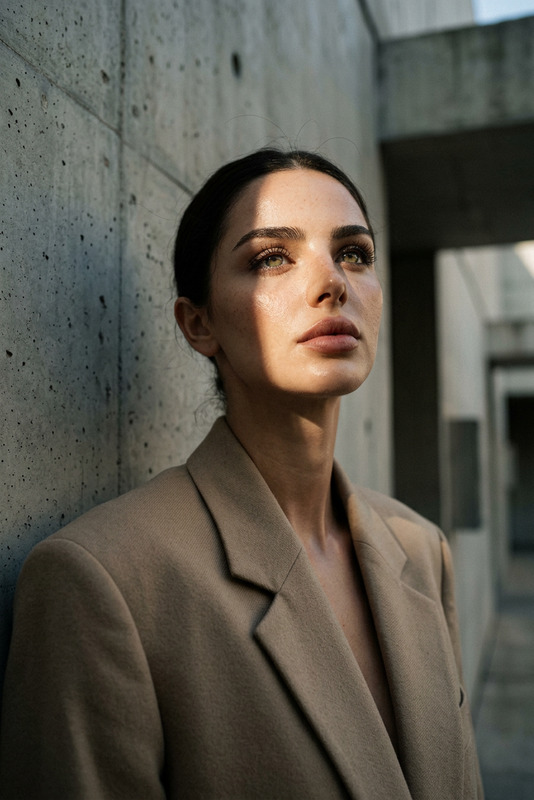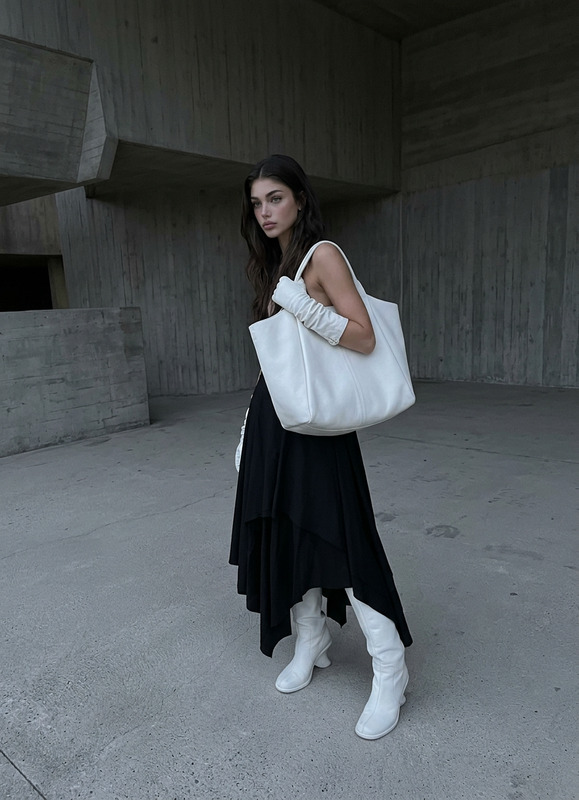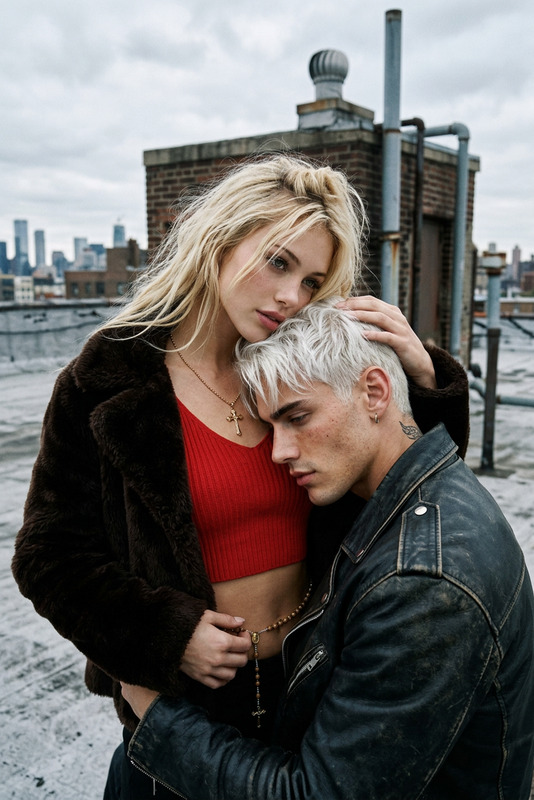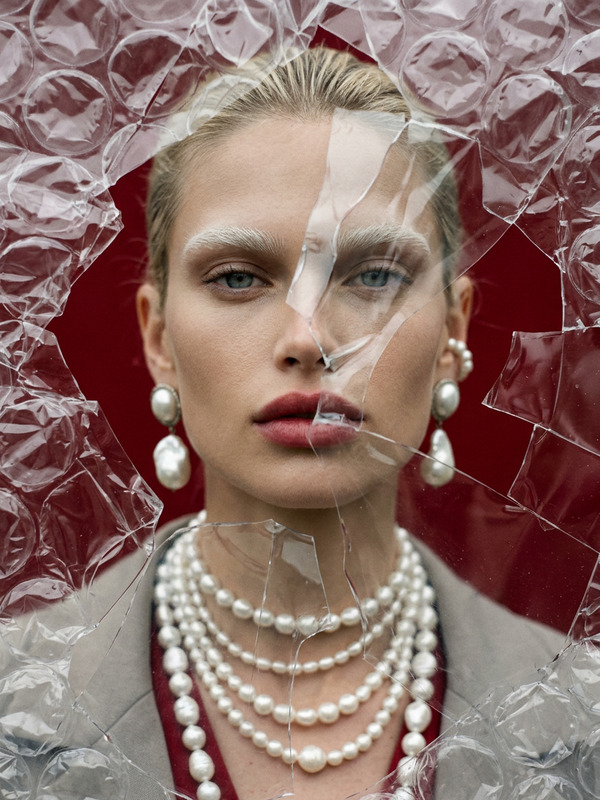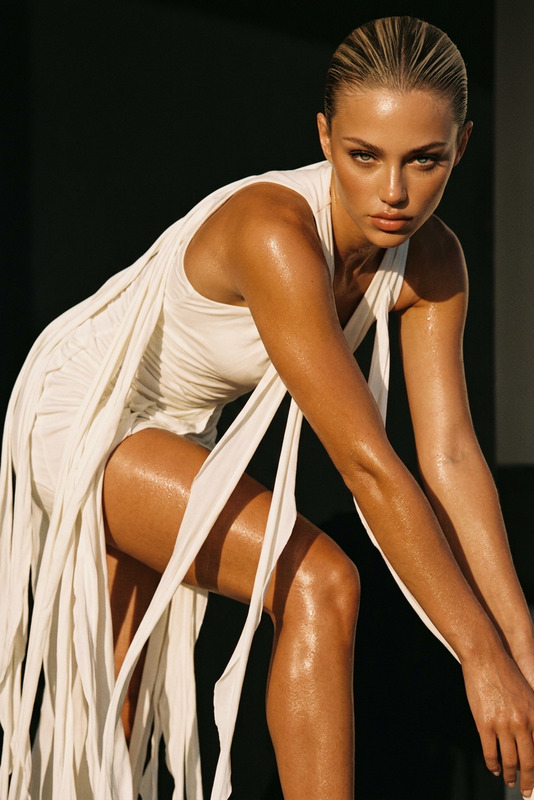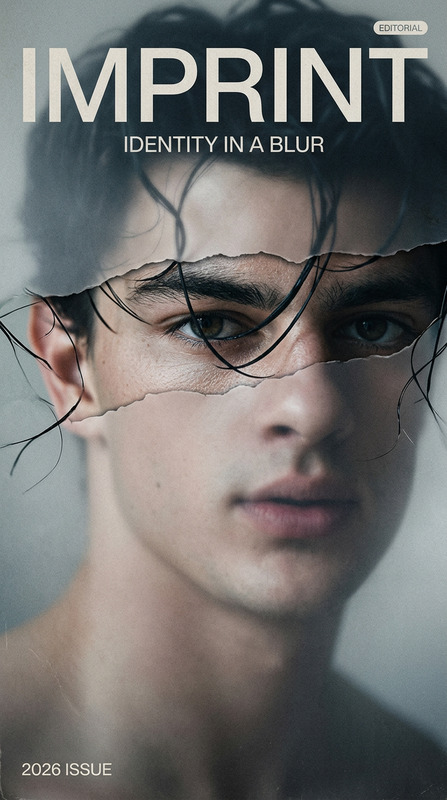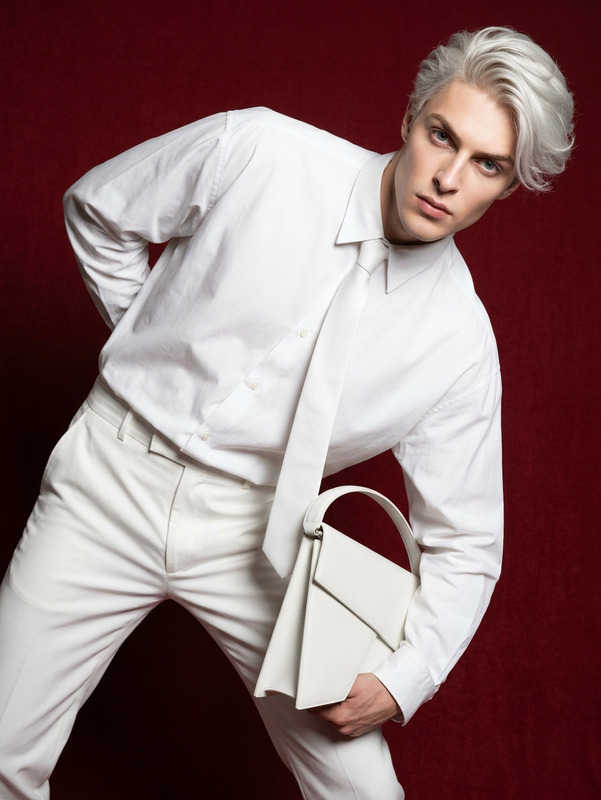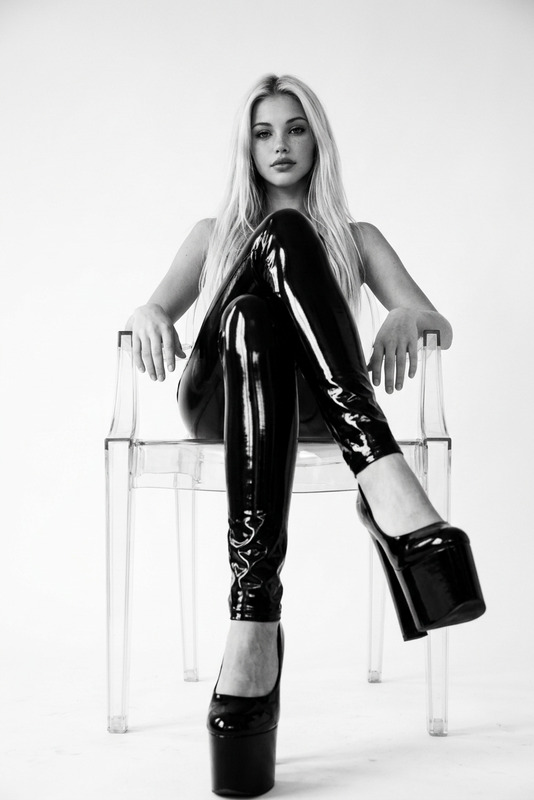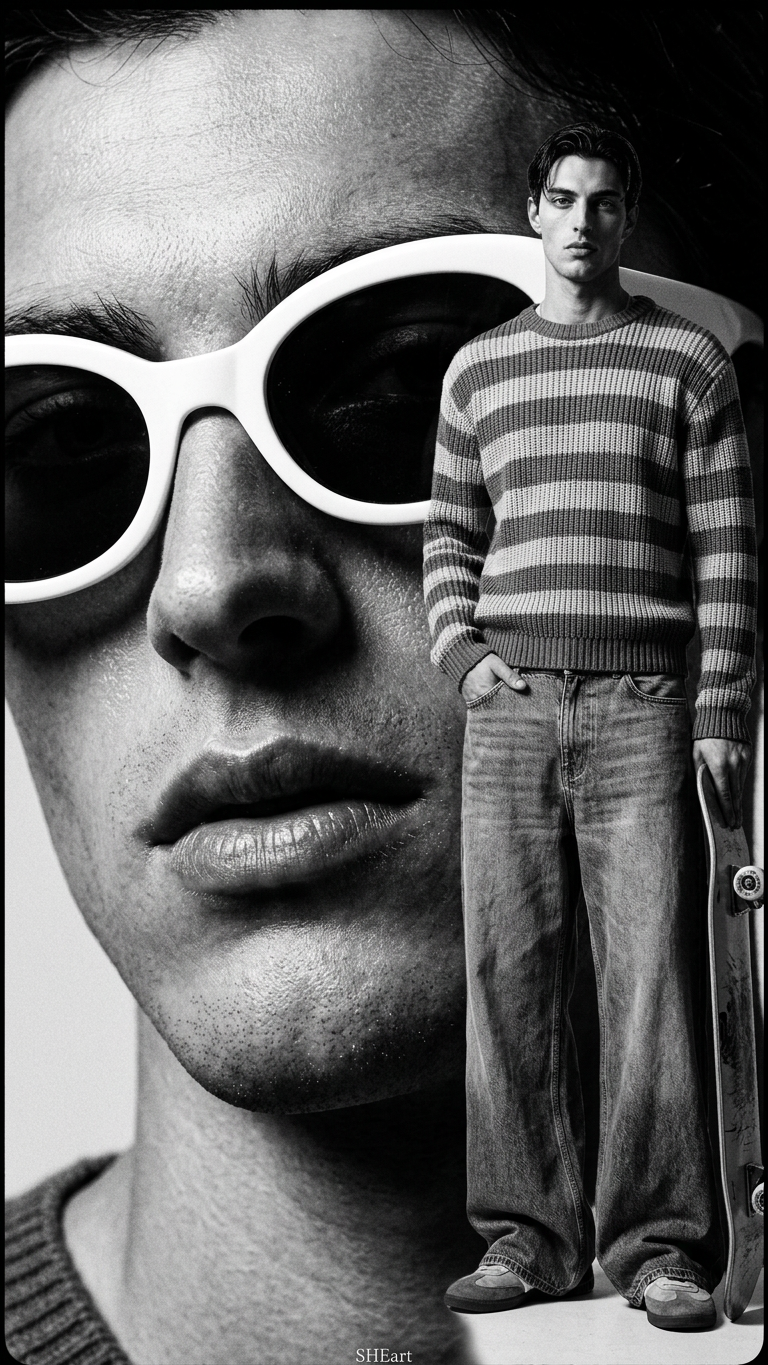
High-Fashion Dual Plane Editorial Portrait

High-Fashion Dual Plane Editorial Portrait

ai-image-editor

1 clip
4 uses

Any aspect ratio

Prompt

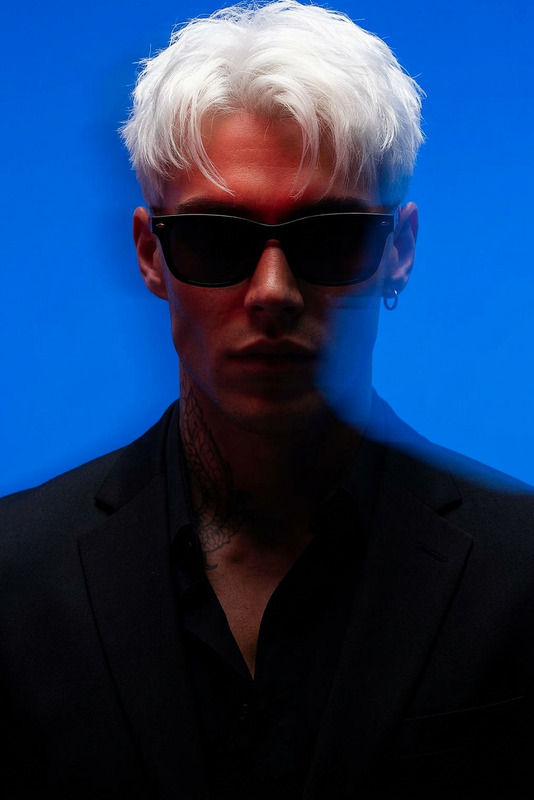
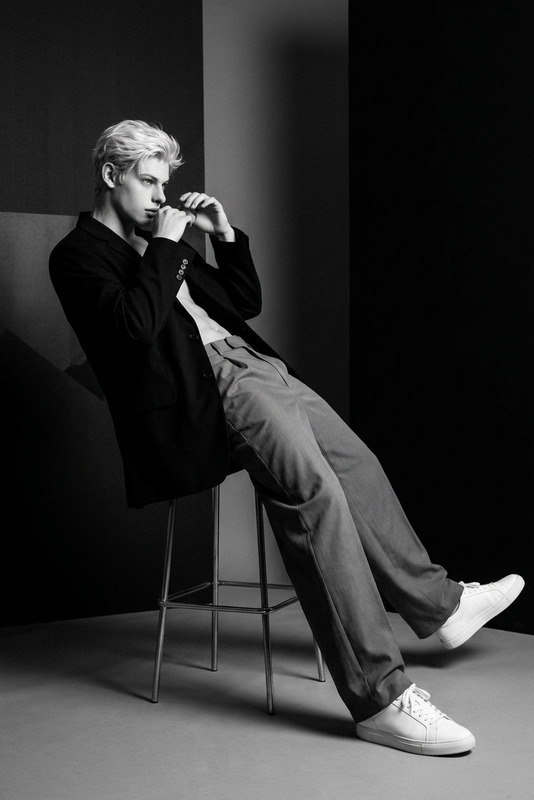
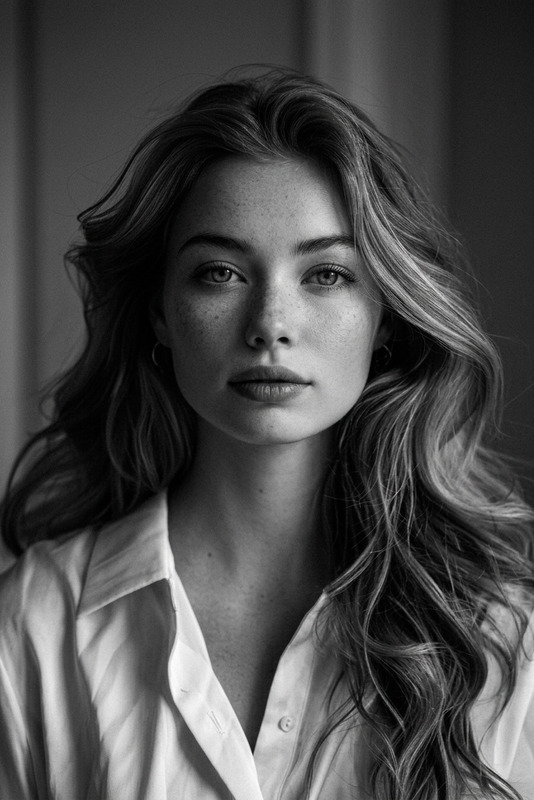
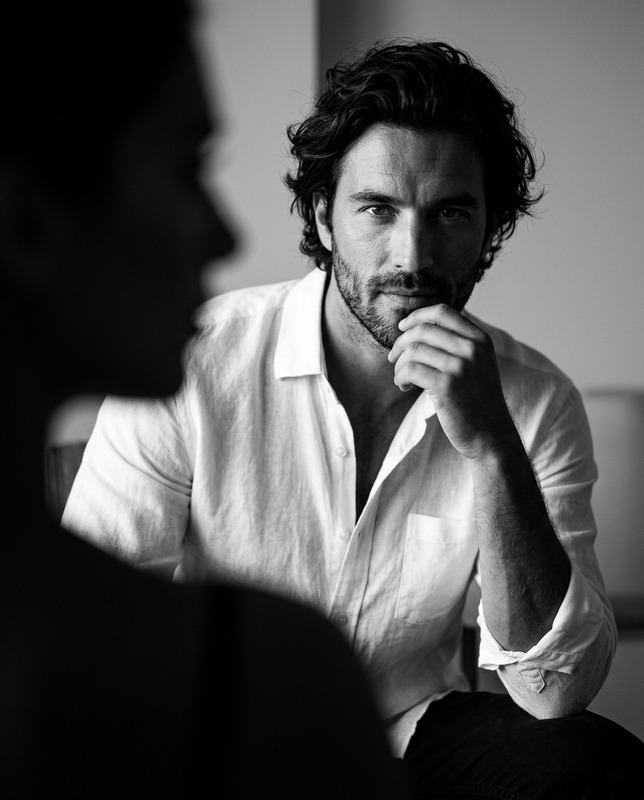
Generate a high-fashion black-and-white editorial photograph featuring two models in a dynamic dual-layer composition, where the foreground is dominated by an extreme close-up of a man wearing bold white oval sunglasses with slightly parted lips and dramatic directional lighting that emphasizes facial texture and deep shadows, while in the background a second full-body male model stands in a relaxed yet confident pose wearing a striped sweater and oversized wide-leg jeans that pool at the floor, one hand in his pocket and the other holding a skateboard casually at his side, creating a contrast between intimacy and context within a single cinematic frame; the overall composition blends striking close-up intensity with full-body editorial storytelling, enhanced by strong tonal contrast, rich textures, subtle analog film grain, and a timeless, raw fashion aesthetic.

AI Image Editor Template: Edit Any Image With Precision in Seconds

Transform, clean up, and redesign any image directly in your browser using Magic Hour’s AI Image Editor. This template shows you how to use AI-powered editing to remove objects, replace backgrounds, fix details, and generate new visual concepts—fast enough for production workflows, not just experiments.


What You Can Do With This Template

Use this AI Image Editor template as a jumping-off point to:

  • Remove unwanted objects and distractions
    Instantly erase logos, people, text, wires, or clutter with AI-powered removal, then intelligently fill the gap. For more targeted removal workflows, you can also explore the standalone AI Remover and Remove Object from Photo tools.

  • Change or clean up backgrounds
    Swap messy or off-brand backgrounds with clean, on-brand environments, gradients, or fully generated scenes. For background-heavy workflows (product shots, profile photos, marketing graphics), pair this template with the dedicated Image Background Remover and AI Background Generator.

  • Fix faces and details for professional visuals
    Smooth imperfections, refine facial features, and enhance portraits using AI-powered adjustments. For specialized face workflows—like virtual retouch, transformations, or character design—combine this with:

  • Re-style images for brand or campaign consistency
    Turn a raw photo into a stylized brand asset: change lighting, mood, colors, and composition. Creators often pair this with:

  • Upscale and restore images for production
    Clean up low-resolution or old images before publishing or printing. For more advanced restoration and sharpening flows, add:


How to Remix This Template in Magic Hour

You can create your own customized version of this template directly inside Magic Hour:

  1. Open the AI Image Editor
    Go to the AI Image Editor. Upload any image you want to work with—product shot, portrait, social asset, concept art, or screenshot.

  2. Edit by describing what you want
    Use natural language to describe the changes you need. For example:

    • “Remove the person on the left and extend the background.”
    • “Replace the plain wall with a modern office interior.”
    • “Turn this photo into a cinematic, moody portrait.”
    • “Make this product look like a polished studio shot on a white background.”
  3. Iterate quickly
    Try several variations, refine your prompt, and test different visual directions. Multiple small edits are often more controllable than one large change.

  4. Save your flow as a reusable template
    Once you have a combination of prompts and steps that consistently works for your use case (e.g., “clean product shot pipeline” or “LinkedIn headshot cleanup”), save it inside Magic Hour as your own personal template so your team can reuse it across assets and campaigns.

  5. Combine with other Magic Hour tools
    For end‑to‑end workflows, creators often connect this template with:


Use Cases for Creators, Marketers, and Builders

This AI Image Editor template is designed for fast, production-ready workflows:

  • Marketing & Growth Teams

    • Build on-brand ad creatives by cleaning raw UGC or quick photos without sending to a design team.
    • Localize or adapt visuals across campaigns by changing backgrounds, objects, or styling while keeping the core subject consistent.
    • Generate social-ready variations, then upscale for landing pages or billboards with AI Image Upscaler.
  • Product & Startup Teams

    • Turn quick prototype photos into polished visuals for decks, investor updates, and product pages.
    • Clean screenshots, remove sensitive UI elements, or redact data using AI removal.
    • Use the Thumbnail Maker and this template together to produce YouTube or feature thumbnails at scale.
  • Content Creators & Influencers

    • Edit portraits, thumbnails, and story assets in one place.
    • Remove distractions from travel or lifestyle shots, then restyle them for different platforms.
    • Create stylized versions of your photos using AI Anime Generator, Disney AI Generator, or AI Manga Generator, then fine-tune the details with the AI Image Editor.
  • Designers & Visual Developers


Advanced Combinations: From Static Images to Dynamic Media

Once your image is edited with this template, you can extend it into richer media:


Tips for Better AI Image Editing Results

  • Work from the highest-quality source you have
    AI models generally perform better with sharper, larger images. If your original is small or noisy, run it through the AI Image Upscaler or Unblur Image first.

  • Be specific in your descriptions
    Clear instructions lead to more predictable results. For example:

    • Instead of: “Make this better”
      Try: “Brighten the image, remove the text on the right, and replace the background with a simple light gray studio backdrop.”
  • Iterate in small steps
    For complex edits (e.g., remove multiple objects, adjust lighting, then restyle), break your process into several passes. This makes outputs more controllable and easier to debug.

  • Create reusable editing recipes
    If you’re consistently doing similar edits—like standardizing product photos or cleaning up headshots—save your process in Magic Hour as a reusable template. That’s exactly how this template was created and can be remixed for your own workflows.


Related Magic Hour Tools Worth Exploring

Depending on your project, these tools pair well with the AI Image Editor template:


Start Remixing This Template

Use this AI Image Editor template as a base, then adapt it to your own brand, style, and workflow inside Magic Hour. Combine it with generation, upscaling, background removal, and animation tools to build a complete, repeatable image pipeline—from rough input to polished, ready-to-ship creative assets.

More Like This

Insufficient credits